How to Wipe Data on M5 Chip Mac ?
To wipe data on M5 chip Mac, you can use Erase Assistant to reset the Mac, use Disk Utility in Recovery mode to erase the drive, or permanently wipe data from the Mac with a professional data erasure software. DoYourData Super Eraser for Mac can help you permanently wipe data to avoid data recovery and protect your privacy.
 Updated by Shirly Chen on January 20, 2026
Quick Navigation:
- Why You Might Need to Wipe Your M5 Mac
- Things to Do Before Wiping Your M5 Mac
- 3 Methods to Wipe Data on M5 Chip Mac
- Common Problems When Wiping an M5 Mac (And Fixes)
- FAQs about M5 Chip Mac Data Wipe
- Conclusion
Apple's M5 chip Macs come with powerful security features, fast performance, and advanced data protection. However, there are many situations where you may need to wipe all data from your Mac. Whether you are selling your device, fixing system issues, protecting personal information, or starting fresh, performing a proper data wipe is essential.

This guide explains how to wipe data on an M5 chip Mac using Apple's built-in tools and alternative methods. You'll learn the safest ways to erase your Mac, avoid common problems, and ensure your data is completely removed.
Why You Might Need to Wipe Your M5 Mac
There are several common reasons for erasing all data on a Mac:
- Selling or giving away the Mac
- Fixing serious macOS issues
- Removing malware or corrupted files
- Protecting sensitive personal data
- Starting fresh with a clean system
- Returning a company device
Because M5 Macs use advanced encryption and Secure Enclave technology, wiping data correctly ensures your information cannot be recovered by unauthorized users.
Things to Do Before Wiping Your M5 Mac
Before you erase your Mac, take these important steps to avoid losing important data or running into activation issues.
1. Back Up Your Data
Use one of these methods:
- Time Machine (external drive backup)
- iCloud Backup
- External SSD or USB drive
- Clone Mac with disk copy software
This ensures you can restore your files later.
2. Sign Out of Apple ID
Go to:
System Settings → Apple ID → Sign Out
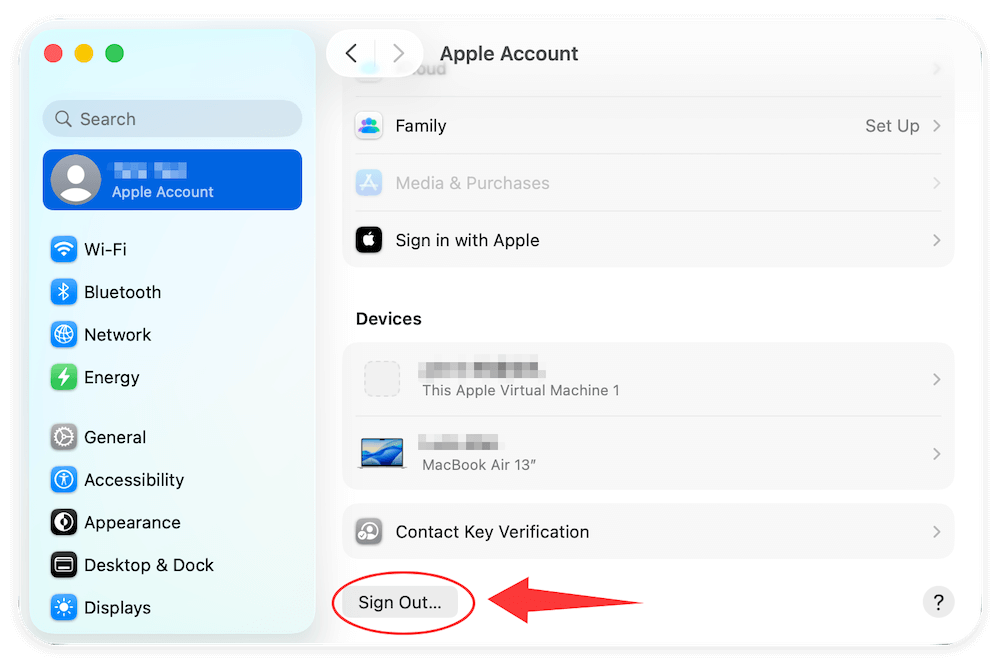
This removes Activation Lock and prevents issues for the next user.
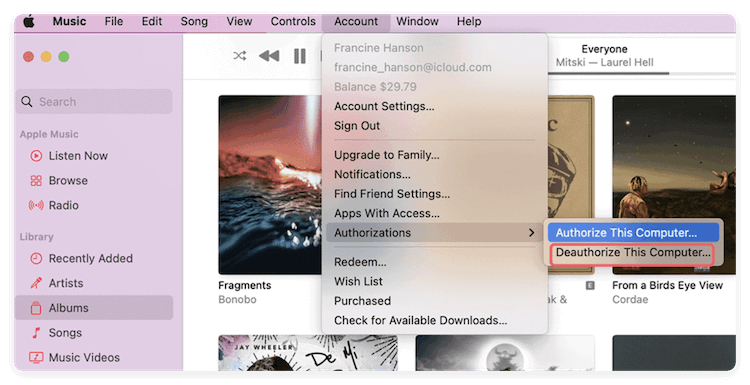
3. Deauthorize iTunes / Apple Music
If you use Apple Music:
Account → Authorizations → Deauthorize This Computer
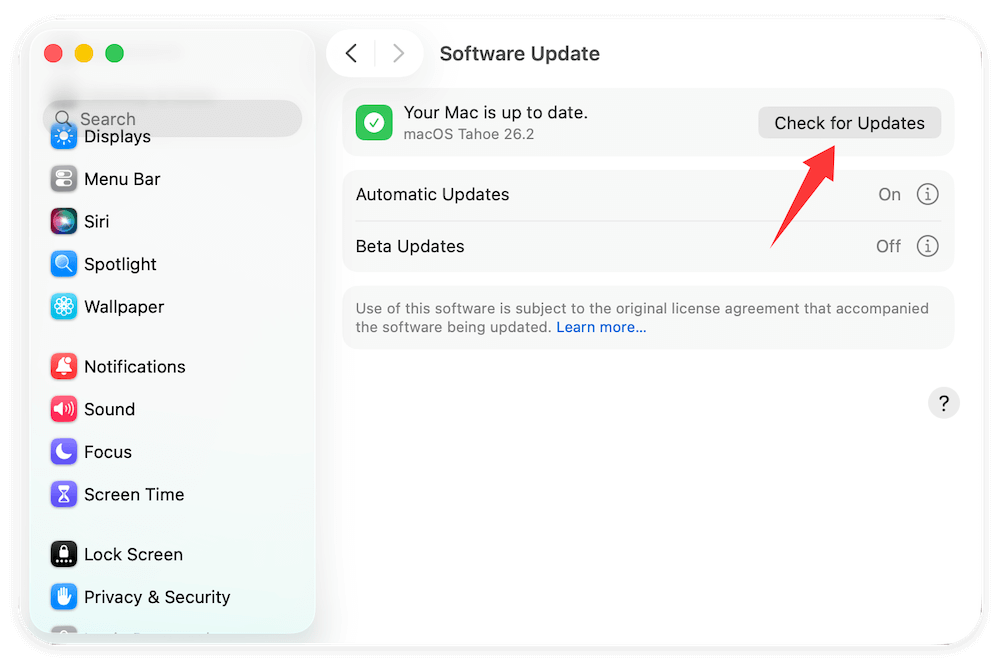
4. Check macOS Version
Some wipe features require newer macOS versions. Make sure your M5 Mac is updated.
3 Methods to Wipe Data on M5 Chip Mac
Method 1: Wipe Data Using "Erase All Content and Settings"
This is the easiest and safest way to reset an M5 Mac. Apple designed this tool specifically for Apple silicon Macs.
Requirements
- macOS Monterey or newer
- Admin account access
- Internet connection
Step-by-Step Instructions
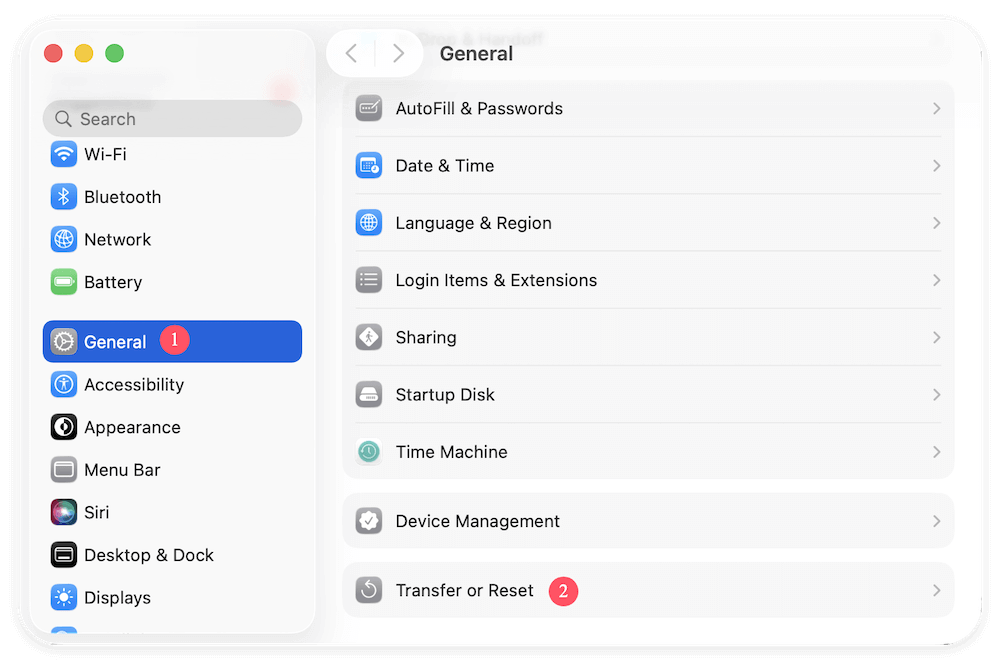
- Click the Apple Menu (), Open System Settings
- Go to General → Transfer or Reset
- Click Erase All Content and Settings
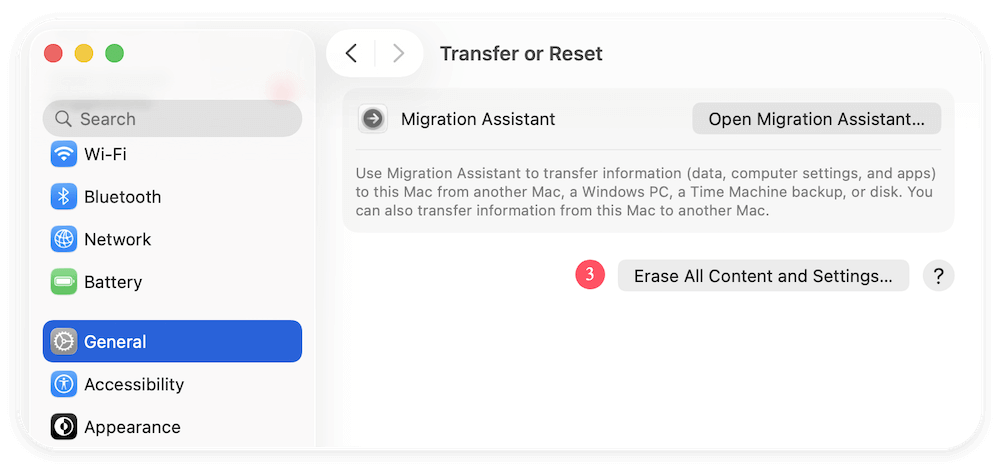
- Enter your admin password
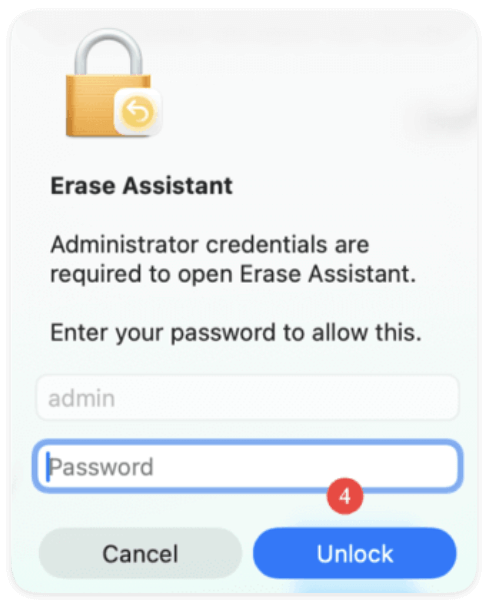
- Review the items that will be removed
- Click Erase All Content & Settings
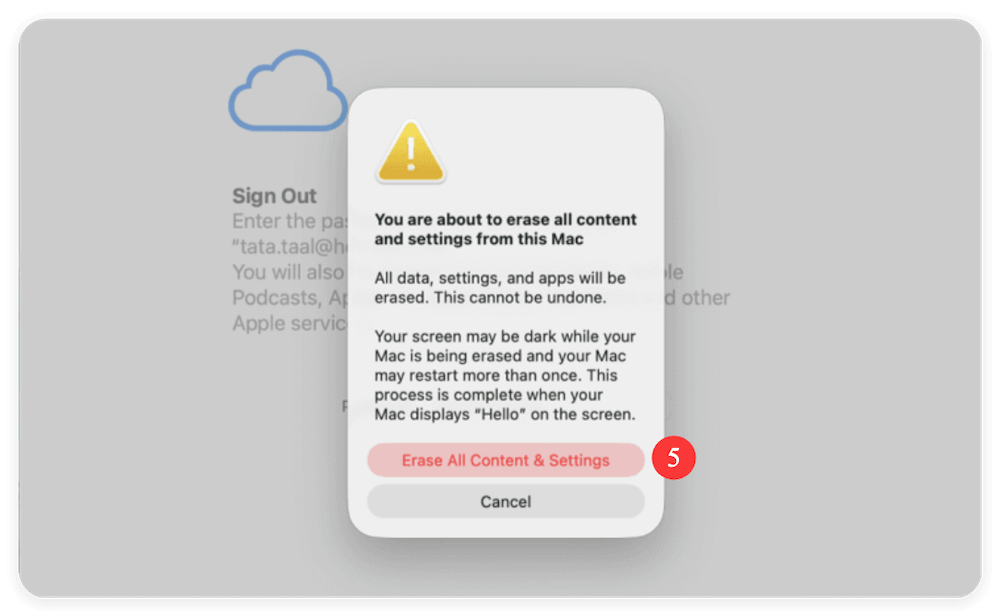
Your Mac will restart and erase all user data, apps, and settings.
What Gets Removed?
- User accounts
- Files and documents
- Apps
- iCloud data
- System settings
- Keychain and passwords
What Stays?
- macOS
- Firmware
- Secure Enclave data
This method is ideal for selling or giving away your Mac because it fully resets the device.
Method 2: Wipe Data Using macOS Recovery (Full Reset)
If your M5 chip Mac is experiencing serious system problems, fails to boot normally, or you want a completely fresh installation of macOS, using macOS Recovery is the most reliable method to wipe all data. This approach erases the internal drive manually and reinstalls macOS from Apple's servers.
Unlike "Erase All Content and Settings," Recovery Mode gives you full control over disk formatting, which is useful for fixing corrupted volumes, malware infections, and disk errors.
When Should You Use macOS Recovery?
Use this method if:
- Your Mac won't boot into macOS
- The Erase Assistant option is missing
- The system is infected with malware
- macOS is corrupted or unstable
- You need to fully reformat the disk
- You're troubleshooting disk or boot issues
This method ensures all user data, system files, and configurations are completely removed.
How to Enter macOS Recovery on an M5 Mac
Apple silicon Macs, including those with the M5 chip, use a different recovery process than Intel-based Macs.
- Shut down your Mac completely
- Press and hold the Power button
- Keep holding until you see "Loading startup options"
- Click Options, Select Continue
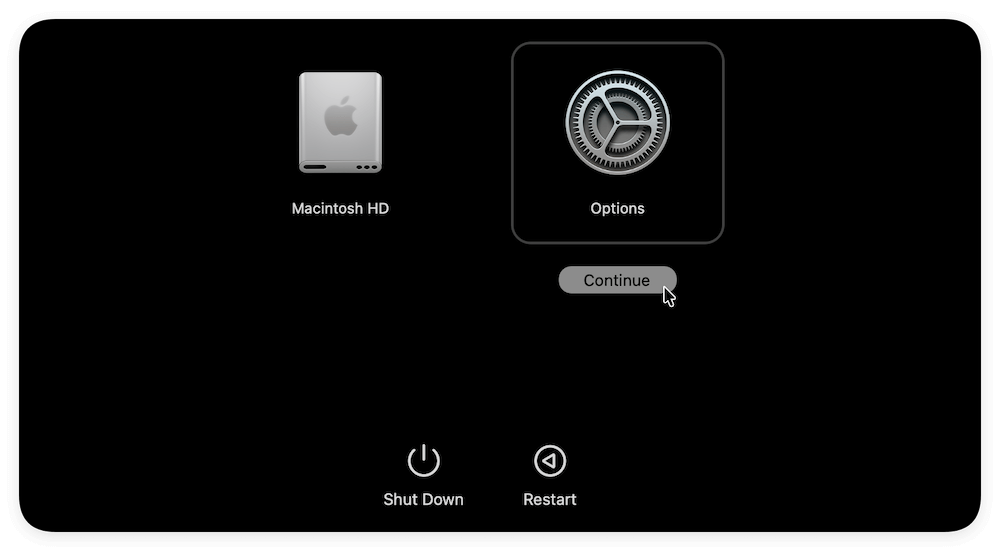
You will now enter the macOS Recovery environment.
If prompted, select an administrator account and enter the password.
Step 1: Erase the Internal Drive Using Disk Utility
Once in Recovery Mode, the first step is to erase your internal storage.
Open Disk Utility:
- Select Disk Utility, click Continue
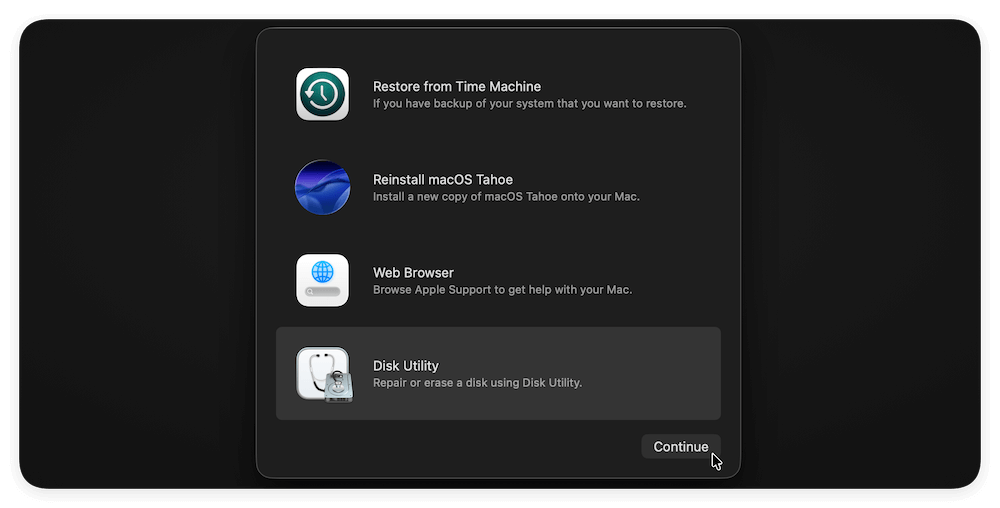
- In the sidebar, choose Macintosh HD (or your main drive), Click Erase
Recommended Settings:
- Name: Macintosh HD
- Format: APFS
- Scheme: GUID Partition Map
Click Erase to confirm.
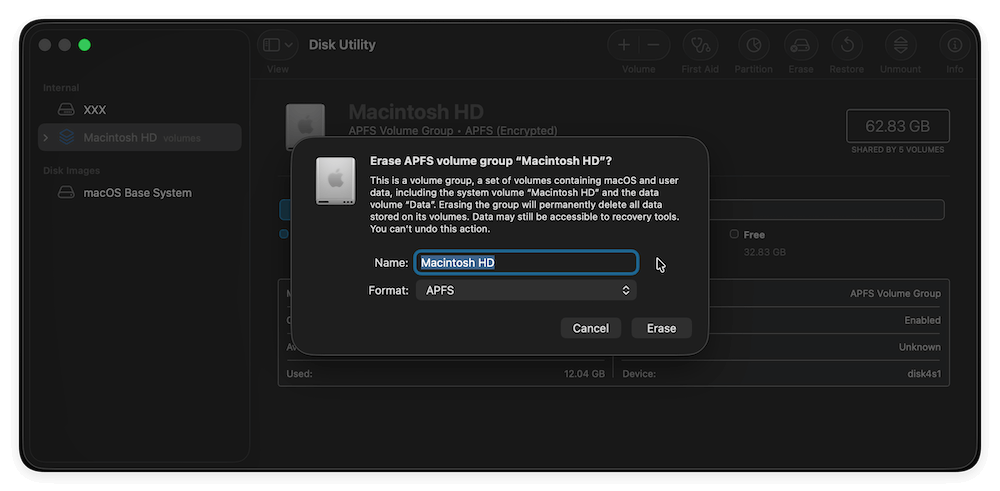
This process deletes all files, user accounts, apps, and system data from the drive.
Step 2: Erase Additional Volumes (If Present)
Some Macs have multiple APFS volumes such as:
- Macintosh HD – Data
- Preboot
- Recovery
- VM
For a complete wipe:
- Select View → Show All Devices
- Erase the entire container, not just the Data volume
This ensures no residual data remains.
Step 3: Reinstall macOS
After erasing the disk:
- Exit Disk Utility
- Select Reinstall macOS, click Continue
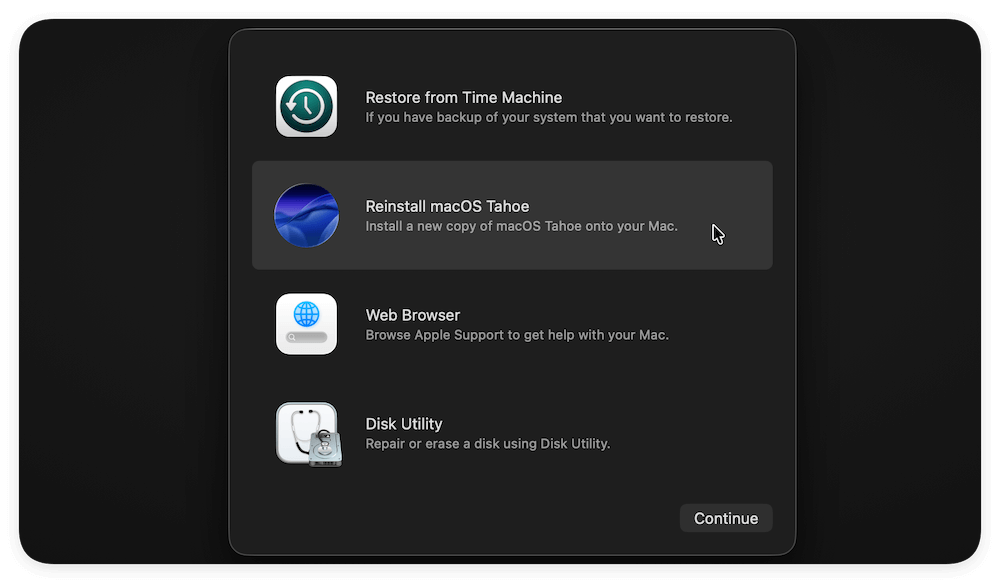
- Follow on-screen instructions
- Connect to Wi-Fi
- Wait for installation to complete
Your Mac will download a fresh copy of macOS directly from Apple and install it on the clean drive.
This process can take 30–60 minutes, depending on internet speed.
Step 4: Set Up the Mac (Or Shut Down for Sale)
Once macOS is installed:
- If you're keeping the Mac, complete the setup
- If you're selling it, shut it down at the setup screen
This allows the new owner to configure it as a brand-new device.
How Secure Is This Method?
On M5 Macs, storage is protected by:
- Hardware encryption
- Secure Enclave
- APFS encrypted volumes
When you erase the disk, encryption keys are destroyed, making data recovery virtually impossible. This means your personal information is permanently removed.
Method 3: Permanent Data Wipe Using Third-Party Tools
Apple's tools are usually enough. However, if you work with highly sensitive data (legal, financial, corporate), third-party tools offer advanced wiping methods.
Features to Look For
- Multi-pass overwriting
- Military-grade wipe standards
- SSD-compatible erasure
- Secure deletion reports
Risks
- Some tools can damage SSD lifespan
- Incompatible software may cause errors
- Always download from trusted sources
You can use the professional and reliable data erasure software DoYourData Super Eraser for Mac to wipe sensitive data.
DoYourData Super Eraser for Mac
- Permanently wipe data to avoid data recovery.
- Securely wipe SSD without affect the lifespan.
- 3 modes to shred files or wipe drive flexibly.
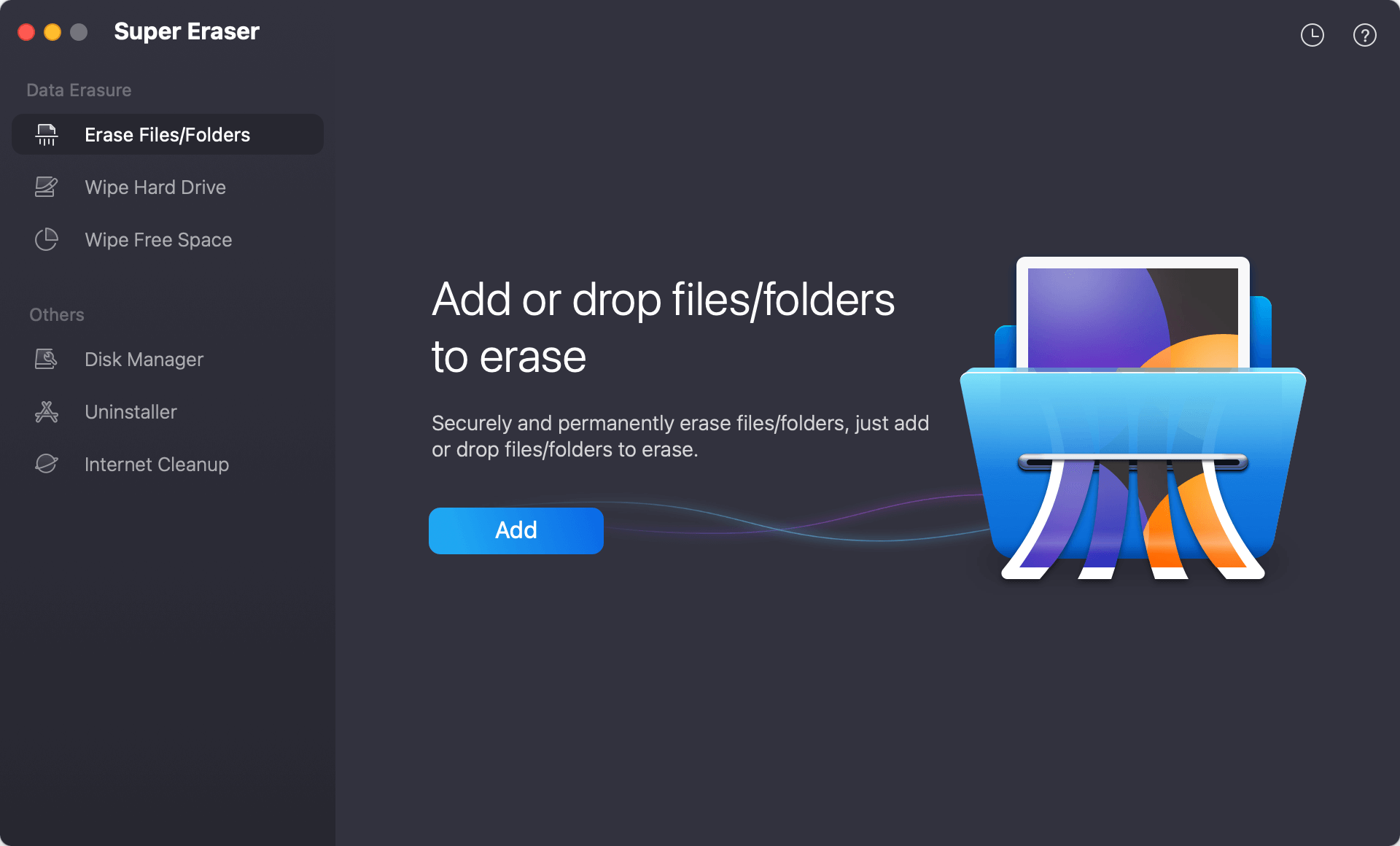
The software offers 3 modes to wipe data in different situations. For example:
Mode 1: Erase Files/Folders
With this mode, you can shred specified files or folders without affecting the other files. It's ideal for the case when you need to remove sensitive or confidential files.
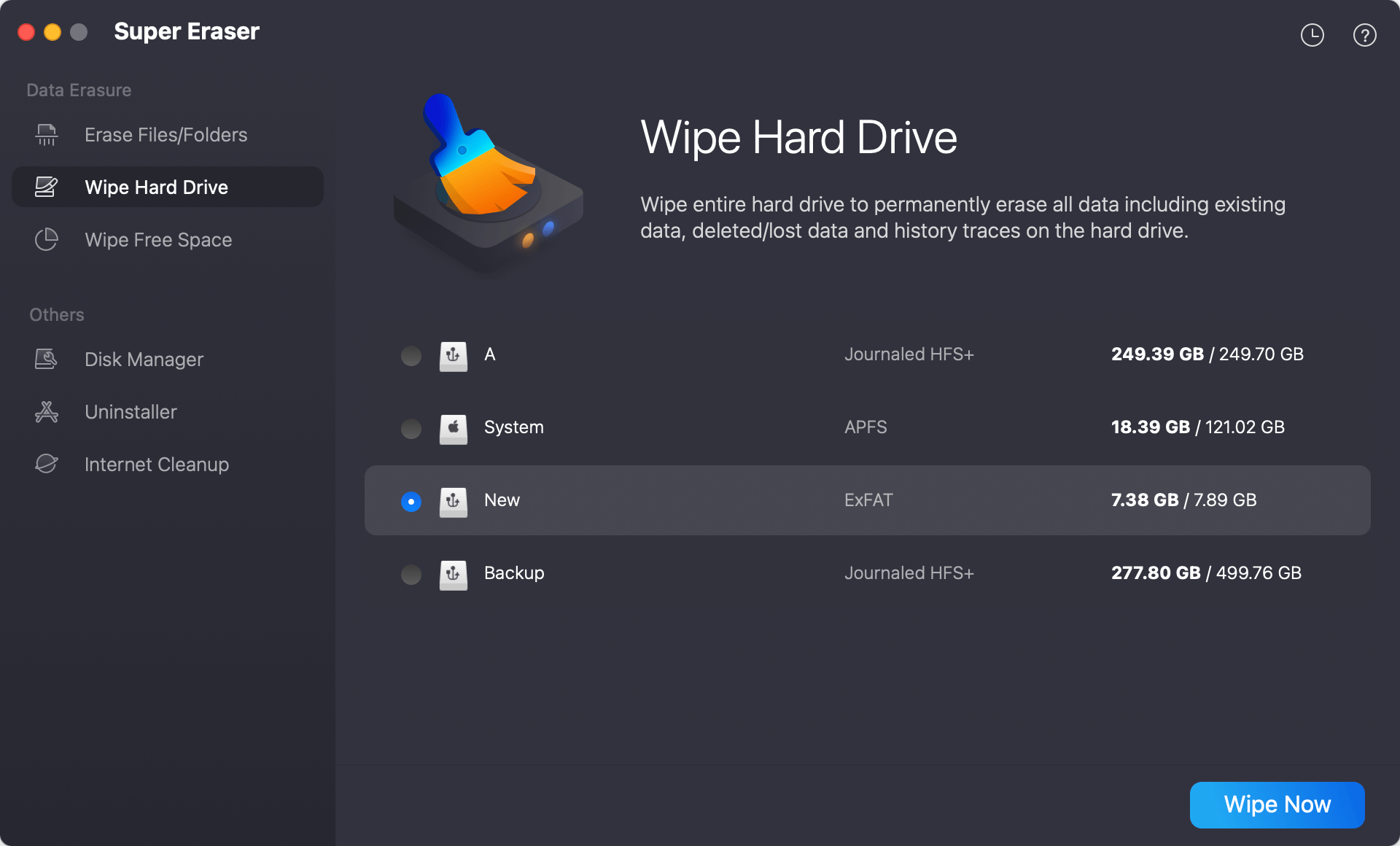
Mode 2. Erase Hard Drive
When you need to wipe an entire drive or external drive, you can use this mode. It can help you wipe all the data from the drive.
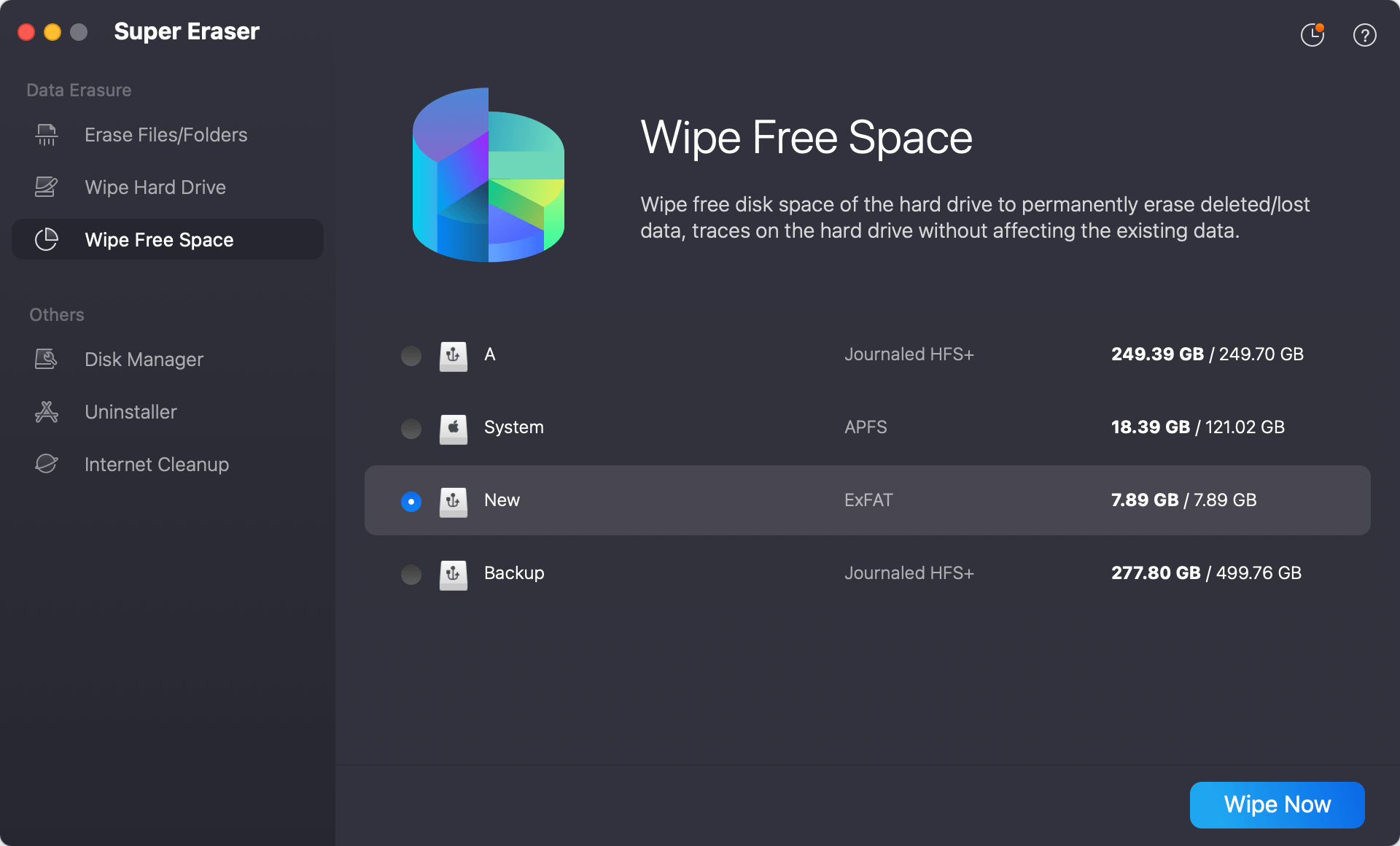
Mode 3. Erase Free Space
If some data was deleted and you want to ensure the data will no longer be recovered, you can use this mode. For example, you can use it to wipe the startup disk after a factory reset to ensure data security.
Common Problems When Wiping an M5 Mac (And Fixes)
1. "Erase Assistant Not Available"
Update macOS or use Recovery Mode.
2. macOS Recovery Won't Load
- Check internet
- Try again with stable power
- Use another macOS installer USB
3. Disk Won't Erase
- Use Disk Utility First Aid
- Reformat as APFS
- Try Safe Mode
4. Activation Lock After Wipe
- Sign in with original Apple ID
- Remove device from iCloud.com
5. macOS Reinstall Fails
- Free up space
- Check Wi-Fi
- Restart and try again
FAQs about M5 Chip Mac Data Wipe
1. Does factory reset remove all data permanently?
Yes, especially on M5 Macs with encrypted storage.
2. Is Erase Assistant safe?
Yes, it's Apple's official reset tool.
3. Can someone recover my files after data wiping?
Possible Only If:
- You have a Time Machine backup
- You saved files to iCloud
- You used external backups
Not Possible If:
- The drive was encrypted and wiped
- Secure erase was performed
- Encryption keys were destroyed
Modern Apple silicon Macs make post-wipe recovery nearly impossible without backups.
4. Should I remove my Apple ID before wiping?
Yes, to avoid Activation Lock issues.
5. Is wiping good for performance?
A clean install can improve speed and stability.
6. How secure is data wiping on M5 Macs?
M5 Macs use:
- Hardware-based encryption
- Secure Enclave
- APFS encrypted storage
When you erase data properly, the encryption keys are destroyed, making recovery practically impossible. This makes modern Mac data wiping extremely secure.
7. How to Restore Data After Wiping
If you backed up your files:
Restore Using Time Machine
- During setup, choose Restore from Backup
- Connect backup drive
- Select backup
- Restore files
Restore from iCloud
Sign in with your Apple ID and sync data.
Conclusion
Wiping data on an M5 chip Mac is simple, secure, and reliable when done correctly. Apple provides powerful built-in tools that ensure your personal information is protected and permanently removed.
Whether you're selling your Mac, fixing issues, or starting fresh, following the steps in this guide will help you reset your device safely and confidently.
Always remember:
- Back up first
- Sign out of Apple ID
- Use official tools
- Double-check before erasing
With proper preparation, wiping your M5 Mac is quick, safe, and stress-free.
DoYourData Super Eraser for Mac
DoYourData Super Eraser for Mac is a 100% safe, powerful and easy-to-use data erasure program. It offers certified data erasure standards including Peter Gutmann, U.S. Army AR380-19, DoD 5220.22-M ECE to permanently erase data from Macs and external devices, making data recovery be impossible.
Written & Updated by Shirly Chen
Shirly Chen has been writing data recovery, data erasure articles for DoYourData over 4 years. She has been working as a professional website content writer & editor for quite a long time. She also writes articles about disk clone, Mac optimization, disk backup, etc.