Best Disk Cloning Software for Windows 11 26H2
How to make a full and safe disk clone on Windows 11 26H2 computer? Top Pick for Ease & Safety: DoYourClone - Seamless sector-by-sector/smart cloning, 100% Windows 11 26H2 bootable NVMe support.
 Updated by Darren on September 28, 2026
Quick Navigation:
- Why You Need Disk Cloning Software for Windows 11 26H2
- How We Tested and Evaluated the Cloning Software
- Top 6 Best Disk Cloning Software for Windows 11 26H2
- How to Clone Hard Drive in Windows 11 26H2 with DoYourClone
- FAQs about Disk Cloning on Windows 11 26H2
- Final Verdict
Microsoft continues to refine Windows 11 with its annual updates, and Windows 11 26H2 introduces crucial system architectural enhancements, optimized AI features, and updated storage driver protocols. Whether you are upgrading your PC with a faster M.2 NVMe SSD, replacing an aging Mechanical Hard Drive (HDD), or simply creating a dynamic full system backup, using a trustworthy disk cloning tool is essential.
Cloning a hard drive copies everything from your old drive to a new one—including the operating system, installed applications, personal files, registry keys, and hidden boot partitions. However, with Windows 11 26H2, older cloning utilities often struggle with system bootability, UEFI settings, TPM 2.0 flags, and BitLocker encryption.
To help you upgrade seamlessly without reinstalling Windows from scratch, we tested and analyzed the top disk cloning solutions on the market. In this comprehensive guide, we present the best disk cloning software for Windows 11 26H2, evaluating speed, ease of use, security features, and overall reliability.
Why You Need Disk Cloning Software for Windows 11 26H2
Cloning a disk on Windows 11 26H2 is significantly different from cloning older versions like Windows 10 or Windows 7. Microsoft has enforced stricter security standards and driver structures that impact storage controllers directly.
Here are the key technical factors to keep in mind when cloning a drive in Windows 11 26H2:
- UEFI and GPT Partition Standards: Windows 11 26H2 requires a UEFI boot scheme combined with a GPT (GUID Partition Table) partition style. Older disk cloning tools configured for MBR (Master Boot Record) will produce an unbootable drive after cloning.
- BitLocker Device Encryption: Modern Windows 11 laptops and pre-built desktops often ship with BitLocker enabled by default. Software without auto-decryption capabilities or dynamic BitLocker cloning will stall or produce corrupted cloned partitions.
- NVMe Driver & 4K Alignment: Solid State Drives (SSDs), particularly high-speed PCIe 4.0 and PCIe 5.0 NVMe drives, require strict 4K sector alignment. Proper alignment maximizes read/write performance and prevents premature drive wear.
- Hot Cloning (VSS Technology): The ideal cloning tool utilizes Volume Shadow Copy Service (VSS) to clone the system drive while Windows is running, saving you time and avoiding reboot interruptions.
How We Tested and Evaluated the Cloning Software
To select the best disk cloning tools for Windows 11 26H2, our engineering team evaluated 10 popular disk utilities based on five essential criteria:
- Bootability Guarantee: Does the cloned disk boot into Windows 11 26H2 instantly without 'Blue Screen of Death' (BSOD) errors?
- Cloning Speed & Efficiency: How fast does the software transfer data across SATA, USB 3.2, and M.2 NVMe interfaces?
- User Interface & Simplicity: Is the cloning procedure straightforward for everyday users without complex technical jargon?
- Partition Flexibility: Can the tool clone a larger HDD to a smaller SSD, or automatically extend partitions when cloning to a larger disk?
Top 6 Best Disk Cloning Software for Windows 11 26H2
Top 1. DoYourClone (Recommended)
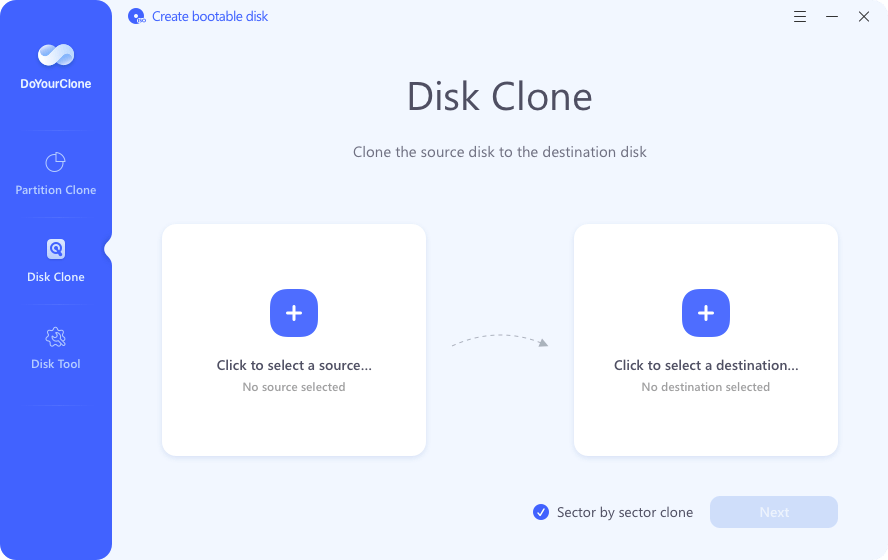
DoYourClone stands out as the most user-friendly, fast, and reliable cloning solution for Windows 11 26H2. Built with an intuitive wizard-based interface, it empowers both beginners and IT professionals to clone hard drives, migrate operating systems, and back up vital data with zero technical hassle.
Whether you want to upgrade your slow mechanical hard drive to a blazing-fast M.2 NVMe SSD or replace a smaller drive with a larger one, DoYourClone handles sector-by-sector copying and smart partition resizing flawlessly.
Key Features for Windows 11 26H2:
- System Clone Mode: Migrates Windows 11 OS, boot partitions, system settings, and applications to a new drive with a single click.
- Disk/Partition Clone Mode: Offers complete flexibility to clone an entire hard drive or selective data partitions.
- Auto 4K SSD Alignment: Automatically aligns sectors during cloning to optimize SSD performance and lifespan.
- Hot Cloning Support: Clones active drives in the background using Microsoft VSS technology without requiring a computer reboot.
- Smart Resizing: Easily adjusts partition sizes to clone a larger HDD to a smaller SSD without data loss.
👍 Pros: Extremely simple 3-step operation; 100% bootable success rate on Windows 11 26H2; supports all NVMe, SATA, and external USB drives; light on system resources.
👎 Cons: Free version offers full disk scanning and preview; full cloning functionality requires activation.
Top 2. Macrium Reflect
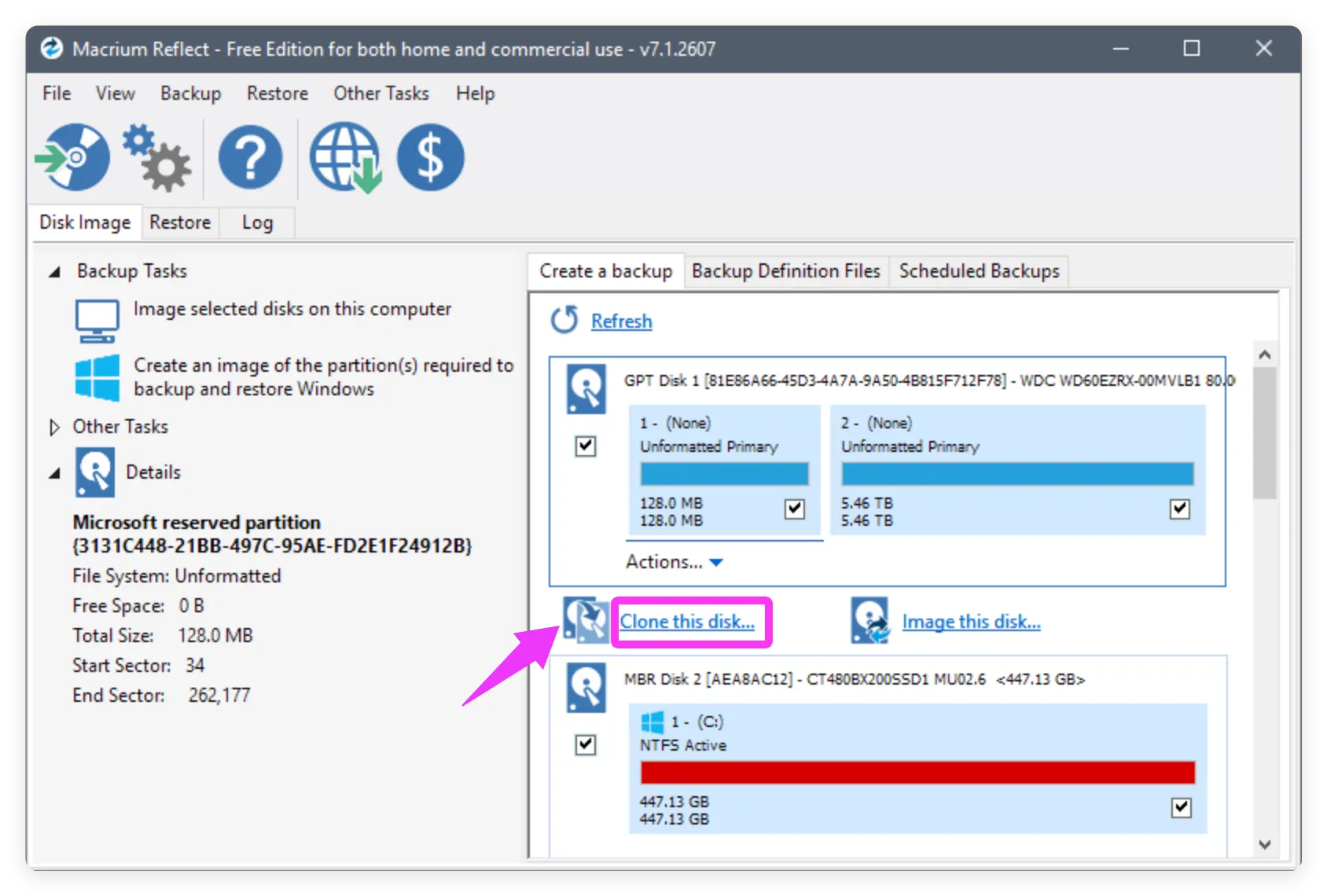
Macrium Reflect is a heavy-duty backup and disk imaging software widely trusted by system administrators. It excels at scheduled image-based backups, Rapid Delta Cloning, and system recovery.
While Macrium retired its free edition for personal use, the commercial version remains one of the most reliable options for complex enterprise cloning setups on Windows 11.
👍 Pros: Rapid Delta Clone speeds up repeated cloning; robust WinPE bootable rescue media builder.
👎 Cons: Steep learning curve for casual users; expensive licensing structure; interface feels cluttered.
Top 3. Acronis Cyber Protect Home Office
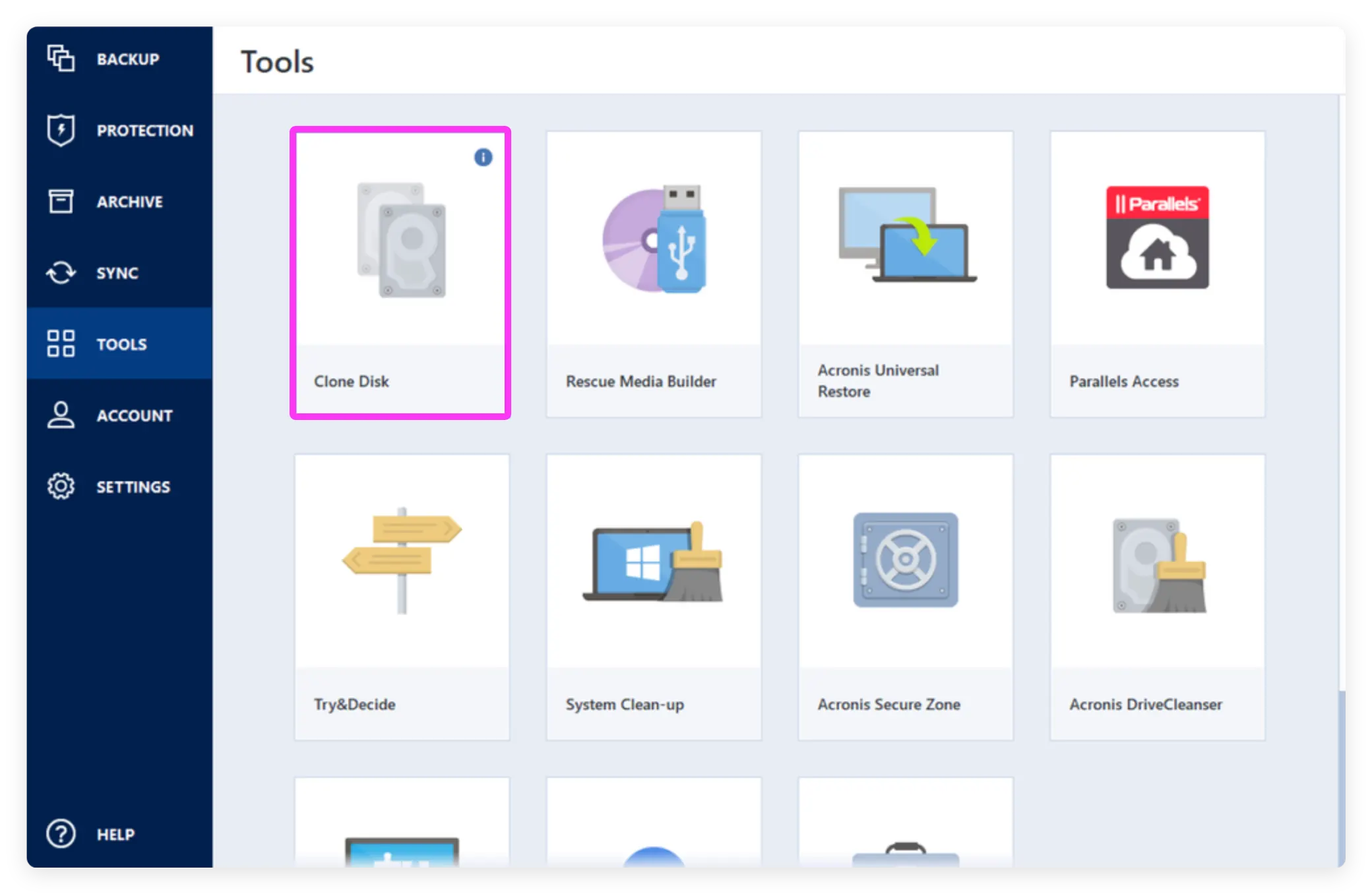
Formerly known as Acronis True Image, this software combines disk cloning with real-time cybersecurity, cloud backup, and ransomware defense.
It is an all-in-one suite designed for users who want complete endpoint security alongside active drive cloning features.
👍 Pros: Integrated cloud backups; comprehensive cyber protection; active disk cloning.
👎 Cons: Subscription-only pricing model; high background resource consumption; overly complex for simple cloning tasks.
Top 4. Clonezilla (Best Open-Source Free Tool)
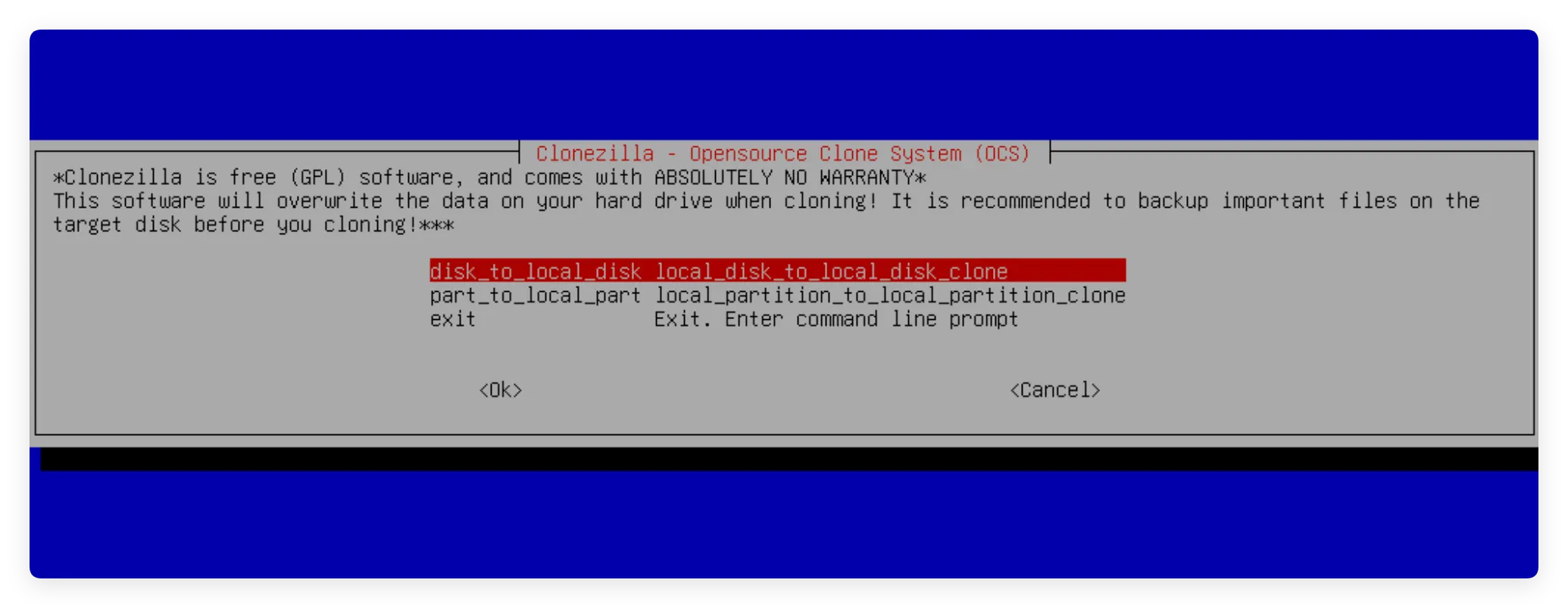
Clonezilla is a bare-metal, open-source disk cloning and imaging program. It runs independently from a bootable USB drive, making it entirely platform-agnostic.
Because it operates outside of Windows, it circumvents Windows-level software conflicts. However, its command-line interface makes it challenging for average users.
👍 Pros: 100% free and open-source; powerful features for batch network cloning.
👎 Cons: Text-based menu interface; no graphical UI; risky for beginners as a wrong click can overwrite data.
Top 5. AOMEI Backupper
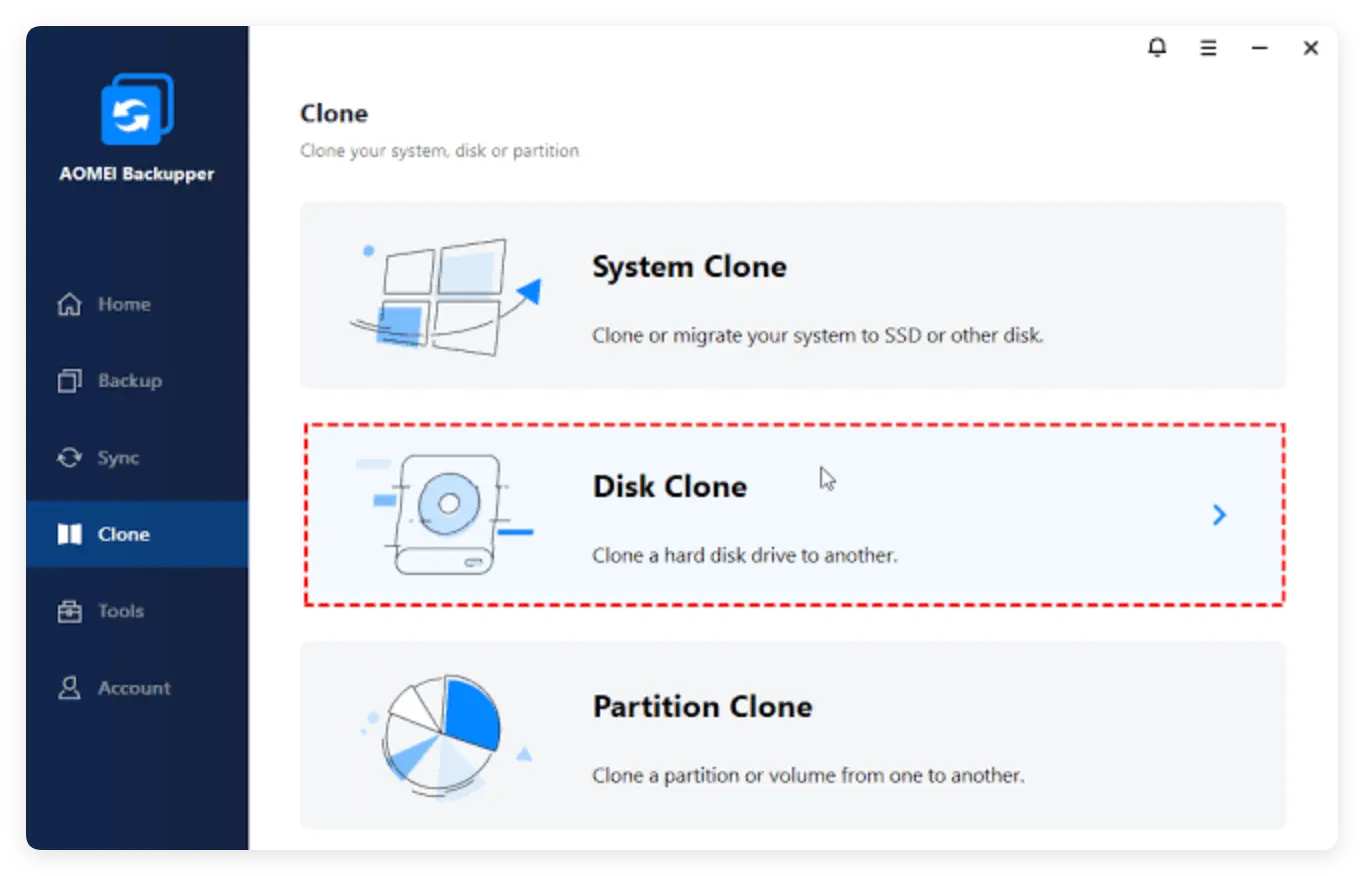
AOMEI Backupper is another popular utility designed for Windows disk cloning, system deployment, and file sync.
It provides standard system migration and disk copying utilities, alongside tools to merge or split backup images.
👍 Pros: Straightforward navigation; includes basic synchronization utilities; decent SSD alignment features.
👎 Cons: Free edition lacks system disk cloning; speed can be inconsistent on large NVMe drives.
Top 6. Samsung Data Migration Software
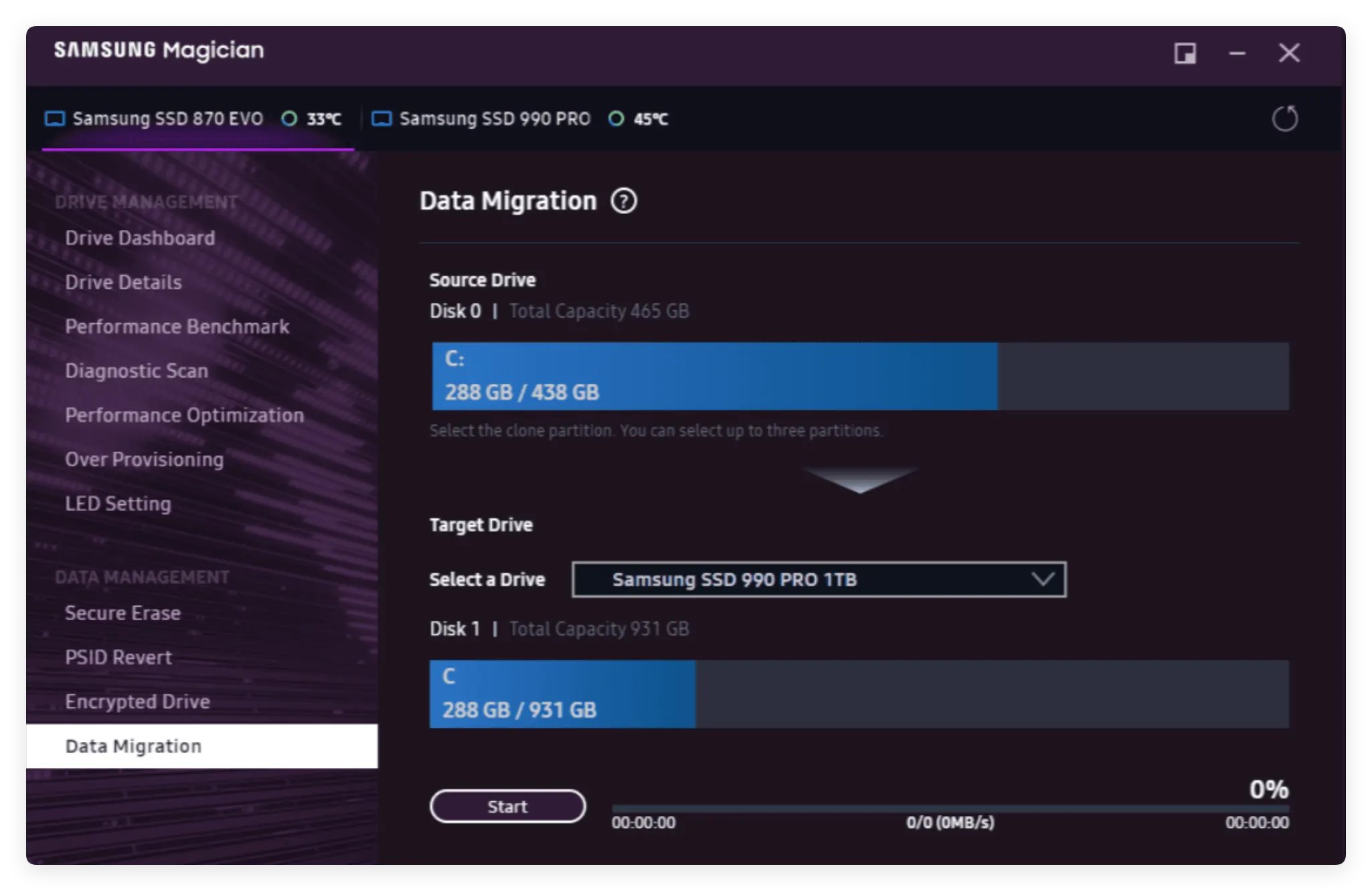
Samsung Data Migration is a proprietary cloning utility designed specifically for users upgrading to Samsung SSDs (such as the 980 Pro, 990 Pro, or 870 EVO series).
While fast and reliable, its primary restriction is that the target drive must always be a Samsung SSD.
👍 Pros: Free for Samsung SSD owners; optimized transfer speeds for Samsung controllers.
👎 Cons: Strict hardware lock (works only if the target drive is Samsung); limited partition management tools.
Side-by-Side Comparison Matrix
To help you make an informed decision, here is a breakdown of how the top disk cloning tools compare across crucial metrics for Windows 11 26H2:
| Software | Win 11 26H2 Bootable | Interface | 4K SSD Alignment | Best For |
|---|---|---|---|---|
| DoYourClone | 100% Yes | Beginner Friendly | Automatic | Best overall OS & SSD cloning |
| Macrium Reflect | Yes | Complex / Technical | Manual / Auto | IT professionals & advanced users |
| Acronis Cyber Protect | Yes | Moderate | Automatic | Users wanting cloud security bundles |
| Clonezilla | Yes (via USB) | Command Line | Manual | Technical experts looking for free tools |
| AOMEI Backupper | Yes (Paid) | Moderate | Automatic | Basic disk cloning needs |
| Samsung Data Migration | Yes | Simple | Automatic | Exclusive Samsung SSD upgrades |
How to Clone Hard Drive in Windows 11 26H2 with DoYourClone
Upgrading your drive using DoYourClone is seamless and takes just three straightforward steps. Follow this guide to clone your system drive to a new NVMe SSD without reinstalling Windows 11 26H2.
Step 1: Download, Install, and Connect Your New Drive
Download and install DoYourClone on your Windows 11 26H2 computer. Connect your target drive (new SSD or HDD) to your PC using an M.2 NVMe enclosure, SATA-to-USB adapter, or by installing it directly into an open motherboard slot.
DoYourClone - Reliable Disk Clone Software
- Top 1 disk cloning software for Windows 11 267H2.
- Create an exact 1:1 copy of your disk or partition.
- Make complete and bootable clone for the system hard drive.
Step 2: Choose Partition Clone or Disk Clone Mode
If you want to migrate Windows 11 OS and all system files, select Disk Clone mode (If you only want to clone a data partition instead, you can then choose the Partition Clone mode.). Select your current Windows 11 system drive as the source. Choose your new HDD or SSD as the Destination Drive.
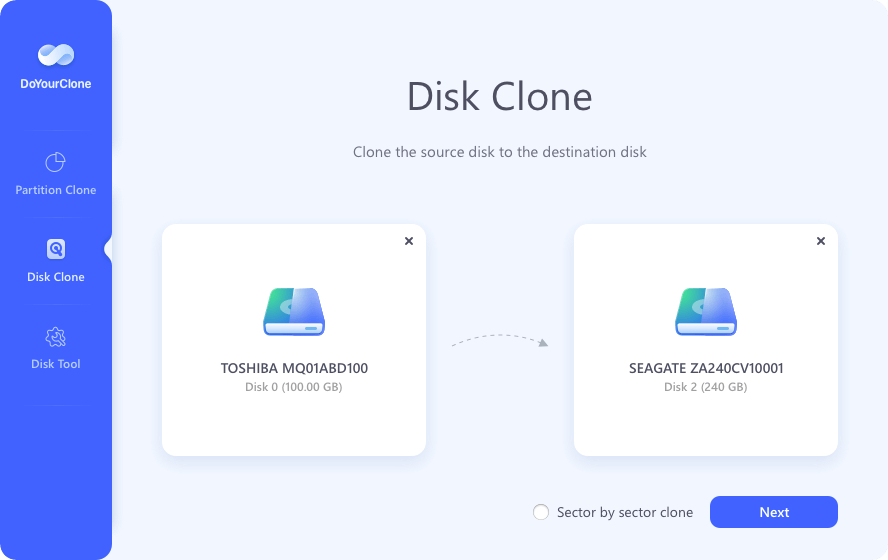
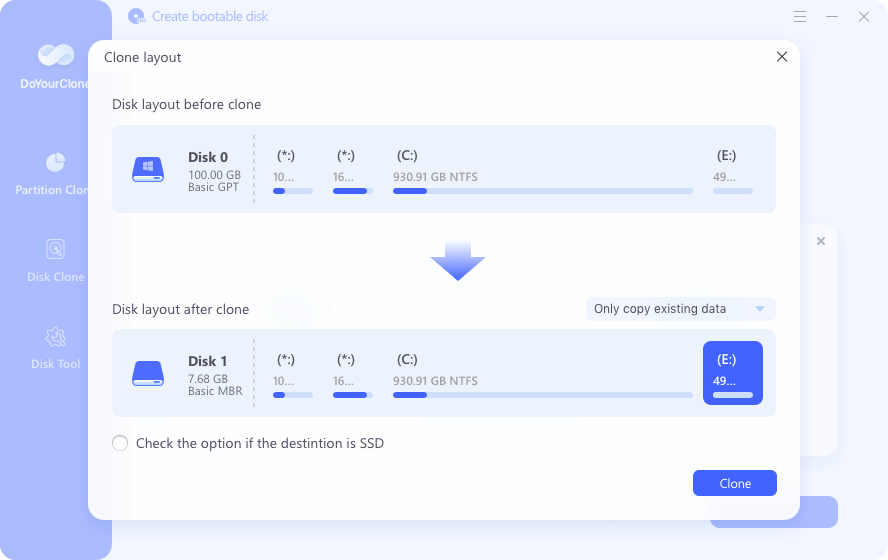
Step 3: Preview the Disk Layout on Destination Drive.
You can preview the destination disk layout before cloning. If you want, there are a few options to change the disk layout manually or automatically. Check the option for 'Check the option if the destination is SSD' to enable automatic 4K alignment.
Step 4: Execute Cloning and Boot from the New SSD
Click the 'Clone' button. The software will safely copy all system partitions and data to the new drive. Once completed, shut down your PC.
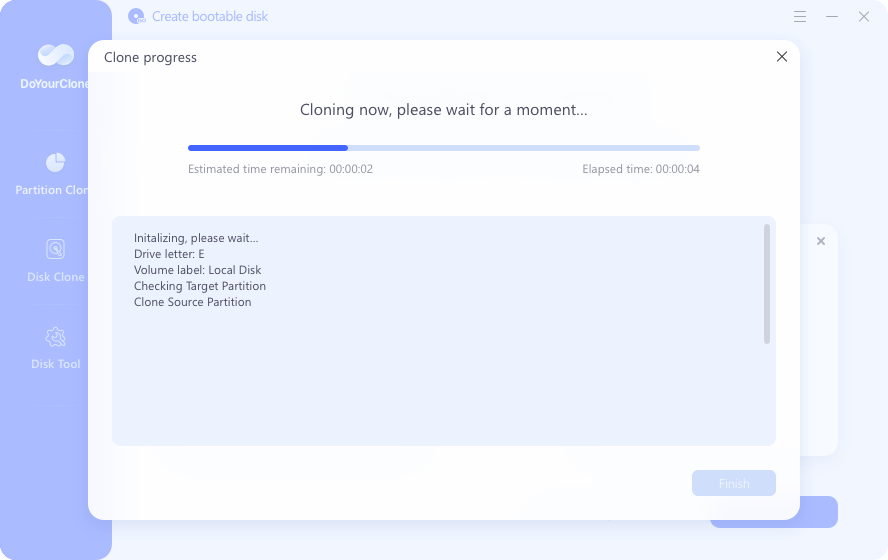
Restart your computer, enter BIOS/UEFI setup (usually by pressing F2, F12, or Del during boot), and set the new cloned SSD as the primary boot device.
💡 Tip: If your cloned drive does not boot immediately, ensure that Secure Boot is enabled in your UEFI settings and that your original BitLocker encryption keys were verified prior to drive removal.
FAQs about Disk Cloning on Windows 11 26H2
Final Verdict
Upgrading to Windows 11 26H2 offers exciting system performance enhancements, but maximizing those speed gains requires fast, reliable storage. Cloning your old hard drive to a high-speed NVMe SSD is the single best hardware upgrade you can make.
While tools like Macrium Reflect and Clonezilla cater to technical experts, DoYourClone provides the ultimate balance of simplicity, speed, 100% bootable reliability, and smart 4K SSD optimization. Download DoYourClone today to upgrade your Windows 11 system effortlessly without losing a single file!
DoYourClone - Best Disk Clone Software
DoYourClone is a 100% safe, powerful and easy-to-use disk cloning program. It supports to clone any hard drive, clone HDD to SSD, upgrade old drive to new drive, create bootable clone backup for Windows and macOS. With this program, you can easily clone any hard drive. It supports sector by sector clone, SSD upgrade clone, etc.
Written & Updated by Darren
Darren is an senior editor at DoYourData. Since 2021, Darren has written 100+ articles about data recovery, Mac file recovery, disk management, disk clone, computer issue fixes, etc. He helps lost of users to recover important data, get the reliable data backup solution, find optimization for PCs and Macs.