How to Permanently Delete Files from SSD So They Cannot Be Recovered
How to permanently deleted files from SSD so that they cannot be recovered? Here is absolute safest, step-by-step way to wipe your files for good using professional tools like DoYourData Super Eraser.
 Updated by Shirly Chen on May 20, 2026
Quick Navigation:
- The Hidden Danger: Why Normal Deletion Fails on SSDs
- The Ultimate Solution: DoYourData Super Eraser
- Native OS Wiping Methods (And Their Major Limitations)
- FAQs about Wiping SSD Permanently
- Conclusion
Are you getting ready to sell your old computer, give your external SSD to a friend, or clear out highly sensitive personal documents? If so, you might think that selecting a file, hitting "Delete," and emptying your Recycle Bin or Trash is enough to make it disappear forever.
Unfortunately, it isn't that simple.
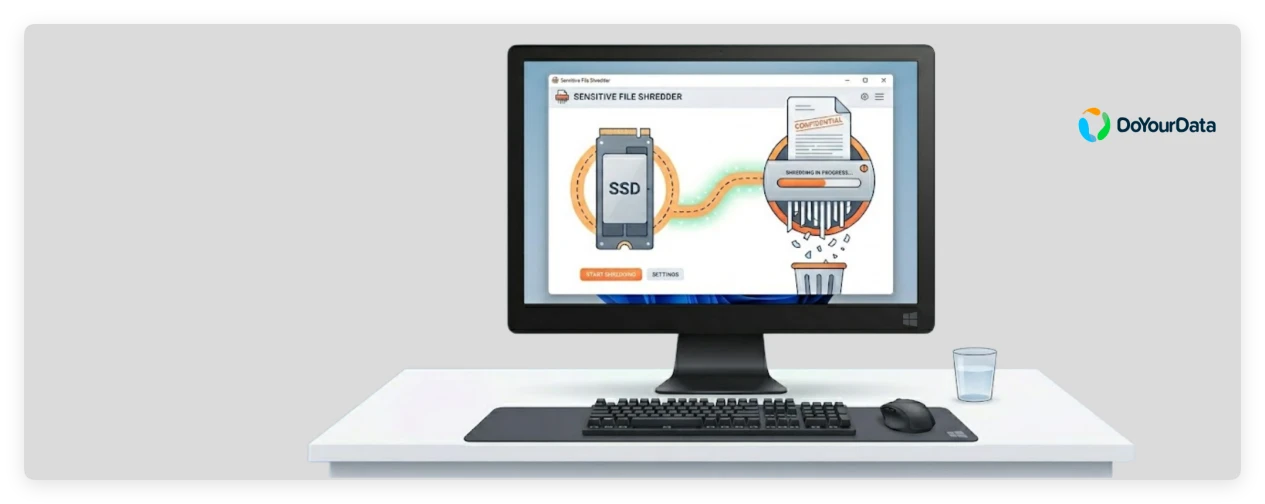
When it comes to Solid State Drives (SSDs), deleting files the traditional way doesn't actually erase the data. It just hides it, leaving it wide open for anyone with basic data recovery software to bring it right back. If you want to ensure your private financial records, business data, or personal photos are completely unrecoverable, you need an strategy tailored specifically for flash memory.
The Hidden Danger: Why Normal Deletion Fails on SSDs
To understand how to destroy data permanently, we first need to look at how an SSD operates. Unlike older mechanical Hard Disk Drives (HDDs) that write data onto spinning magnetic platters, an SSD stores data electronically in NAND flash memory cells.
When you delete a file normally:
- Your operating system simply deletes the "pointer" or index entry for that file.
- The actual data fragments remain sitting inside the storage cells.
- The operating system marks that space as "available" to be overwritten in the future.
The Problem with Wear Leveling
This is where standard erasure articles leave out the most crucial part: Wear Leveling. To prevent flash memory cells from wearing out too quickly from repeated writes, an SSD controller constantly moves data around so all cells are used equally.
Because of this constant shifting, traditional file shredding methods—which work by overwriting a specific physical spot on a drive over and over—often fail on SSDs. The shredder might think it is overwriting the file, but the SSD controller has quietly mapped the new data to a completely different sector, leaving the original fragments fully intact and retrievable by digital forensic software!
Why You Can't Rely Solely on TRIM
Many general tech guides will tell you not to worry because modern SSDs have a built-in feature called TRIM. When you delete a file, TRIM tells the SSD controller which blocks are no longer needed so it can clear them out during internal maintenance (Garbage Collection).
However, TRIM is not instantaneous. It requires your computer to sit idle, and it doesn't trigger immediately upon hitting delete. If someone pulls the drive right after a deletion, or if the drive is inside an external USB enclosure where TRIM commands are often blocked by the USB controller interface, your data remains fully exposed.
The Ultimate Solution: DoYourData Super Eraser
Because standard wiping utilities cannot bypass the complex architecture of an SSD controller, you need a specialized solution built for flash memory. DoYourData Super Eraser bridges this exact gap.
DoYourData Super Eraser
- Permanently shred files/folders from SSD and other drives.
- Wipe hard drive to erase all data and prevent recovery.
- Securely erase data with international wiping algorithms.
Using advanced data destruction algorithms (including DoD 5220.22-M and industrial sanitization standards), DoYourData Super Eraser forces the SSD controller to open and completely clear out the targeted storage blocks. It sweeps both active file sectors and hidden wear-leveling remnants, ensuring that any data recovery software on earth will find absolutely nothing but blank zeros.
Step-by-Step Guide: Secure Data Erasure with DoYourData Super Eraser
DoYourData Super Eraser provides three distinct wiping modules depending on what you want to accomplish. Here is exactly how to use them.
Method 1: Permanently Shred Specific Files and Folders
If you want to get rid of private documents or financial statements without wiping your entire computer or losing your operating system, use this targeted approach.
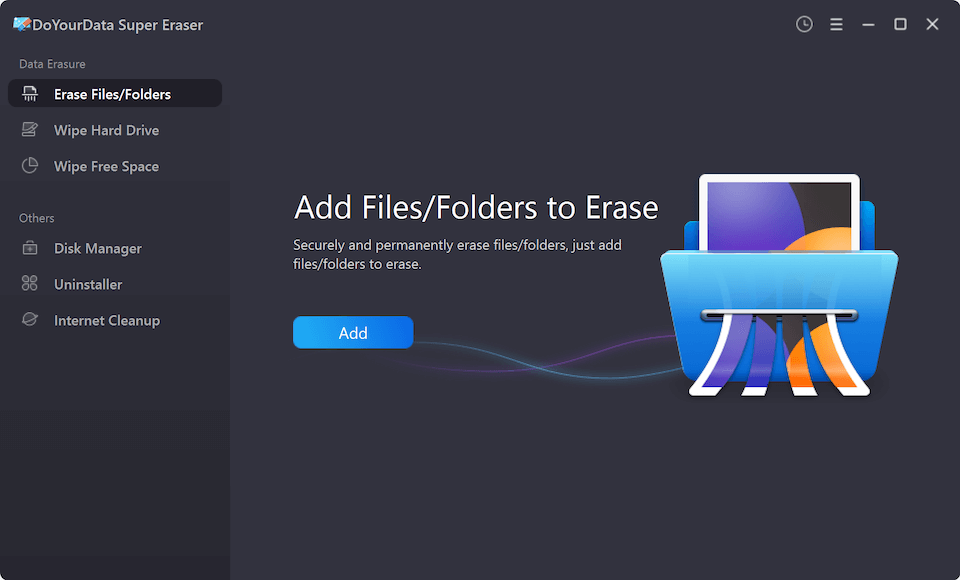
- Run the software and choose the Erase Files/Folders module from the left sidebar interface.
![permanently erase SSD files]()
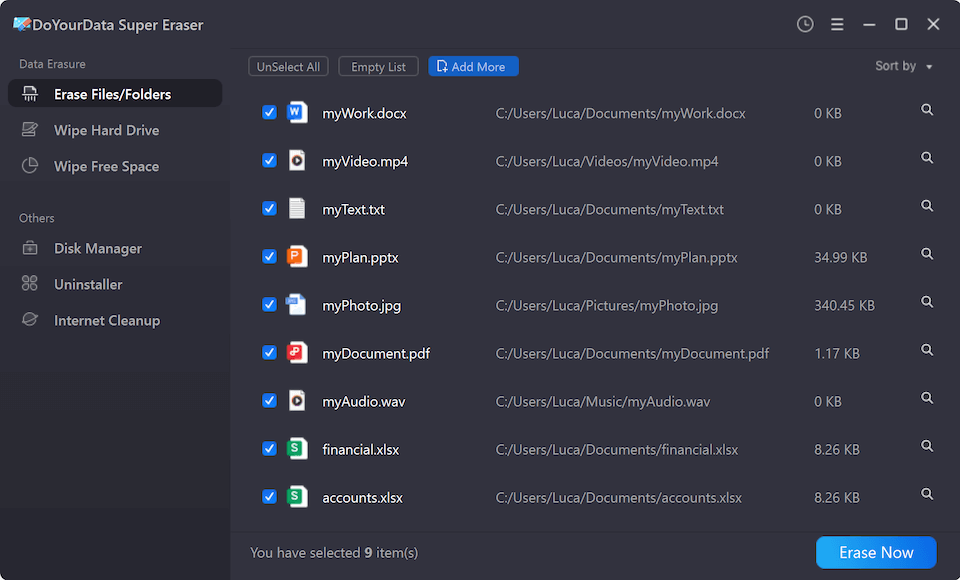
- Click the Add button to browse and select the specific files or folders you want to eliminate permanently.
![permanently erase SSD files]()
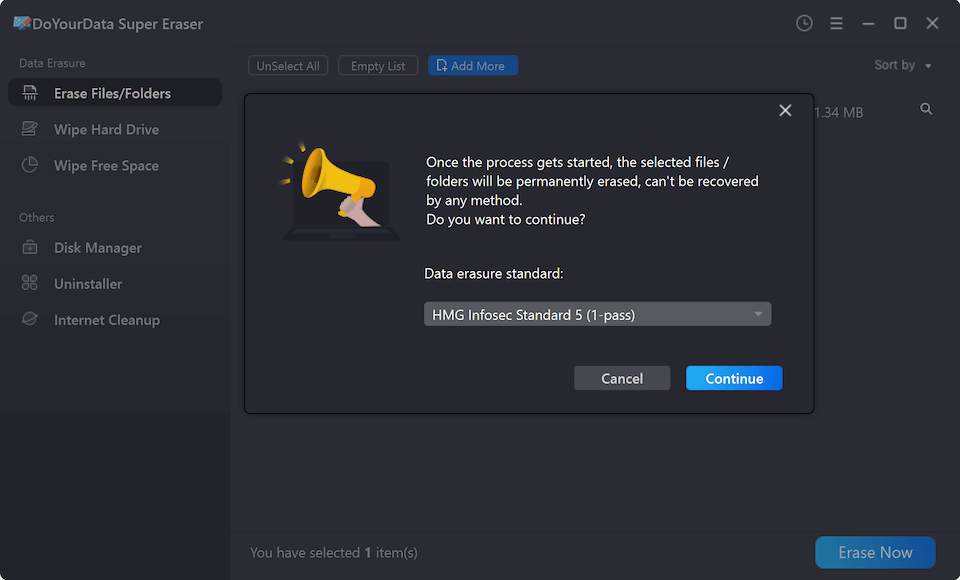
- Choose a data erasure standard and start data wiping. The software bypasses the FTL architecture to overwrite and scrub those files instantly.
![permanently erase SSD files]()
Method 2: Wipe an Entire SSD Partition or External Drive
Use this mode if you are recycling a secondary drive, a portable external SSD, or a USB flash drive, and want to reset it to an absolute blank state.
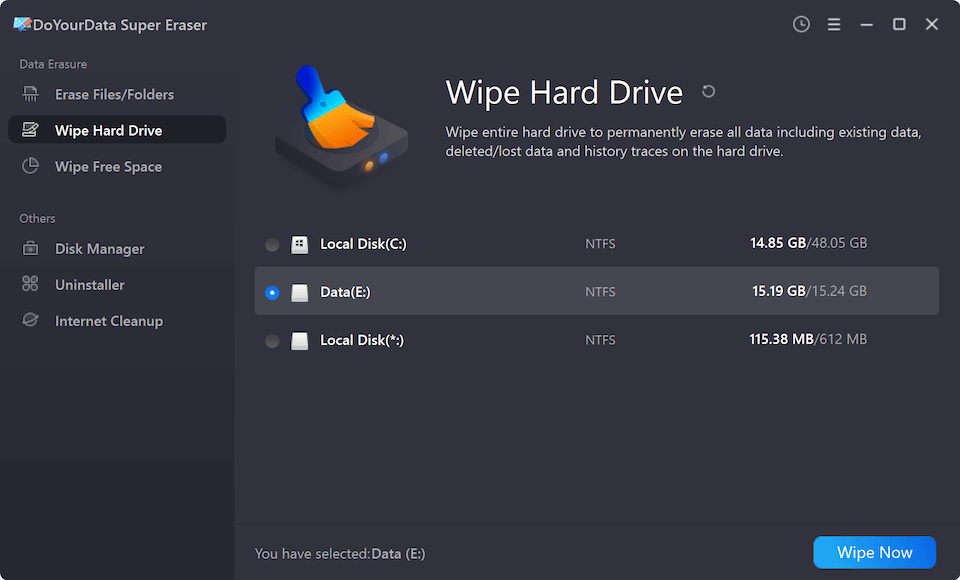
- Navigate to the Wipe Hard Drive section.
- Choose the specific SSD partition or connected volume from the device list.
- Select the data wiping method to start. This completely clears out all sectors, hidden partitions, and data fragments across the entire drive canvas.
Method 3: Clean Free Space (To Clear Out Previously Deleted Files)
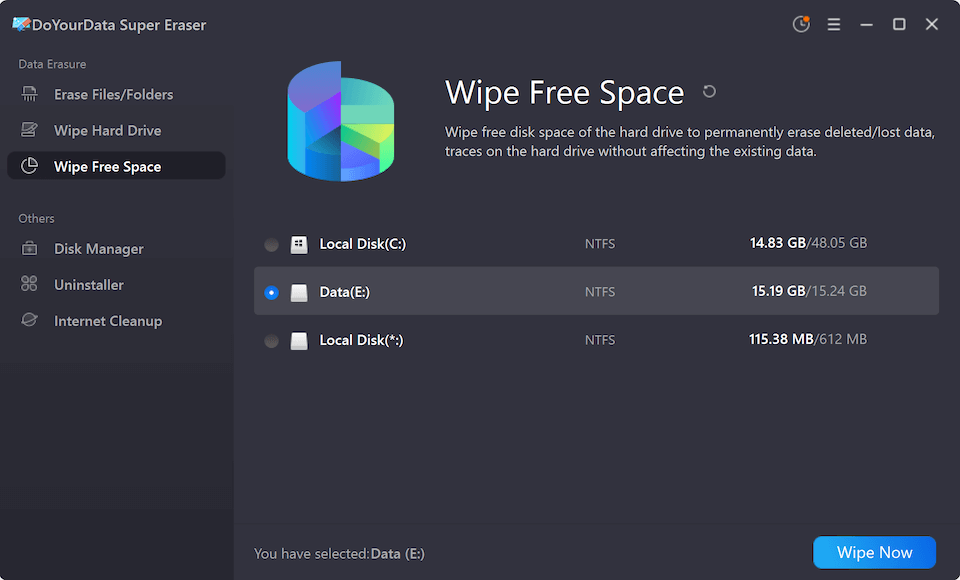
What if you already deleted important files weeks ago using the regular Recycle Bin? As we learned, those fragments are still floating around in your SSD's "Free Space." This module sanitizes those ghosts without touching your current, active programs.
- Click on the Wipe Free Space tool option.
- Select your primary internal or external SSD.
- Pick a data wiping algorithm to sanitize free space. The program crawls through the unused memory blocks, permanently zeroing out any left-behind traces from past deletion history.
Whether you need to shred a few sensitive documents or completely sanitize an entire drive, this software makes professional-grade data security incredibly simple for everyday home users.
Native OS Wiping Methods (And Their Major Limitations)
If you are wondering what built-in options your computer has, both Windows and macOS offer native formatting tools—but they come with critical flaws for modern SSD users.
1. Windows Full Format
In modern Windows versions, running a "Full Format" (not a Quick Format) writes zeros across the drive partition.
How to do it: Open This PC, right-click your secondary drive, select Format, uncheck Quick Format, and click Start.
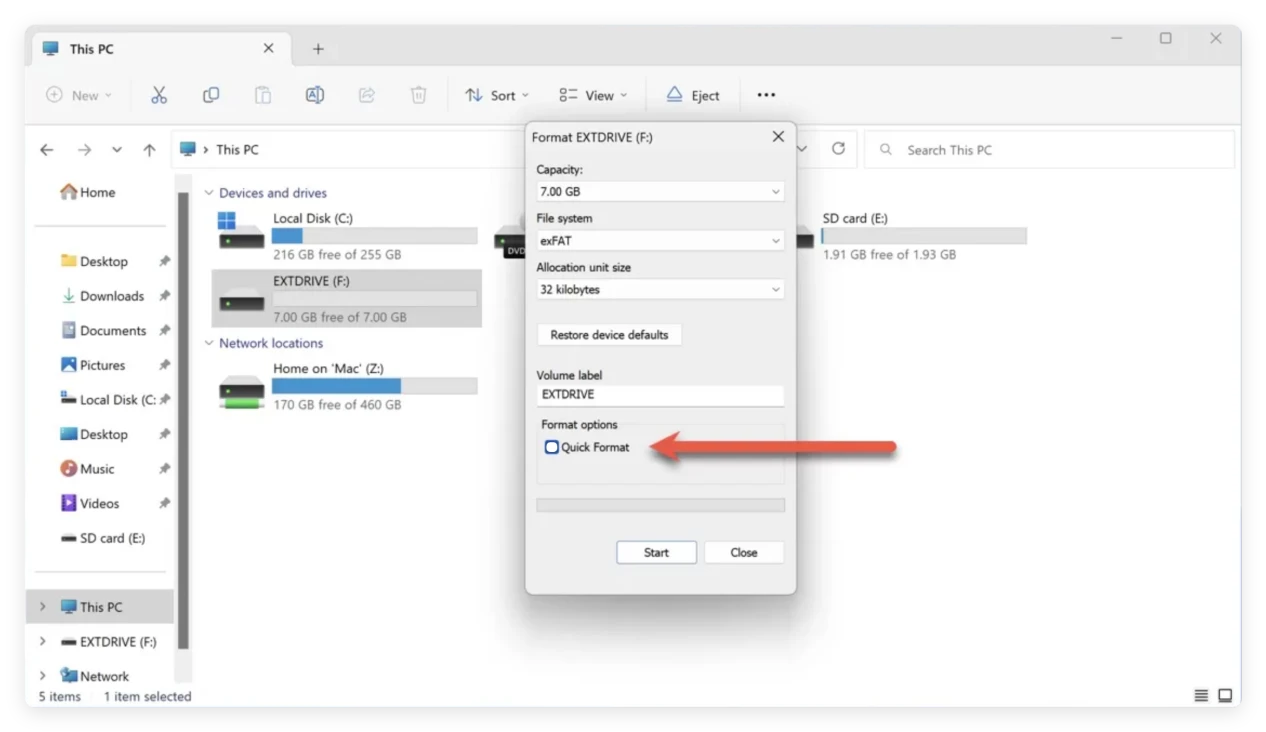
The Problem: You cannot perform this action on your active C: boot drive while Windows is running. Additionally, it lacks custom multi-pass verification protocols designed to counter smart flash controllers.
2. macOS Disk Utility
On older computers with mechanical drives, macOS offered a "Security Options" slider in Disk Utility to overwrite data up to 7 times.
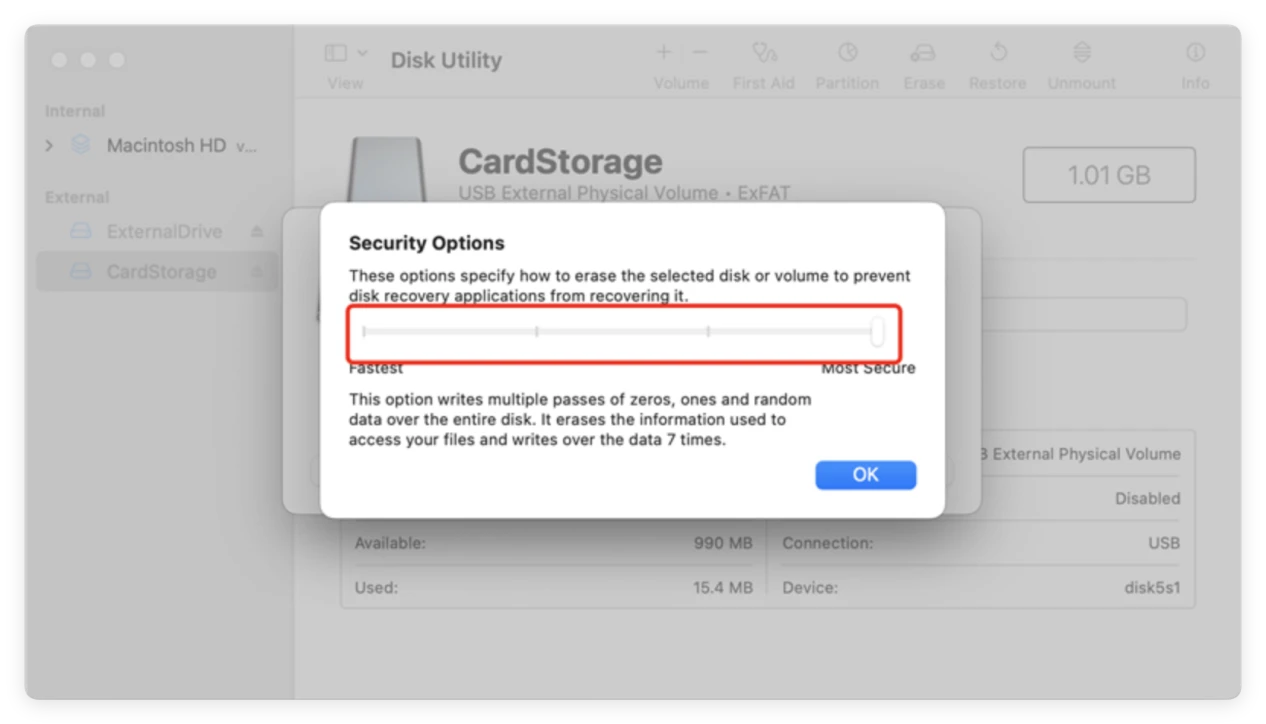
The Problem: On modern Apple Silicon Macs (M1, M2, M3, M4, M5 chips) or any modern Mac equipped with a solid-state drive, Apple has completely disabled the secure erase slider. Apple's system relies on FileVault hardware encryption to secure data. While a factory reset wipes the cryptographic keys, many security-conscious users still prefer a physical data overwrite for absolute certainty that raw fragments aren't left behind in the flash chips.
FAQs about Wiping SSD Permanently
Conclusion
When it comes to your digital identity and privacy, common shortcuts simply don't cut it on modern Solid State Drives. Dumping your tax documents, passwords, or company files into the Recycle Bin leaves a clear digital trail that anyone with data recovery software can easily follow.
To ensure your information is truly gone for good, knowing how to permanently delete files from SSD so they cannot be recovered requires a utility built to outsmart the drive's internal architecture. Utilizing a dedicated solution like DoYourData Super Eraser grants you total peace of mind, ensuring your private data stays exactly where it belongs—completely eliminated from existence.
DoYourData Super Eraser
DoYourData Super Eraser, the award-winning data erasure software, offers certified data erasure standards including U.S. Army AR380-19, DoD 5220.22-M ECE to help you securely and permanently erase data from PC, Mac, HDD, SSD, USB drive, memory card or other device, make data be lost forever, unrecoverable!
Written & Updated by Shirly Chen
Shirly Chen has been writing data recovery, data erasure articles for DoYourData over 4 years. She has been working as a professional website content writer & editor for quite a long time. She also writes articles about disk clone, Mac optimization, disk backup, etc.