How to Wipe Seagate External Drive to Zero Data State?
How to make the data on Seagate or other external drives is gone forever and cannot be recovered in any way? With the professional tool DoYourData Super Eraser, you can easily and permanently erase all data from the drive.
 Updated by Shirly Chen on October 26, 2026
Quick Navigation:
- What Does "Zero Data State" Mean?
- Essential Steps Before Wiping Your Seagate External Drive
- 3 Methods to Wipe Seagate External Drive to Zero Data State
- FAQs about Wiping Seagate External Drive
- Conclusion
Are you planning to sell, donate, or recycle your Seagate external hard drive? Or maybe you just need to fix a corrupted drive or pass it along to a colleague? Before handing it over, you must make sure your private photos, financial documents, or sensitive work files are completely gone.Simply deleting files or giving the drive a quick format is not enough. Anyone with basic data recovery software can bring those files back in minutes.

To permanently protect your privacy, you need to know how to wipe a Seagate external drive to a zero data state. In this comprehensive guide, we will walk you through what a zero data state means, why standard deletion fails, and the most effective step-by-step methods to permanently destroy data on Windows and Mac.
What Does "Zero Data State" Mean?
A zero data state (often referred to as zero-filling or zero overwrite) means replacing every single bit of storage on your hard drive with binary zeros (00000000).
When you delete a file or perform a Quick Format, operating systems like Windows and macOS only delete the file directory pointers. The actual content stays hidden on the drive sectors until new data overwrites it.
When you write zeros to every sector of your Seagate external drive, the old binary data is physically replaced. Once every sector is overwritten with zeros, data recovery software cannot rebuild or recover any files. Your Seagate drive is effectively reset to a clean, factory-like state.
Why Standard Deletion and Quick Format Are Not Enough
Many users assume that right-clicking a folder and selecting "Delete" or formatting a drive via File Explorer keeps their privacy safe. Here is why that is a dangerous assumption:
- File Deletion: Only marks the space as "available" for future files. The old data remains intact.
- Quick Format: Rebuilds the file system table, but leaves all actual raw data untouched across the drive sectors.
If you are giving your drive to someone else, only a true data wipe guarantees 100% unrecoverable data privacy.
Essential Steps Before Wiping Your Seagate External Drive
Before you begin wiping your drive, take a moment to perform these key preparation steps:
- Back Up Important Files: Data wiping is irreversible. Copy any family photos, documents, or media you want to keep to your computer or cloud storage.
- Verify the Drive Letter: Wiping destroys everything on the target disk. Double-check the drive letter (e.g., E:, F:) or disk number (e.g., Disk 2) so you do not accidentally erase your internal system drive.
- Connect to a Reliable Power Source: Ensure your computer or laptop stays powered on throughout the entire zero-filling process. Interrupting the wipe mid-way can disrupt drive sectors.
3 Methods to Wipe Seagate External Drive to Zero Data State
Method 1: The Easiest Way to Wipe Seagate Drive via DoYourData Super Eraser (Windows & Mac)
If you want a guaranteed, stress-free way to permanently erase your Seagate drive without dealing with confusing command lines, using professional data wiping software is your best choice.
DoYourData Super Eraser is a secure data sanitization tool designed for Windows and macOS. It uses international data destruction standards―such as Zero Fill, DoD 5220.22-M, NIST 800-88, and Gutmann―to ensure wiped data can never be recovered by any software or data recovery specialist.
Key Features of DoYourData Super Eraser:
- 100% Unrecoverable: Overwrites data sectors with zeros or military-grade algorithms.
- Supports All Seagate Models: Works seamlessly with Seagate Expansion, Backup Plus, One Touch, Ultra Touch, and FireCuda drives.
- Cross-Platform Compatibility: Fully compatible with Windows 11/10/8/7 and macOS Sequoia, Sonoma, Ventura, and older versions.
- Drive Health Safe: Wipes data cleanly without damaging the physical lifespan of your Seagate HDD or SSD.
Step-by-Step Guide: Wiping Seagate External Drive to Zero Data State
Step 1: Plug your Seagate external drive into your PC or Mac using a USB cable. Download, install, and launch DoYourData Super Eraser.
DoYourData Super Eraser
- Permanently wipe data from Seagate external drive.
- Shred specified files from HDD, SSD, and other drives.
- Wipe data securely with certified data wiping standards.
Step 2: On the main menu, select the Wipe Hard Drive option. This mode will erase the entire external drive, including existing files, hidden partition data, and previously deleted files.Locate your Seagate external drive from the list of connected storage devices. Check the drive capacity and name to confirm you have chosen the correct drive.
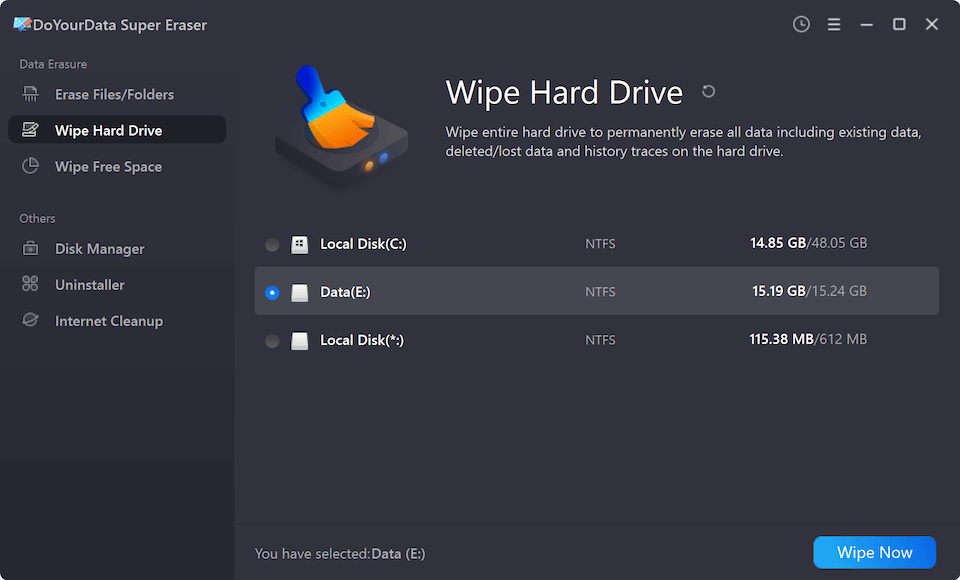
Step 3: Click the Wipe Now button. There will be a popup window appear. Check and choose a data erasure algorithm from the drop-down list.
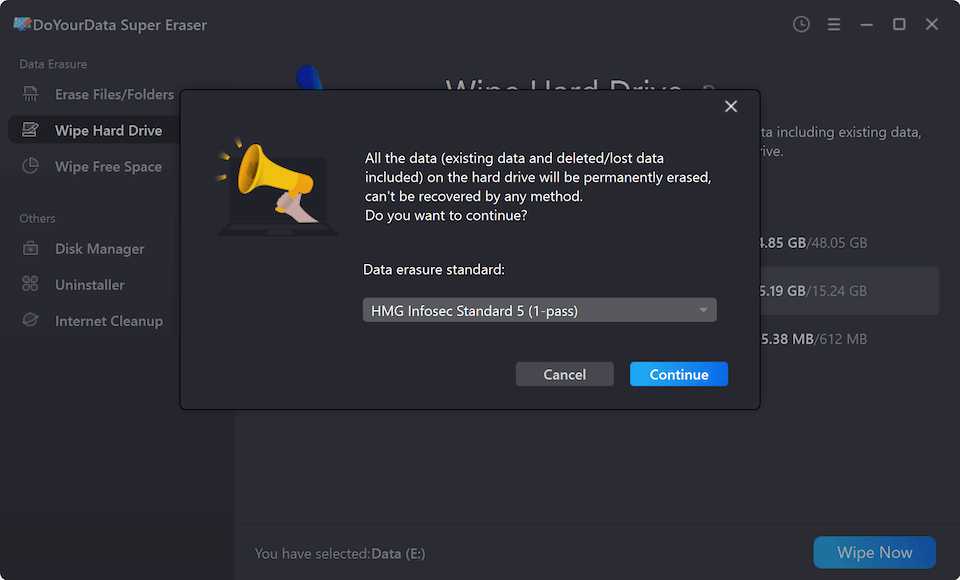
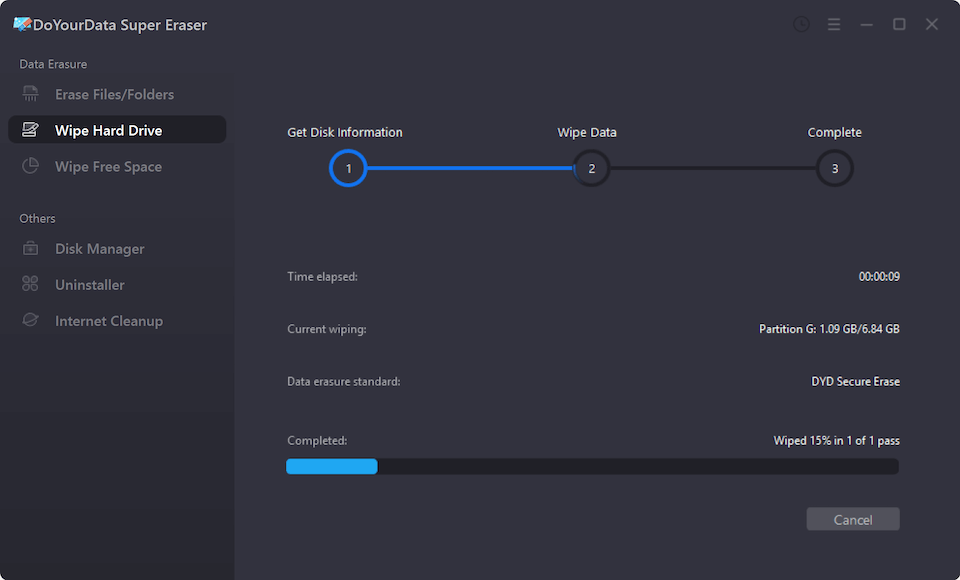
Step 4: Click the Continue button. DoYourData Super Eraser will overwrite every sector of your Seagate drive with zeros (or your chosen sanitization algorithm). Once finished, your Seagate drive is completely wiped to a zero data state.
Method 2: Wipe Seagate External Drive to Zero Fill via Windows Full Format
If you prefer using built-in Windows tools without installing extra software, running a Full Format in File Explorer is a straightforward option. Starting with Windows Vista and continuing through Windows 10 and Windows 11, a Full Format writes zeros across the entire disk surface.
How to Perform a Full Format on Windows:
- Connect your Seagate external drive to your Windows PC.
- Open File Explorer by pressing Windows Key + E.
- Click on This PC in the left sidebar and locate your Seagate drive under Devices and drives.
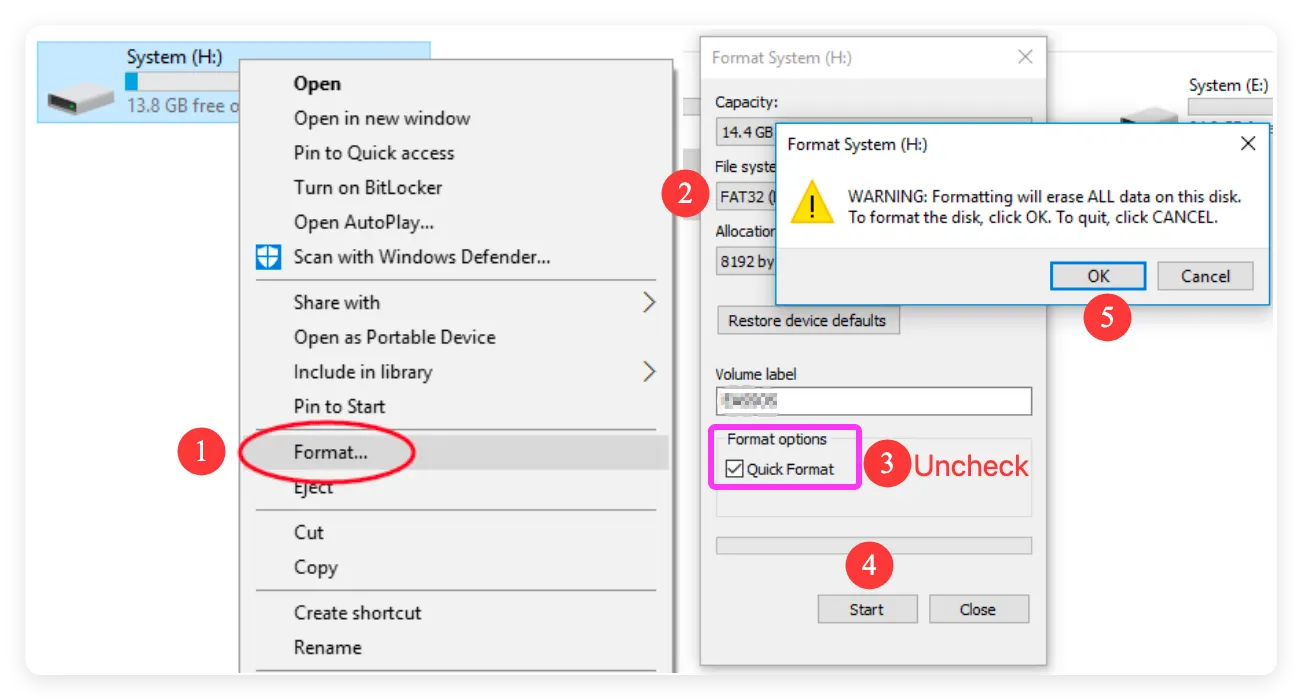
- Right-click your Seagate drive and select Format... from the menu.
- In the format window, choose your preferred file system (e.g., NTFS for Windows only, or exFAT for Windows and Mac).
- Uncheck the box that says Quick Format. Leaving this unchecked forces Windows to perform a full format with zero-filling.
- Click Start and confirm by clicking OK.
💡 Note: A Full Format can take anywhere from 30 minutes to several hours depending on the size of your Seagate drive.
Method 3: Zero Fill Seagate External Drive Using Windows Command Prompt (Diskpart)
For advanced users who want full control over drive management, the built-in Command Prompt utility diskpart provides a command called clean all. This command writes zeros to every sector of the selected drive.
- Connect your Seagate drive to your computer.
- Press Windows Key + S, type
cmd, right-click Command Prompt, and select Run as administrator. - Type
diskpartand press Enter. - Type
list diskand press Enter. You will see a list of connected disks with their respective numbers and sizes. - Identify your Seagate drive number based on its storage size. Type
select disk X(replace X with your Seagate drive number) and press Enter. - Double-check your selection carefully.
- Type
clean alland press Enter.
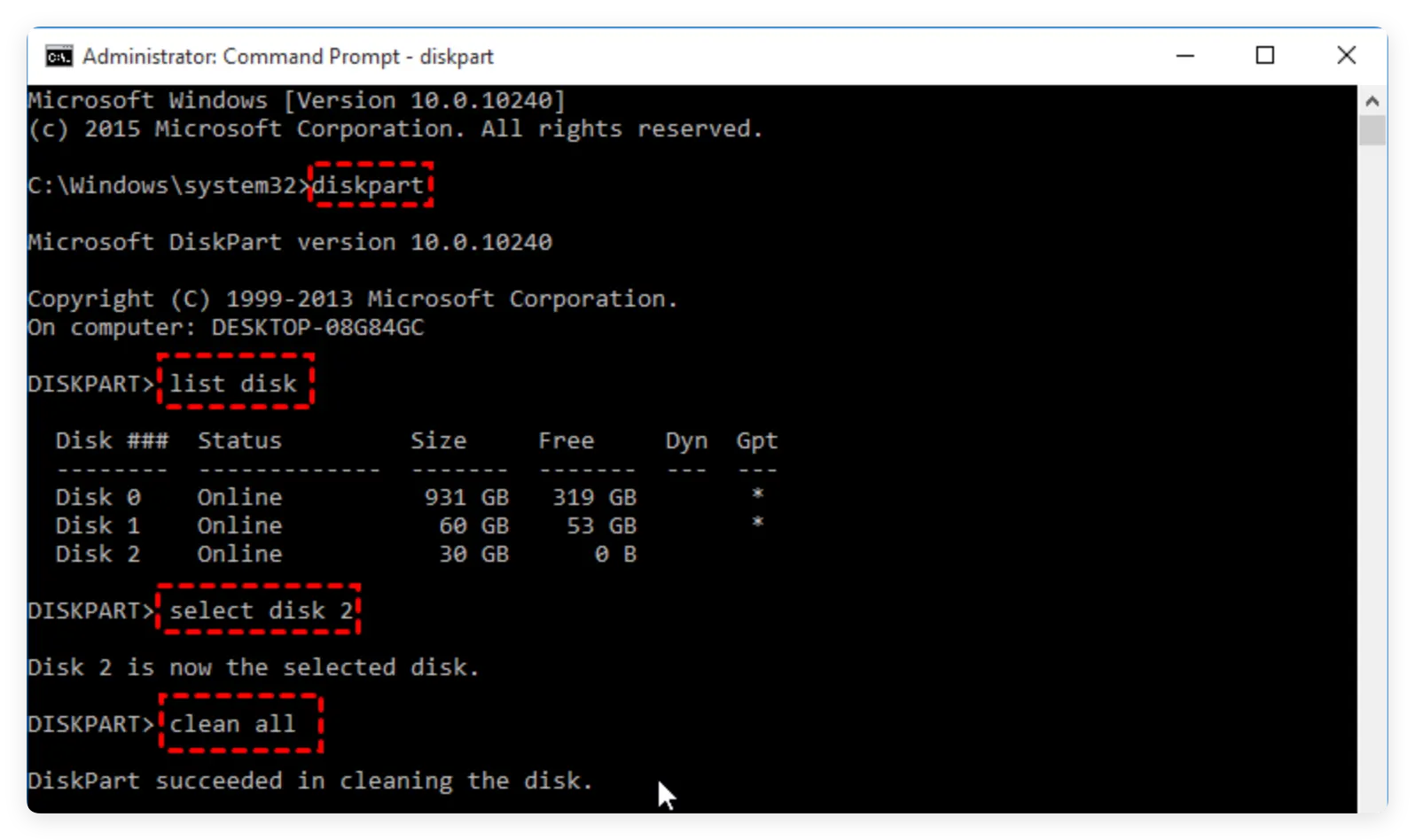
The Command Prompt cursor will blink while it overwrites every sector with zeros. Once completed, you will see a message stating "Diskpart succeeded in cleaning the disk." You can then partition and format the drive in Disk Management for new use.
Comparison of Seagate Wiping Methods
| Method | OS Support | Erase Level / Algorithm | Ease of Use | Data Recovery Risk |
|---|---|---|---|---|
| DoYourData Super Eraser | Windows & Mac | Zero Fill, DoD 5220.22-M, NIST 800-88, etc. | Very Easy (1-Click) | 0% (100% Unrecoverable) |
| Windows Full Format | Windows | Single Pass Zero Fill | Easy | Low |
| Command Prompt (clean all) | Windows | Single Pass Zero Fill | Moderate (Command Line) | Low |
FAQs about Wiping Seagate External Drive
Conclusion
Wiping your Seagate external drive to a zero data state is an essential step whenever you are transferring ownership, discarding old hardware, or cleaning out sensitive files. Standard formatting leaves your personal privacy exposed to data recovery tools, but zero-filling permanently destroys all traces of your data.
For the simplest, safest, and most thorough results across both Windows and Mac, we recommend using DoYourData Super Eraser. With user-friendly modes and certified military-grade wiping algorithms, you can rest easy knowing your private files are gone for good. Download DoYourData Super Eraser today to sanitize your Seagate external drive with total confidence!
DoYourData Super Eraser
DoYourData Super Eraser, the award-winning data erasure software, offers certified data erasure standards including U.S. Army AR380-19, DoD 5220.22-M ECE to help you securely and permanently erase data from PC, Mac, HDD, SSD, USB drive, memory card or other device, make data be lost forever, unrecoverable!
Written & Updated by Shirly Chen
Shirly Chen has been writing data recovery, data erasure articles for DoYourData over 4 years. She has been working as a professional website content writer & editor for quite a long time. She also writes articles about disk clone, Mac optimization, disk backup, etc.