The reliable Mac data recovery software to recover deleted or lost files.
Free TrialAppData on a Mac: The Ultimate Guide to Finding Your Hidden Files
Searching for "AppData" on a Mac can be confusing for Windows switchers. While that specific name doesn't exist, macOS uses the hidden Library folder for the same tasks. In this comprehensive guide, we will show you exactly where this version of AppData on a Mac lives, how to find it in seconds, and how to manage your application data like a pro.
 Updated by Justin Kenny on 2026-04-21
Quick Navigation:
- What is the Mac Equivalent of AppData?
- 3 Quick Ways to Find AppData on a Mac
- Navigating the "AppData" Sub-folders
- Why is the Mac AppData Folder Hidden?
- Managing Your Mac's Application Data
- Final Thoughts: Mastering AppData on a Mac
If you've recently switched from Windows to macOS, or you're trying to follow a tutorial written for PC users, you've probably gone looking for the "AppData" folder. You might be trying to install a Minecraft mod, clear out some bloated cache files, or manually move a saved game.
However, when you search your Finder for "AppData," you usually come up empty-handed.
The big secret? AppData on a Mac doesn't exist by that name. Instead, Apple uses a much more mysterious system centered around a hidden folder called the Library.

What is the Mac Equivalent of AppData?
In the Windows world, C:\Users\Name\AppData is the catch-all bucket for everything an app needs to remember about you—your settings, your login sessions, and your temporary files.
On macOS, this data is split across three main sub-folders inside your User Library:
- Application Support: This is the direct cousin to Windows' AppData/Roaming. It stores the "heavy" data that makes an app function, like your Minecraft worlds or Spotify's local database.
- Caches: Similar to AppData/Local/Temp, this holds temporary files that help apps load faster. You can usually clear these out if you're running low on space.
- Preferences: This folder holds .plist files, which are tiny documents that remember your "Settings" (like whether you prefer Dark Mode or what your default font is).
3 Quick Ways to Find AppData on a Mac
Because these folders are hidden by default to prevent accidental deletions, you can't just browse to them. Here are the three fastest ways to teleport directly there.
Method 1: The "Go to Folder" Shortcut (Fastest)
- Open Finder.
- Press Command + Shift + G on your keyboard.
- Type ~/Library/Application Support and hit Enter.
🪧 Note: The tilde symbol (~) is crucial—it tells your Mac to look in YOUR specific user folder.
Method 2: The Hidden "Option" Key Trick
- Click on your desktop to make sure Finder is active.
- Click the Go menu at the top of your screen.
- Hold down the Option (Alt) ⌥ key. You will see the Library folder magically appear in the list.
- Click it to enter the Mac's version of the AppData world.
Method 3: Using the Terminal
If you're feeling a bit more technical, you can open the Terminal app and type: open ~/Library
This will pop open a Finder window showing all your hidden configuration files.
Navigating the "AppData" Sub-folders
Once you're inside the ~/Library folder, you might feel a bit overwhelmed. Let's break down where the most important stuff lives.
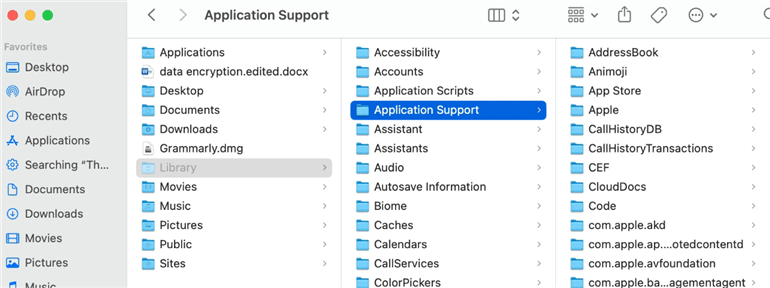
1. Application Support: The "Roaming" Equivalent
This is where 90% of users are headed when they look for AppData on a Mac.
- Location: ~/Library/Application Support/
- What's inside: Folders named after your apps (e.g., Google, Steam, Adobe).
- When to use it: Use this to back up game saves, manage plugins, or manually fix an app that won't start.
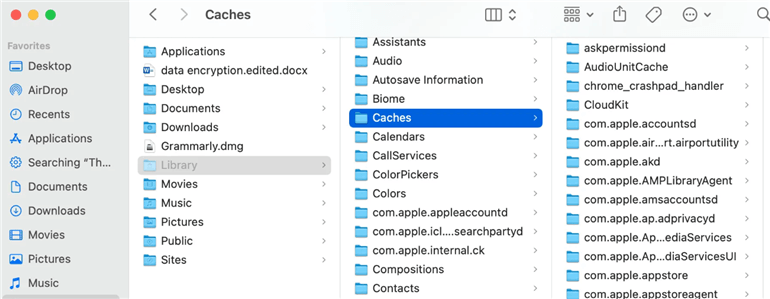
2. Caches: The "Temp" Files
- Location: ~/Library/Caches/
- What's inside: Folders full of gibberish-named files that help apps run faster.
- When to use it: If your Mac is feeling sluggish or an app is behaving strangely, you can safely delete the contents of an app's specific cache folder to "reset" it.
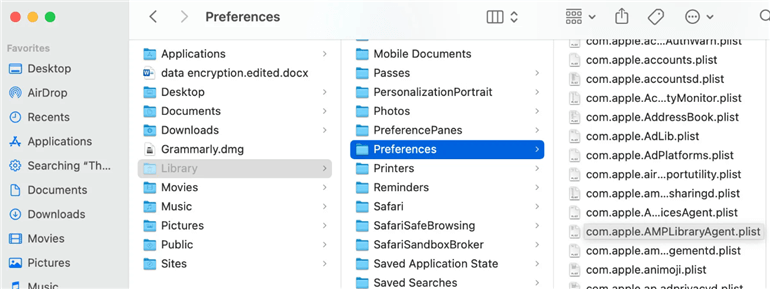
3. Preferences: The "Settings" Vault
- Location: ~/Library/Preferences/
- What's inside: Files ending in .plist.
- When to use it: If you've messed up an app's settings so badly you can't find the "Reset" button, deleting its .plist file here will return the app to factory defaults the next time you open it.
Why is the Mac AppData Folder Hidden?
Apple hides the Library folder for a good reason: Safety. Unlike your "Documents" or "Desktop" folders, the files in the Library are the "engine" of your software. If you delete the wrong folder in Application Support, you might lose your email history or years of game progress.
🪧 Pro Tip: Always make a copy of a folder before you modify or delete anything inside the Library. It's the best "Undo" button you have!
Managing Your Mac's Application Data
Now that you know how to find AppData on a Mac, what should you do with it? Here are a few common tasks for home users:
Cleaning Up Disk Space
Over years of use, the Caches and Application Support folders can grow to dozens of gigabytes. If you've uninstalled an app but its folder still exists in Application Support, you can safely delete it to reclaim space.
Transferring Data to a New Mac
If you're moving to a new MacBook, you can often "copy-paste" your experience by moving specific folders from Application Support. For example, moving the StickyNotes or specific browser profile folders can save you hours of setup time.
Troubleshooting "Crashes"
If an app refuses to open, it's often because a file in its Preferences or Caches folder has become corrupted. Deleting those specific files forces the app to create fresh, clean ones, often solving the problem instantly.
Final Thoughts: Mastering AppData on a Mac
While the names are different, the logic is the same. Whether you call it AppData or the Library, knowing where your Mac stores its "brain" gives you more control over your machine.
- Quick Recall: Command + Shift + G -> ~/Library/Application Support.
- Stay Safe: Don't delete things unless you know what they belong to.
- Stay Clean: Regularly check your Caches folder if you're low on storage.
Understanding your Mac's file system is the first step toward becoming a power user. Now that you've unlocked the "secret" Library, you're ready to troubleshoot, customize, and optimize your Mac like a pro!
DoYourData Products


DoYourData Super Eraser for Mac
Permanently shred files or wipe hard drive to prevent data recovery on Mac.
Free Trial
Clone HDD, SSD, Mac OS, external disk, USB drive, and more under Mac OS.
Free Trial
Written & Updated by Justin Kenny
Justin Kenny is a writer & editor of DoYourData. He joined DoYourData in 2016 and focuses on writing articles about Windows data recovery, Mac data recovery, external device data recovery, hard drive clone, data erasure, Mac cleanup, computer issue fixes, etc. He is a super fan of Apple devices and is big on testing new digital device and system utility software.