How to Fix DJI Camera SD Card Error (Complete Guide)
If your SD card contains important photos or videos, stop shooting immediately! Do NOT format the card or run aggressive repair tools right away. First, use professional data recovery software like Do Your Data Recovery to extract your media files safely to a computer.
 Updated by Anderson on August 10, 2026
PAGE CONTENT:
DJI drone and action cameras, such as the Mavic series, Mini series, Air series, Osmo Action, and Osmo Pocket, are beloved by creators around the world. They capture stunning 4K and 5.4K aerial footage and smooth action videos. However, nothing ruins a great shooting day faster than a sudden popup on your screen: 'SD Card Error', 'SD Card Error Code 10023', 'SD Card Storage Insufficient', or 'Formatting Failed'.
If you are facing a DJI camera SD card error, don't panic! In most cases, your valuable photos and 4K video clips are still sitting safely on the memory card. In this simple guide, we will walk you through why these errors happen, how to recover your videos safely first, and how to fix the card error step by step.
Why Does Your DJI Camera Show an SD Card Error?
Understanding why your DJI camera fails to recognize or write to your microSD card helps you pick the right solution. Here are the most common reasons:
- Incompatible Card Speed: DJI cameras record high-bitrate 4K video. If your microSD card write speed is too slow (e.g., lower than UHS-I Speed Class 3 or V30), the camera will trigger speed or read/write errors.
- File System Corruption: Unexpected power-offs while recording, pulling out the card while the camera is on, or physical crashes can corrupt the card's file system (RAW error or file system mismatch).
- Poor Physical Connection or Dust: Dust, moisture, or lint inside the drone card slot or on the gold pins of the microSD card can block signal transmission.
- Outdated Camera Firmware: Sometimes, outdated firmware in your DJI drone or handheld camera creates compatibility bugs with newer high-capacity microSD cards.
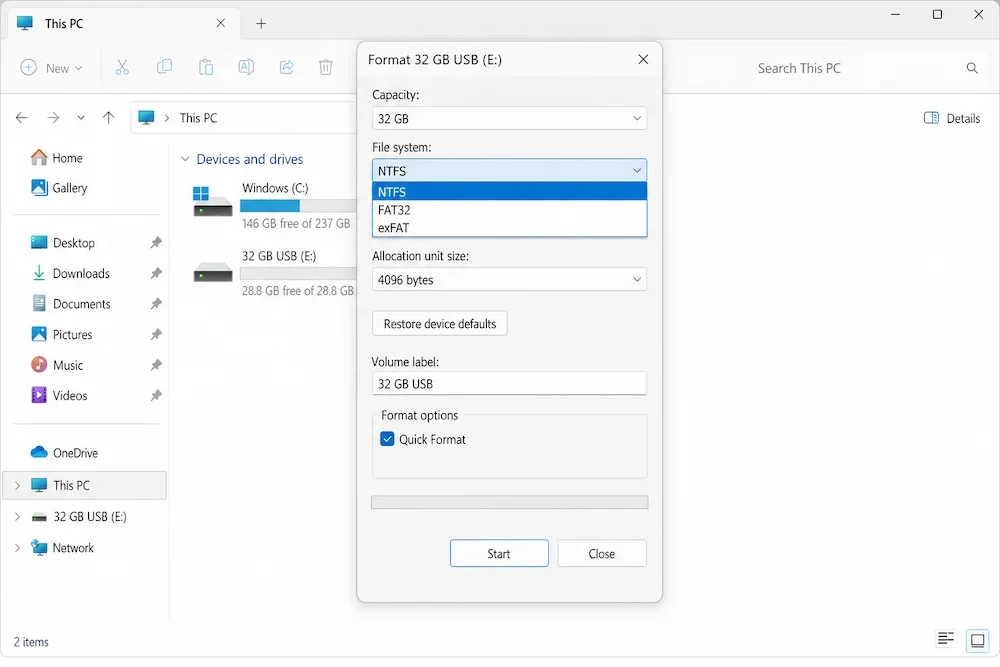
- Improper Formatting: Formatting the SD card on a computer with an unsupported file system (like NTFS) instead of exFAT can prevent the DJI camera from recognizing it.
Recover Your Files First with Do Your Data Recovery
When an SD card error occurs, Windows or your DJI app might prompt you to 'Format the drive to use it' or report 'File System Error'. If you format it immediately, you risk permanently losing your unbacked aerial footage.
To protect your memories, always perform data recovery before attempting any repairs. Do Your Data Recovery is a powerful, user-friendly recovery software designed to restore lost videos, photos, and audio from corrupted, inaccessible, or formatted SD cards.
Why Choose Do Your Data Recovery?
- Powerful Deep Scan: Advanced algorithms scan deep into memory sectors to locate fragmented 4K/8K video files.
- Multi-Format Support: Works seamlessly with MP4, MOV, D-CineLike clips, JPEG, RAW (DNG) photos, and more.
- Safe & Read-Only: Operates in read-only mode, ensuring zero risk of overwriting or damaging your original files.
- Highly Compatible: Full support for Windows 11/10/8/7 and macOS, handling SanDisk, Samsung, Lexar, and KingCard microSD cards.
How to Recover Data from Corrupted DJI SD Card Step-by-Step:
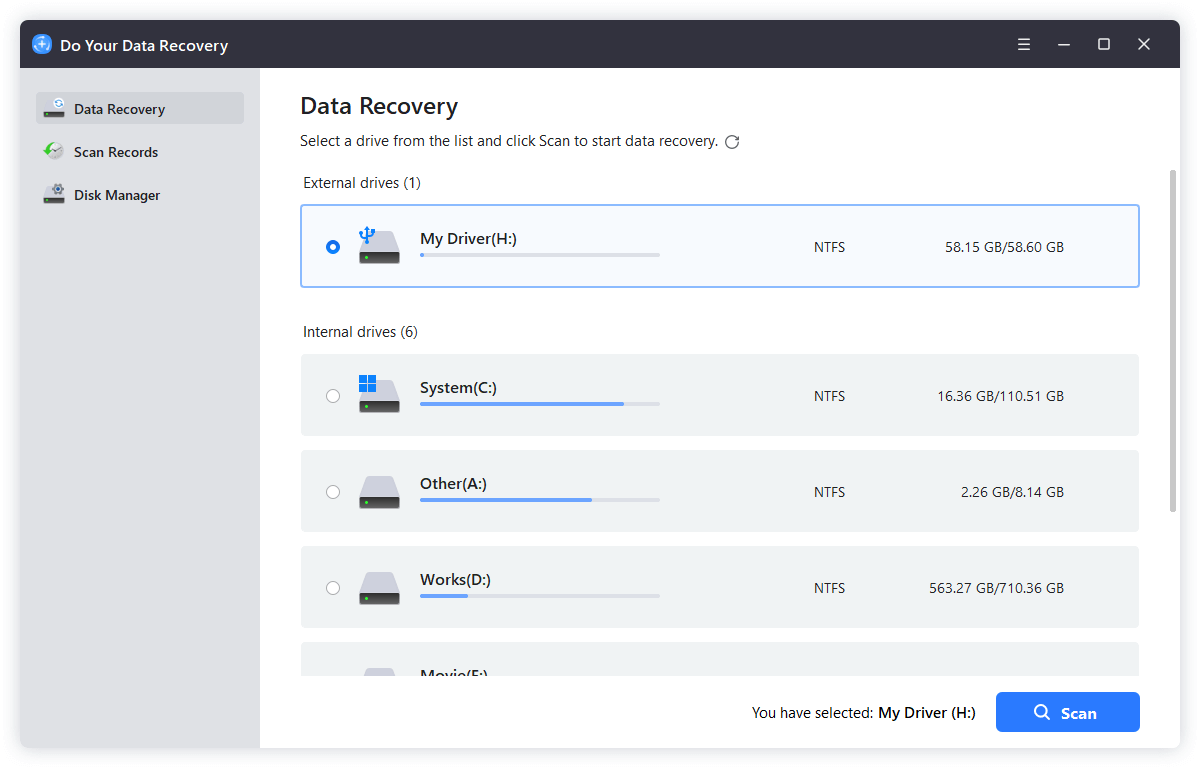
Step 1: Connect your microSD card to your computer using a reliable card reader. Download, install, and launch Do Your Data Recovery on your PC or Mac.
Step 2: Select your DJI microSD card from the drive list and click the 'Scan' button. The software will perform a quick and deep scan to locate all accessible and hidden files.
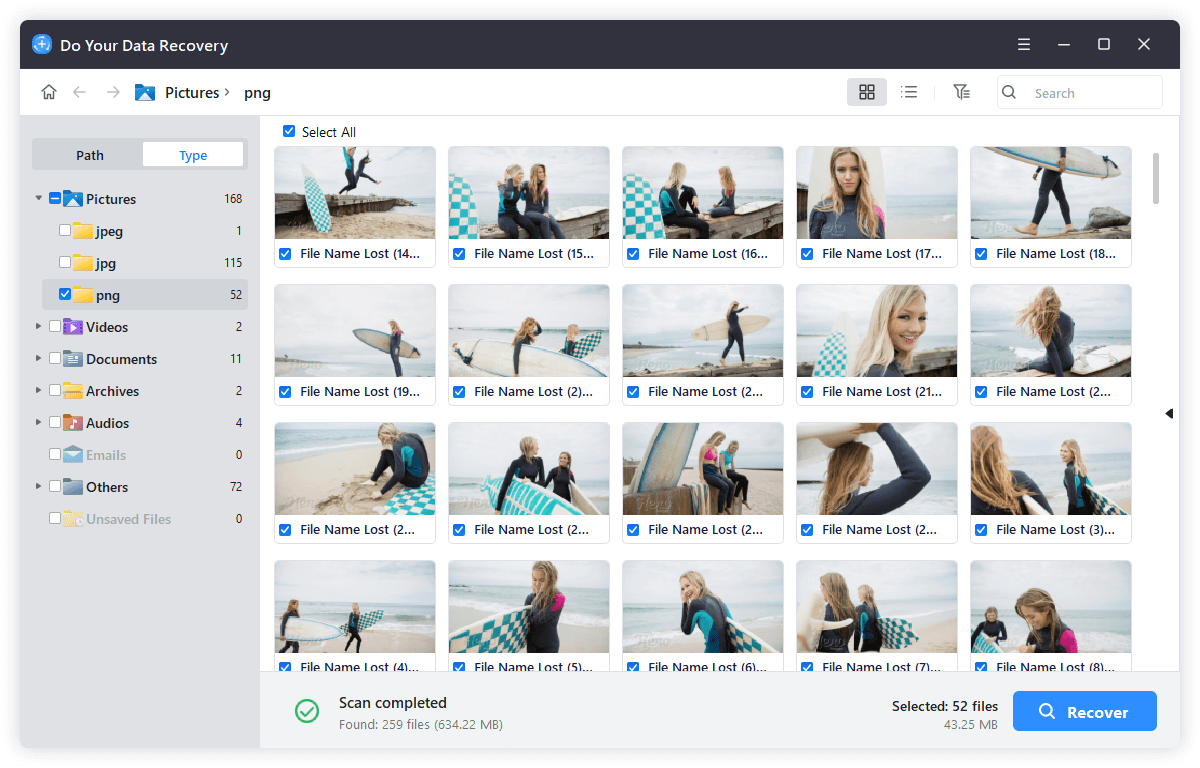
Step 3: Once the scan completes, preview your recovered drone videos and photos. Select the files you want to keep and click 'Recover' to save them to a safe folder on your computer (not back onto the damaged SD card).
Proven Methods to Fix DJI Camera SD Card Error
Now that your important photos and videos are safely backed up on your computer, you can confidently apply the following fixes to repair your SD card.
Fix 1: Reinsert the Card and Clean the Gold Pins
Sometimes the fix is as simple as establishing a clean contact. Power off your DJI drone or camera, eject the microSD card, and inspect it. Use a soft micro-fiber cloth or a cotton swab lightly dabbed in rubbing alcohol to clean the gold contact pins. Blow gentle compressed air into the drone's card slot to remove dust. Reinsert the card until you hear a clear click sound, then power on the camera.
Fix 2: Test the SD Card on Another Device
Insert the card into a laptop card reader or a smartphone. If another device can read and open the card easily, the issue might be related to your DJI camera's slot or firmware. If no device recognizes the card, the card's file system is corrupted or physically damaged.
Fix 3: Repair Corrupted File System with CHKDSK Command (Windows)
If your computer detects the drive letter of the SD card but cannot open it, Windows CHKDSK can automatically scan and rebuild corrupted file system structures without erasing data.
1. Insert the microSD card into your Windows PC.
2. Press Windows + X keys and select 'Terminal (Admin)' or 'Command Prompt (Admin)'.
3. Type the command: chkdsk X: /f /r (Replace X with the actual drive letter of your SD card).
4. Press Enter and let Windows scan and fix bad sectors.
Fix 4: Format the MicroSD Card to exFAT in DJI App or Camera
Formatting is the most effective way to eliminate file system glitches, provided your data is already recovered. It is highly recommended to format the card directly inside your DJI device or official app so it uses the exact file structure required.
- For DJI Drones (Mavic, Air, Mini series): Connect your drone to the DJI Fly app or DJI GO 4 app. Go to Camera View > Settings (three dots) > Camera > Format SD Card, and tap Confirm.
- For DJI Osmo Action / Pocket: Swipe down on the camera screen to open Menu > Settings > Storage > Format.
If the camera shows 'Formatting Failed', insert the card into a Windows PC or Mac, right-click the drive, select 'Format', choose 'exFAT' file system with Allocation Unit Size set to Default, uncheck Quick Format, and click Start.
Fix 5: Update DJI Drone & Controller Firmware
Bugs in outdated camera firmware can cause false SD card warnings. Connect your drone and remote controller to the DJI Fly app or use the official 'DJI Assistant 2' desktop program. Check for system updates and install the latest firmware version.
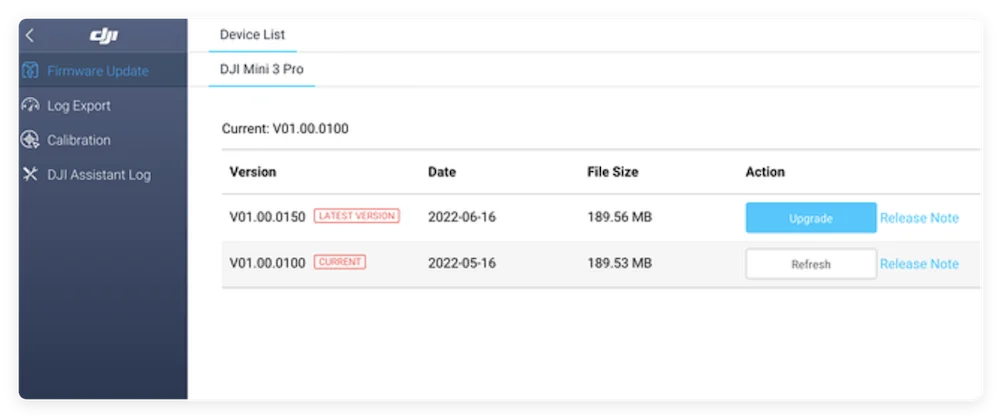
Fix 6: Check SD Card Compatibility & Replace if Needed
DJI cameras demand fast write speeds to process high-resolution videos continuously. Ensure your card meets these criteria:
- Speed Rating: UHS-I Speed Class 3 (U3) or Video Speed Class 30 (V30) minimum.
- Recommended Brands: SanDisk Extreme/Extreme Pro, Kingston Canvas Go! Plus, Lexar Professional 1066x, Samsung EVO Plus.
If your card is slow, counterfeit, or physically cracked, replace it with a genuine recommended microSD card.
Pro Tips to Prevent DJI SD Card Errors in the Future
To avoid encountering SD card errors during critical shoots, keep these golden rules in mind:
- Always format new cards in the DJI camera before first use.
- Avoid pulling out the SD card while the red camera LED indicator is flashing.
- Never let your drone battery drop to 0% while actively recording video.
- Use high-speed USB 3.0 card readers for fast, stable file transfers.
- Do not mix using the same SD card across multiple camera brands without reformatting.
FAQs about Fixing DJI SD Card Errors
Conclusion
Facing an SD card error on your DJI drone or action camera can be stressful, especially when valuable footage is at risk. However, by following a data-first approach, you can resolve the issue safely without permanent file loss. Always remember to extract and save your media files using Do Your Data Recovery before attempting any formatting or physical repairs. Once your photos and 4K videos are secured, reinserting, cleaning, repairing with CHKDSK, or reformatting the card in exFAT will usually get your DJI camera back up and running smoothly. Keep a high-speed, compatible microSD card handy, follow good card-handling habits, and you'll be ready for your next flight uninterrupted.
Do Your Data Recovery
The safe, powerful and easy-to-use data recovery program to help you recover deleted, formatted or lost data, recover lost data from damaged hard drive, from HDD, SSD, USB flash drive, memory card, digital camera, etc, fix damaged drive and external devices.
Written & Updated by Anderson
Anderson is a big fan of computer technology. He joined DoYourData in 2018 and has been writing 200+ articles about disk clone, data recovery, computer technology, data erasure, Mac system optimization, etc. He loves music, movie, and reading. In his spare time, he’s studying music and playing tennis.