Best Data Recovery Software for Windows 11 26H2: Quick & Easy Guide
If you lost files after updating to Windows 11 26H2 or experienced accidental deletion, formatted drives, or system crashes, the best solution is using specialized software like Do Your Data Recovery. It fully supports new Windows 11 file system updates, BitLocker encryption, ReFS/NTFS drives, and high-speed deep scanning.
 Updated by Justin Kenny on September 17, 2026
PAGE CONTENT:
Upgrading to the Windows 11 26H2 update brings amazing new AI tools, performance boosts, and enhanced UI tweaks. However, major OS updates also bring a common headache: lost files. Whether your photos vanished after the update, a partition went missing, or you accidentally emptied your Recycle Bin, data loss can feel stressful.
You are not alone. Thousands of users face unexpected file loss after installing feature updates like 26H2. The good news is that deleted or missing files are rarely destroyed immediately. With the best data recovery software for Windows 11 26H2, you can easily get your files back before they are overwritten.

In this comprehensive guide, we will analyze what makes software effective for Windows 11 26H2, review top features to look for, and show you step-by-step how to recover your files using Do Your Data Recovery.
Why Do Files Disappear in Windows 11 26H2?
Understanding why files go missing helps you pick the right recovery approach. Here are the most common reasons users experience data loss on Windows 11 26H2:
- System Update Glitches: Major OS feature updates replace core system files. If the installation is interrupted or fails halfway, desktop items and user profile files can temporarily or permanently disappear.
- Accidental File Deletion: Pressing Shift + Delete or clearing out the Recycle Bin removes file references immediately, making them invisible to File Explorer.
- Formatted Hard Drives or Partitions: Formatting an internal SSD, external hard drive, or USB flash drive wipes the file directory, though raw data remains behind until overwritten.
- OneDrive Syncing Conflicts: Windows 11 26H2 heavily relies on Microsoft OneDrive cloud syncing. Misconfigured sync settings can relocate your local desktop and document files to cloud folders unexpectedly.
- RAW Drive or System Crashes: Sudden system crashes, driver errors, or hardware issues can cause storage partitions to turn RAW or inaccessible.
What Makes the Best Data Recovery Software?
Not all recovery programs handle modern Windows 11 updates equally well. Windows 11 26H2 introduces security enhancements and underlying file system changes that require modern recovery technology.
When evaluating the top data recovery software, look for these critical criteria:
- Full Compatibility with Windows 11 26H2: The software must be fully optimized for Windows 11 26H2 build architecture to avoid software conflict, crashes, or incomplete scans.
- BitLocker & Modern File Systems Support: Modern Windows laptops frequently ship with BitLocker enabled by default. Top software must effortlessly scan BitLocker-encrypted drives.
- Dual-Scanning Modes (Quick + Deep Scan): A quick scan quickly finds recently deleted files, while a deep sector-by-sector scan recovers lost partitions, formatted drives, and severely corrupted files.
- Real-time File Preview: Being able to preview photos, videos, documents, and audio files before restoring ensures you only recover valid, uncorrupted data.
- Read-Only Safety & Clean UI: Data recovery software should strictly read data without writing new data to the target disk, ensuring total safety for existing files.
Top 4 Data Recovery Tools for Windows 11 26H2
We evaluated the most popular tools on the market based on scan speed, recovery success rate, modern Windows 11 compatibility, and ease of use. Here is how they stack up:
| Software Name | Win 11 26H2 Ready | Scan Speed | BitLocker Support | Ease of Use |
|---|---|---|---|---|
| Do Your Data Recovery | Yes (100% Optimized) | Ultra Fast | Yes (Supported) | Very Easy (3 Steps) |
| Windows Media/Command | Native Tool | Slow | Manual CLI Only | Complex (Command Line) |
| Basic Recuva Free | Partial (Legacy) | Moderate | No | Simple |
| Stellar Data Recovery | Yes | Moderate | Yes (Paid) | Moderate |
Why Do Your Data Recovery Is the Best Choice?
Among all available data recovery tools, Do Your Data Recovery stands out as the most reliable and beginner-friendly solution for Windows 11 26H2 users.
Here are the main reasons why it tops our recommendation list:
- Comprehensive File Recovery: Whether you deleted files from C drive, formatted an external hard drive, emptied the Recycle Bin, or lost a whole partition during the 26H2 installation, it handles all data loss scenarios effortlessly.
- All File Types Supported: Supports all file formats including photos (JPG, PNG, RAW), videos (MP4, MOV, AVI), documents (DOCX, XLSX, PDF), emails, archives, and over 1,000 file types.
- Wide Device Compatibility: Works seamlessly across NVMe SSDs, traditional SATA HDDs, USB thumb drives, SD memory cards, digital cameras, and virtual disk drives.
- Advanced Sector-Level Scanning: Includes advanced deep scan mode that reconstructs damaged or formatted file tables, recovering files that other standard recovery tools miss.
- Intuitive User Experience: Designed with a clean 3-step modern interface so anyone can restore lost files without technical skills or knowledge.
How to Recover Lost Data with Do Your Data Recovery
Recovering lost files with Do Your Data Recovery is quick and simple. Follow these easy steps to get your files back in minutes:
Step 1: Download and Install the Recovery Software
Download and install Do Your Data Recovery on your Windows 11 26H2 PC. (💡 Tip: Never install the recovery software on the exact drive where you lost files to prevent overwriting.)
Do Your Data Recovery
- Best data recovery software for Windows 26H2.
- Recover deleted, formatted, or other lost files.
- Support data recovery for pictures, videos, documents, etc.
Step 2: Select the Storage Location
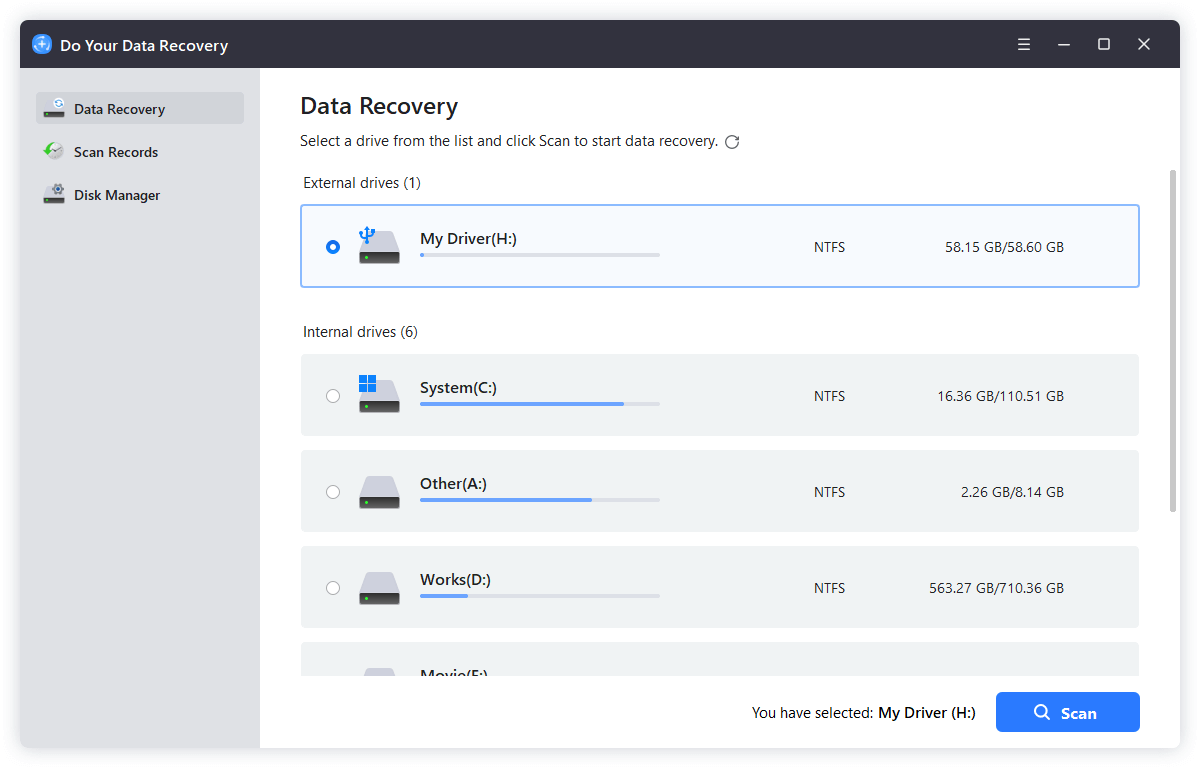
Open the program. On the main interface, select the exact drive or location where your files were stored (such as C drive, Desktop, or an external USB drive). Click the Scan button.
Step 3: Scan for Deleted or Lost Files
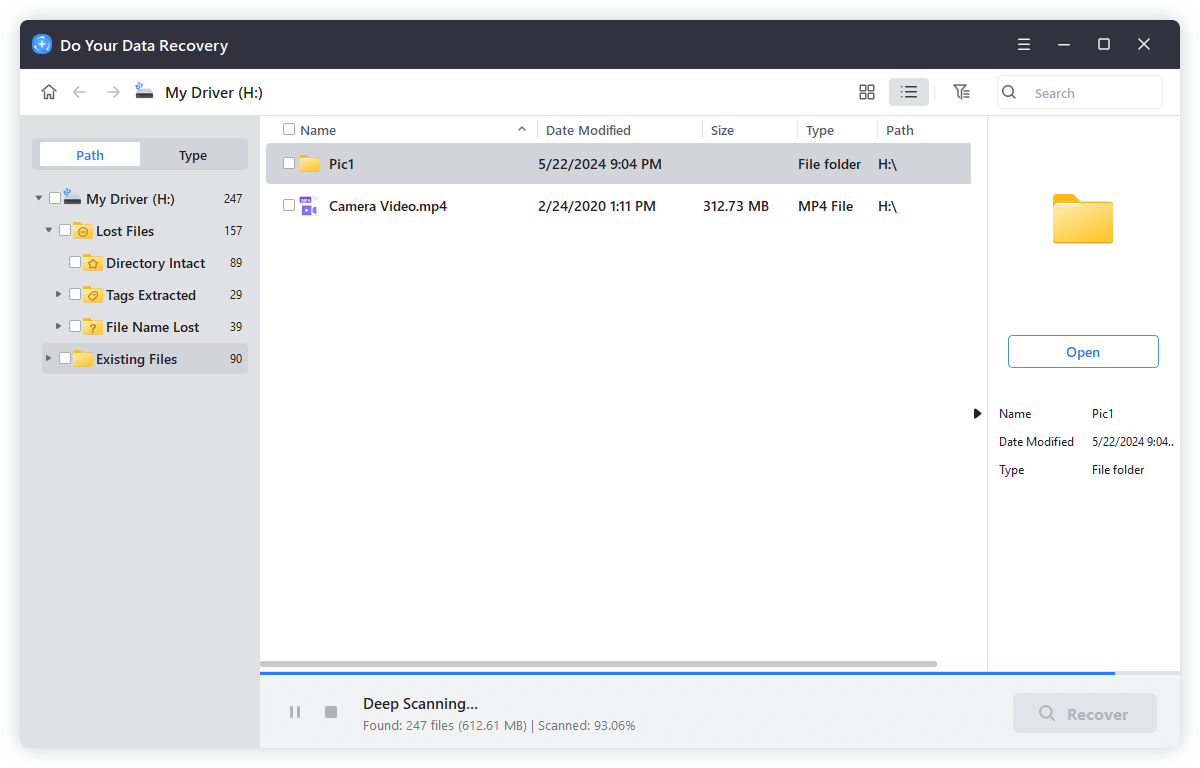
Do Your Data Recovery will perform a quick scan first to identify deleted files instantly, followed automatically by a deep scan to unearth formatted or lost partition data.
Step 4: Preview Files and Perform One-Click Recovery
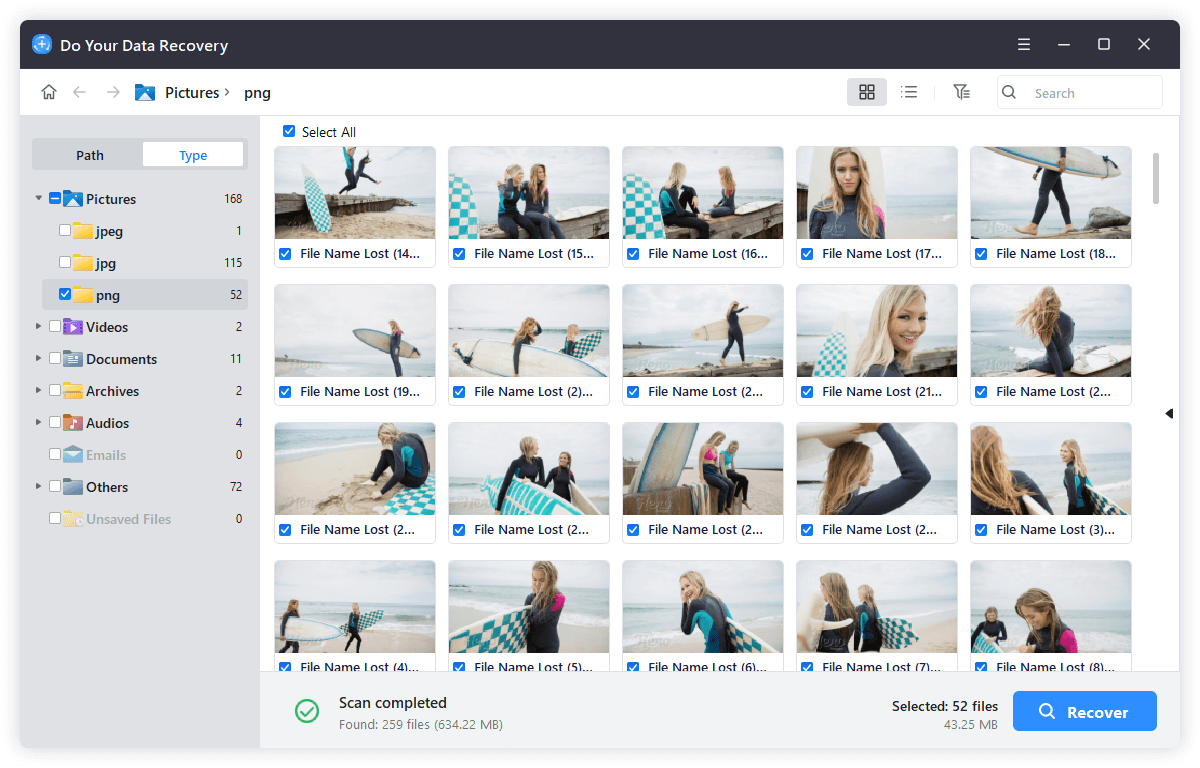
Once the scan completes, browse the organized file categories (e.g., Pictures, Documents, Videos). You can click on any file to preview its content in real time. Select the files you want to restore, click the Recover button, and choose a safe destination folder to save them.
Essential Tips to Maximize Data Recovery Success
If you just discovered that your files are missing, speed and proper habits are crucial. Keep these best practices in mind:
- Stop Using the Affected Drive Immediately: Every time you write new files, download software, or save documents to a drive, you risk overwriting the deleted data space. Stop saving new data immediately.
- Recover Files to a Separate Physical Drive: Always save recovered files to a different drive (for instance, an external hard drive or flash drive) rather than back to the original drive.
- Utilize Windows 11 Built-In Protection: Windows 11 26H2 features built-in File History and System Restore. Check if you have an automatic restore point before or right after updating.
- Establish Regular Backup Routines: Configure automatic daily or weekly backups to cloud storage or external drives to protect your crucial work files.
FAQs about Windows 11 26H2 Data Recovery
Final Verdict
Updating to Windows 11 26H2 offers exciting new capabilities, but data loss remains a risk during any major update. Fortunately, lost files are rarely gone forever if you act quickly.
Using the best data recovery software for Windows 11 26H2, such as Do Your Data Recovery, gives you the highest chance of retrieving missing photos, important documents, and critical drives in just a few clicks. Download the free trial of Do Your Data Recovery today and perform a scan to restore your precious files effortlessly.
Do Your Data Recovery
The safe, powerful and easy-to-use data recovery program to help you recover deleted, formatted or lost data, recover lost data from damaged hard drive, from HDD, SSD, USB flash drive, memory card, digital camera, etc, fix damaged drive and external devices.
Written & Updated by Justin Kenny
Justin Kenny is a writer & editor of DoYourData. He joined DoYourData in 2016 and focuses on writing articles about Windows data recovery, Mac data recovery, external device data recovery, hard drive clone, data erasure, Mac cleanup, computer issue fixes, etc. He is a super fan of Apple devices and is big on testing new digital device and system utility software.