Recover Data from Corrupted Disk: The Ultimate 2026 Guide to Saving Your Files
Recovering your files is a race against time and further damage. By acting quickly, using a separate drive for recovery, and choosing the right software, you have a very high chance of success. Do Your Data Recovery is a reliable choice for data recovery.
 Updated by Justin Kenny on March 24, 2026
Quick Navigation:
- What Exactly is "Disk Corruption"?
- The Golden Rules of Data Safety on Corrupted Disk
- Best Software to Recover Data from Corrupted Disk
- Advanced Recovery: When Software Isn't Enough
- How to Never Deal with Corrupted Disk Again
- Summary:
Data loss is that sinking feeling we've all had—usually at the worst possible moment. Whether it's your graduation photos, a critical work presentation, or years of family videos, seeing a "disk is unreadable" message can feel like a digital catastrophe.
But here is the good news: disk corruption doesn't always mean permanent data loss. Whether you are dealing with a clicking hard drive (HDD), a silent solid-state drive (SSD), or a stubborn USB stick, you can often recover data from a corrupted disk if you follow the right steps.
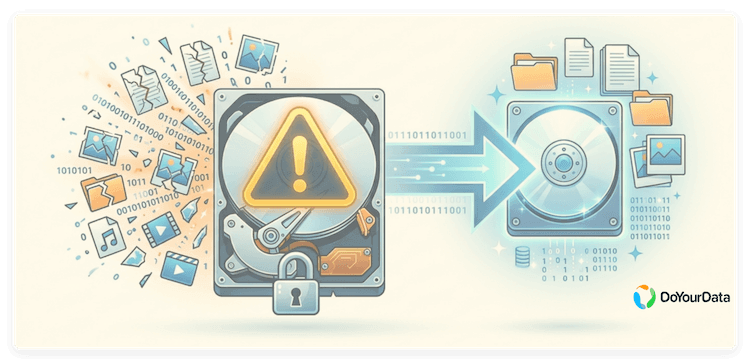
In this guide, we'll walk you through how to identify the damage, the "do's and don'ts" of data safety, and the best data recovery tools to get your life back on track.
What Exactly is "Disk Corruption"?
Before we jump into the "how," let's look at the "why." A corrupted disk happens when either the file system (the digital map of your data) or the physical structure of the drive is damaged.
Common culprits include:
- Hardware Failure: Physical wear and tear, bad sectors, or mechanical issues.
- Software Glitches: System crashes or failed updates that scramble the file system.
- Malware: Viruses designed to lock you out or delete your files.
- Power Surges: Sudden outages that "interrupt the conversation" between your computer and the disk.
- Human Error: Accidentally hitting "Format" or pulling out a USB without "Ejecting".
Red Flags: Is Your Disk Actually Corrupted?
If you notice these signs, stop what you are doing immediately:
- The "Ghost" Drive: Your computer simply doesn't recognize the disk.
- Missing Files: Files disappear or throw errors when you try to open them.
- The Crawl: Your system slows down to a snail's pace when reading from the drive.
- Error Pop-ups: You see "File system not recognized" or "Disk must be formatted".
- The "Click of Death": Any grinding or clicking noises from an HDD suggest physical mechanical failure.
The Golden Rules of Data Safety on Corrupted Disk
Before you try any "fix," remember: In-place repairs can sometimes overwrite the very data you're trying to save.
- STOP using the disk: The more you use it, the higher the chance of overwriting "deleted" but recoverable data.
- Don't Format: Your computer might beg you to format it to "fix" it. Don't. This makes recovery much harder.
- The "Target" Rule: Never save recovered files back onto the corrupted disk. Always use a separate external drive or cloud storage.
- Clone First: If the disk is still partially readable, try to create a disk image (a digital clone) and work off the clone instead.
Best Software to Recover Data from Corrupted Disk
If built-in tools fail, it's time to bring in the specialist software. Here are the top picks for 2026:
Software |
Best For |
Compatibility |
Key Feature |
|---|---|---|---|
Recuva |
Casual/Home Users |
Windows |
Simple interface, great for deleted files. |
Beginners |
Win/Mac |
Supports almost every file system (NTFS, APFS, etc.). |
|
Stellar |
Advanced/Business |
Win/Mac |
Can handle RAID, encrypted drives, and VMs. |
TestDisk |
Tech Enthusiasts |
Cross-platform |
Open-source; repairs corrupted partitions. |
How to Perform the Recovery (Using Do Your Data Recovery)
Step 1. Install Safely: Download and install your recovery software on a different drive than the corrupted one.
Do Your Data Recovery
- Recover data from corrupted, inaccessible, not mounting disk.
- Data recovery for lost pictures, videos, documents and more.
- 100% safe and easy to recover data with only 3 steps.
Step 2. Connect as Secondary: Use an external enclosure to connect the corrupted disk to a healthy computer. Run the data recovery software and select the corrupted disk.
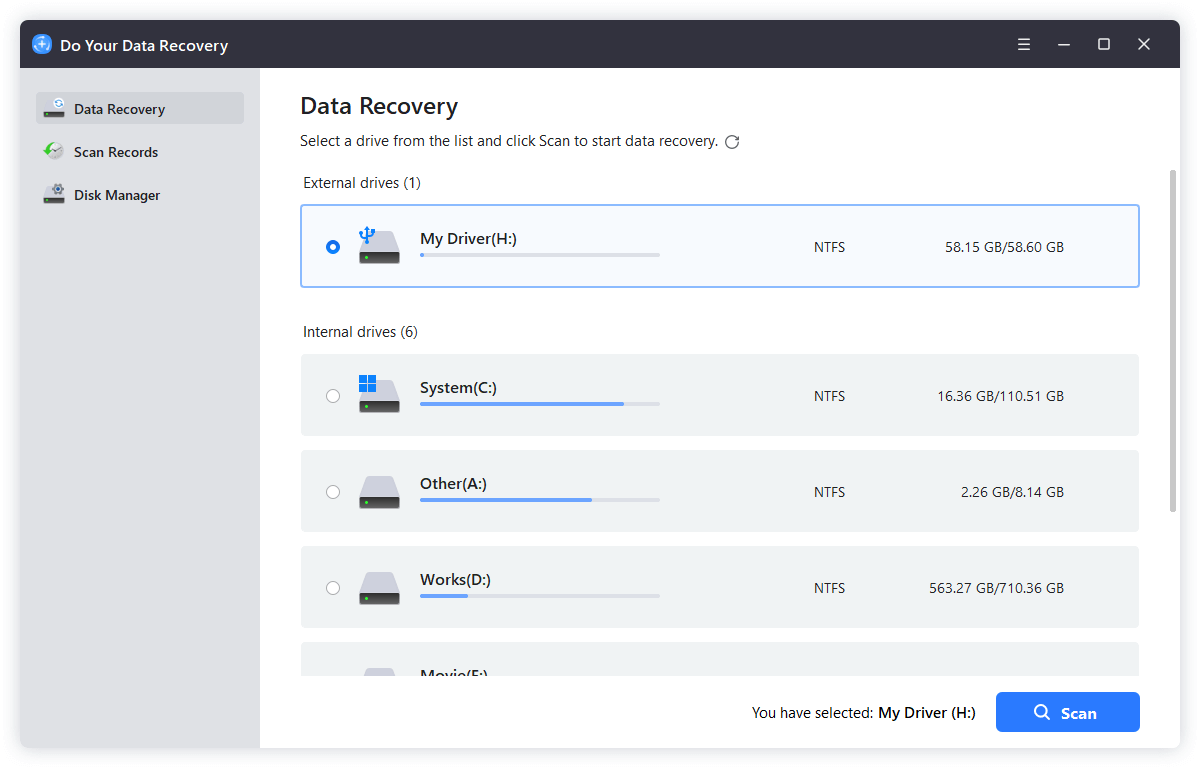
3. Run a Scan: Click the Scan button and the software will start to scan the corrupted disk. The software will perform deep scan automatically and search the entire disk surface to reconstruct lost file structures.
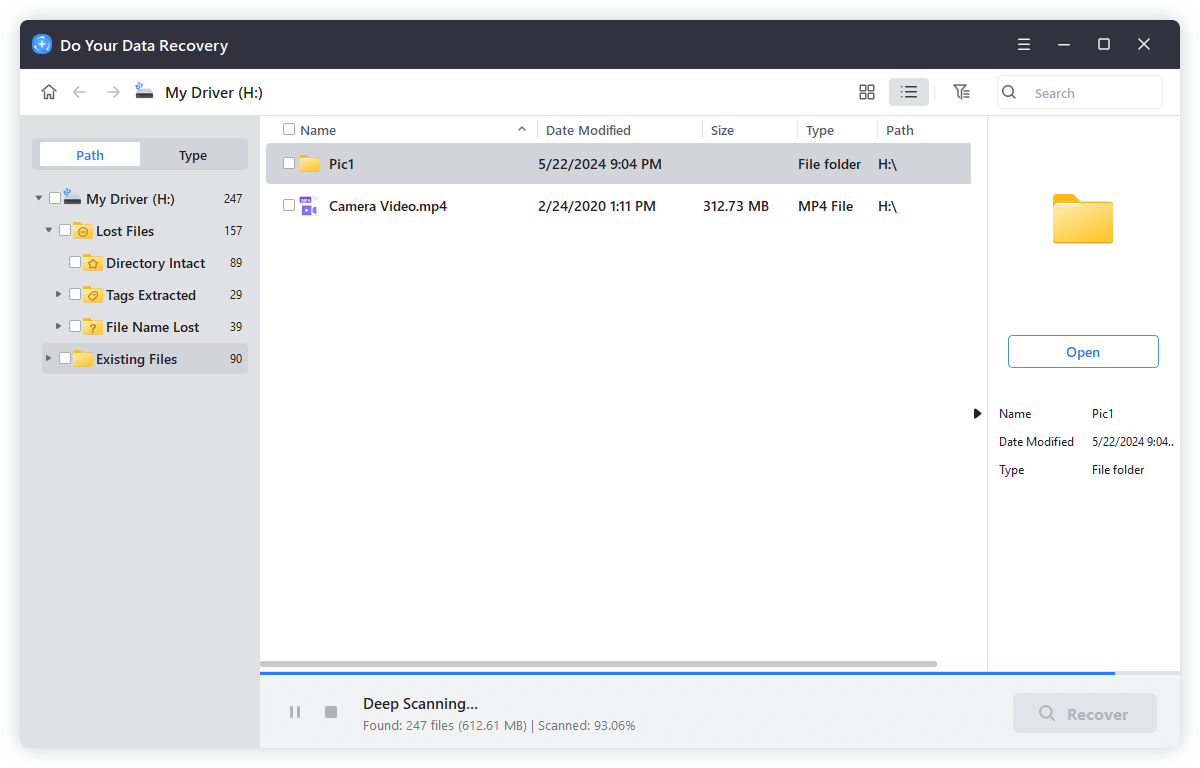
4. Preview and Save: After the scan is finished, you can locate the wanted files. Also, the recovery tool lets you preview images, videos or documents. Select what you need and save them to a new storage device.

Advanced Recovery: When Software Isn't Enough
If the software can't "see" the disk, you might need advanced techniques:
- Disk Imaging: Use tools like ddrescue to create an exact clone of the corrupted drive, skipping bad sectors that might crash standard software.
- Partition Repair: Tools like TestDisk can rebuild the "Master File Table" (MFT) to make an entire partition visible again.
- Professional Labs: If the drive is making physical noises (clicking/grinding), stop immediately. DIY attempts on a physically damaged drive can destroy the data forever. Send it to a professional recovery lab with a cleanroom.
How to Never Deal with Corrupted Disk Again
Once you've successfully managed to recover data from a corrupted disk, let's make sure it's the last time:
- The 3-2-1 Rule: Keep 3 copies of your data, on 2 different media, with 1 copy off-site (Cloud).
- Safe Ejection: Always click "Safely Remove Hardware" before unplugging.
- UPS Protection: Use an Uninterruptible Power Supply (UPS) for your desktop to prevent corruption from power flickers.
- SMART Monitoring: Use tools like CrystalDiskInfo to get early warnings before a drive dies.
Summary:
Recovering data from a corrupted disk requires a careful, step-by-step approach to minimize risk. Start by identifying the corruption signs and assessing disk health. Use built-in tools for minor errors and reliable software for deeper recovery. If the disk shows physical damage, avoid DIY methods and contact professionals. Finally, implement preventive measures to protect your data in the future. Acting quickly, safely, and methodically is the key to successful data recovery.
By following these strategies, users can recover lost documents, photos, videos, and more while minimizing further damage. Remember: a well-maintained disk and regular backups are the best defense against data loss.
Do Your Data Recovery
The safe, powerful and easy-to-use data recovery program to help you recover deleted, formatted or lost data, recover lost data from damaged hard drive, from HDD, SSD, USB flash drive, memory card, digital camera, etc, fix damaged drive and external devices.
Written & Updated by Justin Kenny
Justin Kenny is a writer & editor of DoYourData. He joined DoYourData in 2016 and focuses on writing articles about Windows data recovery, Mac data recovery, external device data recovery, hard drive clone, data erasure, Mac cleanup, computer issue fixes, etc. He is a super fan of Apple devices and is big on testing new digital device and system utility software.