How to Recover Data from HDD Which Is Not Detecting?
When a hard drive is not detecting, there might be logical or physical issues with the HDD. If the hard drive is physically damaged and cannot even be recognized in BIOS, it's impossible to recover data with software. Otherwise, there is still a chance to recover the data from the undetected HDD with a reliable data recovery software. For example, the software Do Your Data Recovery can effectively recover data in such a case.
 Updated by Justin Kenny on February 11, 2026
Quick Navigation:
- What Does "HDD Not Detecting" Mean?
- Perform Basic Hardware Checks for Undetected HDD
- Fix HDD Not Detecting Without Data Loss
- Recover Data from Undetected HDD with Software
- HDD Not Detected in BIOS – What Now?
- How to Prevent HDD Detection Issues
- FAQs about Recovering Data from Undetected HDD
- Conclusion
When your hard disk drive (HDD) is not detecting, it can feel like a nightmare—especially if it contains important files, photos, or work documents. Whether the drive is missing from File Explorer, Disk Management, or even BIOS, the situation is stressful but not always hopeless. In many cases, data recovery is still possible if the right steps are taken.
This guide explains why an HDD may not be detected, what safety measures to follow, and the best methods to recover data from undetected HDD without causing further damage.
What Does "HDD Not Detecting" Mean?
An HDD is considered "not detecting" when:
- It does not appear in File Explorer
- It is missing from Disk Management
- It is not recognized in BIOS/UEFI
- The system shows an Unknown, RAW, or Unallocated disk
This can happen with both internal and external hard drives and does not always mean the data is lost.
Common Reasons Why HDD Is Not Detecting
Understanding the cause helps determine the best recovery approach.
Hardware-Related Issues
- Loose or damaged SATA/USB cables
- Faulty USB ports
- Insufficient power supply
- Defective enclosure (for external HDDs)
Software-Related Issues
- Missing or outdated drivers
- Corrupted partition table
- File system errors
- Virus or malware attacks
- Improper shutdowns
Logical Disk Errors
- RAW file system
- Unallocated space
- Offline disk status
- Corrupted boot sector
Physical Damage
- Clicking or grinding noises
- Water or fire exposure
- Dropped drive
- Head or motor failure
Important Safety Precautions
Before attempting any fixes, follow these rules to avoid permanent data loss:
- Stop using the HDD immediately
- Do not format or initialize the disk
- Avoid random "repair" tools
- Do not open the HDD physically
- If the drive makes clicking noises, turn it off
Using the drive can overwrite recoverable data.
Perform Basic Hardware Checks for Undetected HDD
Sometimes the issue is simple and easy to fix. First, try these steps:
- Replace the USB/SATA cable
- Use a different USB port
- Connect the HDD to another computer
- Use a powered USB hub
- Remove the external case and connect directly (advanced users only)
Check BIOS/UEFI Detection
Restart your PC and enter BIOS (usually by pressing F2, DEL, or ESC).
If the HDD is not listed, the issue may be hardware-related.
Check Disk Management in Windows
Press Win + X → Disk Management
Look for the HDD and its status:
Status |
Meaning |
|---|---|
Not Initialized |
Partition table missing |
Unallocated |
Partition deleted |
RAW |
File system corrupted |
Offline |
Disk disabled |
Healthy but invisible |
No drive letter |
Each status requires a different recovery approach.
Fix HDD Not Detecting Without Data Loss
Update or Reinstall Drivers
- Open Device Manager
- Expand Disk Drives
- Right-click the HDD → Update Driver (or Update Driver Software)
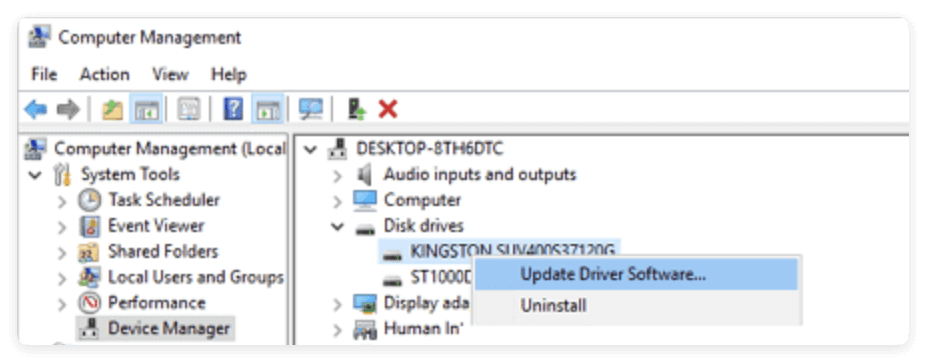
If that fails, uninstall and restart your PC.
Assign a Drive Letter
If the HDD shows up but has no letter:
- Right-click the partition
- Choose Change Drive Letter
- Assign a new letter
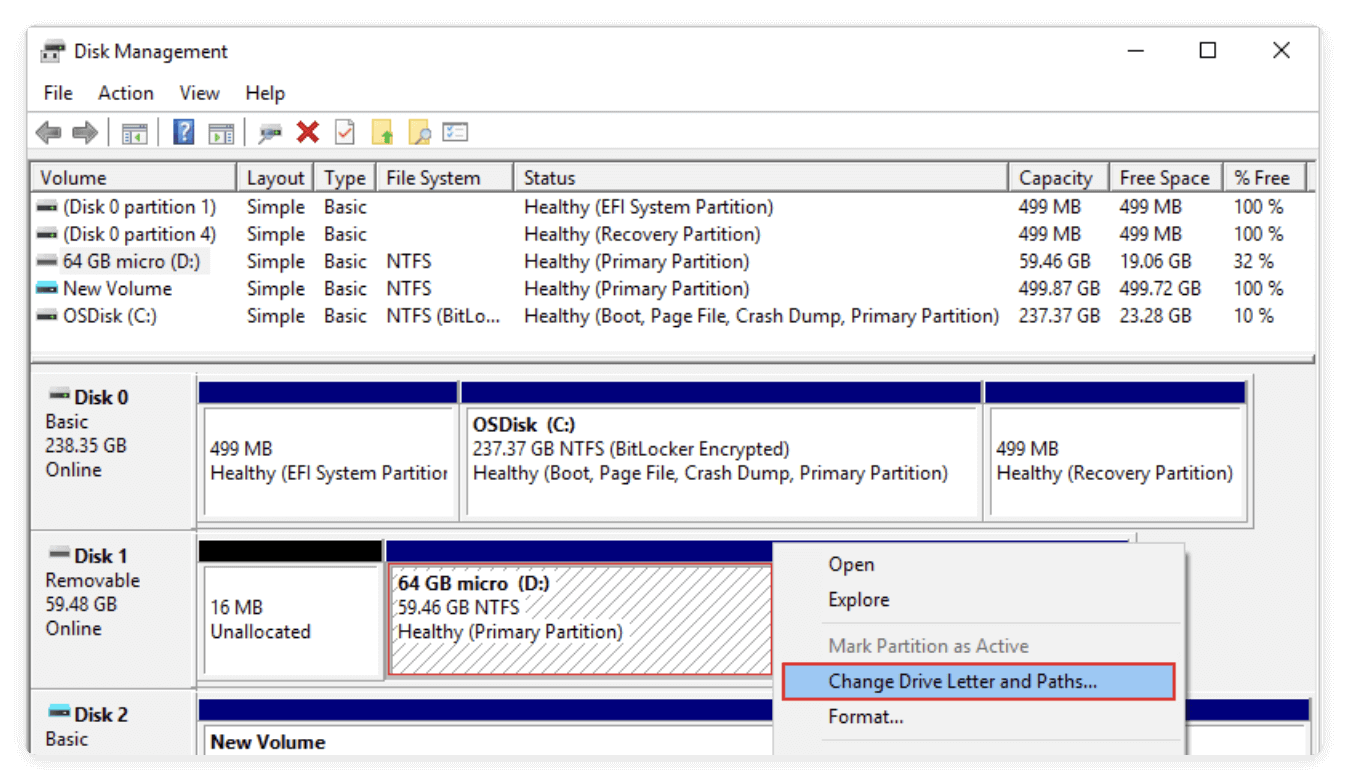
This often makes the drive visible again.
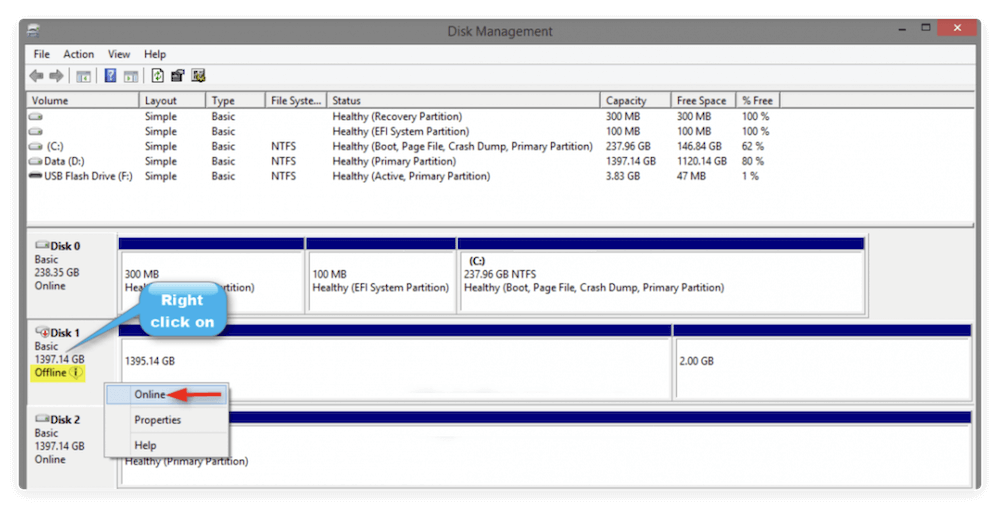
Set Disk to Online
For offline disks:
- Right-click the disk
- Select Online
Use CHKDSK (Only If Detectable)
If the drive appears with a letter:
chkdsk X: /f
This fixes file system errors but should not be used on severely corrupted drives without backup.
Recover Data from Undetected HDD with Software
When an HDD is not detecting in File Explorer but still appears in Disk Management, data recovery software is usually the safest and most effective solution. This method works for most logical issues such as deleted partitions, RAW file systems, unallocated space, and file corruption.
Let's break the process down in detail so you can recover your data with minimal risk.
When Data Recovery Software Can Help
Software-based recovery is suitable if:
- The HDD shows up in Disk Management
- The drive is marked as RAW
- The partition is unallocated
- Files are missing or inaccessible
- The drive was accidentally formatted
- The file system is corrupted (NTFS, FAT32, exFAT)
However, do not use software if:
- The HDD makes clicking or grinding noises
- The drive is not detected in BIOS
- The disk was physically damaged
In such cases, software recovery can worsen the damage.
How Data Recovery Software Works
Most professional recovery tools use read-only scanning to avoid altering the disk. They analyze:
- File system structures
- Partition tables
- Boot sectors
- Raw file signatures
There are two main scan types:
1. Quick Scan
- Searches for recently deleted files
- Very fast
- Limited recovery
2. Deep Scan
- Analyzes the entire disk sector-by-sector
- Recovers data from corrupted or lost partitions
- Takes longer but is far more effective
Always choose Deep Scan for undetected HDDs.
Step-by-Step Data Recovery Process
Step 1: Install the Software Safely
Install the recovery tool Do Your Data Recovery on your system drive, not on the faulty HDD. Installing it on the same drive can overwrite lost data.
Do Your Data Recovery
- Recover data from undetected, RAW, unallocated, formatted HDD.
- Support data recovery for pictures, documents, videos, etc.
- 100% safe and effective data recovery software.
Step 2: Connect the Undetected HDD
Use a reliable USB/SATA cable or connect it internally for better stability.
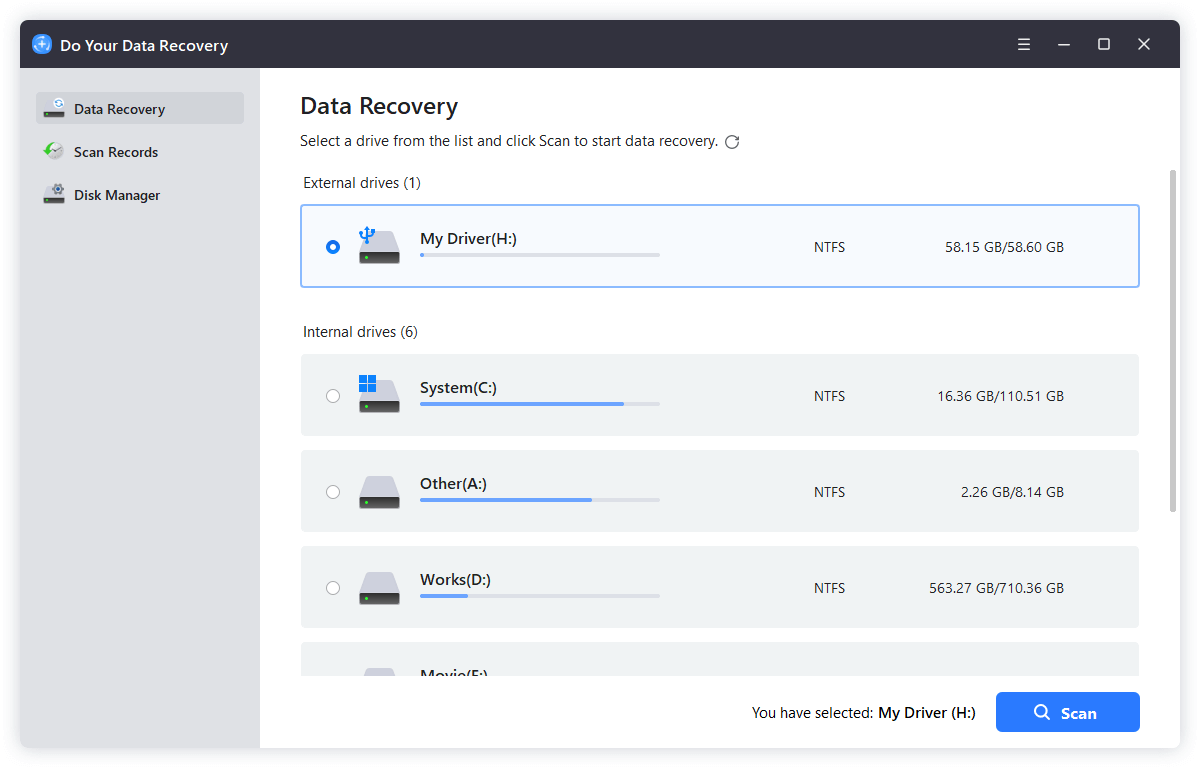
Step 3: Select the HDD for Scanning
Choose the entire disk rather than a specific partition, especially if the disk is RAW or unallocated.
Step 4: Run a Deep Scan
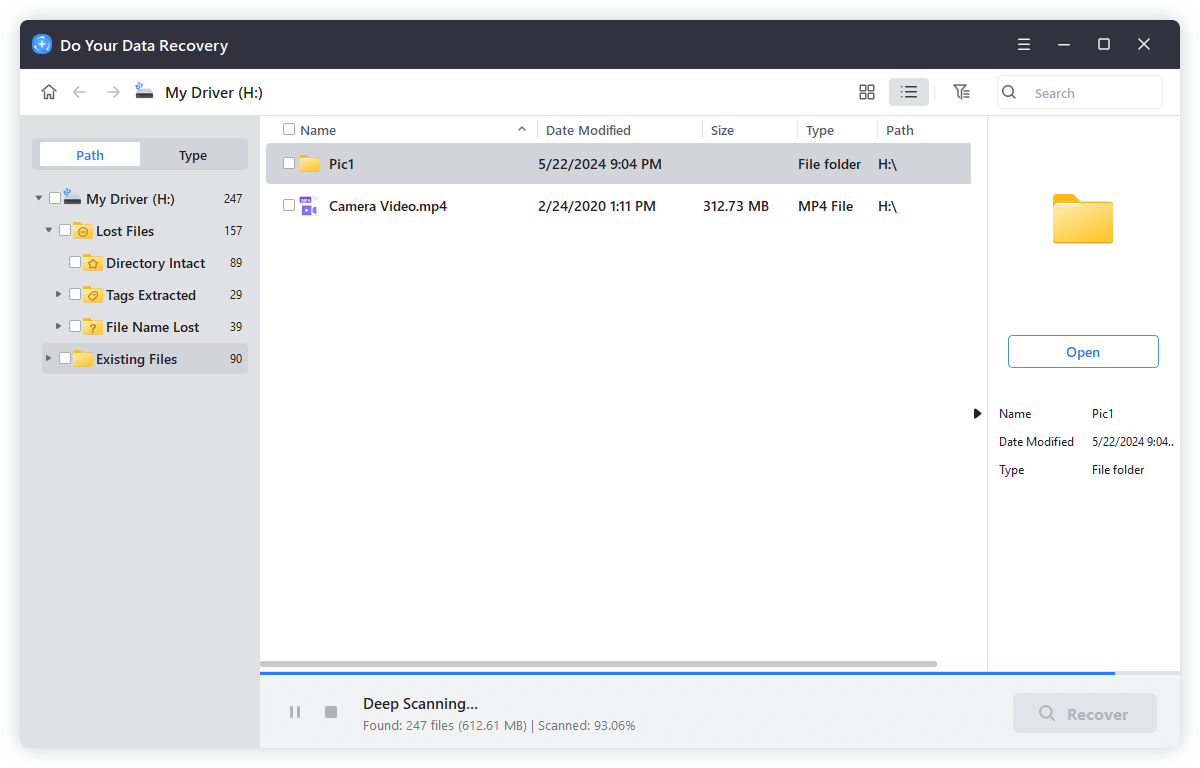
The software Do Your Data Recovery will automatically run a deep scan for the undetected HDD. This may take several hours depending on disk size and condition. Avoid interrupting the scan.
Step 5: Preview Recoverable Files
Most tools allow previews of photos, documents, and videos to confirm file integrity.

Step 6: Recover to a Different Drive
Always save recovered files to a separate disk to prevent overwriting.

Common Recovery Mistakes to Avoid
- Formatting the drive before recovery
- Installing software on the same HDD
- Running multiple repair tools
- Interrupting deep scans
- Saving recovered files to the same disk
These actions can permanently destroy recoverable data.
Should You Use Free or Paid Tools?
Free tools are good for:
- Scanning
- Previewing files
- Small recoveries
Paid tools are needed for:
- Large data recovery
- Deep scan exports
- RAW/unallocated disks
For critical data, professional-grade tools are recommended.
HDD Not Detected in BIOS – What Now?
If the HDD is missing from BIOS:
Possible Causes
- Dead circuit board
- Motor failure
- Head crash
- Firmware corruption
Why Software Won't Help
Recovery software requires system-level detection. If BIOS can't see the drive, software cannot access it.
Best Option
Use professional data recovery services with cleanroom facilities.
When to Use Professional Data Recovery Services
Signs You Need Experts
- Clicking, beeping, or grinding noises
- Physical damage
- Water/fire exposure
- HDD not detected in BIOS
- Firmware failure
What Professionals Do
- Replace damaged heads
- Repair firmware
- Extract platters
- Recover data in cleanrooms
Cost Considerations
- Logical damage: Lower cost
- Physical damage: Higher cost
- Pricing depends on drive condition and urgency
If the data is critical, professional recovery is often worth it.
How to Prevent HDD Detection Issues
Best Practices
- Always safely eject external drives
- Use surge protectors
- Avoid sudden shutdowns
- Keep drives cool and dry
- Back up data regularly
Backup Options
- Cloud storage
- External HDD backups
- NAS systems
- System images
A good backup strategy eliminates panic during failures.
FAQs about Recovering Data from Undetected HDD
Conclusion
A hard drive that is not detecting does not automatically mean your data is lost. In many cases, the issue is caused by software errors, corrupted partitions, or minor hardware problems that can be fixed safely. By following proper precautions and using the right recovery methods, you can often restore your files without professional help.
However, if the HDD is not recognized in BIOS, makes unusual noises, or has suffered physical damage, it is best to stop all attempts and consult a professional data recovery service.
The most important lesson is prevention: always back up your data. With regular backups, even a completely failed HDD becomes a minor inconvenience rather than a disaster.
Do Your Data Recovery
The safe, powerful and easy-to-use data recovery program to help you recover deleted, formatted or lost data, recover lost data from damaged hard drive, from HDD, SSD, USB flash drive, memory card, digital camera, etc, fix damaged drive and external devices.
Written & Updated by Justin Kenny
Justin Kenny is a writer & editor of DoYourData. He joined DoYourData in 2016 and focuses on writing articles about Windows data recovery, Mac data recovery, external device data recovery, hard drive clone, data erasure, Mac cleanup, computer issue fixes, etc. He is a super fan of Apple devices and is big on testing new digital device and system utility software.