Recover Images or Videos from a Formatted Sony Camera
Recovering lost data from formatted camera, hard drive or pen drive is possible. With a reliable data recovery tool, like Do Your Data Recovery, it's quick and easy to recover lost data from formatted storage device before lost data has been overwritten and damaged.
 Updated by Justin Kenny on November 23, 2026
PAGE CONTENT:
You may be able to recover photos and videos from a formatted Sony camera if the files have not been overwritten. Stop using the camera and remove its SD card. Scan the card with reliable data recovery software, such as Do Your Data Recovery, then save recovered files to a different drive. Recovery is not guaranteed, especially after continued use or a secure erase.
Formatting a Sony camera's memory card can make its files disappear, but it does not always erase their contents immediately. The chance of recovery depends on the card type, how it was formatted, and whether new data has been written since. Acting quickly helps preserve the data that may still be recoverable.
Why Formatted Sony Camera Files May Be Recoverable
Formatting usually rebuilds a file system so the camera can use the card again. A quick format often removes file references without immediately overwriting every photo or video. Recovery software may find file data that remains on the card.
This does not mean recovery is certain. New photos, videos, or other data can overwrite the same storage space, making the original files difficult or impossible to restore. A full format, secure erase, card failure, or physical damage can also reduce recovery chances.
Sony cameras commonly use SD, SDHC, SDXC, or CFexpress cards, depending on the model. Check your camera manual to confirm the card type and file system before choosing a recovery method.
What to Do Immediately
Take these steps before attempting recovery:
- Stop recording and turn off the camera. Do not take new photos or videos.
- Remove the memory card. If the card has a lock switch, set it to the locked position. This can help prevent accidental writes, though it is not a substitute for careful handling.
The most important rule is to minimize changes to the card. Even normal camera activity, such as recording a short test clip, may overwrite data you want to recover.
Tips for Better Recovery Results
- Use a reliable card reader. A reader that disconnects can interrupt a scan or copying process.
- Scan the card itself. Do not scan only the camera's DCIM folder if formatting has removed the folder structure.
- Recover to another storage device. Writing recovered files back to the card can overwrite other lost files.
- Keep the card connected during a scan. Disconnecting it may interrupt the process.
- Check recovered files before reusing the card. Confirm that important photos and videos open and play correctly.
If the card contains irreplaceable material, consider creating a full card image before scanning. Work from the image when possible and keep the original card unchanged.
How to Recover Formatted Sony Camera Photos and Videos
Do Your Data Recovery is a desktop recovery application that can scan storage devices for lost files. The general recovery process is:
Step 1. Remove the card from your Sony camera and connect it to a computer using a card reader. Download and install Do Your Data Recovery on a different drive from the affected card.
Do Your Data Recovery
- Best recovery software for formatted camera card.
- Effective to recover lost images or videos.
- Easy-to-use and professional data recovery software.
Step 2. Open the software and select the memory card as the scan location. Confirm its capacity and label so you do not scan the wrong device.
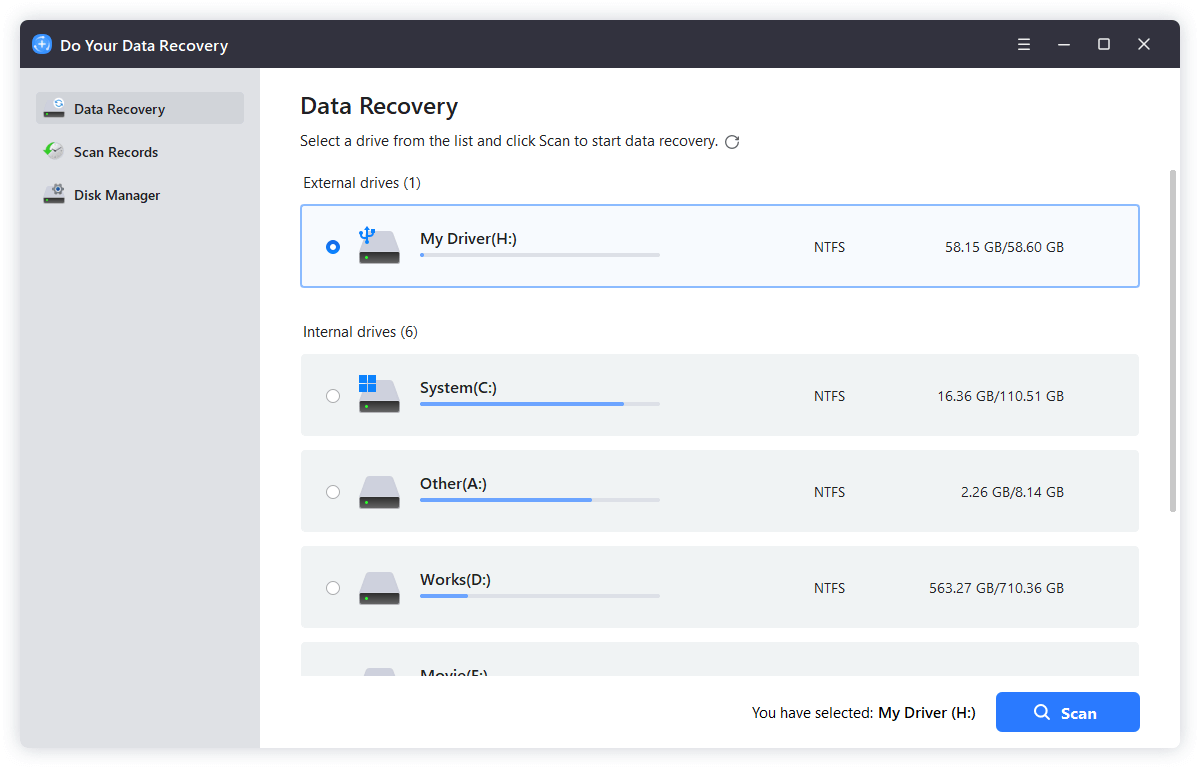
Step 3. Start a scan. If the quick scan does not find the files, run the available deeper scan.
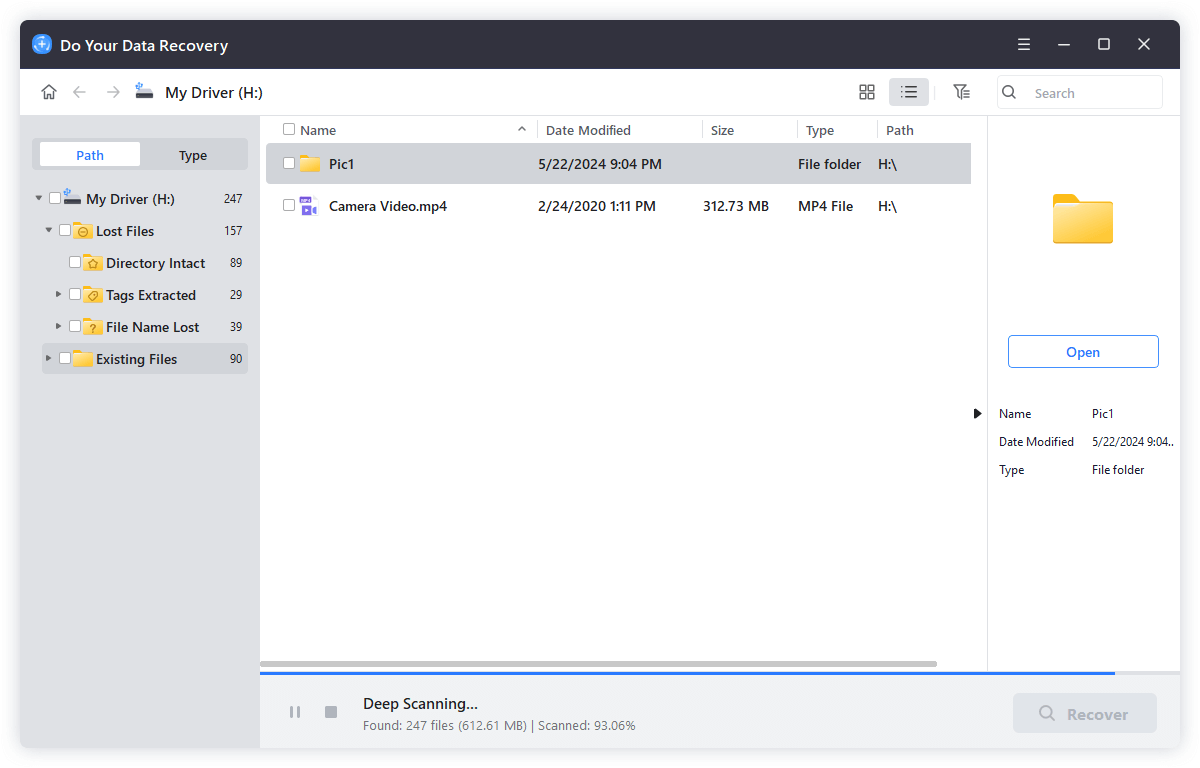
Step 4. Preview found files when the software supports previews. Check filenames, file types, sizes, and thumbnails where available. Select the files you need and recover them to a separate drive, such as the computer's internal drive or an external disk.
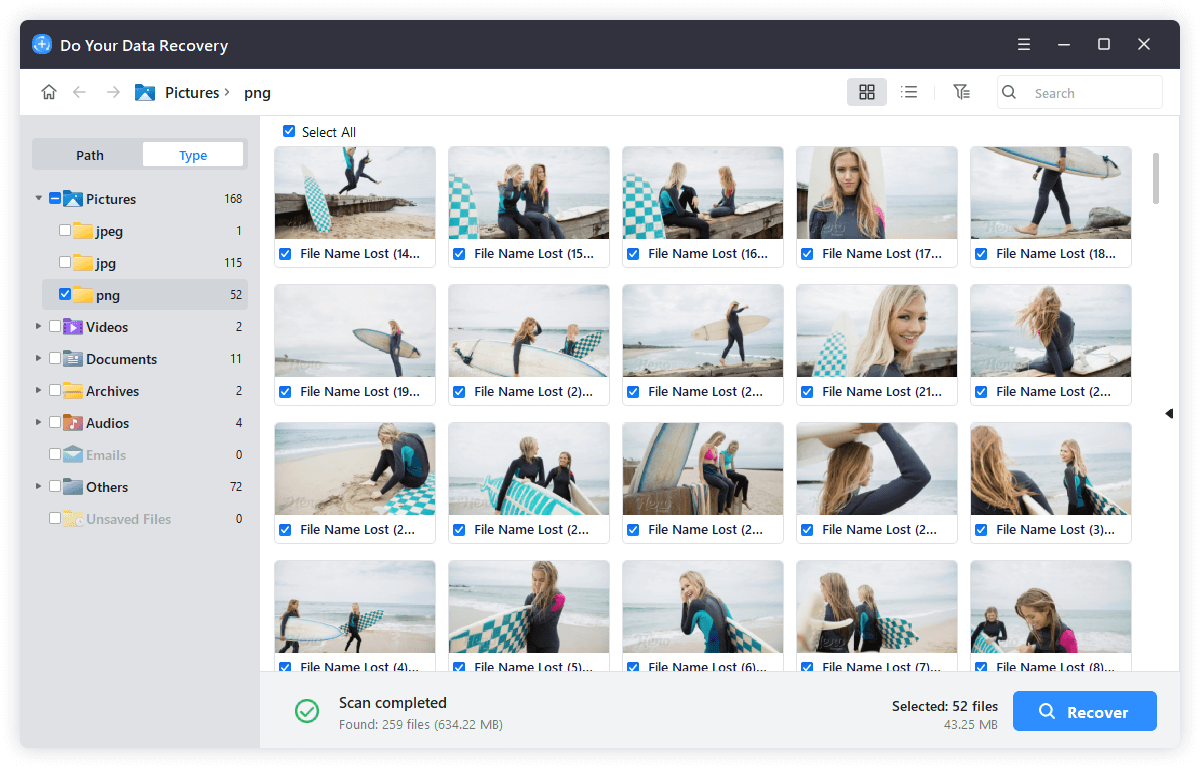
Open a sample of the recovered photos and videos to verify that they are readable before deleting or reformatting the card.
Recovery software can find files even when their original names or folder structure are missing. If that happens, sort results by file type, size, or date and inspect previews where available.Before scanning, check whether the files are already on a computer, external drive, cloud service, or another backup. A backup is usually the fastest and safest recovery source.
When Software Recovery May Not Work
Software recovery is most suitable when the memory card is physically intact and appears as a storage device on the computer. If the card is bent, cracked, overheating, repeatedly disconnecting, or showing an incorrect capacity, stop using it.
A full format or secure erase may overwrite more of the card than a quick format. Continued recording after formatting can overwrite the original file data. In these cases, some files may be missing, incomplete, or unrecoverable.
If the files are valuable and the card is damaged, avoid repeated scans and contact a reputable data recovery service. Repeated attempts can put additional stress on an unstable card.
How to Avoid Losing Sony Camera Photos Again
Back up important files as soon as practical. Copy them to a computer or external drive, and consider keeping a second copy in a separate location. For travel or professional work, use multiple cards and avoid keeping the only copy on the camera.
Before formatting, confirm that the card's files have been copied and checked. Format the card in the Sony camera that will use it, following the camera's instructions. Formatting in the camera can help prepare the card for that device, but it should only happen after your data is backed up.
FAQs about Formatted Sony Camera Data Recovery
Conclusion
To recover lost images and videos from a formatted Sony camera, stop using the memory card, connect it to a computer with a card reader, and scan it with recovery software such as Do Your Data Recovery. Save any recovered files to another drive. Recovery depends on whether the original data has been overwritten or the card has been damaged.
Do Your Data Recovery
The safe, powerful and easy-to-use data recovery program to help you recover deleted, formatted or lost data, recover lost data from damaged hard drive, from HDD, SSD, USB flash drive, memory card, digital camera, etc, fix damaged drive and external devices.
Written & Updated by Justin Kenny
Justin Kenny is a writer & editor of DoYourData. He joined DoYourData in 2016 and focuses on writing articles about Windows data recovery, Mac data recovery, external device data recovery, hard drive clone, data erasure, Mac cleanup, computer issue fixes, etc. He is a super fan of Apple devices and is big on testing new digital device and system utility software.