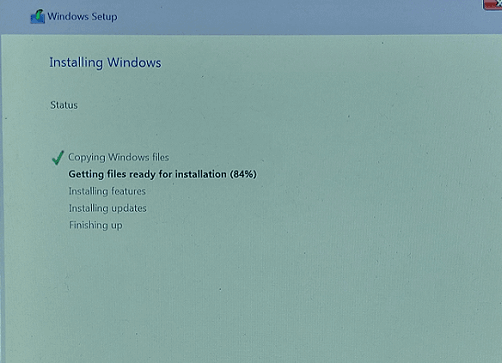
How to download and install Windows 11?
Just follow the steps to create a ISO installer and run it to install Windows 11 OS.
When your PC fails to start, your top priority isn't just fixing Windows—it's saving your valuable photos, documents, family videos, and work files stored on the internal hard drive or SSD. Do Your Data Recovery can help you retrieve the data in such a case.
 Updated by Justin Kenny on September 29, 2026
PAGE CONTENT:
Facing a PC that refuses to boot is one of the most frustrating experiences for any computer user. With the latest release of Windows 11 26H2, new system updates, driver changes, or sudden corruption can sometimes leave your computer stuck in an endless boot loop, black screen, or Blue Screen of Death (BSOD).
The good news is that an unbootable system does not mean your files are destroyed. As long as your hard drive hasn't suffered severe physical damage, your personal data remains safely stored on the drive.
In this comprehensive guide, we will show you exactly how to recover data from unbootable PC Windows 11 26H2 safely and quickly, even if you cannot log in to your desktop.
Understanding why your system won't boot helps in selecting the right data recovery approach. Windows 11 26H2 introduces updated kernel components, stricter security requirements, and updated system drivers.
Here are the primary causes behind an unbootable Windows 11 26H2 PC:
When your Windows 11 26H2 PC cannot start normally, standard recovery software installed on the same PC won't work. The most effective way to extract your data is by reinstall a system on an external drive or connect the PC drive to another working PC for data recovery.
Do Your Data Recovery can then easily recover the lost files from the drive from the crashed and unbootable PC.
Why Do Your Data Recovery is ideal for Windows 11 26H2:
Step 1: Install a new system on an external drive
Connect an empty external drive to the unbootable PC. Create a bootable USB for the Windows system. Use the bootable USB to boot the PC and then install a new system on the external drive.
How to download and install Windows 11?
Just follow the steps to create a ISO installer and run it to install Windows 11 OS.
Step 2: Download and install data recovery software
Download the software Do Your Data Recovery and install it on the external drive where you installed the new operating system.
Step 3: Scan Internal Hard Drive and Save Your Files
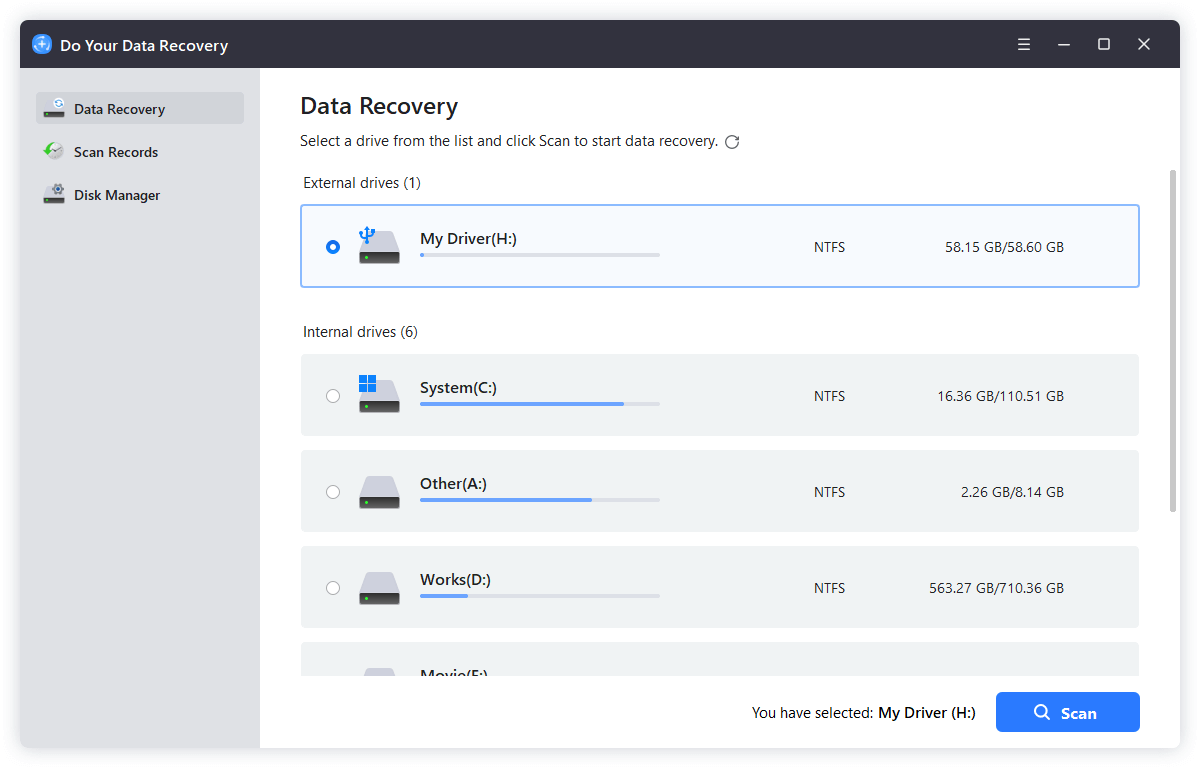
Launch the recovery software, select your internal hard drive and click Scan button. The software will deeply scan the drive to search for the lost files.
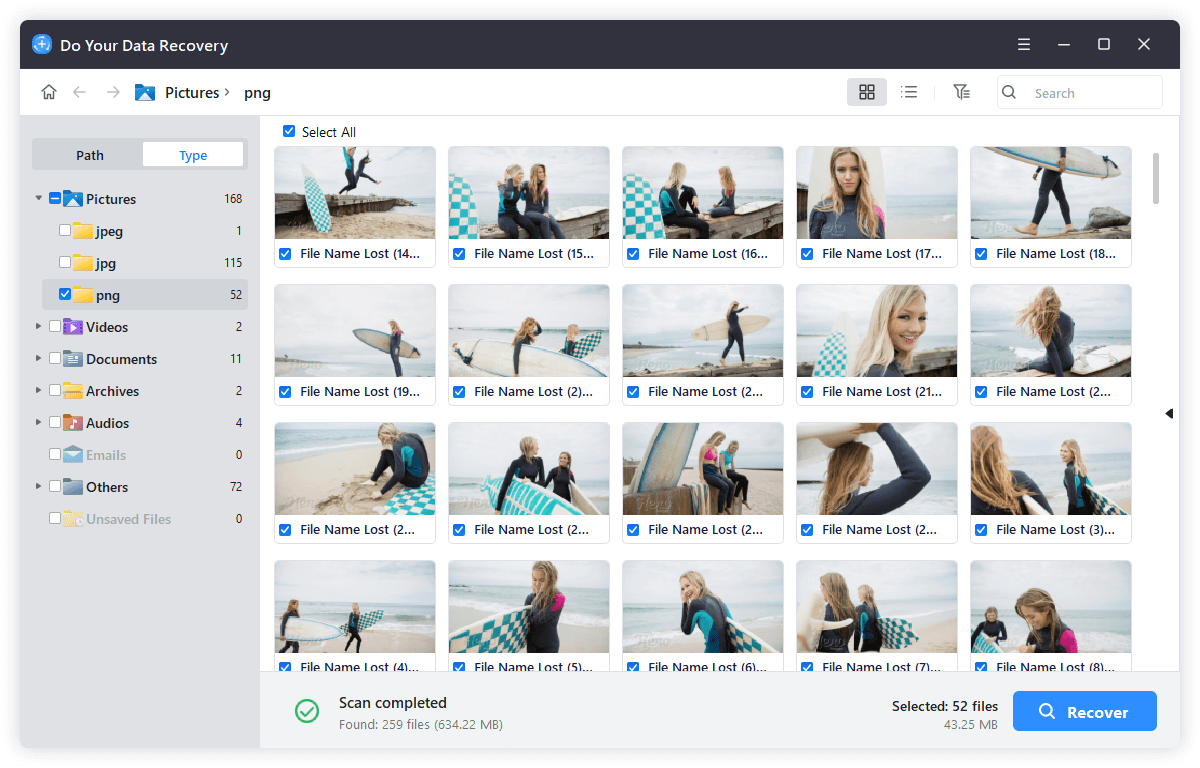
Once the scanning process is done, preview all detected files, select the documents and media you need, and click Recover to save them to an external hard drive or external USB drive.
If your Windows 11 26H2 PC has suffered motherboard or power failure, software boot options will not work. In this case, extracting the physical storage drive is your best option.
If the drive is inaccessible or there are some files lost, you can run Do Your Data Recovery to recover the lost data.
If you do not have another PC readily available to create a bootable USB right away, you can attempt to use Windows built-in Recovery Environment (WinRE) to extract files.
Windows 11 26H2 includes a clever hidden file manager trick inside Command Prompt.
Steps to access Notepad File Manager in WinRE:
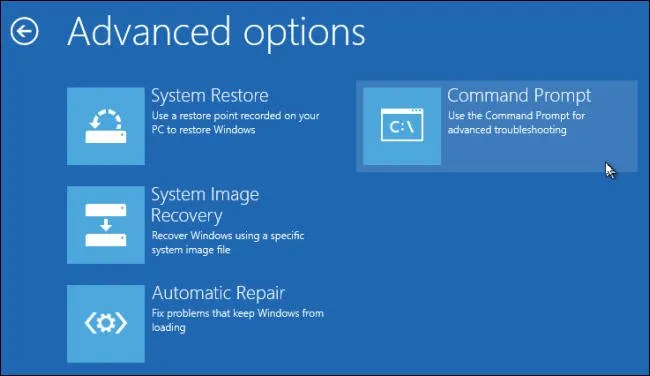
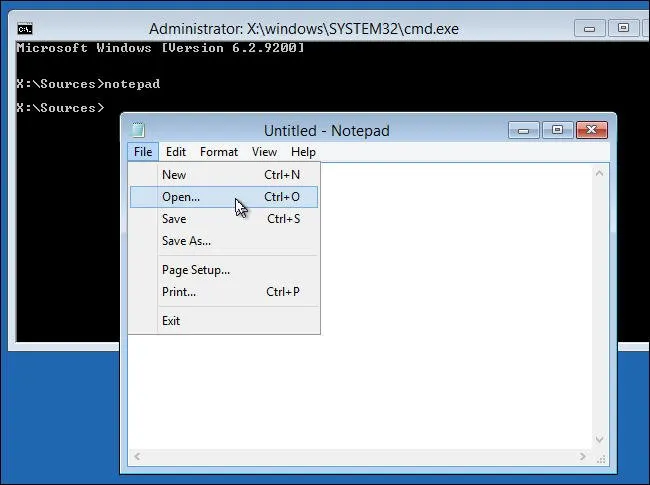
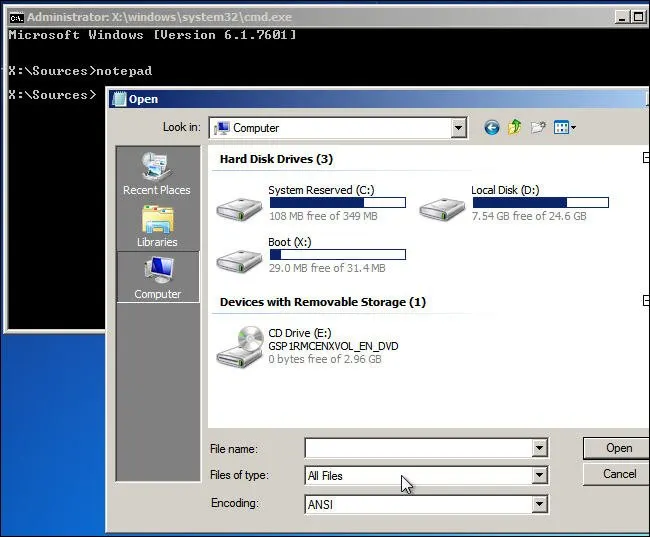
💡 Note: Notepad does not show copy progress bars, so wait until your external drive LED stops flashing before closing Notepad. Also, if the system drive is inaccessible, this method will not work.
To maximize your recovery success rate and prevent permanent data loss, keep these essential precautions in mind:
Experiencing a boot failure on Windows 11 26H2 can be stressful, but your data is usually safe on your hard drive. By avoiding risky system resets and using a reliable data recovery tool like Do Your Data Recovery, you can effortlessly access your crashed system and restore all your valuable files in a few simple clicks.
Don't panic when your PC won't turn on— Download Do Your Data Recovery today and safeguard your digital life!
Do Your Data Recovery
The safe, powerful and easy-to-use data recovery program to help you recover deleted, formatted or lost data, recover lost data from damaged hard drive, from HDD, SSD, USB flash drive, memory card, digital camera, etc, fix damaged drive and external devices.
Written & Updated by Justin Kenny
Justin Kenny is a writer & editor of DoYourData. He joined DoYourData in 2016 and focuses on writing articles about Windows data recovery, Mac data recovery, external device data recovery, hard drive clone, data erasure, Mac cleanup, computer issue fixes, etc. He is a super fan of Apple devices and is big on testing new digital device and system utility software.