How to Fix 'Your Computer Restarted Because of A Problem'?
There are different issues that will cause an unexpected restart on Windows or Mac machines. The guide will outline the solutions to fix and avoid the issue. If data loss happen due to the issue, you can restore from backups or using software Do Your Data Recovery.
 Updated by Nancy on March 06, 2026
Quick Navigation:
- What Does "Your Computer Restarted Because of a Problem" Mean?
- Quick Fixes for Computer Restarting Issue
- Advanced Troubleshooting Methods
- How to Recover Lost Data after Unexpected Restart
- How to Prevent Unexpected Restart Error in the Future
- FAQs about Unexpected Computer Restart Error
- Conclusion
Seeing the message "Your computer restarted because of a problem" can be frustrating—especially when it happens repeatedly. Whether you're working on an important document or browsing the web, sudden restarts disrupt productivity and may even cause data loss.
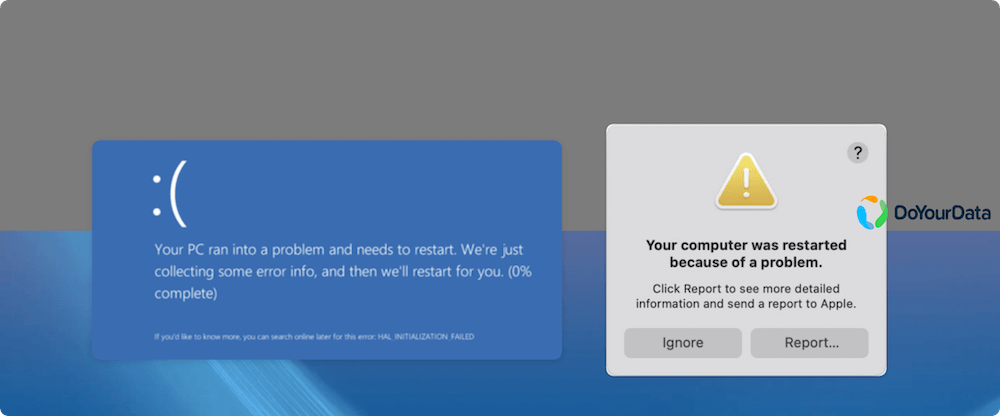
This error typically appears on macOS systems after a kernel panic, while Windows users encounter similar behavior in the form of a Blue Screen of Death (BSOD). In this detailed guide, we'll explain what this error means, why it happens, and how to fix it on both Mac and Windows computers.
What Does "Your Computer Restarted Because of a Problem" Mean?
On macOS: Kernel Panic
On macOS, this message usually appears after a kernel panic. A kernel panic occurs when the operating system's core (kernel) detects a critical error it cannot safely recover from.
In simple terms, macOS forces a restart to prevent further system damage.
You may see a message like:
"Your computer restarted because of a problem. Press a key or wait a few seconds to continue starting up."
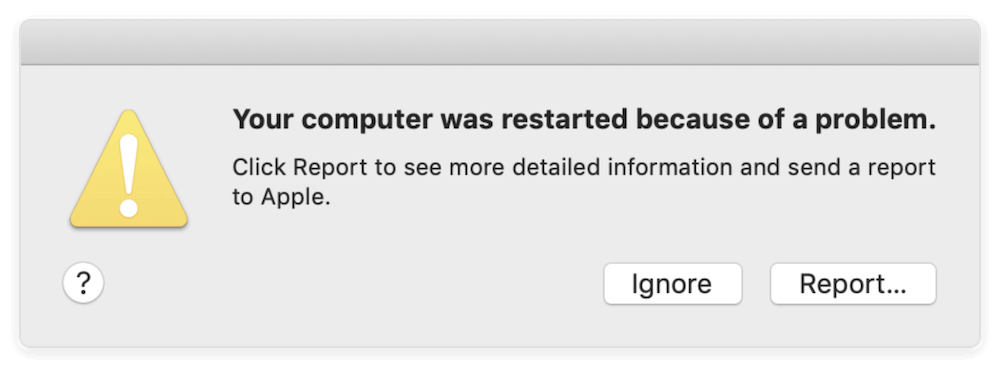
This indicates that the system encountered a severe issue related to hardware, drivers, or system-level software.
Modern versions of macOS automatically collect diagnostic reports after a crash to help identify the cause.
On Windows: Blue Screen of Death (BSOD)
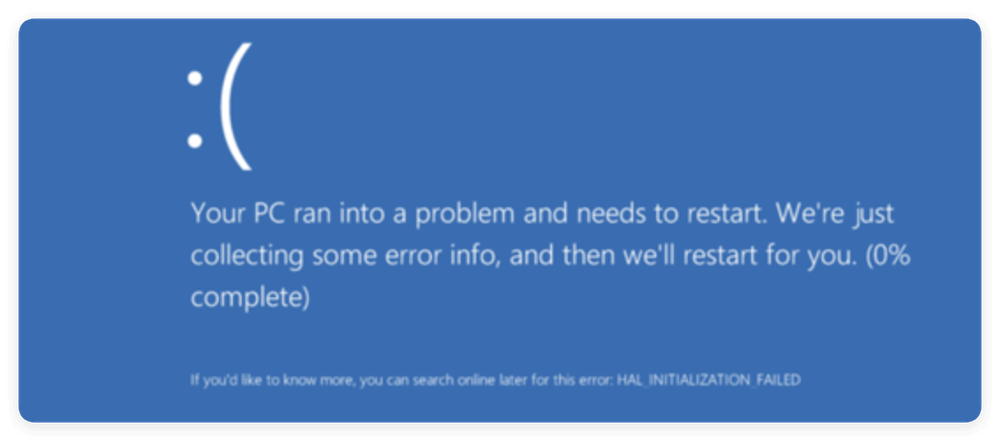
On Windows, a similar issue appears as the Blue Screen of Death (BSOD). Windows displays a stop error and then restarts automatically.
In systems like Windows 11 and Windows 10, you may see a message such as:
"Your PC ran into a problem and needs to restart."
This is essentially Windows' equivalent of a kernel panic.
Common Causes of the Computer Restarting Error
Understanding the root cause is essential before attempting advanced fixes.
1. Software-Related Causes
- Corrupted System Files - System files may become corrupted due to improper shutdowns, malware, or failed updates.
- Incompatible Applications - Recently installed third-party software can conflict with the operating system.
- Malware Infections - Malicious programs can interfere with core system processes, triggering crashes.
- Outdated Operating System - Running an outdated OS version increases compatibility risks.
2. Hardware-Related Causes
- Faulty RAM - Defective memory modules are one of the most common causes of random restarts.
- Overheating - If your CPU or GPU overheats, the system may shut down automatically to prevent hardware damage.
- Failing Hard Drive or SSD - Bad sectors, file system corruption, or failing drives can cause repeated crashes.
- External Device Conflicts - USB drives, printers, and other peripherals can trigger system-level conflicts.
3. Driver & Update Issues
- Corrupted device drivers
- Incompatible graphics drivers
- Faulty OS updates
- BIOS/firmware incompatibility
Driver-related problems are especially common after major system upgrades.
Quick Fixes for Computer Restarting Issue
Before performing advanced troubleshooting, start with these simple steps.
1. Disconnect External Devices
Unplug:
- USB drives
- External hard disks
- Printers
- Docking stations
Restart your computer and check if the problem persists.
2. Restart in Safe Mode
Safe Mode loads only essential drivers and system components.
On Mac:
- Shut down your Mac.
- Turn it on while holding the Shift key (Intel Macs).
- For Apple Silicon Macs, use startup options and choose Safe Mode.

On Windows:
- Hold Shift and click Restart.
- Navigate to Advanced Options → Startup Settings.
- Choose Safe Mode.
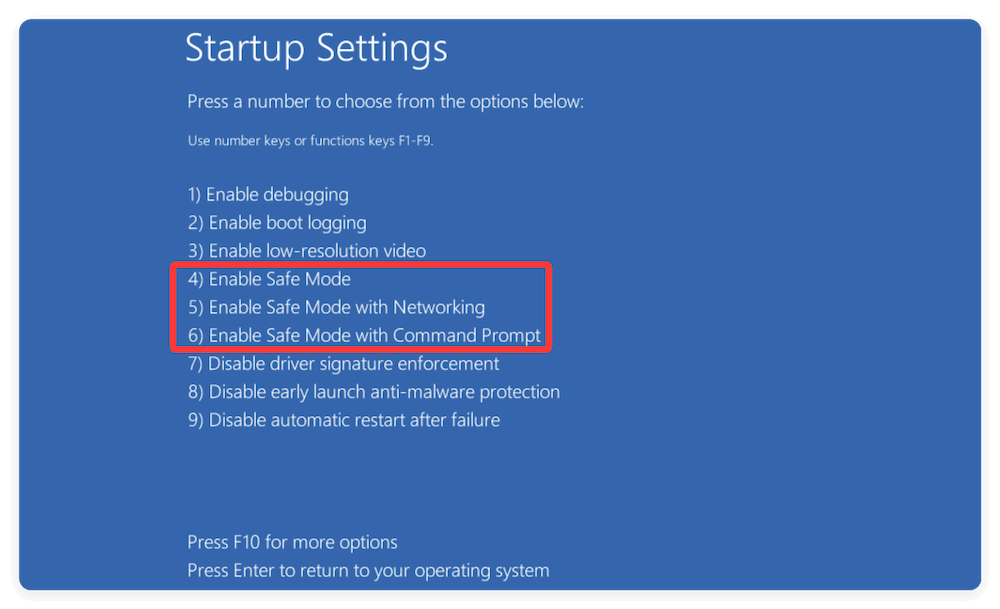
If the system works normally in Safe Mode, a third-party application or driver is likely responsible.
3. Check for System Updates
Outdated systems often cause instability.
On macOS:
- Go to System Settings → General → Software Update.
On Windows:
- Go to Settings → Windows Update.
Install all pending updates and restart your system.
4. Uninstall Recently Installed Apps
If the issue started after installing new software, uninstall it immediately.
On Mac:
- Finder → Applications → Move to Trash.
On Windows:
- Control Panel → Programs → Uninstall a Program.
5. Free Up Disk Space
Low disk space can cause system instability.
Ensure:
- At least 15–20% of your disk is free.
- Temporary files are removed.
- Large unused applications are deleted.
Advanced Troubleshooting Methods
If the issue persists, move on to deeper diagnostic steps.
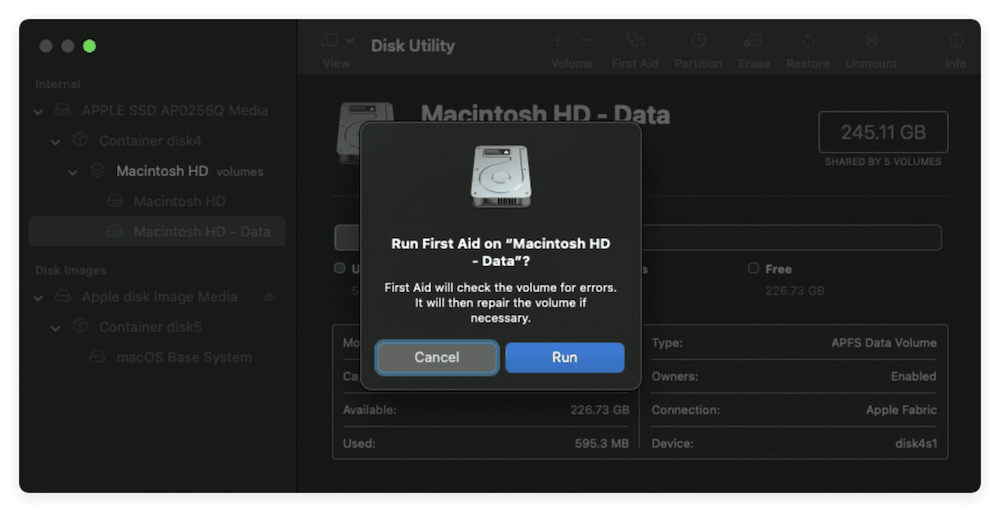
1. Run Disk Utility (Mac) / CHKDSK (Windows)
On Mac
Use Disk Utility to check and repair disk errors:
- Restart your Mac in Recovery Mode.
- Open Disk Utility.
- Select your disk.
- Click "First Aid."
On Windows
Use CHKDSK to repair file system errors:
- Open Command Prompt as Administrator.
- Type: chkdsk C: /f /r
- Press Enter and restart.
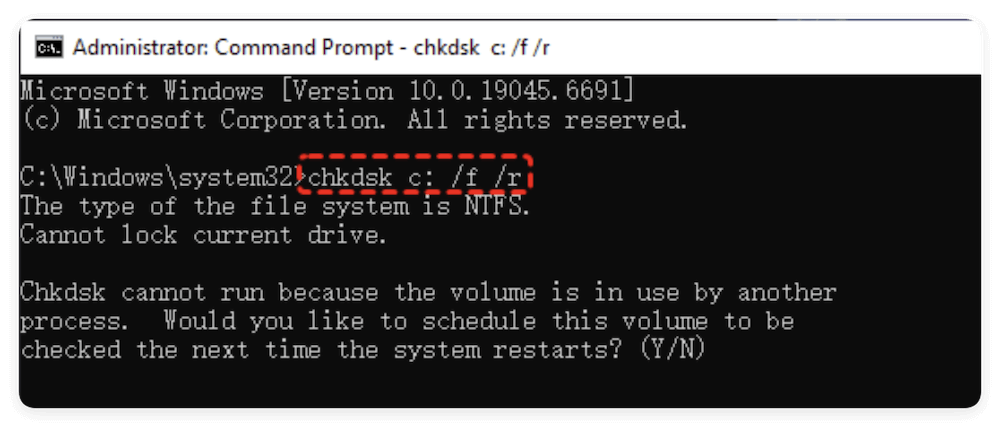
This scans and repairs bad sectors.
2. Reset NVRAM/PRAM (Mac Only)
Resetting NVRAM may resolve hardware configuration issues.
On Intel Macs:
- Shut down.
- Turn on and hold Option + Command + P + R for 20 seconds.
This resets system settings like display resolution and startup disk selection.
3. Use System Restore (Windows)
If a recent update caused the issue:
- Open Advanced Startup.
- Select System Restore.
- Choose a restore point before the problem started.
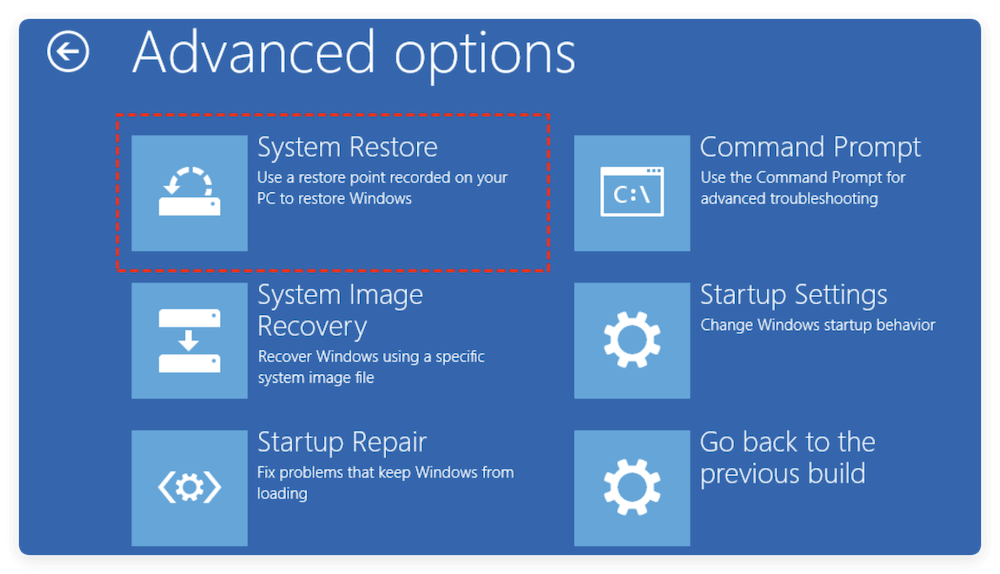
This reverts system settings without affecting personal files.
4. Run Hardware Diagnostics
On Mac
Use built-in Apple Diagnostics:
- Shut down.
- Turn on and hold the D key.
On Windows
Use Windows Memory Diagnostic:
- Search "Windows Memory Diagnostic."
- Restart and scan.
These tools help detect faulty RAM or hardware components.
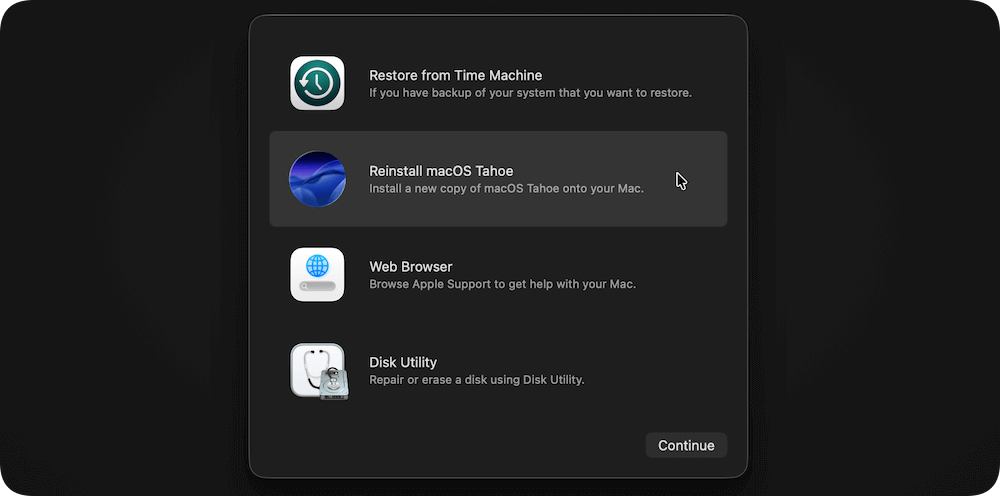
5. Reinstall macOS or Reset Windows
If nothing works, reinstalling the operating system may be necessary.
On macOS
Boot into Recovery Mode and choose "Reinstall macOS."
On Windows
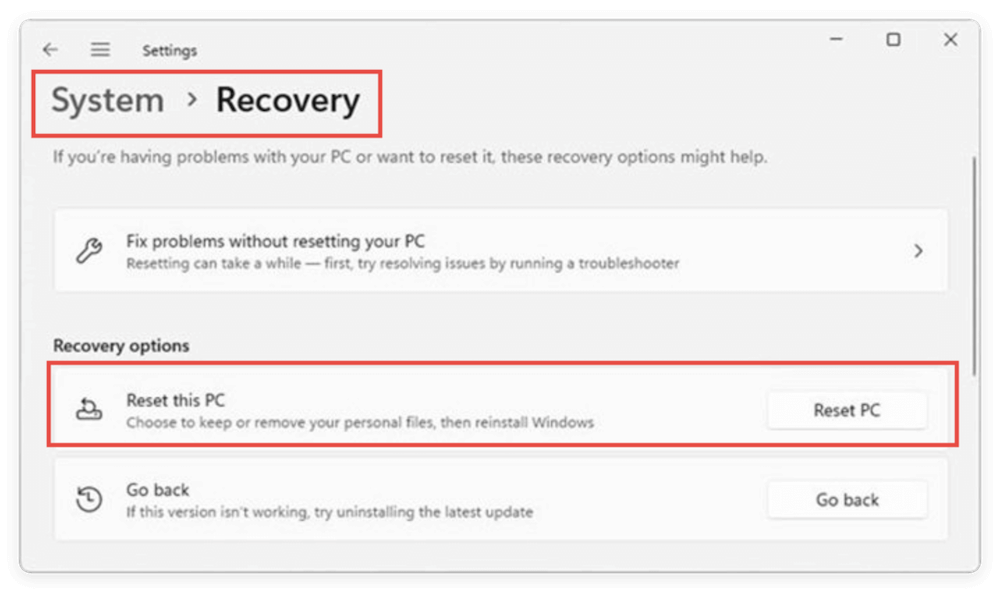
Go to:
Settings → System → Recovery → Reset this PC.
Choose:
- Keep my files (recommended first)
- Remove everything (last resort)
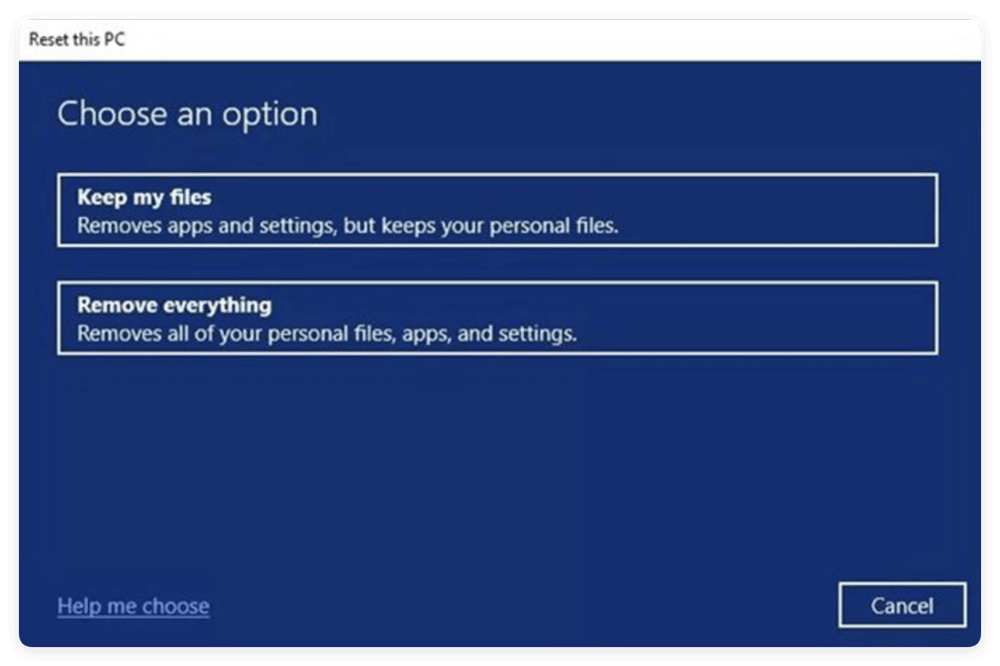
Always back up your data before reinstalling.
When to Seek Professional Help
You should consult a technician if:
- Restarts happen daily.
- Kernel panics continue after OS reinstallation.
- The device overheats frequently.
- You hear clicking noises from the hard drive.
- The computer is still under warranty.
Persistent hardware issues often require component replacement.
How to Recover Lost Data after Unexpected Restart
Sudden restarts can cause unsaved files to disappear or corrupt. Also, data loss may happen sometimes.
Why Data Loss Happens
- Interrupted file writes
- File system corruption
- Disk errors
- Accidental deletion during troubleshooting
How to Recover Data
If you ever configured backup solutions, you can try to restore the lost data from the backups. For example, you can use File History (Windows) or Time Machine (Mac).
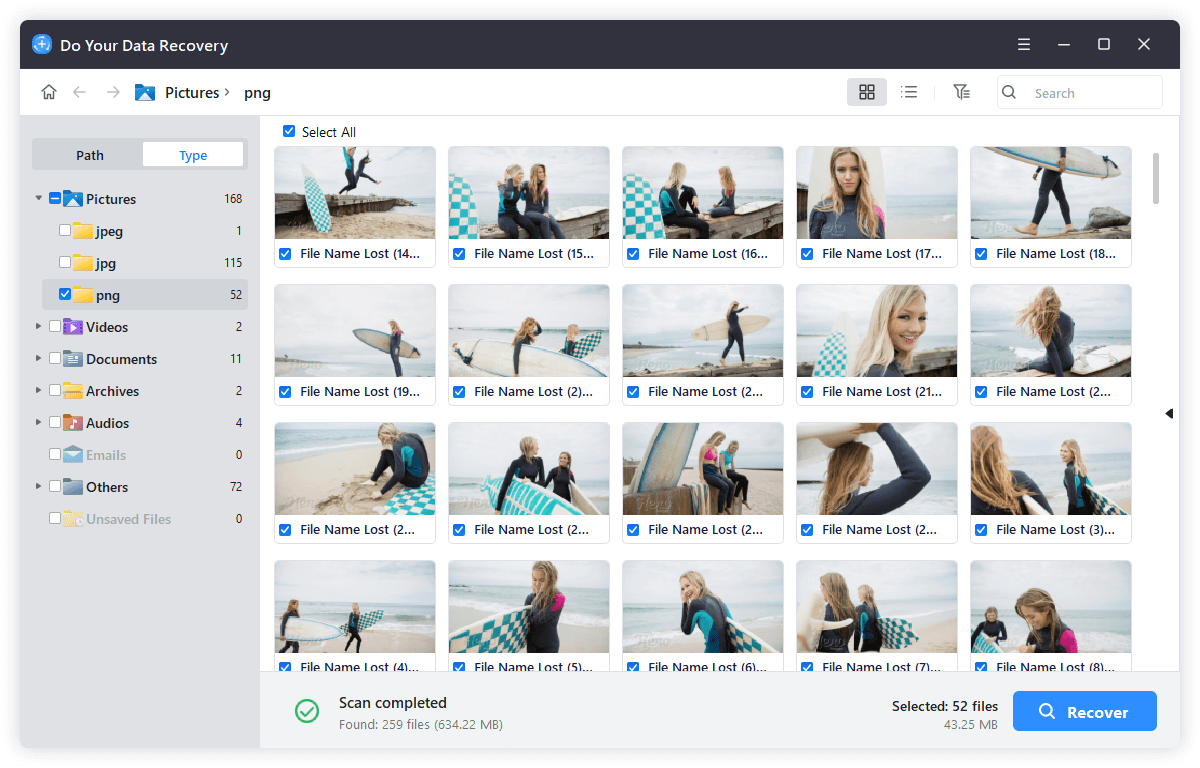
Otherwise, you try a professional data recovery software. Do Your Data Recovery is an effective software that can get back lost data in different data loss scenarios. When you find data loss after a computer restart issue, stop adding new data and download the software to recover data as soon as possible.
Do Your Data Recovery
- Powerful data recovery software for Windows and macOS.
- Recover different types of data, like pictures, videos, documents, etc.
- Support data recovery for HDD/SSD, USB flash drive, SD card and more.
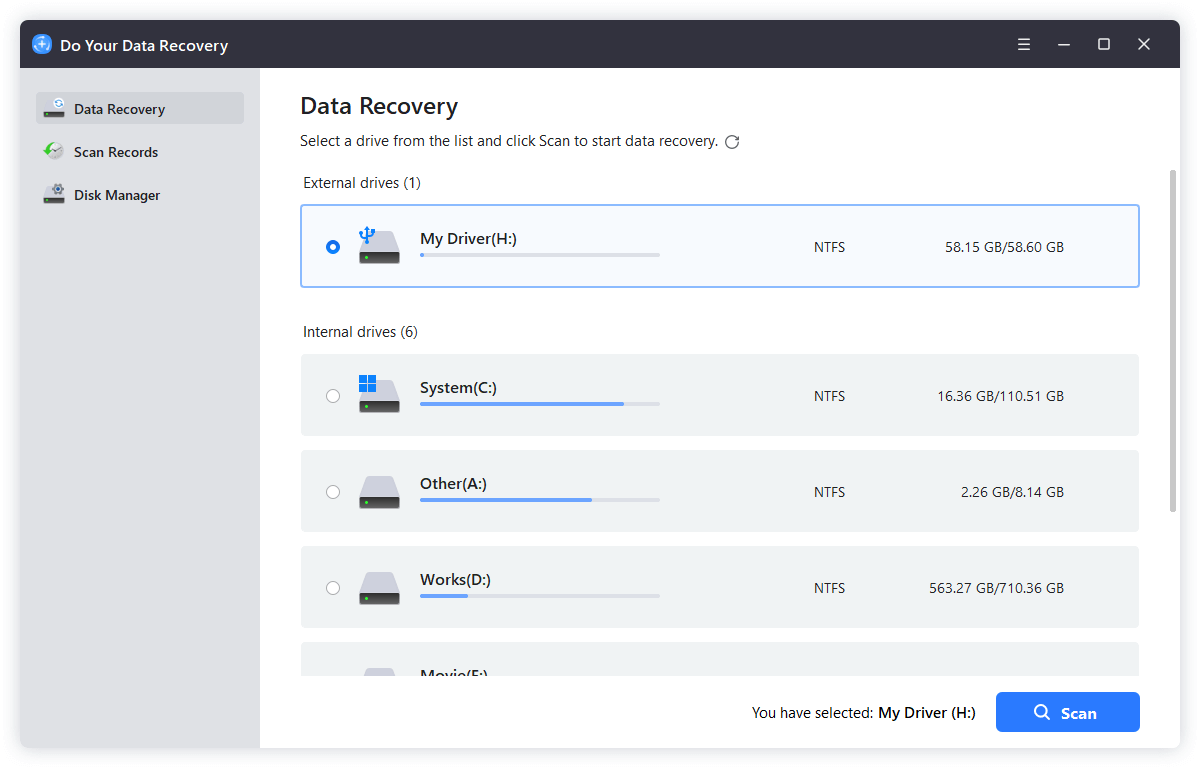
Install and run the software, then do as following steps to recover the missing files:
Step 1. Check and select the drive where you lost data. Click the Scan button.
Step 2. The software will scan the selected drive to find any possible missing files.
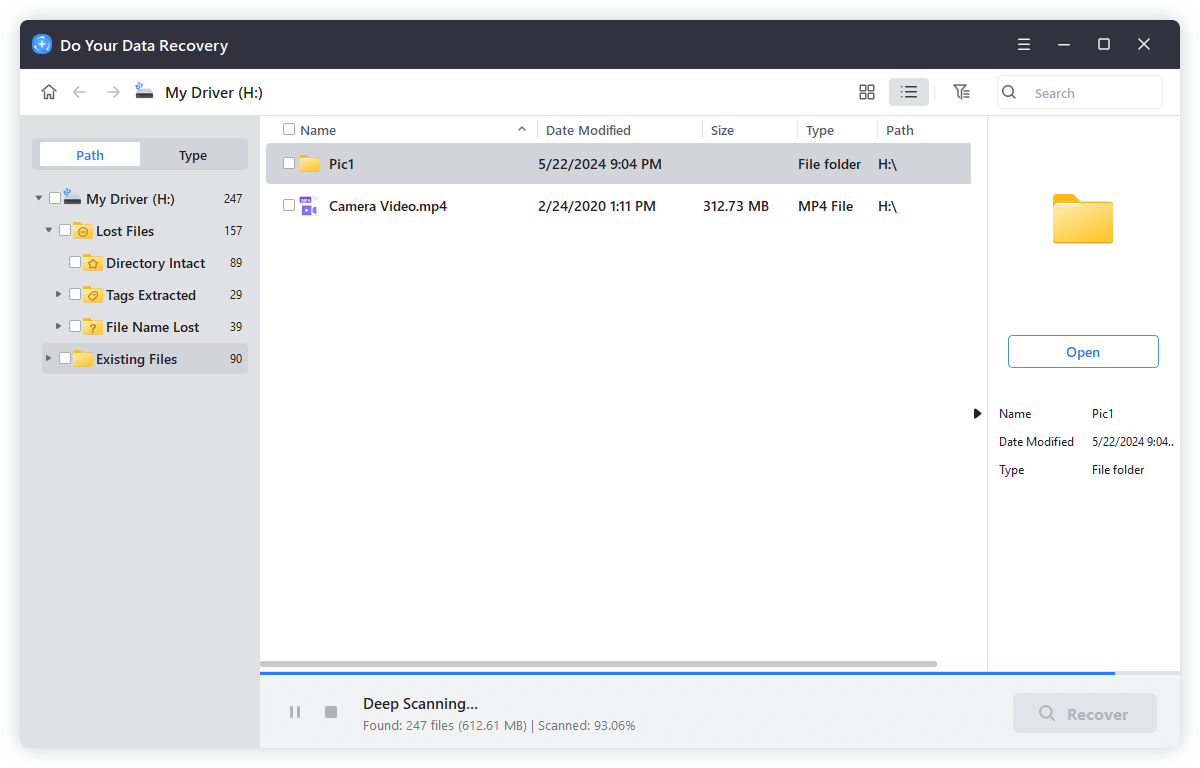
Step 3. After the scan is finished, preview the files and choose the wanted ones. Save the files to another drive.
How to Prevent Unexpected Restart Error in the Future
Prevention is always better than repair.
1. Keep OS and Drivers Updated
Regular updates fix bugs and improve compatibility.
2. Avoid Unofficial Software
Cracked or unofficial programs often cause system instability.
3. Monitor System Temperature
Use system monitoring tools to ensure your device isn't overheating.
4. Perform Regular Hardware Checks
Test RAM and disk health periodically.
5. Maintain Regular Backups
Use the following solutions:
- Time Machine (Mac)
- File History (Windows)
- Cloud backups
- DoYourClone (Windows & Mac)
Backup is your best protection against unexpected failures.
FAQs about Unexpected Computer Restart Error
Conclusion
The message "Your computer restarted because of a problem" typically signals a serious system error, whether it's a macOS kernel panic or a Windows blue screen. While the issue can be alarming, most cases are caused by corrupted files, faulty drivers, incompatible software, or minor hardware problems.
Start with simple troubleshooting steps like disconnecting external devices, updating your system, and running disk checks. If the issue persists, use advanced diagnostics or consider reinstalling the operating system.
Most importantly, maintain regular backups to protect your data. System crashes are unpredictable, but with proper maintenance and monitoring, you can significantly reduce the risk of seeing this error again.
If your computer continues to restart unexpectedly despite all troubleshooting efforts, professional repair may be the safest and most effective solution.
Do Your Data Recovery
The safe, powerful and easy-to-use data recovery program to help you recover deleted, formatted or lost data, recover lost data from damaged hard drive, from HDD, SSD, USB flash drive, memory card, digital camera, etc, fix damaged drive and external devices.
Written & Updated by Nancy
Nancy works as a tech columnist at DoYourData. She is familiar with macOS and Windows OS and writes computer solution, data recovery, disk clone, data erasure articles for DoYourData. She is a big fan of Mac products and is fond of testing utilities software (such as cleaner, recovery, eraser, NTFS for Mac, video editor, etc) on Mac.