Erase Assistant Is Not Supported on This Mac – How to Fix It
Due to the compatible problems, Erase Assistant is not supported on some Macs. There are some alternatives available to erase Mac or reset the macOS. Before you erase or factory reset the Mac, ensure to back up your your Mac data first. You can use Time Machine, iCloud, or DoYourClone for Mac to back up your Mac.
 Updated by Nancy on February 13, 2026
Quick Navigation:
- What Is Erase Assistant on macOS?
- Understanding the Error: "Erase Assistant Is Not Supported on This Mac"
- Common Reasons Why Erase Assistant Is Not Supported
- How to Fix "Erase Assistant Is Not Supported on This Mac"
- Factory Reset Alternatives for Unsupported Macs
- FAQs about "Erase Assistant Is Not Supported on This Mac"
- Conclusion
Resetting a Mac is often necessary when troubleshooting persistent issues, preparing to sell, or transferring ownership. Apple introduced Erase Assistant in macOS Monterey to simplify this process, allowing users to factory reset their Mac while removing personal data and system settings securely. However, many users encounter the frustrating error:
"Erase Assistant is not supported on this Mac."
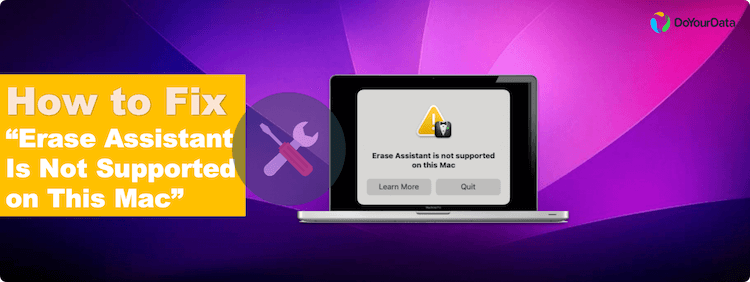
This message can be confusing, especially if your Mac seems modern and up to date. In this article, we'll break down what Erase Assistant is, why this error appears, which Macs support it, and the best ways to safely erase or reset your device.
What Is Erase Assistant on macOS?
Erase Assistant is a feature designed to make Mac resets easier, faster, and safer. Unlike the traditional method, which often involves booting into Recovery Mode and manually erasing drives, Erase Assistant automates much of the process.
Key functions of Erase Assistant:
- Removes user accounts, settings, and personal data securely.
- Maintains the macOS system volume, avoiding the need for a full reinstall in many cases.
- Prepares the Mac for resale or handoff to another user.
The tool is especially useful for Apple Silicon Macs, where system security and volume separation (System vs Data volumes) make manual erasing more complex.
Understanding the Error: "Erase Assistant Is Not Supported on This Mac"
When you attempt to use Erase Assistant and see the error, it means that your Mac does not meet the hardware or software requirements for the feature.
Common scenarios where users see this error:
- Older Intel Macs without the T2 Security Chip.
- Macs running macOS versions older than Monterey.
- Enterprise or managed Macs with restrictions.
It's important to note that this is not a system bug, but a compatibility limitation.
Macs That Support Erase Assistant
Supported Hardware
Erase Assistant is only available on select Mac models:
- Apple Silicon Macs – All models support Erase Assistant.
- Intel Macs with T2 Security Chip – Includes models from 2018 onward with T2.
Unsupported Hardware
Older Macs without a T2 chip or pre-2018 Intel Macs do not support the feature. This includes:
- MacBook Air / Pro (pre-2018 Intel models)
- Mac mini (pre-2018 Intel models)
- iMacs and MacBook models prior to T2 chip integration
How to Check Your Mac's Compatibility
- Click the Apple Menu → About This Mac.
- Identify your chip type (Apple Silicon vs Intel).
- For Intel Macs, check System Report → Controller for a T2 Security Chip.
If your Mac does not meet these hardware requirements, the Erase Assistant option will remain unavailable.
macOS Version Requirements
Even compatible hardware requires a supported macOS version:
- Minimum macOS Monterey (macOS 12) for full Erase Assistant functionality.
- Macs running macOS Big Sur (11) or earlier will not see the feature.
Updating to the latest macOS version can sometimes resolve the issue, provided your hardware supports it.
Common Reasons Why Erase Assistant Is Not Supported
Several factors can trigger this error, including:
- Unsupported Mac Hardware – Older Intel Macs without T2 chip or pre-Monterey models.
- Outdated macOS Version – Erase Assistant requires macOS Monterey or later.
- FileVault Not Enabled – Some Macs require FileVault encryption to use Erase Assistant.
- Managed or Enterprise Macs – Macs controlled via Mobile Device Management (MDM) may restrict access.
- Corrupted System Settings or Incomplete Updates – Rarely, system corruption prevents Erase Assistant from running.
How to Fix "Erase Assistant Is Not Supported on This Mac"
If you encounter the error, there are several strategies to erase or reset your Mac safely.
1. Update macOS to the Latest Version
Updating macOS can enable Erase Assistant on supported Macs:
- Click Apple Menu → System Settings → Software Update.
- Install any available updates.
- Restart your Mac and try Erase Assistant again.
Precautions:
- Backup all important files via Time Machine or iCloud.
- Ensure the Mac is plugged into a power source during the update.
2. Enable FileVault (If Applicable)
FileVault encryption may be required for some Macs:
- Go to System Settings → Privacy & Security → FileVault.
- Click Turn On FileVault.
- Wait for encryption to complete and retry Erase Assistant.
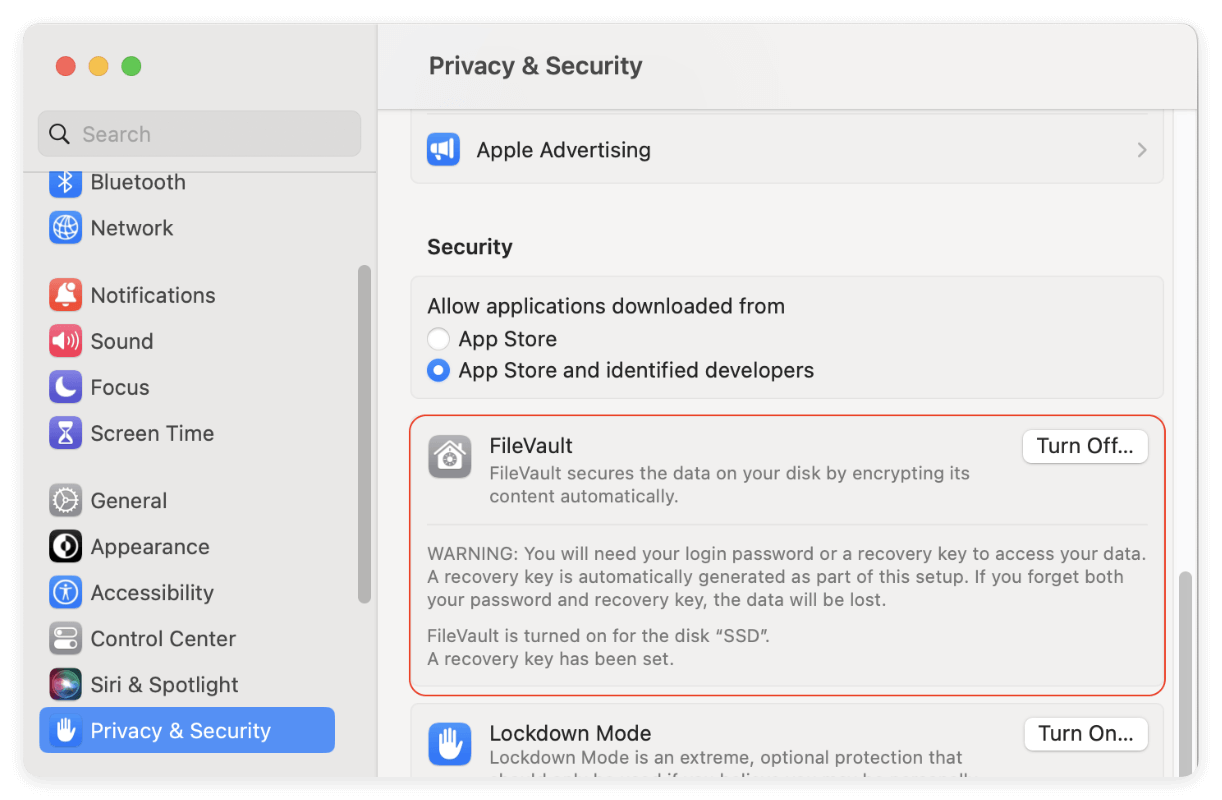
This ensures that all user data is securely encrypted before erasure, meeting Erase Assistant's security requirements.
3. Use macOS Recovery Mode
For Macs that cannot use Erase Assistant, Recovery Mode is the standard alternative:
- Shut down your Mac.
- Power it on while holding Option + Command + R (Intel) or Power Button (Apple Silicon) until Recovery Mode loads.
- Open Disk Utility → select your main drive → Erase.
- Reinstall macOS via Reinstall macOS in Recovery.
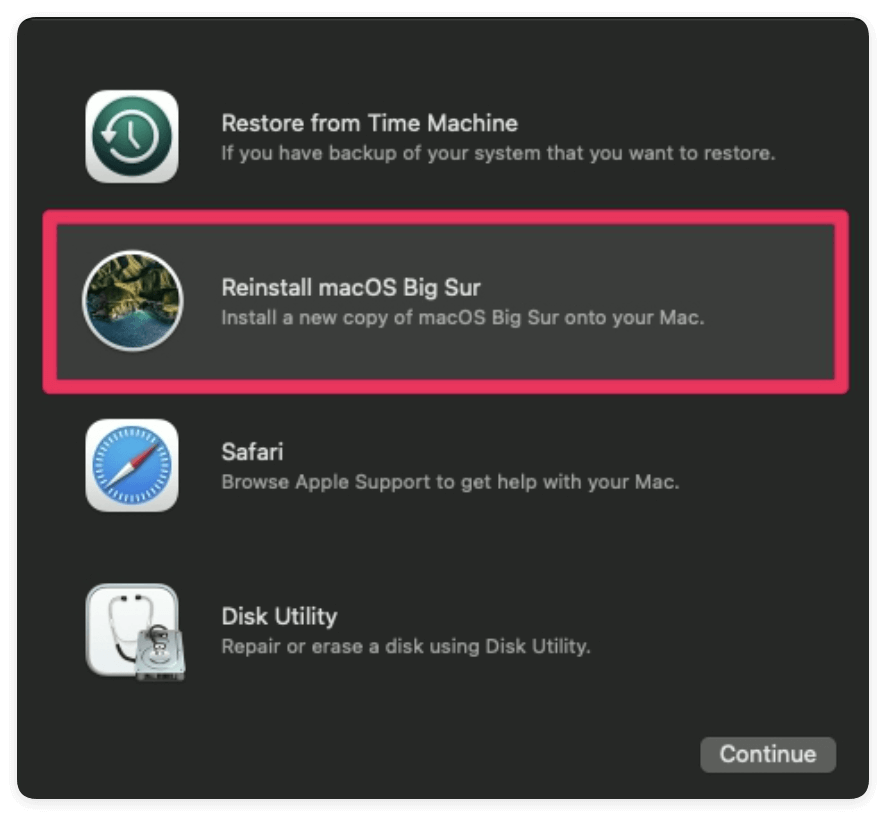
Recovery Mode works on all Macs, regardless of Erase Assistant support, but is slightly more manual.
4. Use Disk Utility for Manual Erase
Disk Utility allows you to erase and format the internal drive:
- Boot into Recovery Mode.
- Open Disk Utility → View → Show All Devices.
- Select your System/Boot volume.
- Click Erase, choose APFS, and confirm.
- Reinstall macOS afterward.
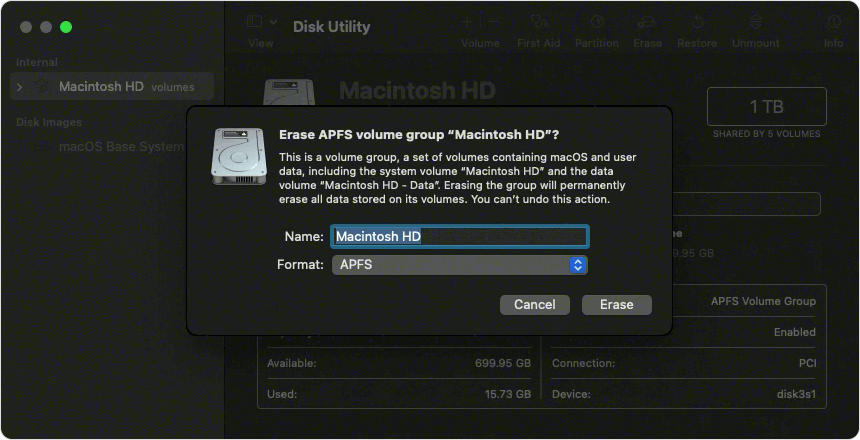
🪧 Note: Manual erase removes all data, so backup is essential.
When to Contact Apple Support
Contact Apple Support if:
- You're unsure whether your Mac has a T2 chip or Apple Silicon.
- You encounter Activation Lock or enterprise restrictions.
- System recovery or Disk Utility fails due to hardware errors.
Apple can help verify your Mac model and guide you through safe reset alternatives.
Factory Reset Alternatives for Unsupported Macs
If your Mac cannot use Erase Assistant, you can still perform a factory reset using these alternatives:
Full macOS Reinstall Using Recovery
- Boots into Recovery Mode.
- Erases the disk and reinstalls macOS in one process.
Bootable macOS USB Installer
- Create a USB installer using another Mac.
- Boot from USB and perform erase/reinstall.
- For Macs with damaged or erased system drives.
- Downloads the latest compatible macOS directly from Apple servers.
These methods achieve the same result as Erase Assistant but require more steps.
Erase Assistant vs Traditional Reset Methods
Feature |
Erase Assistant |
Recovery / Disk Utility |
|---|---|---|
Ease of Use |
Very simple |
Manual steps required |
Speed |
Fast |
Moderate |
Safety |
Keeps system volumes intact |
Requires careful selection |
Compatibility |
Apple Silicon / T2 Macs |
All Macs |
For supported Macs, Erase Assistant is the fastest and safest. For older Macs, Recovery Mode or Disk Utility is necessary.
Data Safety and Backup Considerations
Before erasing any Mac, ensuring data safety is critical:
- Time Machine Backup: Backup your entire system to an external drive.
- iCloud Sync: Ensure photos, documents, and contacts are synced.
- Third-Party Backup: Make a full clone backup for Mac with DoYourClone for Mac.
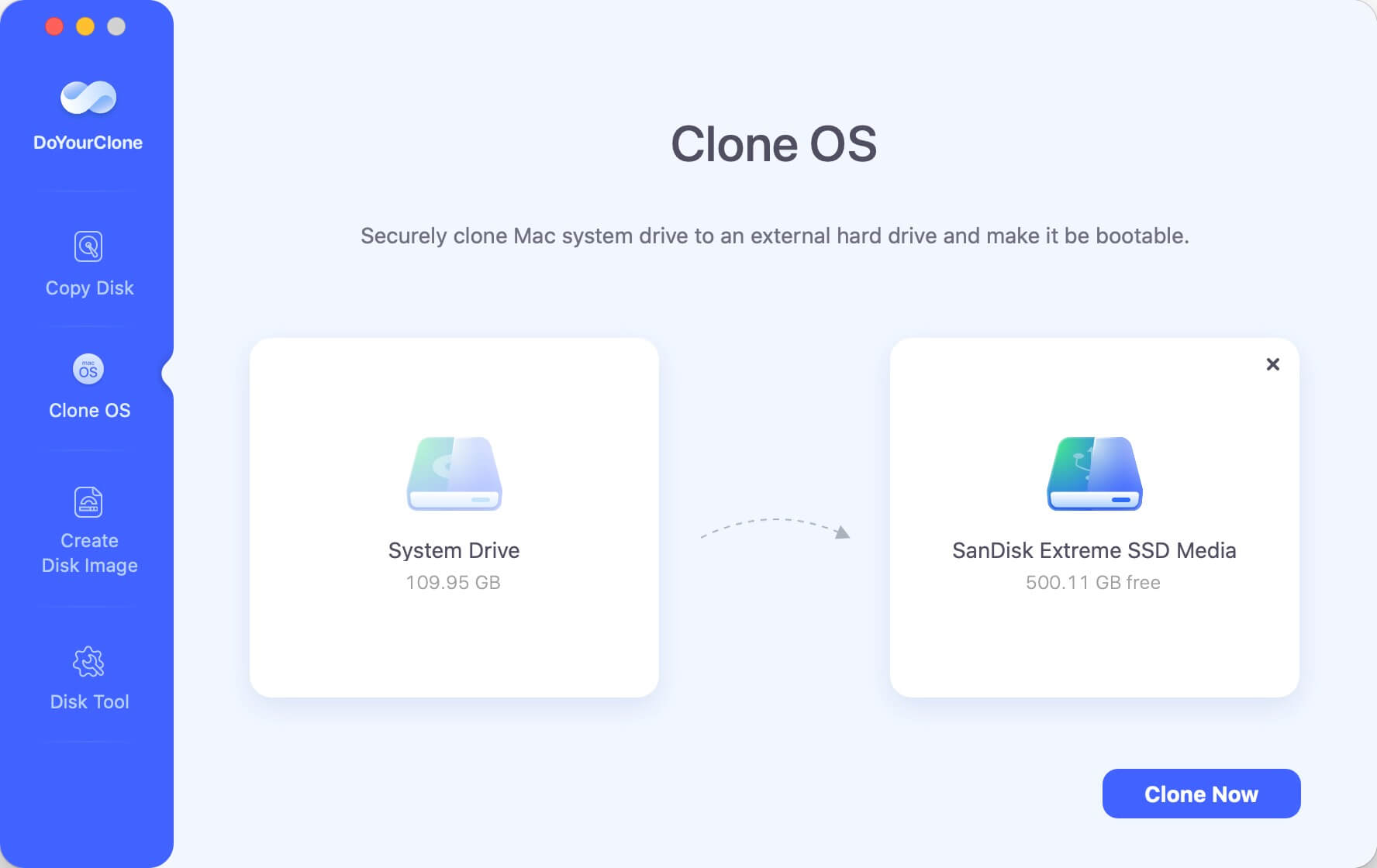
Erase Assistant removes all user data but keeps macOS intact. Recovery Mode and Disk Utility erases the drive completely, making backups essential.
FAQs about "Erase Assistant Is Not Supported on This Mac"
Conclusion
The error "Erase Assistant is not supported on this Mac" occurs primarily due to hardware or macOS compatibility limitations. Supported Macs include Apple Silicon models and Intel Macs with T2 Security Chips running macOS Monterey or later.
For unsupported Macs, alternative methods like Recovery Mode, Disk Utility, or bootable USB installers allow safe data erasure and system reinstall. Always back up your data and ensure security measures like FileVault are enabled before erasing your device.
By understanding your Mac's compatibility and using the appropriate reset method, you can safely erase your Mac without losing control over your data or system integrity.
DoYourClone for Mac
DoYourClone for Mac, one of the best Mac disk cloning software, can help you clone HDD, SSD, external storage device on Mac, upgrade HDD to SSD, create full disk image backup, etc. It also can clone everything from your Mac to an external HDD/SSD and create a full bootable clone backup. 100% safe and easy-to-use.
Written & Updated by Nancy
Nancy works as a tech columnist at DoYourData. She is familiar with macOS and Windows OS and writes computer solution, data recovery, disk clone, data erasure articles for DoYourData. She is a big fan of Mac products and is fond of testing utilities software (such as cleaner, recovery, eraser, NTFS for Mac, video editor, etc) on Mac.