Dell Computer Disk Wipe Tool: How to Completely Erase Hard Drive/SSD
Simply deleting files or formatting a drive does not remove data permanently. Using a specialized Dell computer disk wipe tool, like DoYourData Super Eraser, ensures files are overwritten completely, making recovery 100% impossible.
 Updated by Shirly Chen on August 18, 2026
Quick Navigation:
- Why It's Necessary to Wipe Dell Computer Disk?
- Top Methods to Wipe a Dell Hard Drive or SSD
- Important Tips for Wiping Your Dell Computer
- FAQs about Wiping Dell Computer Disk
- Conclusion
Are you planning to sell, donate, or recycle your Dell laptop or desktop? Or maybe you just want to give your computer a fresh start? Before you hand your device over to someone else, you must completely wipe all your personal data. Simply deleting files or moving them to the Recycle Bin is not enough. Anyone with basic data recovery software can easily retrieve your photos, documents, passwords, and banking details.
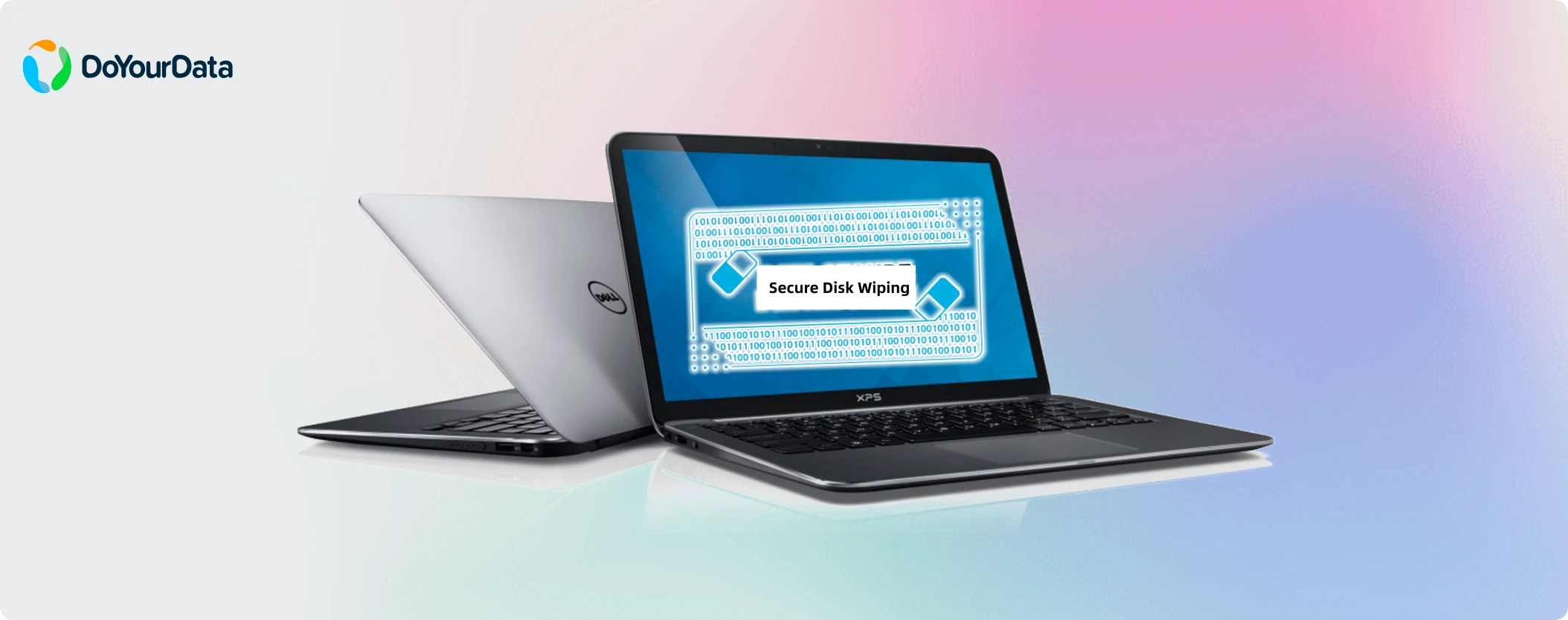
To protect your privacy, you need a reliable Dell computer disk wipe tool that permanently destroys your data beyond recovery. In this guide, we will explore the best solutions available, including built-in Dell tools, Windows factory reset features, and advanced data wiping software designed for total security.
Why It's Necessary to Wipe Dell Computer Disk?
Many users assume that formatting a hard drive or dragging files to the trash permanently erases them. Unfortunately, that is a common misconception.
When you delete a file or perform a quick format on Windows, the operating system only removes the 'file index' or pointer to that data. The actual content remains stored on the storage sectors of your hard drive or Solid State Drive (SSD). Until those sectors are overwritten by new data, recovery tools can scan the drive and restore your personal information from Dell computer in just a few clicks.
If you are selling your computer or returning a work device, leaving unencrypted or unwiped data behind puts your personal identity, financial details, and privacy at serious risk. This is why using a dedicated Dell computer disk wipe tool is essential.
Top Methods to Wipe a Dell Hard Drive or SSD
There are three primary ways to wipe data on a Dell computer, depending on whether you want to clear specific drives, prepare the system for resale, or completely overwrite all sector data.
| Feature / Capability | Dell BIOS Data Wipe | Windows Factory Reset | DoYourData Super Eraser |
|---|---|---|---|
| Wipe External Drives | No | No | Yes |
| Selective File/Folder Erasure | No | No | Yes |
| Military-Grade Erasure Standards | Basic Hardware | Standard Overwrite | Advanced (DoD, Gutmann, etc.) |
Method 1: Use Dell Data Wipe in BIOS (Built-in Hardware Tool)
Most modern Dell computers (Inspiron, Latitude, XPS, Precision, and OptiPlex) come equipped with a hardware-level wiping feature called Dell Data Wipe. This utility is embedded directly into the system's BIOS/UEFI, allowing you to wipe internal hard drives and SSDs without booting into Windows.
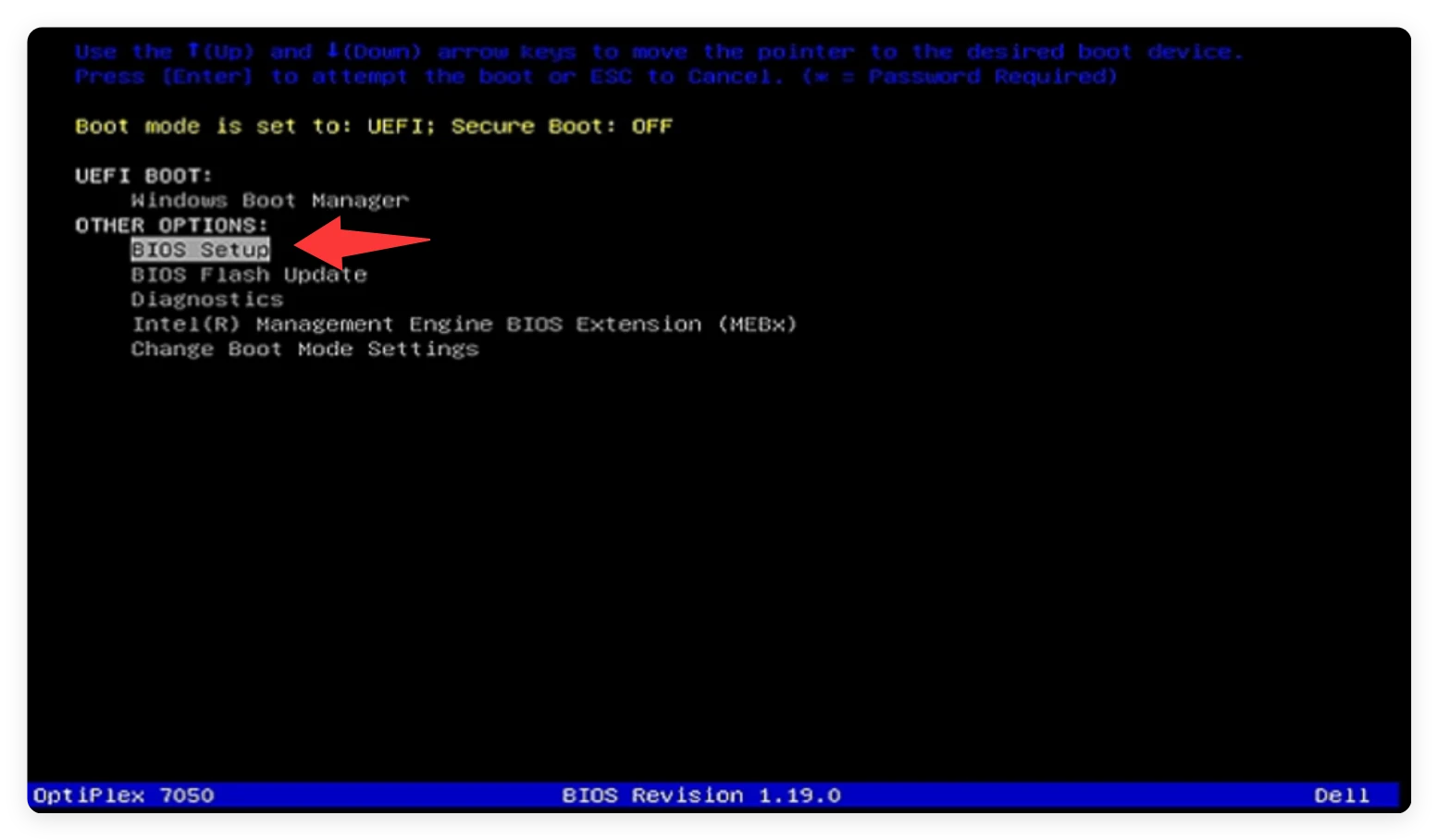
Step 1: Restart your Dell computer. As soon as the Dell logo appears on the screen, repeatedly tap the F12 key to open the One-Time Boot Menu. Use the arrow keys on your keyboard to select BIOS Setup or System Setup, then press Enter.
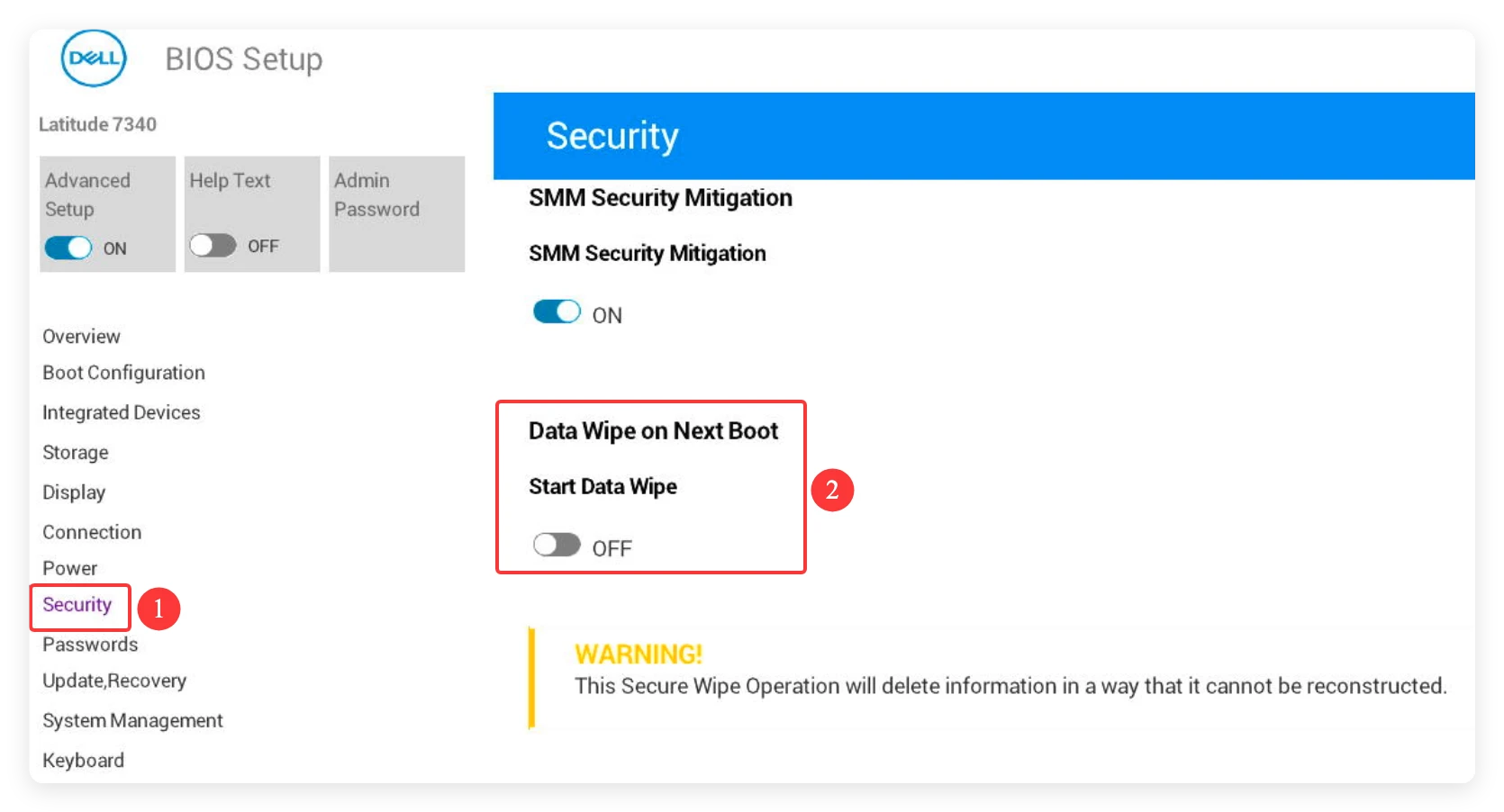
Step 2: Look for the Maintenance or Security section on the left sidebar. Select the Data Wipe option. Check the box that says 'Wipe on Next Boot'.
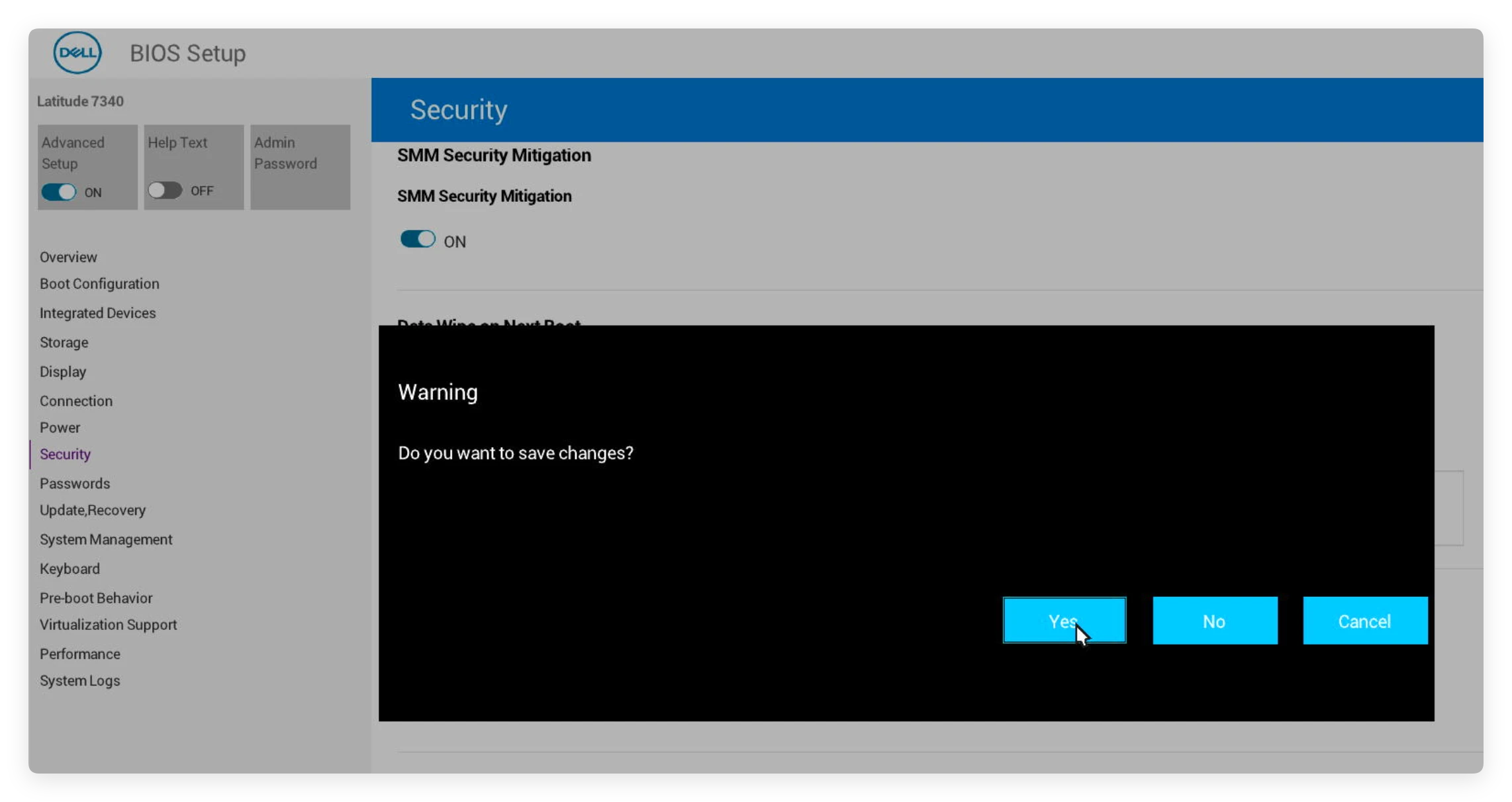
Step 3: Click Yes and it will exit. Your computer will reboot into the Dell Data Wipe utility to start wiping the disk.
Step 4: Click the Continue button to confirm the drive wiping. Follow the on-screen prompts to confirm and begin the wiping process.
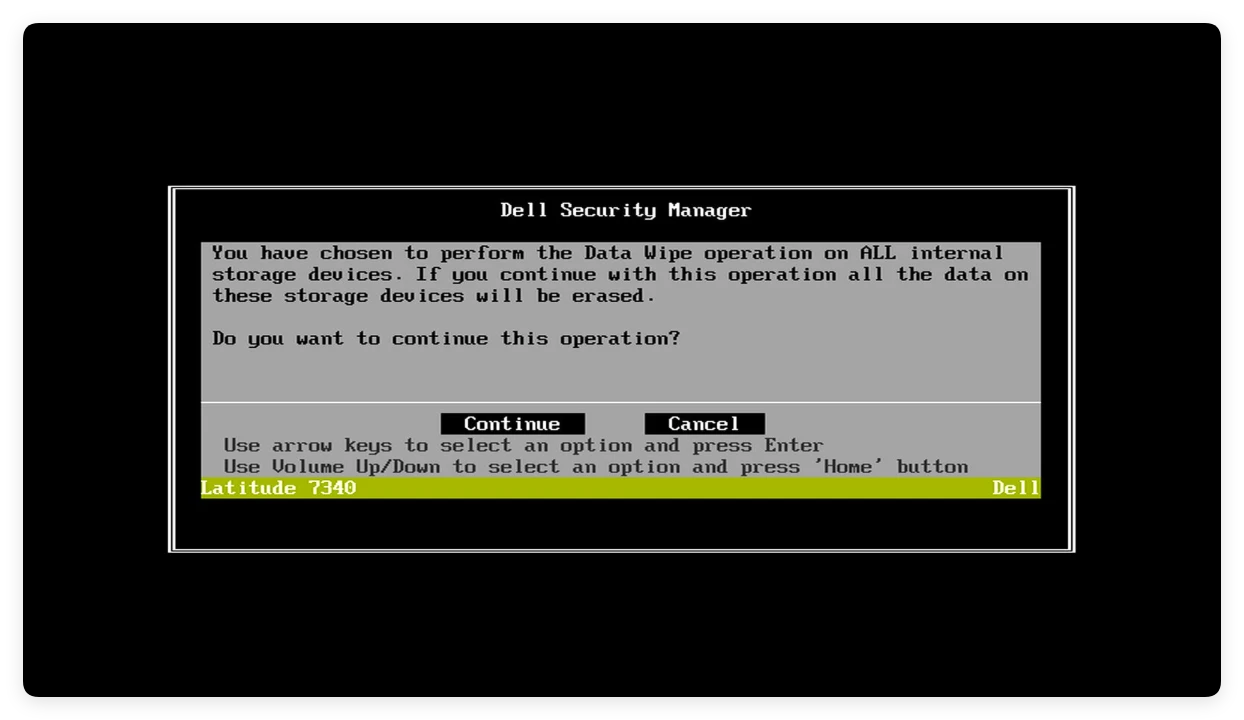
Limitations of Dell Data Wipe: While this tool is very useful, it only works on internal drives supported by Dell BIOS. It cannot wipe external hard drives, USB flash drives, SD cards, or secondary non-supported storage devices. Additionally, older Dell models might not feature this option in BIOS.
Method 2: Use Windows Factory Reset with Clean Drive Option
If you are running Windows 11 or Windows 10 on your Dell machine, you can utilize the built-in system reset feature to reinstall Windows and erase your personal files.
Step 1: Open the Start Menu and navigate to Settings > System > Recovery (or Update & Security > Recovery on Windows 10). Click on Reset PC (or Get Started).
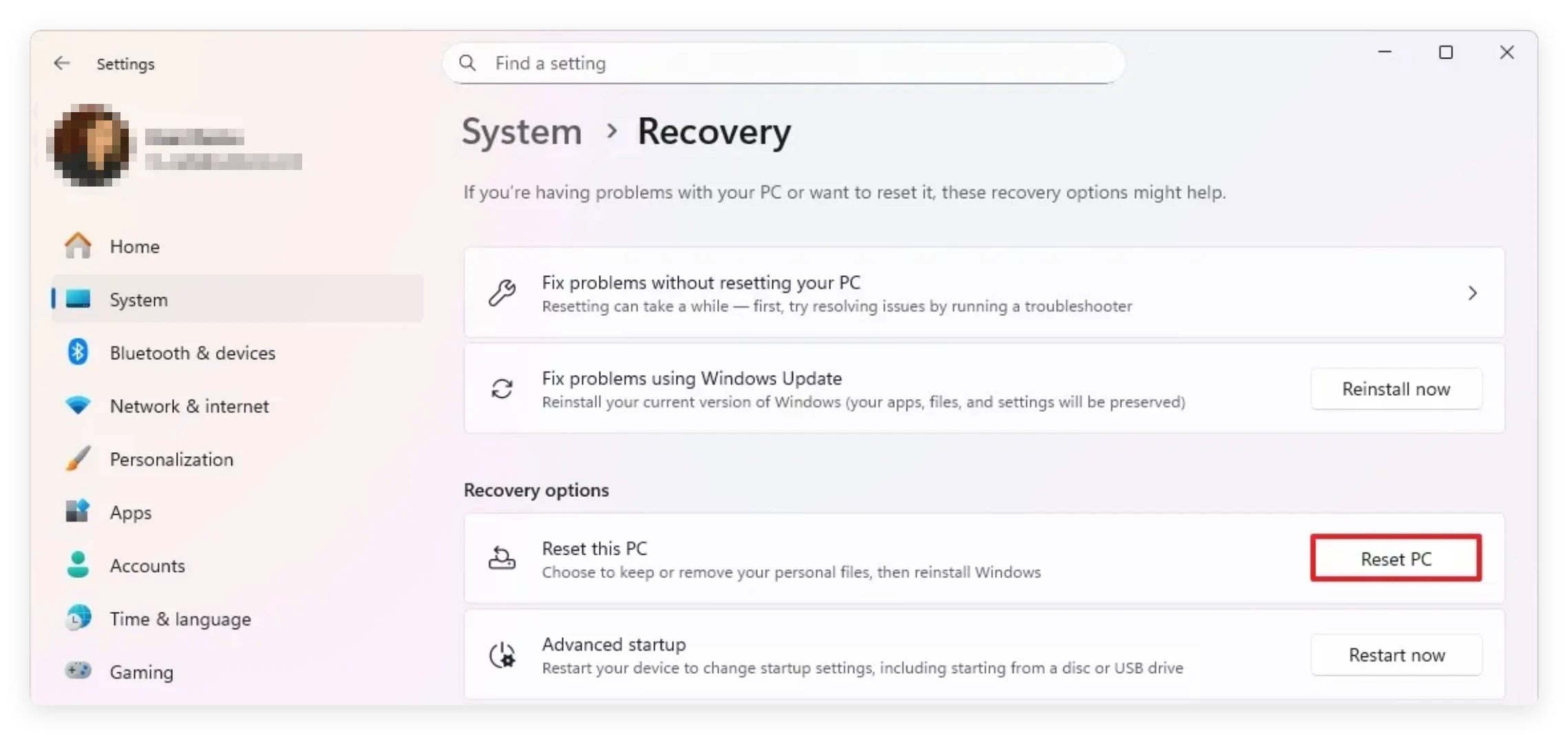
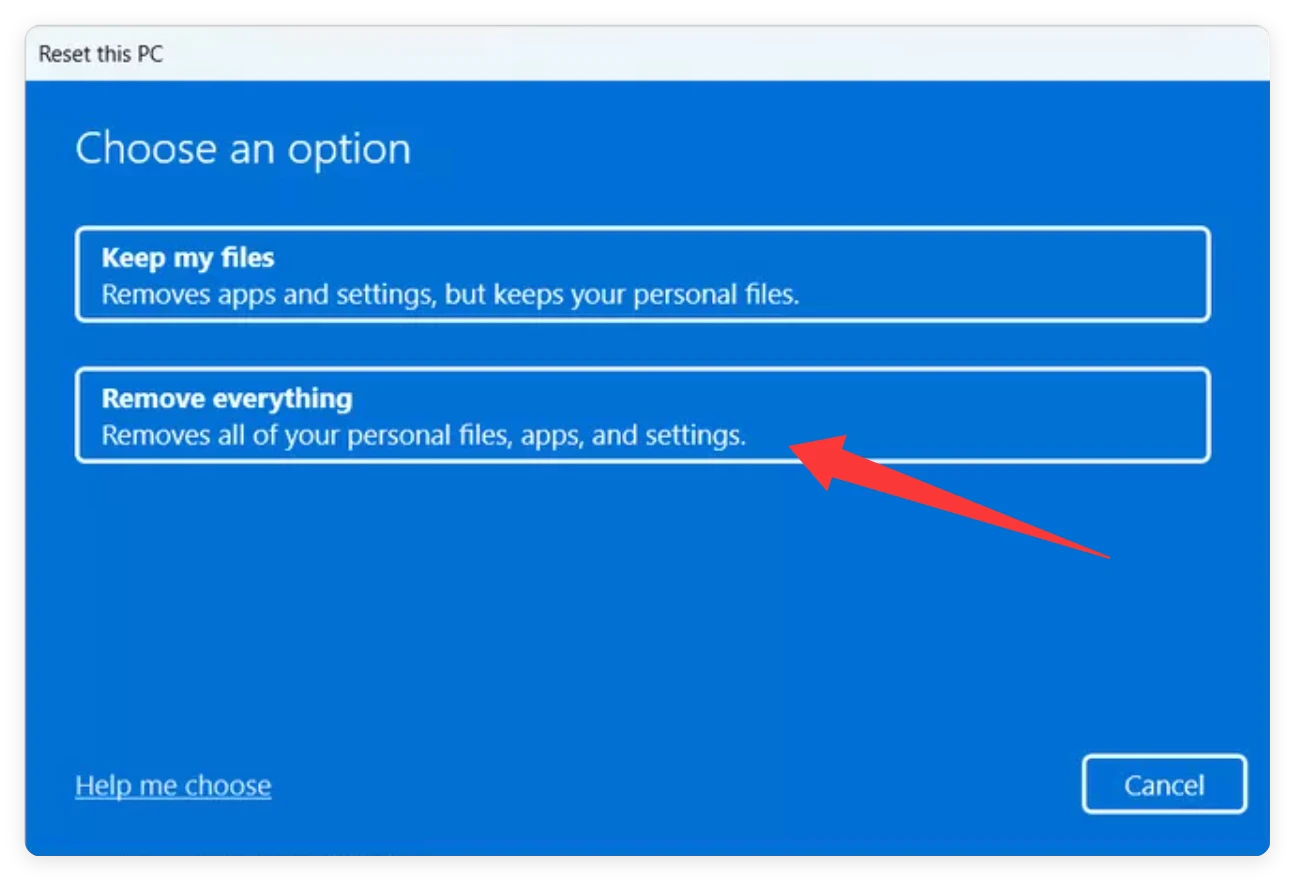
Step 2: Select Remove everything from the options provided. It will ensure to delete all data from your drive. Then you need to choose Local reinstall or Cloud download.
Step 3: Click Change settings and toggle the Clean data option to 'Yes'. This tells Windows to overwrite the drive sectors rather than doing a superficial reset.
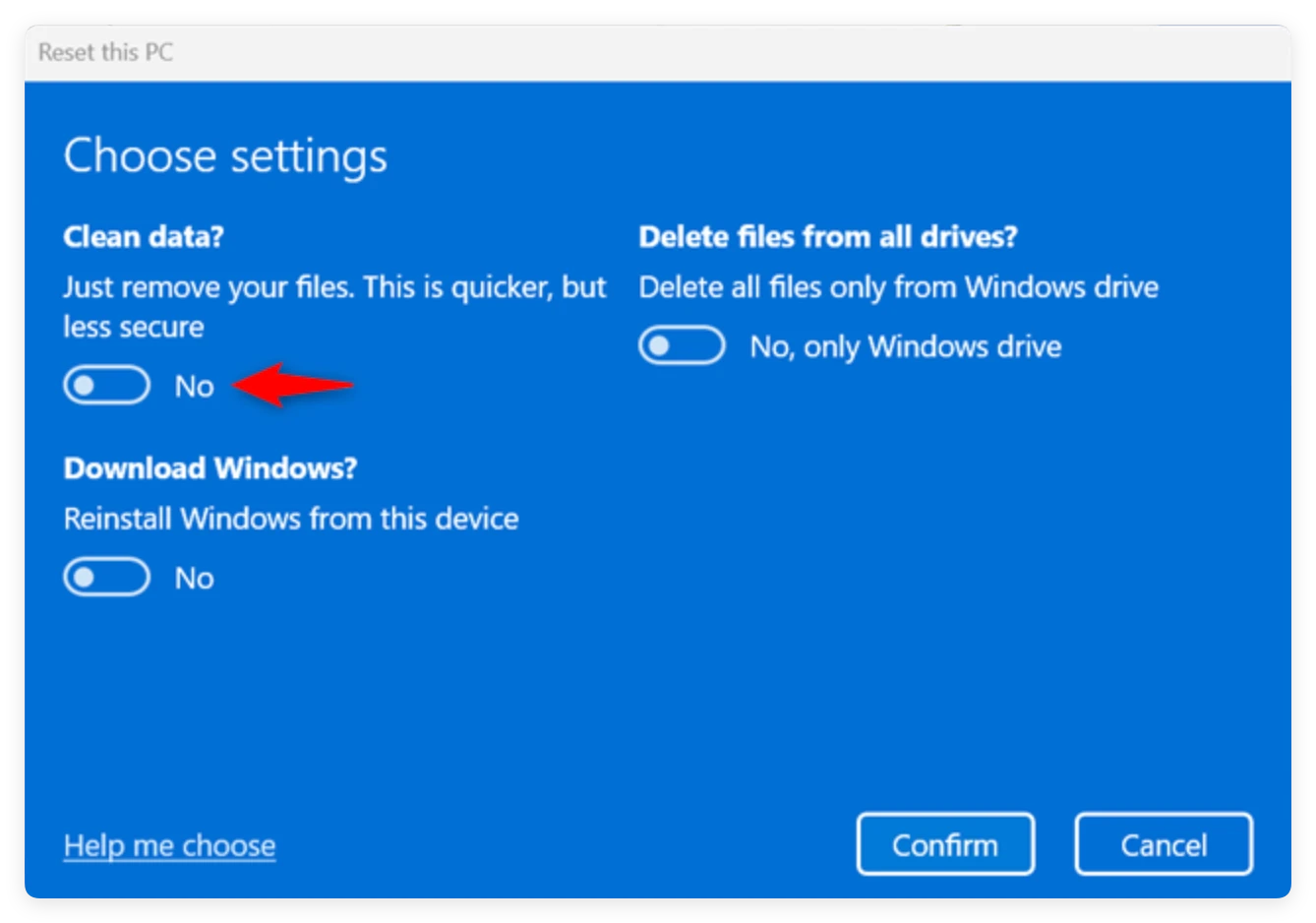
Step 4: Confirm your selection and click Reset to start the process.
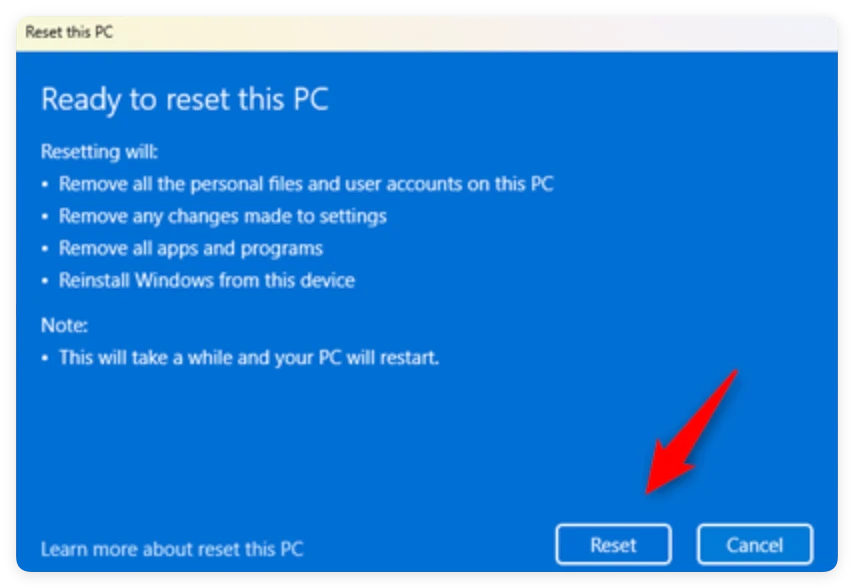
Limitations of Windows Reset: This process can take several hours to complete. Furthermore, while it clears the system drive (C: drive), it does not offer customizable data wiping standards (such as DoD 5220.22-M) for high-security requirements or external devices.
Method 3: Use Professional Wiping Software - DoYourData Super Eraser
If you want complete control, military-grade data destruction, and the ability to wipe internal drives, external storage, USBs, or specific folders, a professional third-party Dell computer disk wipe tool like DoYourData Super Eraser is the ideal choice.
DoYourData Super Eraser
- Best and easy-to-use data wiping tool for Dell computer.
- Securely wipe data from drive and ensure no recovery.
- Three modes to shred files or wipe drive data flexibly.
DoYourData Super Eraser uses certified data overwriting algorithms—including DoD 5220.22-M, US Army AR380-19, and Peter Gutmann methods—to guarantee that erased data can never be recovered by any software or forensic technique.
How to Wipe Data with DoYourData Super Eraser
DoYourData Super Eraser provides three flexible modes to clean your Dell computer safely and effectively:
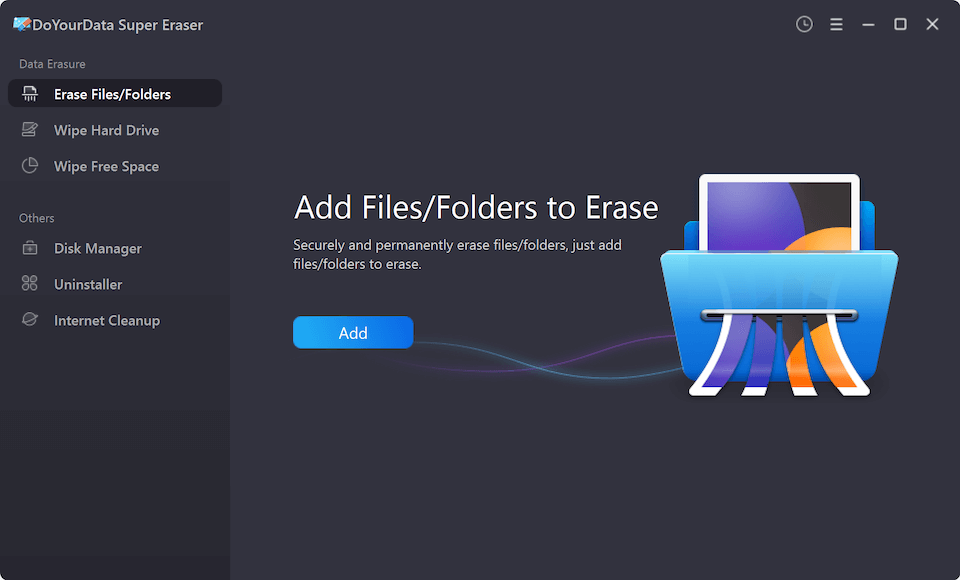
Mode 1: Erase Specific Files and Folders
If you only want to destroy sensitive personal files (such as financial spreadsheets, personal photos, or legal contracts) without deleting your entire operating system, this mode is perfect. Simply select the files or drag them into the software interface, then click 'Erase Now'.
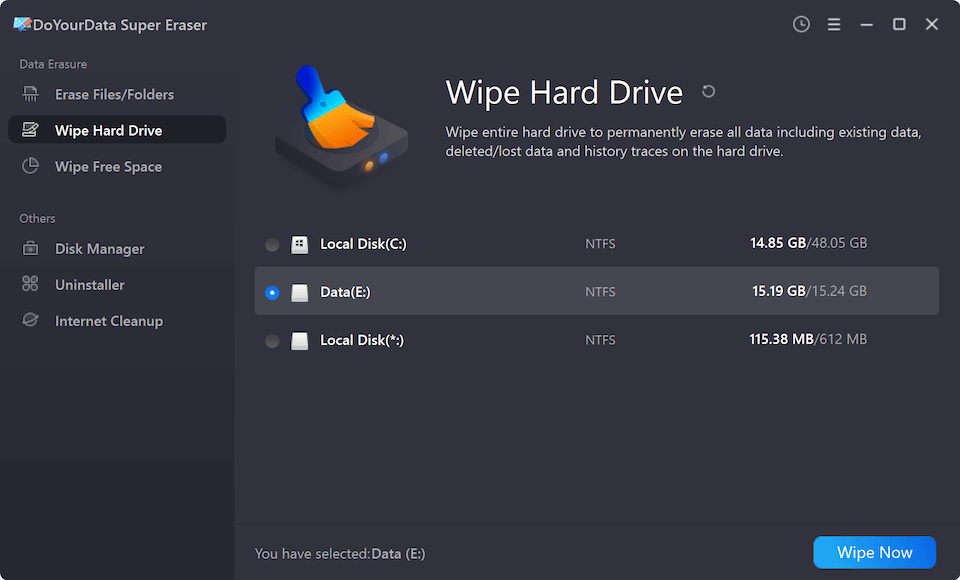
Mode 2: Wipe Entire Hard Drive Partition
If you have a non-system partition (such as D: or E: drive) or an external hard drive connected to your Dell computer, you can wipe the entire drive in one click. All existing data and free space on that partition will be completely destroyed.
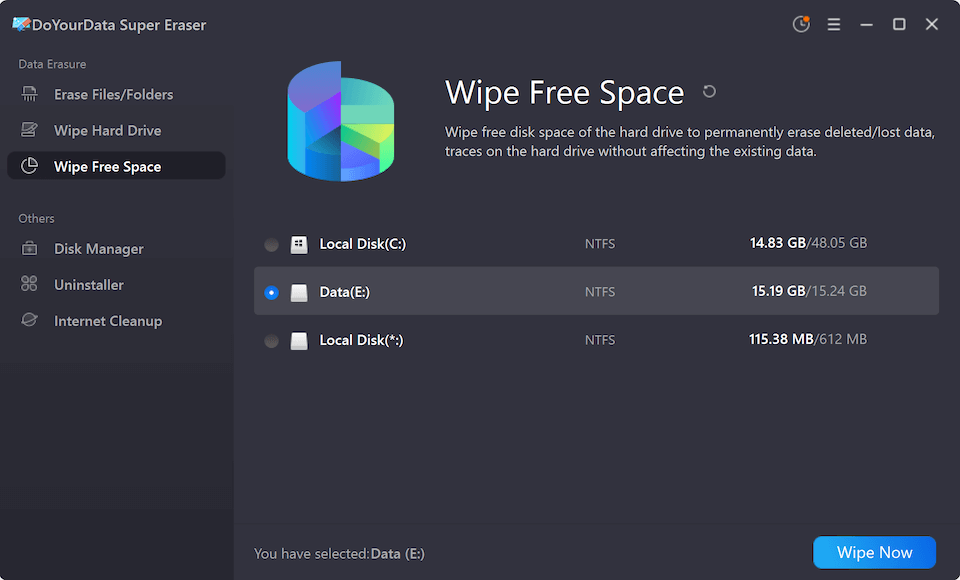
Mode 3: Wipe Free Disk Space
If you have already deleted files or formatted a drive in Windows, those deleted items still reside in the 'free space' of your drive. Using this mode overwrites only the unused space, permanently shredding previously deleted files while keeping your current operating system and active files intact.
Key Benefits of Using DoYourData Super Eraser for Dell Devices
Why choose DoYourData Super Eraser as your primary Dell computer disk wipe tool? Here are the main advantages:
- Safe and Non-Destructive to Hardware: The software only overwrites binary data sectors. It causes zero physical harm to your Dell SSD or HDD lifespan.
- Supports All Dell Devices: Fully compatible with Dell Inspiron, XPS, Latitude, Precision, Alienware, Vostro, and OptiPlex models.
- Multiple Storage Media Support: Works seamlessly on internal NVMe/SATA SSDs, HDDs, external portable drives, USB flash drives, memory cards, and RAID arrays.
- Certified Data Erasure Standards: Offers compliance with international standards like DoD 5220.22-M (3 passes), Gutmann (35 passes), and NIST 800-88 Clear.
- Simple, User-Friendly Interface: Designed with a clean, intuitive layout that requires no technical skills to operate.
Important Tips for Wiping Your Dell Computer
Before initiating any disk wiping procedure on your Dell device, keep these key precautions in mind:
- Back Up Important Files: Data erasure performed by professional wiping tools or BIOS utilities is completely irreversible. Double-check and back up your critical documents, photos, and licensing keys to an external drive or cloud storage before proceeding.
- Connect Your Laptop to Power: Ensure your Dell laptop is plugged into its AC power adapter. Disruption during a disk wipe due to a dead battery can corrupt drive firmware.
- Deauthorize Software Licenses: If you plan to sell or donate your Dell device, remember to log out of Microsoft 365, Adobe Creative Cloud, and deactivate any paid software licenses.
FAQs about Wiping Dell Computer Disk
Conclusion
Protecting your personal data should always be a top priority when retiring, upgrading, or transferring a computer. Standard file deletion leaves your sensitive information exposed to potential data theft.
Whether you choose Dell's built-in BIOS Data Wipe for full-system resets or rely on DoYourData Super Eraser for flexible, certified, multi-mode data destruction, using an effective Dell computer disk wipe tool ensures your private information stays private forever. Download DoYourData Super Eraser today to enjoy 100% secure data wiping on all your Dell devices.
DoYourData Super Eraser
DoYourData Super Eraser, the award-winning data erasure software, offers certified data erasure standards including U.S. Army AR380-19, DoD 5220.22-M ECE to help you securely and permanently erase data from PC, Mac, HDD, SSD, USB drive, memory card or other device, make data be lost forever, unrecoverable!
Written & Updated by Shirly Chen
Shirly Chen has been writing data recovery, data erasure articles for DoYourData over 4 years. She has been working as a professional website content writer & editor for quite a long time. She also writes articles about disk clone, Mac optimization, disk backup, etc.