How to Wipe Data When Recycling Hard Drives: A Complete Guide
To safely wipe data when recycling hard drives, use professional data wiping software like DoYourData Super Eraser. It overwrites stored data with certified erasure standards, making your files 100% unrecoverable while leaving the hard drive fully functional for its next owner.
 Updated by Shirly Chen on August 14, 2026
Quick Navigation:
- Why You Must Wipe Data When Recycling Hard Drives
- Why Deleting and Formatting Are NOT Enough
- Pre-Recycling Checklist: Prepare Your Hard Drive
- How to Wipe Data When Recycling Hard Drives?
- Software Wiping vs. Physical Destruction
- FAQs about Wiping Hard Drives
- Conclusion
Are you planning to upgrade your computer, dispose of an old laptop, or clear out unused external hard drives? Recycling old electronics is a fantastic way to protect the environment and reduce e-waste. However, before you hand over your old storage drive to a recycling center or drop-off kiosk, there is one crucial step you must take.
You need to wipe data when recycling hard drives to protect your digital life. Simply dragging files to the Recycle Bin or pressing 'Format' is not enough. Without proper data wiping, anyone who ends up with your recycled drive can use basic file recovery tools to restore your private photos, tax documents, saved passwords, and financial statements.

In this comprehensive guide, we will explain why standard deletion fails, what risks you face, and how to permanently wipe data when recycling hard drives using DoYourData Super Eraser in just a few clicks.
Why You Must Wipe Data When Recycling Hard Drives
When you decide to recycle an old computer or external hard drive, it usually passes through multiple hands. It may go from a local collection point to a refurbisher, a reseller, or an e-waste processing facility. Along the way, discarded hard drives are often resold online or scavenged for reusable hardware.
If your hard drive still contains unencrypted or recoverable files, you are leaving the key to your personal data in plain sight. Cybercriminals frequently buy second-hand drives specifically to search for personal information.
Here are the main risks of failing to wipe data when recycling hard drives:
- Identity Theft: If a stranger retrieves your Social Security number, banking details, or tax returns, they can open accounts or file fraudulent tax claims in your name.
- Privacy Exposure: Personal photos, family videos, chat logs, and private emails can be leaked or shared online without your permission.
- Corporate Data Breaches: If you recycle a work hard drive containing client records, trade secrets, or healthcare information, your company could face severe privacy regulation penalties.
- Account Hijacking: Saved login sessions and browser credentials stored on the drive can allow unauthorized access to your cloud accounts.
Why Deleting and Formatting Are NOT Enough
A common myth among computer users is that deleting files or formatting the hard drive renders old data completely gone. Unfortunately, this is a dangerous misconception.
The Truth About File Deletion
When you delete a file in Windows or macOS, the operating system does not erase the actual data bytes from the disk sectors. Instead, it simply removes the index pointer that tells the system where the file resides. The disk space is marked as 'available,' but the original data remains intact on the drive until overwritten by new files.
The Truth About Formatting
Performing a quick format—or even a standard format—rebuilds the file system structure without wiping the underlying data blocks. Modern data recovery software can easily read these orphaned data sectors and recover nearly 100% of your formatted files within minutes.
To truly wipe data when recycling hard drives, the existing data sectors must be completely overwritten with random characters or binary zeros multiple times. This process destroys the magnetic patterns or digital states that hold the original information.
Pre-Recycling Checklist: Prepare Your Hard Drive
Before starting the permanent wiping process, follow this quick checklist to ensure you do not accidentally lose valuable files:
- Back Up Essential Files: Copy all necessary personal photos, documents, financial files, and media to an external backup drive or a secure cloud service.
- Sign Out of Online Accounts: Log out of your Apple ID, Google Account, Microsoft Account, web browsers, and any licensed software installed on the machine.
- Unlink Cloud Storage: Ensure cloud sync services like OneDrive, Dropbox, and Google Drive are disconnected so cloud files are not accidentally modified.
- Verify Target Drive: Double-check that you selected the correct drive for erasure, especially if you have multiple drives connected.
How to Wipe Data When Recycling Hard Drives?
To guarantee your files are gone forever, you need a trusted, enterprise-grade data destruction tool. DoYourData Super Eraser is a powerful, user-friendly data wiping software designed for Windows and Mac. It uses international data erasure standards (such as DoD 5220.22-M, NIST 800-88 Clear, and Peter Gutmann) to overwrite hard drives beyond recovery.
DoYourData Super Eraser
- Securely and Permanently wipe hard drive data.
- Certified data erasure algorithms supported.
- 3 flexible wiping modes for different needs.
Whether you are recycling an internal HDD, a high-speed SSD, a USB flash drive, or an external hard drive, DoYourData Super Eraser ensures your data is permanently destroyed without harming the underlying storage hardware.
Step-by-Step Guide to Wiping Your Hard Drive
Follow these four simple steps to wipe data when recycling hard drives:
Step 1: Launch DoYourData Super Eraser on your computer. On the main interface, select the 'Wipe Hard Drive' option. You will see a list of all storage drives connected to your system. Select the specific hard drive you wish to wipe before recycling.
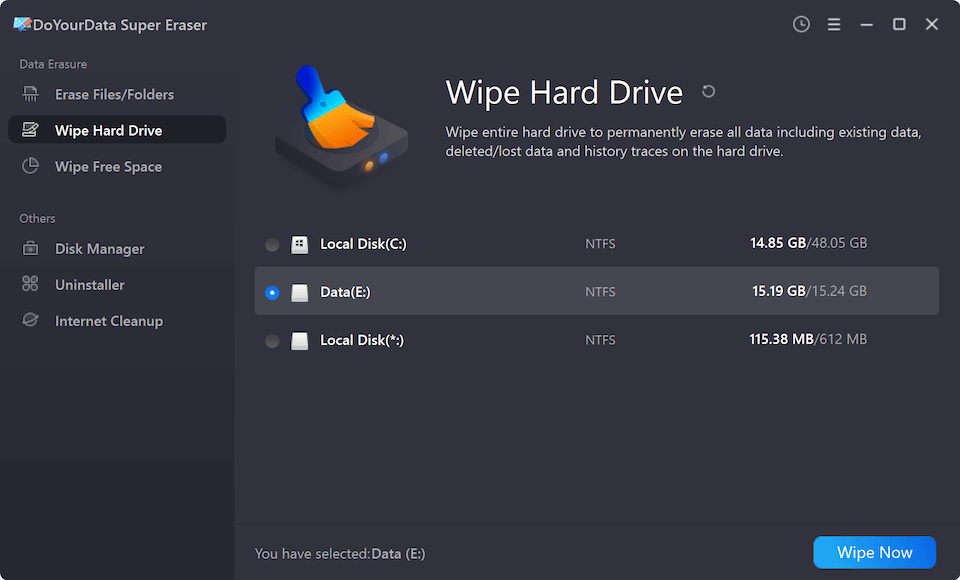
Step 2: After choosing the drive, click the 'Wipe Now' button. A prompt will appear asking you to select a data erasure algorithm. You can choose standard security algorithms like HMG IS5, U.S. Army AR380-19, DoD 5220.22-M (3 passes), or Peter Gutmann (35 passes). Select your preferred algorithm based on your security level requirements.

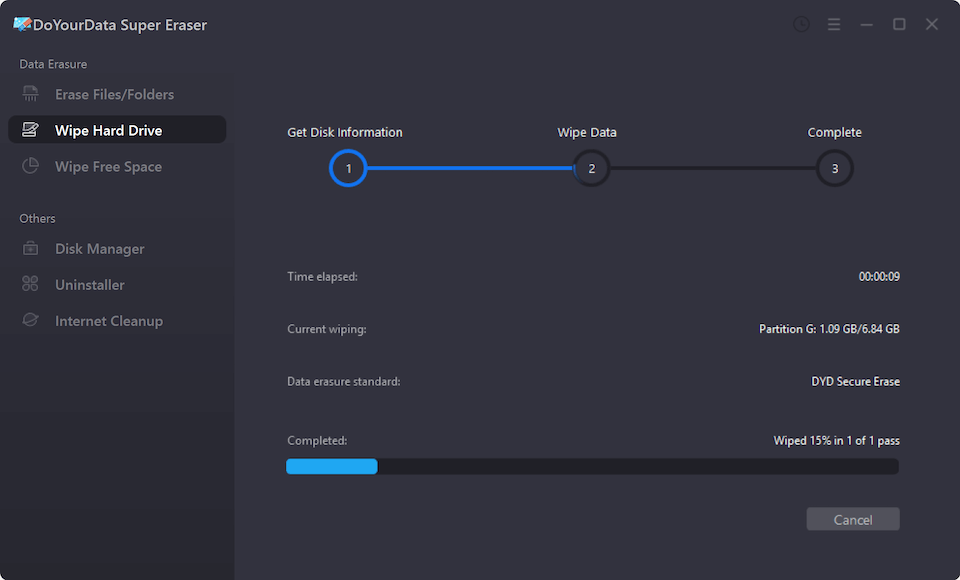
Step 3: Click the 'Continue' button to start wiping data. Allow the software to complete the overwrite process. Once finished, your hard drive is completely sanitized and ready for safe recycling.
Software Wiping vs. Physical Destruction
When preparing hard drives for disposal, users often consider alternative options. Here is how software data erasure compares to other methods:
- Physical Destruction (Hammer/Drill): Taking a hammer or drill to your hard drive renders data unreadable, but it destroys the drive completely. This prevents environmentally friendly recycling or reuse, creates hazardous electronic waste, and risks physical injury.
- Built-in Command Line Tools: Free command-line utilities like Windows Diskpart (clean all) overwrite sectors with zeros. However, they lack user-friendly interfaces, offer no multi-pass verification standards, and carry a high risk of accidentally wiping the wrong drive.
- Legacy Boot Disk Utilities (DBAN): Tools like DBAN require creating bootable USB media and entering complex BIOS settings. Furthermore, DBAN does not properly support modern Solid State Drives (SSDs) or NVMe drives.
- DoYourData Super Eraser (Recommended): Software like DoYourData Super Eraser provides the perfect balance. It destroys all data with military-grade standards, keeps the hardware physical structure intact for eco-friendly recycling, and is simple enough for anyone to use.
FAQs about Wiping Hard Drives
Conclusion:
Recycling electronic devices is an essential practice for environmental sustainability. However, protecting your digital privacy is equally critical. Leaving personal files on an unformatted or improperly cleared disk opens the door to identity theft and data exposure.
By choosing to wipe data when recycling hard drives, you take total control over your digital security. DoYourData Super Eraser makes this process simple, fast, and 100% secure. With its simple 3-step workflow—select 'Wipe Hard Drive' and choose the hard drive, click Wipe Now button and choose a data erasure algorithm, at last click Continue button to start wiping data—you can clean any storage drive with total confidence.
Don't leave your sensitive personal data to chance. Download DoYourData Super Eraser today and wipe your hard drives clean before sending them off for recycling!
DoYourData Super Eraser
DoYourData Super Eraser, the award-winning data erasure software, offers certified data erasure standards including U.S. Army AR380-19, DoD 5220.22-M ECE to help you securely and permanently erase data from PC, Mac, HDD, SSD, USB drive, memory card or other device, make data be lost forever, unrecoverable!
Written & Updated by Shirly Chen
Shirly Chen has been writing data recovery, data erasure articles for DoYourData over 4 years. She has been working as a professional website content writer & editor for quite a long time. She also writes articles about disk clone, Mac optimization, disk backup, etc.