How to Wipe Deleted Data with DoYourData Super Eraser?
After deleting files and even emptying the Recycle Bin or Trash, the deleted files can still be recovered with data recovery tools. To ensure the deleted data is no longer recoverable, use DoYourData Super Eraser to permanently wipe the deleted files.
 Updated by Shirly Chen on August 13, 2026
Quick Navigation:
- Understanding the Difference: Deletion vs. Data Wiping
- Wipe Deleted Data with DoYourData Super Eraser
- DoYourData Super Eraser: Three Powerful Erasure Modes
- Certified Data Erasure Standards & Security
- FAQs about Permanently Wiping Deleted Data
- Conclusion
When you drag a confidential document to the Recycle Bin or Mac Trash and hit "Empty," it feels like the file is gone forever. However, your operating system does not actually destroy the file. Instead, it simply marks the space occupied by that file as available for new data. The original content remains fully intact on your drive's free disk space until it gets overwritten.
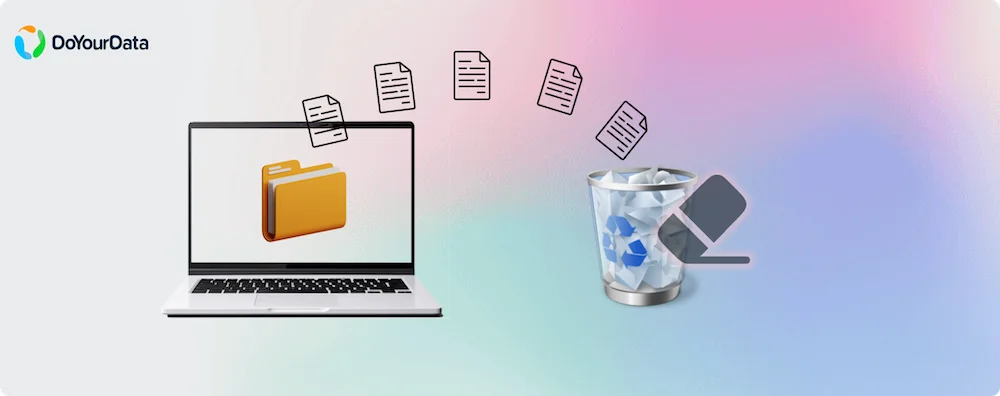
Because of this, anyone with basic data recovery software or specialized forensic tools can easily restore your deleted files. If you are selling your computer, handing off a USB drive, or managing sensitive business records, leaving deleted files unrestroyed exposes you to severe data leakage and privacy breaches.
To guarantee that your deleted files are unrecoverable by any means, you need specialized data erasure software. In this guide, we will walk you through the simple, step-by-step process to wipe deleted data with DoYourData Super Eraser using its advanced "Wipe Free Space" mode.
Quick Answer
To wipe deleted data with DoYourData Super Eraser so it can never be recovered:
1. Download and launch DoYourData Super Eraser on your Windows PC or Mac.
2. Select the 'Wipe Free Space' mode from the main dashboard.
3. Choose the target hard drive or partition where your files were deleted.
4. Click 'Wipe Now' to permanently overwrite all deleted data and residual traces.
📌 Note: This process permanently wipes deleted data without touching your existing, active files.
Understanding the Difference: Deletion vs. Data Wiping
To understand why specialized software is necessary, let's look at how storage drives handle file deletion:
- Standard Deletion (Recycle Bin / Trash): Removes the file pointer from the file system directory. The actual data bits remain untouched on the disk drive.
- Disk Formatting: Rebuilds the file system index. While it makes the drive appear empty, data recovery tools can easily reconstruct formatted partitions.
- Data Wiping with DoYourData Super Eraser: Overwrites the target disk sectors with random binary patterns (zeros, ones, and random characters) using certified government and military erasure standards. Once overwritten, the original data is destroyed permanently.
Wipe Deleted Data with DoYourData Super Eraser
DoYourData Super Eraser is designed with a clean, user-friendly interface suitable for both beginners and experienced technicians. Follow these simple steps to ensure your deleted files are gone forever.
Step 1: Download and Install DoYourData Super Eraser
Download the version compatible with your operating system. DoYourData Super Eraser supports Windows 11, 10, 8, 7, Vista, XP, and macOS 10.12 through the latest macOS versions. Follow the standard installation wizard to set up the program.
DoYourData Super Eraser
- The best data erasure tool for Windows and Mac.
- Support wiping hard drive and shred specified files.
- Securely wipe data and ensure the wiped data unrecoverable.
Step 2: Launch the Program and Select 'Wipe Free Space' Mode
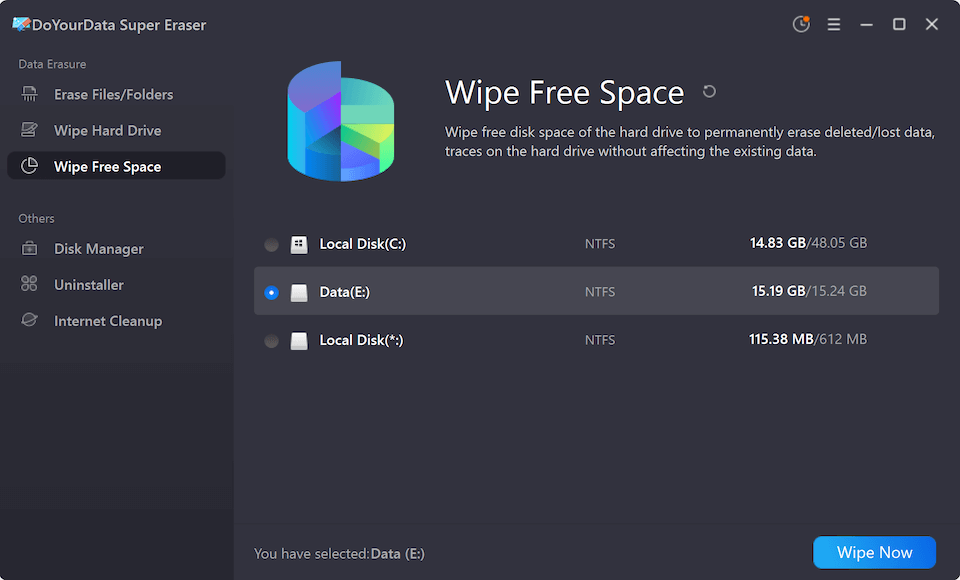
Open DoYourData Super Eraser. On the main interface, you will see three distinct data erasure modes. To erase files that you have already deleted or emptied from the Recycle Bin, choose the 'Wipe Free Space' mode. Select the drive where files were deleted Click the 'Wipe Now' button.
📌 Why 'Wipe Free Space' Mode is the Right Choice
When files are deleted, their remnants reside in the unused space (free space) of the disk drive. The 'Wipe Free Space' mode specifically targets this unused area. It permanently wipes deleted data, formatted files, and temporary system traces while keeping all your existing, active files 100% safe and intact.
Step 3: Select the Data Erasure Standard
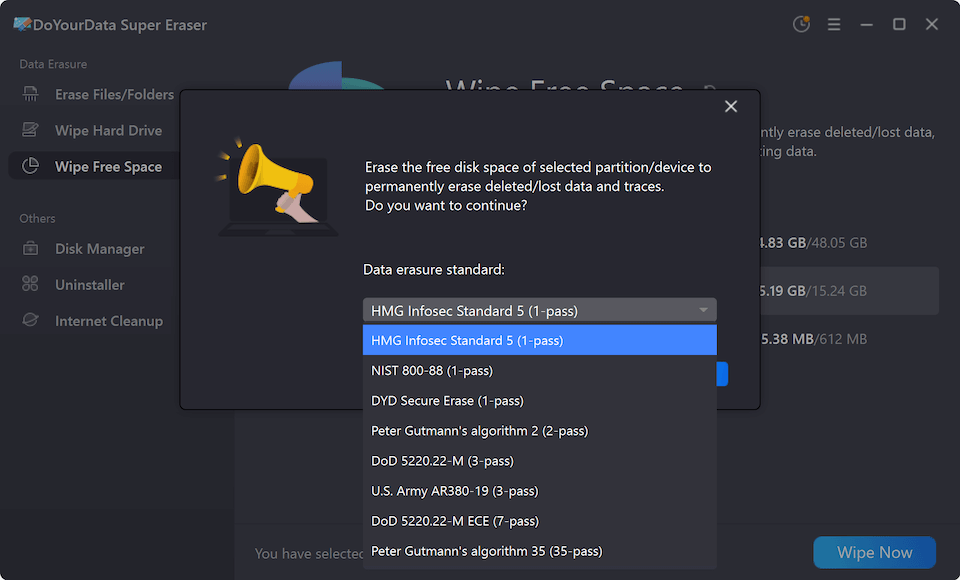
You will see a list of available data erasure algorithms. All the algorithms is certified and international. Any of the data wiping algorithms can ensure to wipe data permanently. Select a algorithm from the drop-down list based on your needs.
Step 4: Confirm and Start Data Erasure
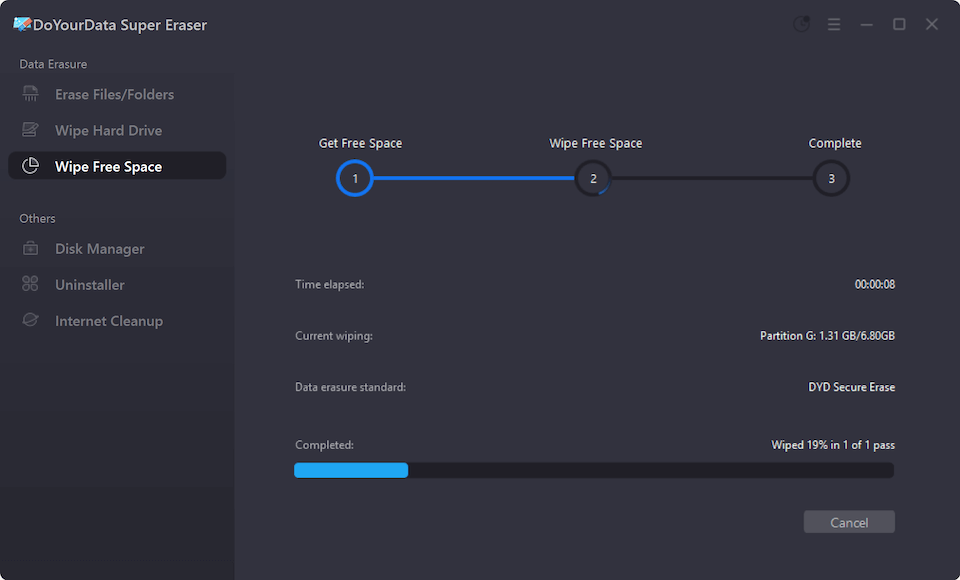
Click the prominent 'Continue' button. DoYourData Super Eraser will initiate the overwriting process. The software will systematic scan the free space and overwrite every empty sector with multi-pass security algorithms. Once completed, a confirmation prompt will inform you that the erasure is finished.
DoYourData Super Eraser: Three Powerful Erasure Modes
Depending on your specific privacy needs, DoYourData Super Eraser provides three flexible operating modes:
|
Erasure Mode |
Best Used For |
Impact on Existing Files |
|
Erase Files/Folders |
Selectively destroying specific files or folders permanently without affecting other data. |
Erases selected target files only. |
|
Wipe Free Space |
Permanently erasing already deleted files, formatted data, and temporary disk traces. |
100% Safe. Existing files are untouched. |
|
Wipe Hard Drive |
Erasing the entire partition or drive prior to selling, donating, or recycling a computer. |
Destroys ALL data (existing + deleted). |
Certified Data Erasure Standards & Security
DoYourData Super Eraser relies on globally recognized data erasure standards to ensure permanent erasure. When you wipe deleted data with DoYourData Super Eraser, the software utilizes algorithms compliant with military and government specifications, including:
- U.S. Army AR380-19: A standardized multi-pass security overwriting standard.
- DoD 5220.22-M / DoD 5220.22-M (ECE): U.S. Department of Defense compliant multi-pass data sanitization standard.
- Peter Gutmann's Algorithm: An ultra-secure 35-pass overwriting method for high-security environments.
Furthermore, DoYourData Super Eraser is fully compatible with all modern storage hardware. Whether you are working with traditional Hard Disk Drives (HDD), Solid-State Drives (SSD), USB flash drives, SD memory cards, or hardware RAID arrays, the software performs deep sector overwriting safely without damaging physical storage hardware.
FAQs about Permanently Wiping Deleted Data
Conclusion:
Standard file deletion and emptying the Recycle Bin leave significant privacy loopholes that can be exploited. By utilizing the dedicated 'Wipe Free Space' mode in DoYourData Super Eraser, you can permanently destroy leftover fragments of deleted files, ensuring your sensitive information remains private and 100% unrecoverable.
Protect your privacy today. Download DoYourData Super Eraser and perform a quick free space wipe to secure your PC, Mac, or external storage devices.
DoYourData Super Eraser
DoYourData Super Eraser, the award-winning data erasure software, offers certified data erasure standards including U.S. Army AR380-19, DoD 5220.22-M ECE to help you securely and permanently erase data from PC, Mac, HDD, SSD, USB drive, memory card or other device, make data be lost forever, unrecoverable!
Written & Updated by Shirly Chen
Shirly Chen has been writing data recovery, data erasure articles for DoYourData over 4 years. She has been working as a professional website content writer & editor for quite a long time. She also writes articles about disk clone, Mac optimization, disk backup, etc.