How to Permanently Wipe BitLocker Encrypted Drive Without Password
If you have forgotten your BitLocker password and 48-digit recovery key, you cannot unlock the drive to read its files. However, you CAN completely overwrite, erase, and reuse the physical disk. To permanently wipe BitLocker encrypted drive without password beyond recovery, use DoYourData Super Eraser. This overwrites every physical sector, destroying the encrypted file structure, the BitLocker header, and all data traces so the drive can be reused safely as a clean, unencrypted volume.
 Updated by Shirly Chen on October 19, 2026
Quick Navigation:
- Why Is BitLocker Locked Without a Password or Recovery Key?
- Method 1: Wipe BitLocker Encrypted Drive Using Software
- Method 2: Force Clean a BitLocker Drive Using Diskpart Command
- Best Practices After Wiping a BitLocker Drive
- FAQs about Wiping BitLocker Drive Permanently
- Conclusion
BitLocker is Microsoft's built-in encryption feature designed to protect sensitive files on Windows laptops, desktops, USB drives, and external hard drives. By encrypting drive volumes with AES encryption, BitLocker ensures that unauthorized users cannot read your data without a password or a 48-digit recovery key.
However, what happens when you forget your BitLocker password, lose your recovery key, buy a second-hand drive that is locked, or need to decommission a company laptop? Facing a locked drive can feel like hitting a digital brick wall.
While BitLocker's encryption prevents anyone from unlocking and reading your files without credentials, it does NOT prevent you from wiping the underlying physical storage sectors. In this guide, we will explore how BitLocker locking works and show you step-by-step how to permanently wipe BitLocker encrypted drive without password using DoYourData Super Eraser.
Why Is BitLocker Locked Without a Password or Recovery Key?
Understanding how BitLocker operates clarifies why standard file access fails and why disk sector overwriting is necessary.
1. AES Encryption Headers Block File Access
BitLocker scrambles all data sectors on your volume using 128-bit or 256-bit AES encryption. Without the matching encryption key, Windows Explorer cannot read the file system allocation table, rendering files completely inaccessible.
2. Formatting Removes File References but Leaves Encrypted Artifacts
If you try to perform a simple format using Windows Disk Management, Windows may clear the partition table, but the underlying encrypted data blocks remain sitting on the disk sectors.
3. Why Low-Level Overwriting Is Essential for Resale or Disposal
If you plan to sell, donate, or repurpose a BitLocker-protected external drive or laptop, simple formatting is insufficient. To ensure 100% security, you must overwrite every physical storage block with certified random data patterns.
Method 1: Wipe BitLocker Encrypted Drive Using Software
To guarantee that all encrypted data, BitLocker metadata headers, and hidden residual sectors are destroyed forever, using professional data erasure software is the most reliable choice.
DoYourData Super Eraser is a certified, easy-to-use privacy and disk wiping tool designed for Windows PC and Mac. It can bypass Windows file system restrictions and directly overwrite raw storage sectors on BitLocker-locked drives.
Step 1: Download and Launch DoYourData Super Eraser
Download, install, and open DoYourData Super Eraser on your Windows computer. Connect your locked BitLocker external hard drive, USB flash drive, or SD card to your PC.
DoYourData Super Eraser
- Securely wipe data from hard drive, USB drive, SD card, etc.
- Support certified data erasure algorithms, including DoD 5220.22.
- Permanently wipe data and ensure the data is unrecoverable.
Step 2: Select 'Wipe Hard Drive' Mode
From the main dashboard, choose the 'Wipe Hard Drive' function. This mode allows you to target an entire physical storage disk or partition for total sanitization.
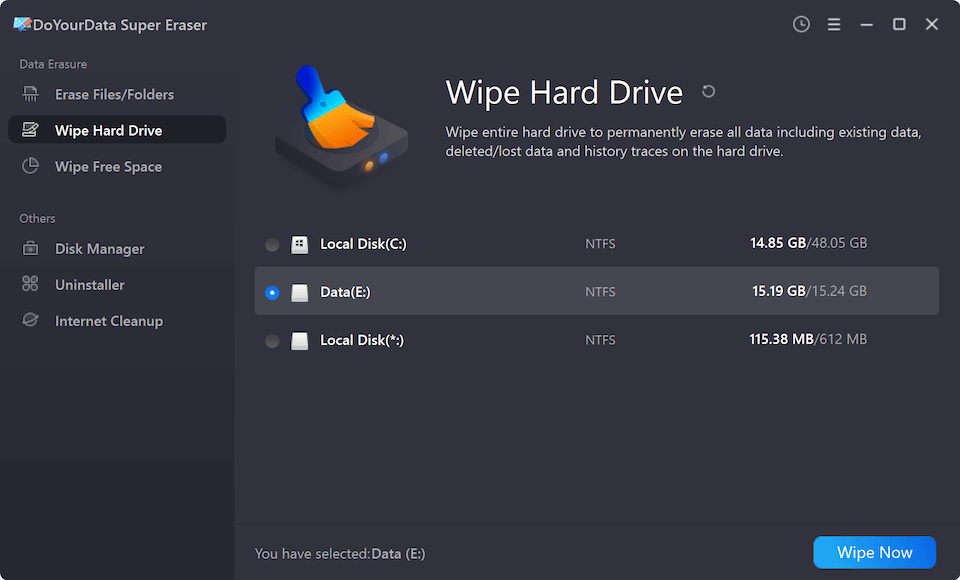
Step 3: Select the BitLocker Locked Drive and Choose Wiping Standard
Choose the encrypted BitLocker drive from the list of detected storage devices. Click the "Wipe Now" button to select your preferred military-grade data erasure algorithm (such as DoD 5220.22-M or Gutmann).

Step 4: Execute the Wipe and Reformat
Click 'Continue' and confirm the operation. DoYourData Super Eraser will overwrite every physical sector across the drive, destroying BitLocker metadata and restoring the drive to a completely clean, unencrypted state ready for new use.
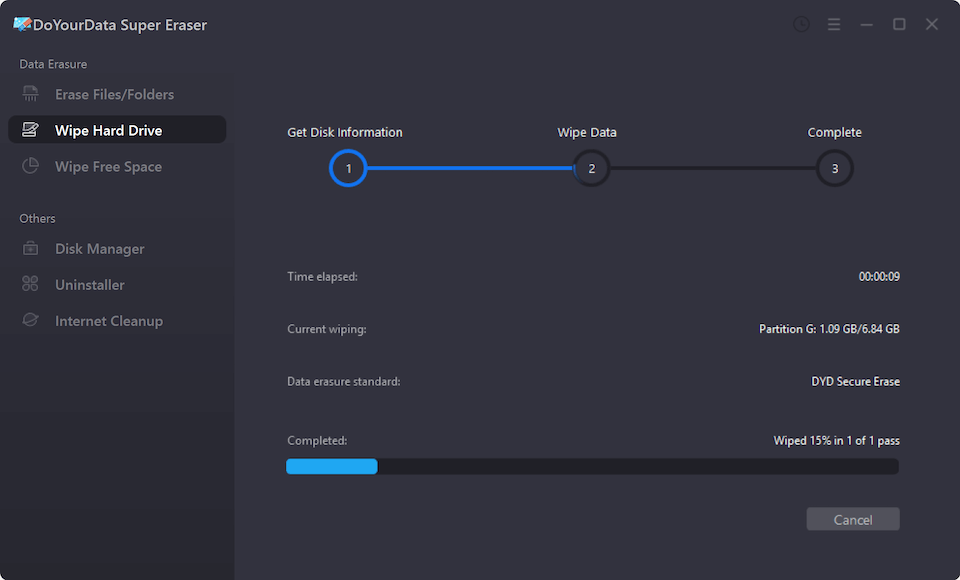
💡 Important Notice: Wiping a BitLocker drive completely destroys all contents on the disk beyond recovery. Ensure you do not need any files on the drive before executing the wipe!
Understanding Certified Data Sanitization Algorithms
DoYourData Super Eraser employs internationally recognized data destruction protocols to ensure total privacy compliance:
- HMG IS5 (1 Pass): Overwrites unallocated sectors with simple zeros, ideal for rapid disk resetting.
- DoD 5220.22-M (3 Passes): The official U.S. Department of Defense standard. It executes 3 sequential passes using zeros, ones, and random characters with verification.
- U.S. Army AR380-19 (7 Passes): A 7-pass military-grade sanitization protocol recommended for high-security corporate data compliance.
- Peter Gutmann Standard (35 Passes): An extreme data destruction algorithm executing 35 overwrite passes, ensuring complete destruction against advanced laboratory equipment.
Method 2: Force Clean a BitLocker Drive Using Diskpart Command
If you prefer using built-in Windows command-line utilities to quickly remove the BitLocker partition before running erasure software, you can use the Diskpart tool:
Step 1: Open Command Prompt as Administrator
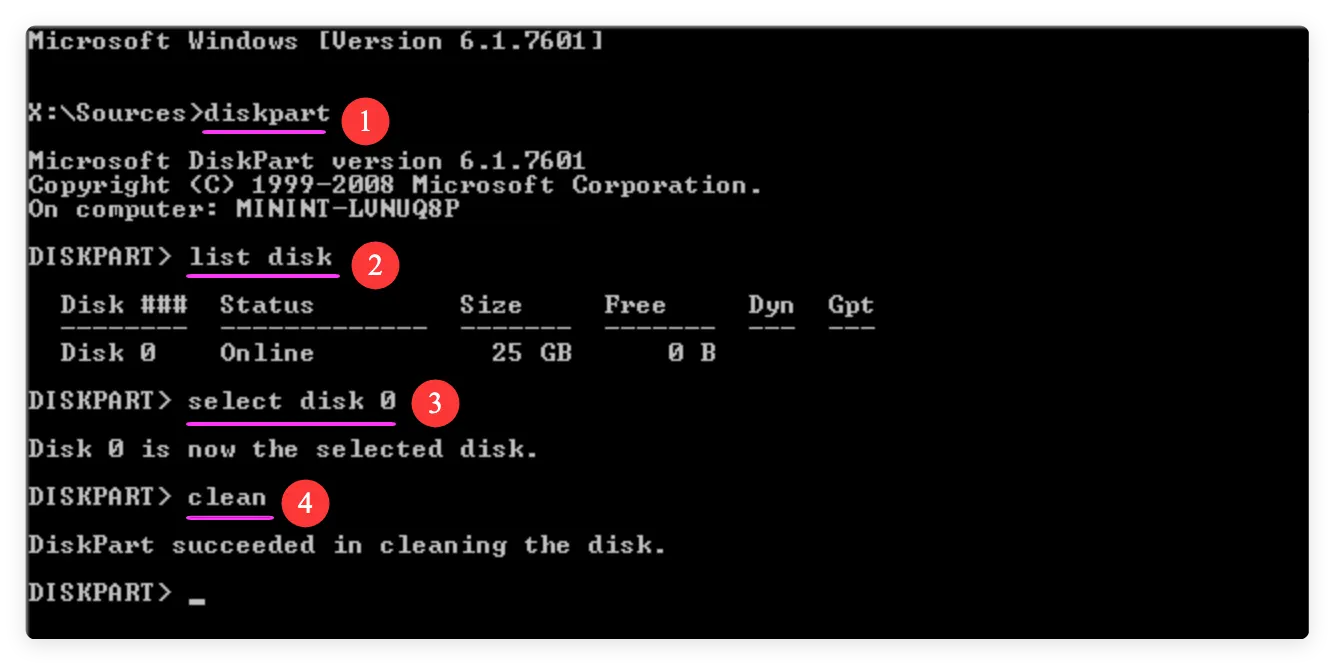
Press Win + X, select 'Terminal (Admin)' or 'Command Prompt (Admin)', and type 'diskpart' followed by Enter.
Step 2: List and Select Your BitLocker Drive
Type 'list disk' to see all connected drives. Identify the drive number of your locked BitLocker volume (e.g., Disk 2). Type 'select disk 2' (replace 2 with your actual disk number).
Step 3: Run the Clean Command
Type 'clean' and press Enter. Diskpart will force-remove the BitLocker partition table, volume headers, and encryption flags from the drive.
Step 4: Initialize and Format in Disk Management
Open Disk Management (Win + X > Disk Management), right-click the unallocated disk, choose 'Initialize Disk' (GPT/MBR), and create a new Simple Volume formatted in NTFS or exFAT.
Best Practices After Wiping a BitLocker Drive
Once your drive is clean and unencrypted, keep these practices in mind for smooth future usage:
- Reformat with a Suitable File System: After wiping, assign a new volume label and format the drive as NTFS (for Windows) or exFAT (for Windows/Mac cross-compatibility).
- Save New Recovery Keys Securely: If you re-enable BitLocker on the drive in the future, store your 48-digit recovery key in a secure location such as your Microsoft Account or a password manager.
- Conduct Drive Health Checks: Perform surface tests using disk diagnostics to verify that the storage media remains healthy.
FAQs about Wiping BitLocker Drive Permanently
Conclusion
Losing your BitLocker password or recovery key doesn't mean your physical drive has to end up in the trash. While you cannot unlock the drive to access old files, you can easily reclaim the hardware.
By learning how to permanently wipe BitLocker encrypted drive without password using DoYourData Super Eraser, you can destroy encrypted data blocks, remove BitLocker headers, and reset your drive for safe reuse or resale. Reclaim your storage hardware today with absolute peace of mind!
DoYourData Super Eraser
DoYourData Super Eraser, the award-winning data erasure software, offers certified data erasure standards including U.S. Army AR380-19, DoD 5220.22-M ECE to help you securely and permanently erase data from PC, Mac, HDD, SSD, USB drive, memory card or other device, make data be lost forever, unrecoverable!
Written & Updated by Shirly Chen
Shirly Chen has been writing data recovery, data erasure articles for DoYourData over 4 years. She has been working as a professional website content writer & editor for quite a long time. She also writes articles about disk clone, Mac optimization, disk backup, etc.