How to Wipe Individual Folder Without Formatting Entire Drive
Delete a folder and empty the Recycle bin will not make the data unrecoverable. DoYourData Super Eraser is able to shred individual folder or files without affecting the other data. Also, the software can ensure the shredded data is gone for good and no longer unrecoverable.
 Updated by Shirly Chen on October 16, 2026
Quick Navigation:
- Why Deleting and Emptying Recycle Bin Isn't Enough
- Method 1: Use Professional File Shredder Software
- Method 2: Using Built-In Windows Tools
- Best Practices for Secure Data Wiping
- FAQs about Wiping Individual Folder
- Conclusion
Have you ever found yourself needing to get rid of a specific folder containing sensitive personal information, confidential work documents, or private photos, but hesitated because you were worried about the hassle of wiping your entire computer? Many people believe that to truly clean a hard drive or make data unrecoverable, they have to format the whole drive, reinstall their operating system, and back up gigabytes of unrelated files. Fortunately, that is completely untrue.
You do not need to format your entire hard drive just to wipe one individual folder. Whether you are using a Windows PC or a Mac, there are quick, efficient, and secure ways to target specific directories and destroy their contents permanently. In this comprehensive guide, we will walk you through everything you need to know about how to wipe individual folder without formatting entire drive, ensuring your private data remains strictly private without disrupting your daily digital workflow.
Why Deleting and Emptying Recycle Bin Isn't Enough
Before jumping into the solutions, it is essential to understand how file deletion actually works on modern operating systems. When you right-click a folder and select 'Delete', or when you press 'Shift + Delete', or even when you empty your Recycle Bin or Trash, your computer does not actually erase the physical data stored on your hard drive or solid-state drive.
Instead, the operating system simply marks that folder's storage space as 'available' or 'free space'. The actual bits and bytes containing your pictures, passwords, or financial records remain intact on the physical sectors of the disk. Until new data gets written directly over those exact sectors, anyone with basic data recovery software can easily scan your drive and restore your deleted files in a matter of minutes.
This poses a major privacy risk, especially if you are selling your computer, donating an old laptop, sharing a workstation with family members, or returning a corporate device. Simply dragging a folder to the trash bin is never enough. You need true secure deletion or file shredding.
Method 1: Use Professional File Shredder Software
If you want a foolproof method that requires zero technical background and guarantees your files are gone for good, using dedicated data erasure software is the gold standard. Tools like DoYourData Super Eraser are specifically engineered to solve this exact problem.
DoYourData Super Eraser
- The best file shredder software for Windows and Mac.
- Shred specified files or folders without affecting other files.
- Wipe data with certified data erasure algorithms.
A professional file shredder works by overwriting the target folder and its contents multiple times with random characters, zeros, and binary patterns. This overwriting process ensures that even advanced military-grade laboratory equipment cannot reconstruct the original information.
Step-by-Step Guide: How to Wipe an Individual Folder Using DoYourData Super Eraser
Follow these simple steps to permanently wipe any sensitive folder on your Windows PC or Mac without touching the rest of your files:
Step 1. Download and Install the Software: Visit the official DoYourData website and download DoYourData Super Eraser for your operating system (Windows or macOS). Install it following the quick on-screen wizard instructions.
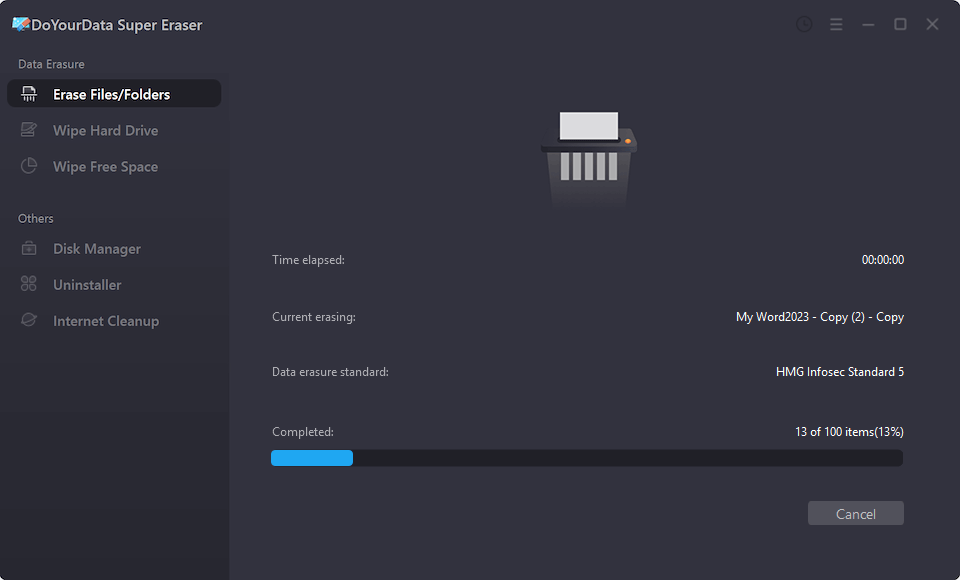
Step 2. Select the 'Erase Files/Folders' Mode: Open the software and choose "Erase Files/Folders" mode at the left side pane. This mode is specifically designed for targeting individual files and folders rather than entire partitions or drives.
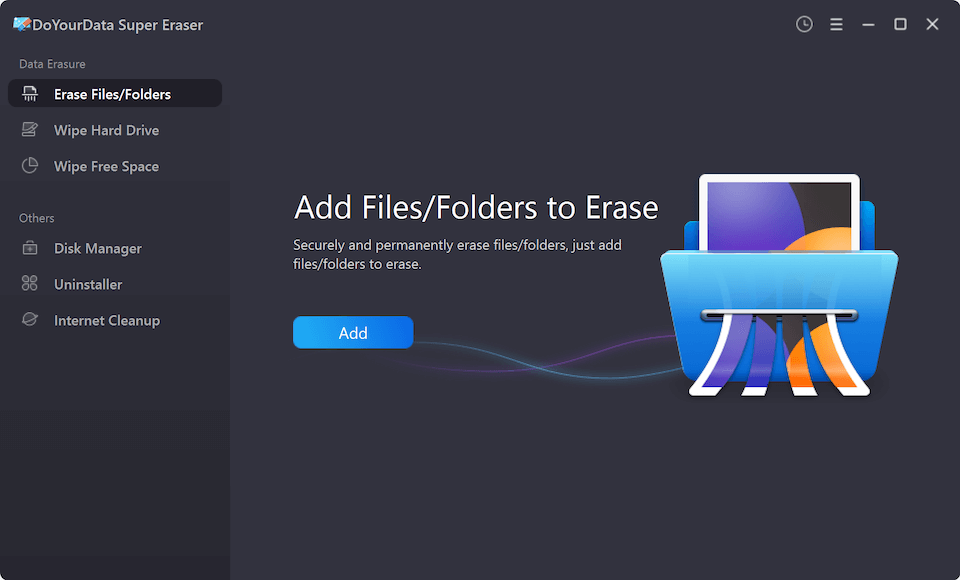
Step 3. Add Your Target Folder: Click the 'Add' button, browse your computer directory, and select the specific folder you want to wipe permanently. You can also drag and drop the folder directly into the software interface.
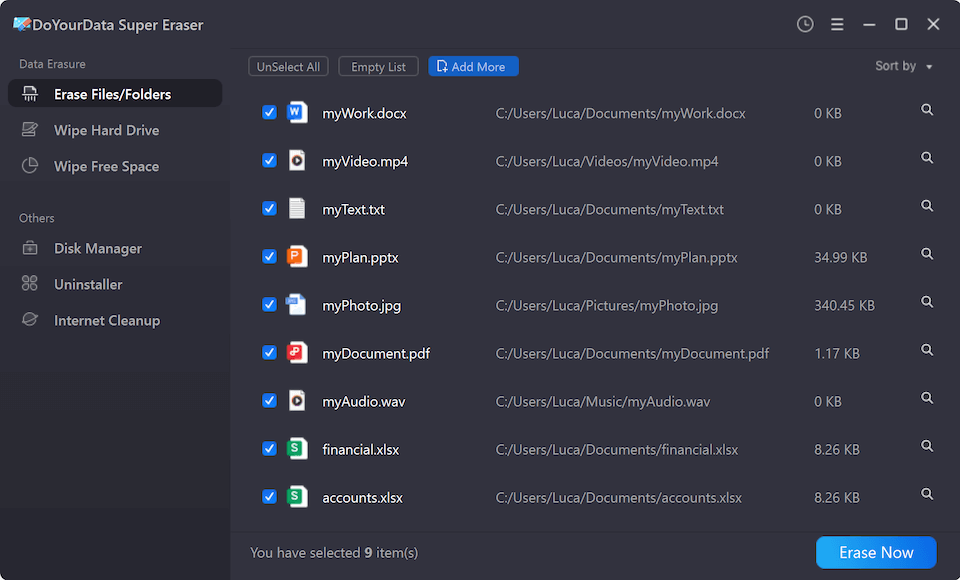
Step 4. Review and Confirm Wiping Method: Double-check the folder path to ensure you have selected the correct directory. Once you are certain, click the 'Erase Now' button. Then you will be asked to select a data erasure standard.
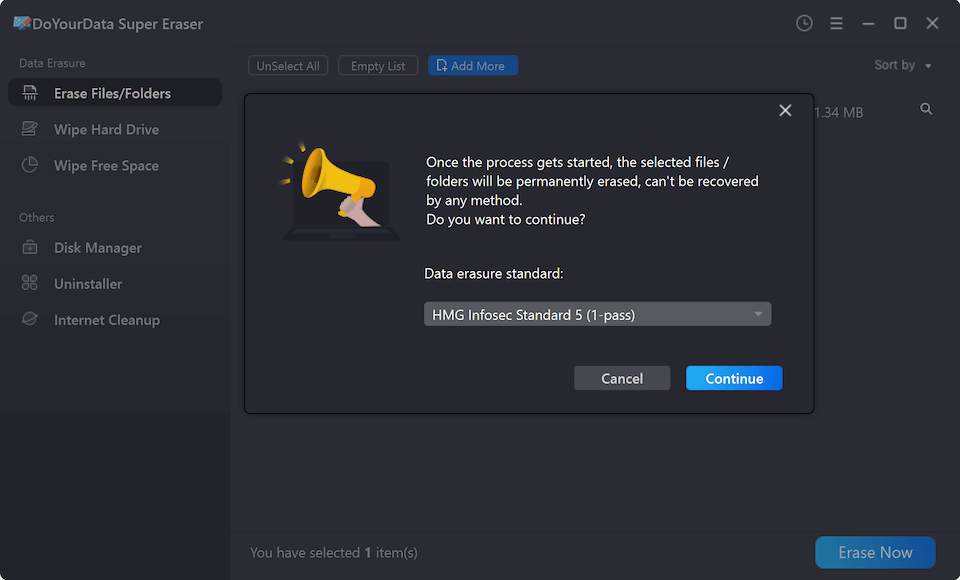
Step 5. Complete Data Erasure: At last, click the 'Continue' button to start wiping. The software will instantly overwrite and destroy all files within that folder. Once finished, the folder is permanently gone, leaving zero chance of recovery, and your operating system and other drives remain completely untouched.
💡 Note: If you have deleted a folder and want to guarantee the data cannot be recovered, you can use "Wipe Free Space" to wipe the unused space of the drive.
Method 2: Using Built-In Windows Tools
If you prefer not to install third-party applications right away, Windows offers native command-line utilities that can help secure your system. However, keep in mind that built-in tools are generally more technical and less direct for individual folders.
Using the Cipher Command to Wipe Free Space
Windows has a built-in command called 'cipher' that allows you to overwrite free space on a drive. This is useful if you have already deleted a folder normally and want to make sure the leftover traces on the drive are wiped clean.
Step 1: Click the Windows Start menu, type 'cmd', right-click on Command Prompt, and select 'Run as administrator'.
Step 2: In the command window, type the following command and press Enter (replace C with your drive letter):
cipher /w:C
Step 3: Windows will begin a three-pass wipe process on all the free space of the C drive. Pass 1 writes zeros, Pass 2 writes ones, and Pass 3 writes random data.
💡 Note: This method wipes all free space across the specified drive, not just one specific folder's previous location, and it can take a considerable amount of time depending on your drive size.
Best Practices for Secure Data Wiping
When dealing with data destruction, a little caution goes a long way. Keep these best practices in mind:
- Double-Check Your Selection: Because permanent wiping bypasses the Recycle Bin and makes recovery impossible, always verify the folder path before hitting the erase button.
- Backup Important Data: Never wipe active system folders or directories containing crucial application files. Only target personal folders that you no longer need.
- Understand SSD vs. HDD Differences: Traditional Hard Disk Drives (HDDs) store data magnetically, making traditional overwriting very straightforward. Solid State Drives (SSDs) use flash memory and wear-leveling algorithms, meaning file shredding software that directly communicates with sectors or uses multiple overwrite passes is vital for complete security.
FAQs about Wiping Individual Folder
Conclusion
Knowing how to wipe individual folder without formatting entire drive gives you complete control over your digital privacy. You no longer have to undergo the tedious process of backing up your entire system and formatting partitions just to get rid of a few sensitive files.
By using professional, user-friendly tools like DoYourData Super Eraser, you can securely shred confidential folders in just a few clicks, ensuring your personal data remains private and secure while keeping your computer running smoothly.
DoYourData Super Eraser
DoYourData Super Eraser, the award-winning data erasure software, offers certified data erasure standards including U.S. Army AR380-19, DoD 5220.22-M ECE to help you securely and permanently erase data from PC, Mac, HDD, SSD, USB drive, memory card or other device, make data be lost forever, unrecoverable!
Written & Updated by Shirly Chen
Shirly Chen has been writing data recovery, data erasure articles for DoYourData over 4 years. She has been working as a professional website content writer & editor for quite a long time. She also writes articles about disk clone, Mac optimization, disk backup, etc.