Xiaomi Computer Data Erasure: Wipe Data Beyond Recovery
Are you planning to sell, donate, trade in, or dispose of your Xiaomi laptop? Whether you own a ultra-sleek Xiaomi Book Pro, a high-performance RedmiBook, or a Mi Notebook Air, taking care of the personal and sensitive data stored on your hard drive should be your absolute top priority. Use DoYourData Super Eraser to wipe data permanently first can help you protect privacy safe.
 Updated by Shirly Chen on September 14, 2026
Quick Navigation:
- Why and When to Wipe Data on a Xiaomi Computer?
- How to Wipe Data on Xiaomi Computer (3 Methods)
- What to Do Before Wiping Your Xiaomi Laptop
- FAQs about Data Erasure on Xiaomi Computer
- Conclusion
Many users believe that pressing 'Shift + Delete', formatting a partition, or executing a standard Windows factory reset is enough to wipe their computer clean. Unfortunately, that is a dangerous technical misconception. When you delete a file or perform a basic format in Windows, the system only deletes the file entry pointer and marks the space as 'available'. The underlying digital data remains completely intact on your Solid State Drive (SSD) or Hard Disk Drive (HDD).

With easily accessible consumer data recovery software, anyone who buys your old Xiaomi computer can recover your personal photos, financial records, saved browser passwords, corporate files, and confidential identity information in just a few clicks. To protect your digital identity, you need a true Xiaomi computer data erasure strategy that permanently overwrites your data, making recovery mathematically impossible.
Why and When to Wipe Data on a Xiaomi Computer?
Data erasure is not just routine maintenance; it is an essential security step for specific life situations. Knowing when to perform a complete wipe ensures peace of mind.
Key Scenarios Requiring Permanent Data Erasure
- Selling or Trading In Your Laptop: Selling your Xiaomi laptop on platforms like eBay, Facebook Marketplace, or local secondhand stores.
- Donating or Giving Away: Handing over your device to a family member, friend, school, or charitable organization.
- Returning Work or Lease Devices: Returning a leased or company-issued Xiaomi laptop to your employer or IT vendor.
- Sending the Laptop for Hardware Repair: Sending your device to an off-site repair center where technicians will have physical access to your drive.
- Severe Malware Infection: If your Xiaomi laptop has been infected with persistent malware, spyware, or ransomware that regular antivirus software cannot clear.
The Severe Risks of Improper Data Deletion
Failing to wipe your drive properly exposes you to severe digital risks. Data thieves frequently purchase secondhand laptops specifically to extract private information. Unprotected laptops can leak:
- Bank account details, credit card numbers, and tax documentation.
- Saved login credentials for email, social media, and crypto wallets.
- Private family photos, personal video logs, and chat histories.
- Proprietary business documents, source code, and confidential client agreements.
Once compromised, this data can lead to full identity theft, financial fraud, blackmail, or legal liabilities. A total data wipe guarantees that your personal life stays private.
How to Wipe Data on Xiaomi Computer (3 Methods)
Depending on your technical comfort level and security requirements, here are the three best ways to perform Xiaomi computer data erasure.
Method 1: Permanent Data Erasure via Professional Software (Recommended)
For 100% security, convenience, and ease of use, using a professional data erasure tool like DoYourData Super Eraser is the absolute best choice. Unlike basic Windows formats, DoYourData uses advanced data sanitization algorithms (such as US Army AR380-19, DoD 5220.22-M, and Peter Gutmann's algorithm) to overwrite existing data with random binary code. Once erased, no recovery tool in the world can retrieve a single byte of your data.
DoYourData Super Eraser
- The best data erasure software for Windows and Mac.
- Permanently wipe data with certified data wiping algorithms.
- 3 data wiping modes to meet different erasure requirements.
DoYourData Super Eraser fully supports all Xiaomi laptop models, including Xiaomi Book Pro, RedmiBook Series, Mi Notebook Ultra, and Gaming Laptops equipped with modern NVMe M.2 SSDs or SATA HDDs.
DoYourData Super Eraser offers three flexible wiping modes to fit your specific needs:
Mode 1: Erase Files/Folders. Ideal if you only want to delete specific confidential folders or sensitive files while keeping your Windows operating system intact. Select the files, click Erase Now, and they are destroyed forever.
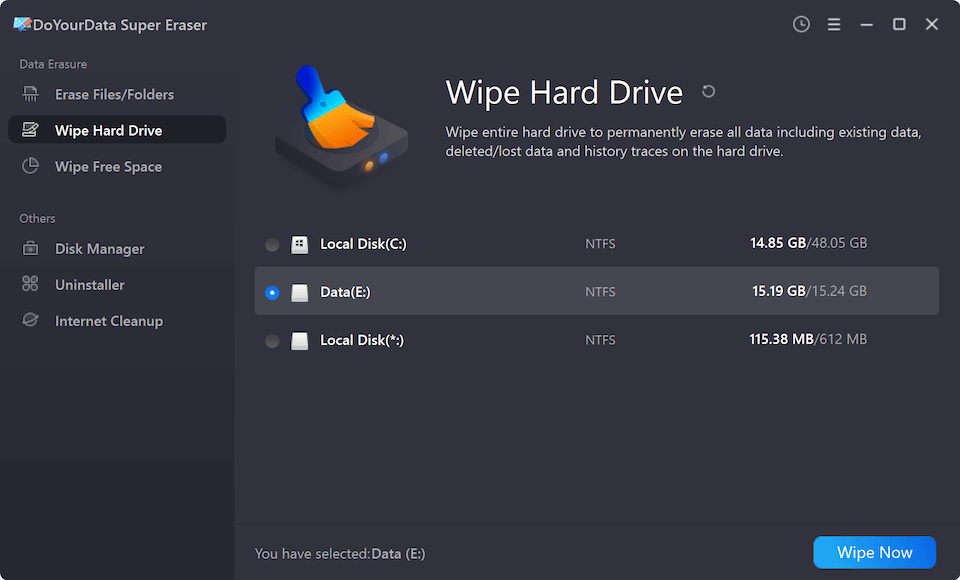
Mode 2: Wipe Hard Drive. Allows you to wipe an entire partition (e.g., D: drive or E: drive) clean. All data on that specific partition will be completely erased without affecting your primary C: drive.
Mode 3: Wipe Free Space. If you have already deleted files or formatted a drive, those deleted files still sit in the 'Free Space' waiting to be overwritten. This mode wipes only the unallocated free space, destroying all remnants of previously deleted files while leaving your existing installed apps and Windows system untouched.
Step-by-Step Guide to Wiping Your Xiaomi Laptop with DoYourData Super Eraser:
Step 1: Download and install DoYourData Super Eraser on your Xiaomi laptop.
Step 2: Launch the software and choose the wiping mode that fits your goal (e.g., 'Wipe Hard Drive' or 'Wipe Free Space'). Select the target drive partition on your Xiaomi computer that you wish to sanitize. Click the 'Erase Now' button.
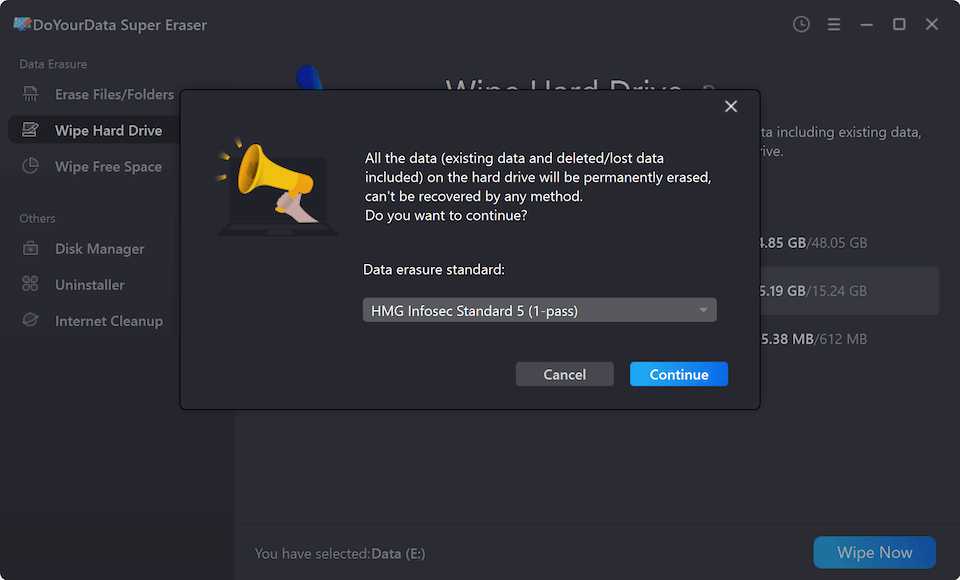
Step 3: Select a data wiping method and click 'Continue' button to start. The program will securely overwrite every sector on the drive. Once finished, your data is permanently gone.
Method 2: Built-in Windows Reset with Drive Cleaning
If you do not have third-party software installed, Windows 10 and Windows 11 include a built-in reset feature that provides basic drive cleaning. While slower and less rigorous than specialized software, it is better than a standard delete.
Step 1: Click on the Start Menu and open Settings (or press Win + I).
Step 2: Navigate to System > Recovery (on Windows 11) or Update & Security > Recovery (on Windows 10).
Step 3: Click the Reset PC button next to 'Reset this PC'.
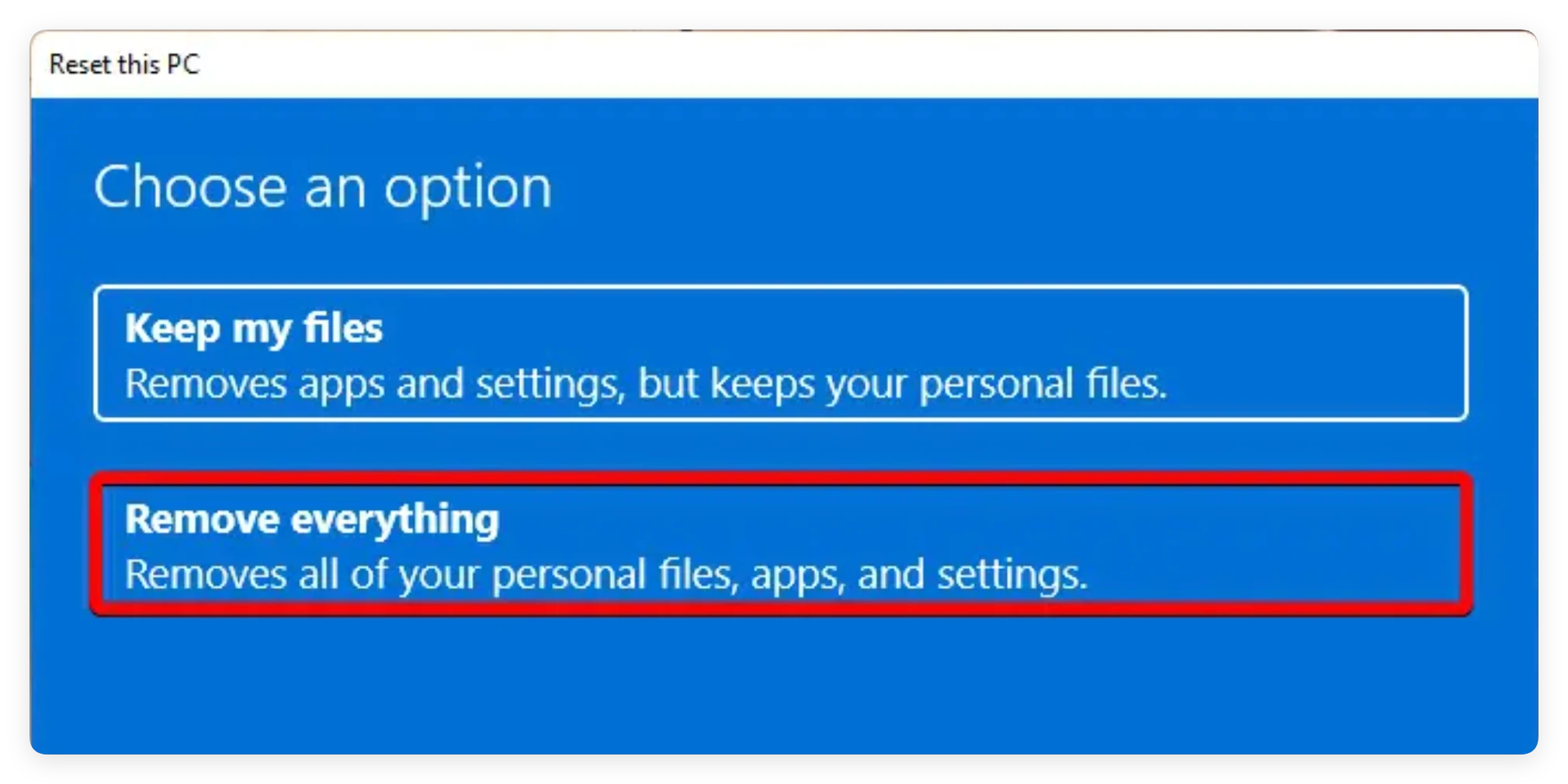
Step 4: Choose Remove everything. (Do not select 'Keep my files').
Step 5: Select Local reinstall or Cloud download.
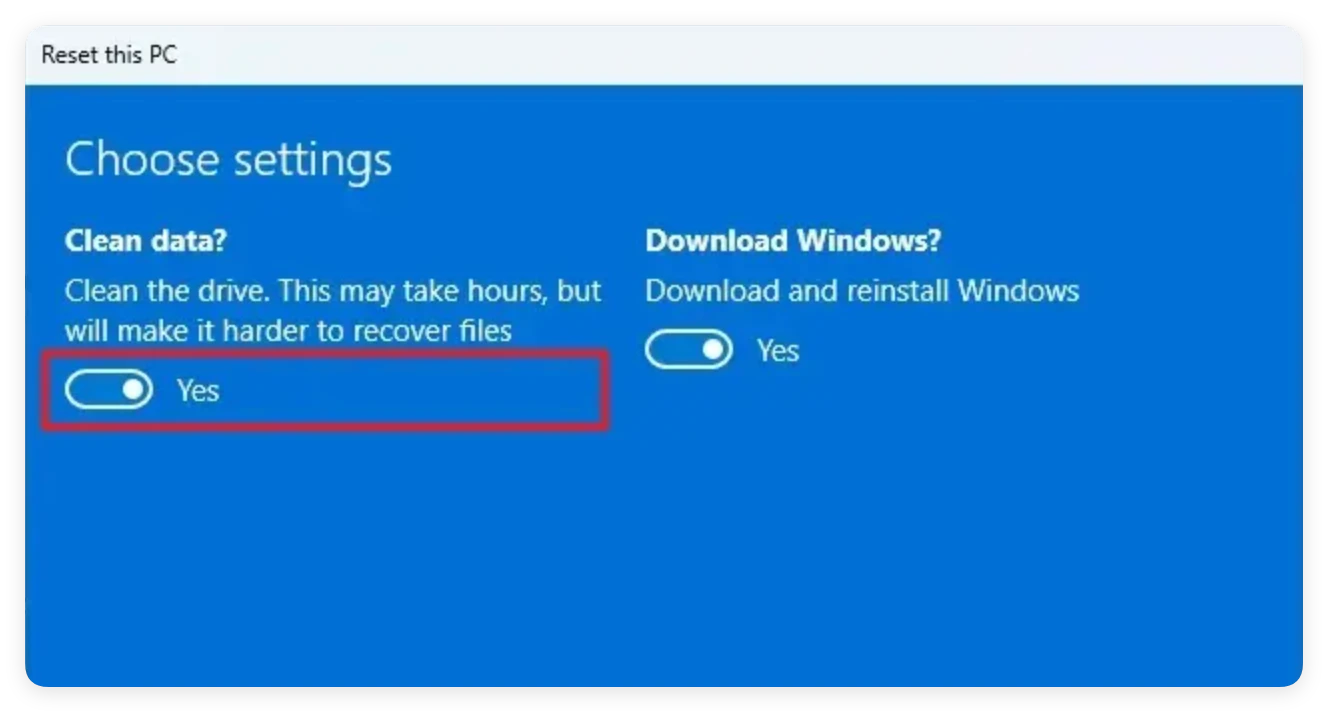
Step 6: CRITICAL STEP: Click Change settings. Toggle the 'Clean data?' option to YES. This tells Windows to overwrite sectors rather than just deleting file paths.
Step 7: Confirm and click Reset. Wait for your Xiaomi laptop to complete the process. This can take 1 to 3 hours depending on your drive size.
Method 3: Command Prompt Diskpart Clean All (Advanced Users)
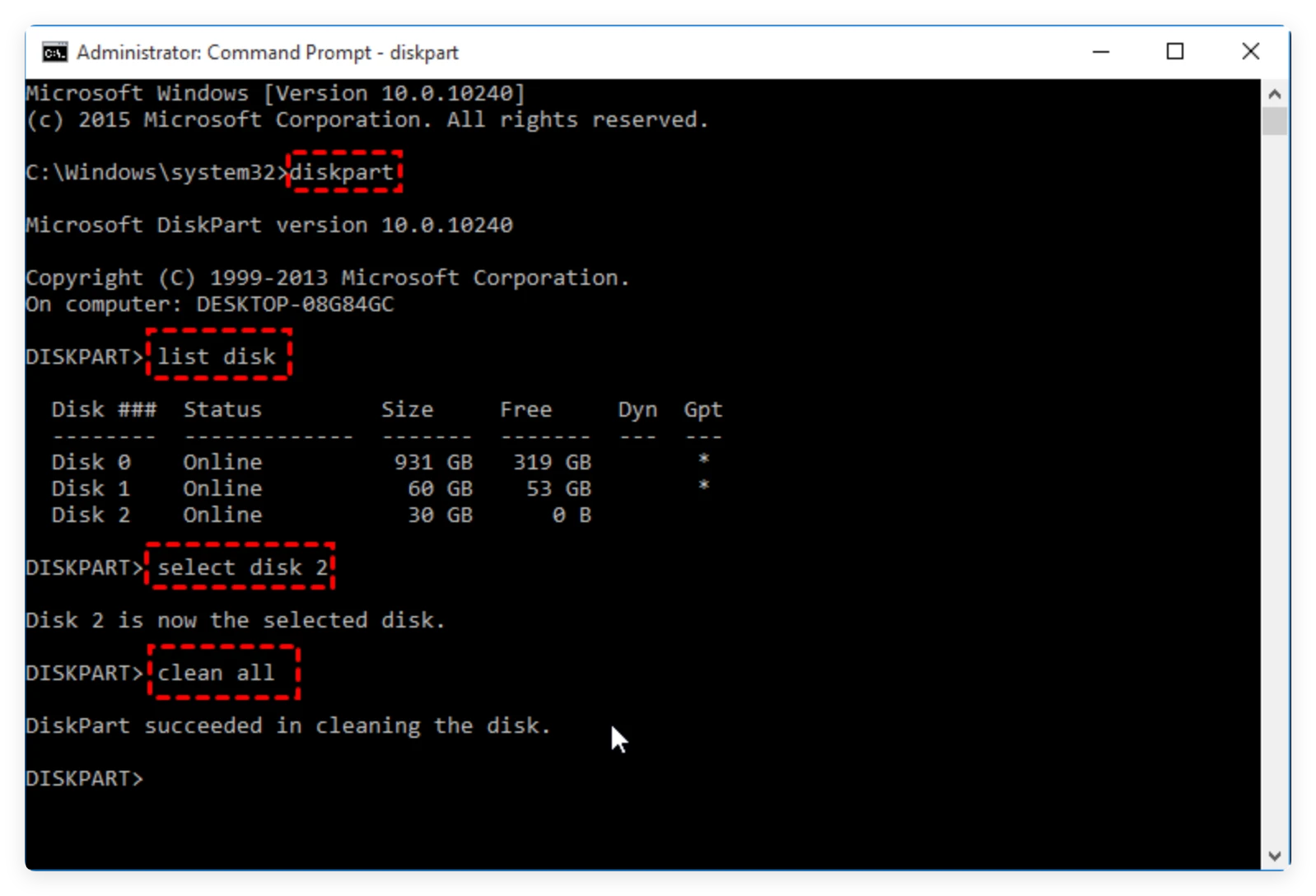
For advanced users who prefer command-line interfaces, Windows Command Prompt includes a built-in utility called Diskpart. Using the 'clean all' command writes zeros to every sector of the selected drive.
Step 1: Type 'cmd' in the Windows search bar, right-click Command Prompt, and select Run as Administrator.
Step 2: Type 'diskpart' and press Enter.
Step 3: Type 'list disk' to see all connected storage drives.
Step 4: Type 'select disk X' (Replace 'X' with the exact disk number of your target drive. Double-check this step carefully!).
Step 5: Type 'clean all' and press Enter. The process runs in the background with no progress bar and may take several hours.
Step 6: Once completed, type 'exit'.
⚠️ Warning: Using Diskpart on the wrong disk number will completely wipe your drive. Proceed with care!
What to Do Before Wiping Your Xiaomi Laptop
Once data erasure is complete, the wiped files cannot be recovered by any means. Make sure you complete these preparatory steps before starting:
- Back Up Important Files: Copy your critical documents, family photos, work files, and browser bookmarks to an external drive or secure cloud service (Google Drive, OneDrive, Dropbox).
- Sign Out of Accounts & Licenses: Sign out of your Mi Account in Xiaomi settings. Sign out of Microsoft accounts, cloud storage apps, and software licenses (like Adobe Creative Cloud or Microsoft 365).
- Export Browser Passwords & 2FA: Save offline backups of web browser passwords, passkeys, and two-factor authentication (2FA) recovery codes.
- Disconnect External Drives: Disconnect any external hard drives, USB flash drives, or SD cards to avoid accidentally selecting the wrong drive during erasure.
FAQs about Data Erasure on Xiaomi Computer
Conclusion
Protecting your personal privacy requires more than just dragging files into the Recycle Bin. When preparing for Xiaomi computer data erasure—whether for selling, gifting, or repairing your laptop—you must ensure your data is permanently destroyed beyond recovery.
While Windows built-in tools offer basic reset functions, professional tools like DoYourData Super Eraser give you total control, military-grade security, and peace of mind in just a few clicks. Take a few minutes to wipe your Xiaomi computer properly today, and keep your private data safe forever!
DoYourData Super Eraser
DoYourData Super Eraser, the award-winning data erasure software, offers certified data erasure standards including U.S. Army AR380-19, DoD 5220.22-M ECE to help you securely and permanently erase data from PC, Mac, HDD, SSD, USB drive, memory card or other device, make data be lost forever, unrecoverable!
Written & Updated by Shirly Chen
Shirly Chen has been writing data recovery, data erasure articles for DoYourData over 4 years. She has been working as a professional website content writer & editor for quite a long time. She also writes articles about disk clone, Mac optimization, disk backup, etc.