Computer Information Secure Removal: Permanently Erase Sensitive Data
How to securely remove personal information from computer? Simply delete files or even format the drive is not enough as the removed data is still recoverable. With the software DoYourData Super Eraser, you can permanently wipe data to prevent data recovery possibility.
 Updated by Shirly Chen on September 11, 2026
Quick Navigation:
- Why File Deletion Leaves Your Information at Risk
- Computer Information Secure Removal vs. Factory Reset
- How Does Secure Data Erasure Work?
- How to Securely Remove Computer Information?
- Why Use DoYourData Super Eraser for Secure Removal?
- Special Considerations for Modern SSDs
- FAQs about Computer Information Secure Removal
- Final Thoughts
Are you planning to sell your old laptop, donate a desktop, or hand over a work computer to a colleague? If so, simply moving your private files to the Recycle Bin or Trash is not enough. Most people assume that hitting 'Delete' removes their personal information forever. In reality, deleted files remain hidden on your hard drive until new data overwrites them. Anyone with basic file recovery software can easily bring those deleted files back.

Whether you need to clean out confidential financial records, personal photos, passwords, or client agreements, executing a proper computer information secure removal strategy is vital. In this complete guide, you will learn why standard deletion fails, how secure data destruction works, and the exact steps to wipe your computer clean so your private information stays private.
Why File Deletion Leaves Your Information at Risk
To understand why secure removal is necessary, it helps to know how operating systems like Windows and macOS handle files.
When you delete a file and empty your Recycle Bin or Trash, your computer does not physically erase the data. Instead, it deletes the file's index pointer and marks that specific storage block as 'available for new data.' Until your operating system actually writes a new file over that exact location, the original data remains 100% intact.
Cybercriminals, data thieves, and even curious buyers who acquire second-hand computers often use automated data recovery tools to scan drives for these leftover files. Within minutes, they can restore your personal banking details, tax returns, browsing logs, or sensitive work documents.
Computer Information Secure Removal vs. Factory Reset
Many users believe that performing a factory reset completely cleans their computer. While a factory reset is convenient, it serves a very different purpose than secure data erasure.
- Resetting Your PC: Factory Reset (System Restoration): Reinstalls the operating system and removes shortcuts, settings, and user profiles. However, residual file fragments often linger in free disk space, making partial or full data recovery possible.
- Secure Erasure: Secure Data Removal (Permanent Erasure): Uses advanced algorithms to overwrite every sector of the disk with random binary patterns, zeros, and ones. This process completely destroys the original data structure, making recovery technically impossible—even in specialized forensics laboratories.
If your goal is absolute privacy and peace of mind, relying solely on a basic reset is not enough. You need true secure data erasure.
How Does Secure Data Erasure Work?
Secure removal relies on data overwriting standards developed by international security agencies. Instead of leaving empty data blocks, professional erasure tools replace your files with random characters over multiple passes.
Some of the most recognized data destruction standards include:
- Zero-Fill / One-Pass Method: Writes a single pass of fixed characters across the drive. It is fast and suitable for basic file wiping on modern drives.
- DoD 5220.22-M: A widely accepted military standard that overwrites data three times using specific character combinations, followed by a verification pass.
- Gutmann Method: Uses a complex algorithm with 7 to 35 overwriting passes, designed for high-security environments.
- NVMe / SATA Secure Erase: Sends an internal hardware command directly to SSDs and hard drives to flush all stored charges and restore the drive to factory status.
How to Securely Remove Computer Information?
Follow these essential steps to safely prepare and execute a complete data wipe on your Windows PC or Mac.
Step 1: Back Up Everything You Want to Keep
Secure data removal is permanent and irreversible. Once you wipe a file or drive using certified algorithms, no software or technician can restore it. Make sure you back up all vital photos, documents, and license keys to an external hard drive or secure cloud storage before proceeding.
Step 2: Sign Out of All Accounts and Licenses
Before wiping your storage drive, disconnect your computer from your cloud identity and software licenses:
- Sign out of your Apple ID, iCloud, iMessage, and FaceTime accounts.
- Sign out of your Microsoft account, OneDrive, web browsers, and media apps.
- Deauthorize software licenses (such as Microsoft Office, Adobe Creative Cloud, or antivirus subscriptions) so you can transfer them to a new computer.
Step 3: Disconnect External Storage Devices
Unplug all external hard drives, USB flash drives, memory cards, and secondary backup devices. This prevents you from accidentally selecting and wiping the wrong drive during the cleanout process.
Step 4: Choose the Right Secure Removal Method
Depending on whether you want to destroy individual files or wipe your entire system, choose one of the following methods:
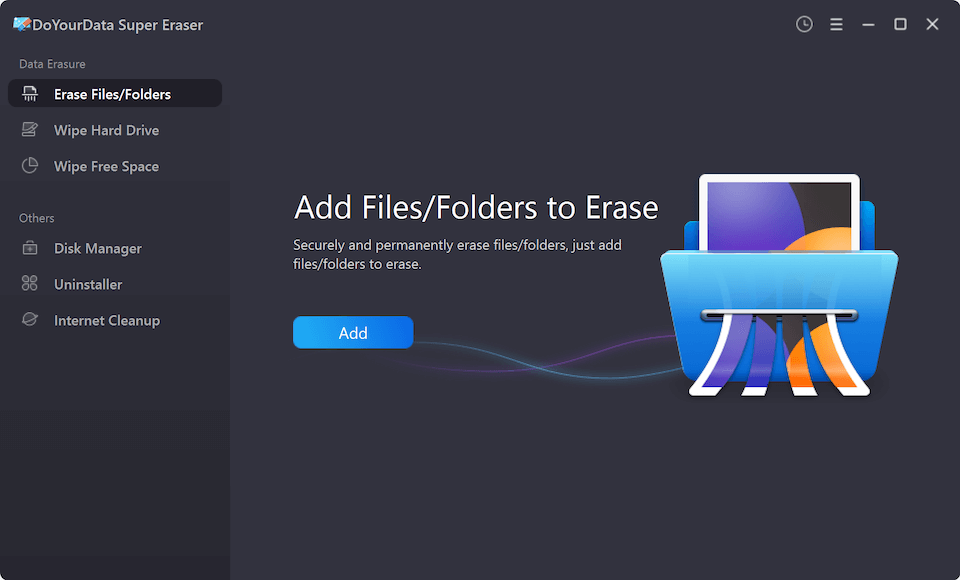
Method A: Wiping Selective Files or Folders. For wiping specific sensitive files or folders without reinstalling Windows or macOS, use a dedicated data destruction tool like DoYourData Super Eraser. It lets you select specific items and shred them permanently beyond recovery.
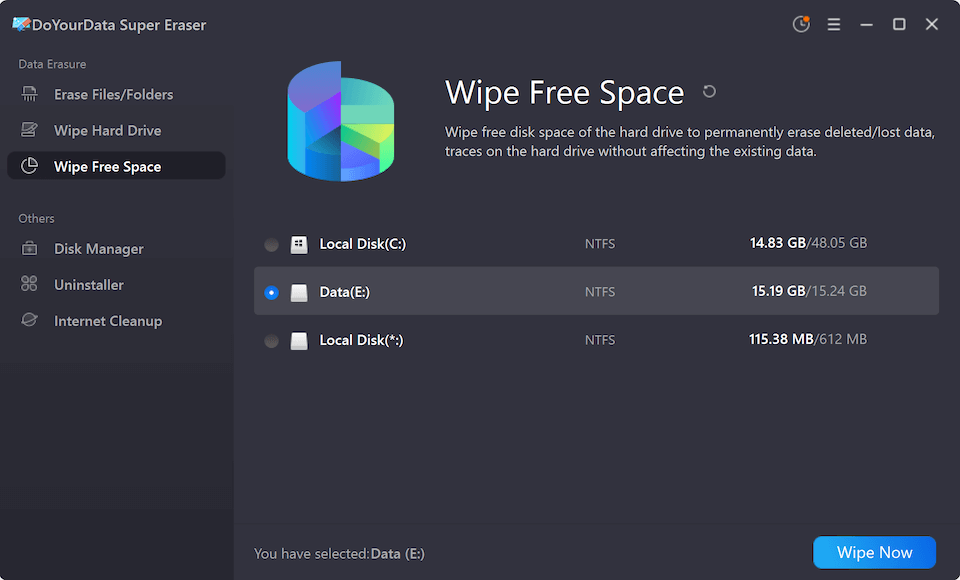
Method B: Cleaning Free Space. If you want to clear free space on a drive where files were previously deleted, data wiping software can overwrite only the deleted fragments while leaving your operating system and active files completely untouched.
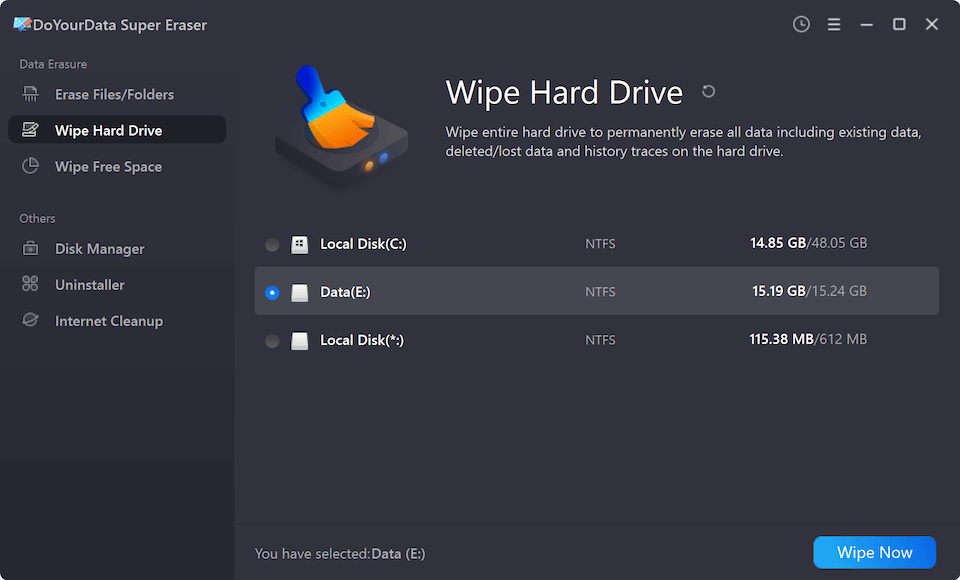
Method C: Full Hard Drive Wipe. When selling or recycling your machine, perform a complete disk wipe. Tools like DoYourData Super Eraser offer dedicated drive wiping modules that scrub every partition clean in a few clicks.
Why Use DoYourData Super Eraser for Secure Removal?
While operating systems offer basic reset commands, they lack custom controls for targeted file destruction and modern SSD optimization. DoYourData Super Eraser provides an all-in-one software solution designed for safe, easy, and military-grade data destruction.
Key benefits of using DoYourData Super Eraser include:
- Flexible File Shredding: Select and permanently erase specific files or folders without affecting the rest of your system.
- Complete Hard Drive Erasure: Wipe entire hard drives, USB drives, memory cards, or digital camera storage with a single click.
- Free Space Wipe: Safely scrub free disk space to erase trace remnants of previously deleted files.
- Certified Military-Grade Algorithms: Supports DoD 5220.22-M, DoD 5220.22-M (ECE), Peter Gutmann, and NIST standards.
- Safe for SSDs and HDDs: Uses specialized algorithms that safely overwrite data on Solid State Drives (SSDs) and NVMe storage without reducing the physical lifespan of the drive.
- Easy for Beginners: Features a simple, user-friendly interface that allows anyone to securely remove personal data in three simple steps.
Special Considerations for Modern SSDs
Traditional hard disk drives (HDDs) store data on magnetic platters, making simple overwriting straightforward. Modern laptops and desktop computers use Solid State Drives (SSDs) storage, which manage data using wear-leveling technology.
Because wear-leveling distributes writes across physical chips, standard overwrite tools might miss hidden blocks. Using dedicated software like DoYourData Super Eraser ensures that SSD controller commands and TRIM features work together to securely wipe every block of storage.
FAQs about Computer Information Secure Removal
Final Thoughts:
Protecting your digital privacy requires proactive steps. Whenever you recycle, sell, or donate a computer—or simply need to get rid of sensitive business files—relying on standard file deletion is a risk you should not take.
By implementing a proper computer information secure removal process using reliable software like DoYourData Super Eraser, you can ensure your sensitive files, financial records, and personal memories are permanently erased beyond recovery.
DoYourData Super Eraser
DoYourData Super Eraser, the award-winning data erasure software, offers certified data erasure standards including U.S. Army AR380-19, DoD 5220.22-M ECE to help you securely and permanently erase data from PC, Mac, HDD, SSD, USB drive, memory card or other device, make data be lost forever, unrecoverable!
Written & Updated by Shirly Chen
Shirly Chen has been writing data recovery, data erasure articles for DoYourData over 4 years. She has been working as a professional website content writer & editor for quite a long time. She also writes articles about disk clone, Mac optimization, disk backup, etc.