How to Recover Lost Files After macOS 27 Golden Gate?
 Updated by Justin Kenny on July 9, 2026
Quick Navigation:
- Why Data Loss Happens on macOS 27 Golden Gate
- Best Data Recovery Software for macOS 27 Golden Gate
- Tips to Prevent Data Loss During macOS Upgrades
- FAQs about macOS 27 Golden Gate Data Recovery
- Conclusion
Apple has recently unveiled its highly anticipated operating system, macOS 27 Golden Gate. Packed with groundbreaking features like advanced next-generation Siri AI, deeper Apple Intelligence integration, and the beautiful new Liquid Glass interface, this update brings incredible performance boosts to Mac users. However, since macOS 27 Golden Gate is currently in its active beta testing phase, early adopters are discovering that installing or testing a brand-new operating system can sometimes come with unexpected bugs, system crashes, or data loss.

Whether you are testing the developer beta on a separate APFS volume, upgrading directly from macOS Tahoe, or even attempting to downgrade back to a previous operating system because of software glitches, your files are always vulnerable. If you accidentally formatted your internal drive, suffered a failed installation, or simply realized that important files vanished into thin air after the update, you need an effective way to bring them back. This comprehensive guide will explain everything you need to know about macOS 27 Golden Gate data recovery and show you how to easily rescue your data.
Why Data Loss Happens on macOS 27 Golden Gate
Upgrading your Mac to a major new version like macOS 27 Golden Gate involves extensive rewriting of system files, adjustments to your drive's formatting layers, and compatibility modifications. Because this release represents a historic shift—running exclusively on Apple Silicon computers and dropping all remaining support for Intel-based Macs—the data structures are more complex than ever. Here are the primary reasons why users end up searching for macOS 27 Golden Gate data recovery solutions:
- Failed or Interrupted Installation: If your Mac loses power, disconnects from the internet, or runs out of battery storage mid-update, the installation can freeze. This often results in a corrupted operating system, rendering your files completely inaccessible.
- Downgrading Mistakes: Many users install the macOS 27 beta to try out the new Siri AI features, only to find that their essential work applications are not yet compatible. When trying to downgrade back to macOS Tahoe or Sequoia, they mistakenly wipe their internal Macintosh HD without a reliable Time Machine backup.
- APFS Volume Management Errors: Experts recommend installing new macOS betas on a separate APFS volume to keep your main files safe. However, navigating Disk Utility can be tricky. It is incredibly easy to accidentally select and delete the wrong partition or container, erasing years of personal data in a single click.
- App Incompatibility and System Crashes: Since many third-party tools have not yet updated their software for the macOS 27 architecture, system conflicts can cause your Mac to experience frequent kernel panics or forced restarts, leading to file corruption.
Best Data Recovery Software for macOS 27 Golden Gate
If you find yourself facing an unexpected data loss crisis on the new operating system, do not panic. Your lost files are usually still present on your hard drive; the system has simply removed their pointers and marked the space as available for new data. To get them back safely before they are overwritten, you need professional and reliable software. We highly recommend Do Your Data Recovery for Mac.
Do Your Data Recovery for Mac
- Data recovery software for macOS 27 Golden Gate.
- Support data recovery for any kind of data.
- Recover data from HDD/SSD, pen drive, SD card, etc.
Do Your Data Recovery for Mac is a powerful, user-friendly data recovery program specifically optimized to work seamlessly with modern storage technologies. It fully supports the latest file systems, including advanced APFS, Mac OS Extended, exFAT, and FAT32. Whether your data was lost due to an accidental delete, a drive format, an unexpected system crash, or a failed macOS 27 Golden Gate installation, this tool can deep-scan your storage and rescue your files in just a few clicks.
Key Features of Do Your Data Recovery for Mac:
- Easy to Use: It features a clean, simple layout that anyone can navigate. You do not need to be a technical expert or an IT professional to use it.
- Dual Scanning Modes: The software offers a quick scan to find recently deleted files in seconds, as well as a deep scan that meticulously searches every sector of your drive to recover lost data from formatted or corrupted volumes.
- Comprehensive File Support: You can recover photos, documents, videos, audio tracks, emails, archives, and hundreds of other file formats smoothly.
- Optimized for Apple Silicon: It works flawlessly across MacBook Air, MacBook Pro, iMac, Mac mini, Mac Studio, and Mac Pro systems, including the latest M1, M2, M3, M4, M5 Apple Silicon and A18 Pro architectures.
- Safe Preview Feature: Before saving your recovered data, the program lets you preview pictures, text documents, and videos to ensure you are restoring exactly what you need.
Step-by-Step Guide: macOS 27 Golden Gate Data Recovery
Using Do Your Data Recovery for Mac is straightforward. To maximize your chances of a successful file rescue, avoid installing new apps or creating new files on the affected drive. Download the software on a separate partition or external drive if possible, and follow these three simple steps:
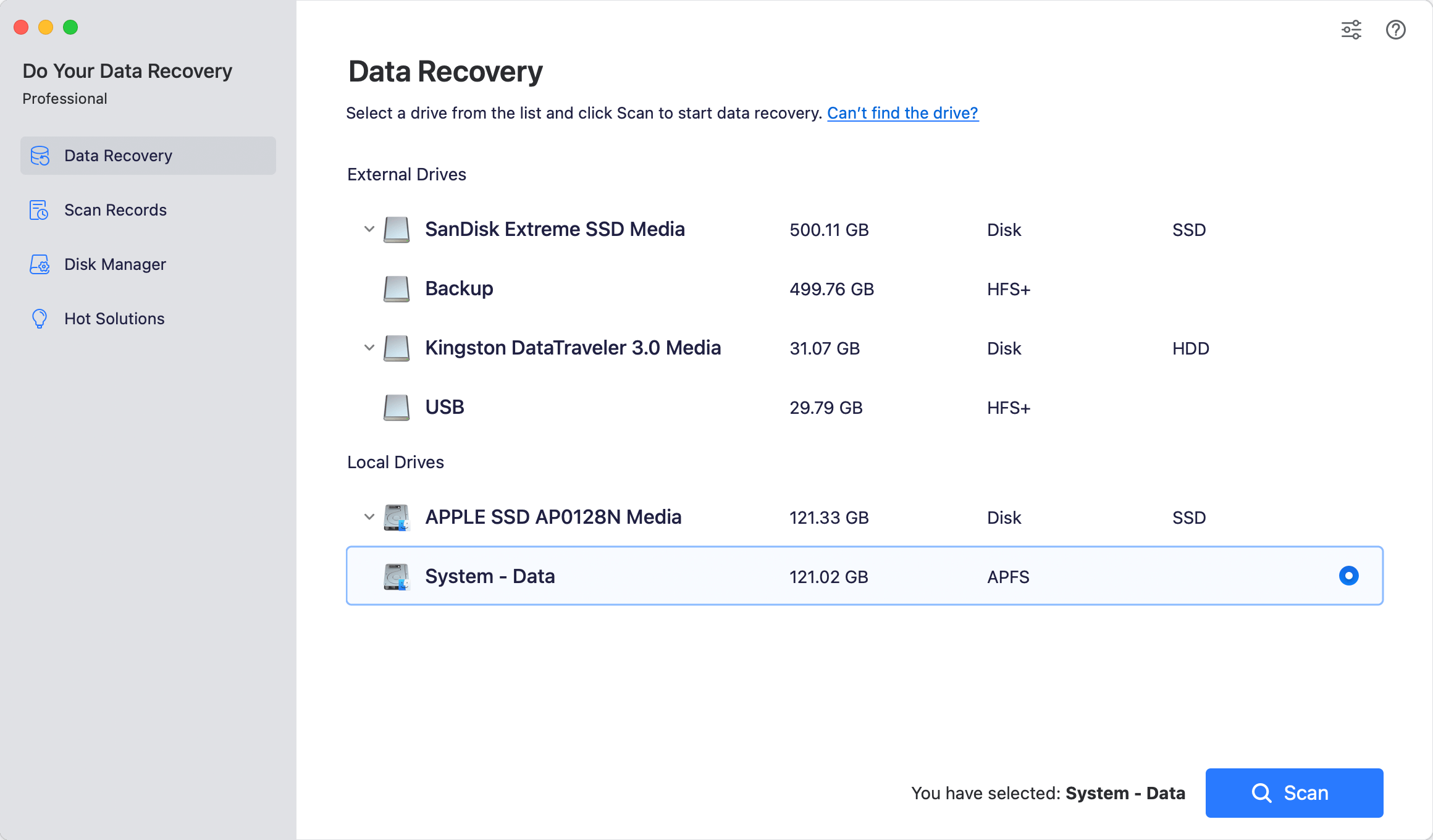
Step 1: Select the Target Drive
Launch the program from your Applications folder or launchpad. On the clean home screen, you will see a list of available hard drives and connected storage devices. Select the specific volume where your lost data was stored (usually your internal Macintosh HD or the external backup drive you were configuring) to begin.
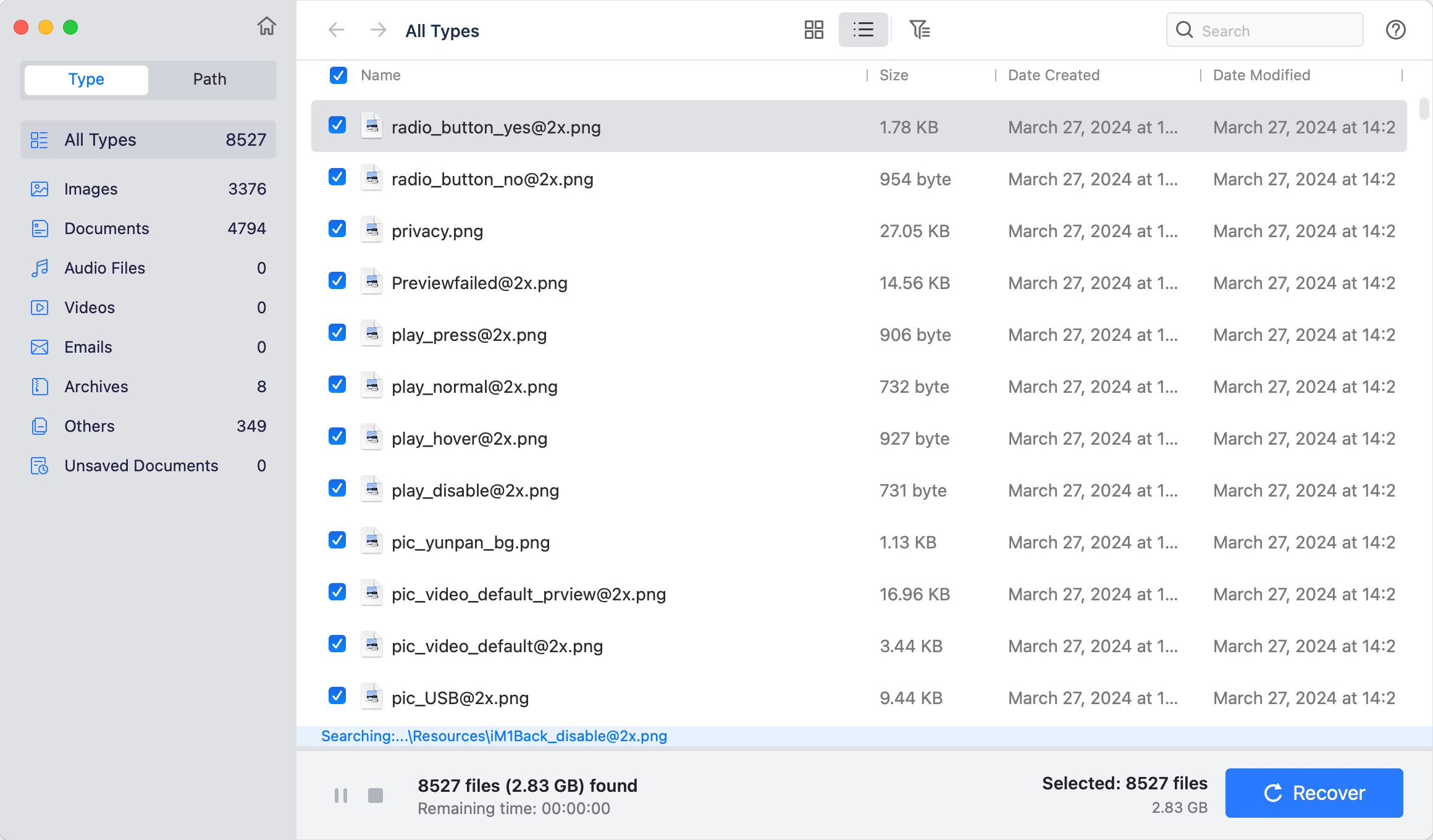
Step 2: Scan the Drive for Lost Files
Click the 'Scan' button. The software will automatically launch a high-speed scan to track down your files. If a quick scan does not find everything you are looking for—especially after a major event like a macOS 27 Golden Gate update or system downgrade—allow the software to run its Deep Scan. The deep scan will thoroughly analyze the drive's formatting layers to find deeply buried or fragmented data.
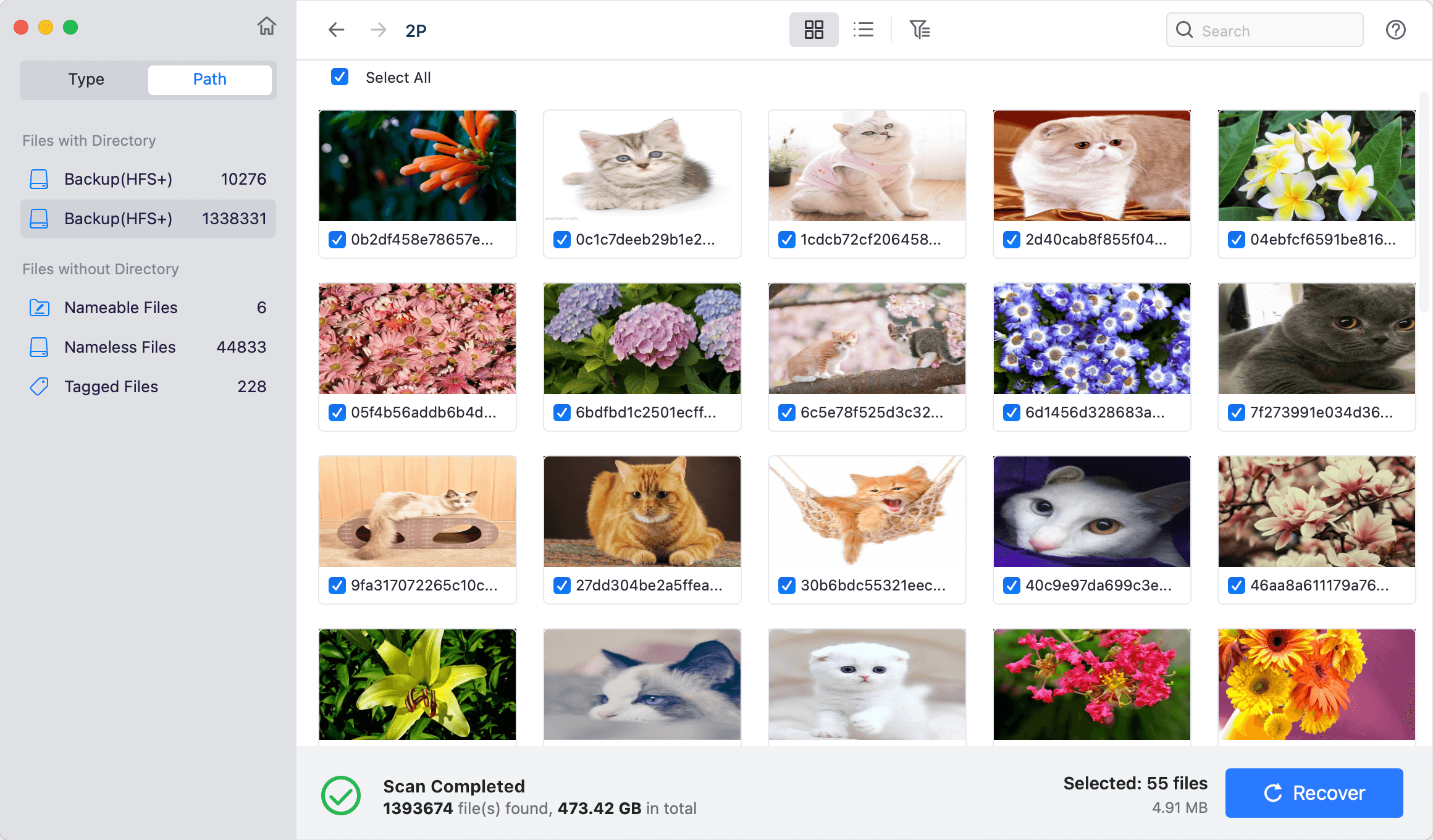
Step 3: Preview and Recover Your Data
Once the scanning process is complete, you will see a neatly organized list of all recoverable files grouped by file type or path. Take advantage of the built-in preview function to open and inspect your photos, documents, or videos. Select checkboxes next to the items you wish to rescue, click the 'Recover' button, and choose a safe saving destination—preferably an external hard drive or a different volume—to avoid overwriting anything.
Tips to Prevent Data Loss During macOS Upgrades
Data loss can be a stressful experience, but a few simple habits can protect your digital life during the macOS 27 Golden Gate transition.
First and foremost, always back up your data before installing any beta or public system update. You can use Apple's built-in Time Machine feature or leverage specialized cloning utilities like DoYourClone for Mac to create an exact, 1-to-1 bootable copy of your system. This ensures that if the installation fails, you can immediately restore your workspace without skipping a beat.
Secondly, if you want to test the new Siri AI or Liquid Glass features without risking your primary files, consider setting up a dedicated test environment. Creating an isolated APFS volume or installing the beta on an external high-speed SSD keeps the new operating system completely siloed from your important production files.
Lastly, if you ever notice that files have gone missing, stop using your computer immediately. Continued browsing, downloading, or file creation can overwrite the hidden data, making complete recovery much more difficult.
FAQs about macOS 27 Golden Gate Data Recovery
Conclusion
Upgrading to a groundbreaking operating system like macOS 27 Golden Gate is an exciting way to experience the future of Apple Intelligence, the advanced Siri AI, and the stunning Liquid Glass interface. However, early adoption shouldn't come at the cost of your irreplaceable personal or professional files. Whether a system crash, an accidental drive format, or an interrupted installation caught you off guard, your data isn't permanently gone.
By acting quickly and relying on professional utilities like Do Your Data Recovery for Mac, you can safely navigate the complexities of modern APFS storage and Apple Silicon architectures to bring your files back. Don't wait for new data to overwrite your lost files—download Do Your Data Recovery for Mac today and secure your peace of mind while exploring everything macOS 27 Golden Gate has to offer.
Do Your Data Recovery for Mac
Do Your Data Recovery for Mac, one of the best Mac data recovery software, can help you easily and completely recover deleted, formatted or lost files from Mac HDD/SSD, external HDD/SDD, USB drive, memory card, digital camera, or other storage devices.
Written & Updated by Justin Kenny
Justin Kenny is a writer & editor of DoYourData. He joined DoYourData in 2016 and focuses on writing articles about Windows data recovery, Mac data recovery, external device data recovery, hard drive clone, data erasure, Mac cleanup, computer issue fixes, etc. He is a super fan of Apple devices and is big on testing new digital device and system utility software.