How to Securely Shred Sensitive Files on M5 Pro Chip MacBook Pro?
When you need to permanently delete sensitive files on M5 Pro MacBook pro, it's not safe enough by deleting files and emptying the Trash. DoYourData Super Eraser is a reliable software that can shred the sensitive files and make them no longer recoverable.
 Updated by Shirly Chen on May 27, 2026
Quick Navigation:
- Why Shredding Sensitive Files on M5 Pro MacBook Pro
- How to Securely Shred Sensitive Files on M5 Pro MacBook Pro?
- FAQs on Shredding Sensitive Data on Mac
- Conclusion:
Many users believe that dragging a folder to the Trash and clicking "Empty Trash" obliterates it forever. Unfortunately, that is far from the truth. In fact, on modern solid-state drives (SSDs) like the one inside your M5 Pro MacBook Pro, standard file deletion leaves a massive data footprint behind that recovery software can piece back together in seconds.

In this comprehensive guide, we are going to explore why traditional file wiping methods fail on the latest macOS, why Apple Silicon requires a unique approach to data sanitation, and how you can seamlessly and safely shred sensitive files on M5 Pro MacBook Pro using professional-grade data erasure tools. Let's make sure your private files stay private!
Why Shredding Sensitive Files on M5 Pro MacBook Pro
Shredding sensitive files on an M5 Pro MacBook Pro is crucial for several compelling reasons, each directly tied to protecting personal, professional, and organizational security in an increasingly digital and interconnected environment.
Firstly,standard deletion does not remove data permanently. When you delete a file on macOS, the system typically only removes the reference to the file in the file system, marking the storage space as "available" for future use. This means that with specialized data recovery software, even seemingly deleted files can be reconstructed, exposing sensitive information to unauthorized access if the device is lost, stolen, or sold.
Secondly, compliance with privacy regulations and legal requirements is a critical factor. Many industries and regions have strict data protection laws, such as the GDPR (EU), CCPA (California), or HIPAA (healthcare), which mandate secure handling of sensitive data, including proper disposal.
How to Securely Shred Sensitive Files on M5 Pro MacBook Pro?
To securely and permanently shred sensitive files on an M5 Pro MacBook Pro, follow these methods to ensure data cannot be recovered by any means:
Method 1. Professional Shredding Apps for Mac
If you need to shred some sensitive files and ensure the files will not be recovered in any way, use trusted apps optimized for macOS security:
Recommended Apps:
- DoYourData Super Eraser for Mac: Comprehensive data wiping tool with file shredding and hard drive wiping features.
- DaisyDisk: Features a "Shred" function that overwrites files with multiple passes (supports 1-35 passes).
- CCleaner for Mac: Use the "File Shredder" tool to select files/folders and choose overwrite passes (3-35).
- ShredIt X: Specifically designed for secure deletion, offering military-grade algorithms (DoD 5220.22-M, Gutmann 35-pass).
Steps to shred files (using DoYourData Super Eraser for Mac):
Using DoYourData Super Eraser for Mac is incredibly simple and requires zero technical knowledge. Here is how you can completely wipe your sensitive files in just a few clicks:
Step 1: Download DoYourData Super Eraser for Mac and install it on your M5 Pro MacBook Pro.
DoYourData Super Eraser
- Shred sensitive files to make sure they will not be recovered.
- Wipe hard drive data permanently and securely.
- Support international data erasure algorithms.
Step 2: Launch the application. You will be greeted with a clean, user-friendly dashboard. On the left-hand sidebar, you will see a few data erasure modules tailored for different security needs. For individual documents, folders, images, or archives, select the first option: Erase Files/Folders.
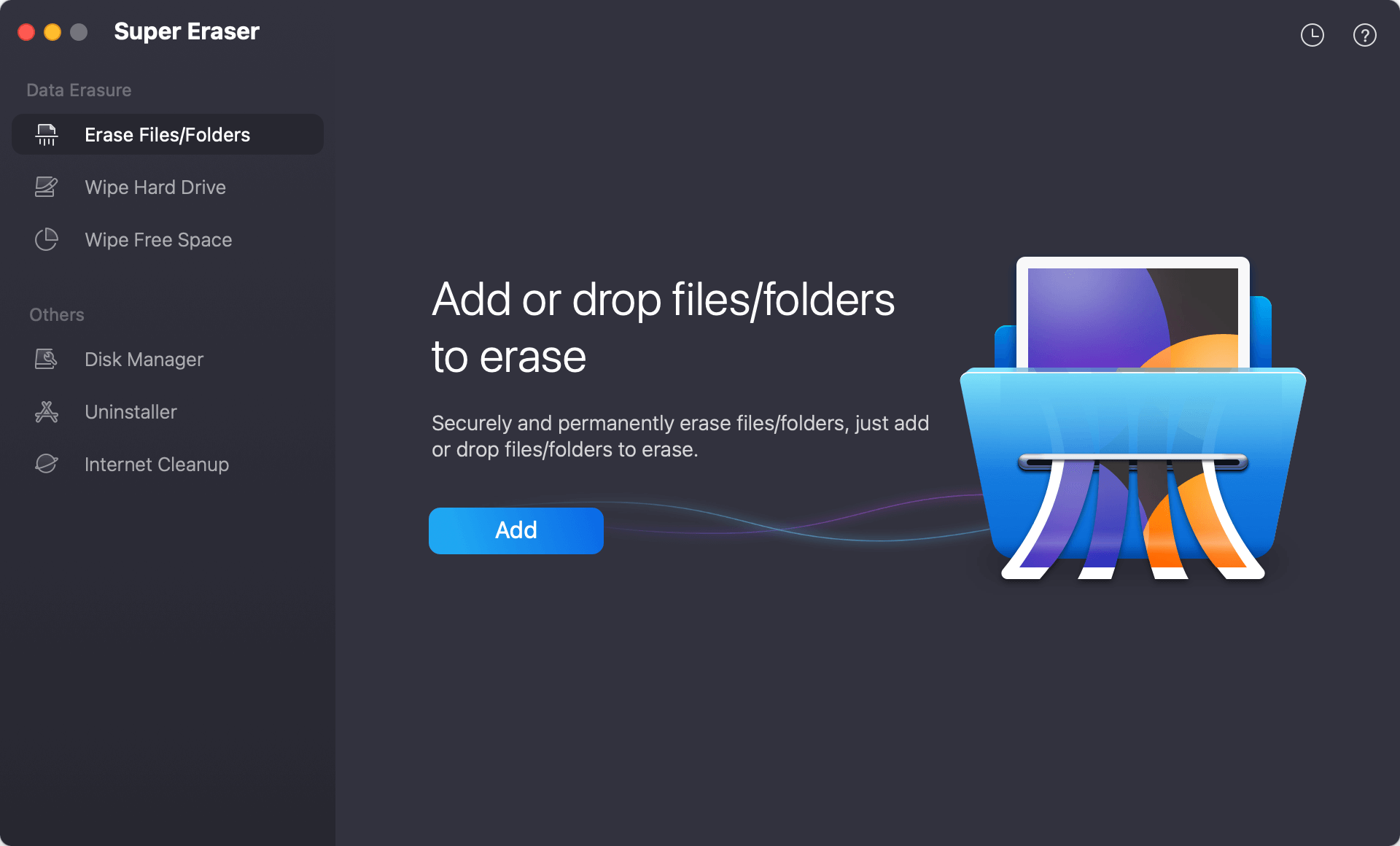
Step 3: Click the Add button to open a Finder window, or simply drag and drop the sensitive files and folders you wish to destroy directly into the software interface. You can add as many files as you need simultaneously. Take a moment to review the list and ensure you haven't selected anything you want to keep.
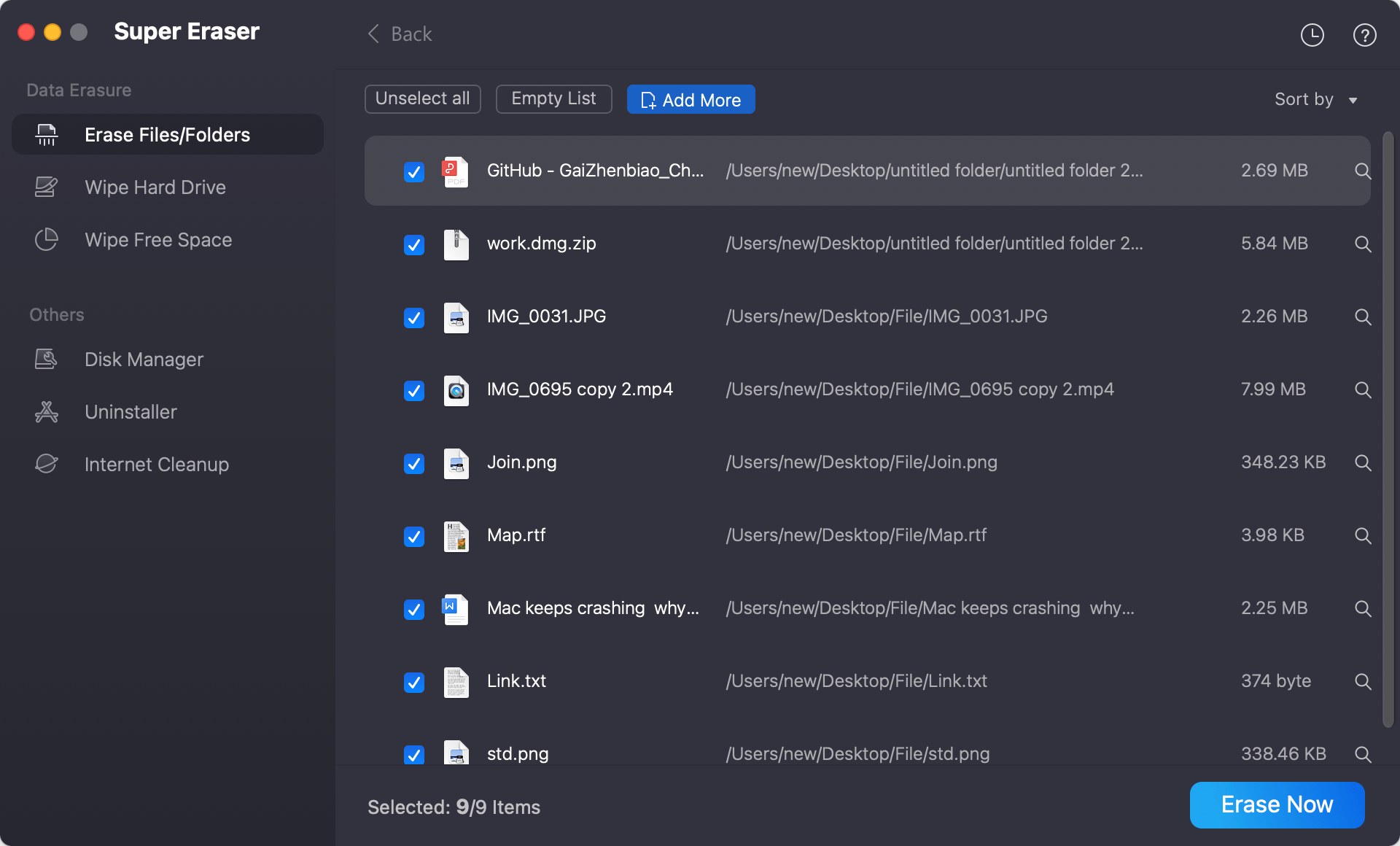
Step 4: Once your target files are loaded, click the prominent Erase Now button. There you can select a data erasure standard to permanently shred the selected files/folders.
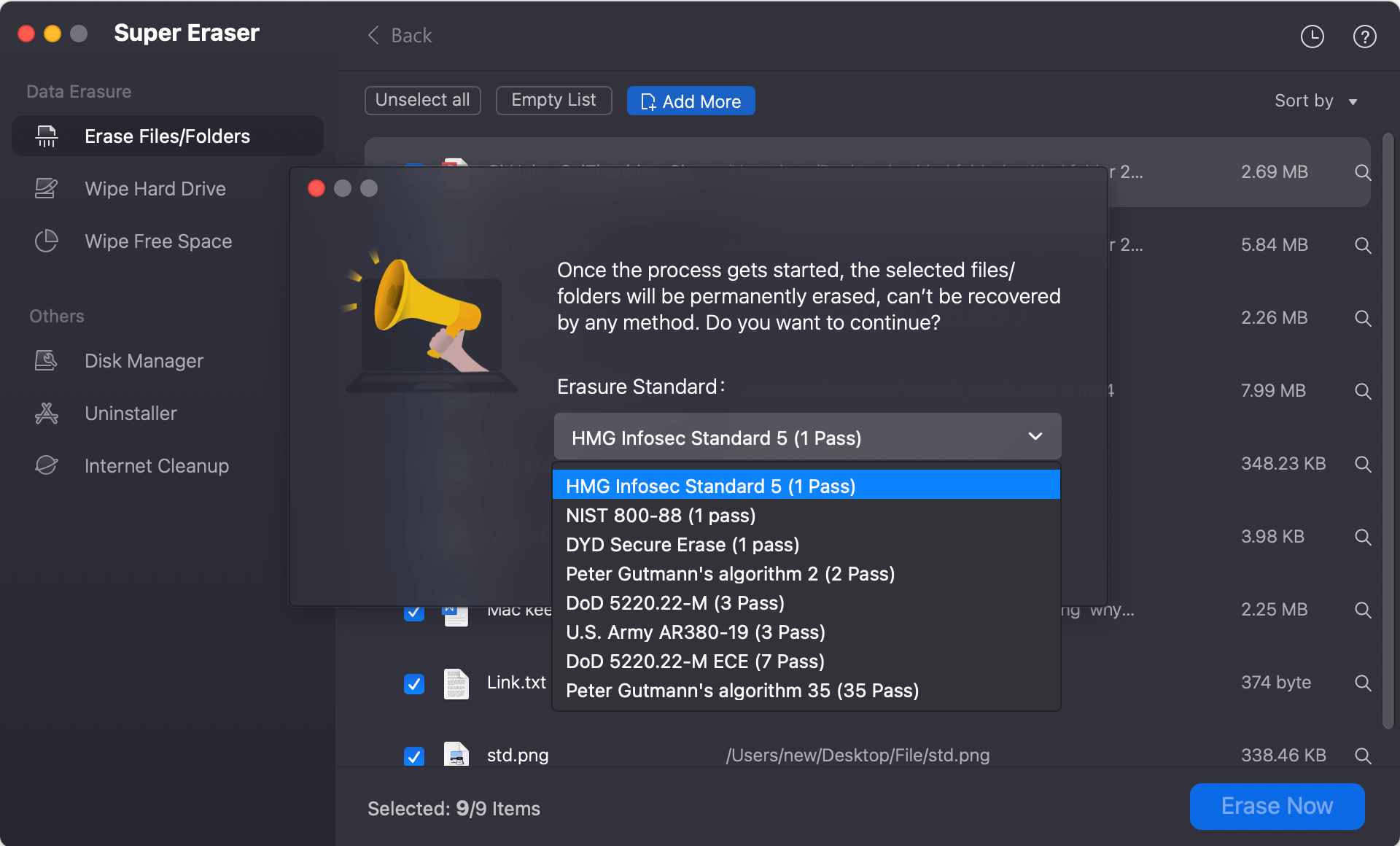
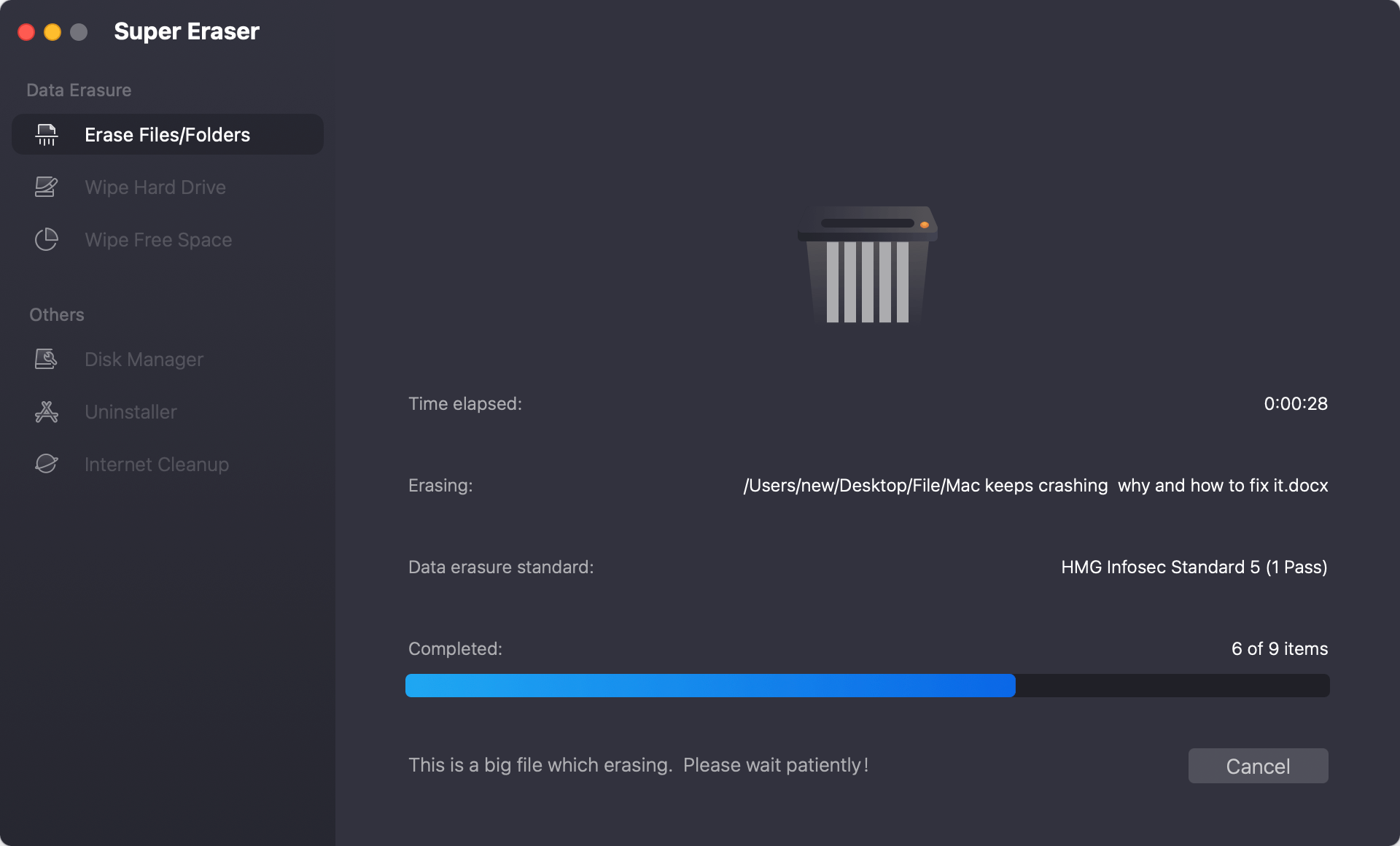
Step 5: After confirming the data erasure standard, click Continue button. DoYourData Super Eraser for Mac will instantly apply its advanced erasure algorithms, overwriting the data blocks across the Apple Silicon controller. Within moments, the software will provide a completion report. Those files are now completely gone—erased beyond the scope of any forensic recovery software on Earth!
💡 Pro-Tip: DoYourData Super Eraser for Mac also features a Wipe Free Space mode. If you have already deleted sensitive files using the normal trash method in the past, running this mode will hunt down those orphaned fragments in your drive's unallocated sectors and overwrite them permanently without affecting your existing applications or data.
Method 2. Encrypt the Drive First (Prevent Recovery Before Shredding)
For maximum security, ensure your drive is encrypted with FileVault, Apple's built-in encryption tool:
Enable FileVault:
- Go to System Settings > Privacy & Security > FileVault.
- Click "Turn On" and follow prompts to create a recovery key or use iCloud.
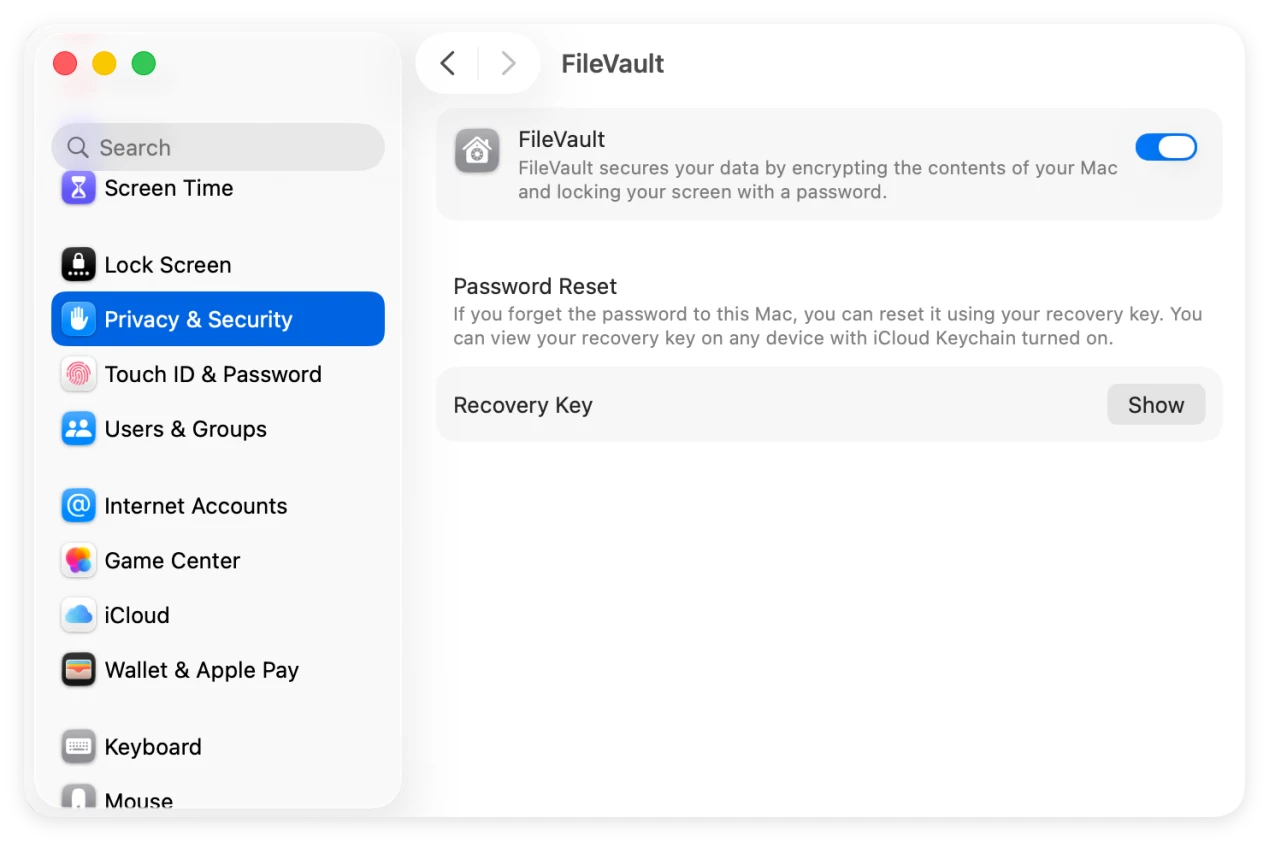
Why It Matters: Even if shredding is incomplete, encrypted data is unreadable without the key, adding a critical layer of protection.
FAQs on Shredding Sensitive Data on Mac
Conclusion:
In summary, shredding sensitive files on an M5 Pro MacBook Pro is not just a best practice but a necessary step to counteract the limitations of standard deletion, address the unique characteristics of SSDs, comply with legal obligations, protect against physical and digital threats, and ensure long-term data confidentiality.
Critical Notes
- Avoid the Trash: Never rely on emptying the Trash—files are not securely deleted and can be recovered with tools like Disk Drill.
- Check for Backups: Ensure no cloud backups (iCloud, Time Machine) or external drives contain copies of the sensitive files; shred/erase those as well.
- Verify Shredding: Use a file recovery tool (e.g., TestDisk) to scan the drive after shredding—no traces of the original files should appear.
By combining encryption, secure deletion tools, and free space erasure, you can ensure sensitive files on an M5 Pro MacBook Pro are permanently and irreversibly destroyed.
DoYourData Super Eraser for Mac
DoYourData Super Eraser for Mac is a 100% safe, powerful and easy-to-use data erasure program. It offers certified data erasure standards including Peter Gutmann, U.S. Army AR380-19, DoD 5220.22-M ECE to permanently erase data from Macs and external devices, making data recovery be impossible.
Written & Updated by Shirly Chen
Shirly Chen has been writing data recovery, data erasure articles for DoYourData over 4 years. She has been working as a professional website content writer & editor for quite a long time. She also writes articles about disk clone, Mac optimization, disk backup, etc.