How to Use DoYourData Super Eraser to Wipe Data on macOS 27 Golden Gate
DoYourData Super Eraser for Mac can permanently wipe data on macOS 27 Golden Gate. It can ensure the wiped data is gone forever and no longer recoverable. The software support different types of devices and is fully compatible with latest macOS.
 Updated by Shirly Chen on July 7, 2026
Quick Navigation:
- Why You Need Data Erasure Software for macOS 27
- Best Data Wiping Solution for macOS Golden Gate
- How to Wipe Data on macOS 27 Golden Gate
- FAQs about DoYourData Super Eraser for Mac
- Conclusion
Are you planning to upgrade your Mac, sell it, or pass it on to a friend? If so, simply moving your private files to the Trash and emptying it is not enough. With advanced modern file recovery tools available today, anyone can recover your deleted files easily.
To protect your privacy, you need a professional data erasure tool that ensures your data is gone forever. In this complete guide, we will show you how to use DoYourData Super Eraser to wipe data on macOS 27 Golden Gate safely and permanently.

Whether you want to shred a few private files, wipe an entire external hard drive, or clean up the free storage space on your Mac, this tool has you covered. Let's dive in and see how easy it is to secure your digital footprint.
Why You Need Data Erasure Software for macOS 27
When you delete a file on macOS 27 Golden Gate, the operating system does not immediately scrub the actual data from your storage drive. Instead, it just removes the reference link to that file and marks the storage sector as 'free space' that can be written over in the future.
Until new data is written over that exact spot, the original file remains fully intact behind the scenes. This means unauthorized users could easily restore your private information using standard recovery software.
To prevent data leaks, you need a certified data erasure solution. A professional tool will overwrite the old data sectors with random numbers or zeros, making it absolutely impossible for any recovery software to retrieve the original files.
Important Tips Before Wiping Your Data
Before you start wiping your files or storage drives, keep these simple tips in mind to ensure a smooth and worry-free experience:
- Back Up Essential Files: Data erasure is irreversible. Always verify your files and keep a secure backup of anything you might need in the future before hitting the erase button.
- Keep Your Mac Connected to Power: Wiping a large hard drive or scanning massive amounts of free space can take some time. Plug your Mac into a power outlet to prevent it from shutting down unexpectedly during the process.
- Close Unnecessary Applications: To achieve the fastest possible wiping speeds, close other running programs and background applications while wiping data.
Best Data Wiping Solution for macOS Golden Gate
To get the job done quickly and securely, we highly recommend using DoYourData Super Eraser for Mac. This software is fully optimized for the latest macOS 27 Golden Gate architecture and supports all types of storage systems, including built-in SSDs, external hard drives, USB flash drives, and memory cards.
Here are a few reasons why DoYourData Super Eraser for Mac stands out as the ultimate data privacy companion:
- Military-Grade Erasure Standards: It uses advanced algorithms like DoD 5220.22-M, Peter Gutmann, and U.S. Army standards to overwrite your data multiple times.
- 100% Safe and Reliable: It only wipes the target files or drives you choose. It will never damage your physical drive or corrupt your operating system.
- Certified Permanent Erasure: Once the data is wiped by this software, it is gone forever. No recovery software or data recovery lab can bring it back.
- Clean and User-Friendly Layout: You don't need any technical skills. The interface is simple, clear, and perfectly tailored for everyday Mac users.
How to Wipe Data on macOS 27 Golden Gate
DoYourData Super Eraser for Mac offers three distinct data wiping modes to meet your specific privacy needs. Below is a detailed, easy-to-follow guide for each mode.
Mode 1: Erase Files & Folders
This mode allows you to select specific files or entire folders that you want to destroy permanently without affecting any other data on your Mac.
Step 1: Open DoYourData Super Eraser for Mac on your macOS 27 Golden Gate device. Select the 'Erase Files/Folders' module from the left-side menu.
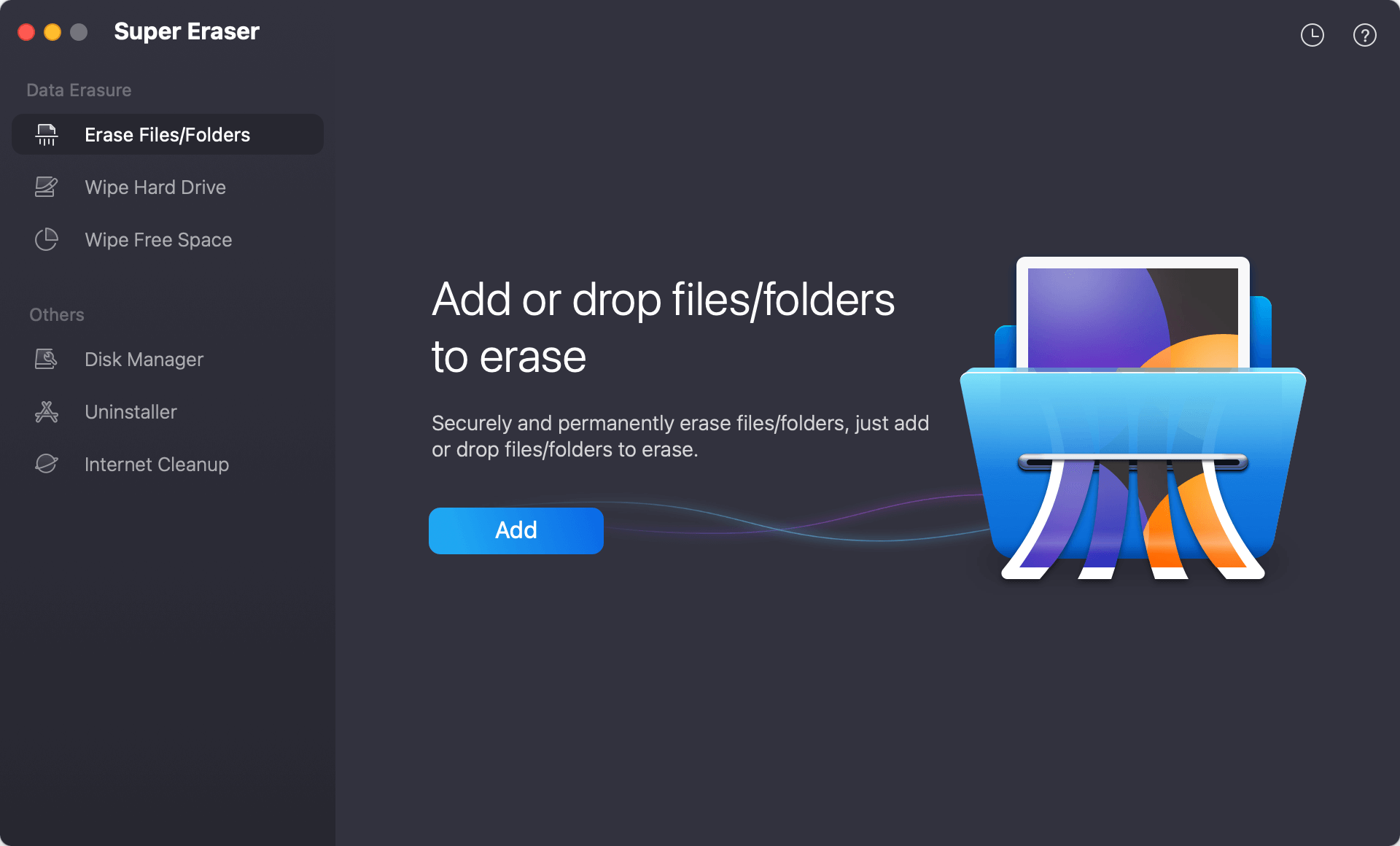
Step 2: Click the 'Add' button to browse and choose the files or folders you want to delete. Alternatively, you can drag and drop your target items directly into the software window.
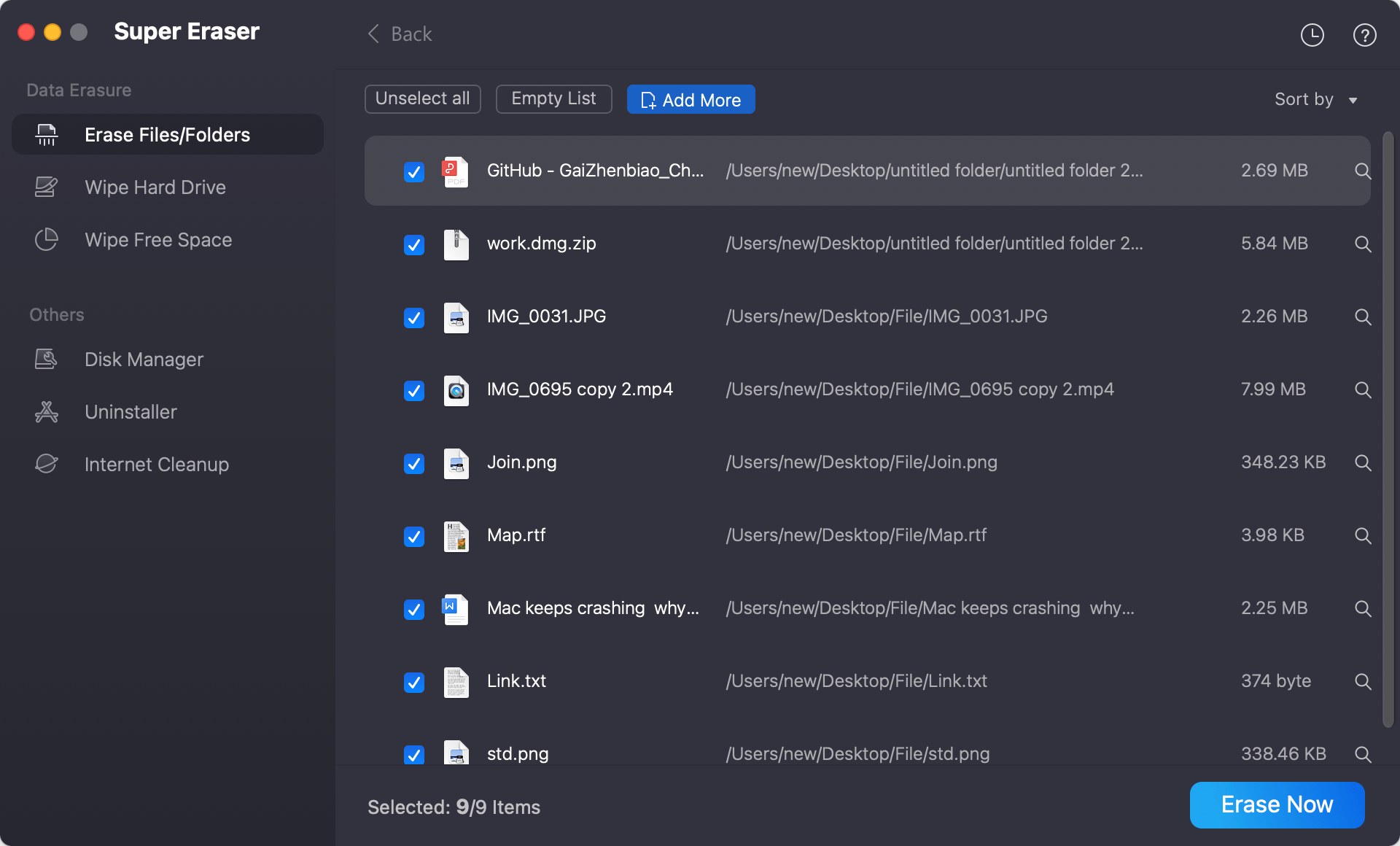
Step 3: Double-check your list of selected items to make sure everything is correct. Then, click the 'Erase Now' button at the bottom. You will be asked to select a data erasure algorithm. At last, click 'Continue' to start shredding the selected files.
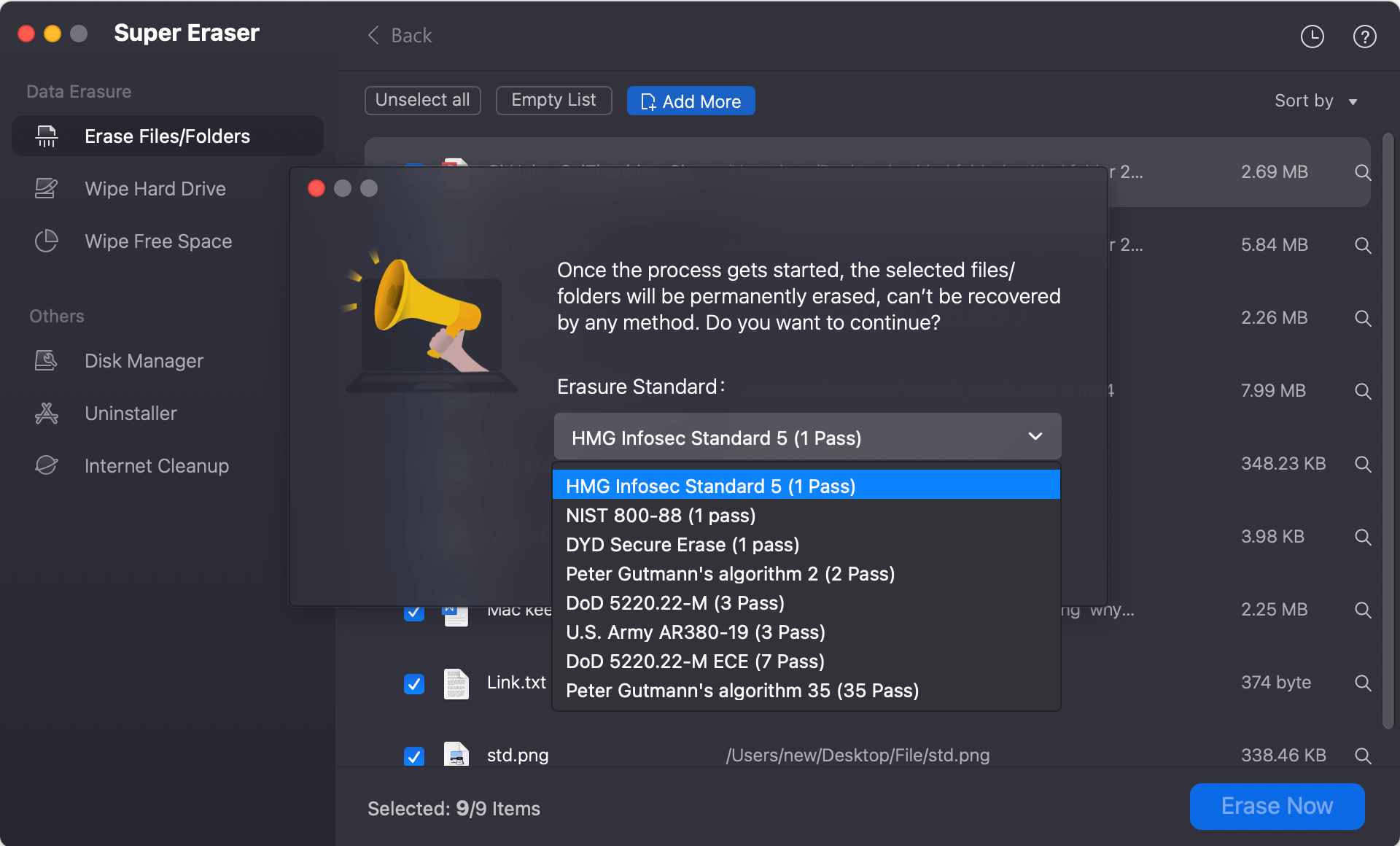
The software will quickly shred and overwrite the selected files. Once the process is finished, those files are permanently gone.
Mode 2: Wipe Hard Drive
If you want to clear out a secondary hard drive, a USB flash drive, or an external backup disk completely, this mode is the perfect choice. It wipes all existing and hidden data on the chosen drive.
Step 1: Launch the program and click on the 'Wipe Hard Drive' option in the sidebar panel. Choose the specific hard drive or external device you wish to clean from the list displayed on your screen.
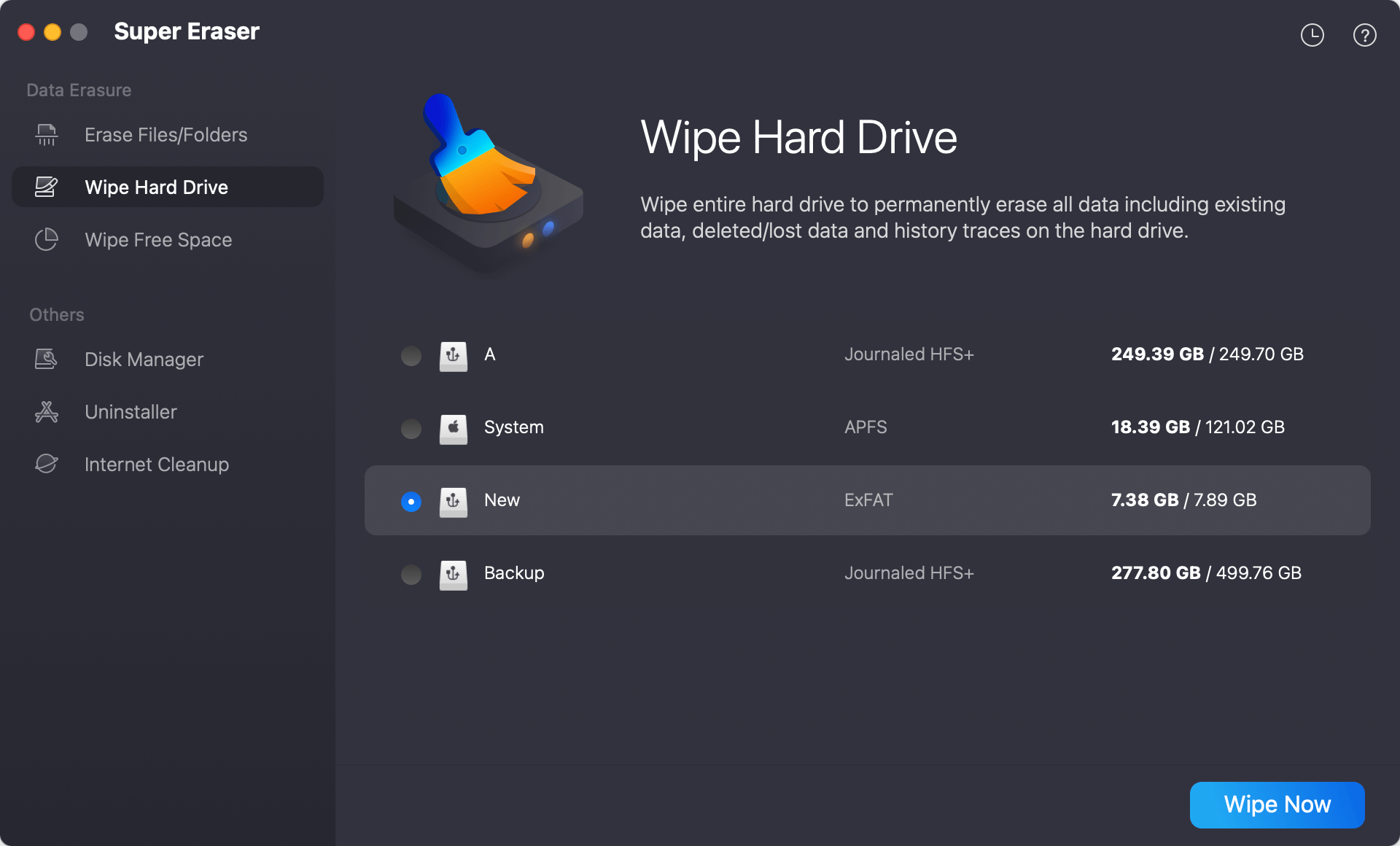
Step 2: Click the 'Wipe Now' button. The software will lead you to select the data erasure standard. Then you can start wiping the drive. The software will securely wipe the entire drive, destroying all partition data and files completely.
Please remember to back up any important documents before using this mode, as everything on that specific drive will be permanently erased.
Mode 3: Wipe Free Space
Did you already delete a large number of files by moving them to the Trash and emptying it? As we mentioned earlier, the traces of those files are still present in your free storage space. This mode wipes your empty space to destroy those hidden remains permanently, without altering your current files.
Step 1: Open the software interface and navigate to the 'Wipe Free Space' tab. Choose your main Mac storage drive or any external drive where you previously deleted files manually.
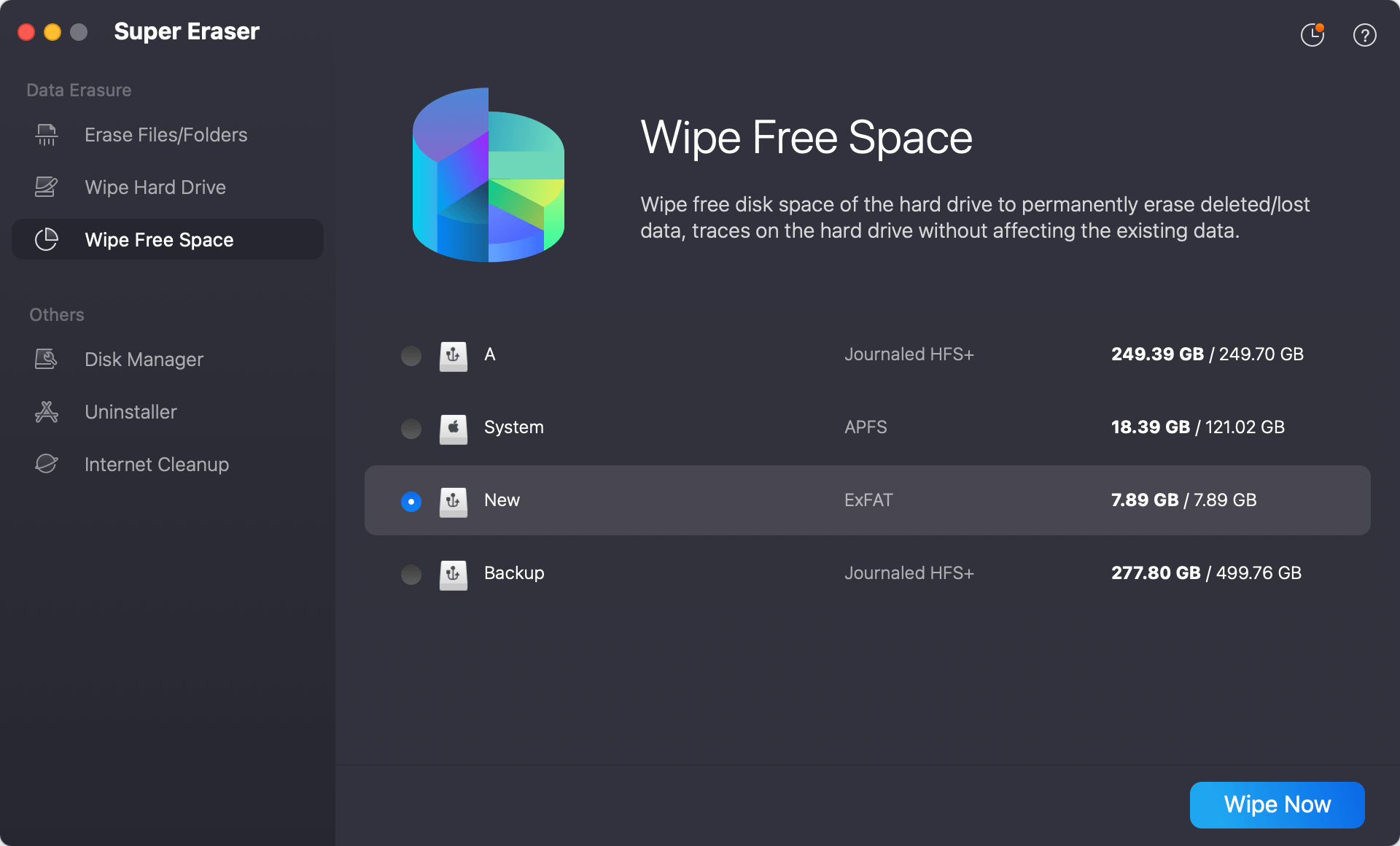
Step 2: Click the 'Wipe Now' button to select a data wiping level. Then you can begin the wipng process. DoYourData Super Eraser will scan the empty space and securely overwrite all fragments of previously deleted data.
Your current files, applications, and system configurations will remain entirely safe and untouched during this process.
FAQs about DoYourData Super Eraser for Mac
Conclusion
Protecting your privacy should always be a top priority. Whenever you discard old files, donate a device, or sell your Mac, you must make sure your sensitive information cannot be retrieved by strangers.
Learning how to use DoYourData Super Eraser to wipe data on macOS 27 Golden Gate is the easiest and most effective way to secure your personal data. With its clear layout, three flexible wiping modes, and certified security algorithms, you can completely clean your storage drives with total peace of mind.
Don't leave your privacy to chance. Download DoYourData Super Eraser for Mac today and keep your private documents permanently secure!
DoYourData Super Eraser for Mac
DoYourData Super Eraser for Mac is a 100% safe, powerful and easy-to-use data erasure program. It offers certified data erasure standards including Peter Gutmann, U.S. Army AR380-19, DoD 5220.22-M ECE to permanently erase data from Macs and external devices, making data recovery be impossible.
Written & Updated by Shirly Chen
Shirly Chen has been writing data recovery, data erasure articles for DoYourData over 4 years. She has been working as a professional website content writer & editor for quite a long time. She also writes articles about disk clone, Mac optimization, disk backup, etc.