Best Data Eraser Software for Windows 11 26H2: Wipe Data Permanently
Simply deleting files or formatting a drive in Windows 11 26H2 does not permanently erase data; recovery tools can easily retrieve it. Data eraser software overwrites storage sectors with binary zeroes and random patterns, rendering original data 100% unrecoverable. DoYourData Super Eraser provides military-grade data wiping algorithms certified for SSDs, HDDs, USB drives, and NVMe drives on Windows 11 26H2. Wiping options include selective file wiping, full partition/drive wiping, and free space wiping (to erase previously deleted files).
 Updated by Shirly Chen on September 21, 2026
Quick Navigation:
- How Data Eraser Software Works in Windows 11 26H2
- Key Features to Look for in Windows 11 26H2 Data Erasure Tools
- Top Recommended Solution: DoYourData Super Eraser
- FAQs about Windows 11 26H2 Data Erasure Software
- Conclusion
When you upgrade to Windows 11 26H2, you enjoy sleek visual designs, enhanced multitasking, and improved security defaults. However, file deletion mechanics in Windows 11 26H2 remain identical to earlier versions. Understanding how Windows handles file removal is vital for your data privacy.
When you delete a file and empty the Recycle Bin, or even press Shift + Delete, Windows 11 26H2 does not destroy the actual data. Instead, it marks that specific storage block as 'available for new data.' Until new files overwrite those exact storage blocks, your sensitive personal data remain intact on your drive. Anyone with standard data recovery software can scan the drive and recover your deleted files within minutes.

That's why you need a professional and safe data eraser software for Windows 26H2. With the software, you can permanently wipe data to avoid data recovery. It's a recommended solution especially when you donate or resell your old PC.
How Data Eraser Software Works in Windows 11 26H2
To protect your personal privacy or meet enterprise compliance standards, relying on standard deletion or basic formatting is insufficient. You need reliable data eraser software for Windows 11 26H2.
Data erasure software goes far beyond basic deletion. It fills storage sectors with binary zeros, ones, or random hexadecimal patterns across multiple passes. This procedure destroys the underlying magnetic or electronic traces of your original files.
Once written over by advanced erasure algorithms, no data recovery software, forensic laboratory, or hardware extraction technique can reconstruct the original files. It provides 100% permanent data destruction.
Comparison: Windows Built-In Tools vs. Professional Data Eraser
| Feature / Method | Windows 11 Format / Delete | DoYourData Super Eraser |
|---|---|---|
| Data Recoverability | High (Easy to recover with software) | Zero (100% Unrecoverable) |
| Overwriting Standards | Basic or None (Quick Format) | DoD 5220.22-M, NIST 800-88, Gutmann |
| Wipe Free Space Only | No (Requires complex CLI commands) | Yes (1-Click GUI Operation) |
| SSD & NVMe Safe Wiping | Limited / Wear risk | Optimized algorithms for SSD safety |
Key Features to Look for in Windows 11 26H2 Data Erasure Tools
Not all data destruction utilities are created equal. When selecting the best data eraser software for Windows 11, consider the following critical criteria:
- Certified Erasure Standards: Look for support for internationally recognized data wiping standards such as DoD 5220.22-M, NIST 800-88, Peter Gutmann standard, and U.S. Army AR380-19.
- SSD & NVMe Compatibility: Modern Windows 11 laptops and PCs run on solid-state drives (SSDs) and NVMe storage. The software must support safe SSD wiping without causing premature hardware wear.
- Flexible Erasure Modes: A great tool should let you erase individual files/folders, wipe entire hard drive partitions, or clean only the 'free space' without disturbing operating system files.
- Simple, User-Friendly Interface: The software should feature a clean design tailored for Windows 11 so non-technical users can navigate wiping procedures confidently without fear of accidental data loss.
- Compliance & Erasure Reports: For business or legal needs, having log records or erasure certificates provides proof that data was destroyed securely.
Common Scenarios When You Need Data Erasure Software
- Selling or Donating Your Windows 11 PC: Before handing over your laptop or desktop to a buyer, friend, or charity, perform a full wipe to prevent identity theft.
- Returning a Work or Rental Computer: Clean your personal browsing history, private downloads, and saved credentials from company-issued machines.
- Disposing of Old Storage Drives: External hard drives, USB thumb drives, and SD cards should be thoroughly wiped before recycling or throwing them away.
- Cleaning Up Confidential Client Data: Businesses handling healthcare, legal, or financial records must comply with privacy laws (such as GDPR or HIPAA) by securely erasing obsolete data.
Top Recommended Solution: DoYourData Super Eraser
If you are searching for an easy, safe, and powerful data eraser software for Windows 11 26H2, DoYourData Super Eraser stands out as an industry-leading solution.
Engineered specifically to handle modern Windows 11 26H2 hardware configurations, DoYourData Super Eraser offers military-grade data wiping capabilities in a clean, intuitive layout. Whether you want to destroy confidential documents or prepare a used PC for sale, it guarantees permanent data removal.
3 Flexible Modes in DoYourData Super Eraser
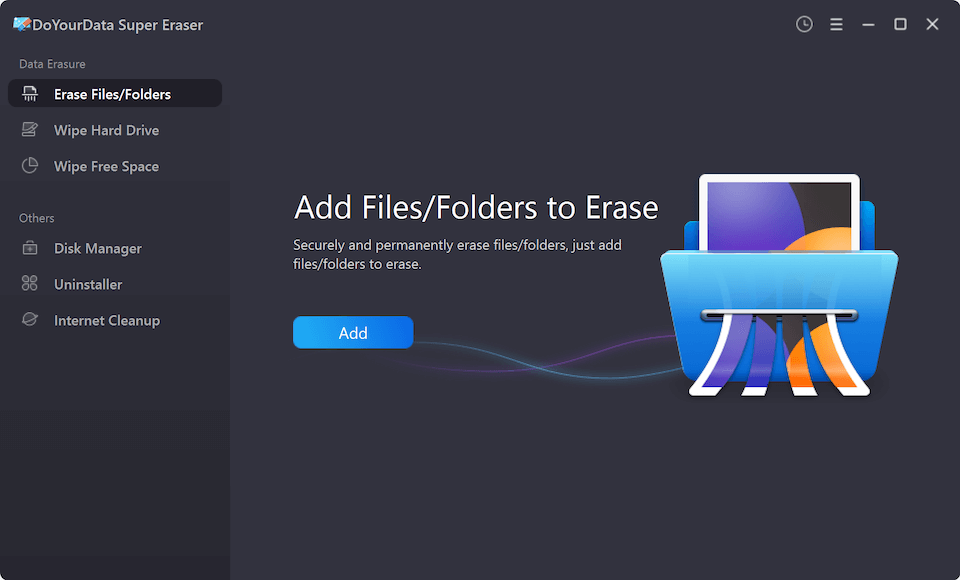
- Erase Files/Folders: Selectively shred specific files or folders. This is ideal when sharing a drive or deleting sensitive financial records, tax forms, or personal media files.
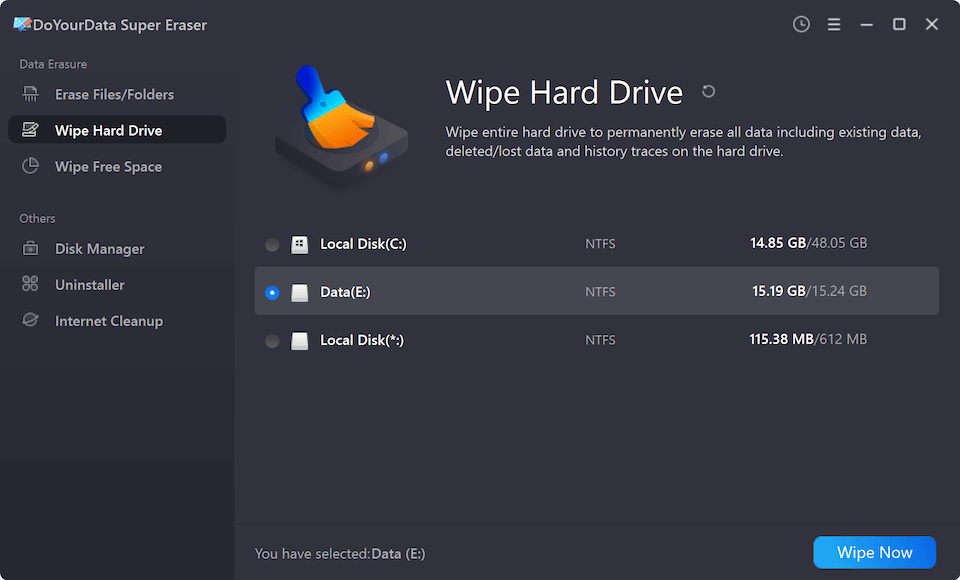
- Wipe Hard Drive: Completely erase an entire storage drive, external hard disk, USB flash drive, or memory card. This mode destroys all existing files, hidden files, and history on the selected partition.
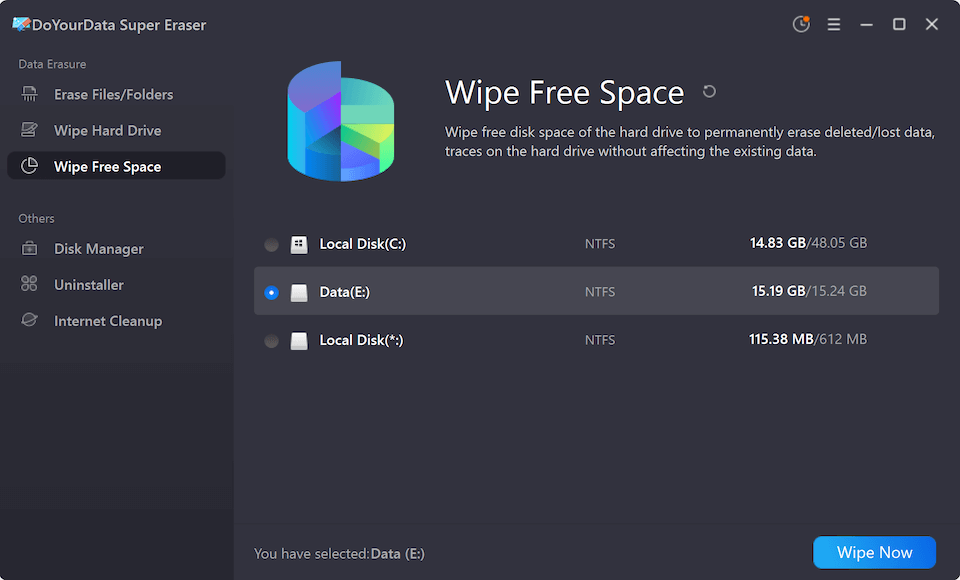
- Wipe Free Space: Clean unused disk space without deleting existing operational files. This permanently destroys previously deleted files that are still lingering in the drive's background storage.
Step-by-Step Guide: How to Safely Wipe Data in Windows 11
Follow these simple steps to permanently erase sensitive data from your Windows 11 device using DoYourData Super Eraser:
Step 1: Download & Install DoYourData Super Eraser: Download the software and complete the straightforward installation on your Windows 11 PC.
DoYourData Super Eraser
- Top 1 data eraser software for Windows 11 26H2.
- 3 Modes to shred files or wipe drive data flexibly.
- Support international and certified data wiping algorithms.
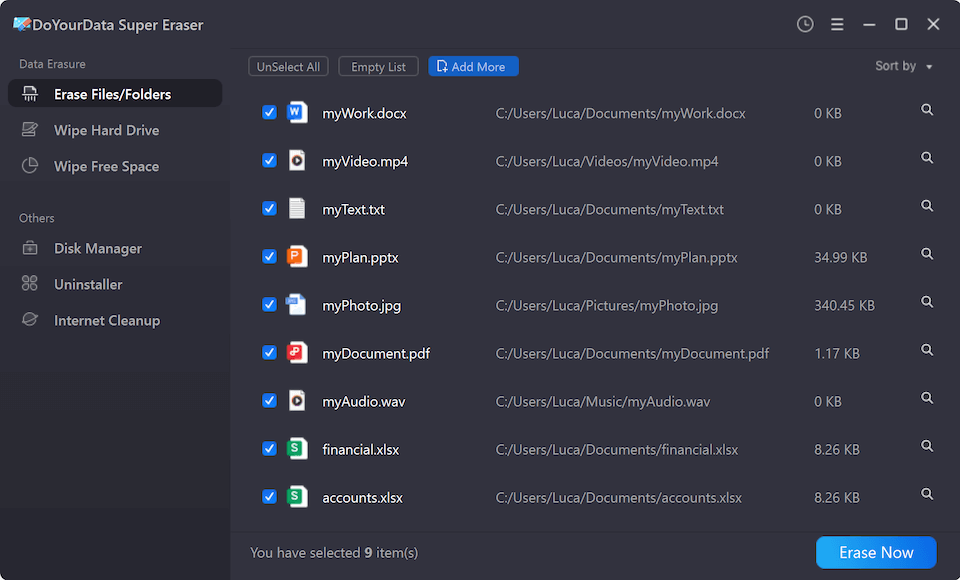
Step 2: Choose Your Erasure Mode: Launch the program and select your preferred mode: 'Erase Files/Folders', 'Wipe Hard Drive', or 'Wipe Free Space' depending on your goal. Browse and select the target files, folders, or drive partition you wish to permanently destroy. Click 'Erase Now' (or 'Wipe Now') button.
Step 3: Select the Data Erasure Standard: Then you need to select a data erasure standard to completely destroy the data. All the standards are professional and certified.
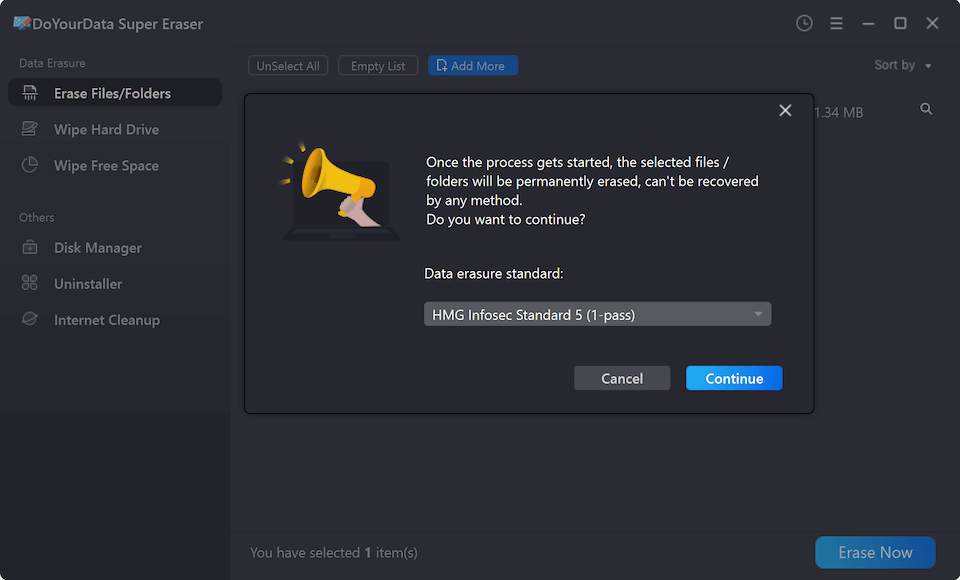
Step 4: Execute the Erasure Process: Click the 'Continue' button. Confirm your choice, and let the software overwrite the storage sectors securely.
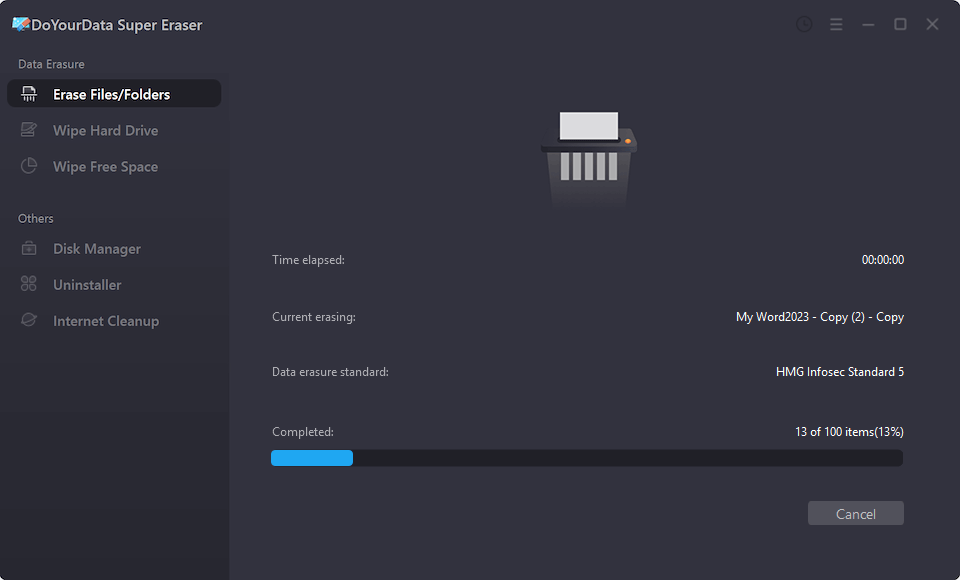
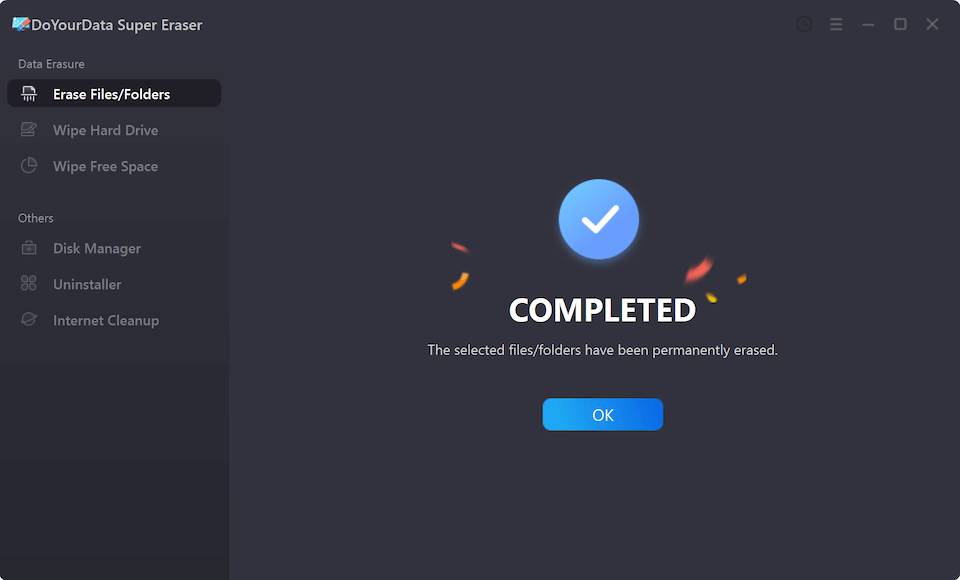
Step 5: Verify Complete Destruction: Once the process completes, the selected files are permanently wiped and rendered 100% unrecoverable by any data recovery software.
FAQs about Windows 11 26H2 Data Erasure Software
Conclusion:
In an age where data privacy is paramount, leaving deleted files sitting in unallocated disk space poses a serious security threat. Standard Windows 11 file deletion methods do not protect you against skilled data recovery techniques.
By utilizing dedicated data eraser software for Windows 11 26H2 like DoYourData Super Eraser, you can permanently wipe sensitive files, clean free space, and wipe entire drives with complete peace of mind. Download DoYourData Super Eraser today and safeguard your digital life.
DoYourData Super Eraser
DoYourData Super Eraser, the award-winning data erasure software, offers certified data erasure standards including U.S. Army AR380-19, DoD 5220.22-M ECE to help you securely and permanently erase data from PC, Mac, HDD, SSD, USB drive, memory card or other device, make data be lost forever, unrecoverable!
Written & Updated by Shirly Chen
Shirly Chen has been writing data recovery, data erasure articles for DoYourData over 4 years. She has been working as a professional website content writer & editor for quite a long time. She also writes articles about disk clone, Mac optimization, disk backup, etc.