How to Clear Free Space on SSD Safely: A Complete Guide
When you delete a file on your SSD and empty the Recycle Bin or Trash, you might think it is gone forever. But here is a little secret: it isn't. Use DoYourData Super Eraser to permanently wipe free space on SSD to make sure the deleted files are unrecoverable.
 Updated by Shirly Chen on September 20, 2026
Quick Navigation:
- Why Clear Free Space on SSD Is Different than HDD
- 3 Methods to Clear Free Space on SSD
- Important Tips before Wiping Free Space on SSD
- FAQs about Wiping Free Space on SSD
- Summary
The operating system simply removes the file's pointer and marks that storage area as "free space." The actual contents of the file stay right where they are on your Solid State Drive (SSD) until new data overwrites them. If someone uses data recovery software, they can easily pull those deleted files back to life.

If you want to sell your PC, share your drive, or ensure confidential files are gone for good, you need to clear the free space on your SSD. In this guide, we will cover how to clear free space on an SSD safely without damaging your drive or shortening its lifespan.
Why Clear Free Space on SSD Is Different than HDD
Traditional Hard Disk Drives (HDDs) store data on magnetic platters. Wiping free space on an HDD is simple: a program writes rows of zeros and ones over the empty space to destroy any hidden data.
SSDs, however, use flash memory chips and a special feature called wear leveling.
To keep your SSD running fast and prevent it from wearing out too quickly, the drive's internal controller distributes data evenly across all memory cells. Because of this, traditional file shredders that overwrite data multiple times do not work well on SSDs. In fact, running aggressive, multi-pass overwrites can cause unnecessary wear on your SSD's health.
To wipe free space on an SSD safely, you need software or methods designed specifically for solid-state storage.
Does the SSD TRIM Command Automatically Delete Files?
You may have heard of the TRIM command. TRIM is a built-in feature in modern operating systems (like Windows 10/11 and macOS) that tells your SSD which blocks of data are no longer needed.
When TRIM runs, the SSD clears those unused memory blocks in the background. Once TRIM cleans a block, data recovery becomes nearly impossible.
However, TRIM does not always work immediately:
- Delayed execution: TRIM usually runs on a schedule or during idle system times.
- External drives: TRIM might not work on external USB SSDs or flash drives.
- File system limits: Certain older file systems do not support TRIM.
- Corrupted settings: Sometimes TRIM is turned off without you knowing it.
If you deleted sensitive files five minutes ago and need to ensure they cannot be recovered right now, relying on TRIM alone is risky. That is where targeted free space wiping tools come in.
3 Methods to Clear Free Space on SSD
Method 1: Clear SSD Free Space Safely with DoYourData Super Eraser
If you want an easy and reliable way to erase remaining data traces without harming your SSD, using a dedicated data destruction tool is your best option.
DoYourData Super Eraser is designed to work safely with modern SSDs. It targets only the unused "free space" on your drive. This means your active files, installed applications, and operating system remain completely safe and untouched.
Here is how you can use it step-by-step:
Step 1: Download and Install
Download DoYourData Super Eraser and install it on your Windows PC or Mac.
DoYourData Super Eraser
- Permanently wipe data from SSD, HDD, pen drive, SD card.
- Support international and certified data erasure algorithms.
- 3 modes to flexibly shred files or wipe drive data.
Step 2: Choose "Wipe Free Space" Mode
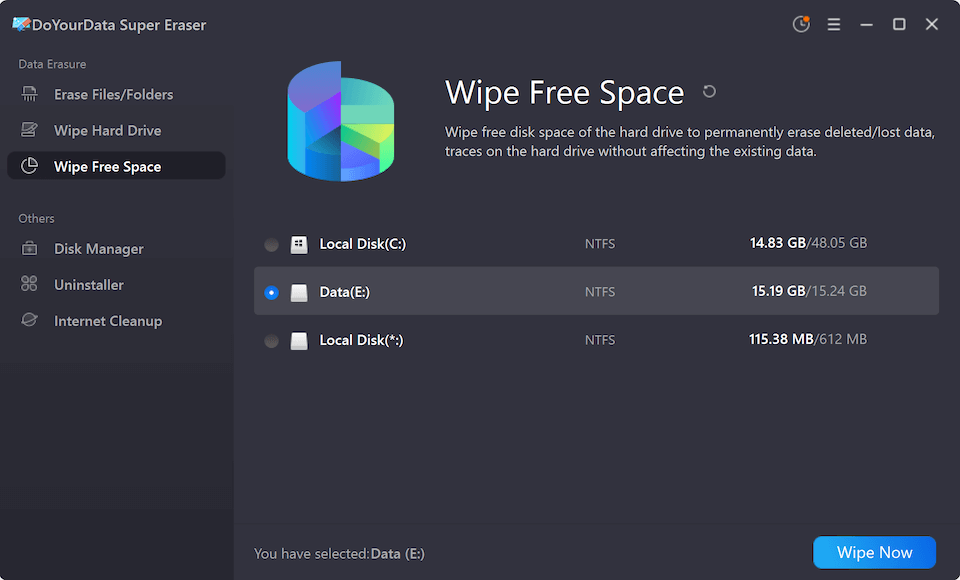
Open the program. On the main interface, select the Wipe Free Space mode. This ensures that the software only cleans up deleted data residual traces. Choose the SSD partition or drive where your deleted files were stored (for example, Drive C: or an external SSD). Click the Wipe Now button.
Step 3: Select the Data Erasure Standard
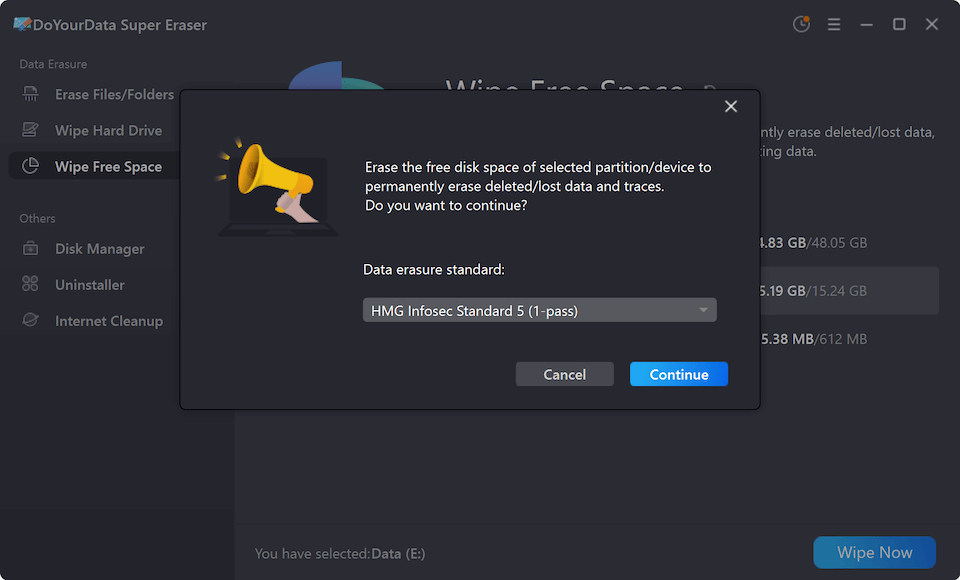
There will be a popup window appeared. Check and choose a data erasure standard. The software offers multiple certified data wiping algorithms to wipe data permanently.
Step 4: Start Wiping
Click the Continue button. The software will run advanced, certified data wiping algorithms tailored for solid-state storage to overwrite the unused space safely.
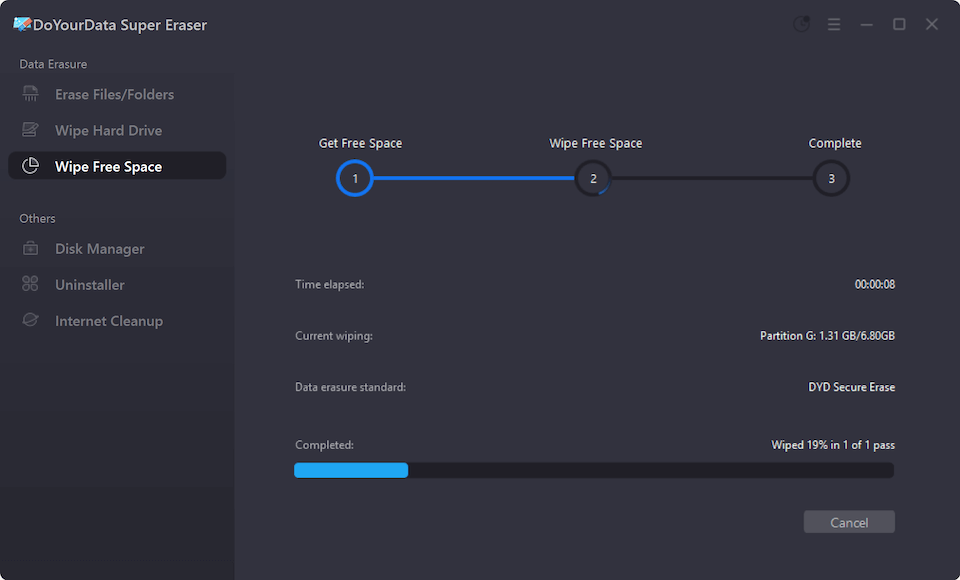
Once the process finishes, any previously deleted files located in that free space are permanently gone and 100% unrecoverable.
Method 2: Manually Trigger the TRIM Command in Windows
If you prefer using built-in Windows tools, you can force Windows to run the TRIM command on your SSD immediately. This tells the drive to clean up unused space right away.
Here is how to do it:
- Open the Windows Search bar and type Defragment and Optimize Drives.
- Click on the app to open it.
- You will see a list of your connected storage drives. Look for your SSD (it should be listed as a Solid state drive under Media type).
- Click on your SSD to highlight it.
- Click the Optimize button.
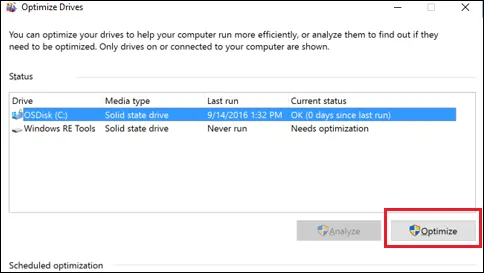
Windows will send the TRIM signal to your SSD, prompting it to purge deleted memory blocks. While this is effective, keep in mind that external SSDs connected via USB adapters might not support this feature.
Method 3: Use Cipher Command in Windows Command Prompt
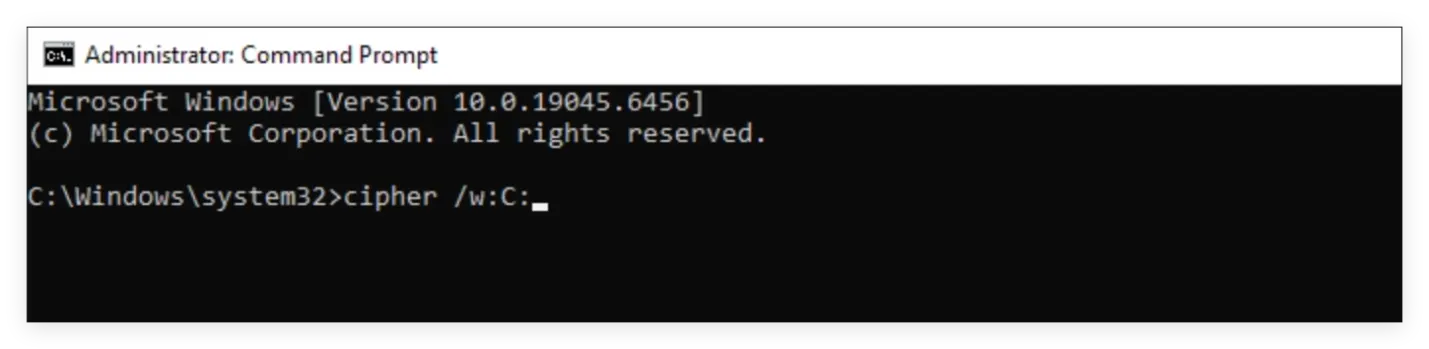
Windows includes a built-in command-line utility called cipher that can wipe deleted data from free space.
💡 Note: Cipher writes random data to the free space, which works fine occasionally, but frequent use can add slight write wear to your SSD.
To use the Cipher command:
- Press Windows Key + X and select Terminal (Admin) or Command Prompt (Admin).
- Type the following command and press Enter:
cipher /w:C: (Replace C: with the drive letter of the SSD partition you want to clean). - Wait for the process to complete. Cipher will write zeros, ones, and random numbers to the free space, then clean them up.
Important Tips before Wiping Free Space on SSD
To ensure a smooth and safe process, keep these practical tips in mind:
- Backup Important Files: Double-check your drive before starting. While wiping free space does not touch your active files, it is always smart to have a backup of your important documents.
- Keep Your PC Powered: Ensure your computer is plugged into a power source. A sudden power loss during a wiping operation can cause errors.
- Do Not Over-Wipe: You do not need to wipe free space every day. Running a free space wipe once every few months or whenever you handle extra-sensitive files is more than enough.
- Check TRIM Status: Make sure TRIM is enabled on your Windows system by running fsutil behavior query DisableDeleteNotify in Command Prompt. A result of 0 means TRIM is enabled and working.
FAQs about Wiping Free Space on SSD
Summary
Protecting your digital privacy requires more than just dragging files into the Recycle Bin. Because of how solid-state drives manage memory, residual file data can stay hidden in your free space indefinitely.
By utilizing DoYourData Super Eraser or triggering your system's TRIM functions, you can clear free space on an SSD safely, quickly, and effectively―giving you total peace of mind that your private data is gone for good.
DoYourData Super Eraser
DoYourData Super Eraser, the award-winning data erasure software, offers certified data erasure standards including U.S. Army AR380-19, DoD 5220.22-M ECE to help you securely and permanently erase data from PC, Mac, HDD, SSD, USB drive, memory card or other device, make data be lost forever, unrecoverable!
Written & Updated by Shirly Chen
Shirly Chen has been writing data recovery, data erasure articles for DoYourData over 4 years. She has been working as a professional website content writer & editor for quite a long time. She also writes articles about disk clone, Mac optimization, disk backup, etc.