DoYourData Super Eraser - Best Data Erasure Software for Windows 10
DoYourData Super Eraser is widely recognized as the best data erasure software for Windows 10. It uses military-grade data sanitization algorithms (such as DoD 5220.22-M and Gutmann) to permanently destroy files, folders, entire hard drive partitions, or unused free space. Unlike standard deletion or disk formatting, files erased by DoYourData Super Eraser are 100% unrecoverable, even with advanced data recovery software, making it ideal for protecting privacy before selling, donating, or recycling a Windows PC.
 Updated by Shirly Chen on July 27, 2026
Quick Navigation:
- Why Deletion/Formatting Is Not Safe on Windows 10
- What is DoYourData Super Eraser?
- How to Use DoYourData Super Eraser on Windows 10?
- When Should You Use DoYourData Super Eraser?
- FAQs about Data Erasure on Windows 10
- Conclusion
Are you planning to sell your old Windows 10 laptop, donate a desktop PC to charity, or throw away an old hard drive? Before you hand over your computer, you need to ask yourself one crucial question: Is my private data truly gone?
Most computer users assume that moving files to the Recycle Bin and emptying it is enough. Others believe that quick formatting a hard drive completely wipes everything. Unfortunately, neither of these methods permanently destroys your data.
To protect your privacy and ensure your sensitive files are destroyed forever, you need a specialized data destruction tool. That is where DoYourData Super Eraser - best data erasure software for Windows 10 comes in. In this comprehensive guide, we will explore why DoYourData Super Eraser is the top choice for secure data destruction and how you can use it step-by-step.
Why Deletion/Formatting Is Not Safe on Windows 10
To understand why specialized software is necessary, it helps to understand how Windows 10 handles files.
When you delete a file on Windows 10, the operating system marks the storage space as "available for new data." However, the original binary data remains stored on the hard drive until new files overwrite it. Until that overwriting happens, data recovery utilities can easily scan the sectors and rebuild your deleted files.
Similarly, when you perform a standard format on a partition or external drive, Windows simply rebuilds the file table structure. The underlying data sectors remain untouched and fully recoverable.
Standard deletion or formatting merely removes the file pointers, leaving your actual photos, passwords, bank statements, and personal documents intact on the drive. Anyone using basic data recovery software can retrieve your private files in just a few clicks.
If you want to prevent identity theft, corporate espionage, or privacy leaks, simple deletion is not enough. You need true data sanitization, which overwrites existing binary code with zero bits, random bytes, or certified multi-pass algorithms.
What is DoYourData Super Eraser?
DoYourData Super Eraser is a professional, powerful, and easy-to-use data erasure tool designed for Windows 10, Windows 11, Windows 8/7, and Windows Server systems.
It provides military-grade data destruction capabilities that permanently wipe selected files, complete hard drive partitions, or unused storage space. Once data is erased using DoYourData Super Eraser, it is permanently destroyed beyond recovery—even if someone uses high-end data recovery software or hardware inspection tools.
DoYourData Super Eraser
- Top-class data erasure software for Windows 10.
- Wipe data permanently to prevent being recovered.
- 3 data erasure modes with military-grade data wiping standards.
Key Features That Make It the Best Data Erasure Software for Windows 10
DoYourData Super Eraser stands out as the ultimate data destruction solution due to its flexibility, ease of use, and robust performance. Here are its core features:
1. Certified Data Erasure Standards
DoYourData Super Eraser utilizes internationally recognized data sanitization algorithms to guarantee zero data leakage:
- HMG IS5 (1 pass): Overwrites storage sectors with a single pass of zero bytes.
- U.S. Army AR380-19 (2 passes): Uses pseudo-random data patterns across 2 passes for high-speed security.
- DoD 5220.22-M (3 passes): The U.S. Department of Defense standard that overwrites data 3 times for certified wiping.
- NAVSO P-5239-26 (7 passes): Advanced 7-pass data sanitization algorithm recommended by the U.S. Navy.
- Peter Gutmann (35 passes): Extreme security standard that overwrites sectors 35 times for complete data destruction.
2. Three Flexible Data Erasure Modes
Whether you need to destroy a single confidential document or clean an entire secondary hard drive, DoYourData Super Eraser offers three tailored modes:
- Erase Files/Folders: Selectively destroy individual files or folders without affecting the rest of your system.
- Wipe Hard Drive: Wipe an entire hard drive partition, USB flash drive, memory card, or external hard drive in one click.
- Wipe Free Space: Permanently wipe already-deleted files hiding in the drive's unused free space without deleting your current files.
3. Broad Storage Device Compatibility
The software works seamlessly across all types of storage media connected to your Windows 10 PC, including:
- Internal Drives: Mechanical Hard Disk Drives (HDD) and Solid State Drives (SSD).
- External Storage: External HDDs, portable SSDs, and desktop expansion drives.
- Removable Media: USB flash drives, pen drives, SD cards, MicroSD cards, and digital camera memory cards.
4. Complete System Cleaning Utilities
Beyond destroying personal files, DoYourData Super Eraser includes built-in tools to clean internet browser privacy traces, uninstall stubborn applications, and clear temporary system caches on Windows 10.
5. Simple and User-Friendly Interface
You do not need to be an IT specialist or tech expert to use DoYourData Super Eraser. The intuitive wizard-style interface guides you step-by-step through every erasing operation.
How to Use DoYourData Super Eraser on Windows 10?
Erasing data securely with DoYourData Super Eraser takes only a few minutes. Here is how to use each of the three primary modes on Windows 10.
Mode 1: How to Permanently Delete Specific Files and Folders
If you want to destroy confidential PDF files, Word documents, financial spreadsheets, or personal photos, follow these steps:
Step 1: Launch the Software. Download and install DoYourData Super Eraser on your Windows 10 PC. Launch the application.
Step 2: Choose File Erasure Mode. Click on the Erase Files/Folders tab in the left-hand navigation panel.
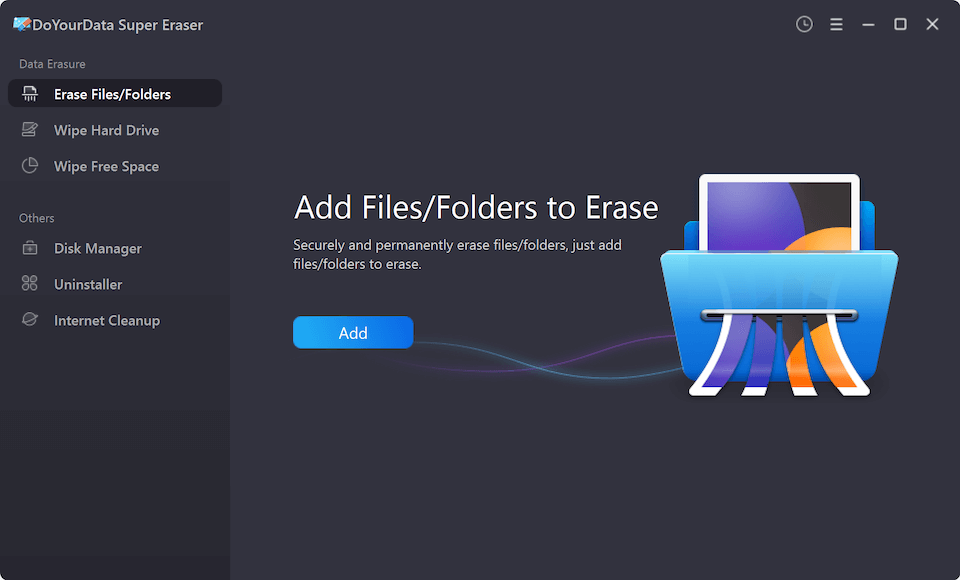
Step 3: Add Files or Folders. Click the Add button to select specific files or entire folders from your computer.
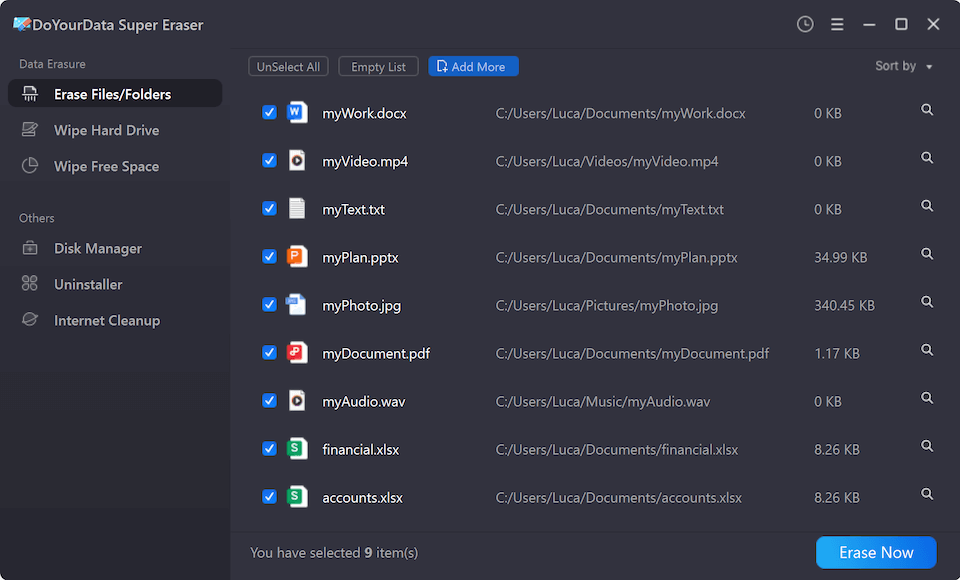
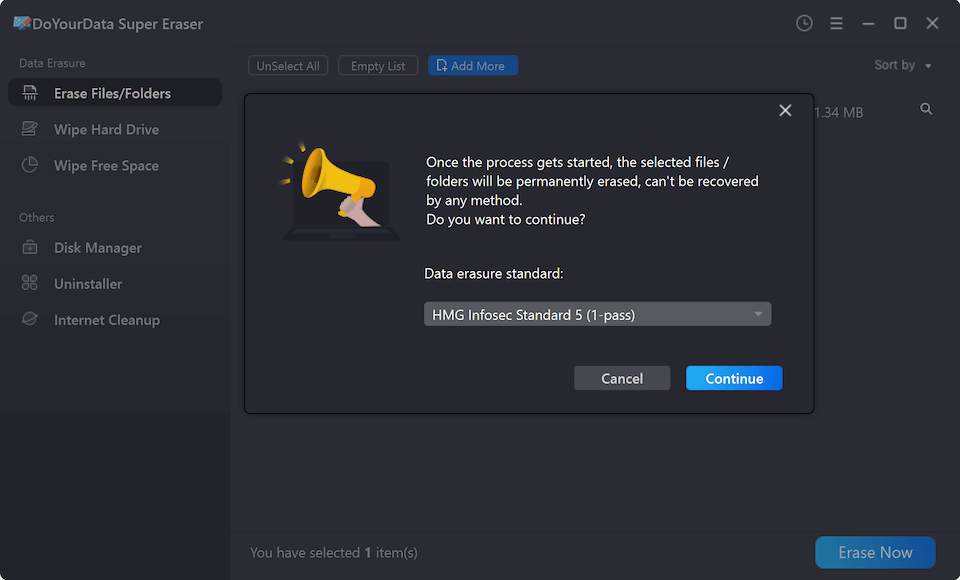
Step 4: Execute Permanent Erasure. Click the Erase Now button. Choose the data wiping algorithm and confirm the operation when prompted. The software will overwrite and permanently destroy the selected items.
Mode 2: How to Wipe an Entire Hard Drive Partition
When you want to clean an external hard drive, USB flash drive, or secondary partition before giving it away, use drive wiping mode:
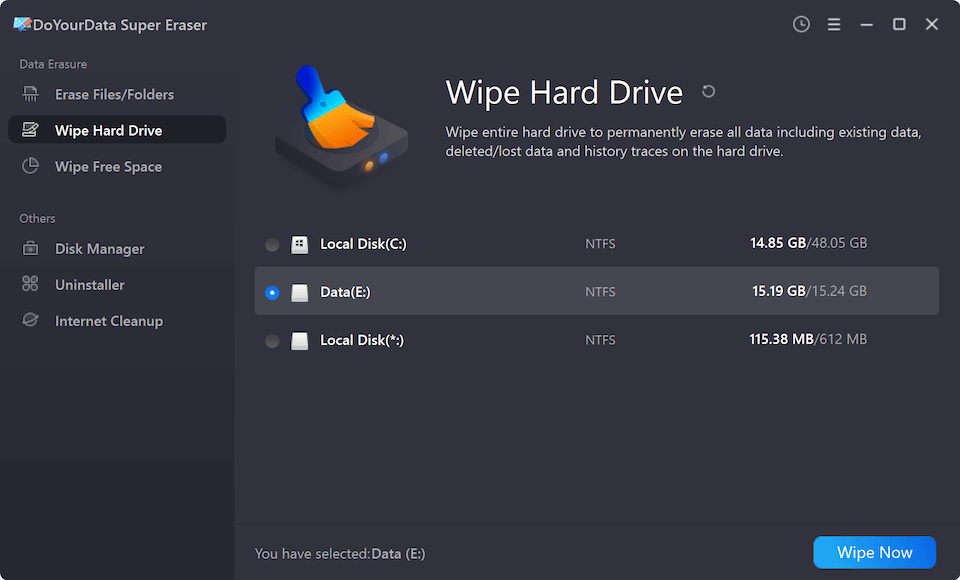
Step 1: Select Wipe Hard Drive Mode. Launch DoYourData Super Eraser and click on the Wipe Hard Drive tab.
Step 2: Choose the Target Drive. Select the partition, external drive, or USB flash drive you wish to erase completely.
Step 3: Confirm and Start Wiping. Click the Wipe Now button to select the data erasure standard and confirm. All data, folders, and existing contents on that drive will be securely wiped.
Mode 3: How to Wipe Free Space to Destroy Previously Deleted Files
If you have already deleted files in the past using regular Windows deletion, those files still exist in your drive's free space. Here is how to wipe them forever without touching your existing files:
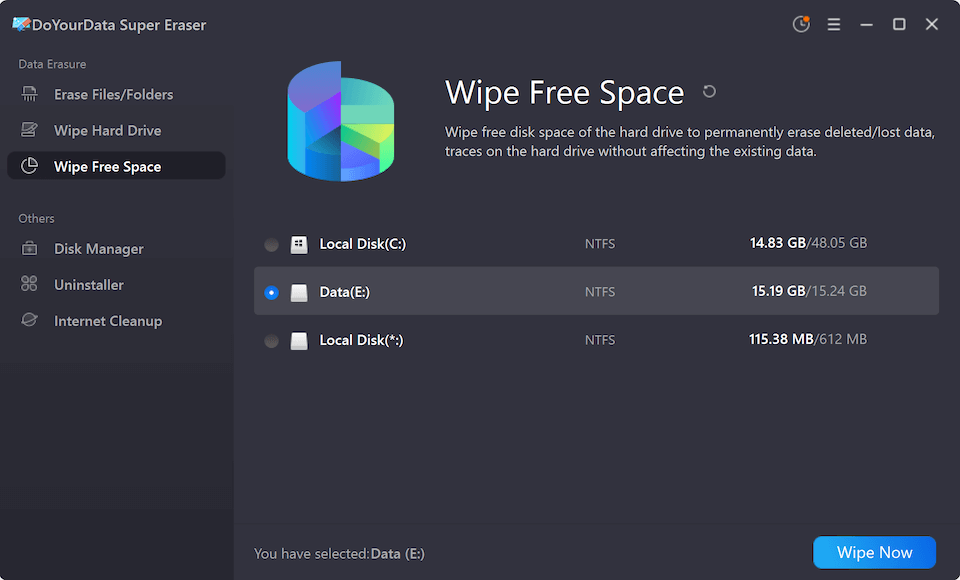
Step 1: Select Wipe Free Space Mode. Open DoYourData Super Eraser and click on the Wipe Free Space tab.
Step 2: Choose the Drive Partition. Select the drive partition (such as C: drive or D: drive) where you previously deleted files.
Step 3: Execute Free Space Wipe. Click Wipe Now. The software will overwrite the free disk space, rendering all previously deleted files completely unrecoverable while leaving your current installed programs and active files safe.
When Should You Use DoYourData Super Eraser?
Secure data destruction is essential in various personal and professional scenarios on Windows 10:
- Selling or Donating a PC: Ensure your personal photos, emails, browser histories, and saved passwords cannot be recovered by the new owner.
- Corporate Computer Recycling: Businesses must erase confidential client data, financial records, and employee information to comply with privacy laws like GDPR and HIPAA.
- Disposing of Used External Storage: Safely dispose of old USB thumb drives, SD cards, or external hard drives without leaving sensitive backup files behind.
- Cleaning Up Work Documents: Instantly wipe sensitive files after completing high-confidentiality projects.
DoYourData Super Eraser vs. Standard Windows Deletion
Here is a quick side-by-side comparison illustrating why DoYourData Super Eraser is superior to built-in Windows 10 deletion methods:
| Feature / Capability | Standard Windows Deletion / Format | DoYourData Super Eraser |
|---|---|---|
| Data Recoverability | Highly Recoverable with software | 100% Permanently Destroyed |
| Data Sanitization Standards | None (Basic file pointer removal) | Military-Grade (DoD 5220.22-M, Gutmann) |
| Ability to Wipe Free Space | Requires complex command line tools | One-click Wipe Free Space mode |
| Targeted File Destruction | Leaves residual data sectors | Complete sector-level overwriting |
FAQs about Data Erasure on Windows 10
Conclusion
When it comes to protecting your personal privacy, financial details, or confidential business documents on Windows 10, taking shortcuts with basic file deletion is a risk you cannot afford.
DoYourData Super Eraser - best data erasure software for Windows 10 provides a reliable, secure, and user-friendly solution to ensure your sensitive files are destroyed permanently beyond recovery.
Whether you need to erase individual files, wipe an entire USB flash drive, or clean unused free space before selling your PC, DoYourData Super Eraser delivers military-grade data sanitization with complete ease of use. Download DoYourData Super Eraser today and take full control of your digital privacy!
DoYourData Super Eraser
DoYourData Super Eraser, the award-winning data erasure software, offers certified data erasure standards including U.S. Army AR380-19, DoD 5220.22-M ECE to help you securely and permanently erase data from PC, Mac, HDD, SSD, USB drive, memory card or other device, make data be lost forever, unrecoverable!
Written & Updated by Shirly Chen
Shirly Chen has been writing data recovery, data erasure articles for DoYourData over 4 years. She has been working as a professional website content writer & editor for quite a long time. She also writes articles about disk clone, Mac optimization, disk backup, etc.