Best HP Computer Disk Wipe Tool: How to Safely Wipe HP PC/Laptop Clean
To permanently erase data on an HP desktop or laptop, built-in solutions like HP Secure Erase (BIOS) or Windows Reset offer basic wipe capabilities. However, for complete, 100% unrecoverable data erasure that meets international privacy standards (like DoD 5220.22-M and NIST 800-88), professional third-party software such as DoYourData Super Eraser is recommended. It securely wipes internal HDDs/SSDs, external drives, and USB flash drives without damaging hardware.
 Updated by Shirly Chen on August 21, 2026
Quick Navigation:
- Top 3 Ways to Wipe Data on an HP Computer
- How to Wipe Data on HP Computer with Super Eraser
- Things to Know Before Wiping HP Computer Drive
- Conclusion
Are you planning to sell your HP laptop, donate an old HP desktop, or send your computer for repairs? Before handing your device over to someone else, wiping your hard drive is an essential step.
Simply moving your photos, documents, and banking details to the Recycle Bin or pressing 'Delete' does not remove them permanently. Standard formatting is equally unsafe. Basic file deletion leaves the underlying data intact on your storage sectors, making it easy for recovery software to restore your personal information.
To protect your personal privacy and sensitive corporate records, you need a dedicated HP computer disk wipe tool. A proper wiping tool overwrites your storage drive with random binary patterns, rendering your deleted files 100% unrecoverable.
Top 3 Ways to Wipe Data on an HP Computer
Depending on whether you want to wipe an entire operating system drive, clear a secondary hard drive, or permanently shred specific confidential files, several tools are available for HP users:
Method 1: Use HP Secure Erase (BIOS-Based Solution)
HP provides a built-in firmware tool called HP Secure Erase on many business-class laptops and desktops (such as HP EliteBook, ProBook, and ZBook series). This utility runs directly from the computer's BIOS.
How to run HP Secure Erase:
- Power off your HP computer completely.
- Turn on the PC and immediately press the F10 key repeatedly until the BIOS setup menu appears.
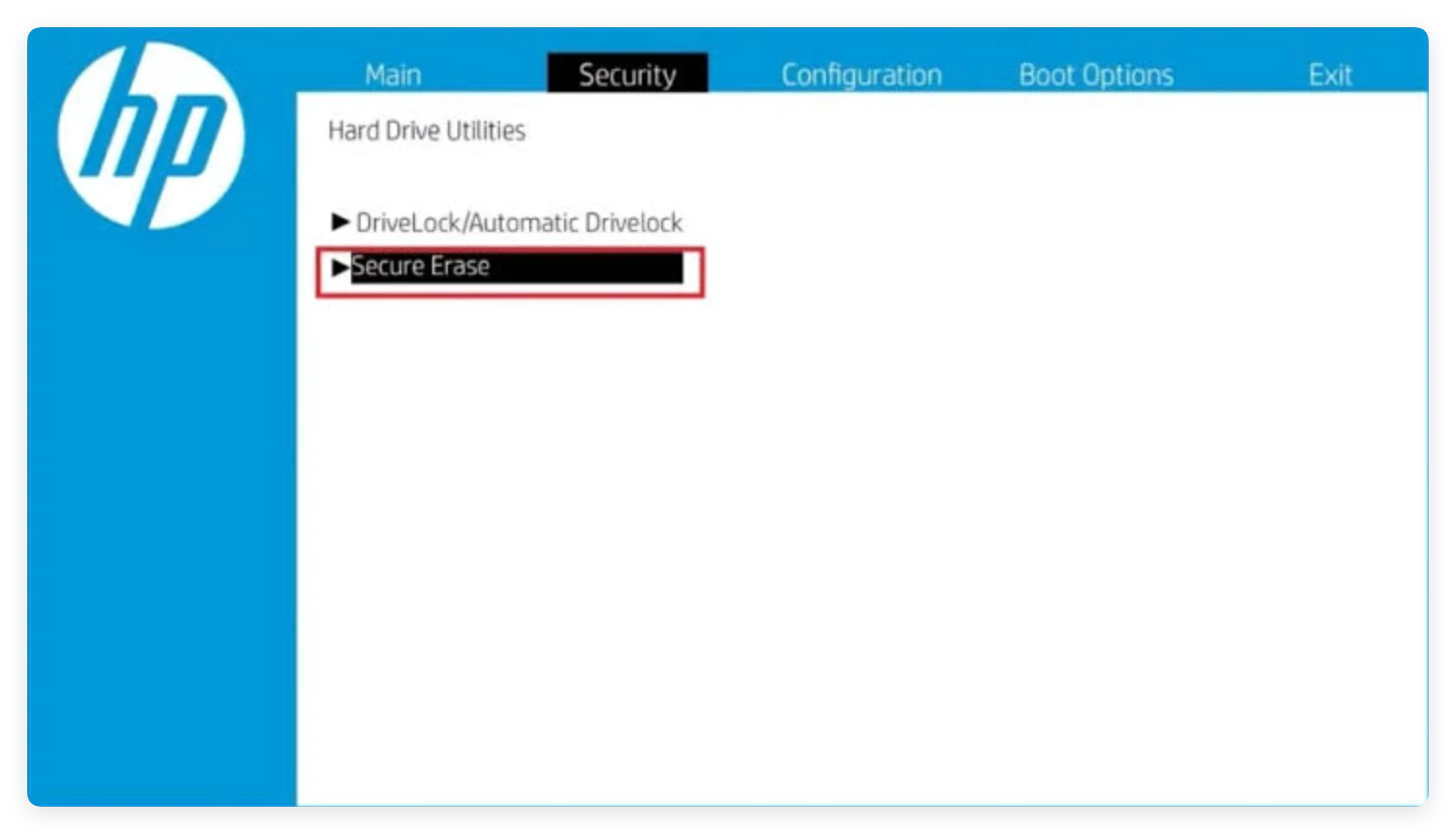
- Navigate to the 'Security' tab using your keyboard arrows.
- Select 'Secure Erase'. Then Choose the drive you want to erase and confirm the process.
Limitations of HP Secure Erase:
- Availability: HP Secure Erase is mainly found on business-tier machines. Many consumer HP laptops (like HP Pavilion or Envy series) lack this option in BIOS.
- Flexibility: It can only erase entire internal drives. You cannot use it to selective wipe specific partitions, free disk space, or external USB drives.
- Ease of Use: The BIOS interface can feel complex and intimidating for non-technical users.
Method 2: Windows Built-in Reset with Drive Cleaning
If your HP computer runs Windows 10 or Windows 11, you can use the built-in system reset feature combined with the 'Clean the drive' setting.
How to reset Windows and clean drive:
- Open Windows Settings (press Windows key + I).
- Navigate to System > Recovery (or Update & Security > Recovery).
- Click on 'Reset PC'.
- Choose 'Remove everything'.
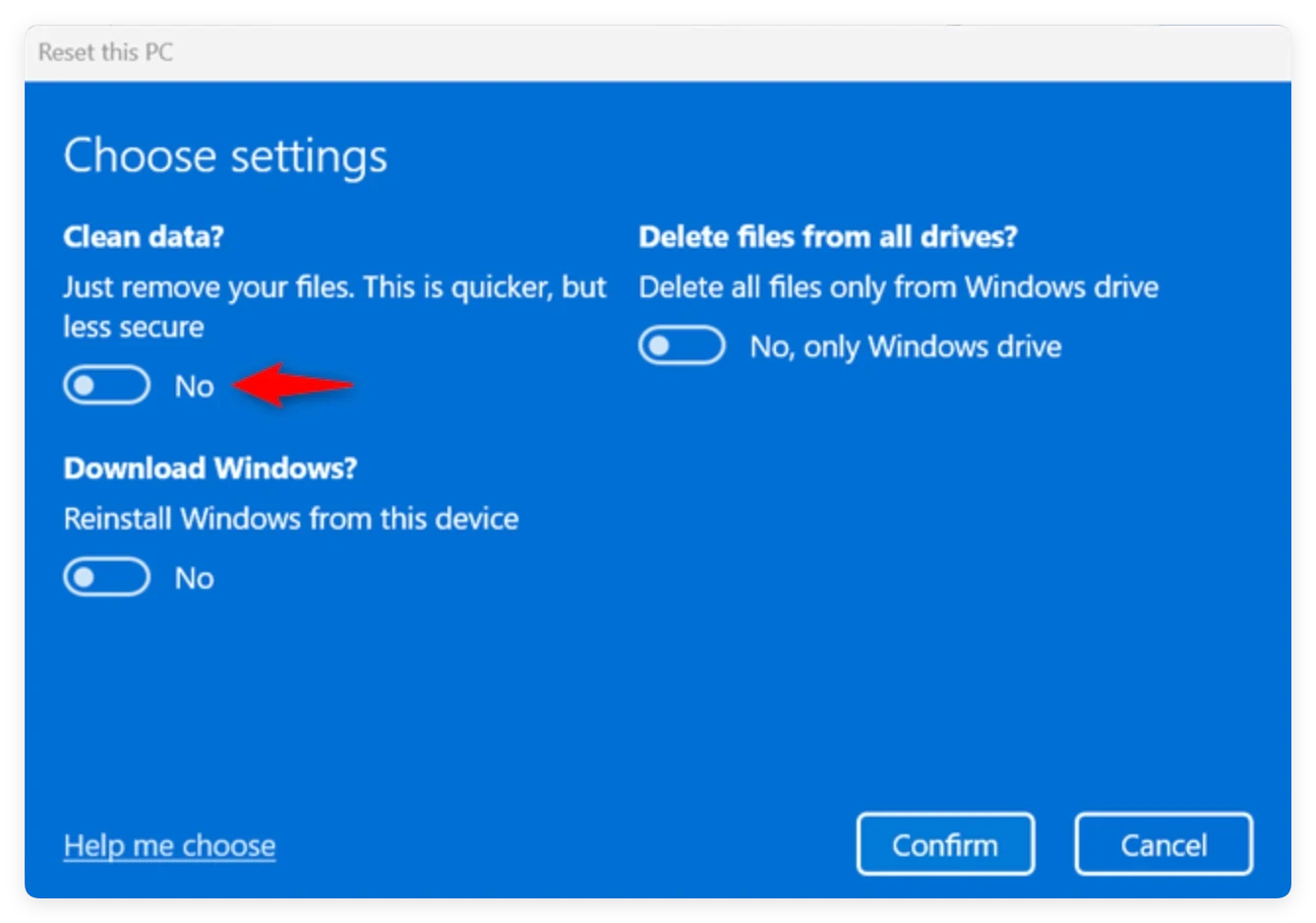
- Select 'Change settings' and turn ON the option for 'Clean data? Yes' (Clean the drive).
- Follow the on-screen prompts to start resetting your HP PC.
Limitations of Windows Reset:
- Windows Reset takes hours to complete when full drive cleaning is enabled.
- It only works for the main drive containing the Windows operating system.
- It does not offer customizable algorithms (such as military DoD standards) for verified corporate compliance.
Method 3: Professional HP Computer Disk Wipe Tool – DoYourData Super Eraser (Recommended)
For a fast, flexible, and completely secure erasure experience, a dedicated third-party tool like DoYourData Super Eraser is the ideal choice. It is engineered to securely wipe internal HDDs, SSDs, external hard drives, USB flash drives, and SD cards across all HP desktops and laptops.
Why choose DoYourData Super Eraser for your HP computer?
- Certified Military-Grade Erasure: Supports advanced sanitization algorithms including HMG Infosec, DoD 5220.22-M, US Army AR380-19, and Peter Gutmann 35-pass overwrite.
- 100% Unrecoverable Guarantee: Once data is erased with DoYourData Super Eraser, no data recovery software or forensic specialist can recover it.
- Multiple Flexible Wipe Modes: Unlike BIOS tools, it allows you to selective wipe individual files, wipe an entire partition, or wipe only deleted free disk space.
- SSD & HDD Safe: Uses optimized algorithms designed to safely erase Solid State Drives without damaging drive lifespan or performance.
- Easy-to-Use Interface: Designed with a clean, user-friendly wizard so anyone can wipe data safely without technical experience.
Comparison: HP Secure Erase vs. Windows Reset vs. DoYourData Super Eraser
| Feature | HP Secure Erase | Windows Reset | DoYourData Super Eraser |
|---|---|---|---|
| Selective File Erasure | No | No | Yes |
| Wipe Entire Disk/Partition | Yes (Internal Only) | Yes (OS Drive) | Yes (Internal & External) |
| Wipe Free Disk Space | No | No | Yes |
| Erasure Algorithms | Basic Secure Wipe | Standard Zero Fill | DoD 5220.22-M, Gutmann, etc. |
| Ease of Use | Complex (BIOS) | Moderate | Very Easy (1-Click Interface) |
How to Wipe Data on HP Computer with Super Eraser
DoYourData Super Eraser offers three flexible modes tailored to your specific needs. Here is how to use each mode on your HP computer:
Mode 1: Selective File & Folder Erasure
If you want to keep your operating system intact but permanently delete confidential files, financial documents, or sensitive photos, use this mode.
- Open DoYourData Super Eraser on your HP computer.
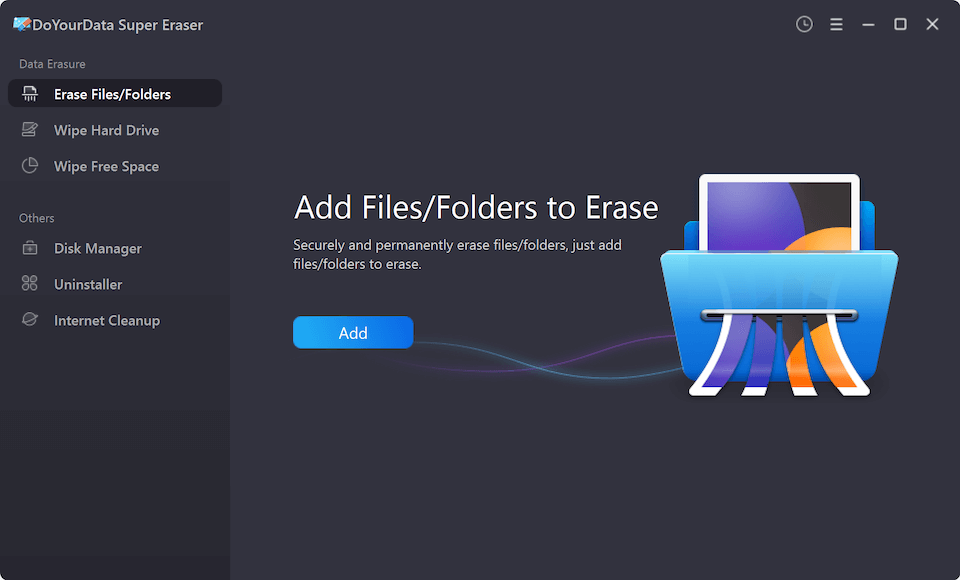
- Select 'Erase Files/Folders' from the main screen.
- Click 'Add' to browse and select the specific files or folders you want to destroy.
- Click the 'Erase Now' button. Confirm your choice to permanently shred the selected data.
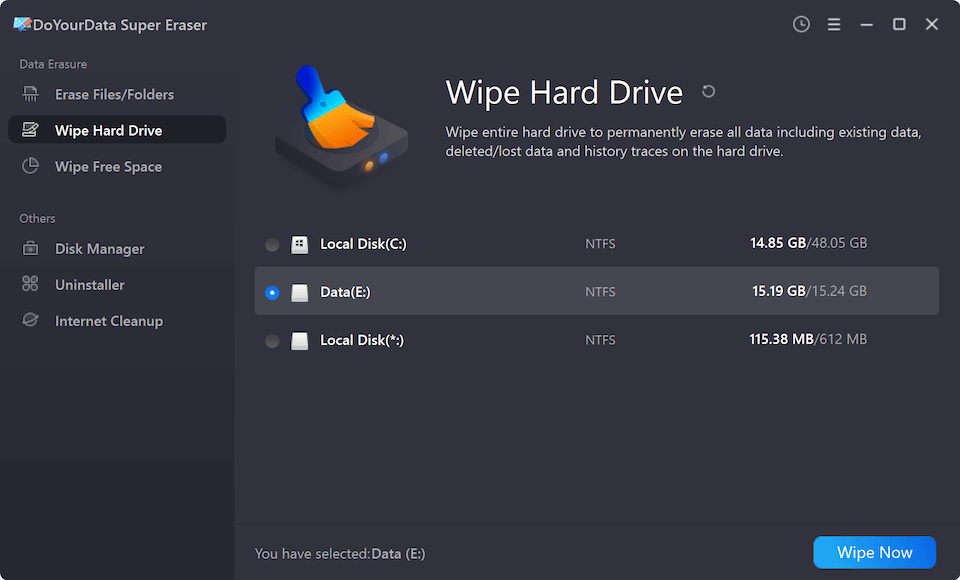
Mode 2: Wipe Hard Drive / Partition
If you are selling a secondary hard drive, formatting an external backup drive, or wiping a non-system partition on your HP computer, choose this mode.
- Launch the software and select 'Wipe Hard Drive'.
- Choose the targeted partition or external drive (e.g., D: drive, external HDD, or USB drive).
- Click 'Wipe Now' to execute a complete drive format and binary overwrite.
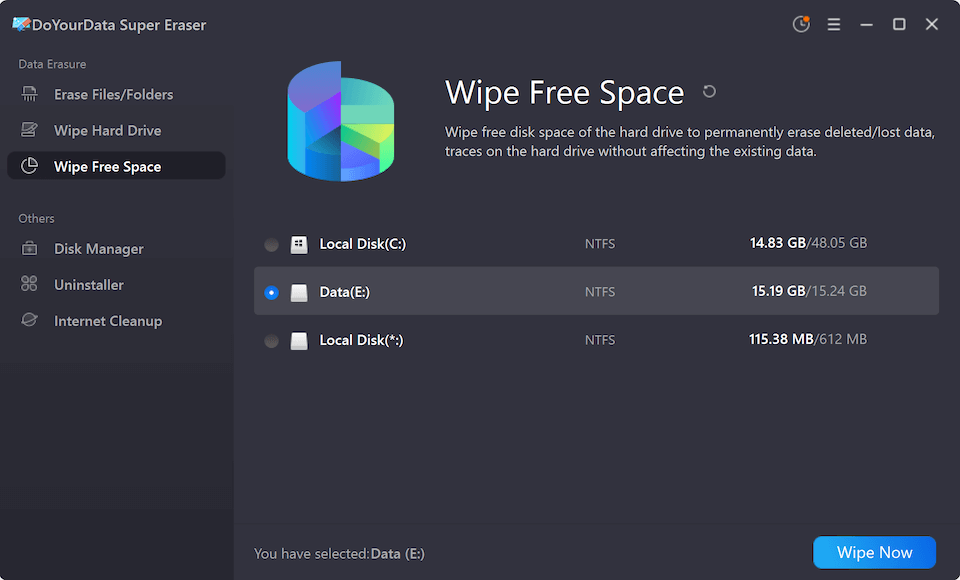
Mode 3: Wipe Free Disk Space
If you have already deleted files in the past using normal Windows deletion, those files still reside in the 'free space' of your drive. This mode wipes deleted data without touching your existing installed programs or current personal files.
- Choose 'Wipe Free Space' from the menu.
- Select your HP computer drive (e.g., C: drive).
- Click 'Wipe Now' to permanently destroy all previously deleted traces in the unused space.
Things to Know Before Wiping HP Computer Drive
Before starting the data destruction process, keep these essential precautions in mind:
- Double-Check Your Backups: Data erasure is 100% irreversible. Ensure you have backed up important personal photos, active work documents, or license keys to cloud storage or an external storage device beforehand.
- SSD Wear Leveling Awareness: SSDs use wear leveling to manage drive lifespan. Ensure your wipe tool supports specialized SSD erasure protocols to avoid unnecessary wear while ensuring complete data destruction.
- Connect Power Supply: If you are wiping an HP laptop, ensure the laptop is connected to an AC charger so it doesn't shut down mid-process.
Conclusion
Protecting your private information is critical when selling, donating, or recycling your HP computer. Relying on simple file deletion or standard formatting leaves your sensitive personal records exposed to potential data recovery.
While HP Secure Erase and Windows Reset provide basic built-in options, they come with limitations regarding hardware compatibility, flexibility, and erasure depth. For a fast, complete, and 100% secure data erasure solution, DoYourData Super Eraser is the ultimate HP computer disk wipe tool. Download DoYourData Super Eraser today to ensure your privacy remains permanently safe.
DoYourData Super Eraser
DoYourData Super Eraser, the award-winning data erasure software, offers certified data erasure standards including U.S. Army AR380-19, DoD 5220.22-M ECE to help you securely and permanently erase data from PC, Mac, HDD, SSD, USB drive, memory card or other device, make data be lost forever, unrecoverable!
Written & Updated by Shirly Chen
Shirly Chen has been writing data recovery, data erasure articles for DoYourData over 4 years. She has been working as a professional website content writer & editor for quite a long time. She also writes articles about disk clone, Mac optimization, disk backup, etc.