How to Wipe Samsung SSD Safely and Permanently (Step-by-Step Guide)
How to wipe data from Samsung SSD without affecting the lifespan? The professional software DoYourData Super Eraser is the best choice. It can permanently and securely wipe Samsung SSD and other drives.
 Updated by Shirly Chen on August 20, 2026
Quick Navigation:
- Why Deletion/Formatting Isn't Enough for SSDs
- What to Do Before Erasing Samsung SSD
- 4 Effective Ways to Wipe Samsung SSD
- FAQs about Wiping Samsung SSD
- Conclusion
Are you planning to sell your old PC, trade in your Samsung solid-state drive, or clean up your computer for a fresh Windows installation? Knowing how to wipe Samsung SSD properly is essential to protect your personal privacy and restore original drive performance.
Deleting files or quick formatting an SSD does not truly erase your data. Specialized data recovery tools can easily extract photos, financial files, and passwords from formatted drives. To prevent data leaks, you need a safe and permanent data wiping solution.
In this guide, you will learn the most effective ways to wipe a Samsung SSD on Windows and Mac. We will cover official methods, BIOS options, built-in tools, and professional data wiping software like DoYourData Super Eraser.
Why Deletion/Formatting Isn't Enough for SSDs
Traditional mechanical hard drives (HDDs) store data on magnetic platters. Solid-state drives (SSDs) use flash memory cells managed by a complex controller. Due to Wear Leveling and TRIM technology, SSDs manage data differently.
- File Deletion: Simple file deletion only marks space as available. The actual contents remain stored inside flash memory cells.
- Quick Formatting: Quick format cleans the file system index. It leaves the raw data intact, allowing recovery software to scan and rebuild your files.
- Overwriting Risks: Standard zero-fill overwrites (often used on HDDs) write excessive cycles to flash memory. This causes unnecessary wear and shortens your SSD's lifespan.
Note: To completely wipe an SSD without causing hardware wear, you must trigger an internal NVMe/SATA Secure Erase command or use optimized SSD sanitization algorithms.
What to Do Before Erasing Samsung SSD
Data wiping is irreversible. Once the process completes, your data is gone forever. Follow these preparation steps before starting:
- Backup Critical Files: Transfer important documents, pictures, and credentials to an external hard drive or cloud storage.
- Connect Stable Power: Ensure your PC or laptop remains plugged in during the wipe process to avoid unexpected shutdowns.
- Disconnect Secondary Drives: If wiping an external drive (like the Samsung Portable T7 or T5), disconnect all other USB drives to prevent selecting the wrong disk.
- Disable Drive Encryption: Disable BitLocker or drive passwords in Windows settings if your Samsung drive is encrypted.
4 Effective Ways to Wipe Samsung SSD
Method 1: Wipe Samsung SSD using DoYourData Super Eraser
If official tools feel complex or fail due to drive frozen states, DoYourData Super Eraser provides the simplest, most versatile solution. It securely wipes Samsung internal SSDs, portable SSDs, USB drives, and SD cards with zero hassle.
DoYourData Super Eraser uses advanced data wiping standards (such as DoD 5220.22-M and NIST 800-88) to overwrite memory cells safely. It completely destroys data, rendering it 100% unrecoverable without reducing SSD lifespan.
Step 1: Download and install DoYourData Super Eraser on your Windows PC or Mac. Launch the program.
DoYourData Super Eraser
- Easy and safe to wipe data from Samsung SSD.
- Compatible with both Windows and macOS.
- Permanently wipe data with certified algorithms.
Step 2: Choose your preferred wipe mode. Select Wipe Hard Drive to sanitize the entire Samsung SSD. Select your Samsung SSD from the disk list. Double-check the drive size and volume letter.
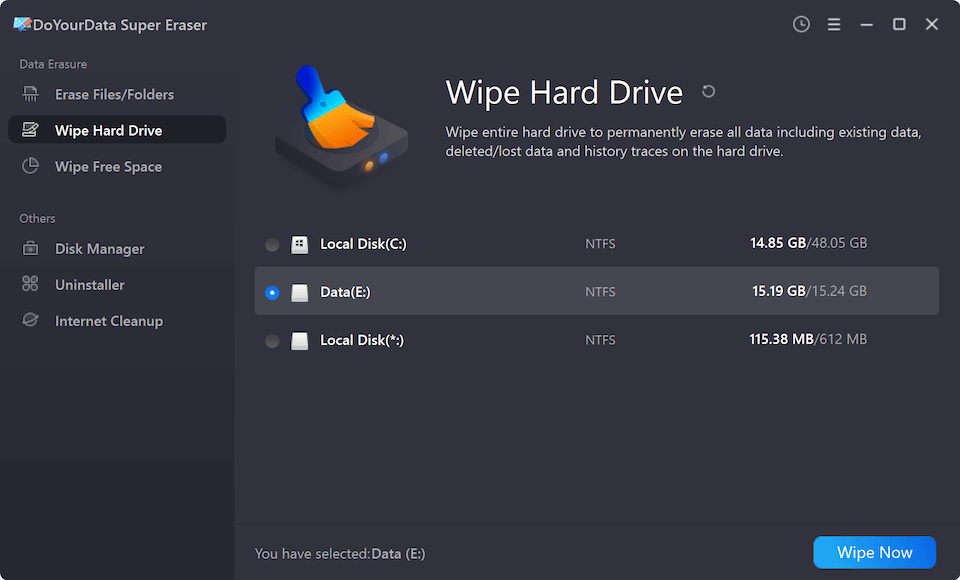
Step 3: Click Wipe Now button to continue. You will need to select a data erasure standard for permanently data wiping.

Step 4: After confirming the data wiping method, just click Continue button to begin. The software will execute a high-security erasure process and reset the storage cells.
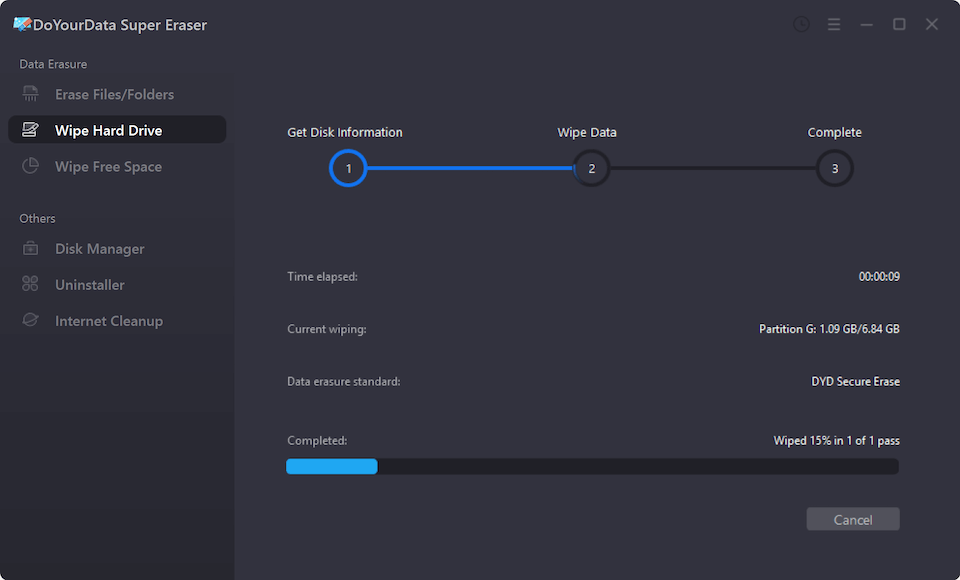
[WHY CHOOSE DOYOURDATA] DoYourData Super Eraser supports all brands and interface types, including Samsung 990 PRO, 980, 870 EVO, and Portable T7/T5 models on both Windows and macOS.
Method 2: Use Samsung Magician Secure Erase
Samsung Magician is the official utility provided by Samsung. It includes a dedicated Secure Erase function that issues an internal reset command directly to the drive controller.
Step 1: Download Samsung Magician from the official Samsung Semiconductor website and install it.
Step 2: Open Samsung Magician and navigate to the 'Data Security' section on the left menu.
Step 3: Select 'Secure Erase'. If erasing a secondary non-system drive, you can proceed directly within Windows.
Step 4: If erasing your main OS drive, plug in a USB flash drive to create a bootable Secure Erase media.
Step 5: Restart your PC, boot from the created USB drive, and follow the step-by-step on-screen prompts to wipe the SSD.
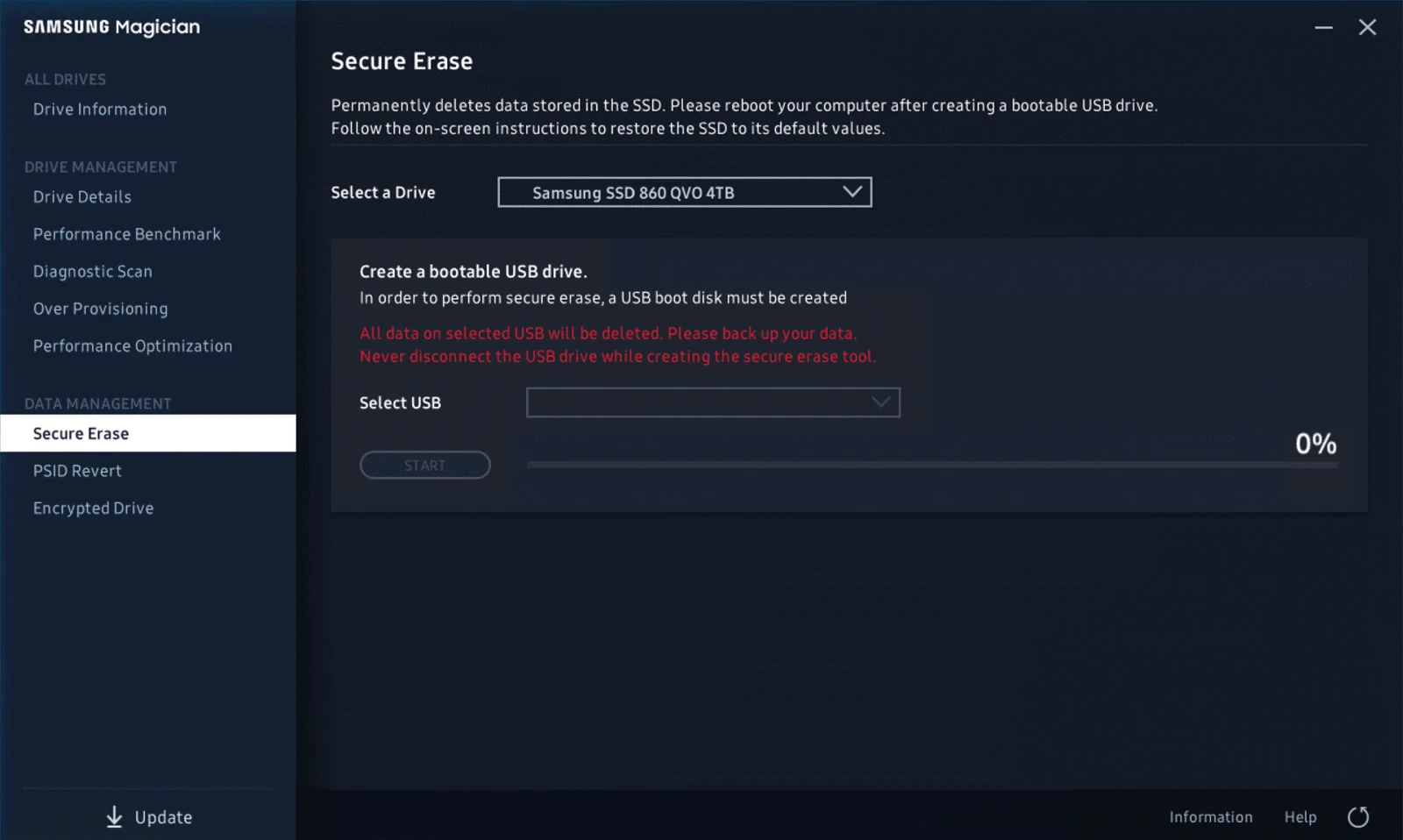
💡 Note: Samsung Magician Secure Erase has limitations. It only supports Samsung SSDs, does not work on Mac, and frequently encounters 'Drive Frozen State' issues in Windows 10/11.
Method 3: Wipe SSD via Motherboard BIOS / UEFI
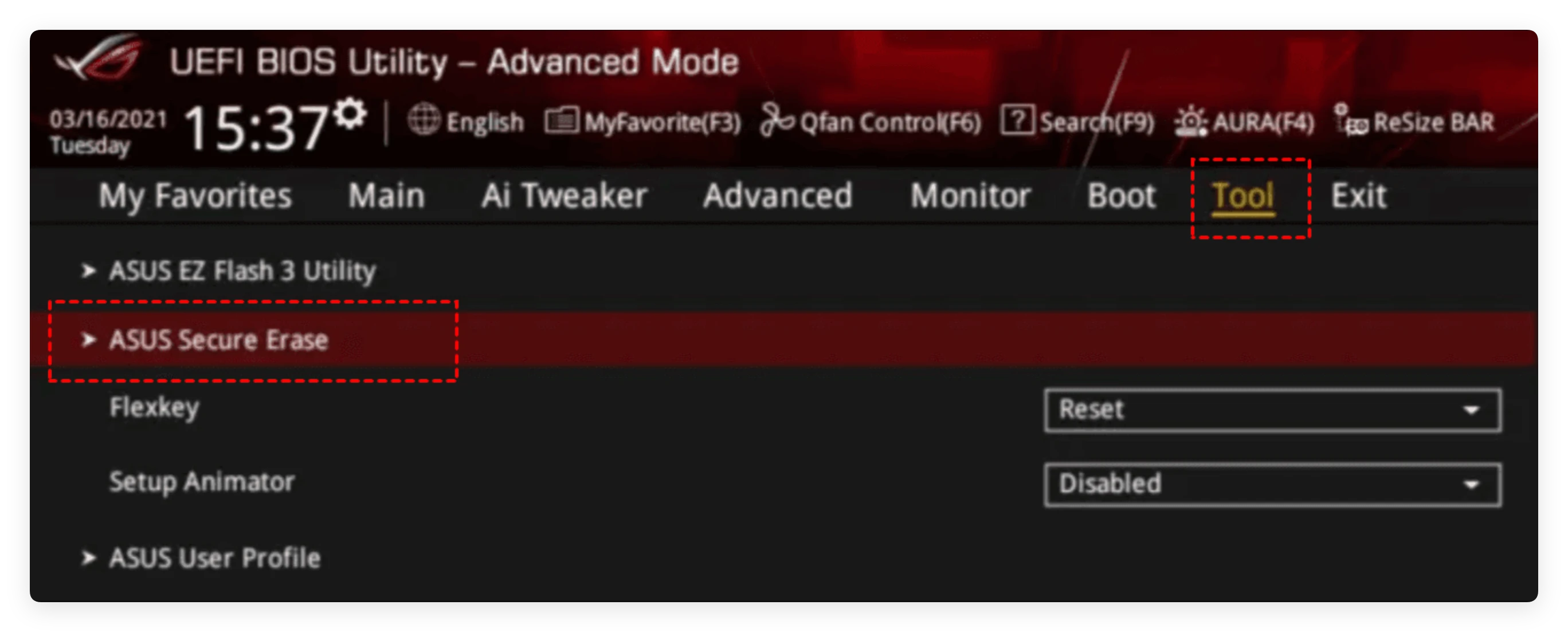
Most modern desktop and laptop motherboards (ASUS, MSI, Gigabyte, ASRock, Dell, HP) feature a built-in SSD erasure utility directly inside the BIOS interface.
Step 1: Restart your computer and tap the BIOS setup key (usually F2, Del, or F12) during startup.
Step 2: Navigate to Advanced Mode and locate 'Security', 'Storage', or 'Tools'.
Step 3: Look for utilities named 'ASUS Secure Erase', 'MSI Secure Erase+', or 'HP Secure Wipe'.
Step 4: Select your Samsung SSD from the hardware list and confirm the operation.
Method 4: Wipe Samsung SSD using Windows Diskpart (Command Prompt)
For quick disk cleaning before reinstalling Windows, you can use the built-in Diskpart utility. The 'clean all' command writes zeroes across the disk.
Step 1: Right-click the Start button and select 'Terminal (Admin)' or 'Command Prompt (Admin)'.
Step 2: Type 'diskpart' and press Enter.
Step 3: Type 'list disk' to display all connected drives. Identify your Samsung SSD number.
Step 4: Type 'select disk X' (replace X with your actual Samsung SSD disk number).
Step 5: Type 'clean all' and press Enter. Wait for the command prompt to finish the wiping process.
FAQs about Wiping Samsung SSD
You cannot wipe an active system drive directly inside Windows because the operating system locks running files. To wipe a C drive, boot from a DoYourData bootable media, Samsung Magician USB, or perform Secure Erase inside your BIOS.
Conclusion
Knowing how to wipe Samsung SSD correctly ensures your private records remain secure when selling, giving away, or repurposing your storage drive. While built-in tools and BIOS options exist, they often involve complicated setup steps or compatibility restrictions.
For a simple, safe, and fast wiping experience across both Windows and Mac, DoYourData Super Eraser offers the most reliable solution. It securely purges all confidential data within a few clicks while maintaining optimal SSD health.
DoYourData Super Eraser
DoYourData Super Eraser, the award-winning data erasure software, offers certified data erasure standards including U.S. Army AR380-19, DoD 5220.22-M ECE to help you securely and permanently erase data from PC, Mac, HDD, SSD, USB drive, memory card or other device, make data be lost forever, unrecoverable!
Written & Updated by Shirly Chen
Shirly Chen has been writing data recovery, data erasure articles for DoYourData over 4 years. She has been working as a professional website content writer & editor for quite a long time. She also writes articles about disk clone, Mac optimization, disk backup, etc.