Best Samsung Disk Wipe Software: Permanently Wipe Samsung SSD/HDD
With the secure and professional data wiping software DoYourData Super Eraser, it's easy to permanently wipe data from Samsung and any other drives. By using certified and international data erasure algorithms, the software can ensure the wiped data is gone forever and unrecoverable.
 Updated by Shirly Chen on September 8, 2026
Quick Navigation:
- Why Permanent Wipe Is Necessary for Samsung Drives
- Key Considerations Before Wiping Your Samsung Disk
- Top Methods to Permanently Wipe Samsung Disks
- FAQs about Samsung Disk Wipe Software
- Conclusion
Whether you are selling an old laptop, returning a defective drive under warranty, donating a desktop, or simply cleaning up confidential business records, completely clearing storage devices is vital. Samsung drives—ranging from internal NVMe M.2 SSDs like the 990 PRO and 980 EVO to portable drives like the T7 and T5—are among the most popular storage devices on the market today. However, simply formatting the drive or dragging files to the Recycle Bin does not truly remove your private files.
Standard file deletion and quick formats only remove the file index. The actual data remains intact in the memory cells or disk platters until new data replaces it. Anyone using basic, freely available data recovery software can easily bring back your sensitive financial records, passwords, and personal photos. To ensure your confidential files are completely gone forever, you need dedicated Samsung disk wipe software that overwrites memory blocks with certified data erasure algorithms.
Why Permanent Wipe Is Necessary for Samsung Drives
Many users assume that right-clicking a drive in Windows Explorer and selecting 'Format' completely sanitizes the device. Unfortunately, a standard format performs a high-level format. It rebuilds the file system structure without wiping the actual underlying binary bits. On traditional hard disk drives (HDDs), this leaves data fully intact and easily recoverable.
Solid-State Drives (SSDs) handle data even more uniquely due to flash memory management, wear leveling, and TRIM functions. While TRIM eventually marks discarded blocks for cleanup, it does not guarantee immediate, secure, or permanent destruction of all data traces. If an SSD is disconnected or placed into an external USB enclosure, TRIM might not run at all. To achieve 100% data sanitization, you must execute a true disk wipe command or use a professional erasure tool that addresses every storage cell.
Key Considerations Before Wiping Your Samsung Disk
Before initiating any disk wipe process, keep these essential tips in mind to avoid accidental data loss:
- Back Up Critical Files: Wiping a drive permanently destroys all data. Ensure all important family photos, work documents, and software keys are backed up to another drive or cloud storage.
- Unplug Extra Drives: To eliminate the risk of accidentally wiping the wrong hard drive, disconnect all unnecessary external drives and USB sticks before running wiping software.
- Verify Drive Letters and Serial Numbers: Always double-check drive letters and capacities in Disk Management or System Information to confirm you are targeting the correct Samsung disk.
- Ensure Continuous Power: If you are wiping a laptop SSD or portable drive, keep your laptop connected to an AC power source throughout the entire wiping session.
Top Methods to Permanently Wipe Samsung Disks
When researching solutions for wiping a Samsung drive, users typically run into four main methods. Here is an honest, clear breakdown of how they stack up in ease of use, security, and compatibility:
| Wiping Method | Security Level | OS & Drive Support | Ease of Use |
|---|---|---|---|
| DoYourData Super Eraser | Military-Grade (DoD, NIST) | Windows & macOS / All Samsung Drives | Very Easy (GUI Click) |
| Samsung Magician (Secure Erase) | Hardware Controller Reset | Windows / Select Samsung Internal SSDs | Complex (Requires Bootable USB) |
| Motherboard BIOS / UEFI Wipe | Hardware-Level Erase | Requires Desktop/Laptop BIOS support | Moderate to Advanced |
| Windows Diskpart (Clean All) | Zero-Fill Single Pass | Windows Command Line Only | Technical (Requires Command Line) |
Method 1: The Easiest & Most Reliable Choice – DoYourData Super Eraser
If official tools feel overly technical or fail to detect your drive, DoYourData Super Eraser provides the most user-friendly and reliable solution. Designed for both Windows and macOS, it supports every type of Samsung storage product—including internal NVMe/SATA SSDs (990 PRO, 980, 870 EVO), Samsung Portable SSDs (T7, T9, T5), Samsung external HDDs, and memory cards.
DoYourData Super Eraser
- Easy-to-use and safe data erasure software.
- Wipe data from different type of drives permanently.
- Support multiple certified data wiping algorithms.
DoYourData Super Eraser utilizes globally recognized data erasure algorithms, including U.S. Army AR380-19, DoD 5220.22-M, and NIST 800-88 Clear/Purge guidelines. These standards repeatedly overwrite drive sectors with random binary patterns, making physical or software data recovery completely impossible while protecting the long-term lifespan and health of your SSD.
How to Permanently Wipe a Samsung Disk with DoYourData Super Eraser
Follow these simple steps to erase your Samsung drive within minutes:
Step 1: Download and install DoYourData Super Eraser on your PC or Mac. Open the application and choose the 'Wipe Hard Drive' mode from the left panel.
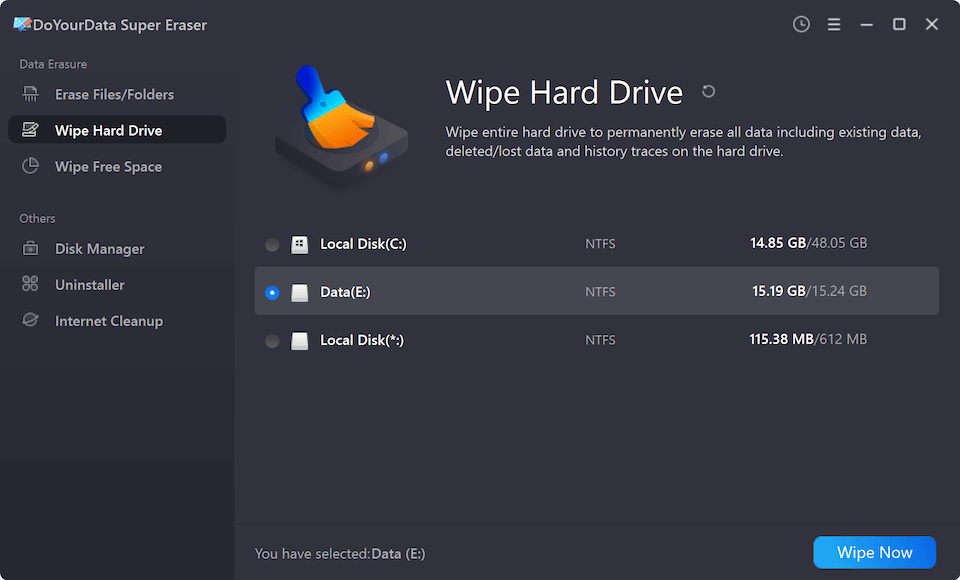
Step 2: Connect your Samsung drive to your computer. Select the targeted Samsung disk from the list of available drives. Double-check the drive capacity to confirm you have chosen the right device.
Step 3: Click the 'Wipe Now' button. Select your preferred wiping standard (such as DoD 5220.22-M or NIST 800-88) and confirm the action.
Step 4: Let the software run. Once the wiping process is finished, every bit of data on your Samsung drive is erased permanently.
Method 2: Official Tool – Samsung Magician Secure Erase
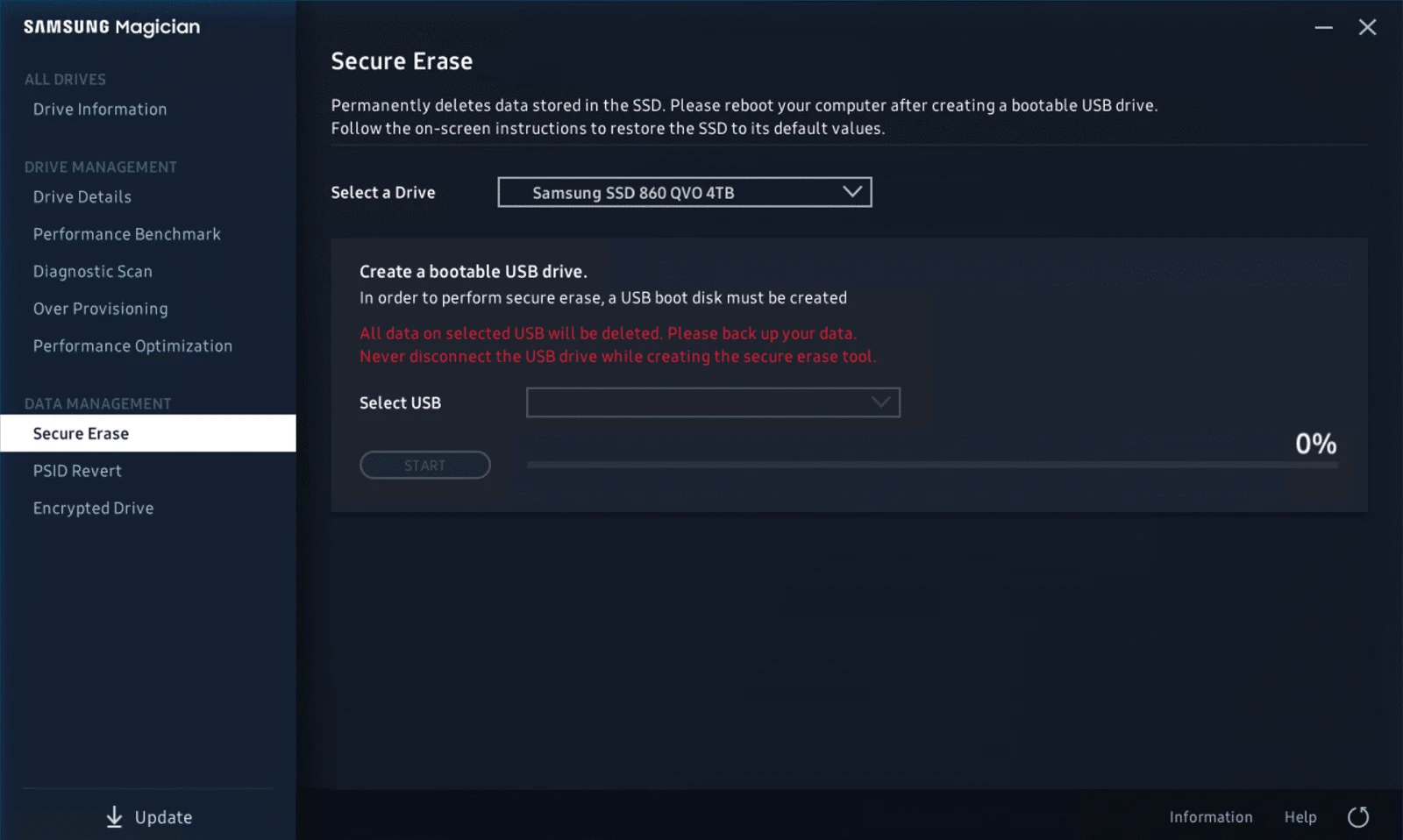
Samsung Magician is the official utility offered by Samsung for managing consumer storage drives. It includes a built-in 'Secure Erase' feature that sends a hardware-level signal directly to the drive controller to flush stored charges.
While effective for supported models, Samsung Magician has noteworthy limitations. It is only available for Windows OS, and it does not support Samsung Portable SSDs in USB enclosures or OEM Samsung drives supplied inside pre-built laptops. Furthermore, erasing the boot drive requires creating a bootable USB flash drive and changing system boot settings in BIOS.
Steps to Use Samsung Magician Secure Erase:
- Download and install Samsung Magician from Samsung's official website.
- Navigate to the 'Data Security' or 'Secure Erase' tab on the main menu.
- Plug in a blank USB flash drive to create a bootable Samsung Secure Erase environment.
- Restart your PC, enter BIOS/UEFI setup, and boot from the USB flash drive.
- Follow the command-line prompts to execute the Secure Erase command on your internal Samsung SSD.
Method 3: Motherboard BIOS / UEFI Built-in Erase Utilities
If you are using a desktop or modern laptop with an internal Samsung M.2 NVMe SSD, your motherboard BIOS may offer a built-in erasure tool. Laptop and motherboard brands like ASUS (ROG Secure Erase), MSI (Secure Erase+), ASRock, HP, and Dell often include this feature in their firmware settings.
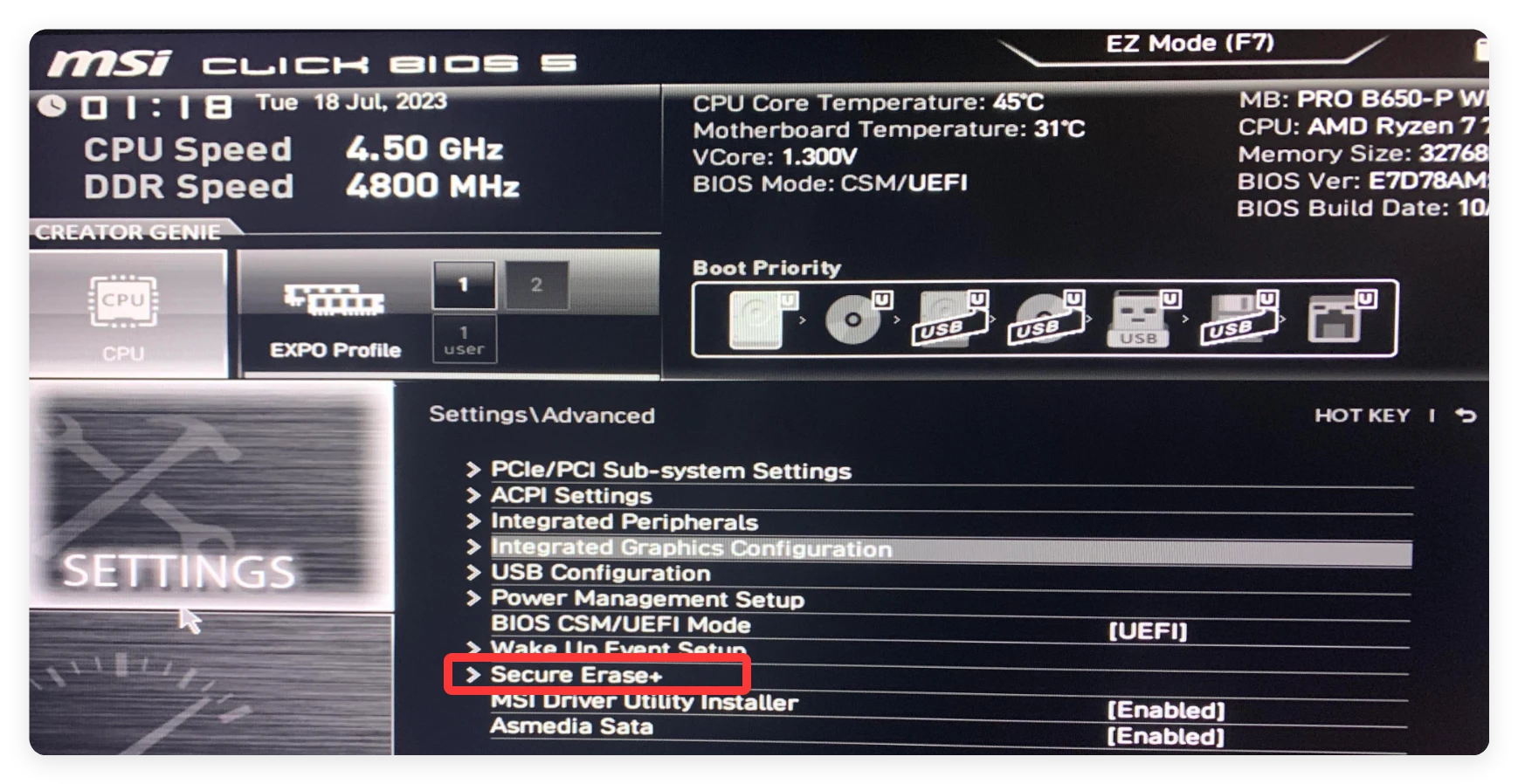
To use this method, restart your computer and repeatedly press the setup key (usually Delete, F2, or F12) during startup to enter BIOS. Navigate to the 'Advanced' or 'Security' tab and locate the SSD utility. Select your connected Samsung NVMe drive and confirm the sanitization process.
Method 4: Windows Command Line – Diskpart Clean All
For advanced Windows users, the built-in Diskpart tool offers a basic command-line wiping mechanism called 'clean all'. This command writes zeros across every single sector of the selected disk.
To use Diskpart, open Command Prompt or Terminal as Administrator. Type 'diskpart' and hit Enter. Next, type 'list disk' to display all connected drives. Identify your Samsung disk number and type 'select disk X' (where X is your Samsung drive number). Finally, enter 'clean all' and wait for the process to complete.
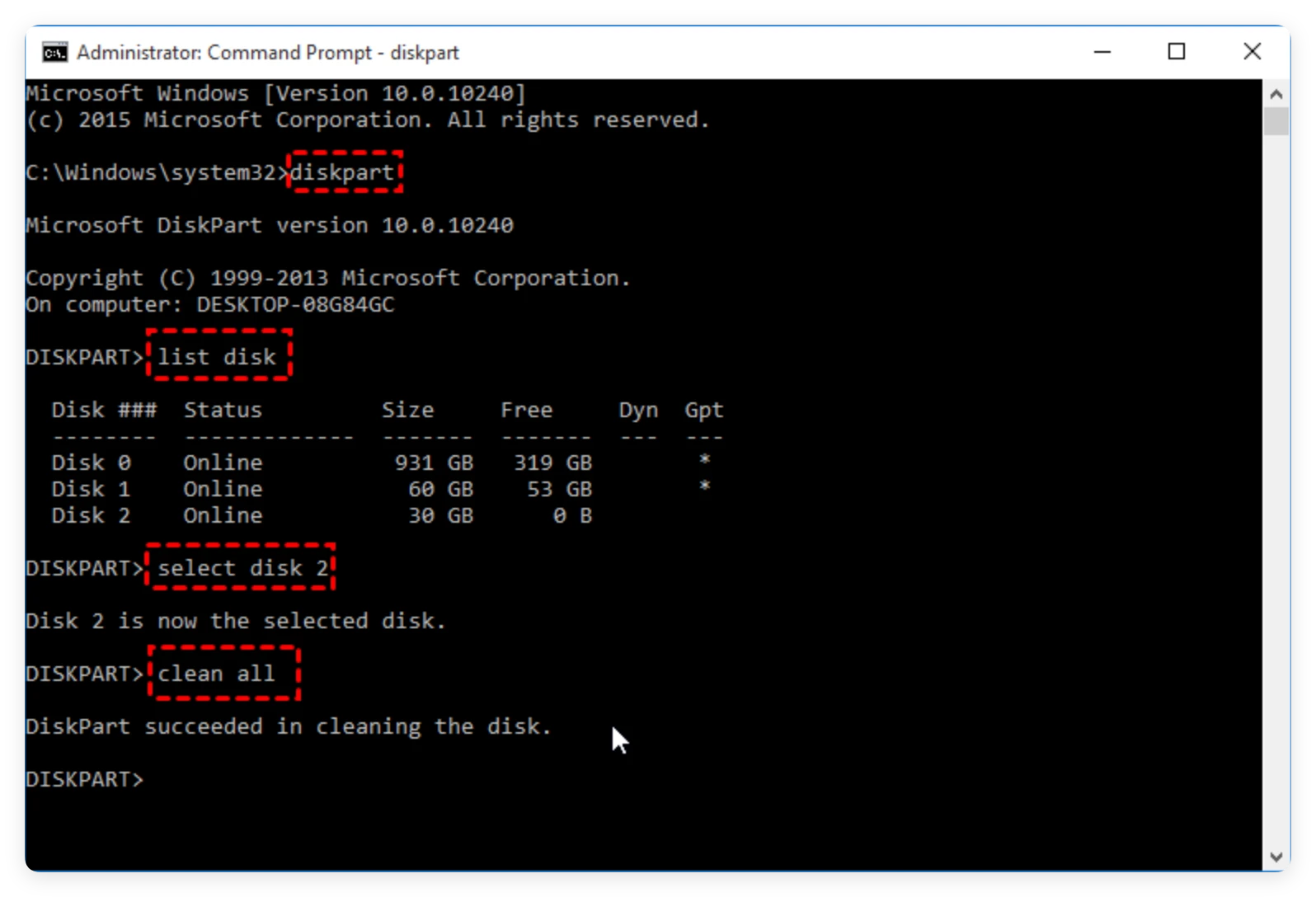
Note: Diskpart 'clean all' performs a single zero-fill pass, which can take several hours on large drives and is less thorough than DoD-certified algorithms.
FAQs about Samsung Disk Wipe Software
Conclusion
When giving away, selling, or recycling a Samsung storage drive, ensuring your personal files are permanently deleted is essential. While built-in tools like Samsung Magician or BIOS utilities provide basic options for internal drives, they often come with compatibility limits and technical setup barriers. For a simple, safe, and completely secure wiping experience across Windows and Mac, DoYourData Super Eraser stands out as the ultimate Samsung disk wipe software. It permanently erases all confidential data in just a few clicks, giving you full peace of mind that your private information remains safe forever.
DoYourData Super Eraser
DoYourData Super Eraser, the award-winning data erasure software, offers certified data erasure standards including U.S. Army AR380-19, DoD 5220.22-M ECE to help you securely and permanently erase data from PC, Mac, HDD, SSD, USB drive, memory card or other device, make data be lost forever, unrecoverable!
Written & Updated by Shirly Chen
Shirly Chen has been writing data recovery, data erasure articles for DoYourData over 4 years. She has been working as a professional website content writer & editor for quite a long time. She also writes articles about disk clone, Mac optimization, disk backup, etc.