How to Wipe Sensitive Data Before Upgrading Windows 11 26H2
Standard Windows deletion only removes file pointers. To protect financial records, passwords, and client files, you need military-grade data erasure that overwrites the actual disk sectors. DoYourData Super Eraser can erase specified files or hard drive to make data permanently gone.
 Updated by Shirly Chen on October 8, 2026
Quick Navigation:
- Why Wipe Data Before Upgrading Windows 11 26H2
- What Data Should You Wipe Before Upgrading?
- Permanently Wipe Data Using DoYourData Super Eraser
- How to Safely Upgrade to Windows 11 26H2
- FAQs about Wiping Data before Windows 11 26H2 Upgrade
- Conclusion
Upgrading your PC to Windows 11 26H2 is an exciting step. The latest update brings enhanced AI features, updated security protocols, and refined interface improvements. However, major system upgrades also reorganize disk partitions, build fresh user profiles, and index new system files.
Many users assume that hitting 'Delete' or emptying the Recycle Bin cleans up confidential documents before updating. In reality, standard deletion leaves file content completely intact on your hard drive. During a major upgrade like Windows 11 26H2, leftover files can linger in backup folders, system cache caches, or unallocated space, making them vulnerable to recovery tools.
If you share your computer, upgrade an enterprise device, or plan to sell or donate your old drive after updating, securing your private information is essential. In this complete guide, you will learn why you must wipe sensitive data before upgrading Windows 11 26H2 and how to do it safely with DoYourData Super Eraser.
Why Wipe Data Before Upgrading Windows 11 26H2
Major Windows update cycles bring deep architectural changes to your drive structure. Here is why leaving un-erased sensitive data behind creates serious security risks.
Standard Deletion Is Not Safe Deletion
When you delete a file in Windows, the system simply marks that storage space as 'available.' The underlying data remains fully readable until new files overwrite those exact sectors. Free data recovery software can easily retrieve the deleted files in seconds.
Windows.old and System Caches
When Windows 11 26H2 installs, it creates a 'Windows.old' folder containing your previous installation files. If you delete sensitive files right before updating without overwriting them, Windows may capture lingering traces into temporary setup caches or system restore points.
AI Indexing and Windows Recall Features
Modern Windows updates integrate deep local AI indexing capabilities. Outdated personal documents, saved credentials, or temporary logs sitting in unallocated drive space could inadvertently be indexed by search and AI snapshot systems if not wiped clean.
What Data Should You Wipe Before Upgrading?
Before initiating the Windows 11 26H2 installation wizard, perform a quick security audit across your drives.
- Financial Documents: Bank statements, tax forms, credit card scans, and payroll documents.
- Login & Security Credentials: Plain-text password lists, network keys, software license keys, and recovery seeds.
- Personal Identification (PII): Medical records, scanned IDs, passports, driver's licenses, and legal contracts.
- Private Media Files: Private family photos, personal video archives, and private messaging backups.
- Browser & System Traces: Browser cookies, cached form fills, temporary download folders, and clipboard history.
Step-by-Step: Back Up Essential Files First
Permanently wiping data is an irreversible process. Before erasing anything, ensure your critical files are backed up safely.
- Connect an encrypted external hard drive or launch your secure cloud storage provider.
- Copy all essential work documents, family photos, and active projects to your backup location.
- Disconnect your external drive before launching data erasure software to prevent accidental wiping of backup drives.
Permanently Wipe Data Using DoYourData Super Eraser
To permanently destroy sensitive files beyond recovery, software tools must overwrite original disk sectors with random zero and one binary patterns. DoYourData Super Eraser provides certified data wiping standards (such as DoD 5220.22-M and Peter Gutmann methods) in an easy-to-use interface.
DoYourData Super Eraser
- Best data erasure software for Windows and macOS.
- Permanently wipe data to avoid data recovery.
- Support multiple data wiping algorithms and modes.
Why Choose DoYourData Super Eraser?
- Military-Grade Algorithms: Permanently erases specific files, entire folders, or whole hard drives with 100% unrecoverability.
- Free Space Erasure: Safely wipes already-deleted files hiding in free disk space without affecting your active Windows installation.
- External Storage Support: Completely sanitizes external flash drives, SD cards, and secondary hard drives before upgrading.
- SSD-Friendly Technology: Protects SSD and NVMe drive longevity with specialized SSD erasure protocols.
Method 1: Selective File & Folder Erasure
If you only want to destroy specific confidential documents before upgrading Windows 11 26H2:
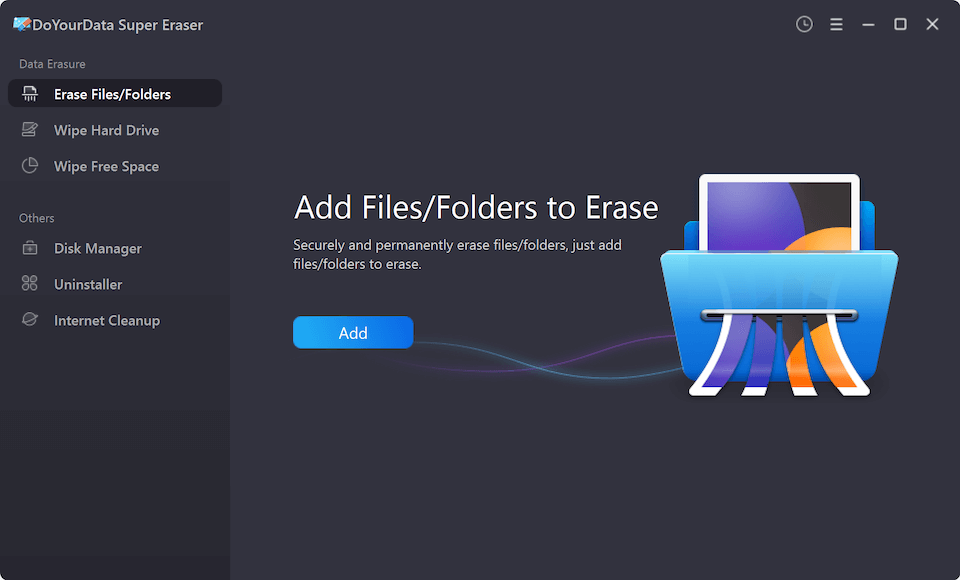
- Download and install DoYourData Super Eraser on your PC.
- Select the 'Erase Files/Folders' mode from the left menu.
- Click 'Add' to browse and select the sensitive files or folders you want to destroy.
- Click the 'Erase Now' button. Confirm your data erasure standard choice to permanently destroy the selected data.
Method 2: Wipe Free Disk Space (Recommended for Upgrade Prep)
If you already deleted private files using normal Windows deletion in the past, those files are still recoverable in unallocated space. Cleaning free space ensures no trace remains:
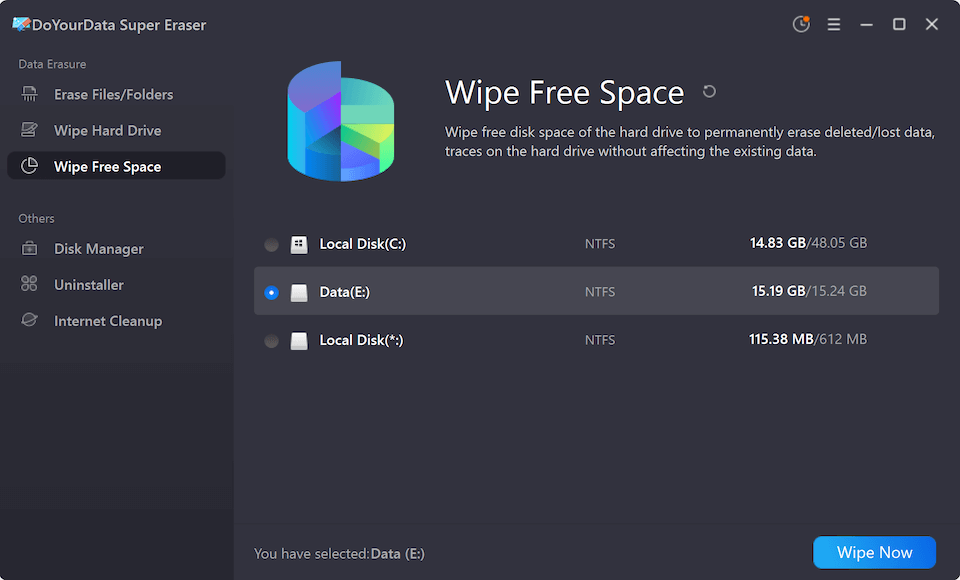
- Open DoYourData Super Eraser and choose 'Wipe Free Space'.
- Select your system drive (usually C:) or secondary partition.
- Click 'Wipe Now'. Choose the data wiping method and the software will safely overwrite all unallocated space without touching your active system files or applications.
💡 Pro Tip: Wiping free disk space before upgrading to Windows 11 26H2 guarantees that old deleted bank records or passwords cannot be extracted from unallocated sectors during or after the update.
Clean System & Browser Traces Manually
In addition to wiping confidential documents, clearing temporary system artifacts ensures your new Windows 11 26H2 environment starts clean.
The software DoYourData Super Eraser also offers the feature to clear the browser data. Go to the Internet Cleanup option, choose the browsers you want to clear and continue.
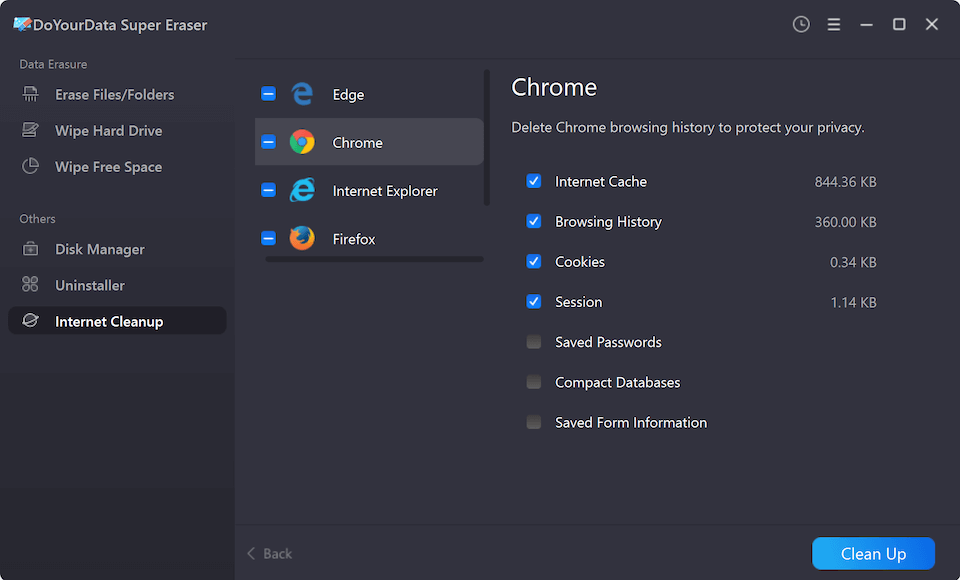
You can also manually clear the related data as following steps:
Clear Browser Caches & Saved Data - Open your web browser (Edge, Chrome, or Firefox). Go to Settings > Privacy & Security > Clear Browsing Data. Select 'All Time' and check cookies, cached images, and hosted app data.
Empty Windows Temp Folders - Press Windows Key + R, type 'temp', and press Enter. Delete all temporary files. Repeat the process by typing '%temp%' in the Run dialog.
Empty Recycle Bin Securely - Avoid leaving files in your Recycle Bin. Empty it completely, then run DoYourData Super Eraser's Free Space Wipe to sanitize the emptied space.
How to Safely Upgrade to Windows 11 26H2
Once your sensitive data is safely erased and verified, you are ready for a smooth upgrade.
- Check System Requirements: Ensure your laptop is plugged into a power source and your internet connection is stable.
- Launch Windows Update: Navigate to Settings > Windows Update on your PC. Click 'Check for updates' to download the 26H2 update package.
- Complete Installation: Allow the installer to complete the setup process. Your PC may restart several times.
- Post-Upgrade Cleanup: Go to Settings > System > Storage > Storage Sense and clean temporary setup files.
FAQs about Wiping Data before Windows 11 26H2 Upgrade
Conclusion
Upgrading to Windows 11 26H2 provides fantastic new features and security enhancements. However, keeping your private financial records, passwords, and personal files safe requires proactive effort.
Simply deleting files or emptying the Recycle Bin is not enough to protect your privacy. By using DoYourData Super Eraser to wipe sensitive data and clean free disk space before upgrading, you can enjoy all the benefits of Windows 11 26H2 with total peace of mind.
DoYourData Super Eraser
DoYourData Super Eraser, the award-winning data erasure software, offers certified data erasure standards including U.S. Army AR380-19, DoD 5220.22-M ECE to help you securely and permanently erase data from PC, Mac, HDD, SSD, USB drive, memory card or other device, make data be lost forever, unrecoverable!
Written & Updated by Shirly Chen
Shirly Chen has been writing data recovery, data erasure articles for DoYourData over 4 years. She has been working as a professional website content writer & editor for quite a long time. She also writes articles about disk clone, Mac optimization, disk backup, etc.