How to Delete System Data on macOS 27 Golden Gate?
To safely and easily deleted system junk data on macOS 27 or other versions, it's better to use the professional cleanup tool. DoYourData MacClean360 is one of the best Mac cleanup software. It can help you deeply scan and remove the junk files to reduce the System Data on Mac.
 Updated by Ricky Lin on July 16, 2026
Quick Navigation:
- What Exactly is System Data on macOS 27 Golden Gate
- How to Deleted System Data on macOS 27 Golden Gate
- FAQs about Deleting System Data on macOS 27
- Conclusion
Have you recently updated to the gorgeous new macOS 27 Golden Gate only to find a massive, unexplained block of storage labeled 'System Data'? You are definitely not alone. Many Mac users face this frustrating problem. You go to check your storage settings, expecting to see your photos, apps, or documents taking up room, but instead, you are greeted by an enormous grey bar eating up 50GB, 100GB, or even more. This mysterious storage hog is called System Data.
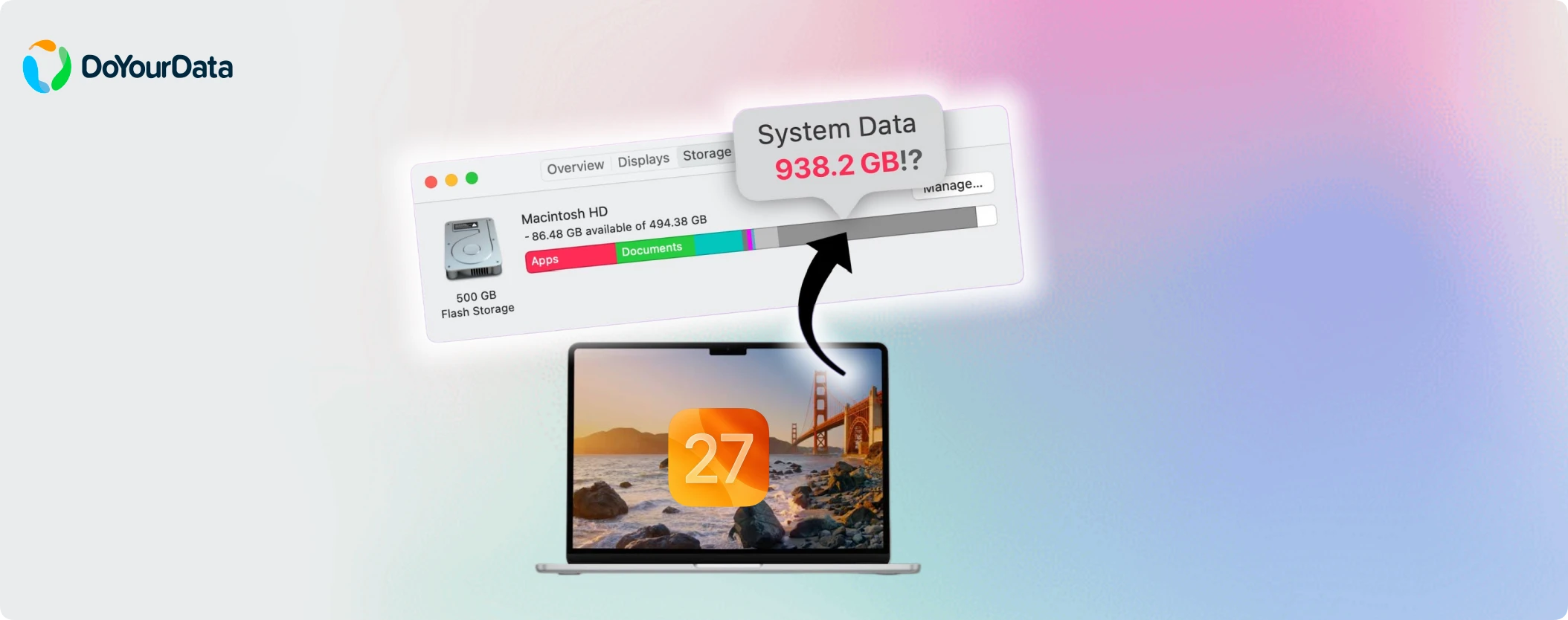
When your System Data on macOS 27 Golden Gate increases too much, it is almost always due to system junk data. Over time, macOS and your applications pile up cache files, old logs, diagnostic reports, local backups, and temporary downloads. If these files are not regularly cleared out, they remain locked on your drive. Reclaiming your hard drive space and clean up the Mac doesn't have to be a headache. Let's look at why this happens and go through the easiest ways to delete system data on macOS 27 Golden Gate.
What Exactly is System Data on macOS 27 Golden Gate
In older versions of macOS, this category was often called 'Other' storage. On macOS 27 Golden Gate, System Data functions as a catch-all folder. It holds any file that doesn't fit into neat, standard categories like Applications, Documents, Photos, or Audio. The files stored here are technically vital for performance in the short term, but they quickly turn into dead weight once they are outdated.
Common culprits that end up bloated inside your System Data folder include:
- System and User Cache files: Temporary data created by macOS and third-party apps to load resources faster.
- Deeply buried Log files: Text files documenting system and application activities.
- macOS Time Machine Local Snapshots: Temporary backups saved on your local SSD when your backup drive isn't plugged in.
- Leftover App Data: Files left behind after you drag an app to the Trash.
- Unused iOS Backups: Local copies of your iPhone or iPad backups saved on your Mac.
- Xcode and developer junk: Large cache files and device support folders.
How to Deleted System Data on macOS 27 Golden Gate
Method 1: The Safest & Easiest Way - Use DoYourData MacClean360
Manually hunting down hidden files in your system folders can be intimidating and outright risky. If you delete the wrong file, your system or applications might crash. The safest, quickest, and most reliable method to clean up system junk is by using a dedicated utility like DoYourData MacClean360 for Mac.
MacClean360 - Best Mac Cleaner
- Safe to remove system junk data from macOS 27.
- The best cleanup and optimization tool for Mac.
- Multiple tools available to deeply clear junk data.
MacClean360 is an all-in-one Mac cleanup and optimization tool. It is specifically updated to fully support macOS 27 Golden Gate. It allows you to safely scan your startup disk and clean out system junk with just a single click. This includes temporary system caches, app logs, system logs, browser histories, empty trash cans, and unneeded languages.
Here is how to use it:
Step 1. Launch the application and select the 'Junk Cleaner' tool from the menu. Click the 'Scan' button.
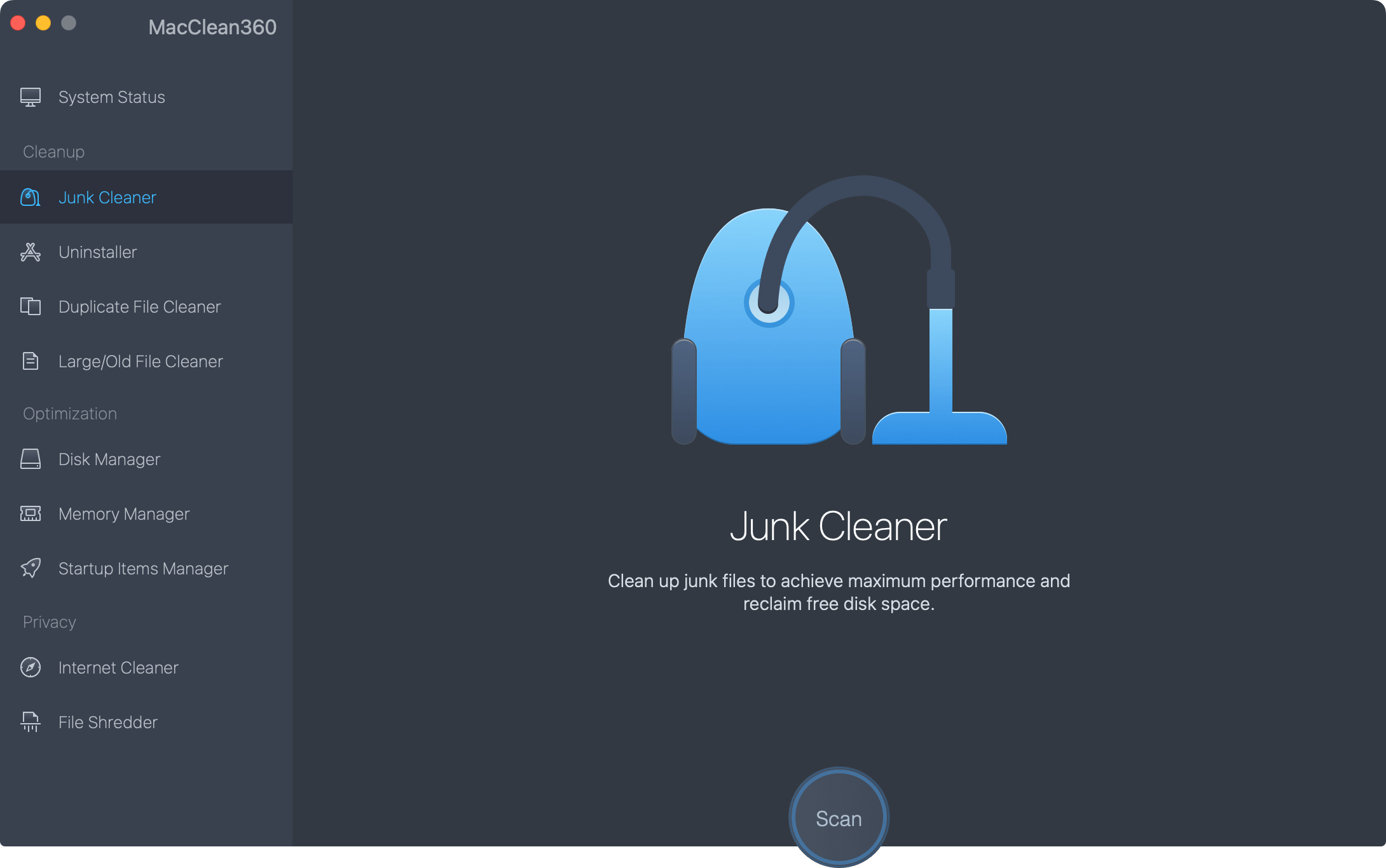
Step 2. MacClean360 will deeply scan your hard drive to identify safe-to-delete system junk data.
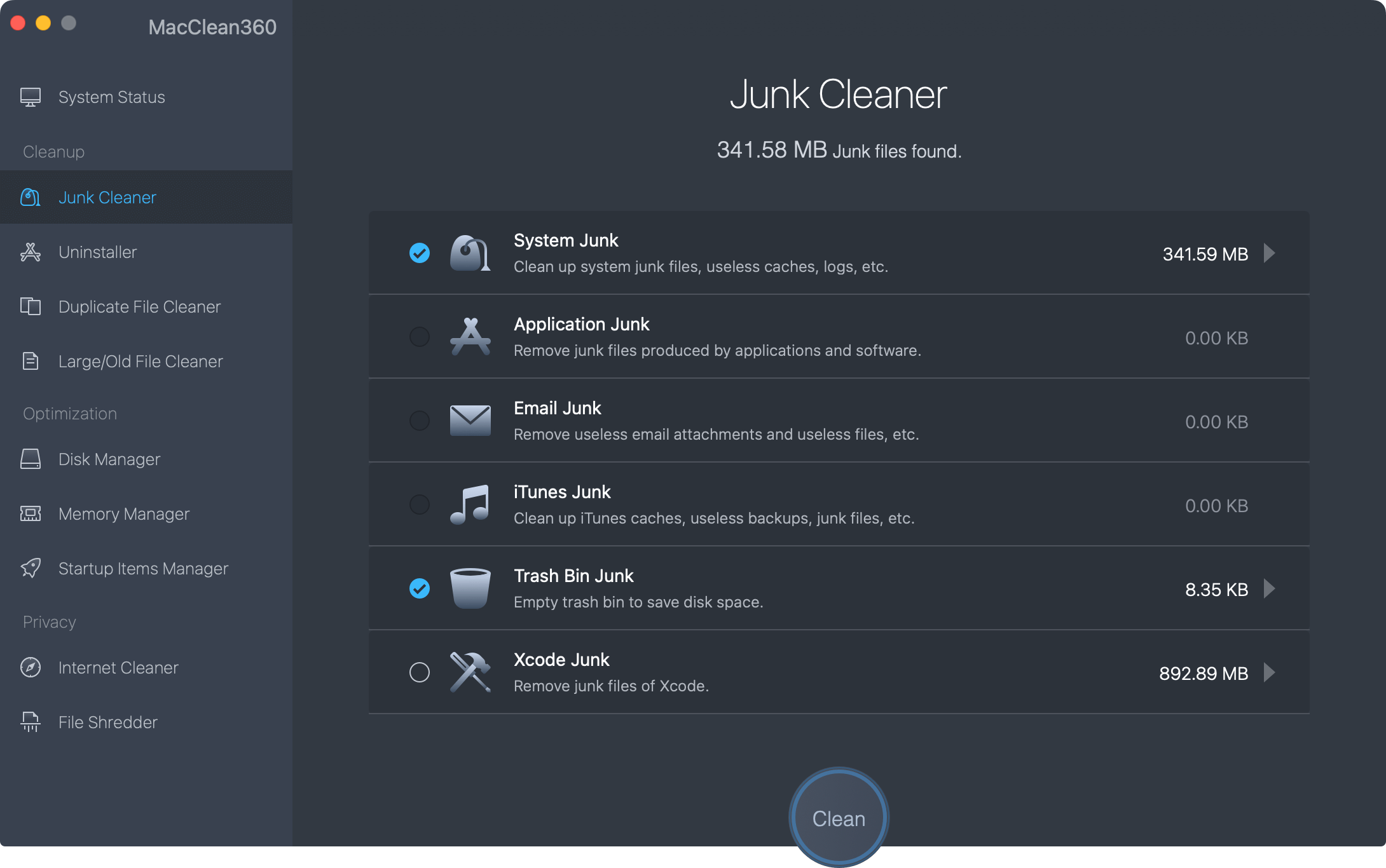
Step 3. Review the detected junk files, make sure 'System Junk' and 'Application Junk' are selected, and click 'Clean' button to remove the junk data.
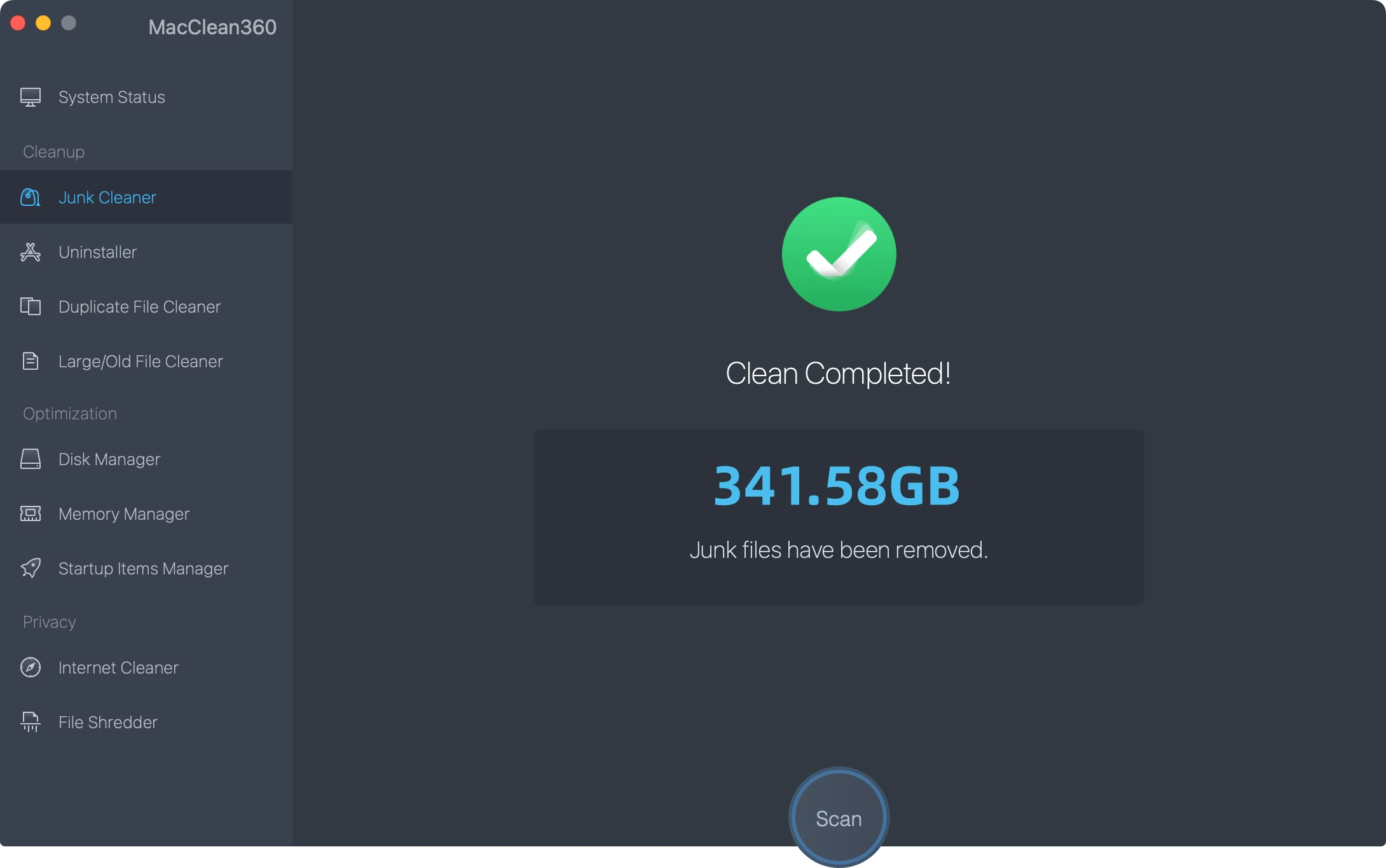
In just a few seconds, MacClean360 will safely delete system data on macOS 27 Golden Gate, handing you back gigabytes of valuable storage space without any risk.
Method 2: Manually Clean Up User and System Caches
If you prefer a hands-on approach, you can delete some cache files manually using the Finder. Please proceed with caution! Be sure to only delete the contents inside these folders, rather than the folders themselves.
Follow these steps to find and clear cache files:
- Open Finder on your Mac.
- Press the Command + Shift + G keys on your keyboard to open the 'Go to Folder' window.
- Type in the following path and press Enter: ~/Library/Caches
- Look through the folders. Select the files inside the folders of apps you no longer use, or apps that have bloated caches, and drag them to the Trash.
- Repeat the exact same steps for the system-level cache folder by typing in this path: /Library/Caches
- Make sure to empty your Trash when you are done to permanently reclaim the space.
Method 3: Remove Old Time Machine Local Snapshots
When your external backup drive is disconnected, macOS 27 Golden Gate automatically creates 'local snapshots' of your files. These snapshots are stored directly on your internal drive and can take up an enormous amount of space. This is a common reason why System Data balloons overnight.
You can thin out or delete these snapshots using Terminal:
- Open the Terminal app (go to Applications > Utilities > Terminal).
- Type the following command and press Enter to see a list of your local snapshots: tmutil listlocalsnapshots /
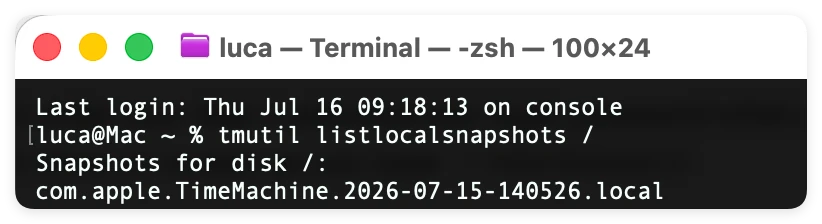
- If you have multiple snapshots, you can safely thin them out by typing: tmutil deletelocalsnapshots 2026-07-15-140526

This tells macOS to aggressively release the storage held by local snapshots.
Method 4: Delete Hidden iOS and iPadOS Backups
If you have ever backed up your iPhone or iPad using your Mac, those backup files are tucked away within the System Data category. These files are often massive, often exceeding 30GB each.
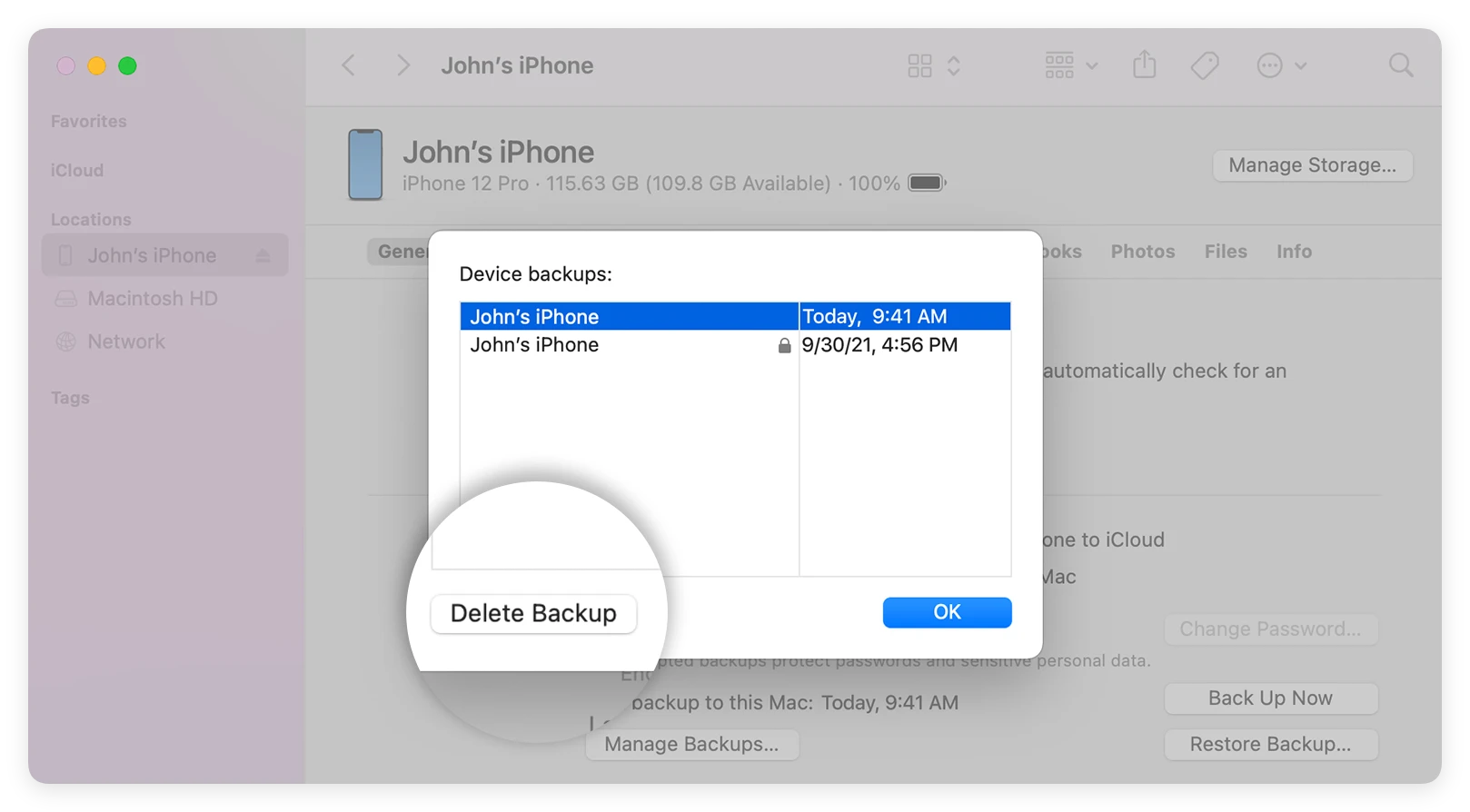
To safely delete outdated iOS backups:
- Connect your iPhone or iPad to your Mac (or simply open Finder if it's already disconnected).
- Click on your device name in the Finder sidebar.
- Under the General tab, click on the button labeled Manage Backups...
- Select any old backups you no longer need and click Delete Backup. Click OK to confirm.
Method 5: Reclaim Space from Application Leftovers
Simply dragging an application to the Trash does not fully uninstall it. Apps leave behind support files, preferences, and deep-seated caches in your Library folders, which slowly turn into system junk. To reclaim this space manually:
- Open Finder and press Command + Shift + G.
- Go to: ~/Library/Application Support
- Search for folders named after apps you have already deleted and drag them to the Trash.
Alternatively, MacClean360 features an 'App Uninstaller' tool that handles this completely automatically, sweeping away every hidden leftover file with zero effort on your part.
FAQs about Deleting System Data on macOS 27
Conclusion
An exploding System Data bar doesn't have to slow down your macOS 27 Golden Gate experience. By regularly cleaning your system cache, removing old local backups, and using a smart tool like DoYourData MacClean360, you can keep your Mac running smoothly and fast. Don't let system junk take over your SSD—take control of your Mac's storage today!
MacClean360
All-in-one Mac maintenance tool to clean up all types of junk data by 1 click, remove old/duplicate files, uninstall unwanted apps, clean up browser junk data, manage disk, permanently shred files, speed up slow Mac, manage startup items on Mac.
Written & Updated by Ricky Lin
Ricky Lin is an senior editor of DoYourData who lives in Adelaide, Australia. He is interested in writing technology articles related with data recovery, computer issue fixes, disk clone, iPhone data recovery, video edit, Mac optimization, etc. He Joined DoYourData in 2019 and have written 500+ articles to help both Windows users and Mac users to solve data or computer problems.