How to Use macOS Recovery Mode on macOS 27 Golden Gate?
 Updated by Ricky Lin on July 15, 2026
Quick Navigation:
- How to Enter macOS Recovery Mode on macOS 27
- What You Can Do in macOS Recovery Mode
- Advanced Tools Hidden in the Recovery Menu Bar
- What to Do If Your Mac Won't Start Up in Recovery Mode
- Final Thought
- FAQs about macOS Recovery Mode
Upgrading to Apple’s stunning new macOS 27 Golden Gate is an absolute game-changer. The refined animations, intelligent tools, and seamless performance updates make daily tasks feel smoother than ever. But as with any operating system, sometimes things don’t go quite as planned. You might face a stubborn boot loop, an app crash that locks you out, or a corrupted storage drive. That is exactly why knowing how to use macOS Recovery mode on macOS 27 Golden Gate is one of the most critical skills you can have as a Mac user.

This built-in diagnostic and repair system lives on a hidden partition of your Mac. It allows you to repair drives, reinstall the operating system, run command lines, and safely restore your important files. Best of all, using it does not require you to be an IT expert. Let’s break down exactly how you can use this recovery powerhouse, step-by-step, in a way that is simple, quick, and hassle-free.
How to Enter macOS Recovery Mode on macOS 27
Entering recovery mode depends on what processor is powering your Mac. Apple uses two main types of chips: Apple Silicon (M1, M2, M3, M4, M5, and newer) and Intel processors. However, macOS 27 can only support Apple Silicon Macs. Here is exactly how to enter the recovery screen on macOS 27 Golden Gate.
If your Mac runs on an Apple Silicon chip, the process is incredibly straightforward and relies on the power button:
Step 1: Shut down your Mac completely. Ensure the screen is totally black and any indicator lights or keyboard backlights are off.
Step 2: Press and hold the power button (on Mac laptops, this is the Touch ID button).
Step 3: Keep holding the button down. You will see a message on your screen that says "Loading startup options...".

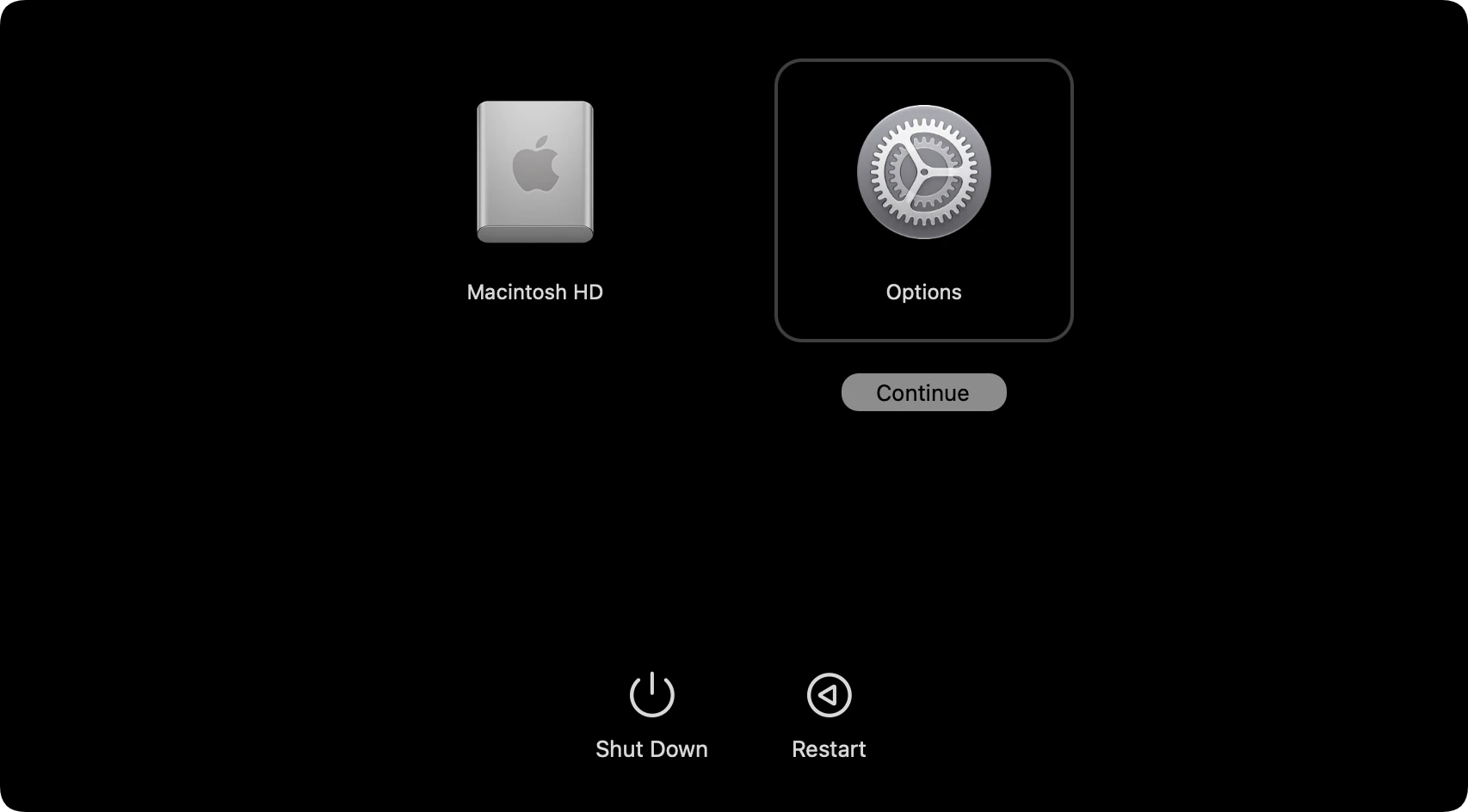
Step 4: Release the power button when you see the startup options screen, showing your hard drives and a gear icon labeled Options.
Step 5: Click on the Options gear icon, then click Continue. Log in with your admin password if prompted.
What You Can Do in macOS Recovery Mode
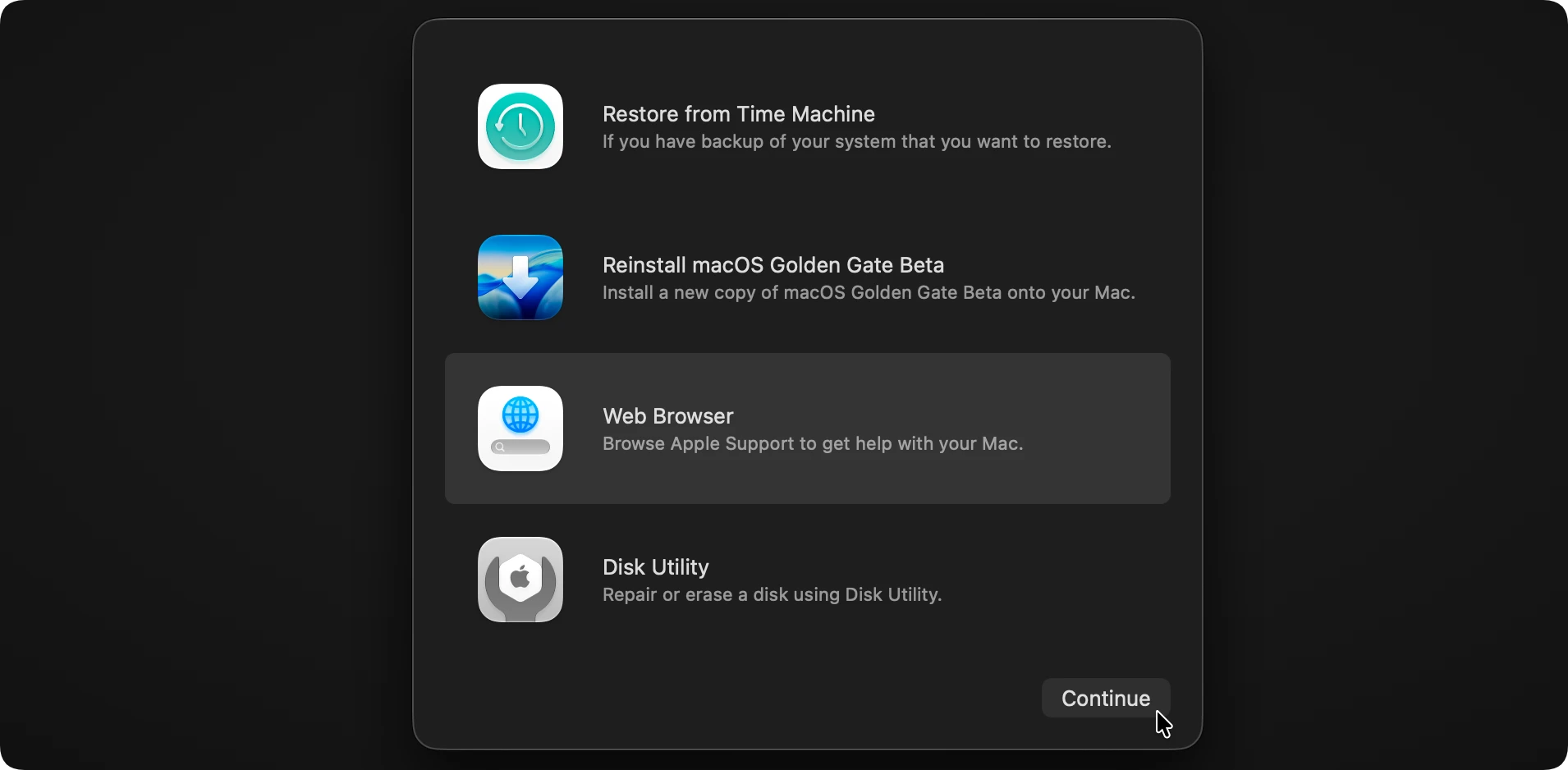
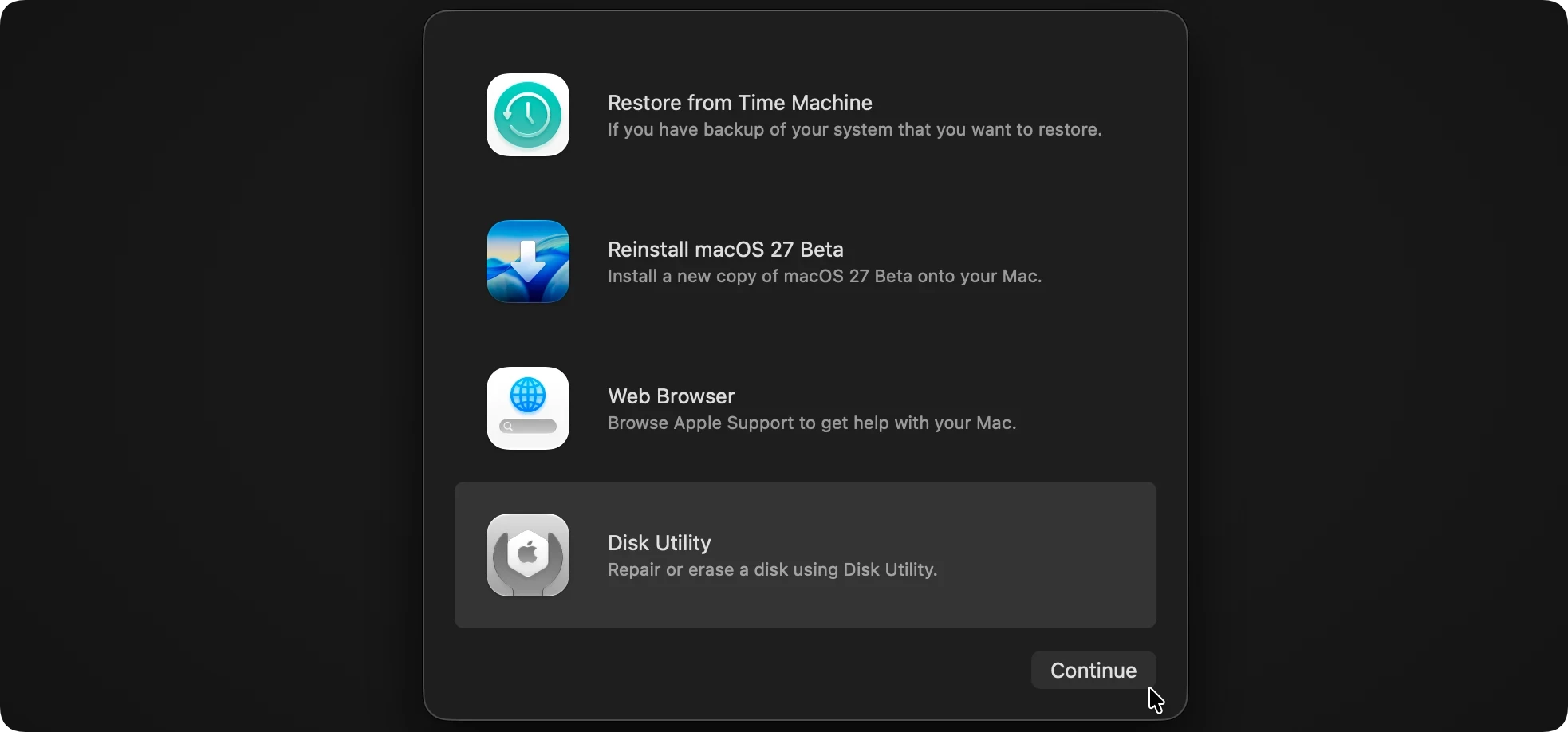
Once you are logged into the macOS Recovery environment, you will see a main window featuring four powerful diagnostic and repair tools. Let's look at exactly what these built-in apps can do for you.
A. Restore from Time Machine Backup
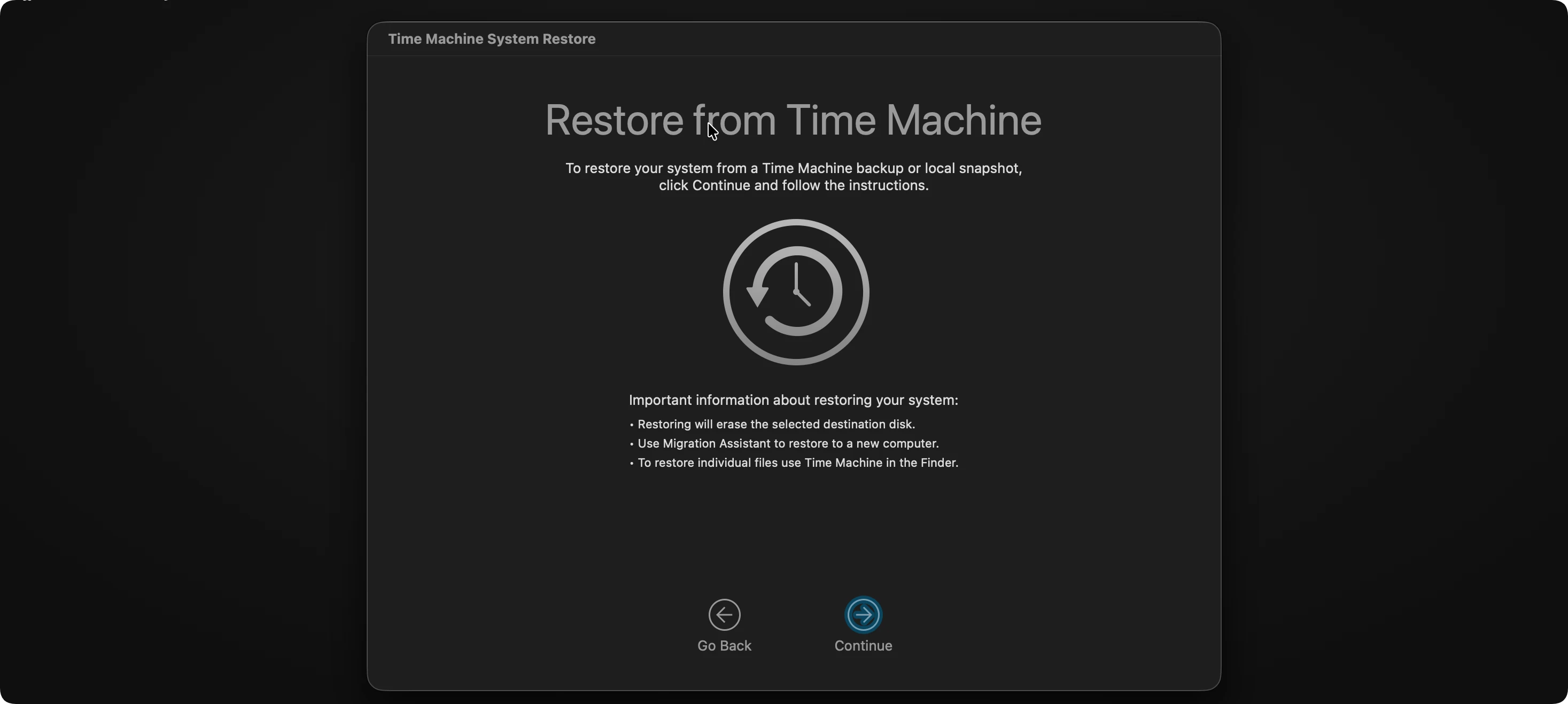
If your system is behaving poorly after a bad update, or you lost some system files, you can restore your entire Mac to a previously saved point.
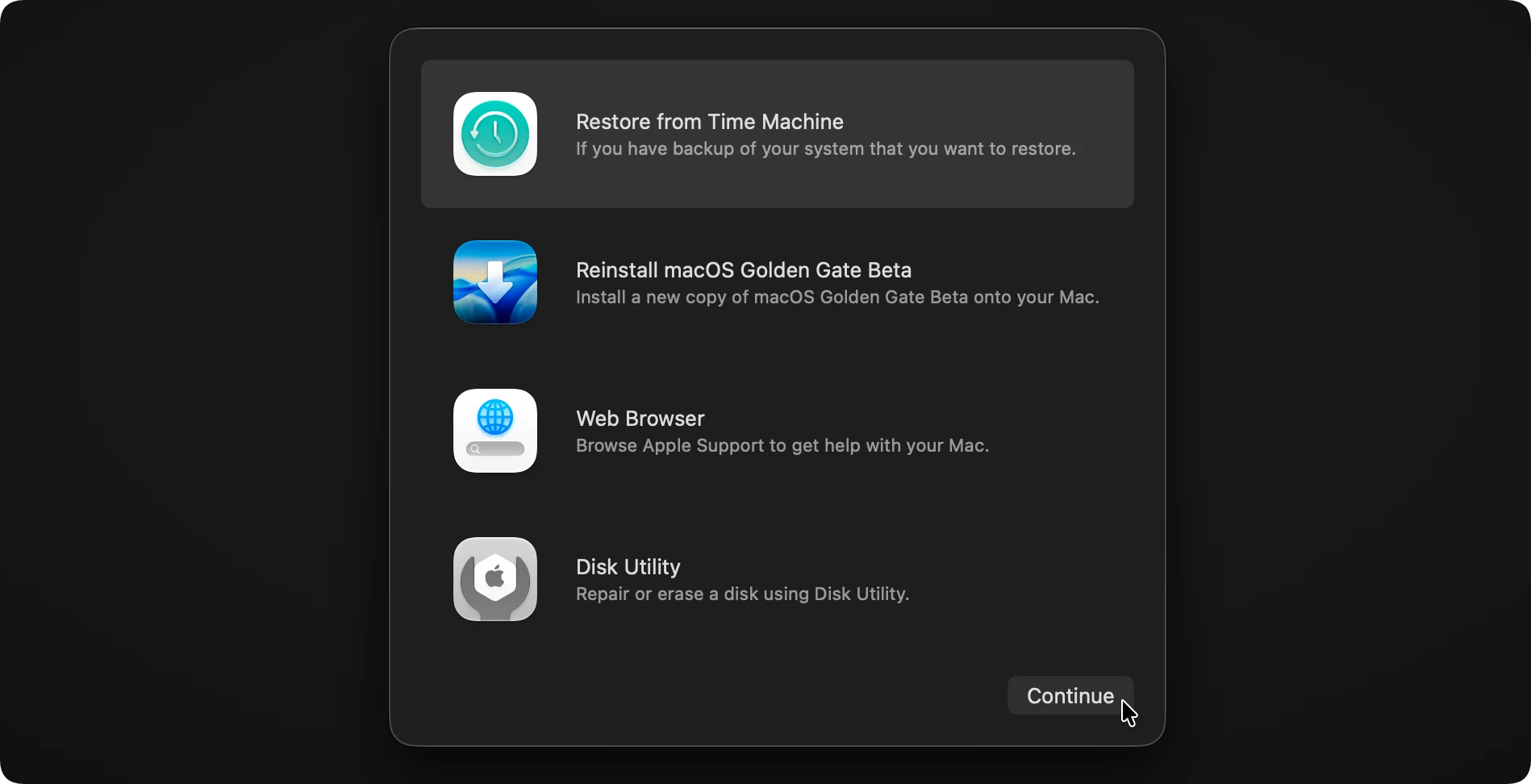
Simply connect your external Time Machine backup drive, choose this option, and follow the simple on-screen wizard to roll back your Mac's state without losing a single file.
B. Reinstall macOS 27 Golden Gate
This option lets you download and install a fresh copy of macOS 27 Golden Gate directly onto your drive.
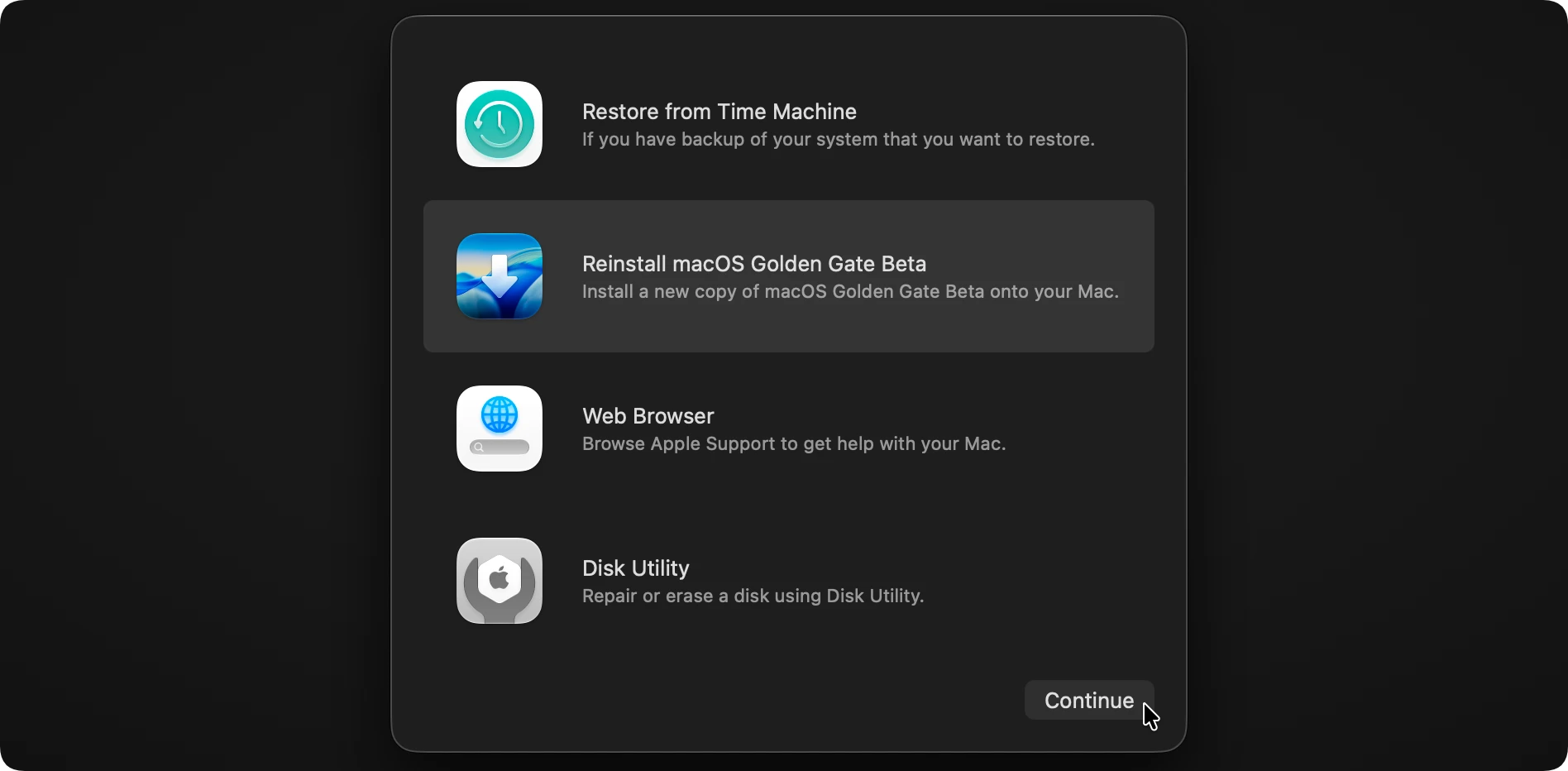
The beautiful thing about doing this is that it reinstalls the operating system system files without touching your personal documents, photos, or apps. It’s perfect for clearing out corrupted OS files that are causing persistent system-wide bugs.

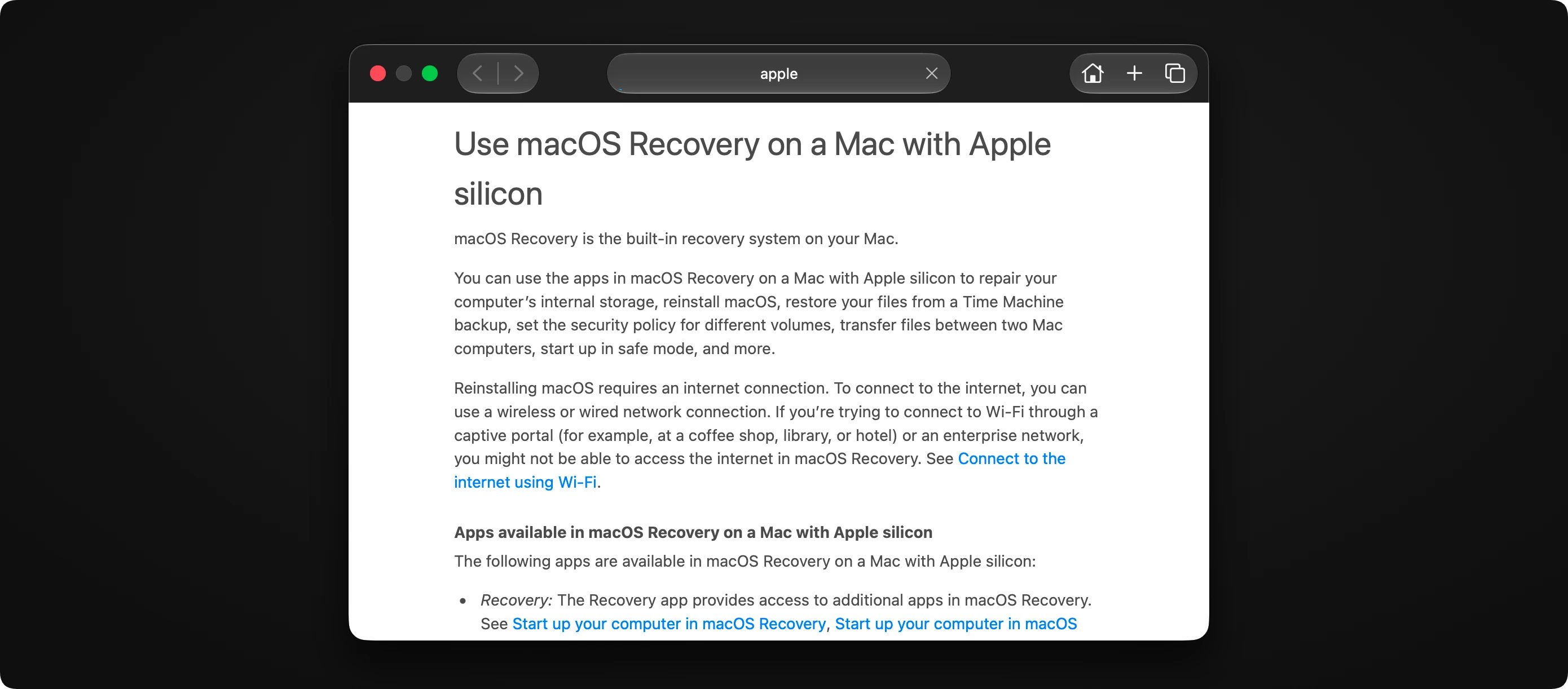
C. Browse Safari
Need to search for a specific error code or read an Apple support guide online? The Safari browser inside macOS Recovery is fully functional.
It has direct access to the internet (you can connect to Wi-Fi using the status bar at the top right) so you can research problems without needing a second device nearby.
D. Disk Utility
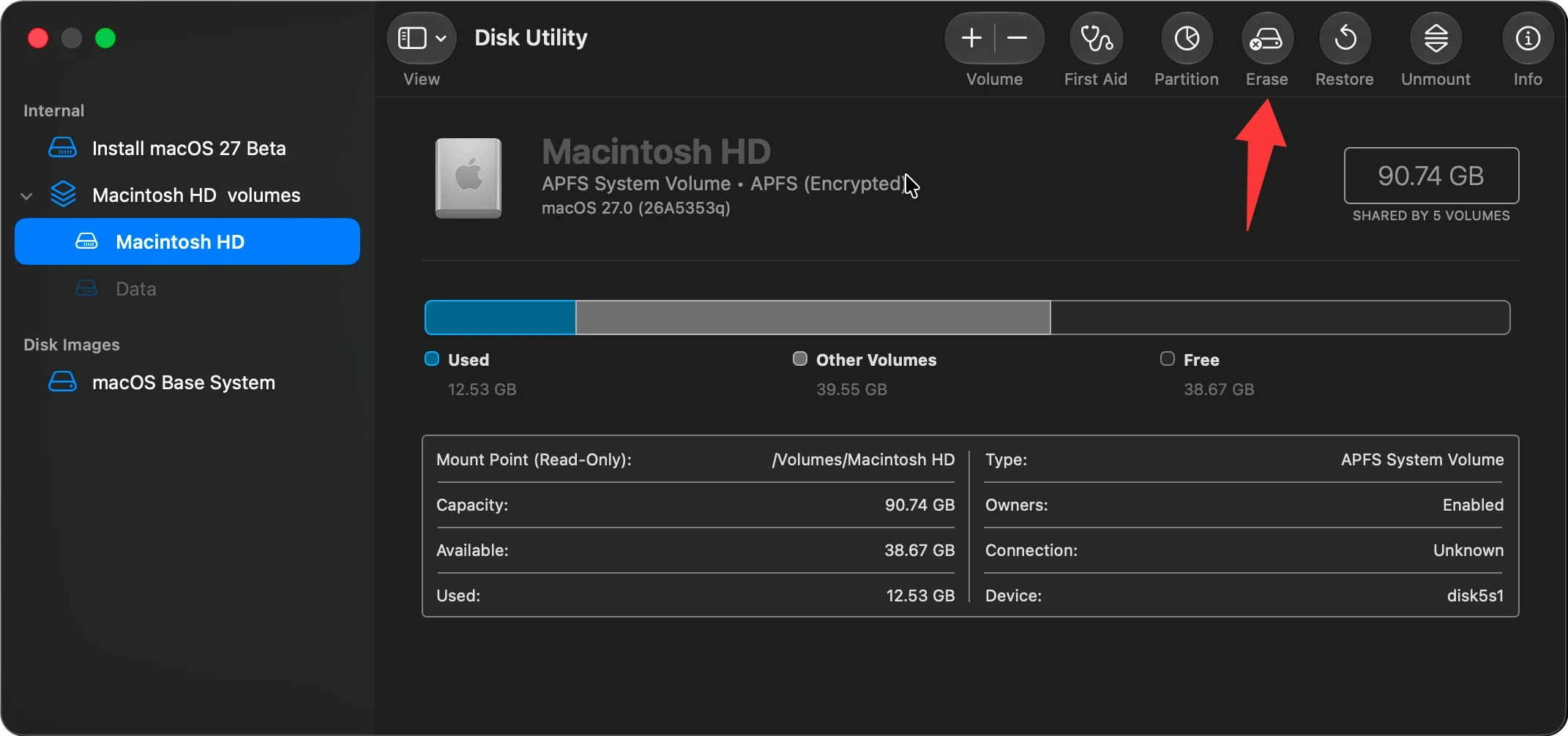
Disk Utility is your Mac's digital mechanic. If your system won’t boot up, Disk Utility can run a "First Aid" check to scan your internal startup disk for errors and repair them instantly.
It also allows you to securely erase your hard drive or create new partitions if you need to perform a completely clean operating system installation.
Advanced Tools Hidden in the Recovery Menu Bar
While the main window shows the four primary applications, the menu bar at the top of your screen hides several advanced tools that can help power users diagnose tricky issues:
Terminal: This gives you command-line access to your entire startup disk. You can copy files, change system attributes, or launch advanced data recovery operations directly.

Startup Security Utility: Allows you to manage firmware passwords or control whether your Mac can boot up from external drives (like a bootable USB installer).

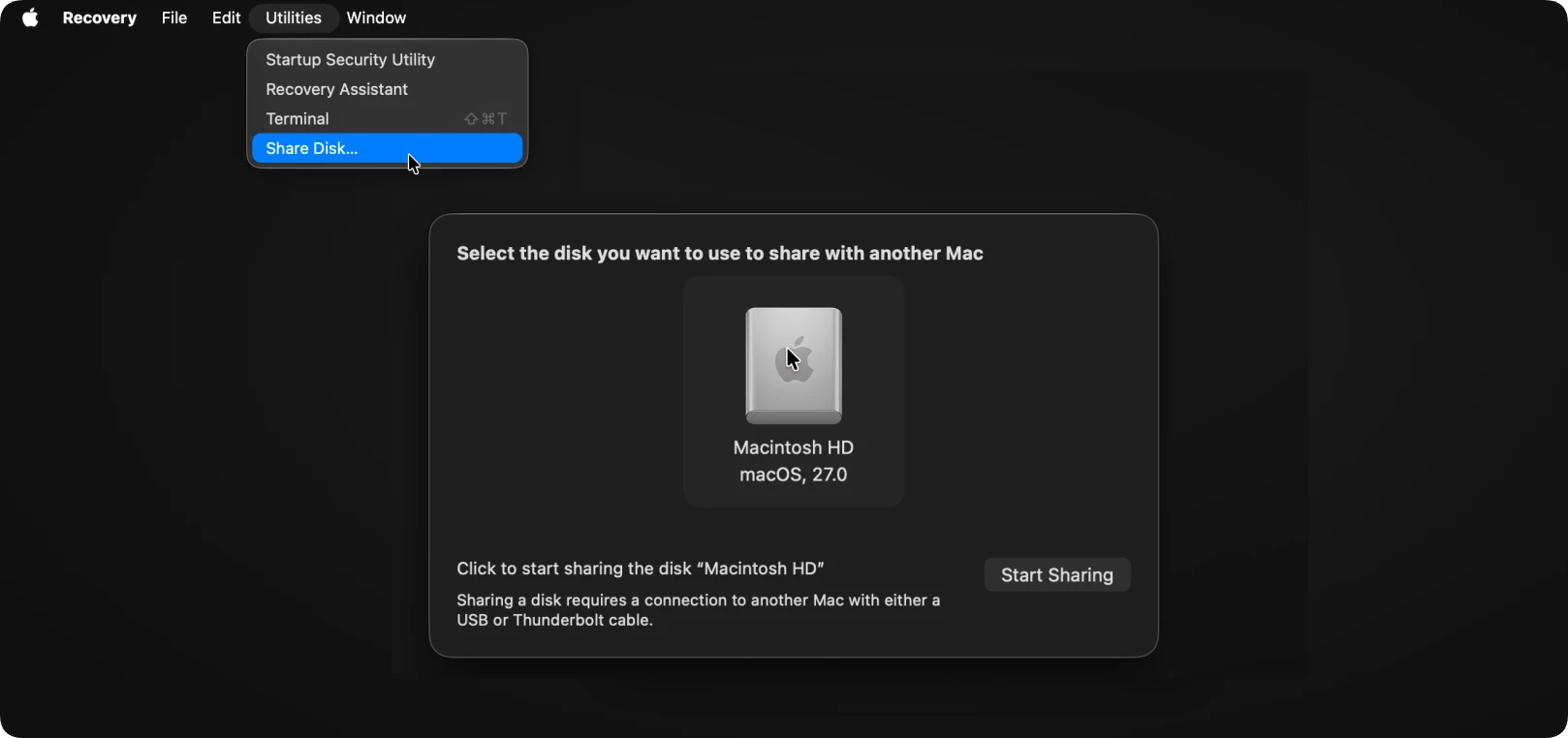
Share Disk: Turns your Apple Silicon Mac into an external drive, allowing you to connect it to another Mac via Thunderbolt and copy your files off it before initiating a clean reinstall.
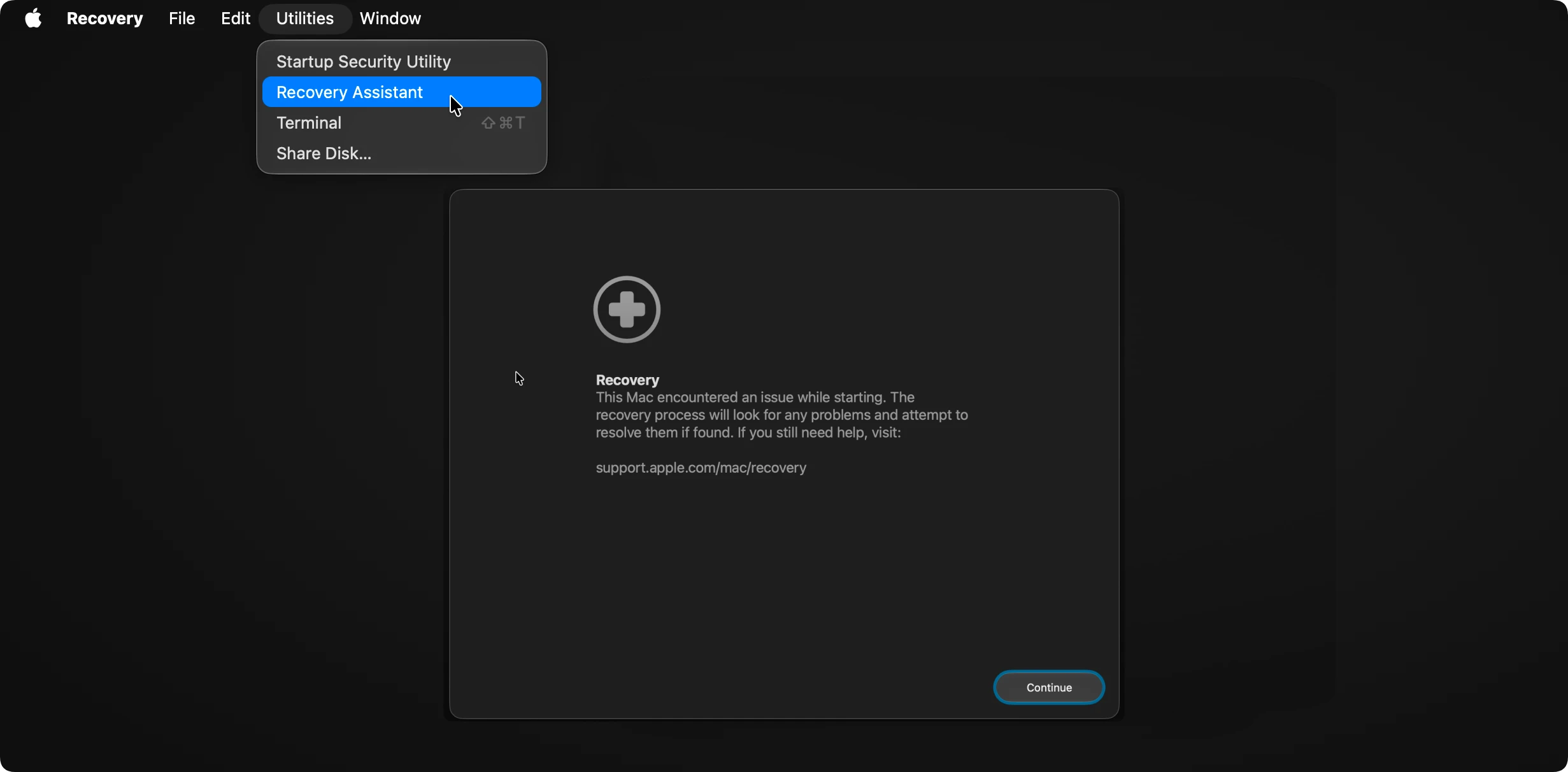
Recovery Assistant: The Recovery Assistant in macOS serves two primary purposes depending on when you encounter it: it acts as an automated self-repair system during boot failures, and it functions as a security/access gateway when you are locked out of your Mac.
What to Do If Your Mac Won't Start Up in Recovery Mode
What happens if you try the steps above and nothing works? Sometimes, severe hard drive damage or firmware issues can block standard recovery. If that happens, do not panic. You have another excellent option left:
Use Fallback Recovery (Apple Silicon): Apple Silicon Macs have a built-in secondary fallback recovery mode. To access it, shut down your Mac, then press the Power button twice in rapid succession. On the second press, hold the button down until the screen loads.
Please note that you cannot change the Startup Security Policy in Fallback Recovery mode.

Final Thought
While reinstalling macOS 27 Golden Gate via Recovery Mode generally leaves your personal data untouched, system errors, accidental formatting, or drive repair failures can sometimes cause sudden data loss. Before performing any major disk actions, always ensure you have a backup.
If the unthinkable happens and you find that files are missing after a recovery session, do not write new data to your Mac. Instead, use a reliable tool like Do Your Data Recovery for Mac. This powerful software can scan formatted APFS drives, recover lost files from unbootable Macs, and safely rescue your photos, documents, and videos even if macOS Recovery could not fix the underlying drive issue.
Do Your Data Recovery for Mac
Do Your Data Recovery for Mac, one of the best Mac data recovery software, can help you easily and completely recover deleted, formatted or lost files from Mac HDD/SSD, external HDD/SDD, USB drive, memory card, digital camera, or other storage devices.
FAQs about macOS Recovery Mode
Written & Updated by Ricky Lin
Ricky Lin is an senior editor of DoYourData who lives in Adelaide, Australia. He is interested in writing technology articles related with data recovery, computer issue fixes, disk clone, iPhone data recovery, video edit, Mac optimization, etc. He Joined DoYourData in 2019 and have written 500+ articles to help both Windows users and Mac users to solve data or computer problems.