How to Run Partition Recovery on Apple Computer?
Do Your Data Recovery searches a storage device for file data and traces of lost files, rather than relying only on the current file system's directory records. It can help when a partition has been deleted, become inaccessible, or lost its file system information.
 Updated by Justin Kenny on Novmeber 19, 2026
Quick Navigation:
- Why Might a Mac Partition Disappear?
- What to Do Before Scanning Lost Partition
- How to Choose a Mac Partition Recovery Application
- Partition Recovery With Do Your Data Recovery for Mac
- Common Mistakes to Avoid for Partition Recovery
- FAQs about Partition Recovery on Apple Computer
- Conclusion
A deep scan does not repair every partition or guarantee that every file can be restored. Recovery depends on what happened to the drive, whether new data has overwritten the old data, and whether the file system or storage hardware remains readable.
For Mac users, "partition recovery" often means recovering files from a missing or inaccessible volume. It does not always mean restoring the partition itself so that it appears exactly as before.
In this guide, we will show you how to download deep scan partition recovery application for Apple computer and recover the files step by step.
Why Might a Mac Partition Disappear?
A partition can become unavailable for several reasons. Some are caused by software or user actions; others may point to a failing drive.
| Possible cause | What you may notice | First step |
|---|---|---|
| Accidental deletion | A volume is missing after using Disk Utility | Stop writing data to the drive |
| Partition or file system damage | The volume appears but will not mount | Avoid formatting or repair attempts that could change data |
| macOS update or system issue | A volume is missing after an update or restart | Check Disk Utility and reconnect external devices |
| Drive connection problem | An external disk appears inconsistently | Try a different cable, port, or power supply |
| Hardware failure | The drive makes unusual noises or disconnects repeatedly | Stop using it and consider professional recovery |
A missing volume does not always mean that its data is gone. First check whether macOS can still detect the physical device. If the device itself is not listed, the issue may be hardware-related rather than a simple deleted partition.
What to Do Before Scanning Lost Partition
The first priority is to prevent further changes to the affected drive. New downloads, app installations, file copies, and even routine computer use can write data to storage and reduce the chance of recovering deleted files.
Follow these steps before starting recovery:
- Stop saving files to the affected drive. If the missing partition is on the Mac's internal disk, minimize use of that Mac.
- Check whether the device is detected. Open Disk Utility and choose View > Show All Devices. Look for the physical drive and its volumes.
- Do not erase or reformat the drive. These actions can alter file system information and make recovery harder.
- Avoid creating a new partition on the affected device. A new partition may overwrite data associated with the lost one.
- Prepare a separate destination drive. Recovered files should be saved somewhere other than the source drive.
If the drive is clicking, unusually hot, or disconnecting repeatedly, stop scanning it. A failing device may deteriorate further under prolonged use. A professional recovery service may be the safer choice when the files are valuable or irreplaceable.
How to Choose a Mac Partition Recovery Application
Before downloading a recovery tool, check that it supports your Mac and the type of storage you need to scan. A suitable application should make it clear which disk is the source, allow you to inspect found files when possible, and let you save recovered data to another location.
Use this checklist:
- Confirm macOS compatibility. Check the developer's current system requirements before installing.
- Check supported storage and file systems. Verify support for the Mac's internal or external drive and its format.
- Look for scan results before recovery. Previewing files can help you judge whether the scan found the data you need.
- Understand the recovery limits. No application can guarantee recovery from overwritten data or a physically failed drive.
- Save to a different device. A recovery tool should not write recovered files back to the source drive.
- Review privacy and licensing details. Download from the developer's official website and read the current terms.
For Apple silicon and newer macOS releases, also check whether the application requires permissions or additional steps to access a disk. Follow the software provider's current instructions rather than changing security settings without understanding the effect.
Partition Recovery With Do Your Data Recovery for Mac
Do Your Data Recovery for Mac is a Mac data recovery application that can scan storage devices for lost files. It can be used to look for files associated with deleted or inaccessible partitions on a Mac, subject to the condition of the drive and the software's supported devices and file systems.
Step 1. Download the recovery application and install it on your Mac computer. Connect the affected drive. For an external disk, check its cable and power connection. If the Mac's internal drive is affected, keep normal computer use to a minimum.
Do Your Data Recovery for Mac
- Reliable and easy-to-use Mac data recovery software.
- Recover data from lost partition, inaccessible partition, etc.
- Support latest macOS and Apple silicon Macs.
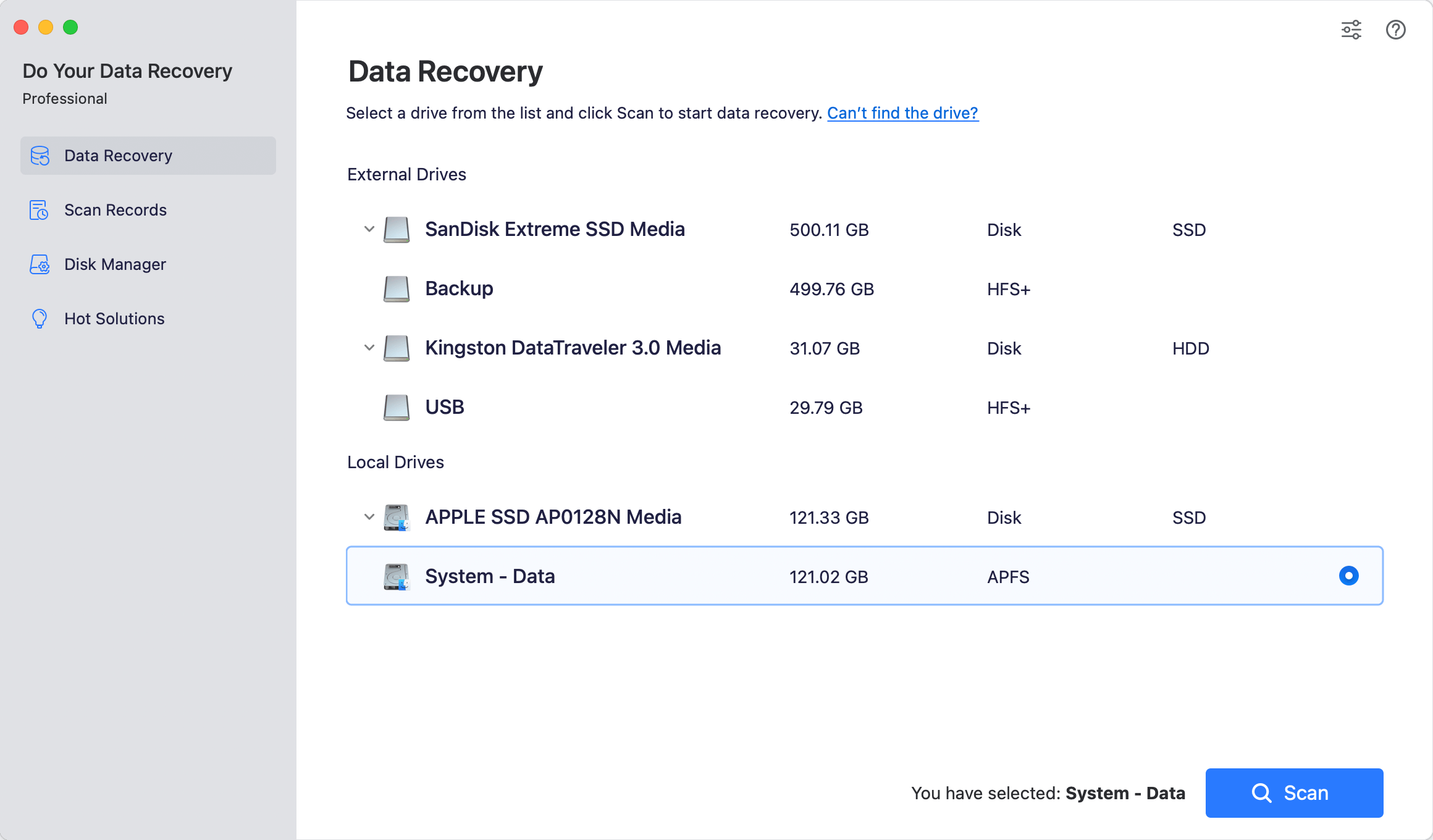
Step 2. Select the physical disk. If the partition is missing, the physical device may be the appropriate scan target. Start a scan. The software will start a deep scan automatically if the partition's file system is damaged.
Step 3. Review the results. Search by file type or name where available, and preview important files before recovery. Recover selected files to a separate drive. Do not save them to the affected device.
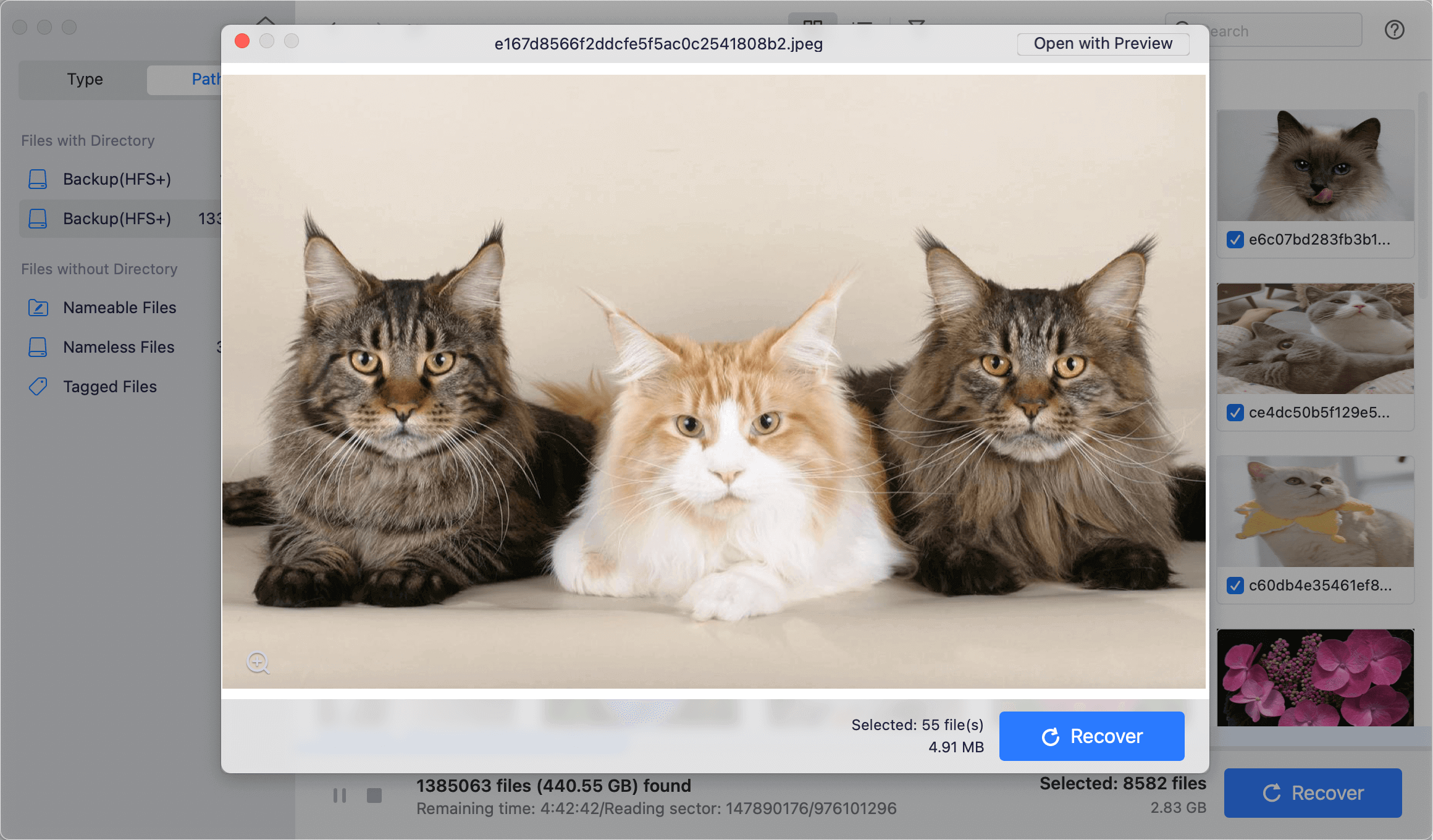
A scan can take a long time, especially on large drives. Keep the Mac powered and avoid disconnecting an external device while the scan is running. If the drive repeatedly disconnects or produces unusual sounds, stop and reassess instead of restarting the scan again and again.
Common Mistakes to Avoid for Partition Recovery
Several well-intentioned actions can reduce the chance of successful recovery. Avoid these steps until you have recovered the important files or made an appropriate backup:
- Do not format the missing volume just because macOS prompts you to initialize a disk.
- Do not save recovered files to the source drive. This can overwrite other data that may still be recoverable.
- Do not repeatedly run repair utilities on a drive that may be failing. Repairs can change disk structures, and repeated access can stress hardware.
- Do not install recovery software on the affected partition. Installation writes data to the disk.
- Do not assume that a scan result means every file is intact. Preview files or open recovered copies from the destination drive.
- Do not disconnect a drive during a scan or recovery operation. Wait for the application to finish or stop it safely.
FAQs about Partition Recovery on Apple Computer
Conclusion:
If a partition disappears from a Mac, stop using the affected drive and avoid formatting or repartitioning it. A deep scan recovery application can search for recoverable files that a quick scan misses. Do Your Data Recovery for Mac is one option for scanning a drive, previewing found files, and recovering data from a lost partition.
Do Your Data Recovery for Mac
Do Your Data Recovery for Mac, one of the best Mac data recovery software, can help you easily and completely recover deleted, formatted or lost files from Mac HDD/SSD, external HDD/SDD, USB drive, memory card, digital camera, or other storage devices.
Written & Updated by Justin Kenny
Justin Kenny is a writer & editor of DoYourData. He joined DoYourData in 2016 and focuses on writing articles about Windows data recovery, Mac data recovery, external device data recovery, hard drive clone, data erasure, Mac cleanup, computer issue fixes, etc. He is a super fan of Apple devices and is big on testing new digital device and system utility software.