Free Apple Silicon Data Recovery Software: Download, Scan, and Recover Files
Quick answer: If you need free Apple Silicon data recovery software, Do Your Data Recovery for Mac Free can scan a drive, display found files for preview, and recover up to 1 GB of data at no cost. It supports Apple silicon Macs, including M1, M2, M3, M4, M5, and M6 models.
 Updated by Justin Kenny on Novmeber 18, 2026
Quick Navigation:
- Download Do Your Data Recovery for Mac Free
- What Is Apple Silicon Data Recovery?
- How to Scan an Apple Silicon Mac for Free
- How to Improve the Chance of Recovery
- FAQs about Free Data Recovery for Apple Silicon Mac
- Final Takeaway
Searching for "free Apple Silicon data recovery software download full version scan" usually means you want to check whether missing files are recoverable before paying. Do Your Data Recovery for Mac Free lets you scan and preview found files for free, then recover up to 1 GB in total at no cost. That is useful for evaluating recovery results or restoring a small amount of data.
Download Do Your Data Recovery for Mac Free
Downloading from the developer's site helps you avoid repackaged installers and unofficial copies. Check the product page for current macOS compatibility and installation details before proceeding.
Do Your Data Recovery for Mac
- Free but reliable data recovery software for macOS.
- Fully compatible with Apple silicon Macs.
- Recover up to 1 GB files totally for free.
The free version is designed to help you inspect a drive before deciding what to do next. It can scan for recoverable files, show results for preview, and restore up to 1 GB in total for free. This can be enough for documents or a selection of photos, but it may not cover a large photo library or a substantial video collection.
What Does "Full Version Scan" Mean?
Some people use "full version scan" to mean a complete scan that finds files before they decide whether to buy recovery software. In this context, Do Your Data Recovery for Mac Free lets you scan and preview the found files without paying. The free recovery allowance is limited to 1 GB.
Scanning and recovering are different steps. A scan looks for data that may still be recoverable; recovery writes selected files to a destination you choose. Seeing a file in scan results does not guarantee that its contents are intact, so preview important items before restoring them.
| Feature | Do Your Data Recovery for Mac Free |
|---|---|
| Scan a drive | Yes |
| Preview found files | Yes |
| Recover files for free | Up to 1 GB total |
| Recover beyond the free limit | Requires a paid option |
| Supported Mac type | Apple silicon Macs; confirm compatibility on the official page |
| Recommended recovery destination | A separate external drive |
What Is Apple Silicon Data Recovery?
Apple silicon is Apple's processor family used in newer Mac computers, including Macs with M1, M2, M3, M4, M5, and M6 chips. Data recovery on these Macs involves more than the processor: the storage device, macOS version, file system, encryption, and the way data was lost can all affect the result.
Recovery software searches selected storage for data that the operating system no longer shows as an ordinary file. A result may be recoverable if its data has not been overwritten or otherwise made unavailable. This is why stopping unnecessary use of the affected drive is important.
Modern Macs may use SSD storage, encryption, and system security features that affect recovery. No software can promise that every deleted or lost file will be restored. If you can recover an item from a backup or cloud account, that is often the simpler option.
When Can Recovery Software Help?
A scan may help when files disappear after accidental deletion, emptying the Trash, formatting a supported external drive, or a file-system problem. It may also help find files on a USB drive or memory card that is readable by the Mac.
Recovery may be limited if the storage is physically damaged, the data has been overwritten, or the drive cannot be accessed. If a drive makes unusual noises, repeatedly disconnects, or reports hardware errors, stop scanning it. Repeated attempts can put additional stress on a failing device.
Before scanning, consider these common situations:
- Deleted files: Stop saving new data to the volume where the files were stored.
- Emptied Trash: Check Time Machine and cloud backups, then scan if you have no usable copy.
- External drive or memory card: Stop using it and do not take new photos or copy files to it.
- Formatted storage: Avoid creating partitions or copying new files to the formatted device.
- Unreadable or physically failing drive: Stop using it and consider professional data recovery.
How to Scan an Apple Silicon Mac for Free
The safest general approach is to download the software from the official page, scan the affected storage, preview the results, and recover selected files to a separate destination. Do not install the recovery application or save recovered items to the same drive you are trying to recover from if you can avoid it.
Avoid downloads, file transfers, app installations, and other activity that writes data to it. Look in Time Machine, iCloud, and any external or online backup service you use.
Step 1. Download the free software. Use the official Do Your Data Recovery for Mac Free page. Follow the product's current installation instructions for your Mac and macOS version.
Step 2. Select the affected drive or location. Choose the volume where the missing files were stored. Allow it to finish so the results can be reviewed.
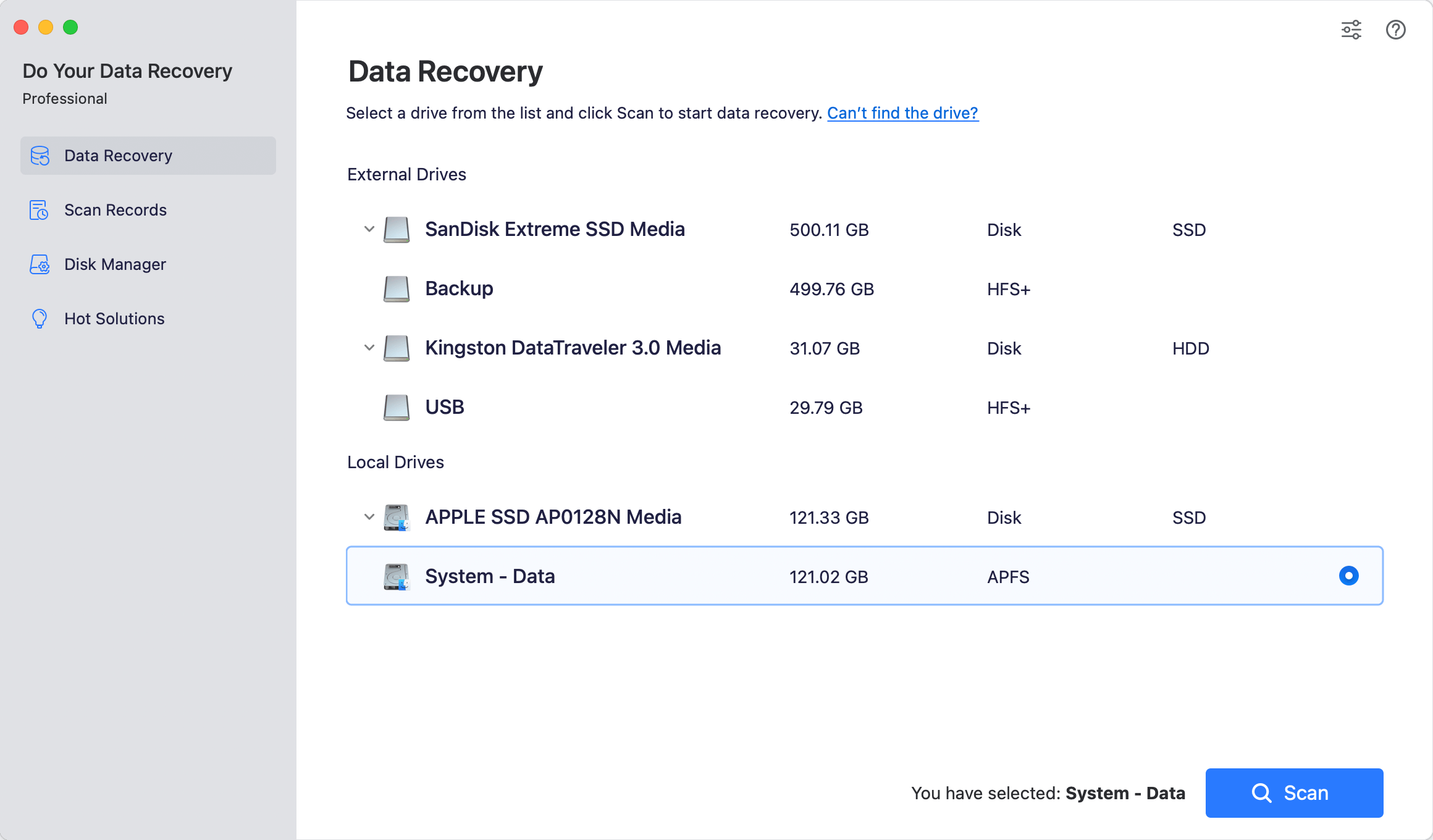
Step 3. Filter and preview files. Search by file type or name where possible, and preview important items to check their contents.
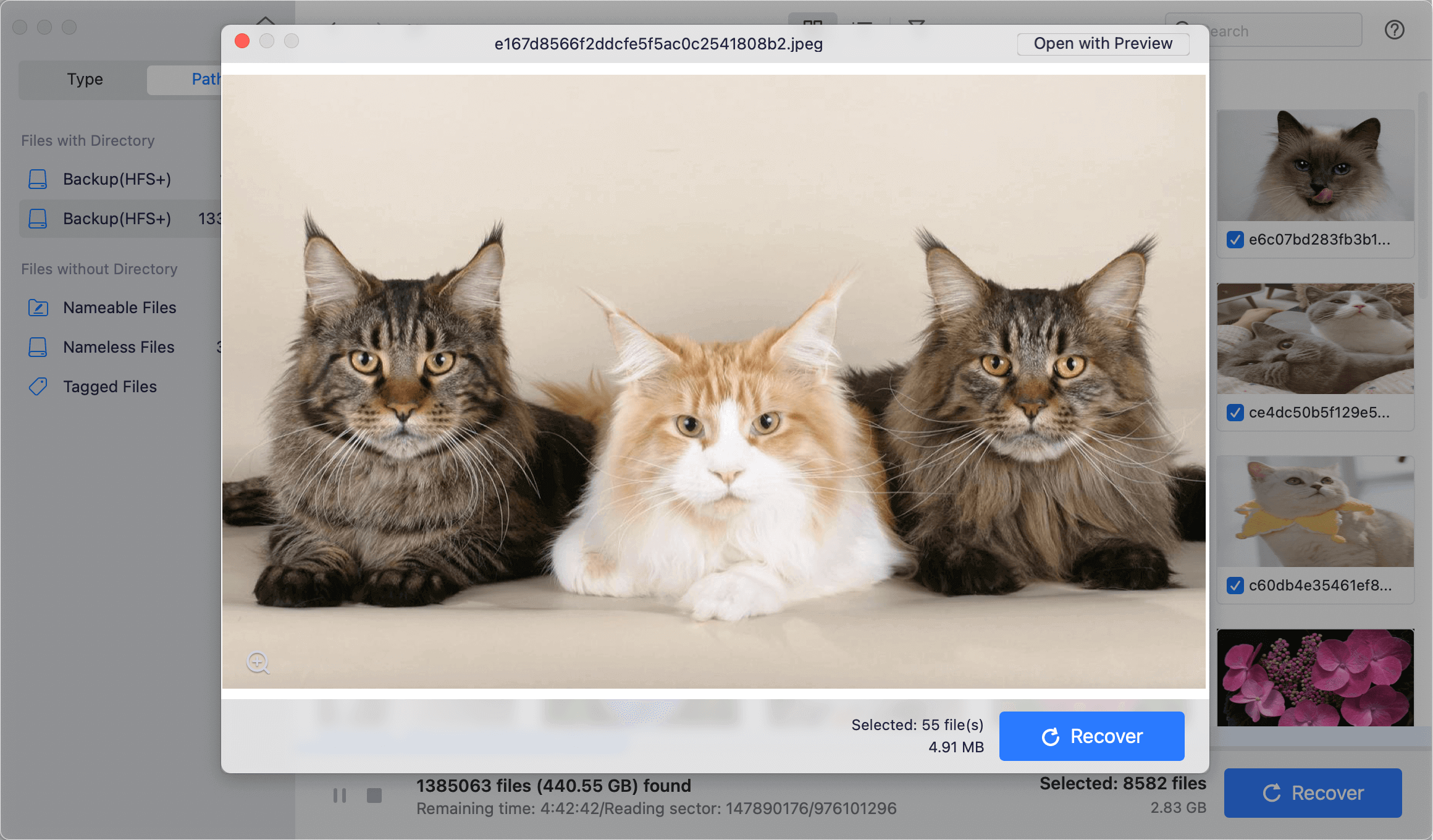
Step 4. Select the files to restore. Keep track of the free 1 GB recovery allowance. Save recovered files to an external drive or a different storage device. Open a sample of photos, documents, and videos to confirm they work.
The exact screens and available options may vary by software version and macOS release. Follow the instructions shown in the application and on the official product page.
How to Improve the Chance of Recovery
Time matters after data loss because continued use can overwrite data that recovery software might otherwise find. Stop writing to the affected drive as soon as you notice files are missing.
Use these precautions:
- Do not install recovery software on the affected volume when another destination is available.
- Do not save recovered files back to the drive being scanned.
- Do not format, repartition, or clean the drive before checking backups or scanning it.
- Avoid repeated scans if the drive appears physically damaged.
- Use a separate external drive with enough free space for the files you plan to restore.
- Make a backup of recovered files as soon as you confirm they are usable.
These steps cannot guarantee recovery, but they reduce avoidable writes and help protect any data that remains.
FAQs about Free Data Recovery for Apple Silicon Mac
Final Takeaway
Do Your Data Recovery for Mac Free gives Apple silicon Mac users a way to scan storage, preview found files, and recover up to 1 GB at no cost. Download it from the official product page, check backups first, and save recovered files to a separate drive. Recovery depends on the condition of the storage and whether the missing data is still available.
Do Your Data Recovery for Mac
Do Your Data Recovery for Mac, one of the best Mac data recovery software, can help you easily and completely recover deleted, formatted or lost files from Mac HDD/SSD, external HDD/SDD, USB drive, memory card, digital camera, or other storage devices.
Written & Updated by Justin Kenny
Justin Kenny is a writer & editor of DoYourData. He joined DoYourData in 2016 and focuses on writing articles about Windows data recovery, Mac data recovery, external device data recovery, hard drive clone, data erasure, Mac cleanup, computer issue fixes, etc. He is a super fan of Apple devices and is big on testing new digital device and system utility software.