Recover Lost Recordings from Formatted Thunderbolt Drives on Mac
You may be able to retrieve lost recordings from formatted external Thunderbolt drives on Mac with Do Your Data Recovery for Mac, provided the lost data has not been overwritten. Stop using the drive immediately, connect it directly to your Mac, scan it with recovery software, preview the results, and save recovered recordings to a different storage device.
 Updated by Justin Kenny on Novmeber 20, 2026
Quick Navigation:
- What to Do Immediately After Formatting Thunderbolt Drive
- Recover Data with Do Your Data Recovery for Mac
- What If Recovered Recordings Have Generic Names?
- Prevent Future Recording Loss on Mac
- FAQs about Data Recovery for Formatted Thunderbolt Drive
- Final Takeaway
Formatting an external Thunderbolt drive does not always erase every recording immediately. In many cases, formatting removes the file system information that tells macOS where files are located, while some recording data remains on the drive.
You can often retrieve lost recordings from formatted external Thunderbolt drives on Mac by using professional data recovery software. The chances of recovery depend on the type of format, whether new data has been written, the drive's file system, and whether the drive is an SSD with TRIM enabled.
Do Your Data Recovery for Mac can scan formatted external drives and search for recoverable video, audio, screen recordings, and other media files. It supports common Mac-compatible file systems, including APFS, HFS+, exFAT, FAT32, and NTFS.
What to Do Immediately After Formatting Thunderbolt Drive
The most important recovery step is to stop using the formatted Thunderbolt drive. Every new file copied to the drive may overwrite recoverable recording data.
Follow these steps before starting a scan:
- Disconnect the formatted Thunderbolt drive from your Mac.
- Do not copy, move, or download files to the drive.
- Do not install recovery software on the affected drive.
- Do not reformat the drive again.
- Do not run disk repair tools before attempting data recovery.
- Prepare another drive with enough free space to store the recovered recordings.
The recovery software should be installed on your Mac's internal storage or another healthy drive. Recovered files should also be saved to a different location.
Can Time Machine Recover the Recordings?
Time Machine may restore recordings if the files were included in a previous backup. Connect the Time Machine backup disk, open the folder where the recordings were stored, and browse older snapshots.
Cloud storage, NAS backups, editing application libraries, and duplicate project drives may also contain copies. Check these locations before performing extensive recovery work.
However, a backup created after the formatting event may not contain the original recordings. Confirm the backup date and open a few files to verify that the recordings are complete.
Recover Data with Do Your Data Recovery for Mac
Do Your Data Recovery for Mac is designed to recover deleted, formatted, and inaccessible files from Mac storage devices and external drives. It can scan the formatted Thunderbolt drive and identify recoverable recordings based on file system information and file signatures.
The software may find:
- MP4, MOV, AVI, MKV, and other video files
- M4A, WAV, AIFF, MP3, and other audio files
- Screen recordings
- Camera recordings
- Podcast files
- Voice memos
- Music production sessions
- Photos and project files stored with the recordings
The software cannot guarantee recovery in every situation. Recovery depends on the condition of the drive and whether the original data has been overwritten.
How to Retrieve Lost Recordings from a Formatted Thunderbolt Drive
Use the following process to retrieve lost recordings from formatted external Thunderbolt drives on Mac.
1. Install the Recovery Software
Download and install Do Your Data Recovery for Mac on the Mac's internal drive or another healthy storage device. Do not install it on the formatted Thunderbolt drive.
If macOS requests permission to access storage devices, grant the required permissions. Depending on the macOS version and security settings, the application may also require Full Disk Access.
Do Your Data Recovery for Mac
- Recover data from formatted/corrupted/ drive on Mac.
- Support data recovery for videos, photos, documents, etc.
- Fully compatible with macOS 27 and Apple Silicon Macs.
2. Connect the Thunderbolt Drive
Connect the formatted drive directly to the Mac when possible. A direct connection provides a more reliable data path than an unpowered hub or an unstable adapter.
Close applications that may automatically write data to the external drive. Do not allow backup software, media libraries, or synchronization tools to begin copying files to the formatted disk.
3. Select the Formatted Drive
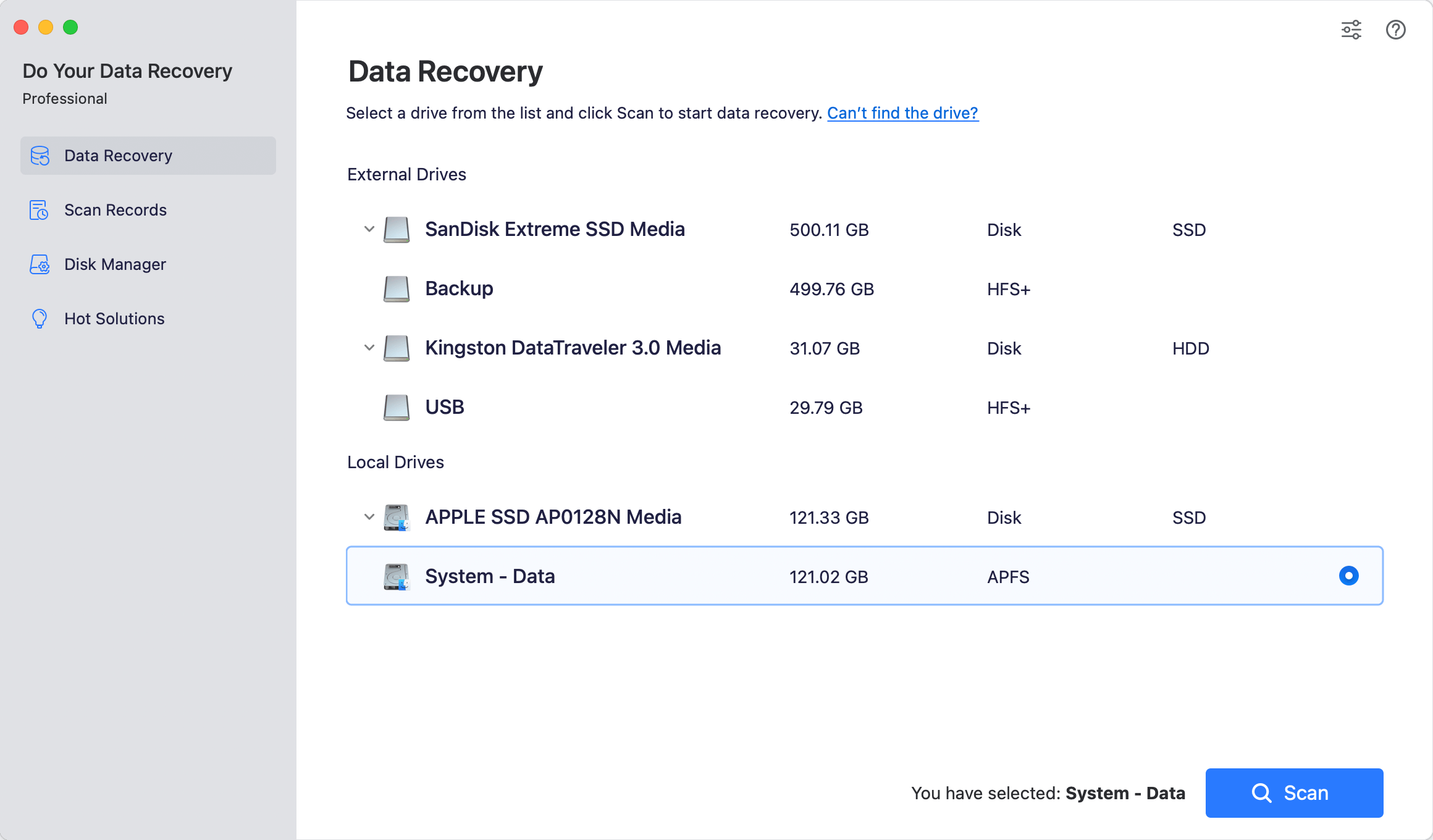
Open Do Your Data Recovery for Mac and select the physical Thunderbolt drive or the formatted volume. Selecting the physical disk can be useful when the original partition has been removed or replaced.
Choose the scan option available for formatted or lost data recovery. A quick scan may find files with remaining directory information, while a deep scan can search the drive more thoroughly.
4. Scan for Lost Recordings
Start the scan and allow it to complete. The scan may take time, especially on large-capacity drives or drives with file system damage.
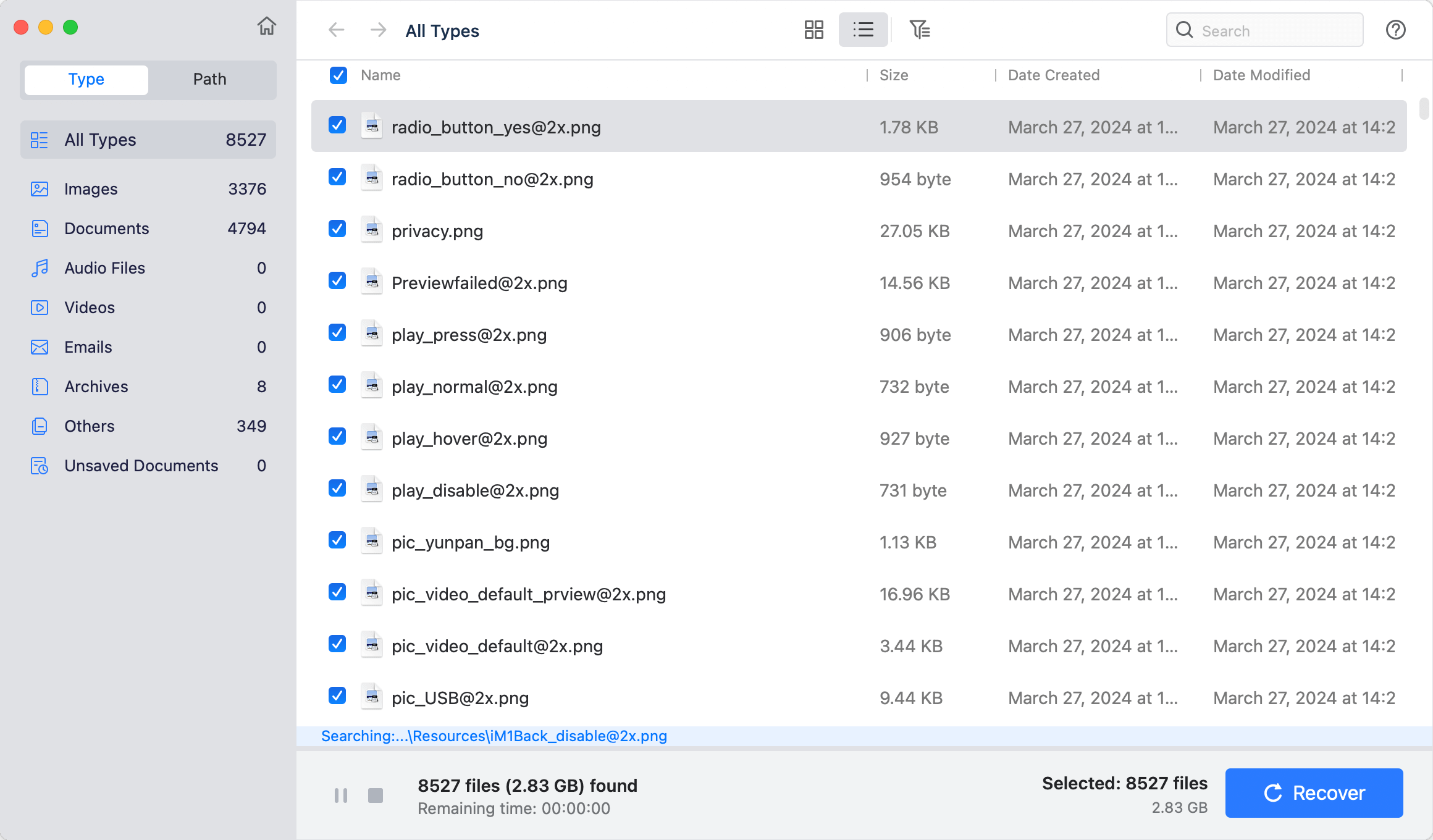
Avoid disconnecting the drive during the scan. If the drive makes unusual sounds, repeatedly disconnects, or becomes extremely slow, stop using it and consider professional hardware recovery.
5. Filter and Preview the Results
Use file type filters, search terms, file names, or file extensions to locate recordings. For example, search for MOV, MP4, WAV, M4A, or the original project name.
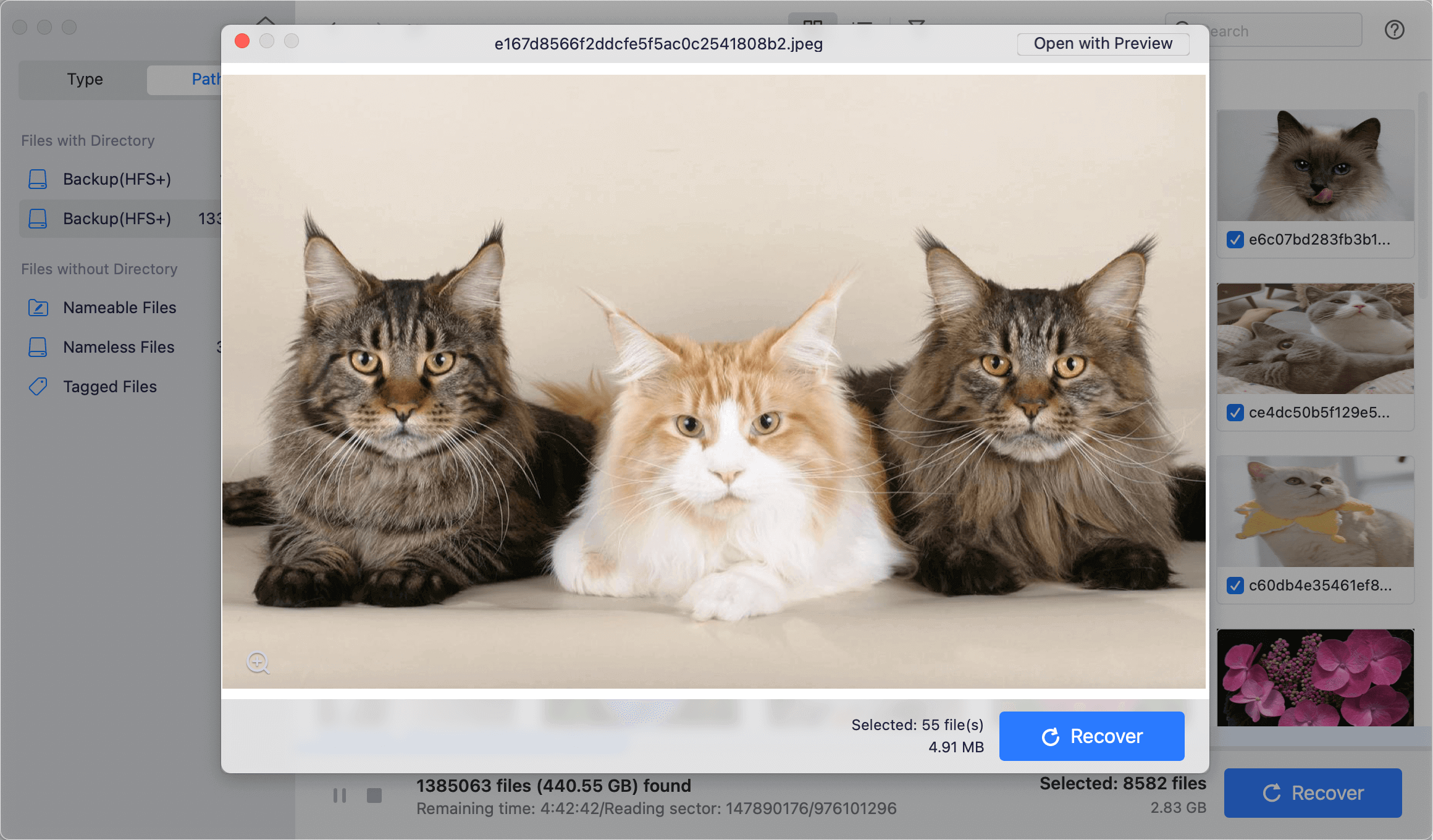
Preview recoverable files whenever possible. A preview helps confirm that a video or audio file is valid before you recover it.
6. Recover the Recordings to Another Drive
Select the recordings and click the recovery option. Save the files to your Mac's internal storage or another external drive.
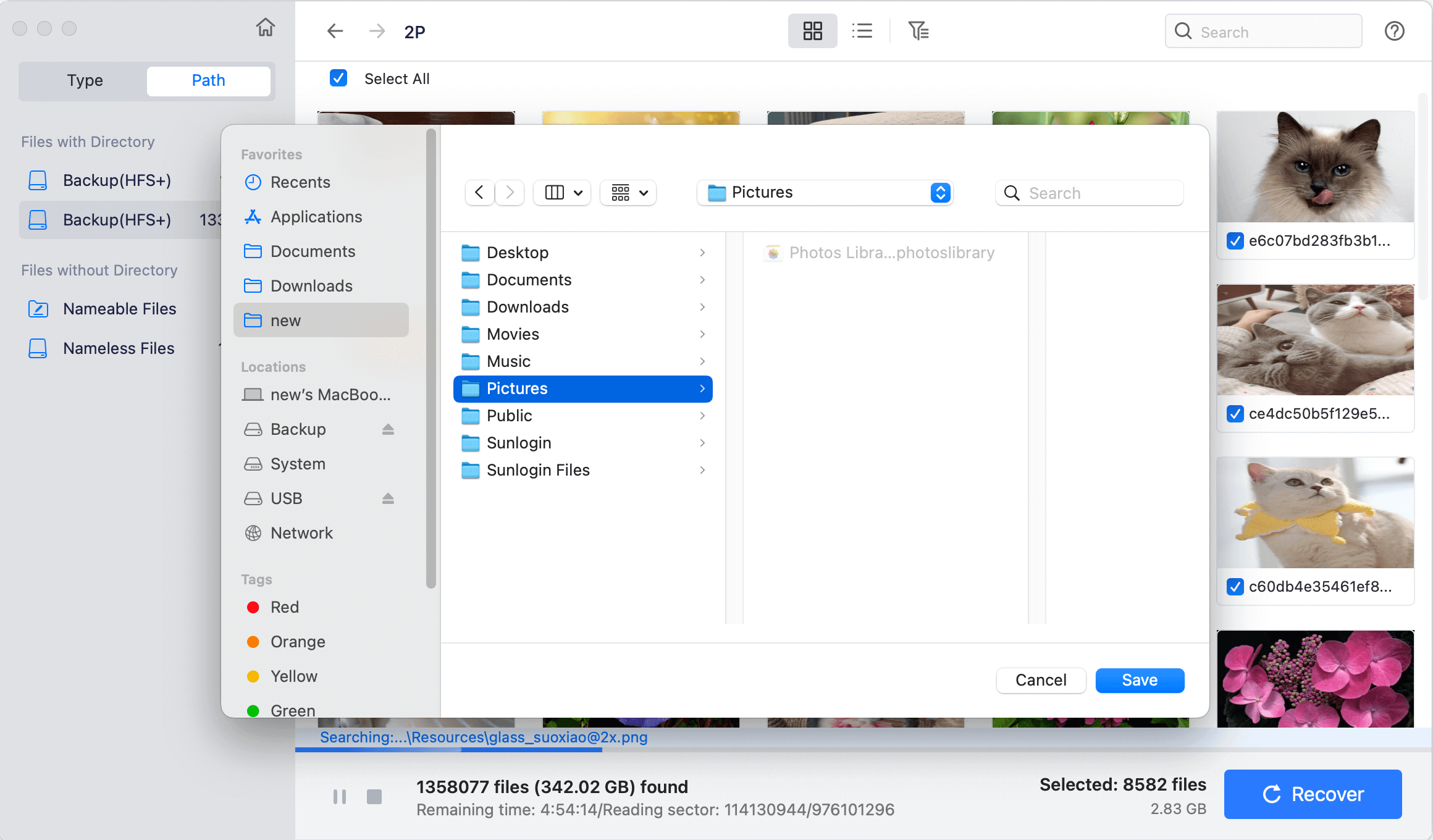
💡 Tip: Do not save recovered recordings back to the formatted Thunderbolt drive. Saving to the same drive can overwrite other recoverable files and reduce the chance of completing the recovery.
What If Recovered Recordings Have Generic Names?
Deep scanning may find recordings without their original file names or folders. This happens because formatting can remove the file system records that stored names, dates, and directory locations.
Recovered files may be grouped by file type or shown with generated names. Preview the files and copy the usable recordings to a separate folder. You can then rename and organize them manually.
A recording that opens successfully may still have missing metadata, such as the original creation date, camera information, or editing project links. The playable media content is the main recovery result.
Prevent Future Recording Loss on Mac
After recovering the files, use a backup strategy that includes more than one copy. A practical approach is to keep the original recordings on the working drive, a local backup on another drive, and an additional backup in a separate location or cloud service.
Before formatting any Thunderbolt drive, verify the drive name, capacity, and contents. Disconnect unrelated external drives so the wrong disk is less likely to be selected in Disk Utility.
FAQs about Data Recovery for Formatted Thunderbolt Drive
Final Takeaway
To retrieve lost recordings from formatted external Thunderbolt drives on Mac, stop using the drive, connect it reliably, scan it with Do Your Data Recovery for Mac, preview the results, and save recovered files to a different storage device. Recovery is most likely before new data overwrites the formatted drive.
Do Your Data Recovery for Mac
Do Your Data Recovery for Mac, one of the best Mac data recovery software, can help you easily and completely recover deleted, formatted or lost files from Mac HDD/SSD, external HDD/SDD, USB drive, memory card, digital camera, or other storage devices.
Written & Updated by Justin Kenny
Justin Kenny is a writer & editor of DoYourData. He joined DoYourData in 2016 and focuses on writing articles about Windows data recovery, Mac data recovery, external device data recovery, hard drive clone, data erasure, Mac cleanup, computer issue fixes, etc. He is a super fan of Apple devices and is big on testing new digital device and system utility software.