How to Factory Reset macOS 27 Golden Gate: Step-by-Step Guide
Are you planning to sell your Mac, pass it on to a friend, or give it a fresh start? If your Mac is running the latest macOS 27 Golden Gate, doing a factory reset is the best way to clean things up. A proper factory reset wipes your personal settings, clears out cached files, and reinstalls a pristine version of the operating system. After that, you should use DoYourData Super Eraser for Mac to wipe the disk free space to ensure the data is unrecoverable.
 Updated by Shirly Chen on June 25, 2026
Quick Navigation:
- What to Do Before You Reset Your Mac
- How to Factory Reset macOS 27 Golden Gate
- The Hidden Danger: Your Deleted Data is Still Recoverable!
- How to Permanently Wipe Your Data Before Selling or Donating
- FAQs about Resetting macOS 27 Golden Gate
- Conclusion
Many users think resetting a Mac is complicated, but Apple has made it incredibly straightforward in recent updates. This conversational guide will take you through the entire process about how to factory reset macOS 27 Golden Gate. We will explore the two most efficient ways to perform a reset, ensure your data is entirely secure, and answer the most common questions along the way.
Crucially, many people don't realize that standard factory resets do not permanently delete your private information. If you plan to resell or donate your machine, lingering data could still be recovered. Read on to discover how to use advanced tools like DoYourData Super Eraser for Mac to keep your private files safe from prying eyes.
What to Do Before You Reset Your Mac
Before jumping into the reset process, it is absolutely essential to back up and secure your machine. Skipping these preparatory steps could lead to permanent data loss or registration conflicts down the road.
- Back Up Your Files: Use Time Machine or copy your critical files to an external hard drive. Once the factory reset is complete, your local data is gone.
- Sign Out of iCloud: Open System Settings, click your name/Apple Account at the top left, scroll to the bottom, and click Sign Out. This turns off Find My Mac and unlinks the device from your account.
- Deauthorize Music and TV Apps: Open the Music app, navigate to Account > Authorizations > Deauthorize This Computer to free up one of your limited device slots.
- Ensure a Stable Internet Connection: Reinstalling macOS 27 Golden Gate requires an active internet connection to download installation components from Apple's servers.
How to Factory Reset macOS 27 Golden Gate
Method 1: Use the 'Erase All Content and Settings' Option
The quickest and easiest way to learn how to factory reset macOS 27 Golden Gate is by using the built-in Erase Assistant. This method functions exactly like resetting an iPhone. It completely wipes all user data, accounts, and system settings while leaving the current macOS operating system intact. This means you won't have to wait hours for a full OS reinstallation.
Follow these simple steps to use the Erase Assistant:
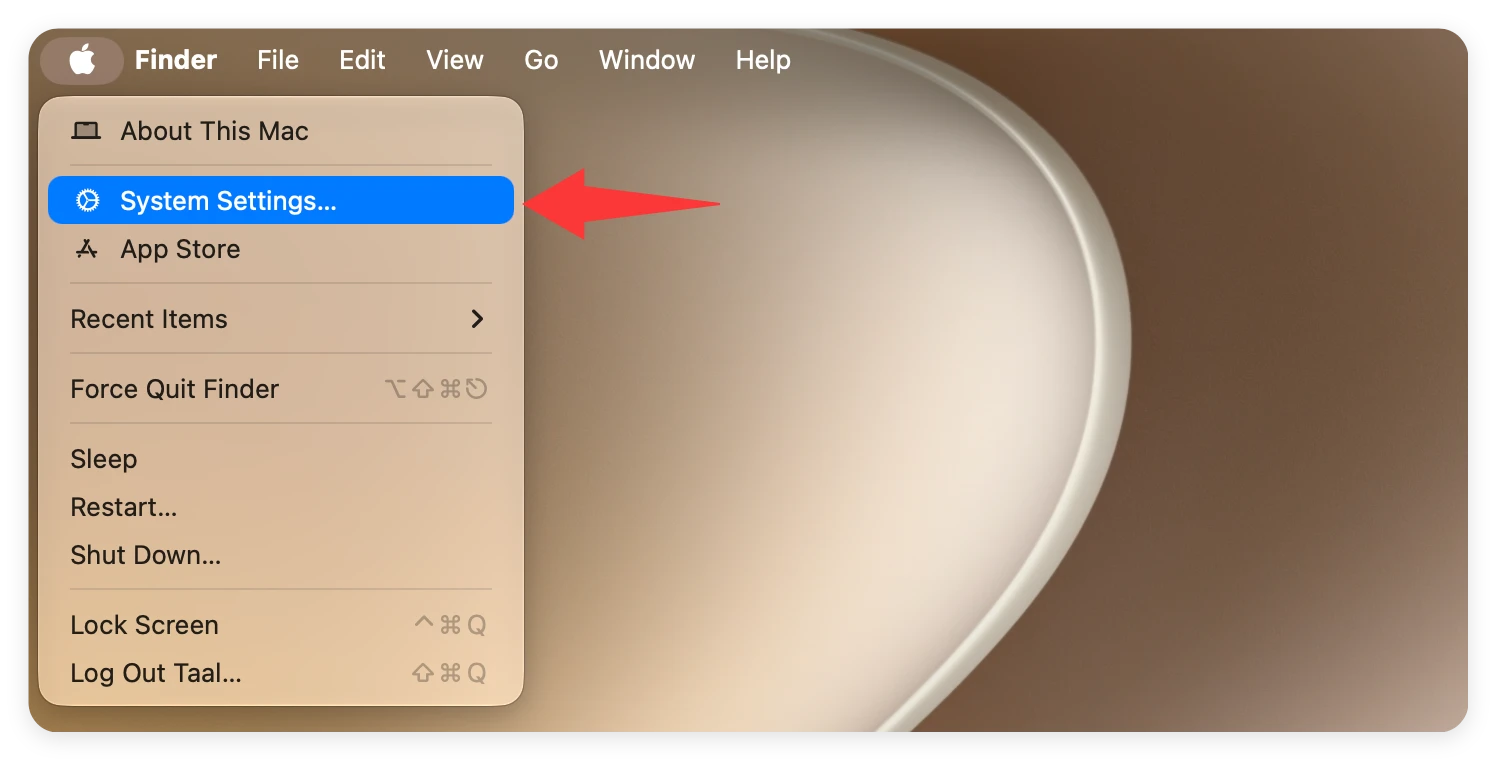
- Click the Apple Menu icon located in the top-left corner of your desktop screen. Select System Settings from the drop-down menu options.
![How to factory reset macOS 27 Golden Gate, reset macOS 27]()
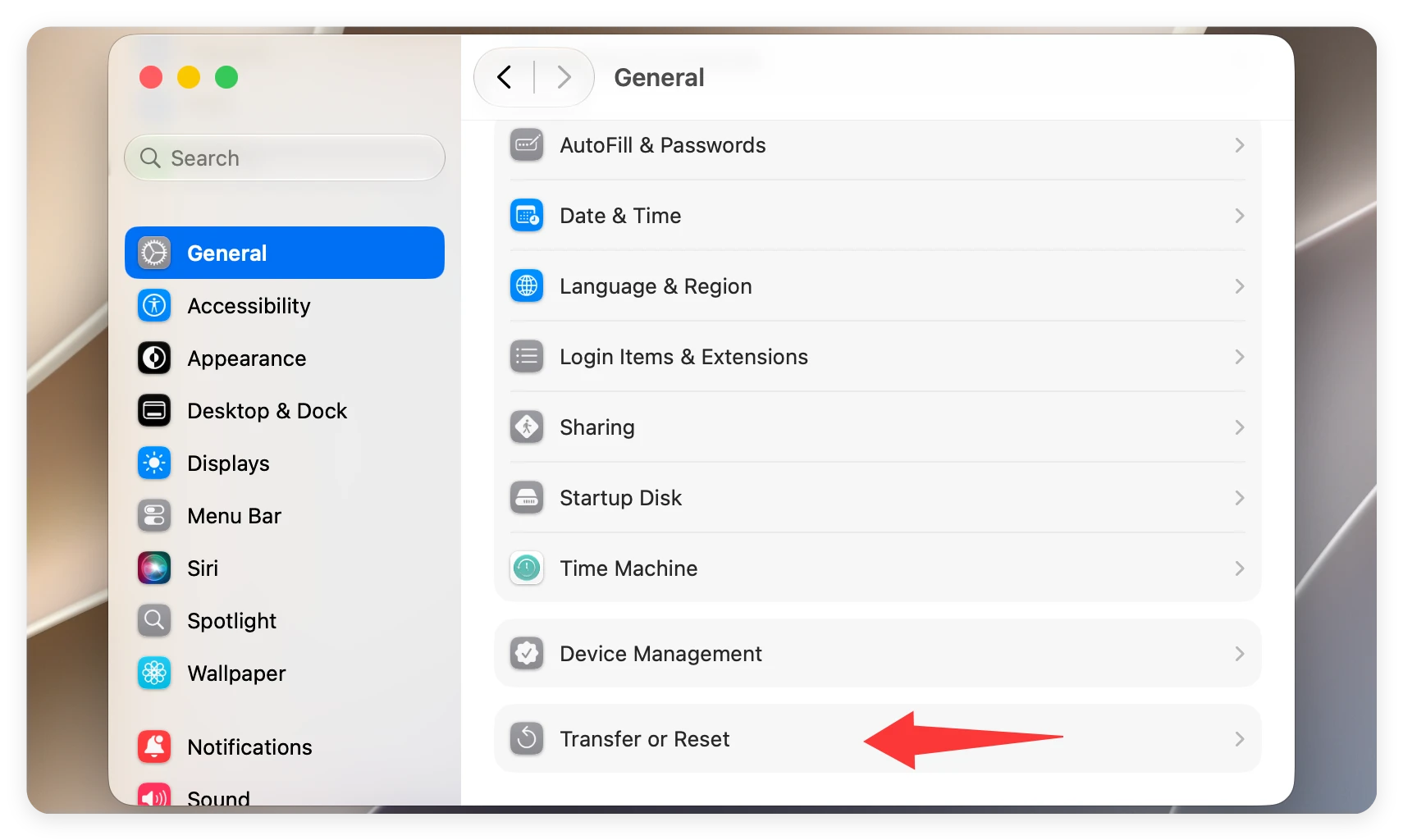
- In the sidebar, click on General, and then choose Transfer or Reset from the right-hand panel.
![How to factory reset macOS 27 Golden Gate, reset macOS 27]()
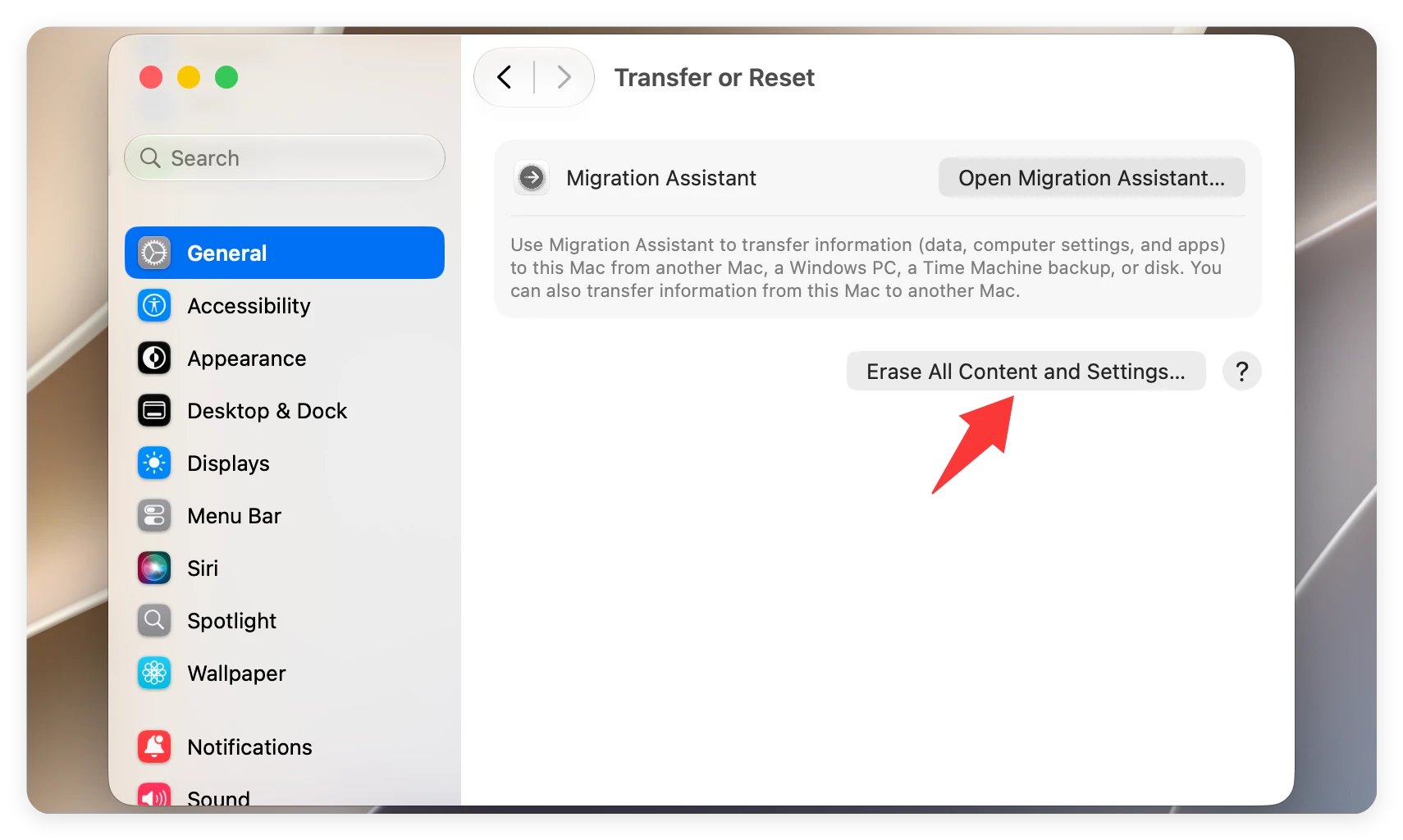
- Click the button labeled Erase All Content and Settings.
![How to factory reset macOS 27 Golden Gate, reset macOS 27]()
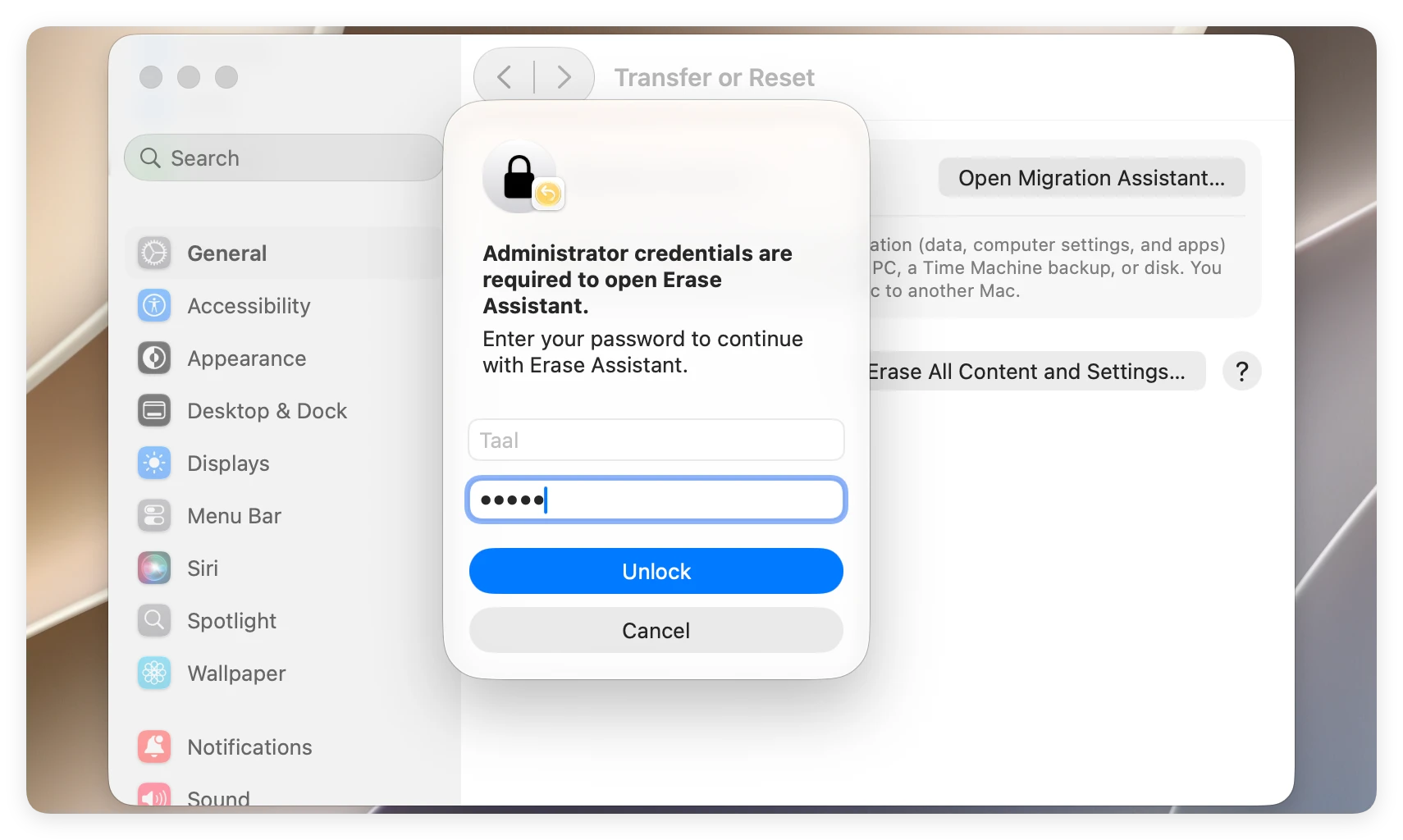
- Enter your Mac's administrator password when prompted by the Erase Assistant system utility.
![How to factory reset macOS 27 Golden Gate, reset macOS 27]()
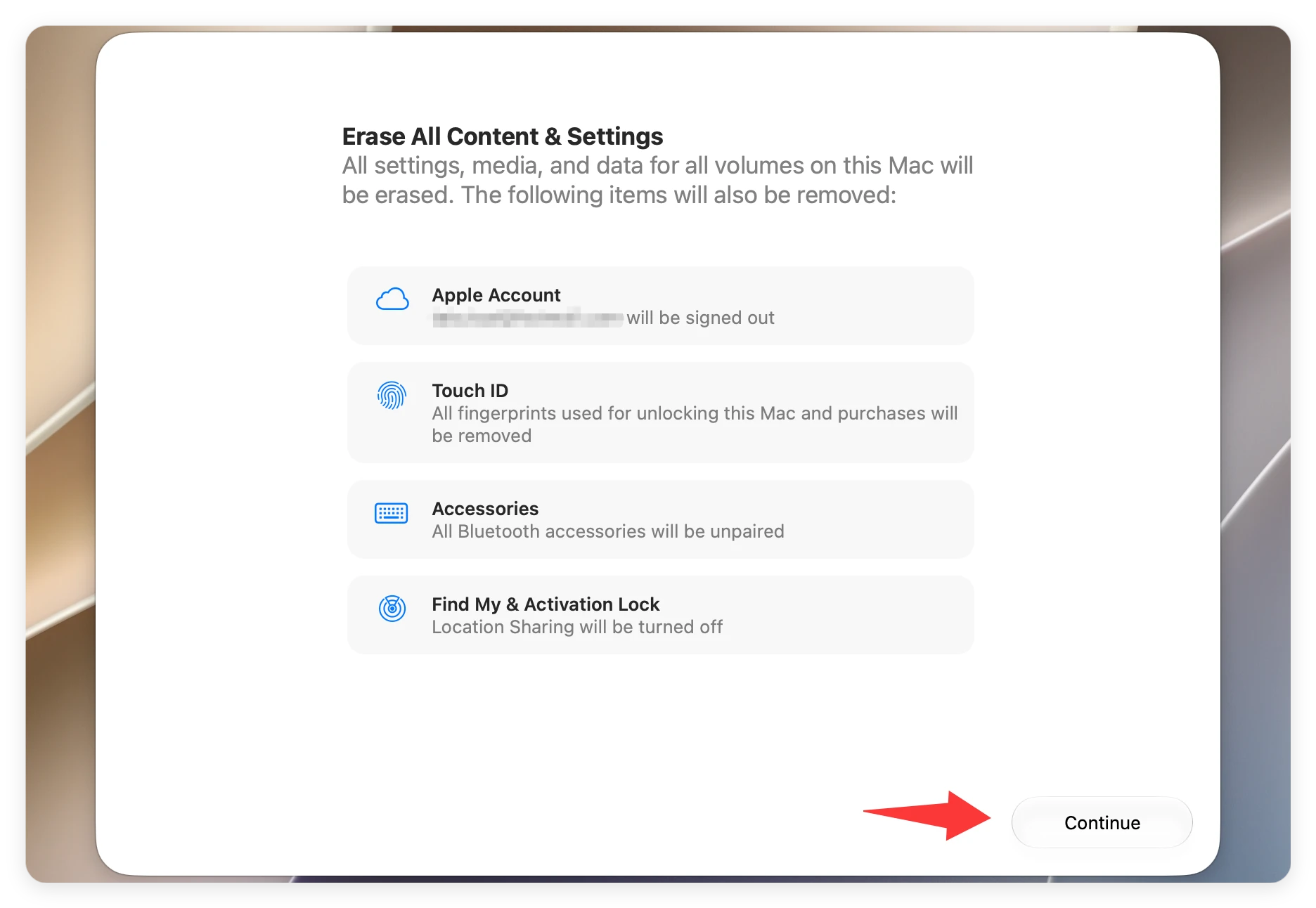
- Review the list of items that will be deleted, including your Apple ID, Touch ID profiles, accessories, and wallets. Click Continue.
![How to factory reset macOS 27 Golden Gate, reset macOS 27]()
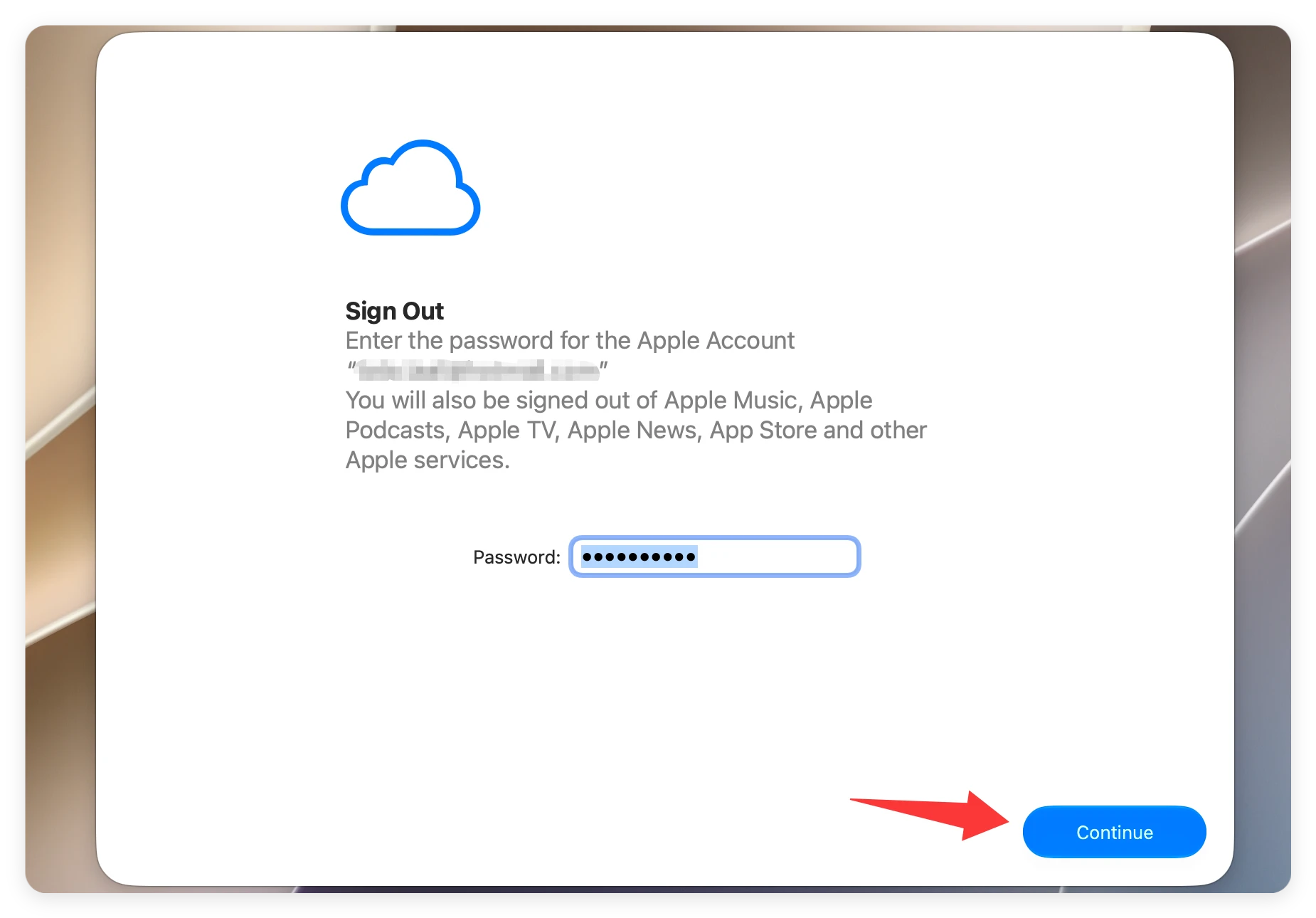
- Enter your Apple Account password to sign out of your Apple ID and disable Find My Mac tracking services.
![How to factory reset macOS 27 Golden Gate, reset macOS 27]()
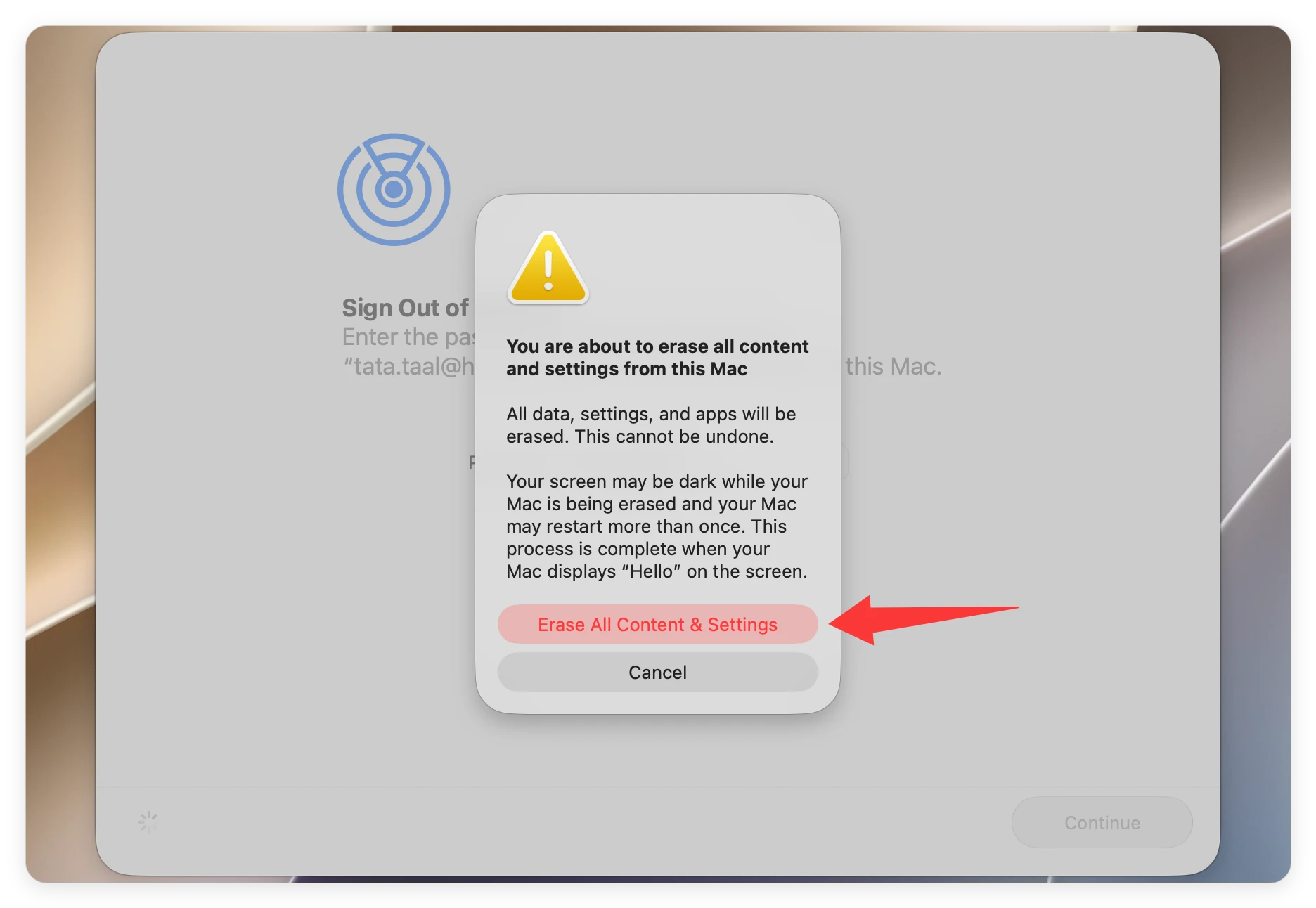
- Confirm your final decision by clicking Erase All Content & Settings. Your Mac will restart and display a black screen or progress bar while formatting.
![How to factory reset macOS 27 Golden Gate, reset macOS 27]()
When the process finishes, your Mac will reboot into the system Setup Assistant, welcoming you with a multi-language 'Hello' screen. If you are selling or giving away the Mac, stop right here! Press Command + Q and select Shut Down to leave it fresh for its new owner.
Method 2: Erase Your Drive and Reinstall macOS in Recovery Mode
If your Mac is encountering system errors, won't boot properly, or if you prefer a traditional format, Recovery Mode is your best bet. This method entirely wipes the startup disk drive clean and reinstalls a brand-new copy of macOS 27 Golden Gate from scratch.
Depending on your Mac's processor, entering Recovery Mode requires a slightly different approach:
How to Enter Recovery Mode:
For Apple Silicon Macs and MacBook Neo: Shut down your Mac. Press and hold the Power button down until the screen reads 'Loading startup options'. Click Options and select Continue. Please note that macOS 27 doesn't support Intel-Based Macs
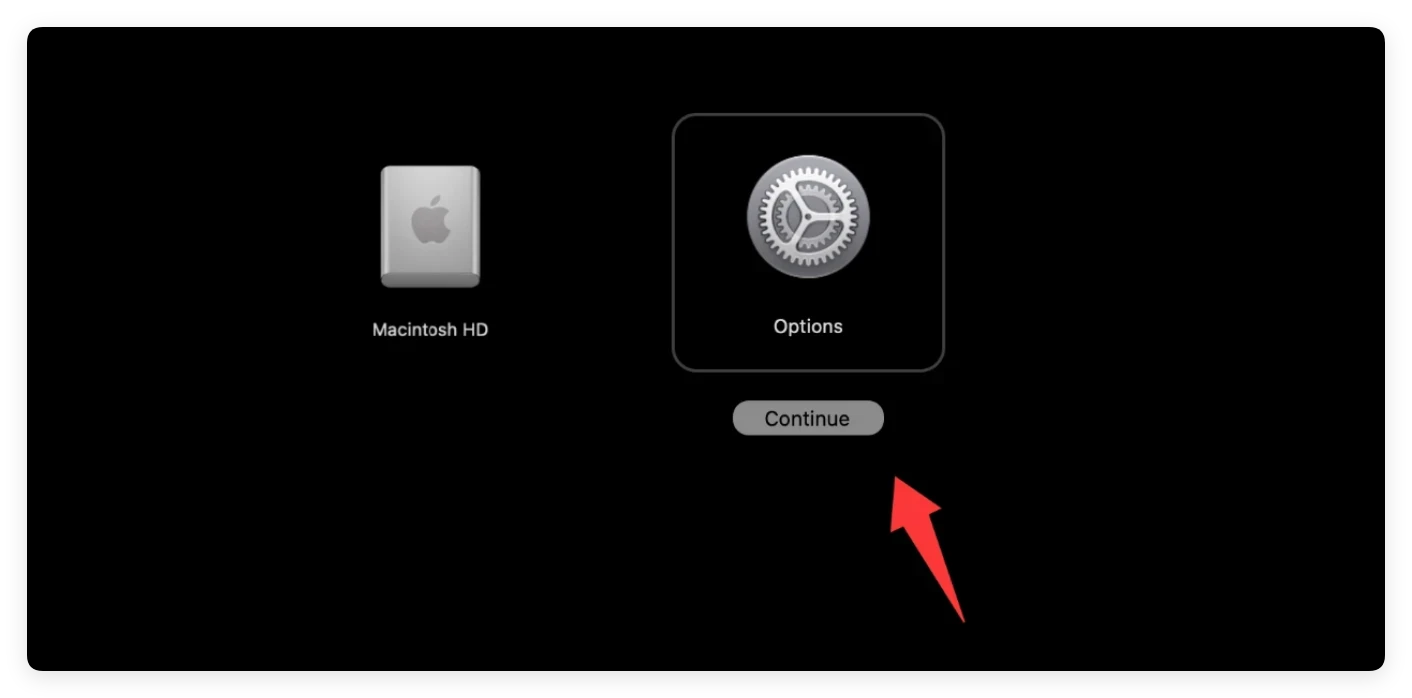
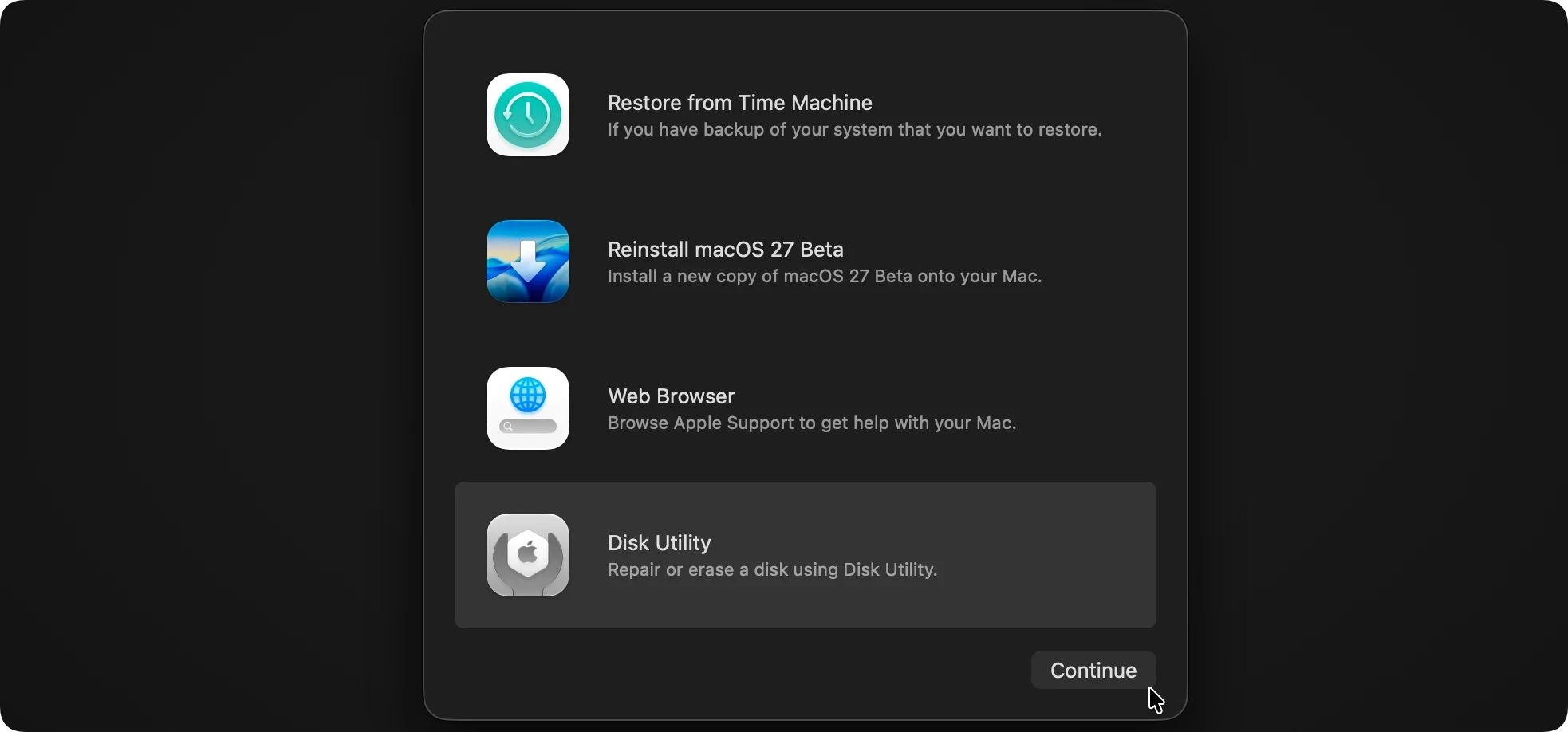
Once you are inside the native macOS Recovery window, complete the factory reset with these steps:
- Select Disk Utility from the list of utilities on the screen and click Continue.
![How to factory reset macOS 27 Golden Gate, reset macOS 27]()
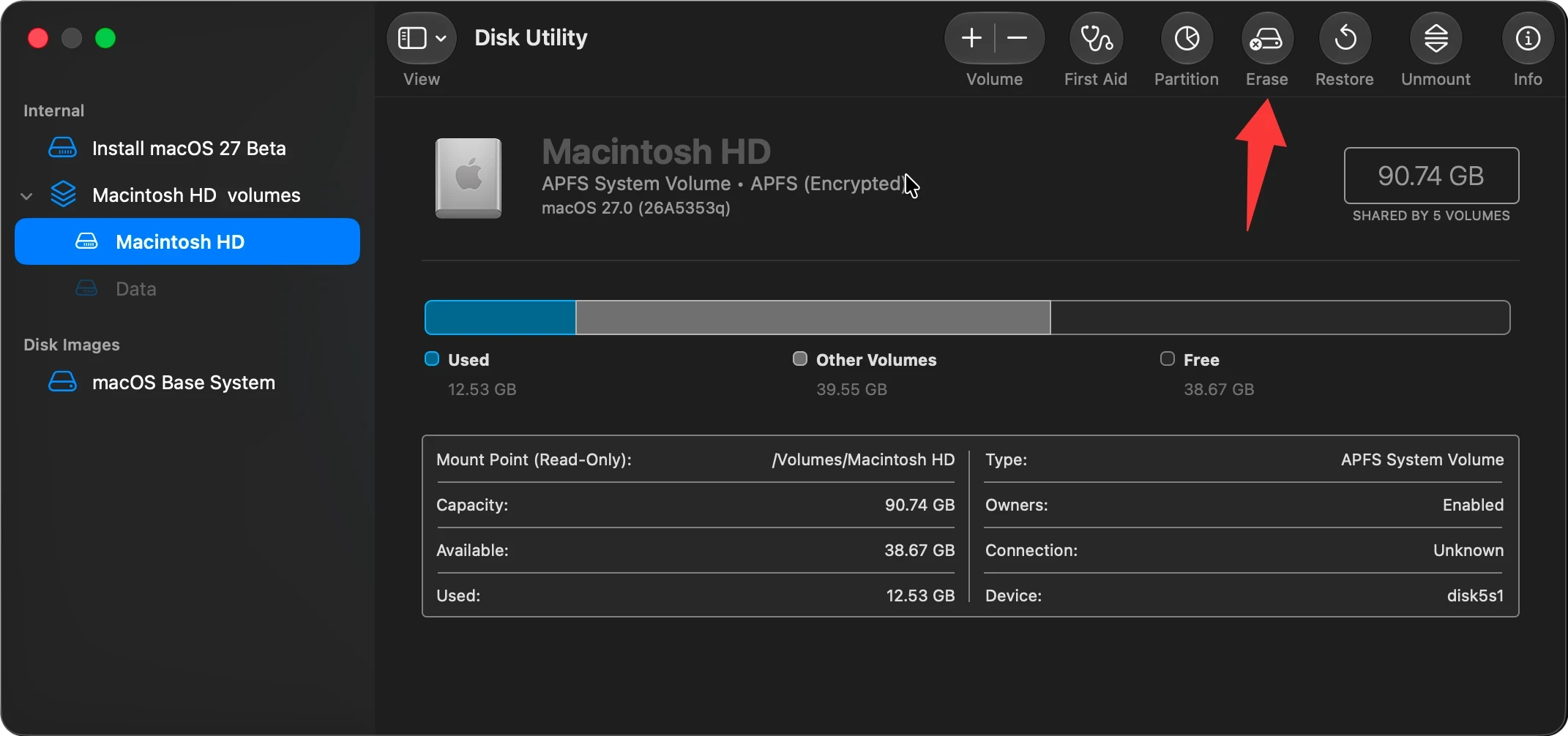
- In the left sidebar of Disk Utility, select your main internal drive (typically labeled as 'Macintosh HD'). Click the Erase button located at the top tool menu bar.
![How to factory reset macOS 27 Golden Gate, reset macOS 27]()
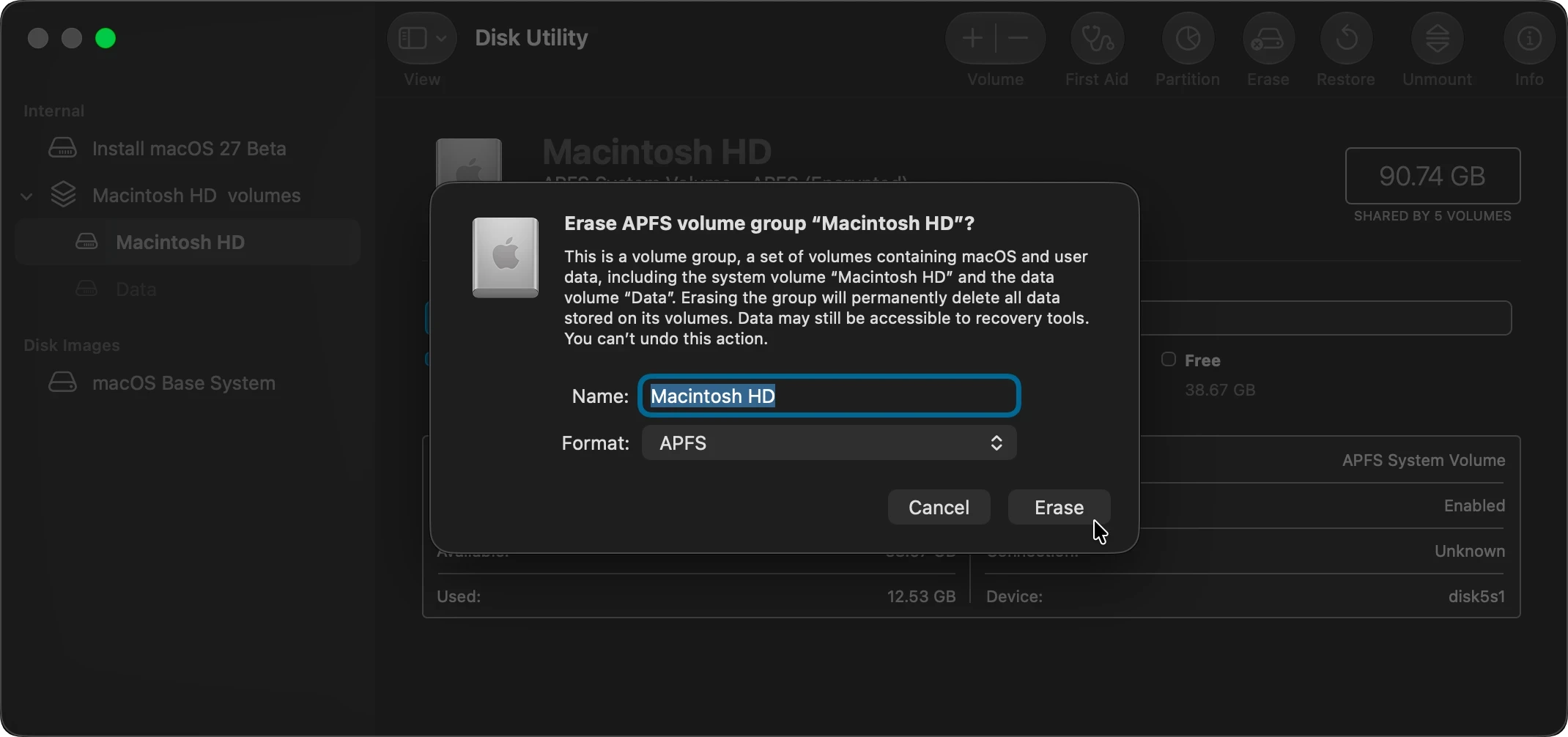
- Choose 'APFS' as the format type and keep the name as 'Macintosh HD'. Click Erase.
![How to factory reset macOS 27 Golden Gate, reset macOS 27]()
- After the formatting process completes successfully, close the Disk Utility window to return to the primary Recovery menu. Select Reinstall macOS 27 Golden Gate from the main options list and click Continue.
![How to factory reset macOS 27 Golden Gate, reset macOS 27]()
- Follow the on-screen prompts, accept the software license terms, and select your freshly formatted drive to start downloading the OS.
![How to factory reset macOS 27 Golden Gate, reset macOS 27]()
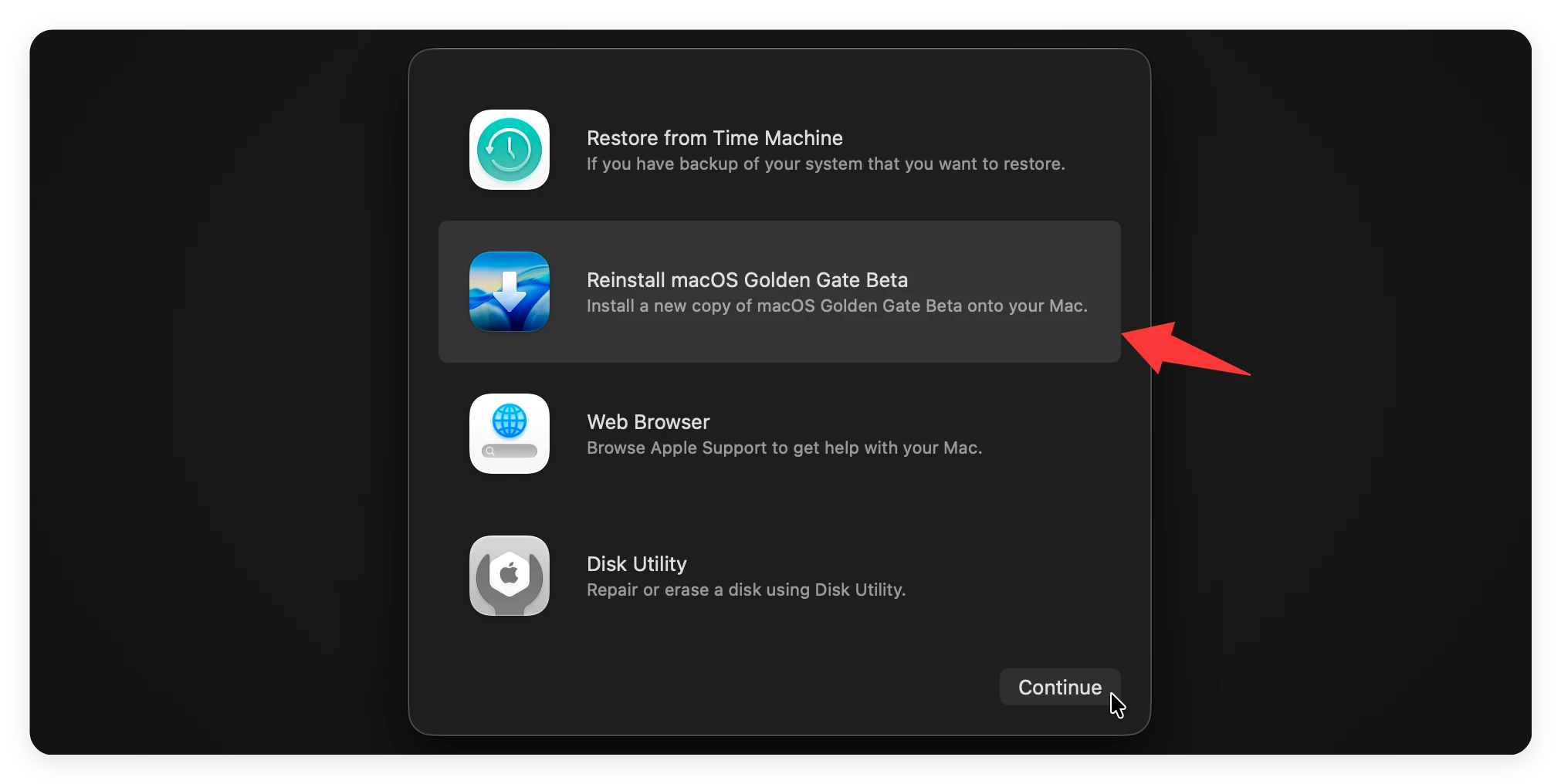
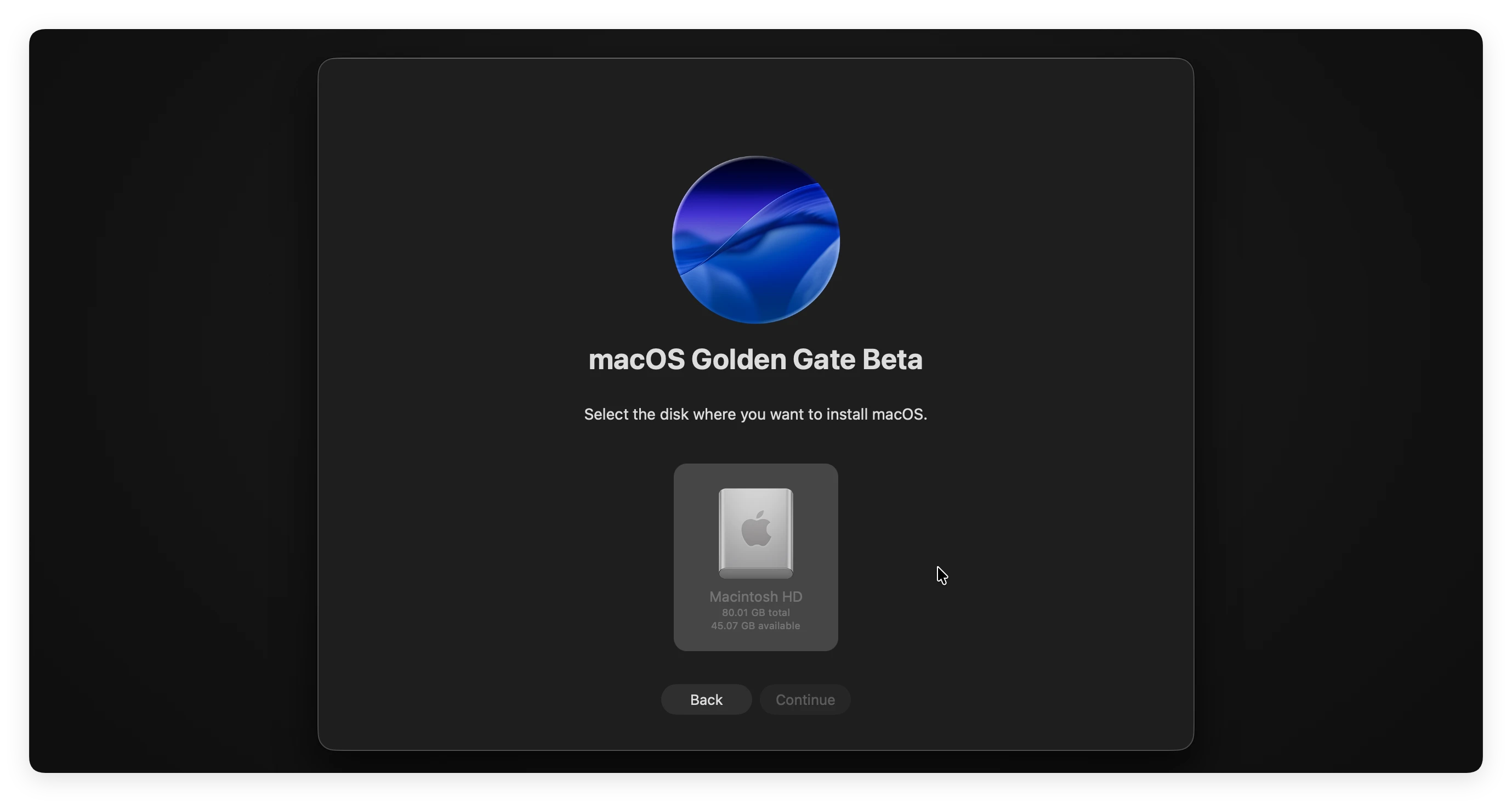
The installation process can take anywhere from twenty minutes to over an hour depending on your internet connection speed. Do not close your Mac's lid or turn it off while the installation is active.
The Hidden Danger: Your Deleted Data is Still Recoverable!
Here is an essential fact that most Mac users overlook: standard factory resets do not immediately destroy data. When you format a drive or use the 'Erase All Content and Settings' feature, the operating system simply marks that storage space as empty and available. The original files remain physically intact underneath until new data overwrites them.
This means that anyone with a professional data recovery tool can easily scan your freshly formatted Mac and recover your private family photos, confidential passwords, financial records, and personal documents. If you are reselling your Mac to a stranger or donating it to a local school, this presents a significant privacy risk.
How to Permanently Wipe Your Data Before Selling or Donating
To protect your privacy, you need a professional data erasure tool designed to scrub the disk clean. DoYourData Super Eraser for Mac is an excellent solution. It utilizes government-grade data destruction algorithms to overwrite your files, ensuring they are permanently unrecoverable.
DoYourData Super Eraser for Mac
- Permanently wipe data to avoid data recovery.
- Safe to wipe data with military-grade erasure algorithm.
- Easy to use with simple and intuitive interface.
If you have already carried out a factory reset using Method 1 or Method 2, you can use the specialized 'Wipe Free Space' mode. This feature targets only the unused space on your Mac's drive, completely sanitizing the hidden data fragments left behind by your deleted files, without affecting your active macOS system files.
Here is how to use it safely:
- Open DoYourData Super Eraser for Mac on your computer. Select the Wipe Free Space tool option from the left-hand features sidebar. Select your main internal hard drive (Macintosh HD) from the list of available disks.
![How to factory reset macOS 27 Golden Gate, reset macOS 27]()
- Click the Wipe Now button at the bottom of the application interface. Then you can select a data erasure standard to permanently wipe data.
- Click Continue button to allow the tool to run its military-grade data overwriting algorithms across the empty storage slots.
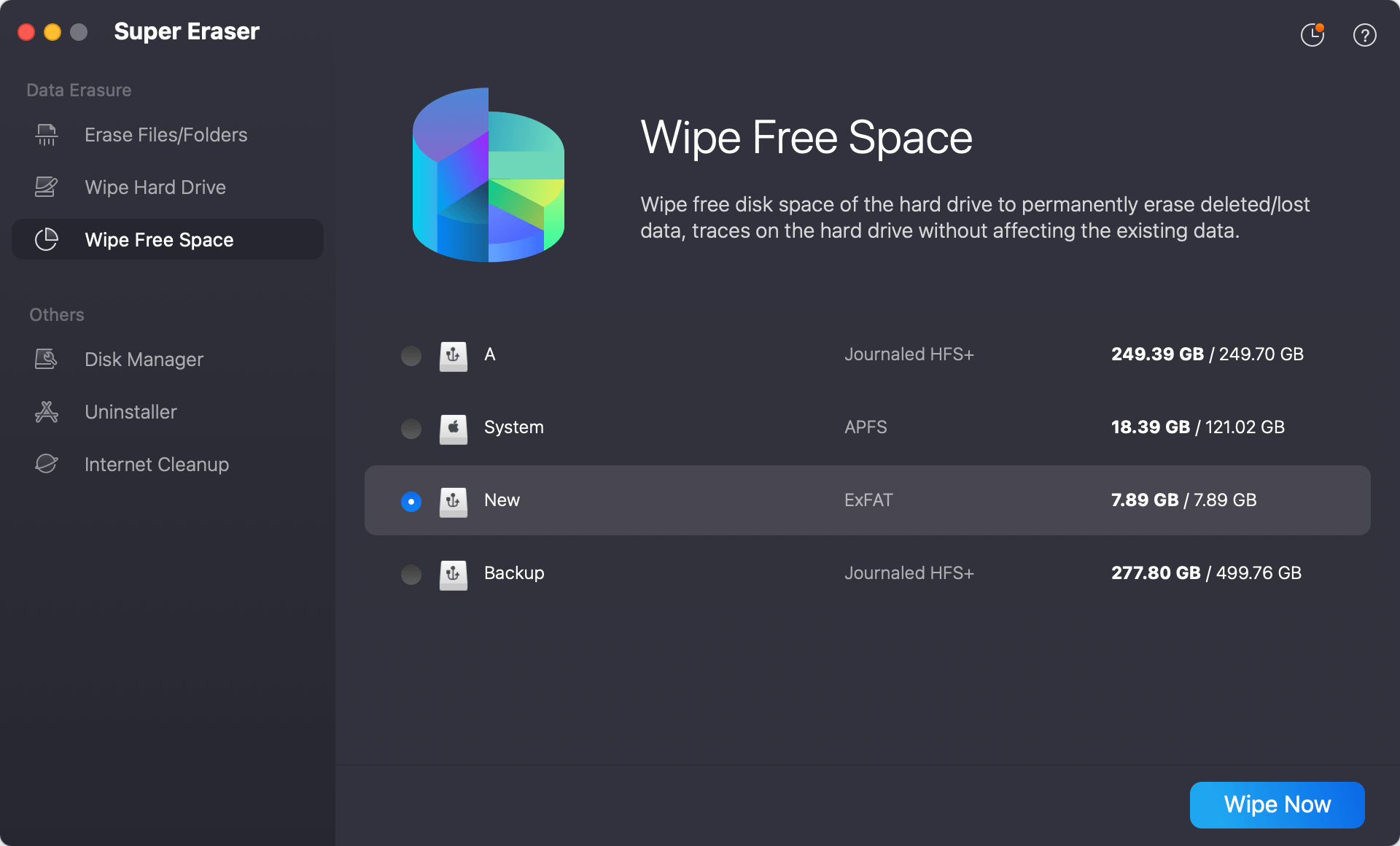
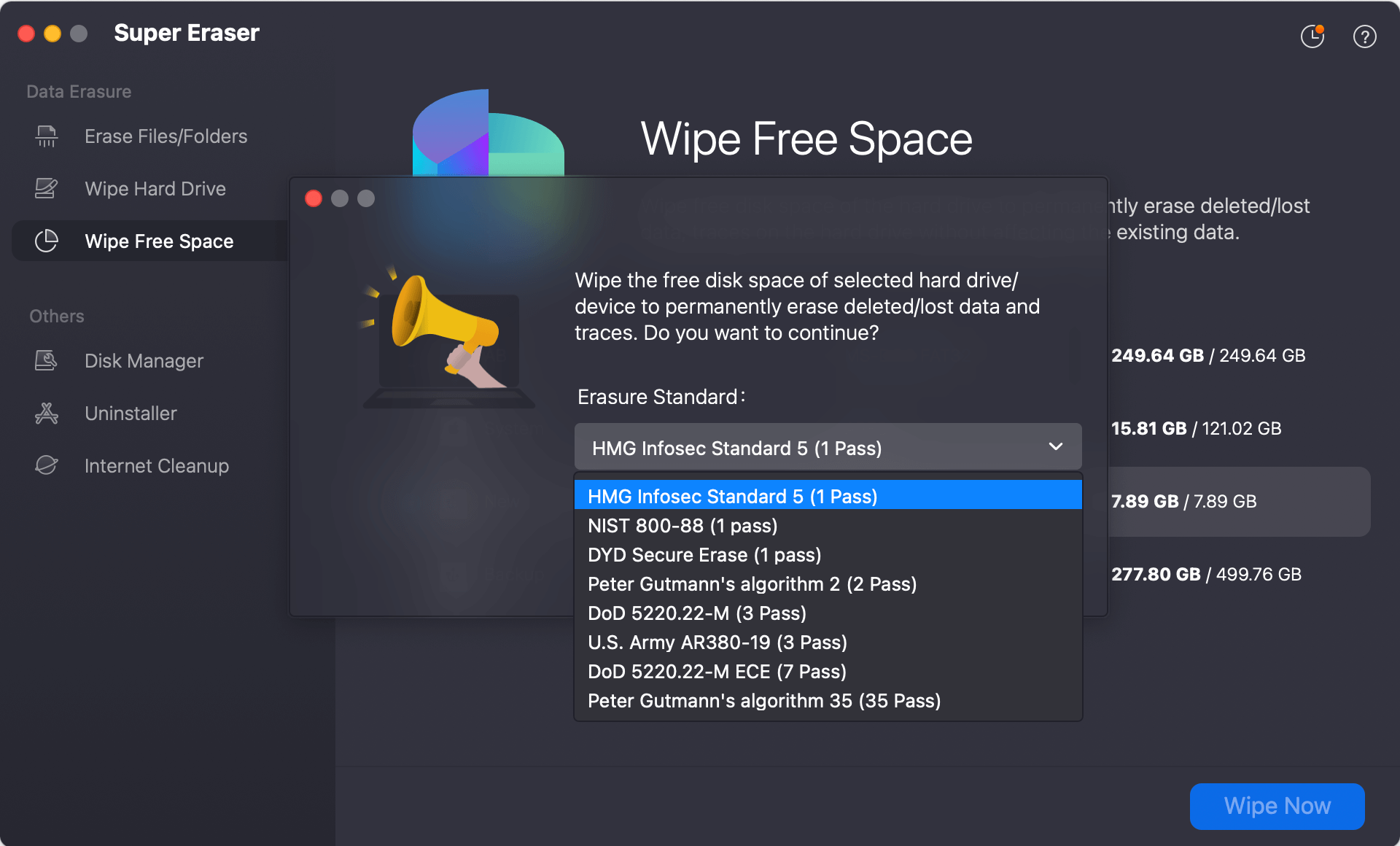
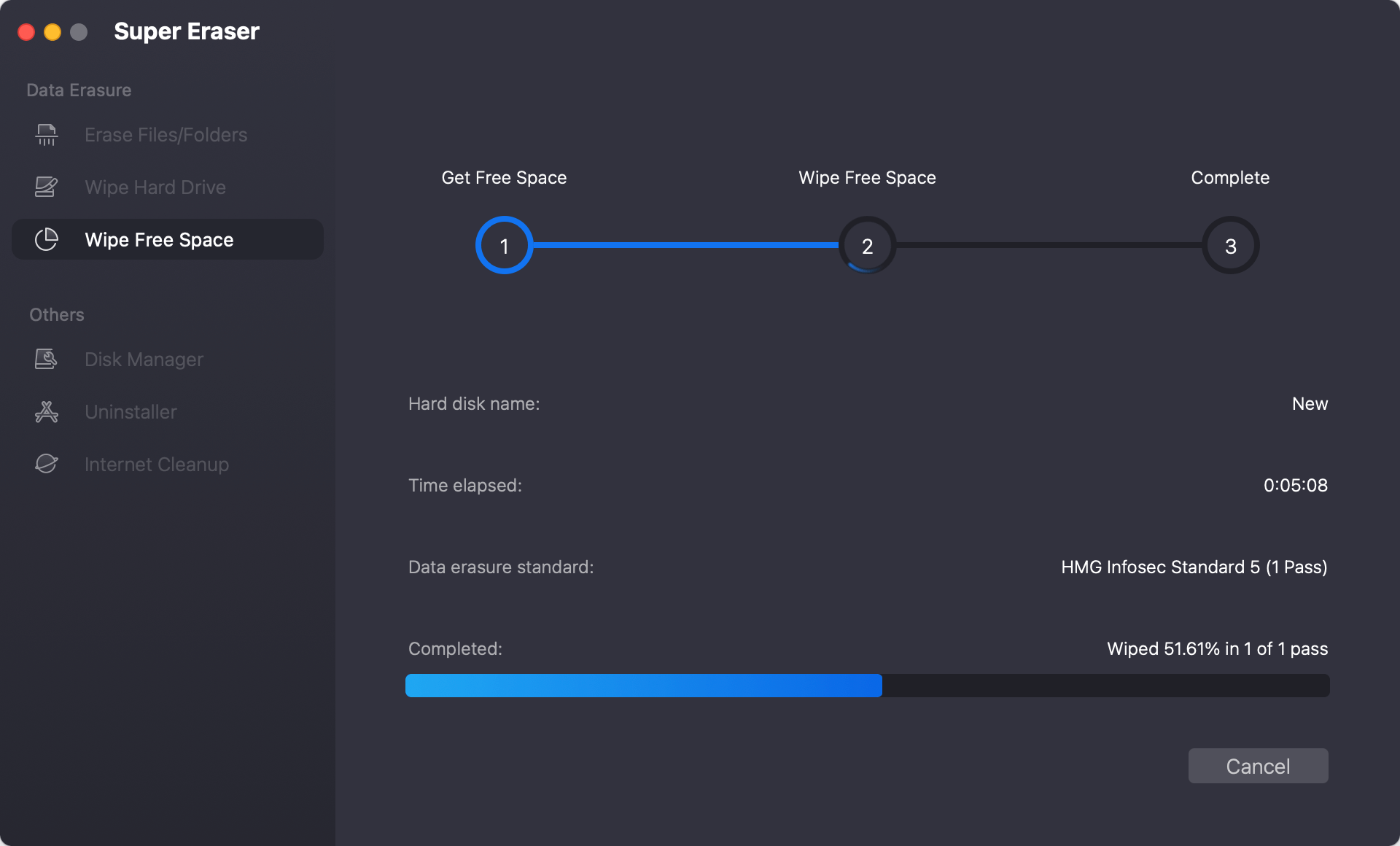
Once DoYourData Super Eraser for Mac completes its cycle, the remnants of your old files are gone forever. No recovery software on earth will be able to reconstruct your data, giving you total peace of mind to pass your device on to a new owner.
FAQs about Resetting macOS 27 Golden Gate
Conclusion
Learning how to factory reset macOS 27 Golden Gate is a straightforward process that helps restore your Mac's speed or prepare it for a brand-new user. Choosing the 'Erase All Content and Settings' tool is perfect for a quick, hassle-free refresh. On the other hand, formatting via Recovery Mode provides a deeper, comprehensive system reinstallation.
Remember, a factory reset doesn't guarantee absolute data privacy on its own. If you are selling or donating your computer, make sure to use DoYourData Super Eraser for Mac with its 'Wipe Free Space' mode. This quick step guarantees that your deleted files remain completely unrecoverable, protecting your digital identity no matter where your Mac goes next!
DoYourData Super Eraser for Mac
DoYourData Super Eraser for Mac is a 100% safe, powerful and easy-to-use data erasure program. It offers certified data erasure standards including Peter Gutmann, U.S. Army AR380-19, DoD 5220.22-M ECE to permanently erase data from Macs and external devices, making data recovery be impossible.
Written & Updated by Shirly Chen
Shirly Chen has been writing data recovery, data erasure articles for DoYourData over 4 years. She has been working as a professional website content writer & editor for quite a long time. She also writes articles about disk clone, Mac optimization, disk backup, etc.