4 Methods to Recover Deleted Files on Mac
Here are 4 proven methods to recover deleted files on Mac even the files were emptied from Trash.
Don't leave your digital security to chance. Download DoYourData Super Eraser for Mac today, follow our simple steps to permanently wipe everything from MacBook, and hand off your MacBook with complete confidence!
 Updated by Shirly Chen on June 9, 2026
Quick Navigation:
Are you planning to upgrade to a shiny new Mac? Or maybe you have decided to sell, trade in, or donate your reliable old MacBook to a friend or family member? Whatever your reason might be, your primary concern should always be data privacy. You might think that logging out of your accounts and dragging your folders to the Trash is enough to keep your details safe. Sadly, it is not. Anyone with a basic, free data recovery tool can restore those 'deleted' files in a matter of minutes. If you want true peace of mind, you need a strategy that ensures absolute, unrecoverable data erasure.

In this complete guide, we will show you exactly how to wipe everything on MacBook with DoYourData Super Eraser. By combining Apple's built-in security features with professional-grade data scrubbing software, you can guarantee that your personal files are gone for good. Let's dive into the easiest and most secure way to clean your Mac.
When you delete a file on macOS, the operating system doesn't immediately scrub the data off your storage drive. Instead, it merely deletes the 'pointer' to that file and marks the space it occupied as 'free space.' This tells the computer that it is allowed to write new data over that specific spot whenever it needs to.
Until new data actually overwrites that space, the old file remains fully intact beneath the surface. If you sell your laptop in this state, the next owner could easily deploy data recovery software to dig up your private photos, tax documents, or confidential corporate credentials.
4 Methods to Recover Deleted Files on Mac
Here are 4 proven methods to recover deleted files on Mac even the files were emptied from Trash.
To avoid this catastrophic privacy risk, a two-step approach is required. First, we reset the system to remove active user profiles. Second, we deep-clean the drive to make sure previous data remnants are permanently unrecoverable. This is where the true power of DoYourData Super Eraser comes into play.
To guarantee that no one can ever access your old files, we highly recommend following this bulletproof, two-step workflow. This approach combines Apple's native factory reset tool with advanced military-grade data overwriting algorithms.
Modern MacBook running recent versions of macOS come equipped with a built-in feature called 'Erase All Content and Settings.' This tool acts exactly like a factory reset on an iPhone. It cleanly disconnects your Apple ID, turns off Find My Mac, logs you out of all built-in services, and securely deletes the encryption keys to your data.
Before starting, ensure your MacBook is securely plugged into power and connected to the internet. Follow these straightforward steps:
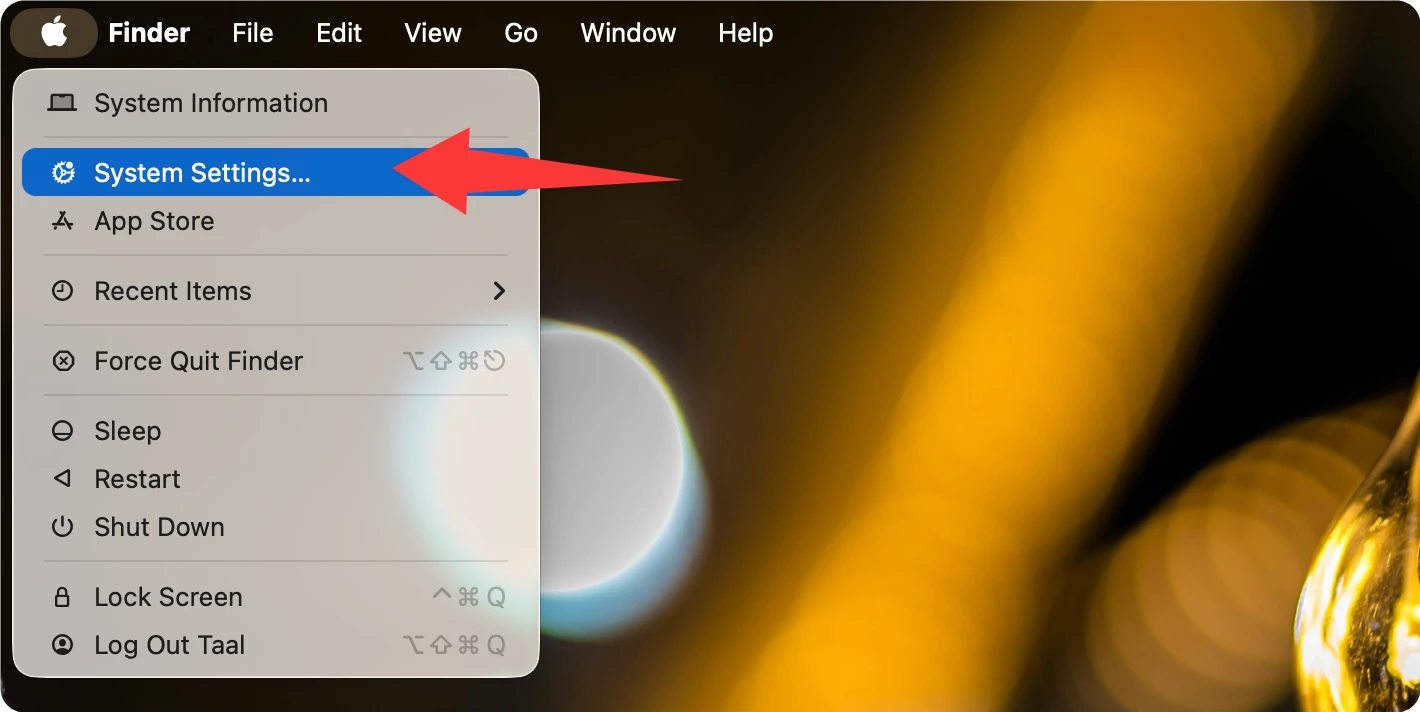
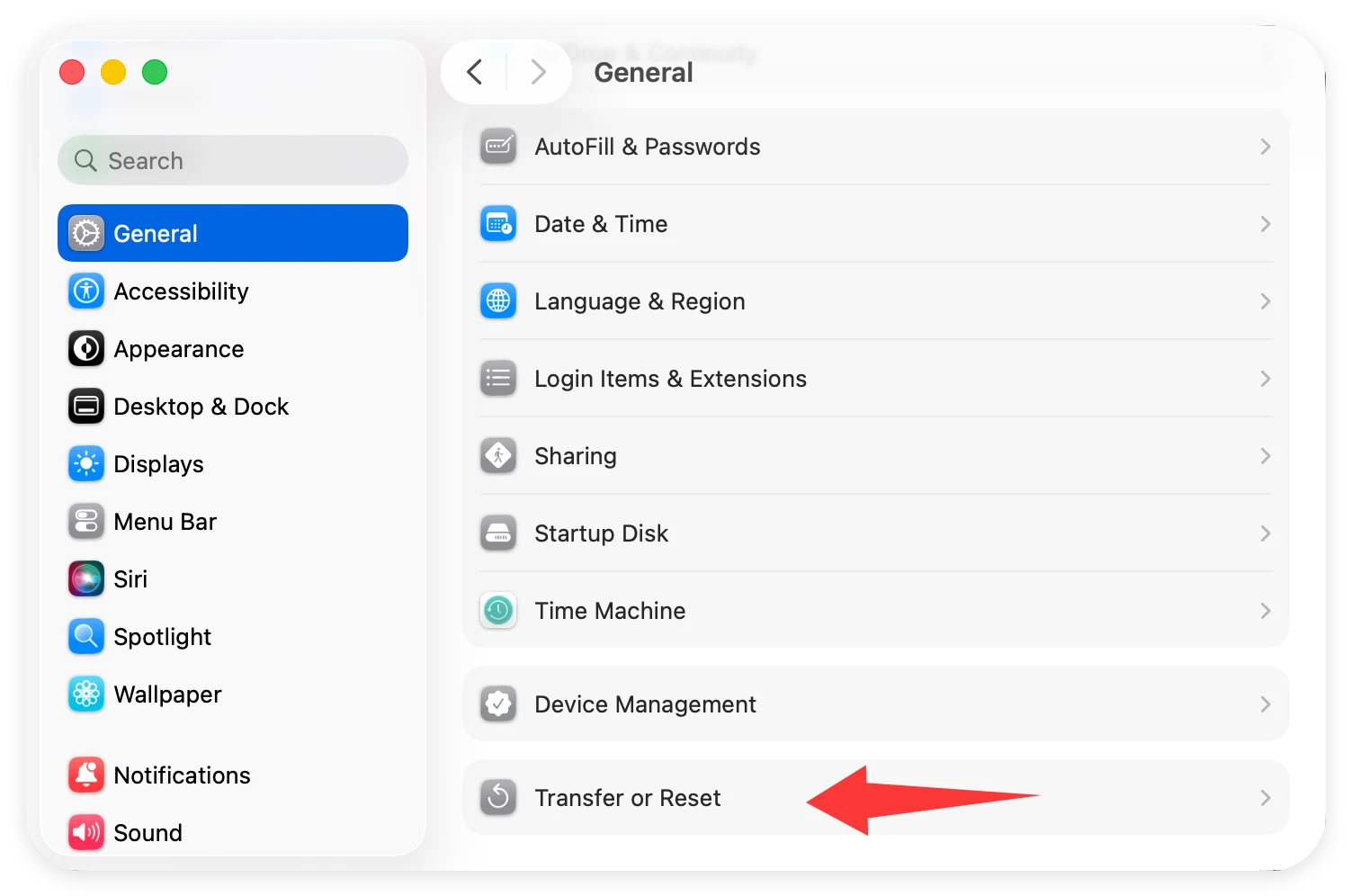
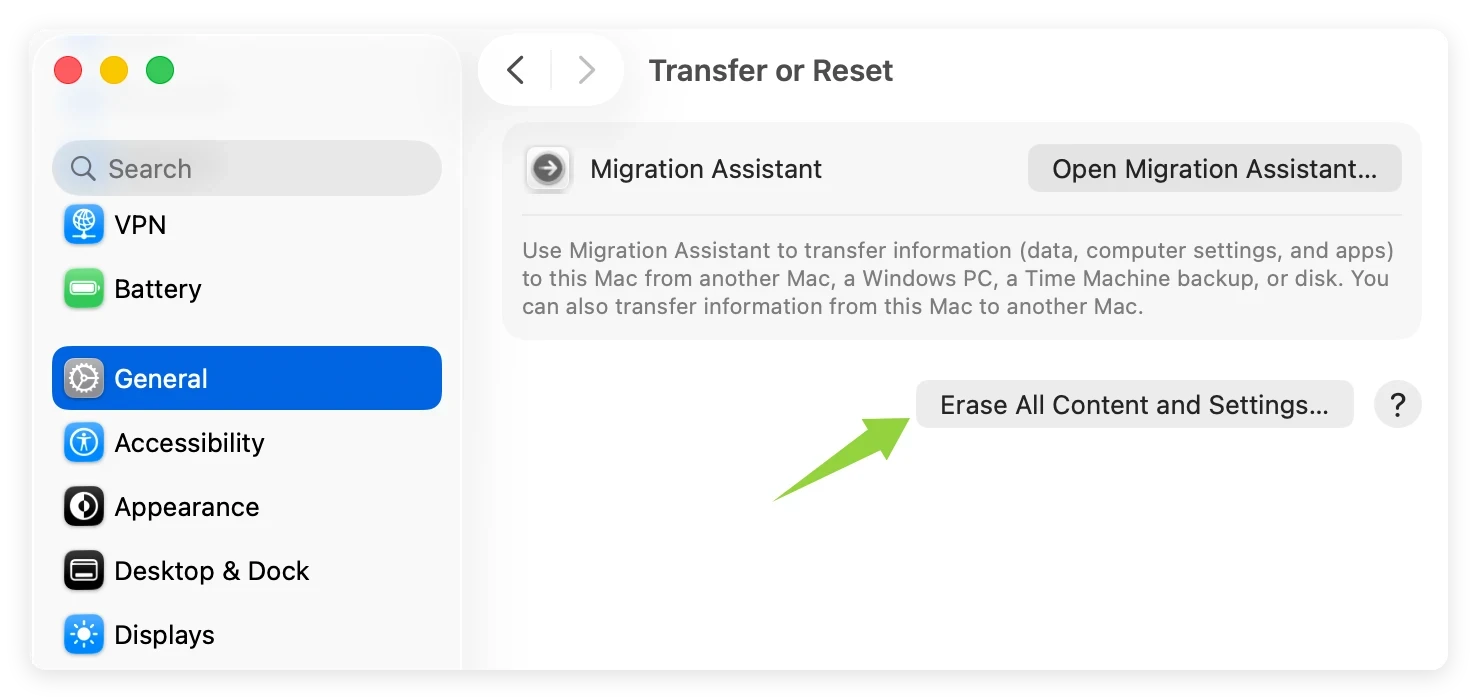
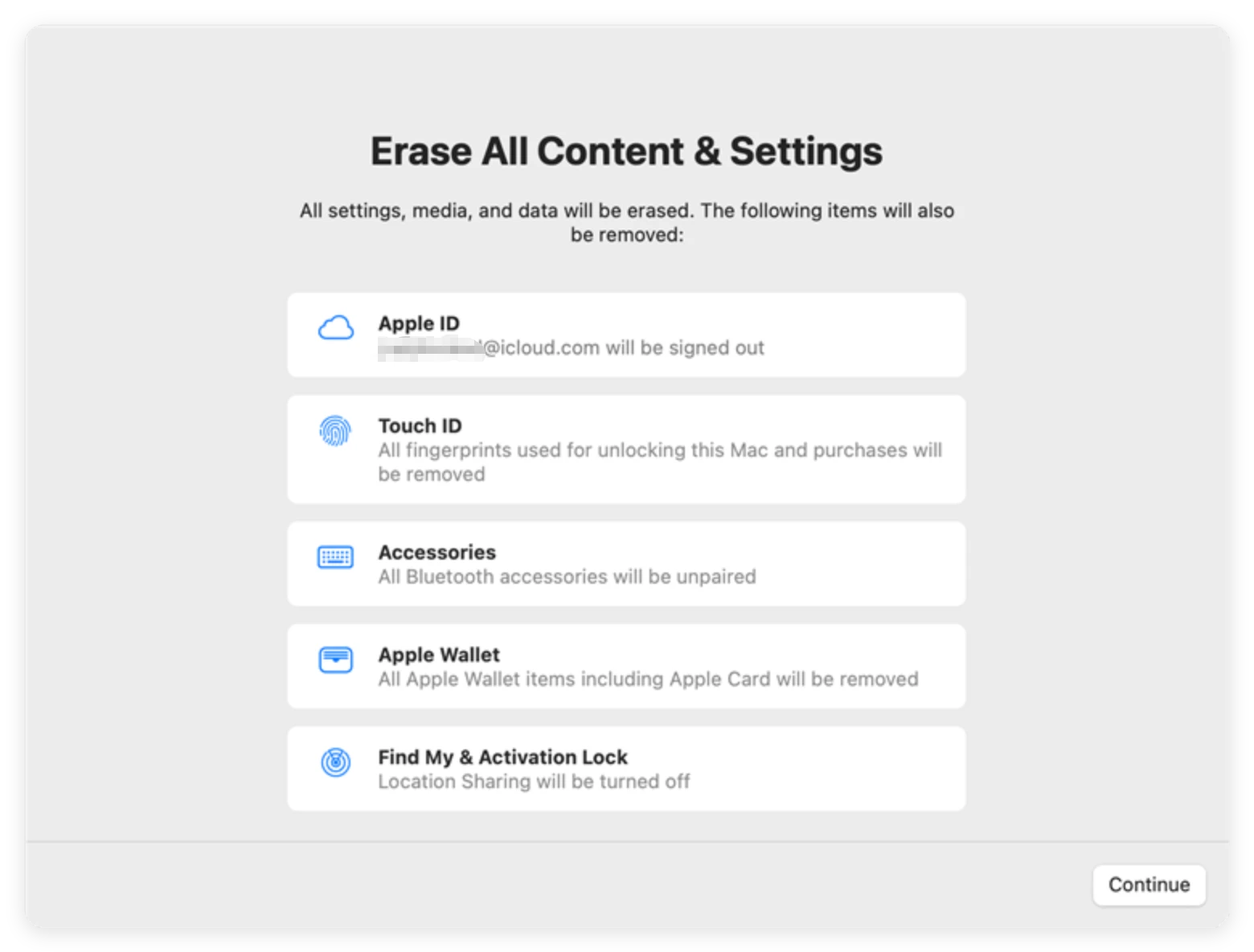
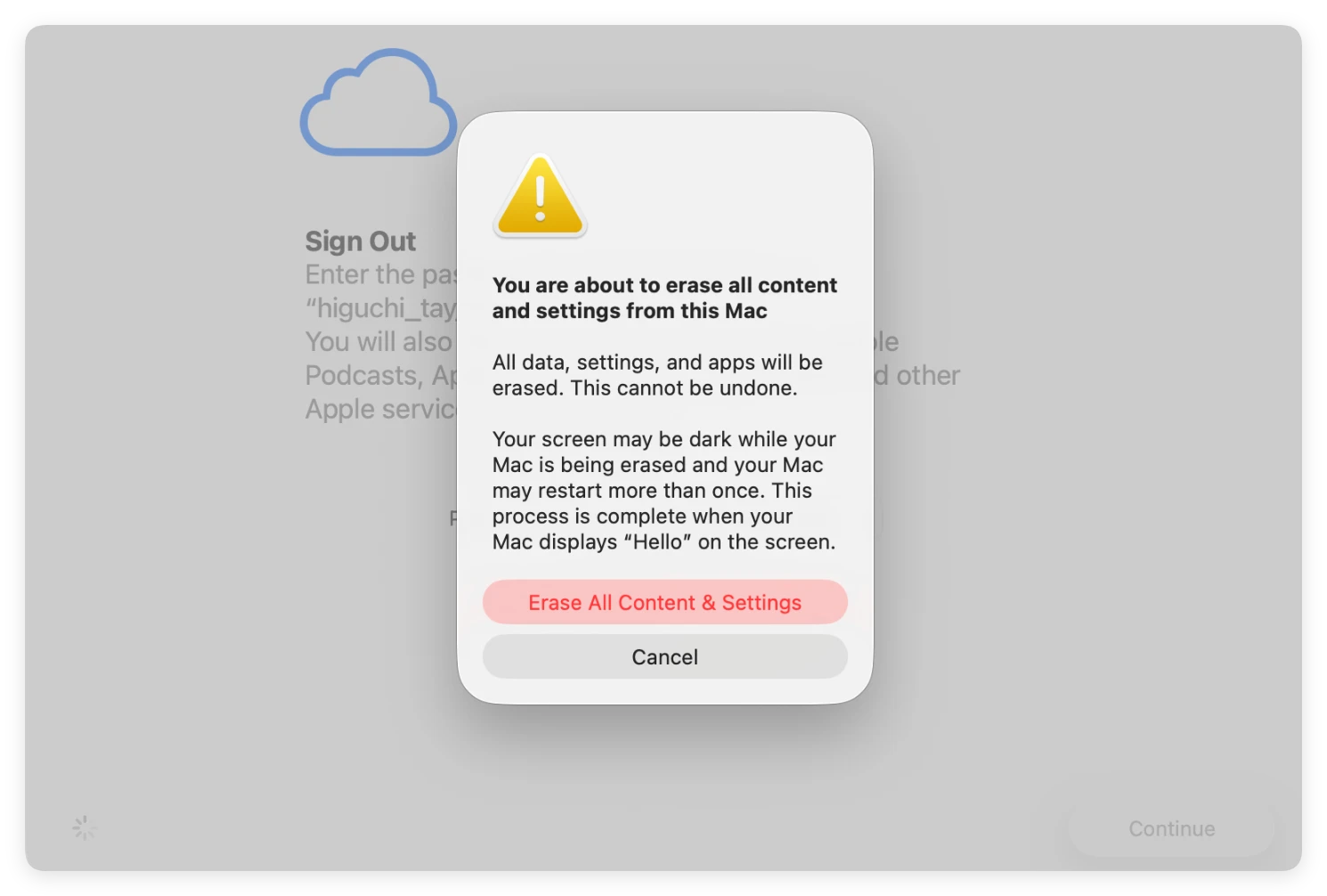
Your MacBook will go completely dark and restart several times. Once it is finished, it will display the initial 'Hello' setup screen. Do not complete the setup process. Instead, follow the next step to secure your storage drive.
💡 Warning: Always create a complete backup of your important files using Time Machine or an external hard drive before performing a reset. Once the erasure process begins, your data cannot be retrieved.
Even though the built-in Apple factory reset removes the encryption keys and active user accounts, data remnants can still linger deep within the drive's unused storage blocks. To ensure absolute data destruction before handing your laptop to a stranger, you must overwrite this empty space.
DoYourData Super Eraser for Mac is a certified data erasure application that is fully compatible with both Intel processors and Apple Silicon chips (including M1, M2, M3, M4 and M5). It uses government-approved wiping standards to repeatedly overwrite your storage drive, ensuring that data recovery is physically impossible.
To overwrite your MacBook's free space, run the app and follow these instructions:
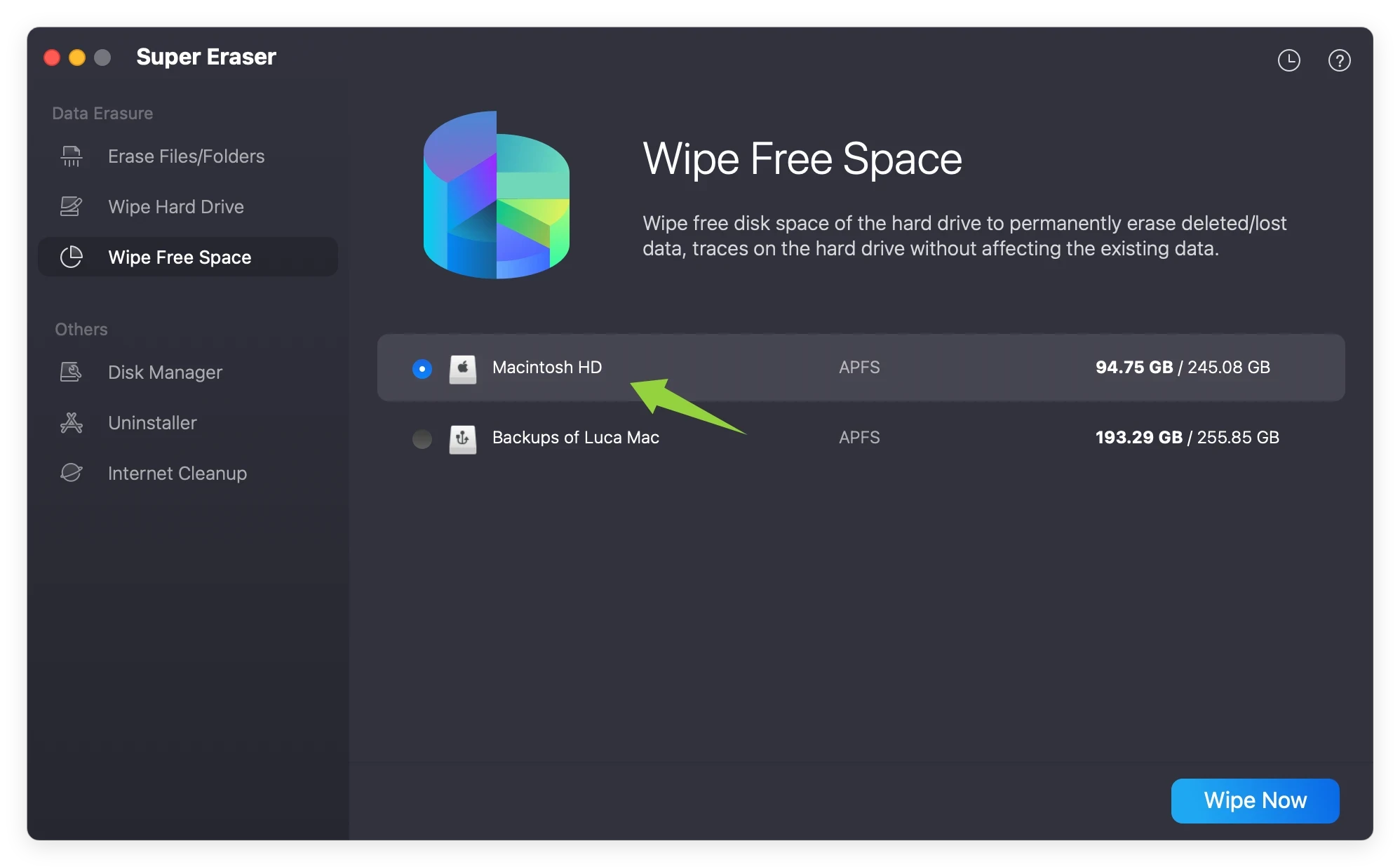
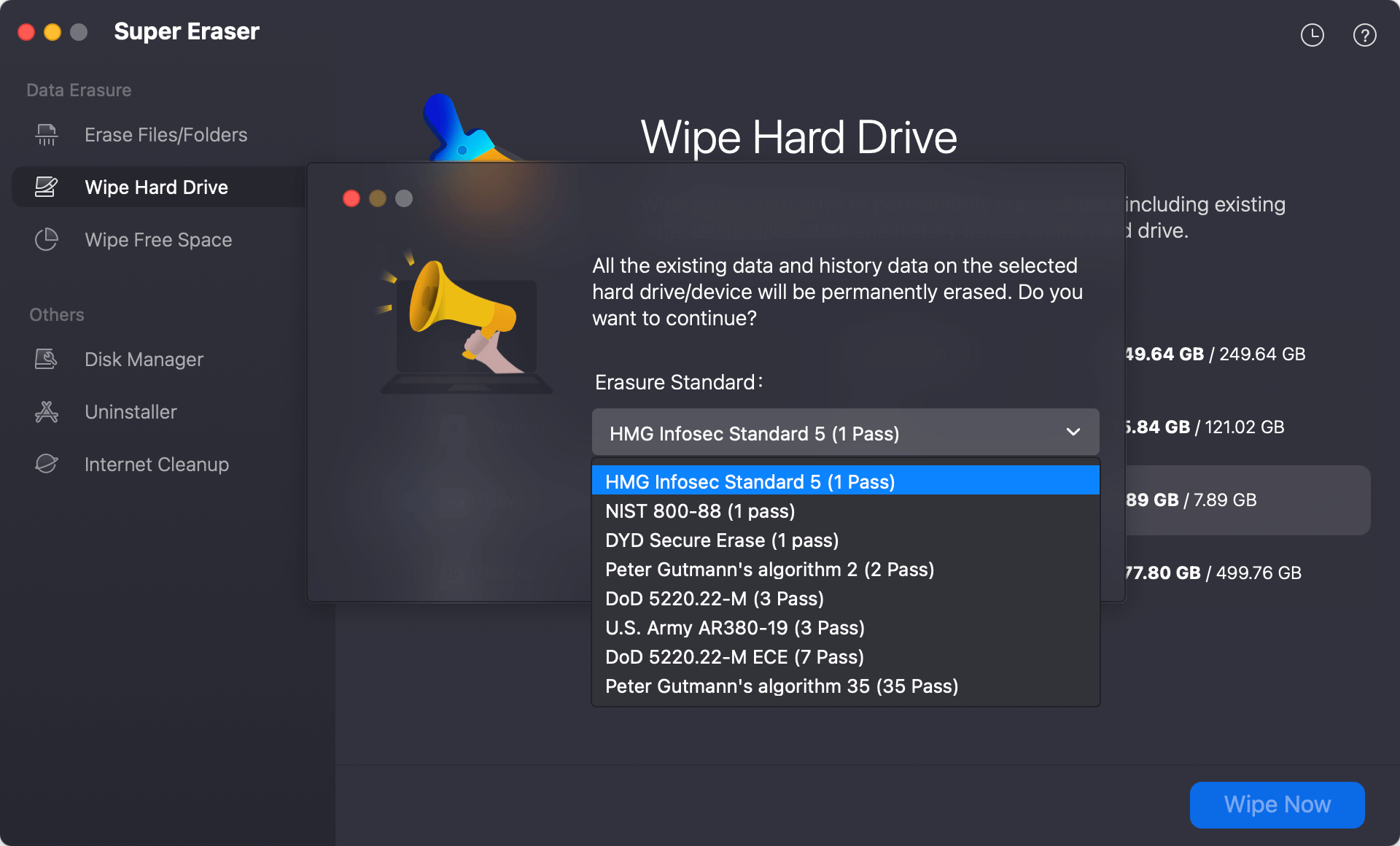
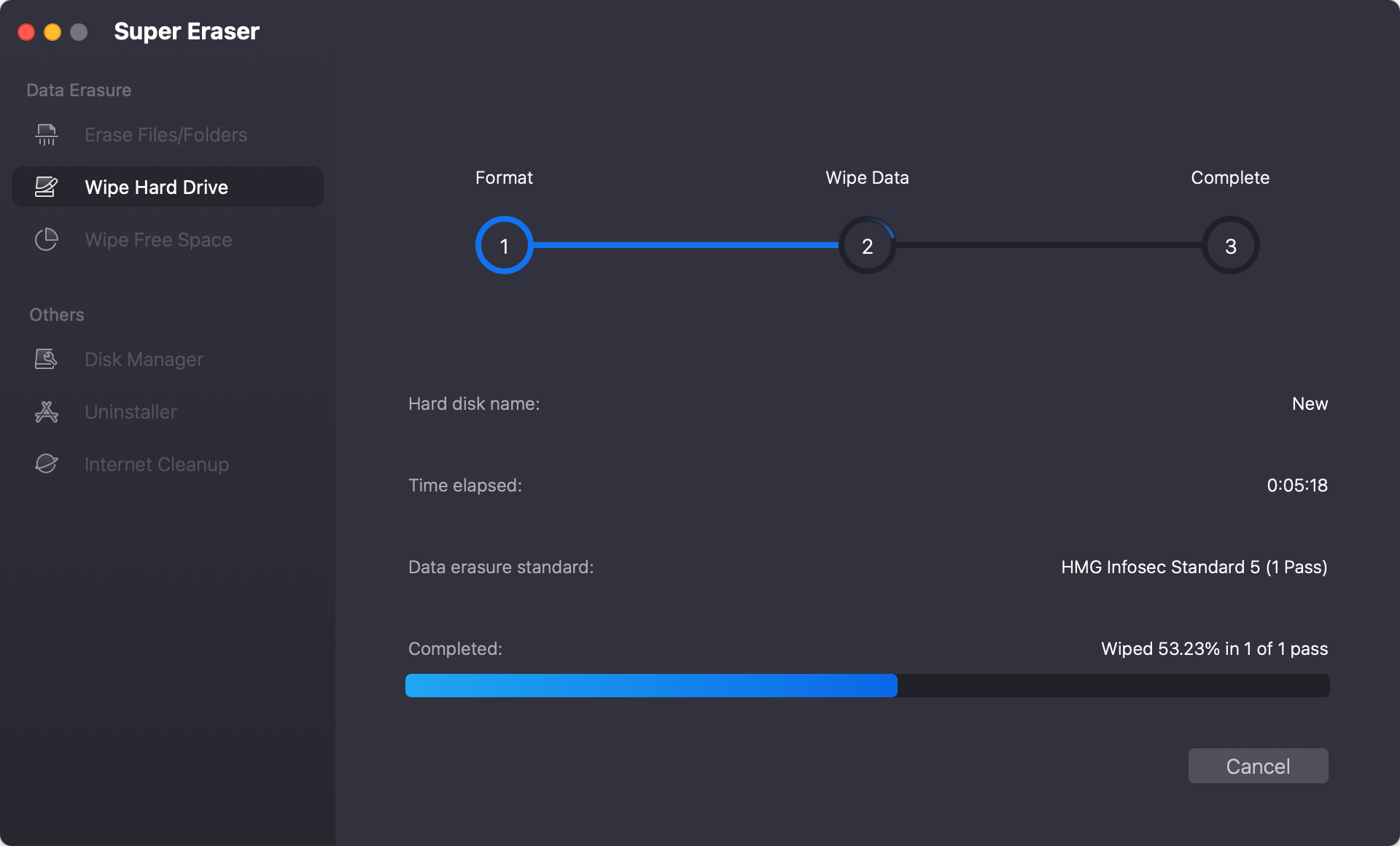
The software will begin deploying secure algorithms to systematically write random data across all unallocated sectors of your drive. Once the process wraps up, every single trace of your old personal files will be permanently overwritten and gone forever.
There are many data tools on the market, but DoYourData Super Eraser stands out as a premier solution for macOS users. Here is why it is the go-to choice for tech-savvy users and beginners alike:
Wiping your data is the most critical step, but there are a few additional housekeeping tasks you should perform before shipping your MacBook to its new owner. Follow this handy checklist to ensure a perfect transfer:
Selling or donating your MacBook is a wonderful way to extend the lifespan of an amazing piece of hardware. However, it should never come at the expense of your personal security. Leaving your private files, passwords, and data remnants vulnerable is a risk you simply do not need to take.
By combining Apple's built-in factory reset with the deep-cleaning power of DoYourData Super Eraser, you create an impenetrable barrier around your private life. The two-step process takes very little effort but provides absolute certainty that your past data stays in the past.
DoYourData Super Eraser for Mac
DoYourData Super Eraser for Mac is a 100% safe, powerful and easy-to-use data erasure program. It offers certified data erasure standards including Peter Gutmann, U.S. Army AR380-19, DoD 5220.22-M ECE to permanently erase data from Macs and external devices, making data recovery be impossible.
Written & Updated by Shirly Chen
Shirly Chen has been writing data recovery, data erasure articles for DoYourData over 4 years. She has been working as a professional website content writer & editor for quite a long time. She also writes articles about disk clone, Mac optimization, disk backup, etc.