How to Completely Wipe External Thunderbolt 5 Drive on M5 Mac?
Formatting a drive will not guarantee the data is gone forever. How to make sure data is wiped permanently from Thunderbolt 5 drive on M5 Mac, you can use the professional data erasure tool DoYourData Super Eraser for Mac.
 Updated by Shirly Chen on May 29, 2026
Quick Navigation:
- Why Standard Formatting Doesn't Protect Your Privacy
- Method 1: Erasing the Drive with Apple Disk Utility (Good for General Re-use)
- Method 2: Permanent Wiping via DoYourData (Best for Selling or Gifting)
- FAQs on Wiping Thunderbolt 5 Drive on M5 Mac
- Conclusion
Have you just bought a brand-new M5 Mac? If so, you are likely enjoying some of the fastest computer speeds on the planet! The addition of Thunderbolt 5 ports means your files move quicker than ever before. But what happens when you want to clear out an old external drive? Maybe you are planning to sell it, give it to a friend, or trade it in. In these situations, you must make sure your private photos, bank documents, and old passwords do not end up in the wrong hands.

Simply dragging your files to the Trash and emptying it is not enough. Anyone with basic file recovery software can get those files back in seconds. To stay safe, you need to completely wipe external Thunderbolt 5 drive on M5 Mac. This means rewriting every single bit of information on the drive so that your old data vanishes forever.
Why Standard Formatting Doesn't Protect Your Privacy
Many home users think that formatting a drive through the Mac Disk Utility app deletes everything. This is a very common mistake. When you format a drive or delete a file, your Mac does not actually scrub the data off the physical platters or flash memory chips. Instead, it just hides the files. It marks that specific storage space as 'available' for new information.
Think of your external drive like a massive textbook. Deleting a file is like ripping out the table of contents page. The actual chapters are still there in the back of the book! Until your Mac writes new files over those old chapters, the old data remains completely intact. Anyone with standard file recovery tools can scan the drive and piece your files back together.
Important Warning: If you sell or give away your external SSD without a deep write-over, your private data travels right along with it. This is why a permanent erase is required.
Method 1: Erasing the Drive with Apple Disk Utility (Good for General Re-use)
If you are just planning to keep the external drive for yourself and want a fresh start, Apple's built-in Disk Utility is a wonderful tool. It cleans the drive quickly so you can start storing new files right away.
Follow these simple steps to format your drive using Disk Utility:
Step 1: Plug your external Thunderbolt 5 drive into one of the ports on your M5 Mac.
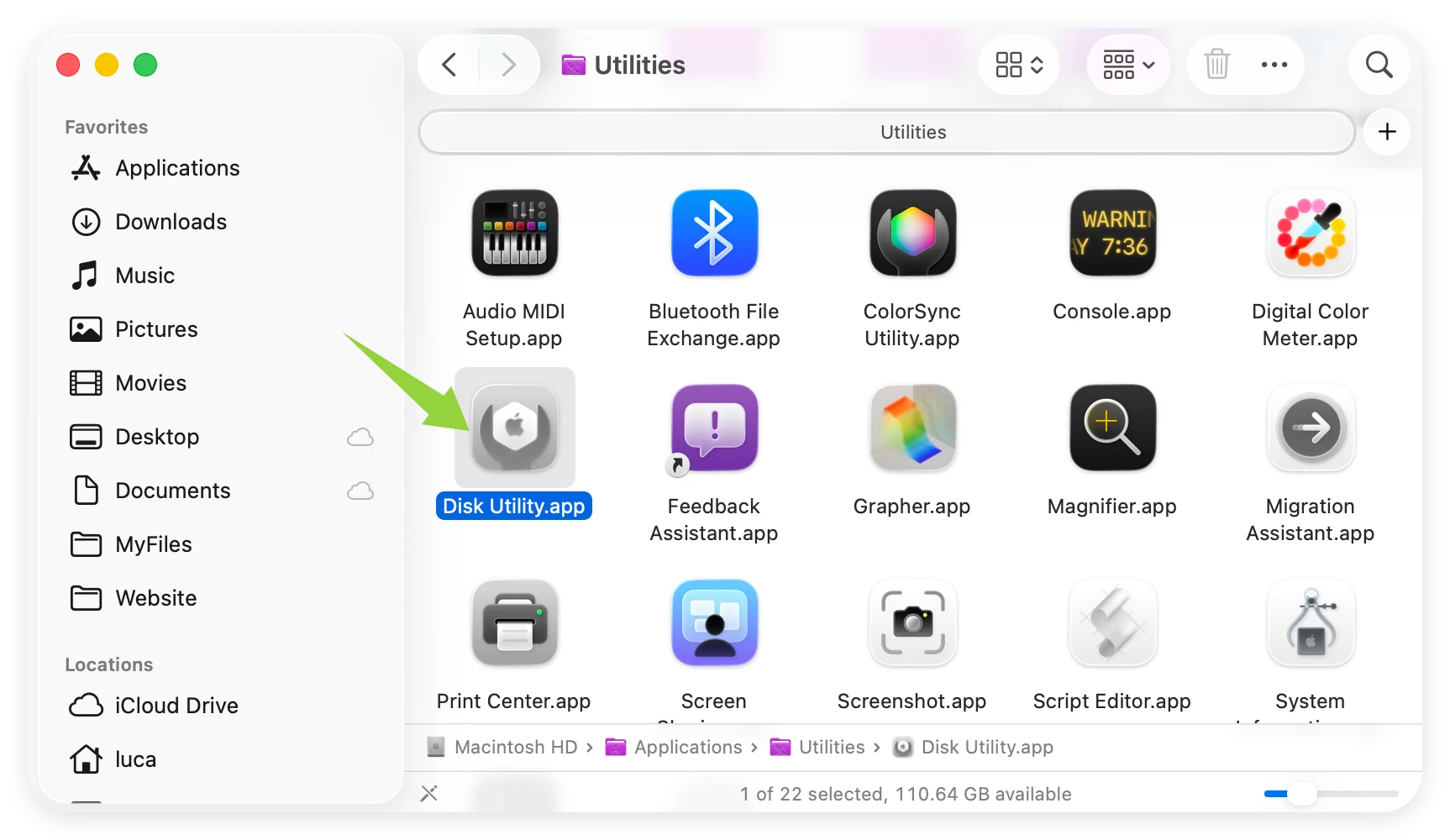
Step 2: Open the Finder, go to Applications, open the Utilities folder, and click on Disk Utility.
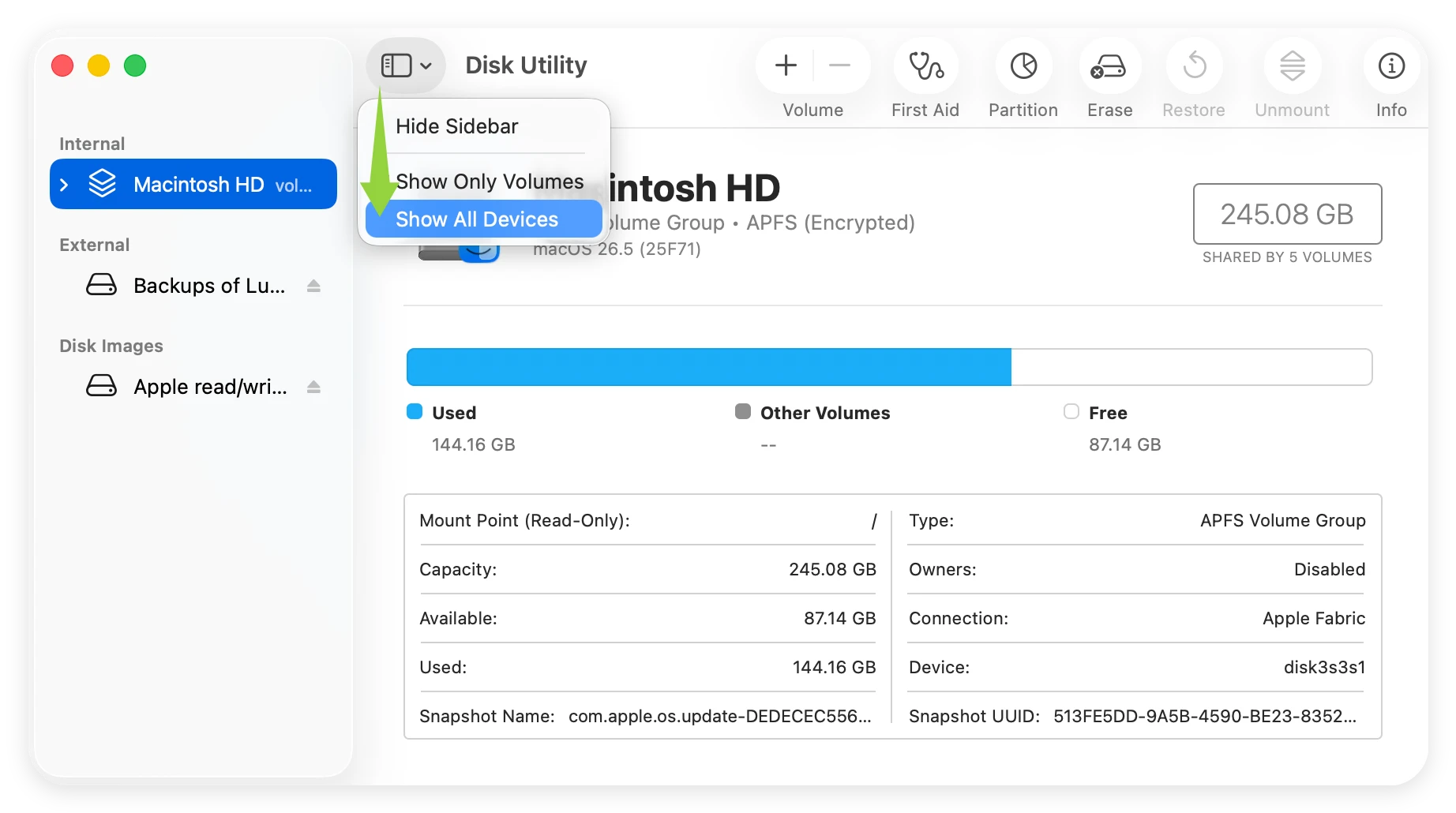
Step 3: Look at the left sidebar. Click on View at the top left and select Show All Devices. Find your external drive and click on it.
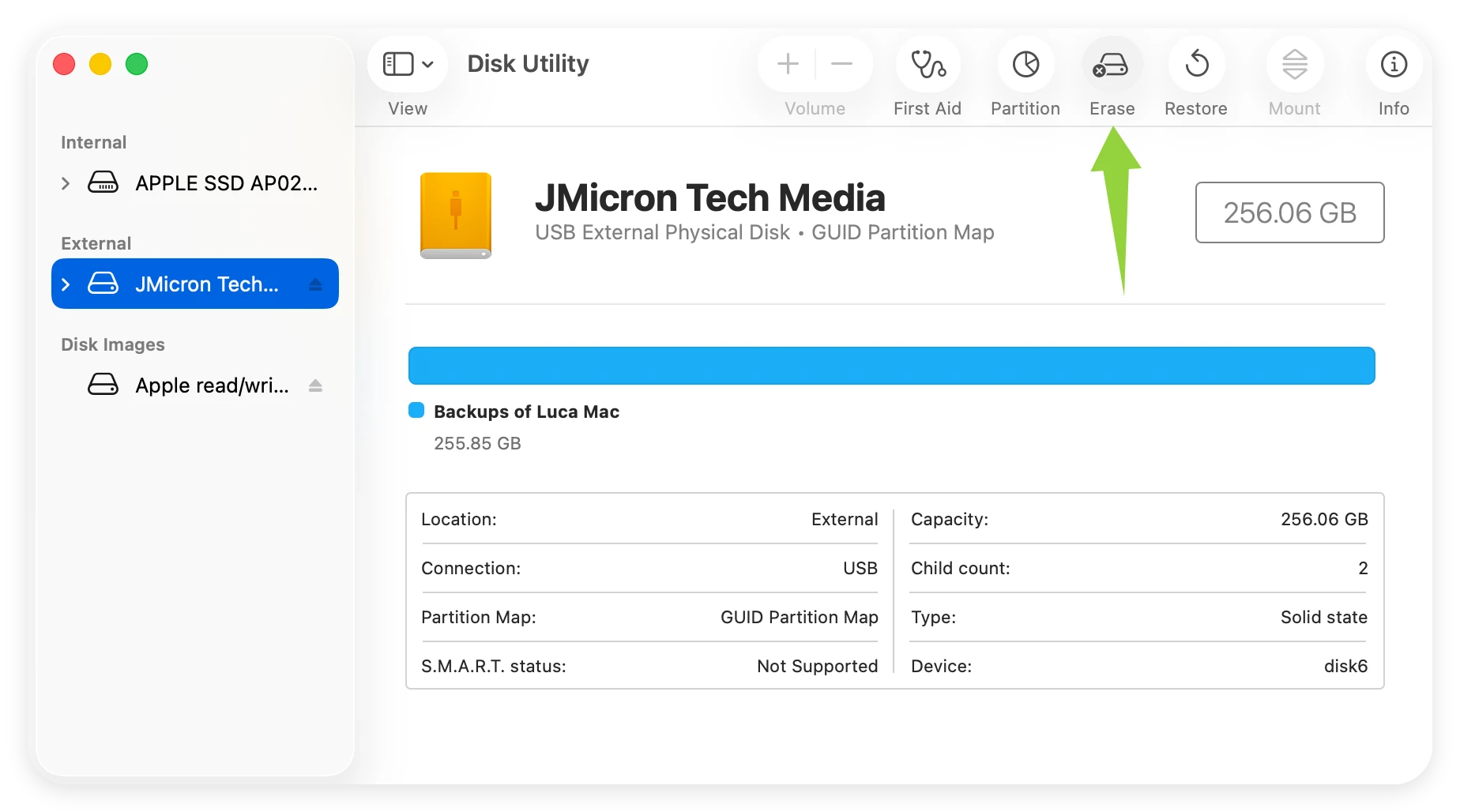
Step 4: Click the Erase button located at the top center of the screen.
Step 5: Type a new name for your drive. For the Format, choose APFS if you only use Macs, or choose ExFAT if you want it to work on Windows PCs too. For Scheme, choose 'GUID Partition Map'.
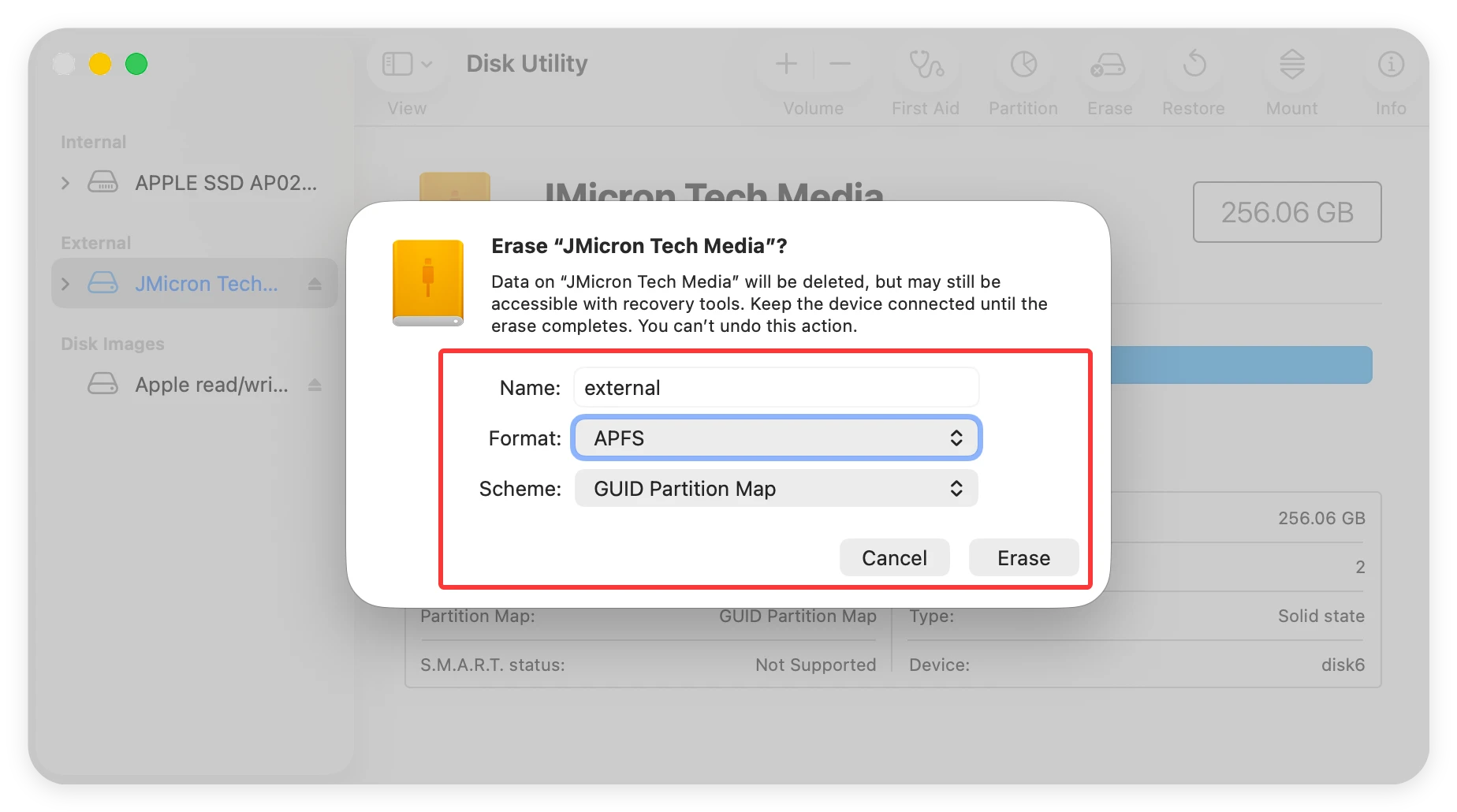
Step 6: Click the Erase button at the bottom of the pop-up box. Wait for the process to finish, then click Done.
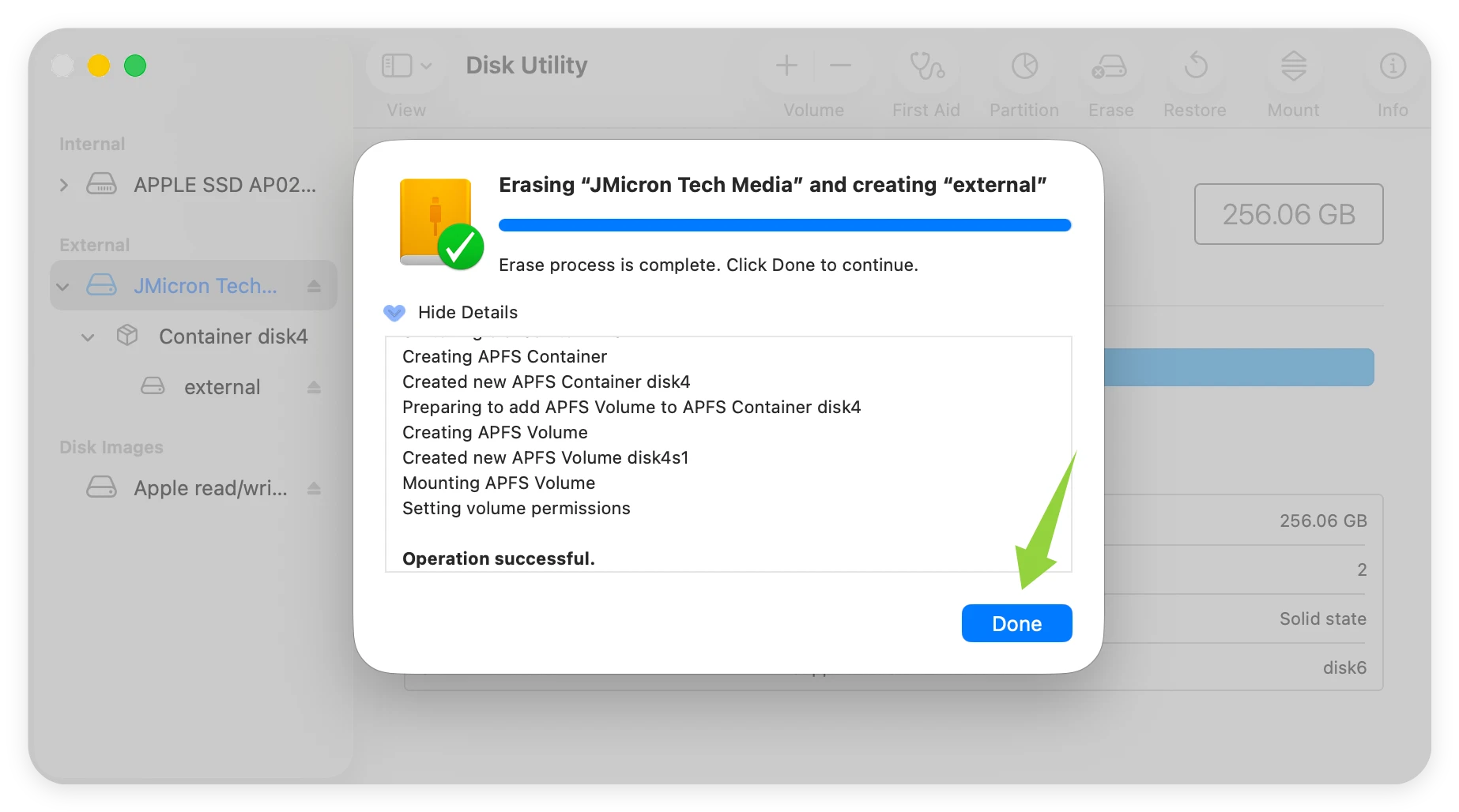
Please remember: This method clears the layout of the drive so you can reuse it, but it does not guarantee that your old data cannot be recovered by clever software. If you are selling the drive, you should skip to Method 2.
Method 2: Permanent Wiping via DoYourData (Best for Selling or Gifting)
When you want to completely wipe external Thunderbolt 5 drive on M5 Mac so that no one can ever find your data, you need professional help. This is where DoYourData Super Eraser for Mac comes into play.
This software is a professional-grade data eraser. It goes far beyond standard formatting. It overwrites the entire storage area of your Thunderbolt 5 drive with random lines of code, zeroes, or confusing characters. It complies with top safety data erasure standards like NIST 800-88 and DoD 5220.22-M. Once this tool finishes its job, the data is gone forever. Not even a professional government agency could recover a single picture from the drive.
Here are the simple steps to completely wipe your drive using DoYourData Super Eraser for Mac:
Step 1: Download and install DoYourData Super Eraser for Mac on your M5 Mac computer. Connect your external Thunderbolt 5 drive to your Mac.
DoYourData Super Eraser for Mac
- Wipe external drive to destroy all data from the drive.
- Equipped with international data wiping algorithms.
- Permanently wipe data and ensure the data is gone forever.
Step 2: Open the software from your Applications folder. In the main menu on the left side, click on the option that says Wipe Hard Drive. You will see a list of all drives connected to your Mac. Find your external Thunderbolt 5 drive in the list and click the checkbox next to it.
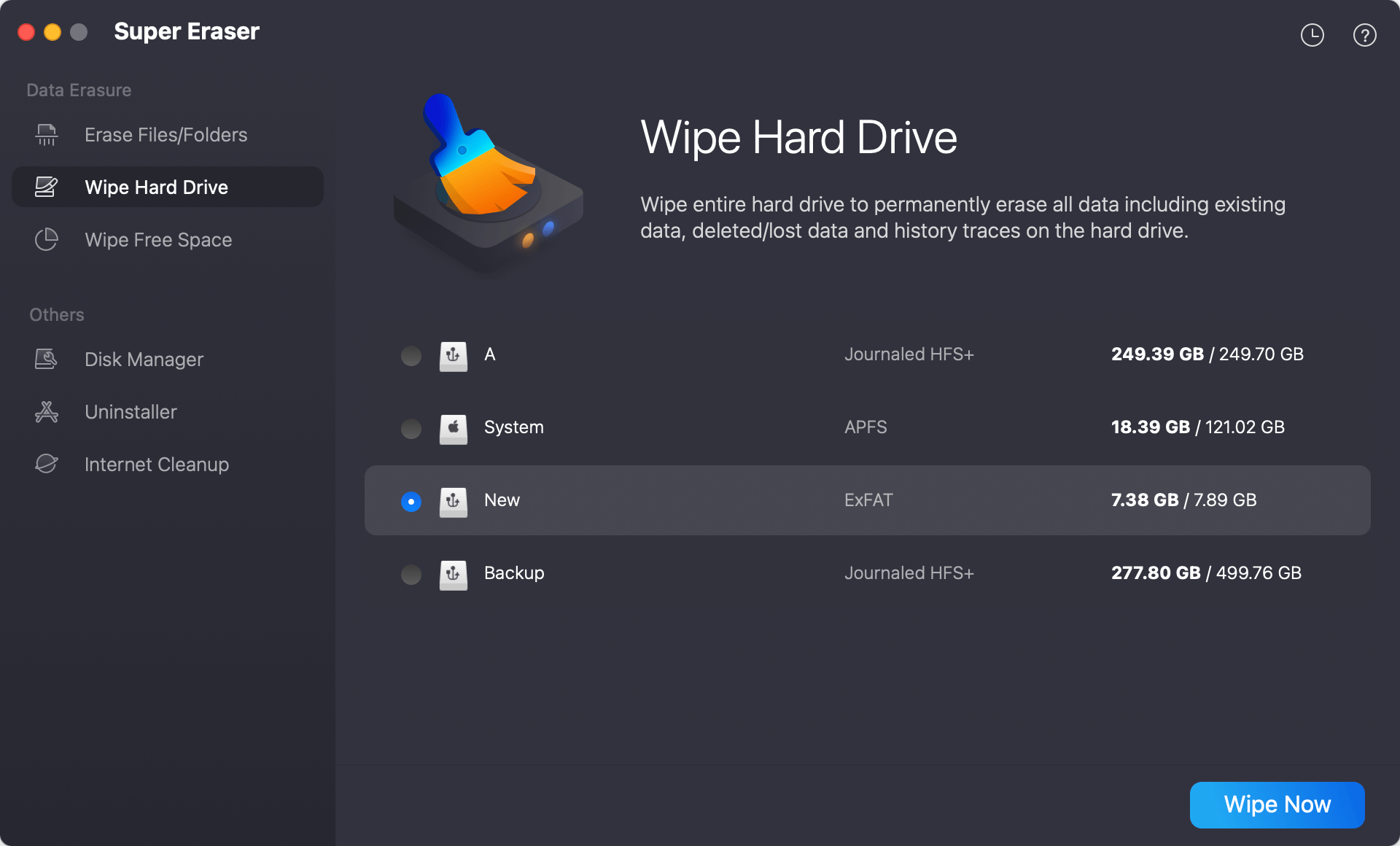
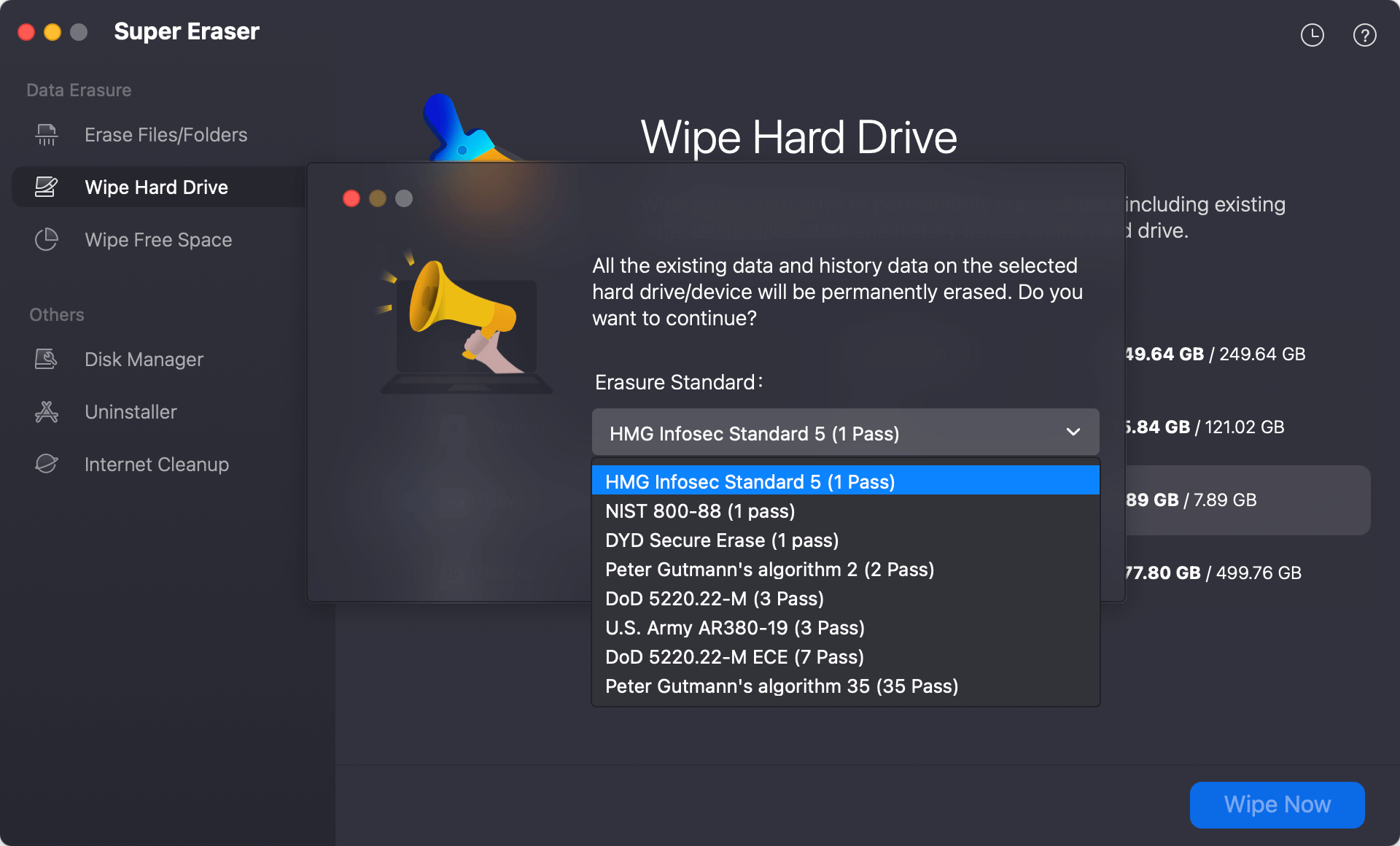
Step 3: Click the large Wipe Now button at the bottom of the screen. The software will show the option to select a data erasure standard for data wiping. Select one from the list and click Continue button.
Step 4: Let the software run the data wiping process until it shows a message saying the wipe is successful. Do not unplug the cable while it is working!
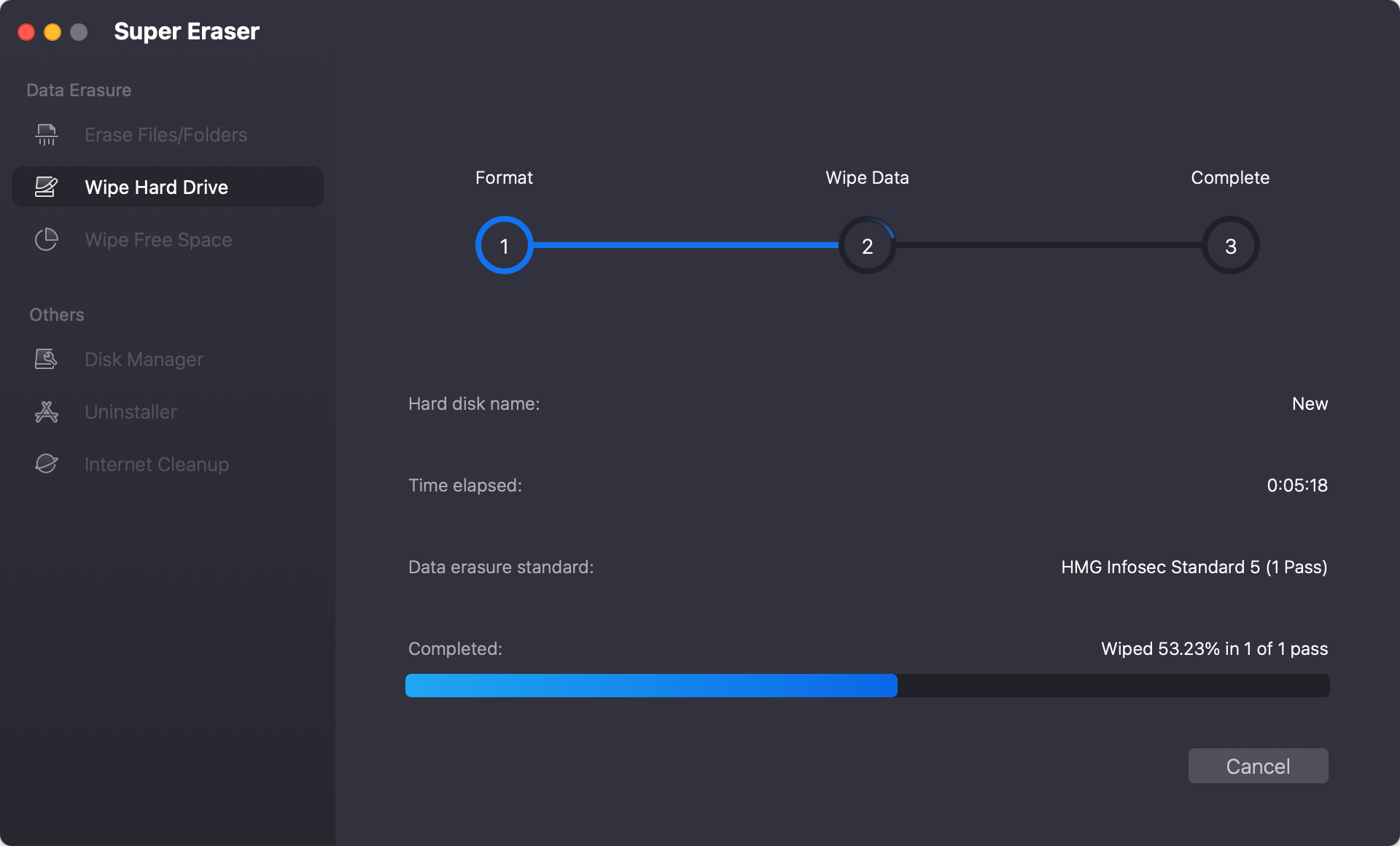
Note: Once the data wiping process completes, the action cannot be undone. Please make sure you have copied any important files to another computer before you start!
FAQs on Wiping Thunderbolt 5 Drive on M5 Mac
Conclusion
Taking care of your digital privacy is vital in our connected world. When it is time to say goodbye to an external storage device, taking a few minutes to completely wipe external Thunderbolt 5 drive on M5 Mac will save you from a lot of future worries.
For simple day-to-day cleaning, Apple's Disk Utility works just fine. But when security matters most, downloading DoYourData Super Eraser for Mac ensures your personal information is permanently destroyed. Keep your data safe, protect your privacy, and enjoy the extreme power of your M5 Mac system!
DoYourData Super Eraser for Mac
DoYourData Super Eraser for Mac is a 100% safe, powerful and easy-to-use data erasure program. It offers certified data erasure standards including Peter Gutmann, U.S. Army AR380-19, DoD 5220.22-M ECE to permanently erase data from Macs and external devices, making data recovery be impossible.
Written & Updated by Shirly Chen
Shirly Chen has been writing data recovery, data erasure articles for DoYourData over 4 years. She has been working as a professional website content writer & editor for quite a long time. She also writes articles about disk clone, Mac optimization, disk backup, etc.