How to Overwrite Free Space Blocks on Apple Notebook Before Trade
To overwrite free space blocks on used Apple notebook before retail trade, traditional file deletion is insufficient due to SSD wear-leveling and APFS snapshot mechanics. Dedicated third-party data erasure software like DoYourData Super Eraser for Mac ensures zero-fill and multi-pass overwriting to render deleted files permanently unrecoverable before handoff.
 Updated by Shirly Chen on Novmenber 11, 2026
Quick Navigation:
- How Apple SSDs Handle Deleted Data: APFS, TRIM, and Encryption
- Methods to Overwrite Free Space Blocks on Used Apple Notebook
- Step-by-Step Checklist Before Reselling or Trading In Your MacBook
- FAQs about Wiping Free Space Blocks on Mac
- Conclusion
When preparing an Apple notebook for resale, trade-in, or private transfer, most users simply move their personal files to the Trash and empty it. However, emptying the Trash on macOS does not immediately remove the underlying data from your solid-state drive (SSD) or hard disk drive (HDD).
Until these unallocated sectors are actively overwritten with new data patterns, specialized file recovery software can easily scan the storage medium and restore the deleted data. If you trade in or sell your MacBook in this state, the next owner or unauthorized third parties could extract your sensitive personal information.

Therefore, executing a comprehensive process to overwrite free space blocks on used Apple notebook before retail trade is an essential security step to guarantee permanent data destruction.
How Apple SSDs Handle Deleted Data: APFS, TRIM, and Encryption
Understanding how modern MacBooks manage deleted data requires examining three core technologies: FileVault encryption, TRIM commands, and APFS space management. The architecture of your Apple notebook dictates which data erasure methodology is most effective.
On Apple Silicon MacBooks (M1 through M6 series) and Intel Macs equipped with Apple T2 Security Chips, storage encryption is enabled by default at the hardware level. When FileVault is activated, user data is protected by hardware-backed cryptographic keys stored inside the Secure Enclave. Executing a factory reset destroys these cryptographic keys, rendering any residual data blocks instantly unintelligible scrambled noise.
However, on SSDs where encryption is disabled, or on external storage drives, the drive's controller relies on TRIM to mark deleted blocks for background garbage collection. TRIM operations do not execute instantaneously across all free space blocks. Until garbage collection physically recycles those flash blocks, deleted data remains recoverable via direct low-level block scanning. Overwriting free space forces every unallocated block to be explicitly written over, guaranteeing total data erasure.
Apple Hardware Security & Free Space Erasure Matrix
| MacBook Hardware Architecture | Storage Type | Default Security Level | Recommended Free Space Overwrite Method |
|---|---|---|---|
| Apple Silicon (M1 - M6 Series) | Unified NVMe SSD | Hardware Cryptographic Encryption | System Settings > Erase All Content and Settings (EACS) |
| Intel Mac with T2 Chip (2018-2020) | Internal NVMe SSD | T2 Cryptographic Key Protection | Erase All Content and Settings OR DoYourData Super Eraser |
| Legacy Intel Mac (Pre-2018) | SATA / PCIe SSD | Optional Software FileVault | Terminal 'diskutil secureErase' OR Dedicated Utility |
| External USB/Thunderbolt Drives | HDD / External SSD | Standard APFS / HFS+ / ExFAT | Targeted Third-Party Free Space Overwrite Tool |
Methods to Overwrite Free Space Blocks on Used Apple Notebook
Depending on your macOS version, processor type, and whether you wish to wipe the entire operating system or merely clean deleted file remnants while keeping system settings intact, select one of the three primary methodologies below.
Method 1: Using Modern macOS Built-in Reset (Apple Silicon & T2 Macs)
If your MacBook runs macOS Monterey or later and features Apple Silicon (M1-M6) or a T2 Security Chip, Apple provides a streamlined system feature called Erase All Content and Settings (EACS).
Step 1: Open System Settings from the Apple menu (?) in the upper-left corner of your screen.
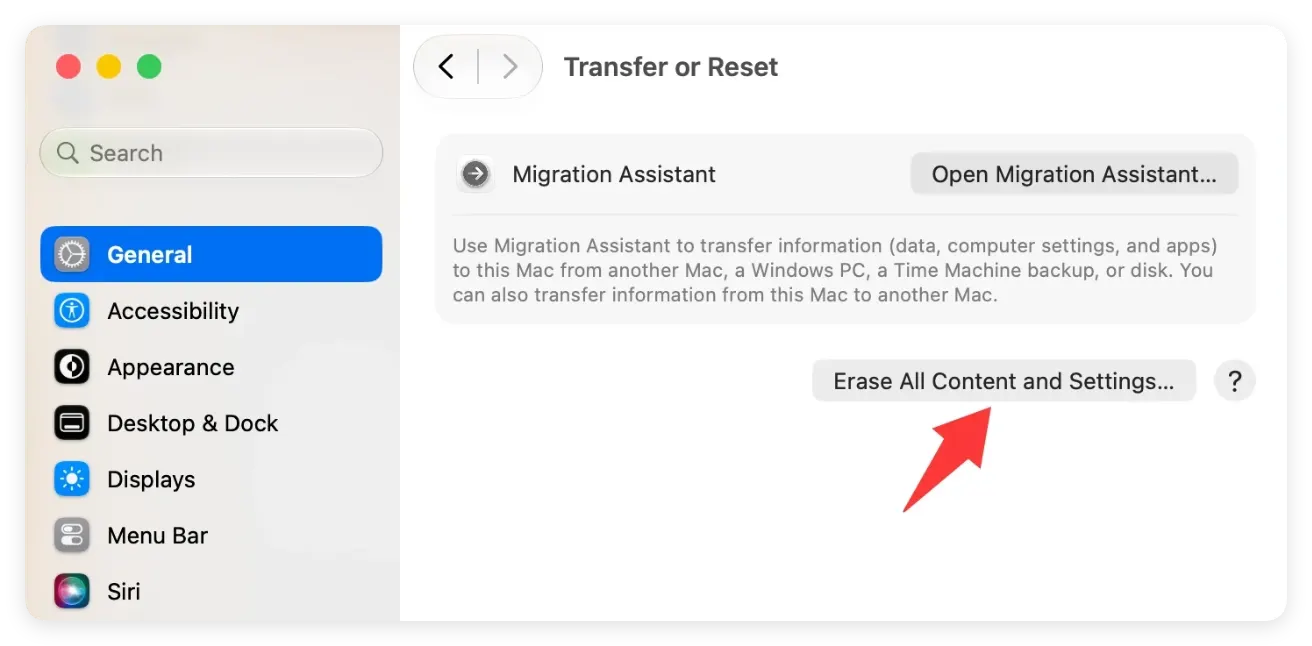
Step 2: Navigate to General in the sidebar, then select Transfer or Reset.
Step 3: Click Erase All Content and Settings to launch the Erase Assistant.
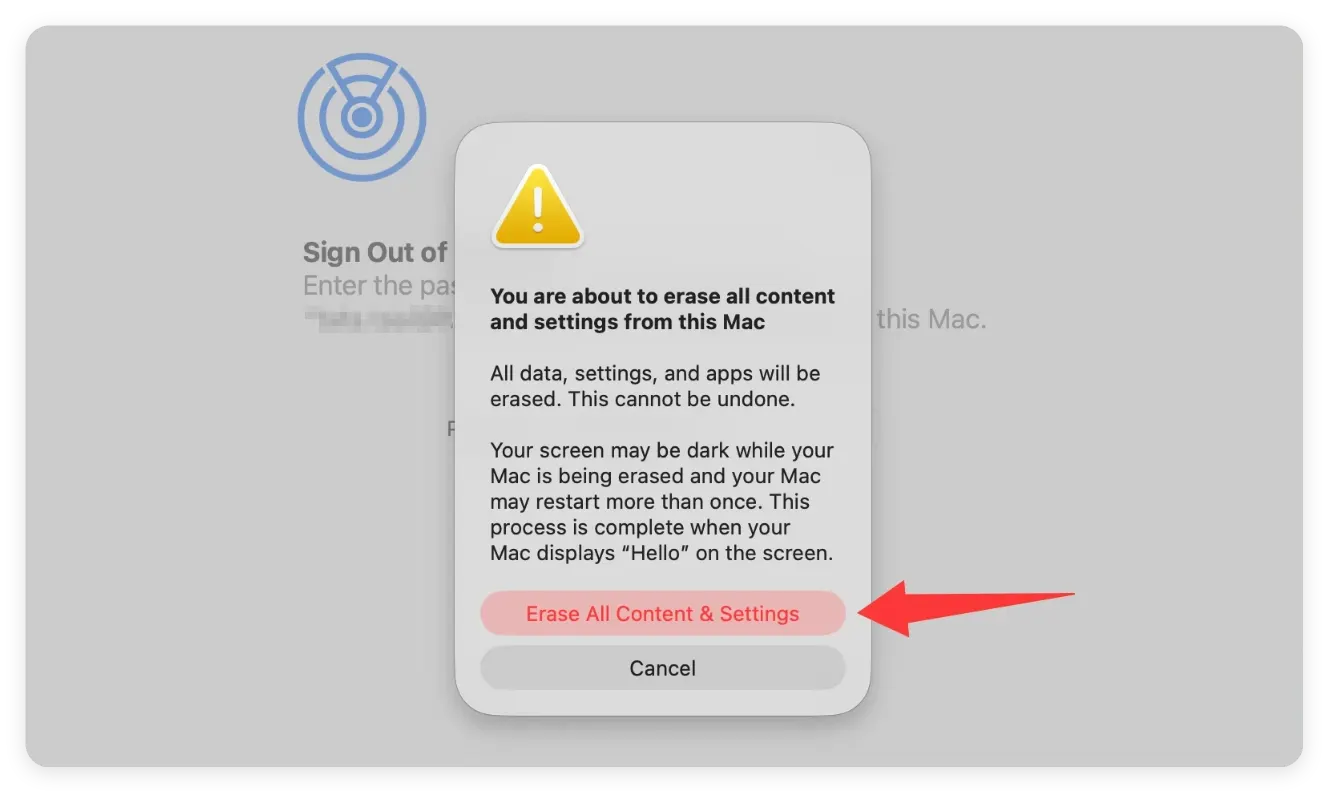
Step 4: Enter your administrator password and Apple ID credentials to sign out of Find My and iCloud services.
Step 5: Confirm the action. macOS will immediately destroy all master encryption keys and unmount all user APFS volumes, rendering all allocated and unallocated blocks completely unrecoverable.
Method 2: Wiping Free Space via Mac Terminal (Legacy Intel macOS)
For older Intel MacBooks running legacy macOS releases (or for secondary non-system volumes), the native macOS Terminal command-line tool offers a diskutil command to overwrite free space blocks without affecting existing user files.
Step 1: Launch Terminal from Applications > Utilities > Terminal.
Step 2: Type 'diskutil list' and press Enter to identify your target volume name (e.g., /Volumes/Macintosh HD).
Step 3: Execute the secure erase freespace command using your desired wiping level syntax:
diskutil secureErase freespace 2 /Volumes/Macintosh\ HD
Step 4: Level 0 performs a single-pass zero-fill; Level 1 performs a single-pass random fill; Level 2 executes a US DoD 5220.22-M 7-pass overwrite; Level 4 applies a US DoE 3-pass algorithm.
Step 5: Wait for Terminal to generate a temporary file that expands to fill all unallocated blocks, write the selected sanitization patterns, and automatically remove the temporary container upon completion.
Method 3: Professional Data Erasure Utility (DoYourData Super Eraser for Mac)
While command-line interfaces require precise syntax to avoid accidental volume erasure, dedicated third-party software like DoYourData Super Eraser for Mac provides a safe, graphical solution specifically optimized to overwrite free space blocks on used Apple notebook before retail trade.
Step 1: Download and install DoYourData Super Eraser for Mac on your Apple notebook.
DoYourData Super Eraser for Mac
- Secure data erasure software for macOS.
- Support international data wiping standards.
- Permanently shred files or wipe hard drive data.
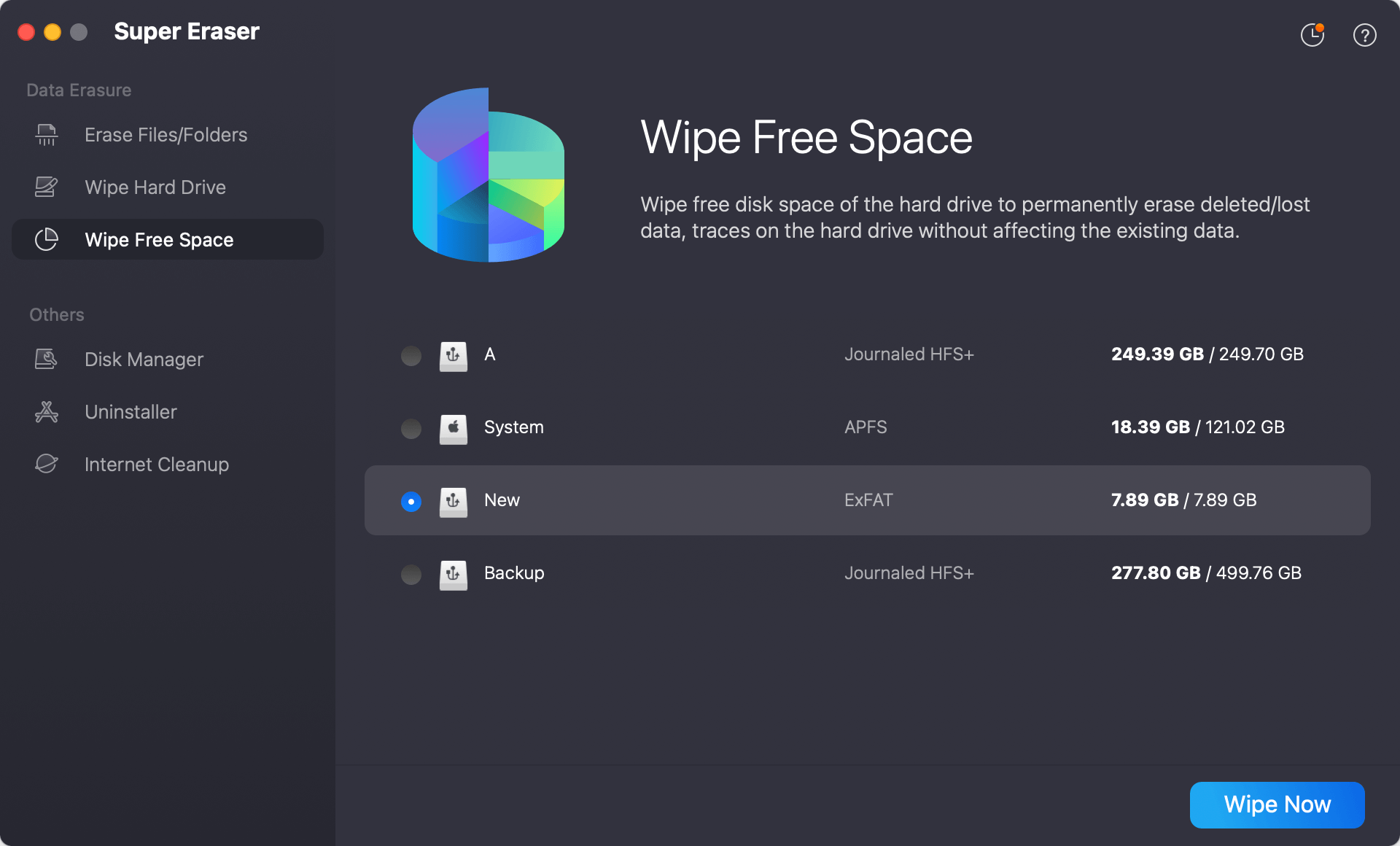
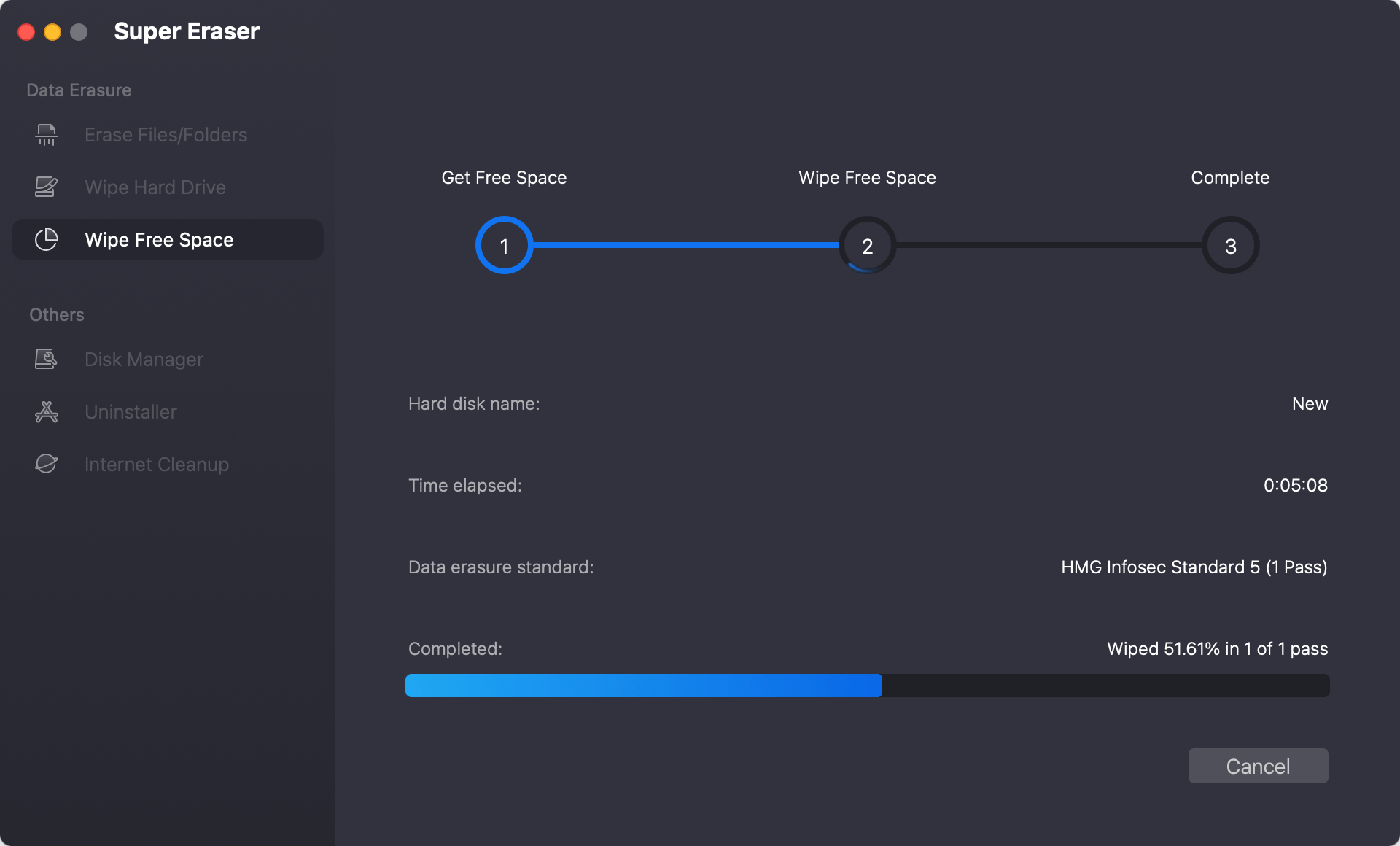
Step 2: Launch the application and select the 'Wipe Free Space' mode from the primary navigation menu. Select your target MacBook internal volume or connected external storage device. Click 'Wipe Now'.
Step 3: Choose an international data sanitization standard, such as DoD 5220.22-M, NIST SP 800-88, or Peter Gutmann 35-pass wipe.
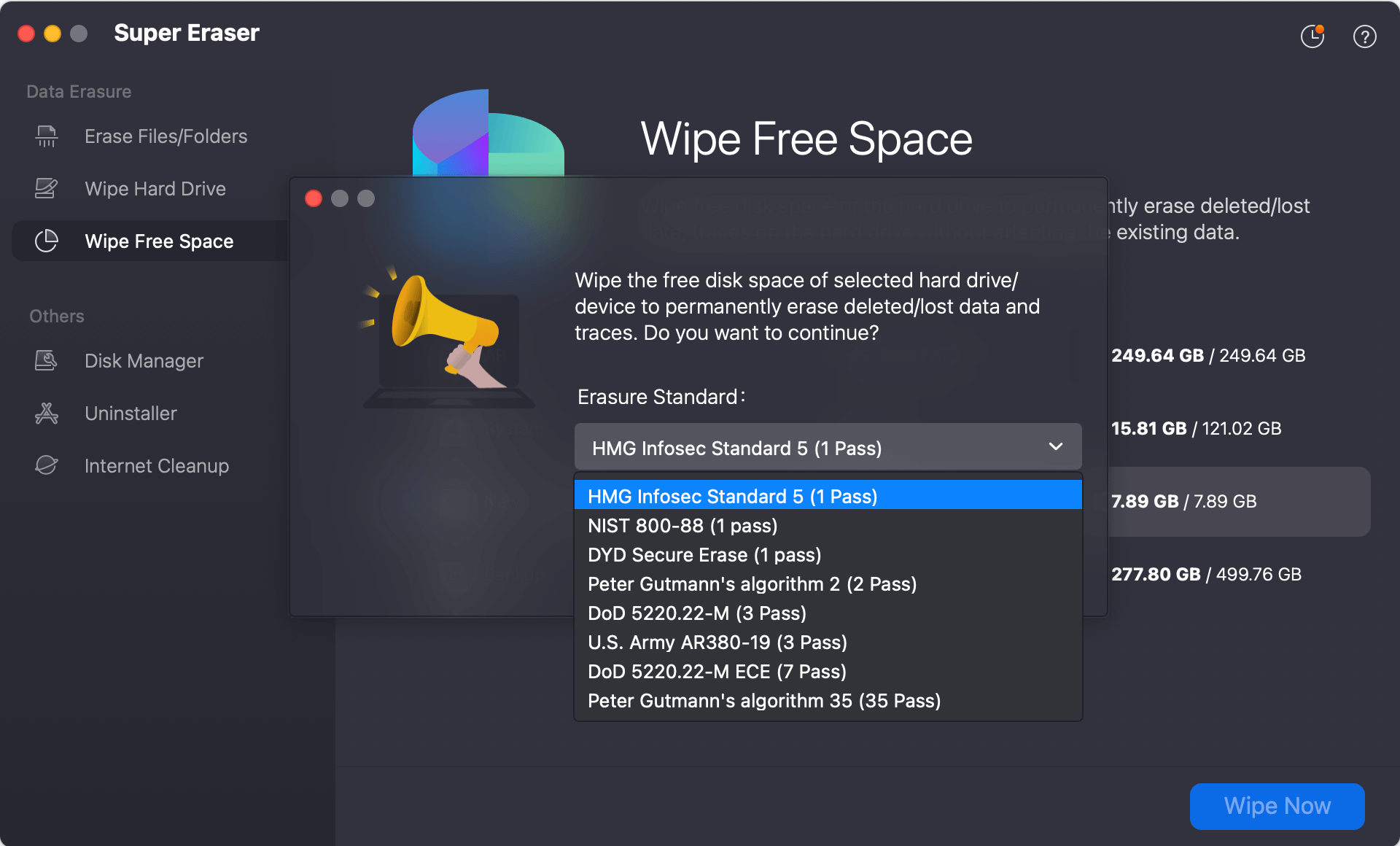
Step 4: Click 'Continue'. DoYourData Super Eraser will scan all unallocated storage sectors, systematically overwrite them with multi-pass random data patterns, and purge APFS cache fragments without disturbing installed applications or system files.
Comparison of Free Space Overwriting Methods
| Sanitization Method | Supported Mac Models | Technical Complexity | Data Recovery Risk | Operating System Preserved |
|---|---|---|---|---|
| Erase All Content (EACS) | Apple Silicon & T2 Intel | Very Low (GUI) | Zero Risk (Key Destruct) | No (Full Factory Reset) |
| Terminal 'diskutil' | Legacy Intel Macs | High (Command Line) | Low to Moderate | Yes (Keeps Current System) |
| DoYourData Super Eraser | All Intel & Apple Silicon | Low (Graphical User Interface) | Zero Risk (Certified Standards) | Yes (Wipes Only Free Space) |
Step-by-Step Checklist Before Reselling or Trading In Your MacBook
To ensure a seamless retail trade-in experience and total personal privacy protection, complete this step-by-step checklist prior to handing over your Apple notebook to a buyer or trade-in program.
Step 1: Create a Complete Backup: Connect an external hard drive and perform a comprehensive Time Machine backup or clone your system drive using disk cloning software.
Step 2: Sign Out of Apple Account & Services: Open System Settings, select your Apple Account, and sign out of iCloud. Deauthorize your computer in Music/TV apps to clear digital rights tokens.
Step 3: Disable Find My Mac and Activation Lock: Verify that Find My Mac is turned off under System Settings > Privacy & Security > Location Services to prevent locking out the prospective buyer.
Step 4: Unpair Bluetooth Devices: Disconnect paired Apple Watch units, AirPods, keyboards, and trackpads under System Settings > Bluetooth.
Step 5: Overwrite Free Space / Reset Drive: Perform a cryptographic wipe via Erase All Content and Settings or execute a certified free space block overwrite using DoYourData Super Eraser.
Step 6: Clean Physical Hardware: Wipe down the display screen, keyboard, and aluminum chassis with isopropyl alcohol wipes to maximize retail trade-in assessment value.
FAQs about Wiping Free Space Blocks on Mac
Conclusion:
Taking the necessary steps to overwrite free space blocks on used Apple notebook before retail trade ensures that your personal information, financial records, and confidential files remain permanently out of reach. Whether you utilize macOS's built-in cryptographic reset features or leverage DoYourData Super Eraser for Mac for targeted unallocated space wiping, thorough data sanitization guarantees complete peace of mind and complete privacy protection before your laptop transitions to its next owner.
DoYourData Super Eraser for Mac
DoYourData Super Eraser for Mac is a 100% safe, powerful and easy-to-use data erasure program. It offers certified data erasure standards including Peter Gutmann, U.S. Army AR380-19, DoD 5220.22-M ECE to permanently erase data from Macs and external devices, making data recovery be impossible.
Written & Updated by Shirly Chen
Shirly Chen has been writing data recovery, data erasure articles for DoYourData over 4 years. She has been working as a professional website content writer & editor for quite a long time. She also writes articles about disk clone, Mac optimization, disk backup, etc.