Permanently Wipe Mac mini Units Before Private Sale: 3-Step Guide
Most sellers assume that logging out of iCloud and running Apple's built-in reset command completely erases their private files. Unfortunately, in the world of modern digital forensics, standard factory resets don't always destroy data beyond recovery. It's necessary to wipe data permanently with DoYourData Super Eraser for Mac or other data wiping tools.
 Updated by Shirly Chen on Novmenber 3, 2026
Quick Navigation:
- Understanding the Risks: Why Mac mini Requires Deep Sanitization
- Step 1: Back Up Data and Sign Out of Apple Services
- Step 2: Factory Reset macOS on Mac mini
- Step 3: Wipe Free Disk Space with DoYourData Super Eraser
- Bonus Tips: Physical Cleaning and Final Handover Checklist
- FAQs about Permanently Wiping Mac mini
- Conclusion
The Mac mini remains one of Apple's most versatile desktop computers. Whether you're selling your old device on eBay, or handing it over to a buyer on Facebook Marketplace, preparing your Mac mini for private sale is a vital security task.
When you delete files or reset macOS, the operating system primarily marks those storage blocks as unallocated free space. The underlying binary data remores intact until new files overwrite them. If a savvy buyer runs commercial data recovery software on your sold Mac mini, they could easily resurrect your confidential information.

To ensure 100% privacy and prevent identity theft, you must learn how to permanently wipe Mac mini units before private sale. In this article, we break down the definitive 3-step solution to back up your data, execute a factory reset, and permanently sanitize unallocated drive space using certified software.
Understanding the Risks: Why Mac mini Requires Deep Sanitization
Modern Mac mini models utilize fast Solid-State Drives (SSDs) and the Apple File System (APFS). Flash storage operates using complex background processes like wear-leveling and TRIM commands.
While these technologies extend the physical lifespan of your SSD, they create unexpected privacy risks during a private sale:
- Directory Index vs. Raw Memory: Standard file deletion commands only delete the file directory pointer, leaving raw data sitting silently in memory blocks.
- Wear-Leveling Artifacts: SSD controllers move data fragments across storage blocks to prevent hardware wear, scattering hidden copies of sensitive files.
- Residual Free Space Fragments: Even after a factory reset, deleted file remnants remain hidden in unallocated free space until overwritten multiple times.
To eliminate these privacy vulnerabilities before handing your Mac mini to a stranger, you must follow a structured, multi-layer cleaning protocol.
Step 1: Back Up Data and Sign Out of Apple Services
Before wiping your Mac mini, you must safeguard your personal files and disconnect your Apple ID to prevent hardware activation locks for the buyer.
1. Create a Full System Backup
Ensure you don't lose any valuable documents, media libraries, or personal configurations. You have two main backup options:
- Time Machine Backup: Connect an external hard drive or SSD to your Mac mini, open System Settings > General > Time Machine, and initiate a full backup.
- Manual File Transfer: Copy essential project folders, tax records, and media files directly to an external drive or cloud service like iCloud Drive, Google Drive, or Dropbox.
- Make a full clone: With disk cloning software, such as DoYourClone for Mac, you can make a complete and bootable clone for your macOS.
2. Sign Out of iCloud, iMessage, and Find My Mac
Failing to sign out of Apple services can lock your Mac mini to your Apple Account, making it unusable for the new owner:
- Sign Out of Apple Account: Go to System Settings > [Your Name] / Apple Account. Scroll down and click 'Sign Out'. Ensure 'Find My Mac' is toggled off.
- Sign Out of iMessage: Open the Messages app, click Messages > Settings > iMessage, and click 'Sign Out'.
- Deauthorize Computer: Open the Music app, navigate to Account > Authorizations, and choose 'Deauthorize This Computer'.
3. Unpair Bluetooth Accessories
If you plan to use your Bluetooth keyboard, mouse, or trackpad with a new computer nearby, go to System Settings > Bluetooth and unpair them so your old Mac mini doesn't attempt to connect to them after the sale.
Step 2: Factory Reset macOS on Mac mini
Once your data is backed up and your accounts are disconnected, you need to perform a clean factory reset of macOS.
Option A: Reset macOS on Modern Apple Silicon & T2 Mac mini (macOS Monterey or Later)
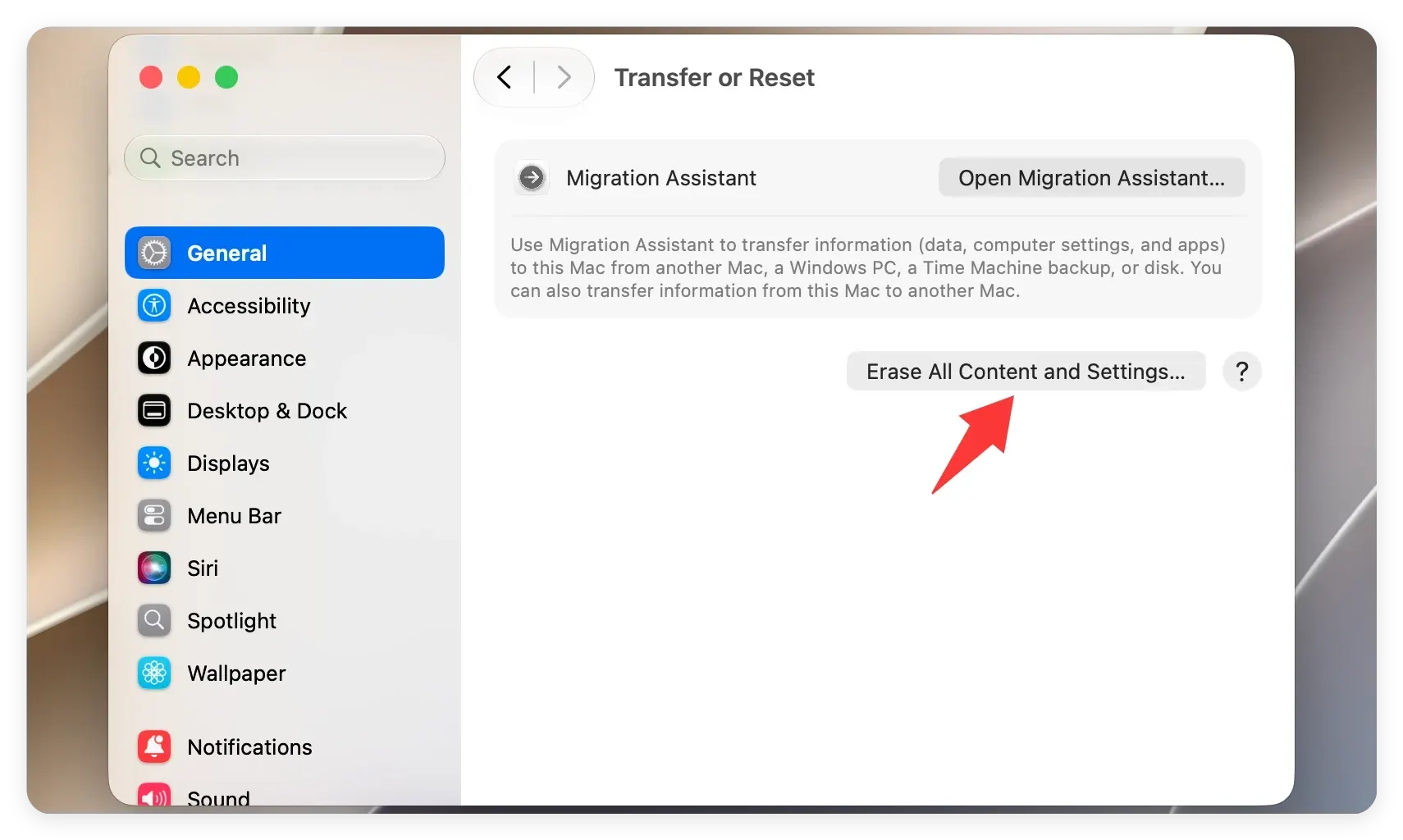
Apple introduced a streamlined 'Erase All Content and Settings' feature for modern Macs, similar to iOS:
- Open System Settings: Open the Apple menu in the top-left corner and select System Settings.
- Navigate to Reset: Click General in the left sidebar, then select Transfer or Reset on the right.
- Initiate Erase: Click Erase All Content and Settings.
- Authorize: Enter your Mac admin password and Apple Account credentials when prompted to confirm the reset.
- Complete Setup: Follow the on-screen assistant. Your Mac mini will restart, erase user data and settings, and return to the initial macOS setup screen.
Option B: Factory Reset Intel-Based Mac mini via macOS Recovery
If you are selling an older Intel Mac mini running an earlier macOS version, use macOS Recovery:
- Boot into Recovery: Restart your Mac mini and immediately press and hold Command (⌘) + R until the Apple logo or spinning globe appears.
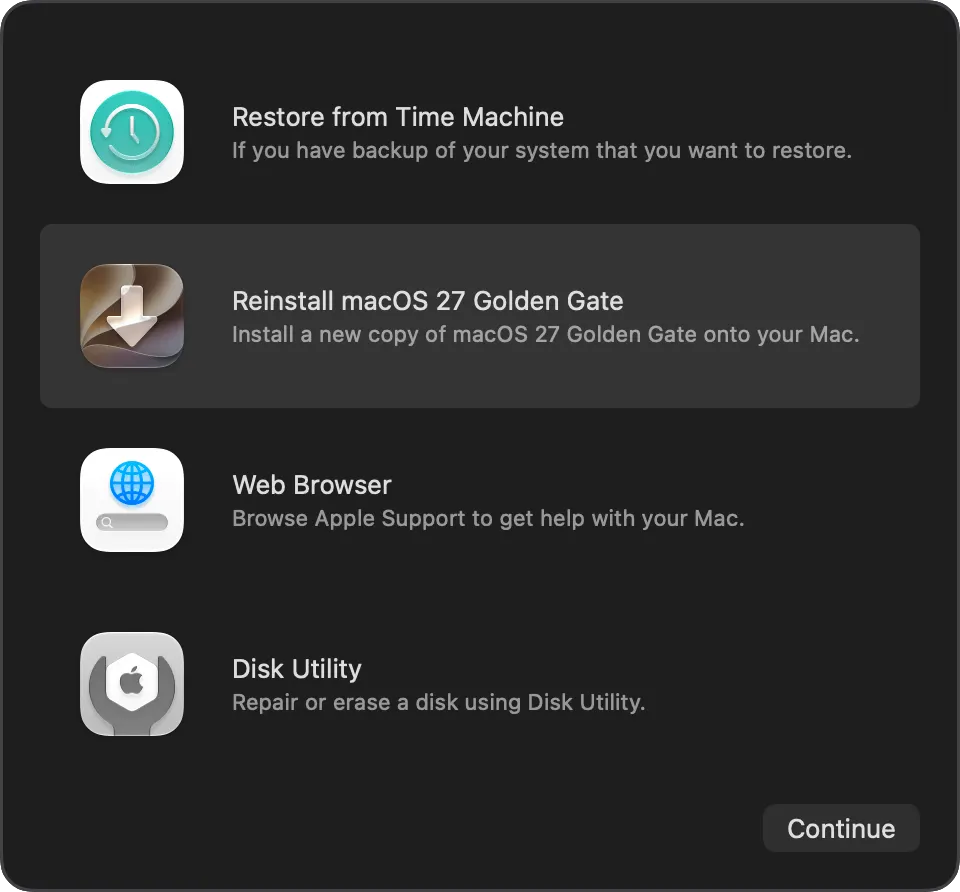
- Open Disk Utility: In the Recovery Utilities window, select Disk Utility and click Continue.
- Erase Volume: Select your main internal volume (usually named Macintosh HD) and click Erase in the top toolbar.
- Choose Format: Choose APFS format (or Mac OS Extended Journaled for older systems) and click Erase.
- Reinstall macOS: Quit Disk Utility, select Reinstall macOS from the main recovery menu, and follow the instructions to install a fresh operating system.
Step 3: Wipe Free Disk Space with DoYourData Super Eraser
While Step 2 resets your operating system, it leaves previously deleted file traces sitting in unallocated free space. To permanently wipe Mac mini units before private sale, you must purge these hidden file remnants using certified software.
Why DoYourData Super Eraser for Mac is Essential
DoYourData Super Eraser for Mac is a professional, military-grade data sanitization utility designed specifically for macOS. Fully compatible with macOS Golden Gate, earlier macOS releases, Apple Silicon (M1, M2, M3, M4, M5, M6, etc), and Intel chips, it guarantees that erased files can never be recovered by any data recovery tool or forensic laboratory.
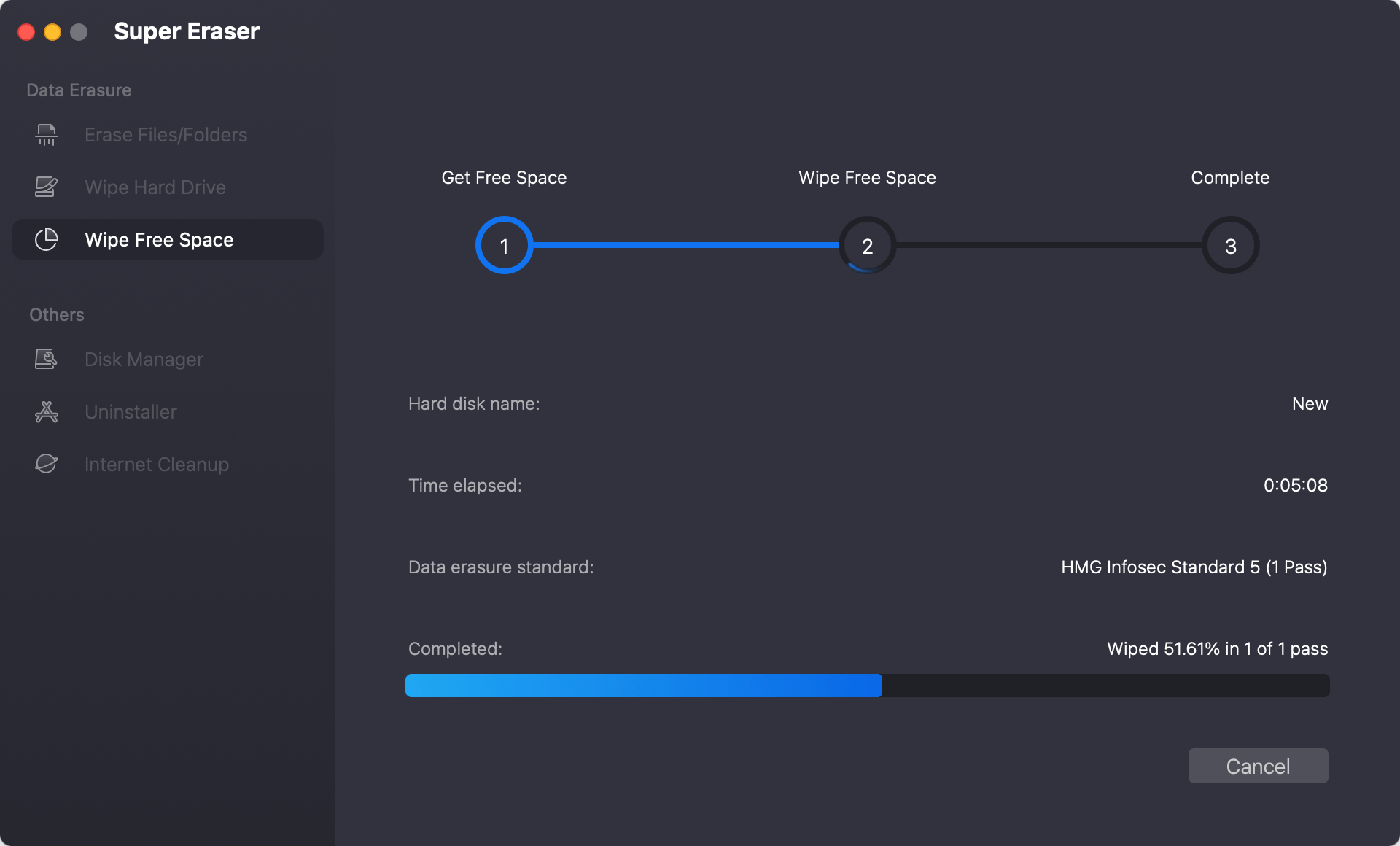
Its specialized 'Wipe Free Space' mode overwrites only the unallocated storage sectors where deleted file remnants linger. This ensures that your fresh macOS installation and active system files remain intact while eliminating all ghost traces of your private documents.
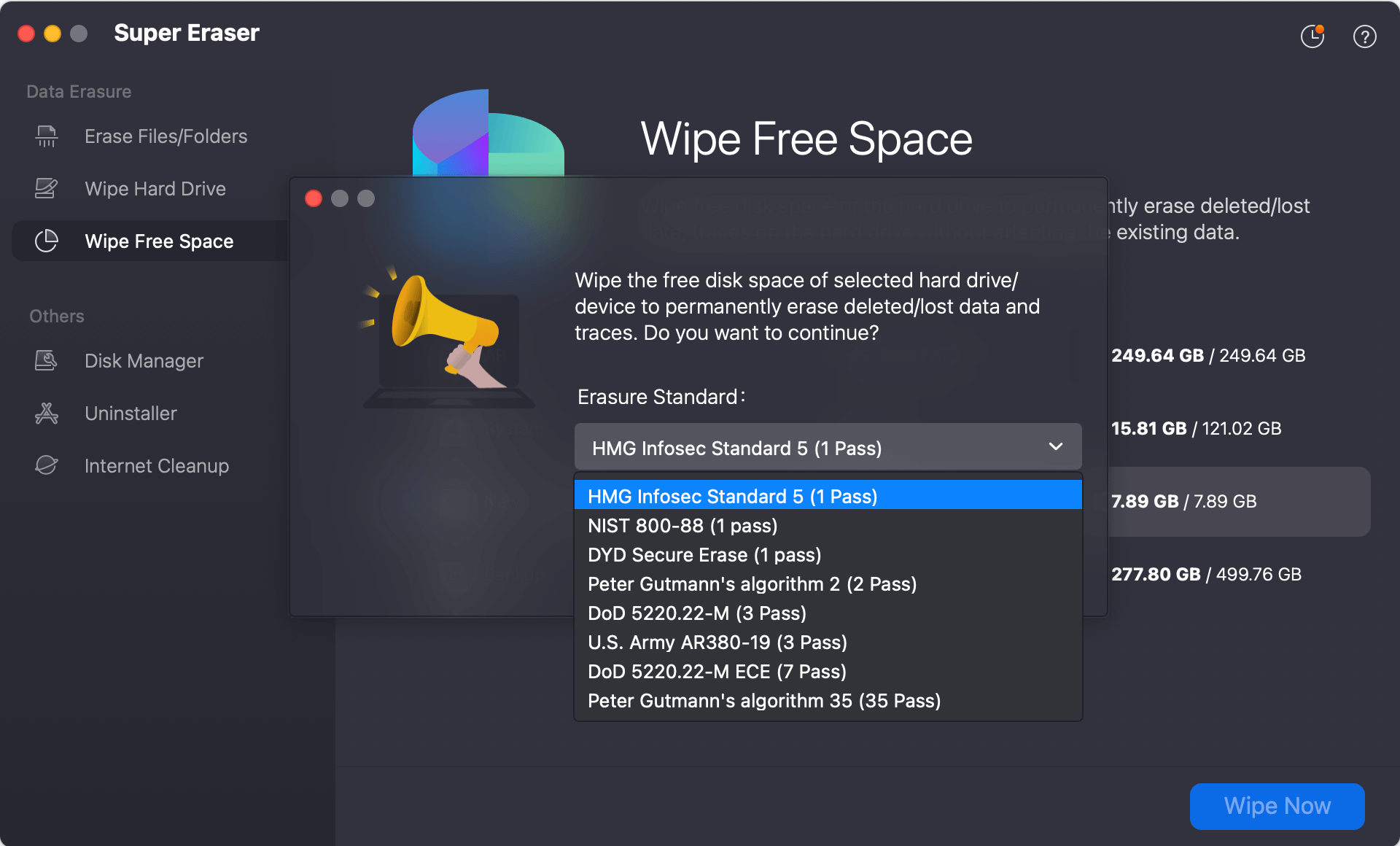
DoYourData Super Eraser utilizes globally recognized and military-grade data destruction standards, like DoD 5220.22-M, NIST 800-88, Peter Gutmann 35-Pass algorithm and more.
How to Wipe Free Space on Mac mini Using DoYourData Super Eraser
Follow these simple steps to perform a deep wipe before giving your Mac mini to the buyer:
Step 1: Download and Install. Download DoYourData Super Eraser for Mac and install it on your Mac mini.
DoYourData Super Eraser for Mac
- Top 1 data erasure software for macOS.
- Support military-grade data wiping algorithms.
- 3 data erasure modes for different requirements.
Step 2: Select 'Wipe Free Space'. Launch the application. From the left sidebar menu, select the 'Wipe Free Space' mode. Select your Mac mini internal drive volume (e.g., Macintosh HD) from the disk list.
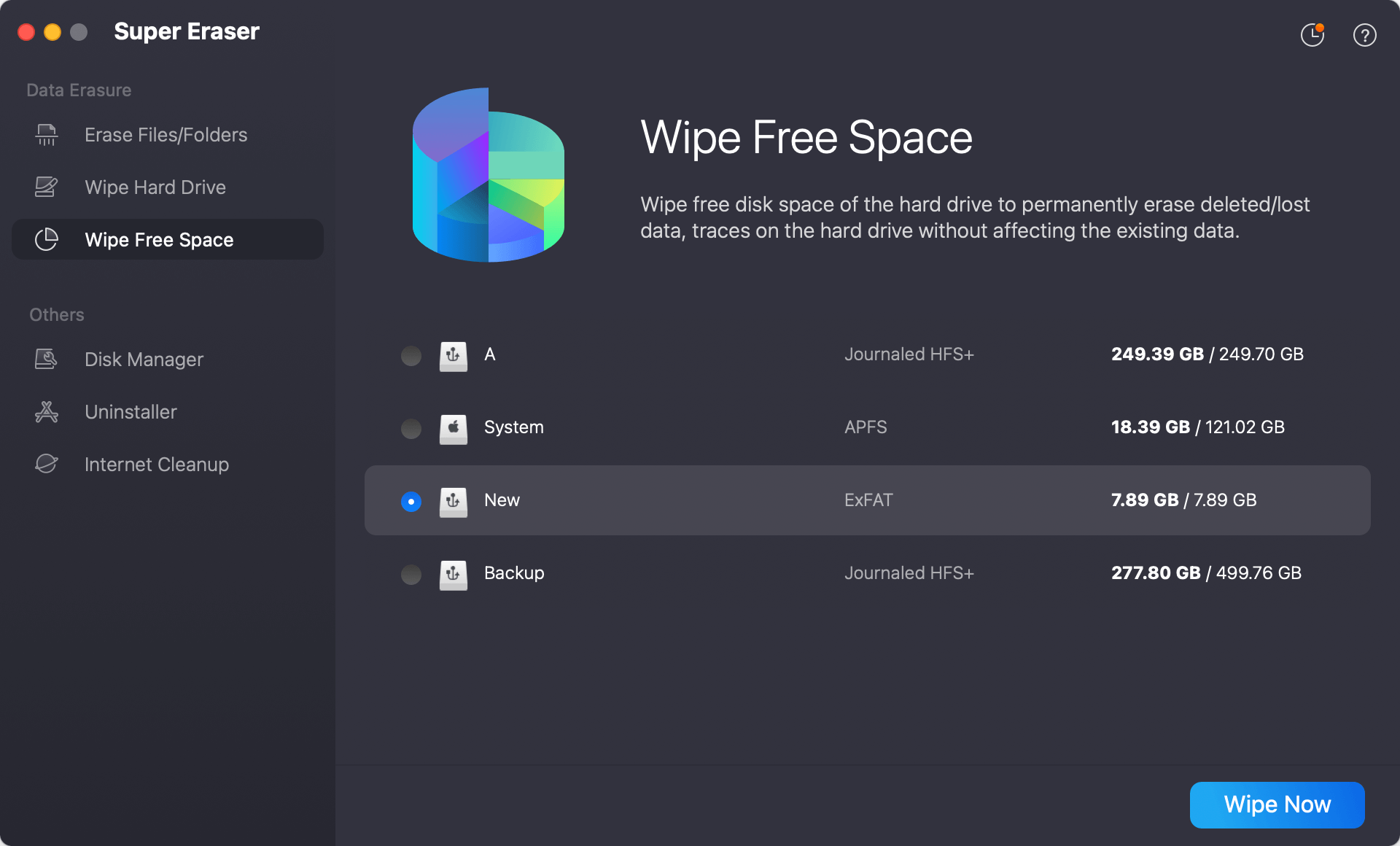
Step 3: Pick Wiping Algorithm. Click the 'Wipe Now' button. Choose your preferred certified wiping standard (such as DoD 5220.22-M or NIST 800-88) in settings.
Step 4: Execute Wipe. The software will scan and overwrite all unallocated storage sectors with certified binary patterns. Once complete, your Mac mini is 100% sanitized and completely safe for private sale.
Bonus Tips: Physical Cleaning and Final Handover Checklist
- Clean the Exterior: Use a soft, lint-free microfiber cloth to wipe down the aluminum enclosure and black top/bottom surfaces. Avoid spraying liquid cleaners directly into ports.
- Gather Accessories: Ensure all original power cables, HDMI adapters, or original packaging boxes are packed neatly.
- Leave at Out-of-Box Setup: Shut down the Mac mini at the initial setup screen (where it asks for language selection) by holding the power button. This allows the buyer to enjoy the excitement of an out-of-box setup experience.
FAQs about Permanently Wiping Mac mini
Conclusion
Selling your Mac mini via a private sale is a great way to recoup value for a hardware upgrade, but protecting your digital identity must be your top priority. Relying solely on basic file deletion or standard factory resets leaves confidential records vulnerable to data recovery tools.
By following this comprehensive 3-step guide—backing up your files, executing a clean factory reset, and using DoYourData Super Eraser for Mac to wipe free disk space—you guarantee that every private file, saved password, and photo is erased without recovery trace.
Visit doyourdata.com today to download DoYourData Super Eraser for Mac and wipe your Mac mini with complete peace of mind before your private sale!
DoYourData Super Eraser for Mac
DoYourData Super Eraser for Mac is a 100% safe, powerful and easy-to-use data erasure program. It offers certified data erasure standards including Peter Gutmann, U.S. Army AR380-19, DoD 5220.22-M ECE to permanently erase data from Macs and external devices, making data recovery be impossible.
Written & Updated by Shirly Chen
Shirly Chen has been writing data recovery, data erasure articles for DoYourData over 4 years. She has been working as a professional website content writer & editor for quite a long time. She also writes articles about disk clone, Mac optimization, disk backup, etc.