Complete Guide: Securely Wipe Data on Apple Silicon Macs
DoYourData Super Eraser for Mac is fully compatible with Apple Silicon Macs. Also, the software supports the new versions of macOS, including the latest macOS Golden Gate. With military-grade data wiping standards, it can ensure the wiped data is gone forever.
 Updated by Shirly Chen on Novmenber 2, 2026
Quick Navigation:
- Understanding Apple Silicon and SSD Storage Security
- Why You Need a Data Wiping Tool for Apple Silicon Macs
- The Best Solution: DoYourData Super Eraser for Mac
- Step-by-Step Guide: Securely Wipe Data on Apple Silicon Mac
- FAQs about Data Wiping Tool for Apple Silicon Macs
- Conclusion
Apple Silicon Mac computers have transformed personal computing with unprecedented speed, unified memory architecture, and tight hardware security integration. Your Mac handles vast amounts of personal or corporate data every single day.
However, when the time comes to sell your Mac, trade it in, donate it to charity, or return a leased corporate computer, ensuring that sensitive data is permanently destroyed becomes a critical privacy priority. If you want to protect your privacy and guarantee zero data recovery trace, you need a dedicated secure data wiping tool for Apple Silicon Mac computers.
In this comprehensive guide, we will break down how Apple Silicon SSD storage functions, why traditional file deletion leaves traces behind, and how to use DoYourData Super Eraser for Mac to permanently destroy confidential data across both internal and external storage volumes.
Understanding Apple Silicon and SSD Storage Security
To understand why data wiping requires specialized software on modern Macs, it helps to look at how Apple Silicon manages storage and file systems.
Unlike older Intel-based Macs with traditional mechanical hard drives, Apple Silicon Mac computers integrate custom SSD controllers directly into the System on Chip (SoC). Every Apple Silicon Mac features hardware-accelerated FileVault encryption powered by the Secure Enclave, storing data across high-speed flash memory chips.
While Apple Silicon architecture offers incredible security against unauthorized physical access when the computer is locked, file-level deletion operates differently than many users realize:
- Trash Emptying Only Removes Pointers: Dragging files to the Trash and selecting Empty Trash merely deletes the file system index reference. The raw binary file content remains stored on flash memory cells until new data actively overwrites those blocks.
- TRIM and Garbage Collection Delays: macOS utilizes the background TRIM command to notify the SSD controller which blocks are no longer needed. However, garbage collection does not execute instantly—it runs when the system is idle, leaving a temporary window where data recovery tools can scan and extract deleted files.
- No TRIM Support on External Drives: TRIM is generally unsupported or disabled on external USB flash drives, portable HDDs, and external SSDs connected to your Mac. Files deleted from external storage stay preserved indefinitely on disk sectors.
- SSD Wear-Leveling Pools: Solid-state drives distribute write cycles evenly across memory cells to prevent physical wear. Standard single-pass deletion commands can leave "shadow copies" of files hidden in wear-leveling pools.
Because of these architectural nuances, relying solely on standard deletion or background macOS maintenance falls short of certified data destruction standards. To ensure complete data privacy, active sector-level overwriting is required.
Why You Need a Data Wiping Tool for Apple Silicon Macs
When Apple released macOS El Capitan years ago, it officially removed the native "Secure Empty Trash" feature from Finder. Apple removed this tool because traditional multi-pass overwriting commands designed for mechanical hard drives do not translate directly to solid-state wear-leveling controllers without specialized handling.
This leaves modern Mac users with a challenge: how do you shred specific confidential files or wipe leftover traces without wiping your entire operating system?
A professional data erasure utility bridges this gap by communicating effectively with storage controllers to ensure that data sectors, unallocated free space, and external drives are completely overwritten using certified security protocols.
The Best Solution: DoYourData Super Eraser for Mac
If you are searching for the most reliable, easy-to-use, and certified secure data wiping tool for Apple Silicon Mac computers, DoYourData Super Eraser for Mac is the premier choice.
Designed specifically for macOS and fully optimized for Apple Silicon (M1, M2, M3, M4, M5, M6, etc) chips as well as legacy Intel Macs, DoYourData Super Eraser provides military-grade data sanitization. It implements internationally recognized data destruction algorithms—such as Zero Fill, HMG Infosec High, DoD 5220.22-M, NIST 800-88, and Gutmann—to guarantee 100% unrecoverable data erasure.
DoYourData Super Eraser for Mac
- Dedicated secure data wiping tool for Apple Silicon Macs.
- Support multiple international and certified algorithms.
- Three data erasure modes for different scenarios.
Key Features of DoYourData Super Eraser for Mac:
- Selective File and Folder Shredding: Permanently erase targeted private files, photos, videos, or confidential database spreadsheets without affecting the rest of your operating system.
- Wipe Free Disk Space: Overwrites unallocated space to permanently destroy files previously deleted via standard Trash emptying, ensuring zero recovery trace remains.
- Complete Storage Volume & External Drive Wipe: Sanitize entire secondary volumes, external hard drives, USB flash drives, or SD cards before selling, donating, or recycling them.
- Native Apple Silicon Compatibility: Runs natively on M1, M2, M3, M4, M5, and M6 architecture and modern macOS releases (including macOS Golden Gate, Tahoe, Sequoia, and more).
- SSD Health Preservation: Uses intelligent overwriting algorithms tailored for flash storage to thoroughly sanitize data without subjecting your SSD to unnecessary write cycles.
Step-by-Step Guide: Securely Wipe Data on Apple Silicon Mac
Using DoYourData Super Eraser for Mac to permanently destroy sensitive information is straightforward and intuitive. Follow these simple steps based on your specific wiping needs:
Mode 1: Shred Specific Confidential Files and Folders
Step 1: Download and Launch DoYourData Super Eraser for Mac
Download DoYourData Super Eraser for Mac and install it on your Apple Silicon Mac computer.
Step 2: Choose "Erase Files/Folders" Mode
Launch the application. From the main interface, select the "Erase Files/Folders" option.
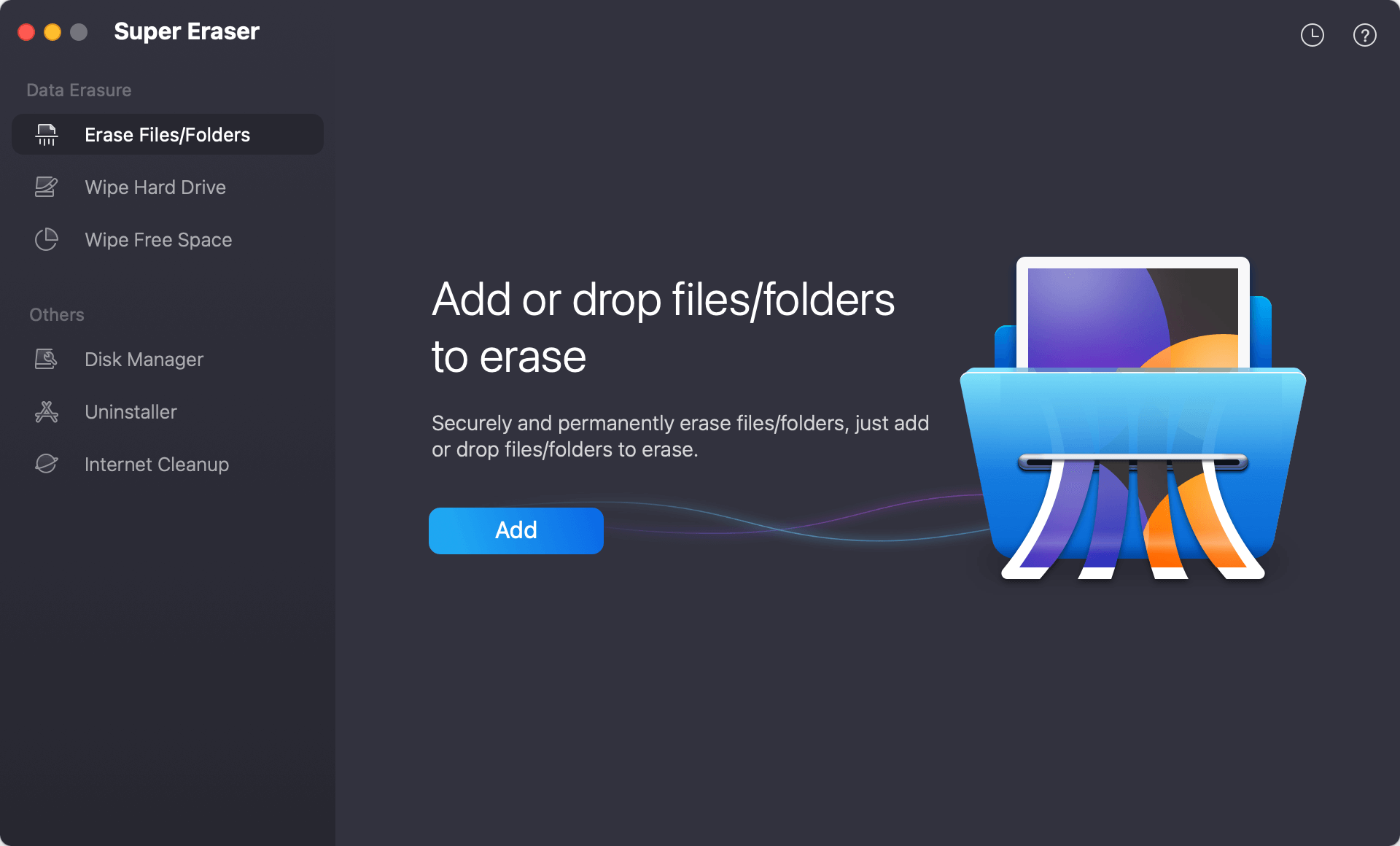
Step 3: Add Files or Folders
Click the "Add" button to browse your Mac drive or connected external storage. Select the specific private files, documents, photos, or folders you want to shred.
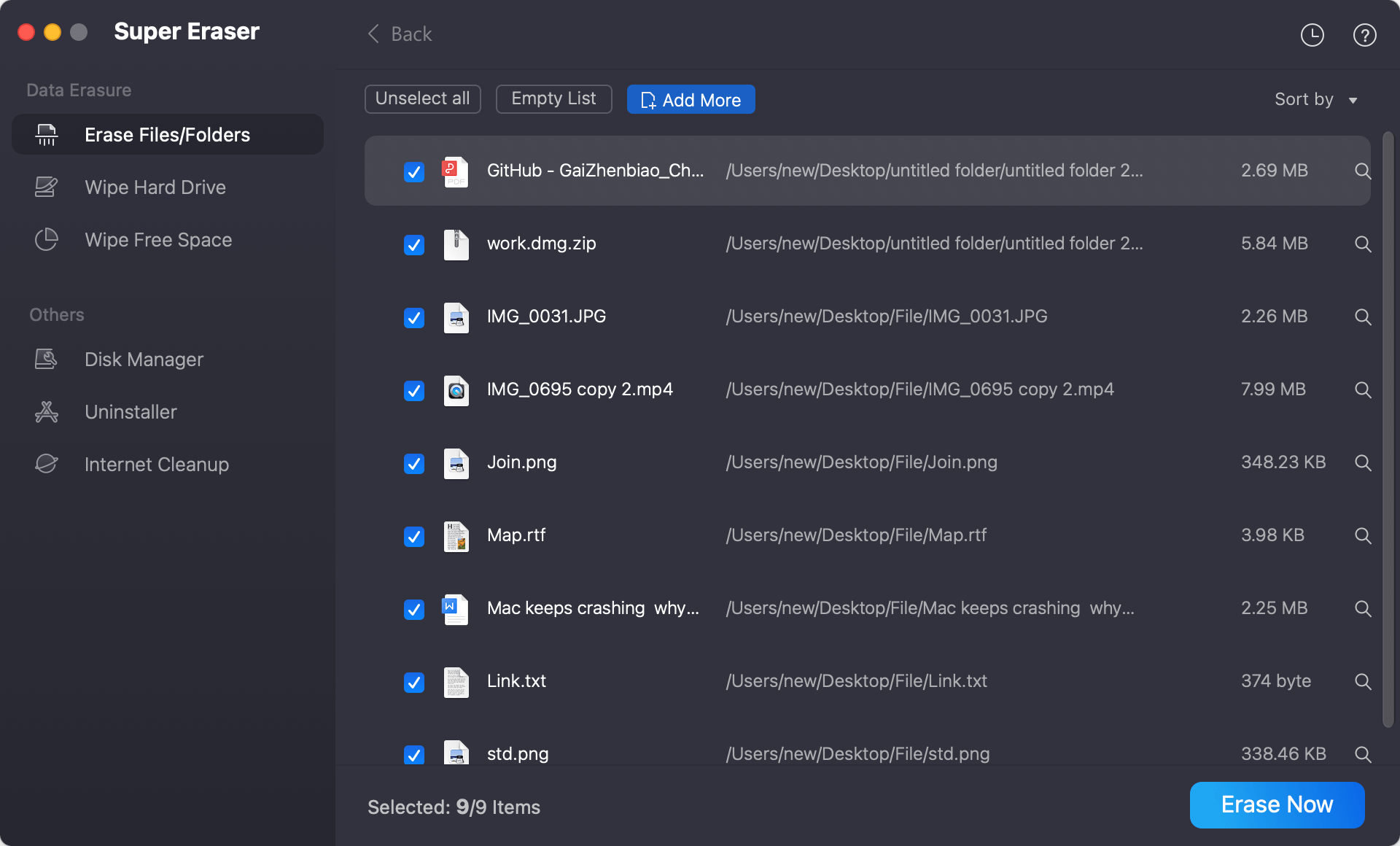
Step 4: Execute "Erase Now"
Click the "Erase Now" button. Select the data wiping algorithm and confirm your action. The software will immediately overwrite the selected file blocks with zeros and random patterns, rendering them 100% unrecoverable.
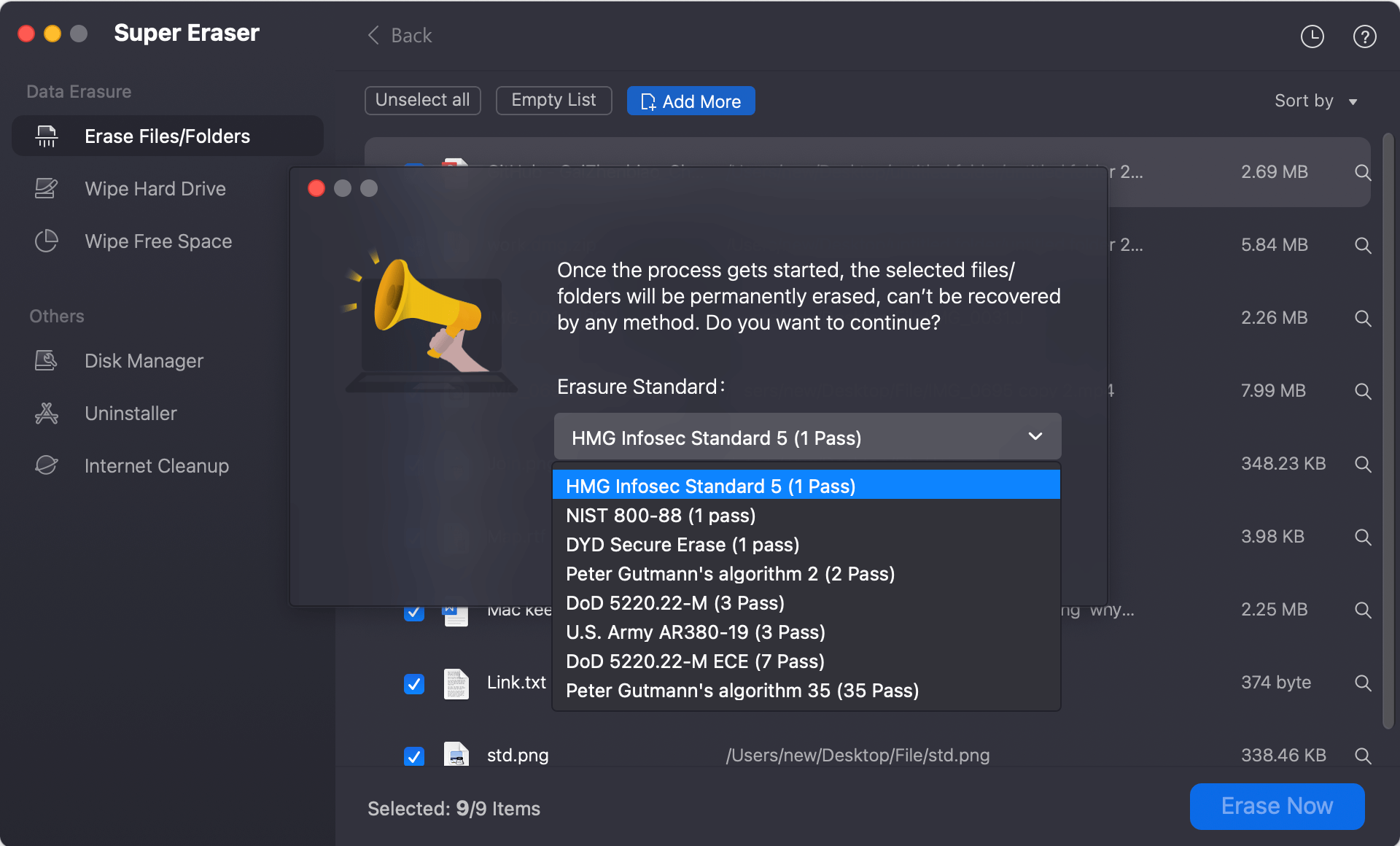
Mode 2: Wipe Free Space to Erase Previously Deleted Files
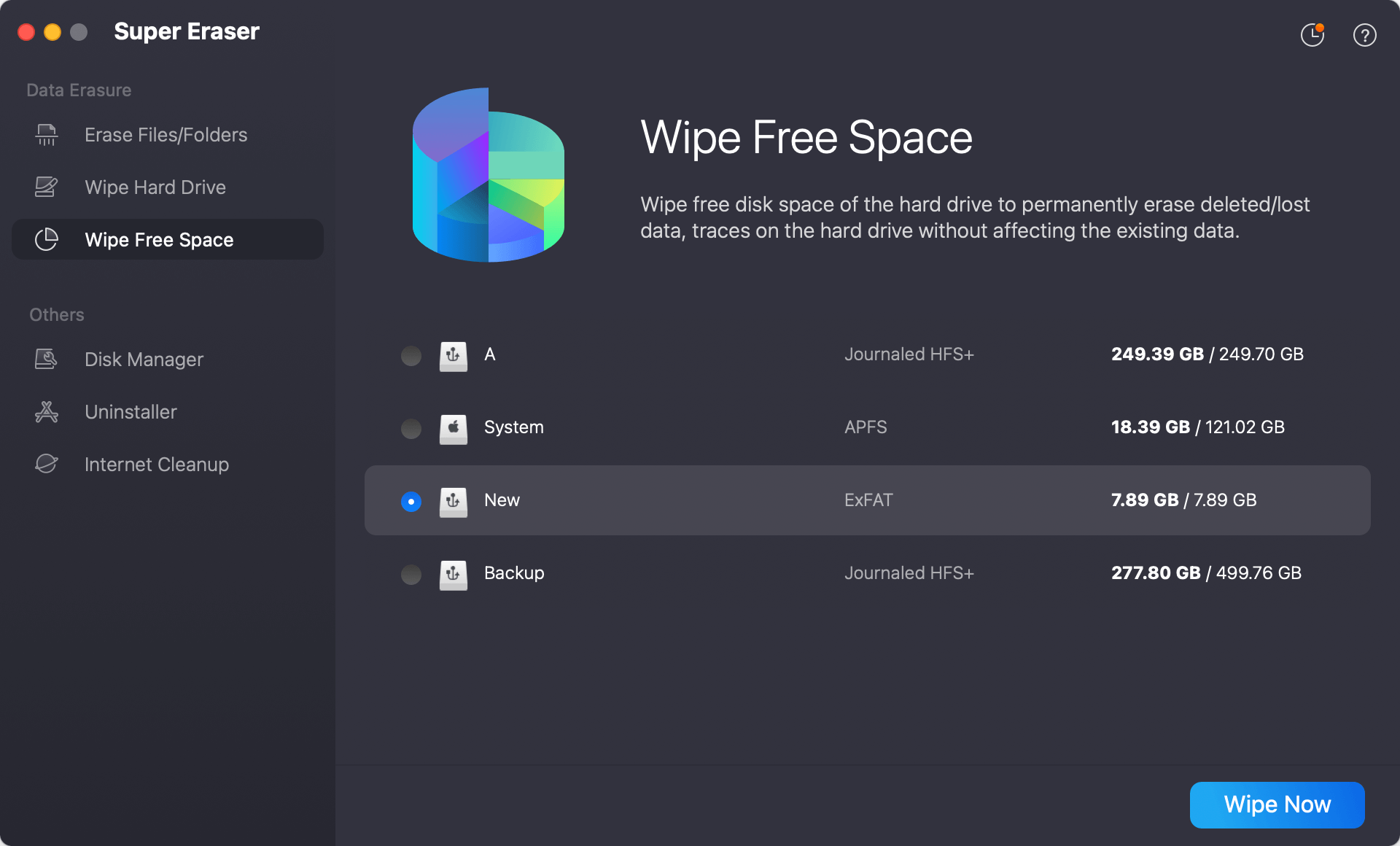
- Open DoYourData Super Eraser for Mac and select the "Wipe Free Space" module.
- Select your internal Mac storage volume or an attached external drive.
- Click "Wipe Now". The tool will fill all unallocated free space with binary overwrites, permanently destroying leftover traces of previously emptied Trash items while keeping active files completely safe.
Mode 3: Wipe an Entire External Drive or USB Flash Drive
- Connect your external storage device (USB stick, SD card, or external SSD) to your Apple Silicon Mac.
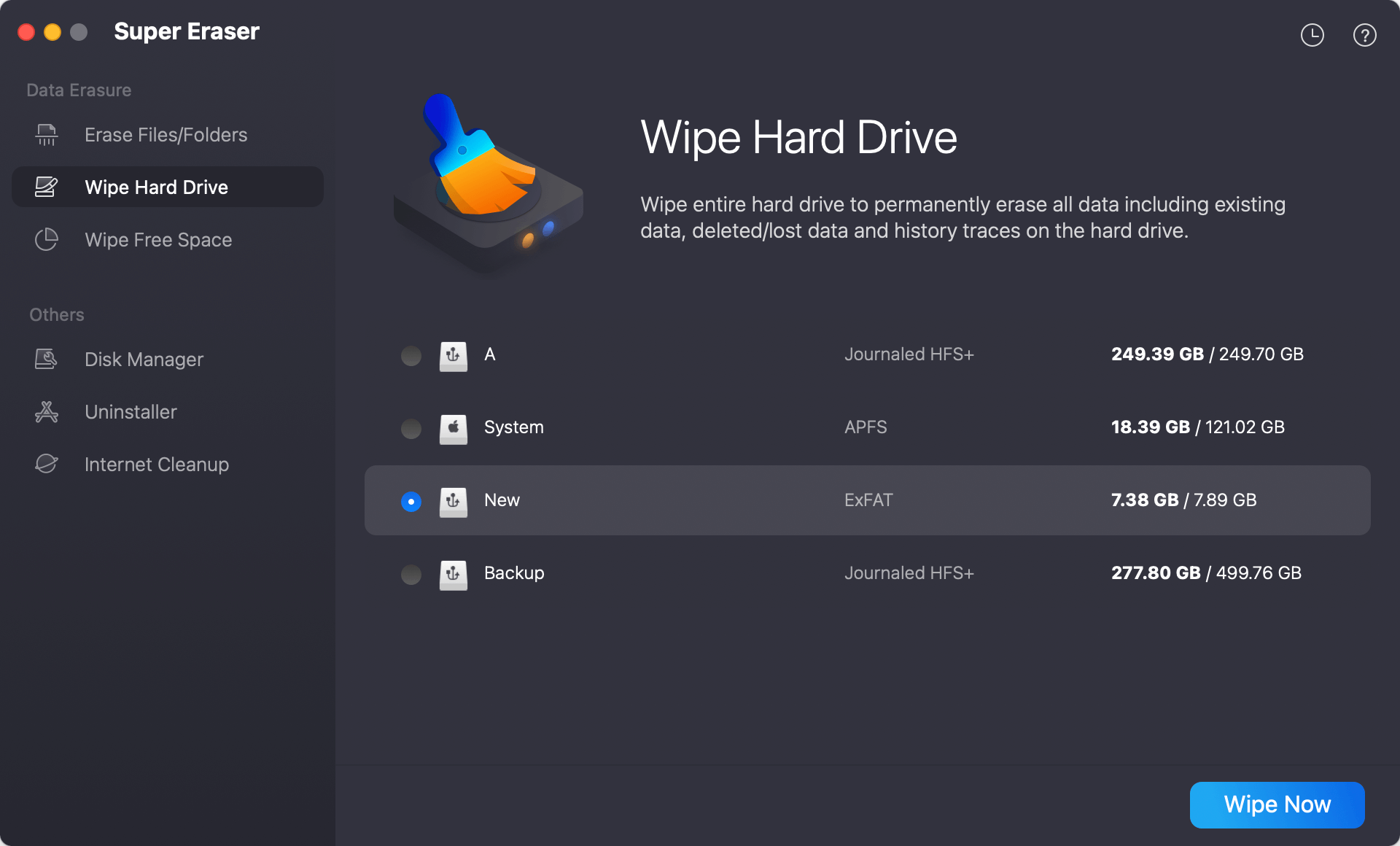
- Select the "Wipe Hard Drive" module in DoYourData Super Eraser for Mac.
- Select the external drive and click "Wipe Now" to format and securely overwrite all data sectors on the drive.
FAQs about Data Wiping Tool for Apple Silicon Macs
Conclusion
Protecting your privacy on modern Apple Silicon Mac computers requires taking active control of data destruction. Relying on standard Trash emptying or assuming background TRIM offers immediate protection leaves confidential documents, private photos, and business records vulnerable to recovery tools.
To ensure your sensitive files are erased beyond recovery, utilizing a secure data wiping tool for Apple Silicon Mac computers is essential. DoYourData Super Eraser for Mac offers a seamless, 1-click solution to shred targeted files, wipe unallocated free space, and sanitize external drives across all M1, M2, M3, M4, M5, and M6 Macs.
Download DoYourData Super Eraser for Mac today and sanitize your sensitive files with complete peace of mind!
DoYourData Super Eraser for Mac
DoYourData Super Eraser for Mac is a 100% safe, powerful and easy-to-use data erasure program. It offers certified data erasure standards including Peter Gutmann, U.S. Army AR380-19, DoD 5220.22-M ECE to permanently erase data from Macs and external devices, making data recovery be impossible.
Written & Updated by Shirly Chen
Shirly Chen has been writing data recovery, data erasure articles for DoYourData over 4 years. She has been working as a professional website content writer & editor for quite a long time. She also writes articles about disk clone, Mac optimization, disk backup, etc.