Permanently Shred Database Sheets from Office Mac Computer
Standard macOS deletion merely removes the pointer pointing to your customer database files. The actual underlying spreadsheet data—containing customer names, phone numbers, email addresses, and purchasing histories. It's necessary to permanently erase the data with Donemax Data Eraser for Mac or any other professional data wiping tools.
 Updated by Shirly Chen on October 30, 2026
Quick Navigation:
- Why Normal Deletion Fails on Office Mac Computers
- Preparation Before Discarding Business Database Sheets
- Permanently Wipe Database Sheets from Office Mac
- FAQs about Permanently Wiping Database Sheets on Mac
- Conclusion
Customer records are the lifeblood of modern businesses, but holding onto obsolete or sensitive customer database sheets can quickly become a major liability. Whether your company is updating its CRM platform, upgrading office workstations, or complying with data privacy mandates like GDPR and CCPA, knowing how to clean up sensitive spreadsheets is essential.
Many office workers assume that dragging an Excel file or CSV sheet to the Trash and emptying it removes the information forever. However, on a Mac computer, standard file deletion leaves behind digital traces that can easily be exploited.To ensure complete compliance and safeguard your company's reputation, you must learn how to permanently discard customer database sheets from office Mac computer without leaving any recovery trace.

In this comprehensive guide, we will break down why standard Mac deletion fails, explore Mac SSD wear-leveling mechanics, and walk you through the most secure, step-by-step methods to wipe sensitive business sheets beyond recovery.
Why Normal Deletion Fails on Office Mac Computers
When you create and save customer database spreadsheets on your Mac using Microsoft Excel, Apple Numbers, or CSV exports, macOS organizes the data onto specific storage blocks. Understanding what occurs during standard file operations highlights why typical office workflows fail to protect client privacy:
- Moving Spreadsheets to Trash: Dragging an Excel or Numbers file to the Trash simply moves its file system path to a hidden system directory. The confidential data remains completely intact and accessible.
- Emptying Trash or Option + Command + Delete: Emptying the Trash unlinks the directory reference and marks those storage sectors as "free" or "available." However, the raw binary database entries stay preserved in disk sectors until overwritten.
- Quick Formatting an External Drive or Volume: Rebuilds the drive directory table but leaves all historical customer spreadsheets untouched on the raw storage blocks.
Because spreadsheet files are compact relative to total drive size, free drive sectors containing client details can linger untouched for months or even years. If an office Mac is reassigned, sold, recycled, or returned at the end of a lease, anyone with basic recovery software can resurrect your confidential database files.
Preparation Before Discarding Business Database Sheets
Permanent data erasure is an absolute, irreversible operation. Once storage sectors are overwritten with military-grade algorithms, no laboratory, IT team, or software can recover the information. Follow this simple checklist before initiating the sanitization process on your office Mac:
- Verify Database File Selection: Confirm that you are selecting the exact customer database sheets (e.g., .xlsx, .csv, .numbers, .db, .sql) scheduled for decommissioning.
- Archival & Compliance Verification: Ensure necessary customer records have been securely migrated to your centralized corporate cloud CRM or compliance archive before local deletion.
- Close Database Applications: Close Microsoft Excel, Apple Numbers, FileMaker Pro, and any text editors holding active locks on the database files.
- Disable Cloud Sync temporary hooks: If the spreadsheets are synced via iCloud Drive, OneDrive, or Dropbox, remove the files from the sync folder or pause sync so local shredding does not trigger unintended sync conflicts.
Permanently Wipe Database Sheets from Office Mac
Method 1: The Recommended Solution — DoYourData Super Eraser for Mac
For business owners, office administrators, and IT personnel who require a certified, stress-free method to permanently discard customer database sheets from office Mac computer without recovery trace, using dedicated data sanitization software is the gold standard.
DoYourData Super Eraser for Mac is a professional, military-grade data wiping tool designed specifically for macOS. It implements internationally recognized data destruction protocols—including HMG Infosec High, DoD 5220.22-M, NIST 800-88, and Gutmann—to systematically overwrite file sectors with zeros, ones, and randomized data patterns.
Key Features of DoYourData Super Eraser for Mac:
- Selective File & Folder Shredding: Permanently wipe individual customer database sheets or entire database folders without wiping the rest of your office workstation.
- Wipe Free Disk Space: Permanently overwrite unallocated space to destroy customer records that were previously deleted via normal Trash emptying.
- Complete Drive Sanitization: Wipe entire external hard drives, backup USB sticks, or portable SSDs before reassigning or recycling office hardware.
- 100% Apple Silicon & macOS Compatible: Fully optimized for macOS Golden Gate and old versions, and Apple Silicon Macs.
- Hardware Health Preserving: Employs intelligent overwriting algorithms that sanitize data thoroughly while preventing unnecessary write cycles on your Mac SSD.
Step-by-Step Guide: How to Shred Customer Database Sheets via DoYourData Super Eraser
Step 1: Download DoYourData Super Eraser for Mac from the official DoYourData website and install it on your office Mac computer.
DoYourData Super Eraser for Mac
- Top-class file shredder software for macOS.
- Permanently wipe data with certified wiping algorithms.
- Multiple data wiping modes for different scenarios.
Step 2: Open the software. From the main dashboard, select the "Erase Files/Folders" feature. This mode allows you to pick specific database spreadsheets or directory folders for targeted shredding.
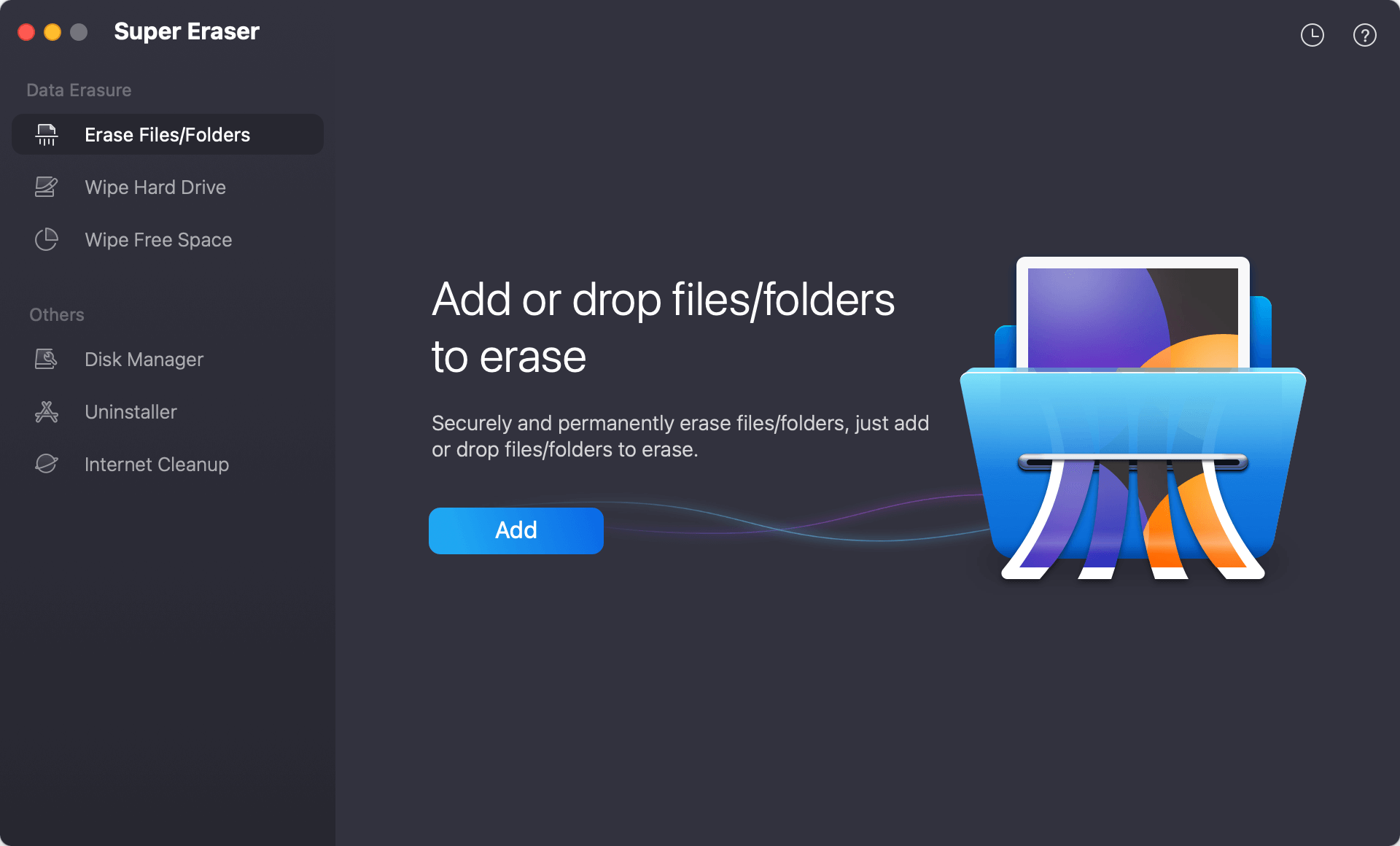
Step 3: Click the "Add" button to browse your Mac drive or connected external storage. Select the target customer database files (.xlsx, .csv, .numbers) or folder and add them to the erasure queue.
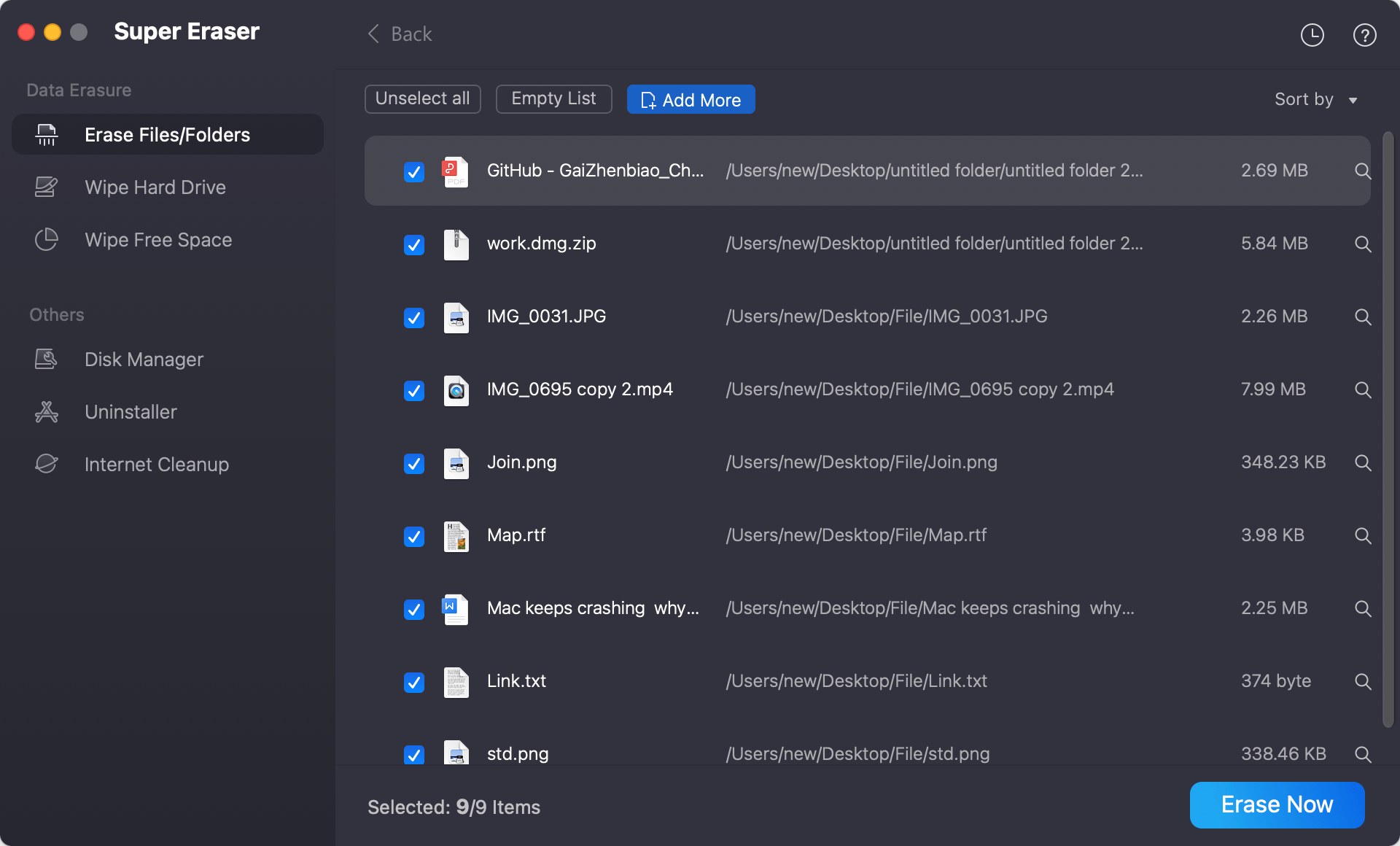
Step 4: Click the "Erase Now" button and select a data erasure standard. Start shredding the selected files. DoYourData Super Eraser will immediately overwrite the storage sectors containing the customer sheets. Once complete, your database sheets are 100% destroyed without any recovery trace.
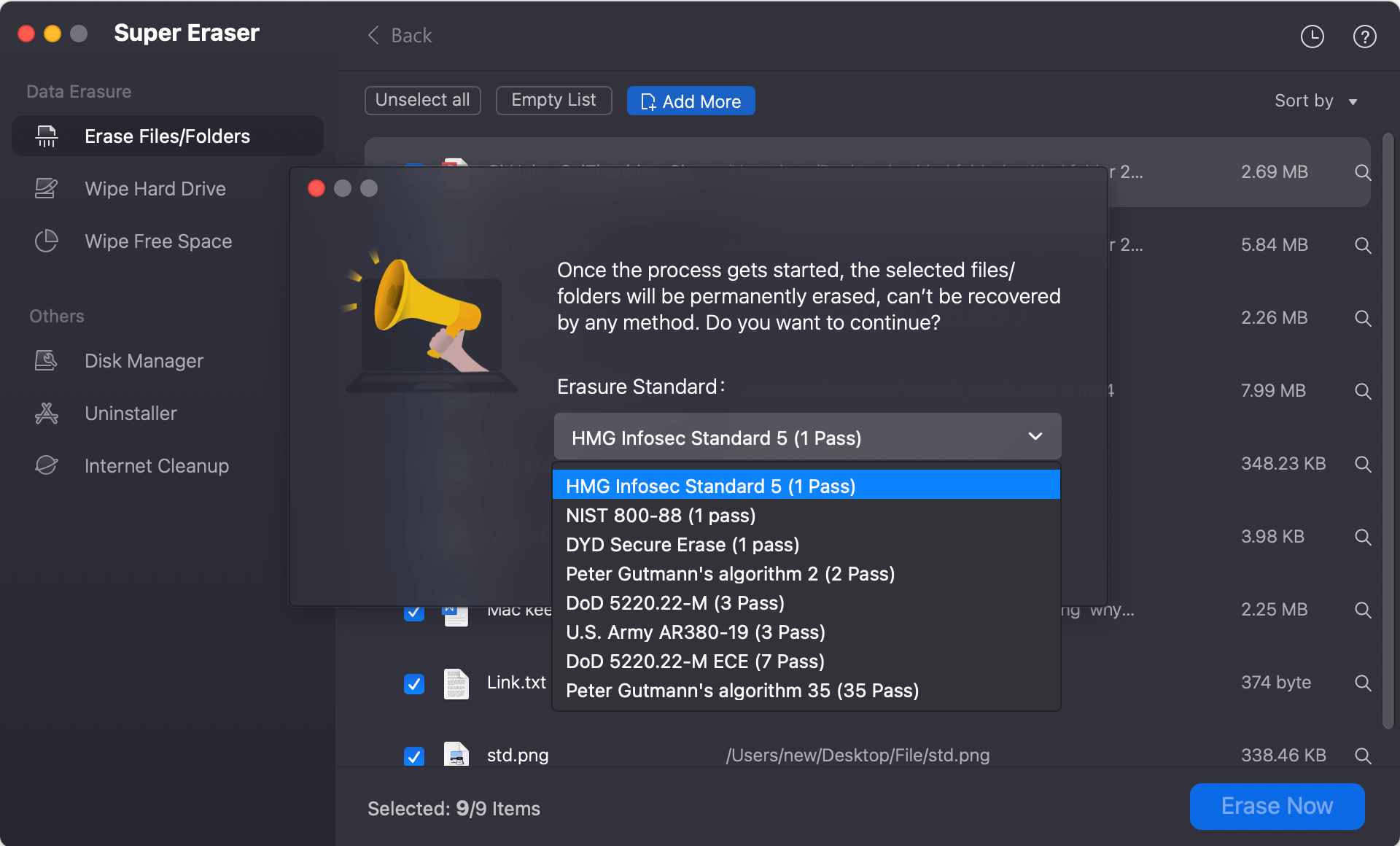
Method 2: Permanently Delete Mac Files Using Terminal Command Line
For office IT technicians comfortable with macOS command-line environments, native Terminal commands can bypass the standard Trash bin to unlink files directly from the directory structure.
Steps to Delete Database Files via Terminal:
- Launch Terminal by navigating to Finder > Applications > Utilities > Terminal (or search via Spotlight with Command + Space).
- Type rm -f followed by a space.
- Drag and drop the customer database spreadsheet directly from Finder into the Terminal window to auto-populate the exact file path.
- Press Enter to execute the command.
🔔 Critical Security Warning: The standard 'rm -f' command unlinks the directory reference instantly without moving the file to Trash. However, on external hard drives, USB drives, or non-TRIM environments, 'rm' does not perform multi-pass sector overwriting. For full regulatory data protection, using dedicated sanitization software like DoYourData Super Eraser is strongly advised.
FAQs about Permanently Wiping Database Sheets on Mac
Conclusion
Safeguarding corporate data privacy and maintaining customer trust requires strict adherence to secure data disposal practices. Relying on standard Trash emptying or keyboard shortcuts when deleting sensitive business records leaves confidential customer spreadsheets vulnerable to unauthorized extraction.
To permanently discard customer database sheets from office Mac computer without recovery trace, professional data sanitization software is indispensable. DoYourData Super Eraser for Mac offers a seamless, 1-click solution to shred specific database files, wipe free disk space, and guarantee total data compliance across all internal and external Mac storage volumes.
DoYourData Super Eraser for Mac
DoYourData Super Eraser for Mac is a 100% safe, powerful and easy-to-use data erasure program. It offers certified data erasure standards including Peter Gutmann, U.S. Army AR380-19, DoD 5220.22-M ECE to permanently erase data from Macs and external devices, making data recovery be impossible.
Written & Updated by Shirly Chen
Shirly Chen has been writing data recovery, data erasure articles for DoYourData over 4 years. She has been working as a professional website content writer & editor for quite a long time. She also writes articles about disk clone, Mac optimization, disk backup, etc.