Erase Confidential Documents from Mac Without Recovery Trace
Standard deletion on macOS only removes the file index pointer. The actual data remains intact on your storage drive until new files overwrite it. With basic data recovery tools, anyone can restore those deleted confidential documents in just a few clicks. Fortunately, DoYourData Super Eraser for Mac can easily shred the files and make then gone forever.
 Updated by Shirly Chen on October 29, 2026
Quick Navigation:
- Why Emptying Trash Does Not Permanently Erase Mac Documents
- Understanding Mac SSD Architecture and TRIM
- Essential Preparation Before Erasing Confidential Documents
- 2 Methods to Erase Confidential Documents Permanently on Mac
- FAQs about Permanently Shredding Files on Mac
- Conclusion
Have you ever wondered what actually happens when you delete a confidential document on your Mac? Whether it is financial records, personal tax forms, legal contracts, or sensitive customer information, keeping your private data safe is essential. Most Mac users assume that dragging a sensitive file to the Trash and emptying it removes the document forever. However, that is a dangerous myth.
If you want to protect your personal privacy or comply with strict data protection regulations, you need a reliable method to permanently erase confidential documents from Mac without recovery trace. In this comprehensive guide, we will walk you through why standard deletion fails, how modern Mac SSDs handle data, and the most effective step-by-step solutions to wipe your files beyond recovery.
Why Emptying Trash Does Not Permanently Erase Mac Documents
When you save a document on your Mac, macOS stores the file contents on specific sectors of your internal drive or external storage. It also creates an entry in the file system directory pointing to where that data lives. Here is why standard macOS deletion methods leave your sensitive documents exposed:
- Moving to Trash: Simply relocates the file path to a hidden system folder. The document remains completely untouched and accessible.
- Emptying Trash or Option + Command + Delete: Removes the directory entry pointing to the file and marks that disk space as "available." However, the raw binary data stays on the drive sectors.
- Quick Formatting a Mac Drive: Rebuilds the drive structure but leaves the underlying data sectors untouched. Data recovery software can easily scan the disk and reconstruct your deleted documents.
As long as those underlying data sectors are not actively overwritten with new binary patterns, your confidential documents can be recovered by anyone using free recovery software.
Understanding Mac SSD Architecture and TRIM
Almost all modern Mac models—including MacBook Air, MacBook Pro, iMac, and Mac mini—use Solid State Drives (SSDs) powered by Apple Silicon chips (M1, M2, M3, M4, M5, M6, etc). Understanding how Mac SSDs handle deleted files is crucial for effective data security.
macOS utilizes a background feature called TRIM. When TRIM is enabled, macOS tells the SSD controller that deleted file blocks are no longer needed. During idle periods, the SSD performs garbage collection and wipes those blocks. While TRIM makes file recovery harder on modern internal SSDs, it is not an immediate or foolproof solution for wiping confidential documents:
- Delayed Cleanup: TRIM garbage collection does not happen instantly. It runs in the background when your Mac is idle, leaving a window of vulnerability.
- No External Drive Support: TRIM is often disabled or unsupported on external USB flash drives, external HDDs, and portable SSDs connected to your Mac.
- Old Mac Models & HDDs: Older Macs with mechanical hard drives do not use TRIM at all, leaving deleted files vulnerable indefinitely.
To guarantee 100% data destruction, relying on background TRIM is not enough. You need active data sanitization that overwrites file sectors immediately.
Essential Preparation Before Erasing Confidential Documents
Permanent file erasure is completely irreversible. Once a document is overwritten, no software, laboratory, or IT specialist can bring it back. Follow these simple checklist items before starting the erasure process:
- Verify File Selection: Double-check that you have selected the exact confidential documents you want to destroy.
- Back Up Required Archives: Ensure you have saved necessary copies to a secure offline vault if you need them for tax or compliance purposes.
- Close Active Applications: Close Preview, Microsoft Word, Pages, or PDF readers that might have the document opened in the background.
2 Methods to Erase Confidential Documents Permanently on Mac
Method 1: The Best Solution — DoYourData Super Eraser for Mac
If you want the safest, easiest, and most thorough way to permanently erase confidential documents from Mac without recovery trace, using dedicated data sanitization software is your best choice.
DoYourData Super Eraser for Mac is a professional data wiping utility designed specifically for macOS. It uses advanced international data destruction algorithms—such as HMG Infosec, DoD 5220.22-M, NIST 800-88, and Gutmann—to completely overwrite target files with zeros and random data.
Key Features of DoYourData Super Eraser for Mac:
- Targeted File Erasure: Permanently shred specific files or folders without wiping your entire drive.
- Wipe Free Disk Space: Permanently erase files you already deleted in the past that are still hiding in unallocated disk space.
- Full Drive Wipe: Sanitize entire external hard drives, USB flash drives, or SD cards before selling or donating them.
- 100% Apple Silicon Compatible: Fully optimized for macOS Golden Gate, Tahoe, Sequoia, .etc, and Apple Silicon Macs.
- Hardware Safe: Designed to overwrite data cleanly without causing physical wear or damaging your Mac SSD lifespan.
Step-by-Step Guide: How to Permanently Shred Confidential Documents on Mac
Step 1: Download DoYourData Super Eraser for Mac and install it on your MacBook or iMac.
DoYourData Super Eraser for Mac
- Shred specified files permanently without recovery trace.
- Support international data wiping algorithms.
- Easy-to-use and safe to wipe HDD/SS, pen drive, SD card, etc.
Step 2: Launch the program. On the main dashboard, choose the "Erase Files/Folders" option. This mode allows you to pick individual confidential files or entire folders to shred.
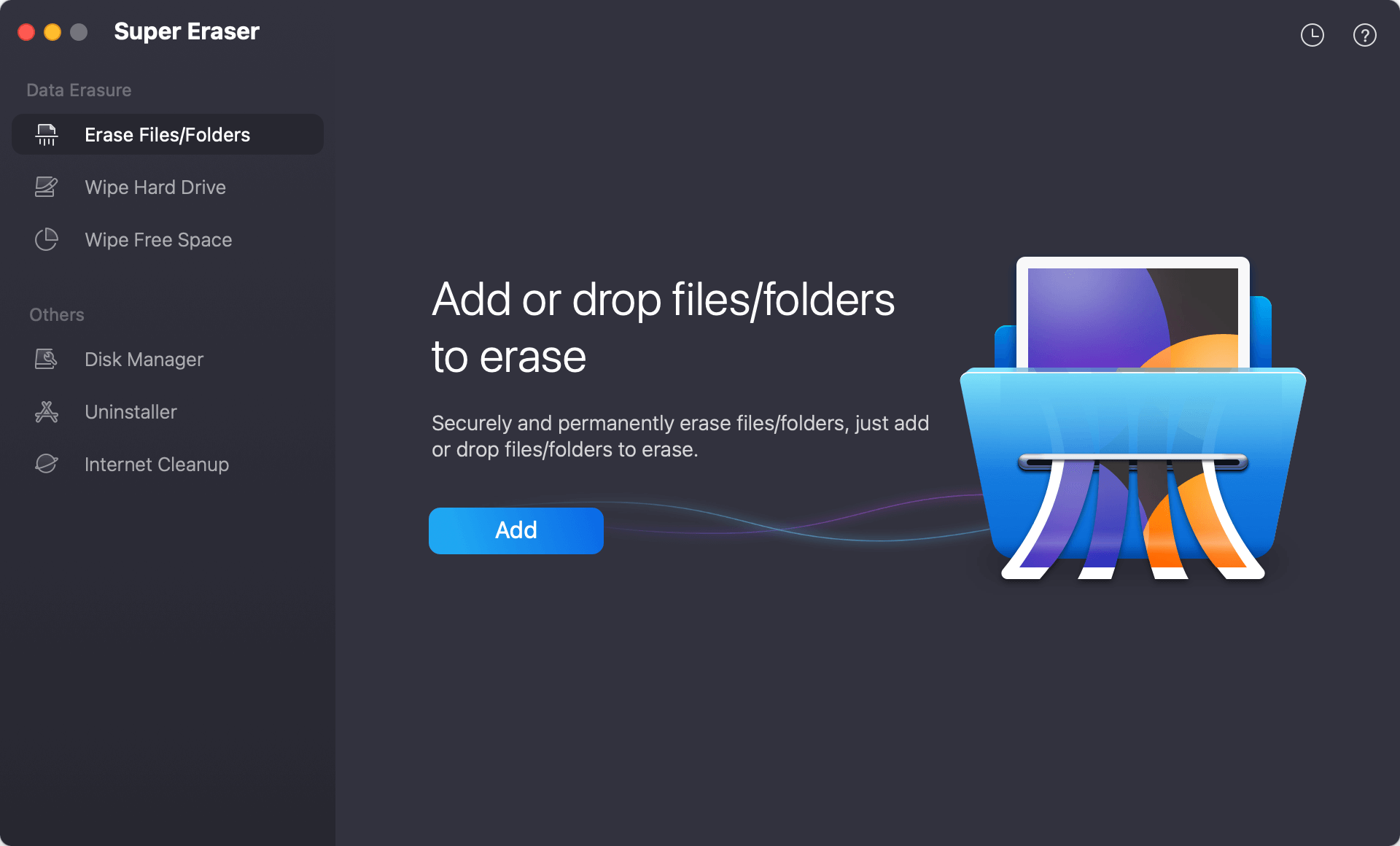
Step 3: Click the "Add" button to browse and select the confidential documents (PDFs, Word docs, spreadsheets, images, or archives) you want to destroy forever.
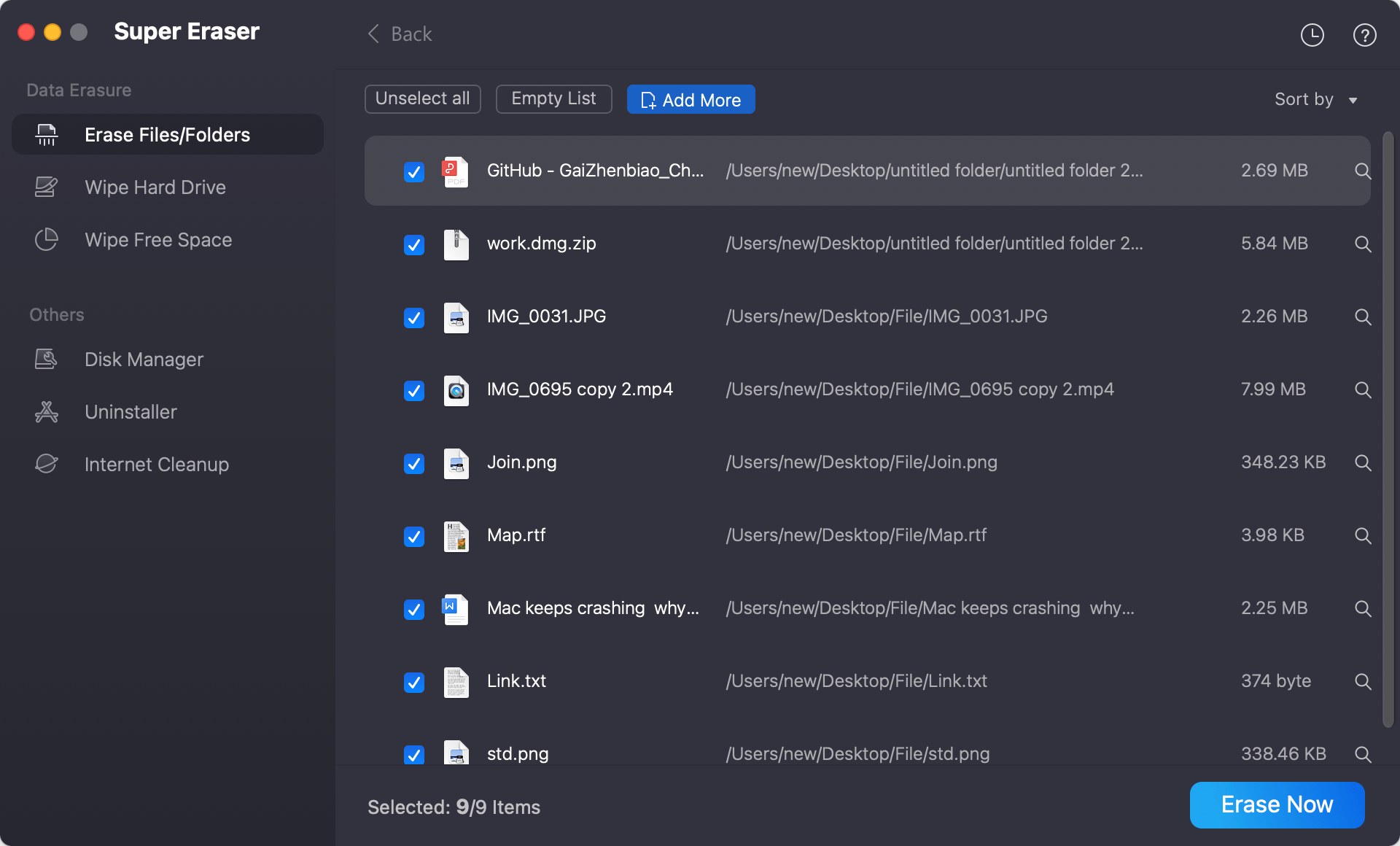
Step 4: Click the "Erase Now" button to select the wiping standard and start shredding. DoYourData Super Eraser will immediately overwrite the file data sectors using certified sanitization algorithms. Once finished, your documents are completely gone without any recovery trace.
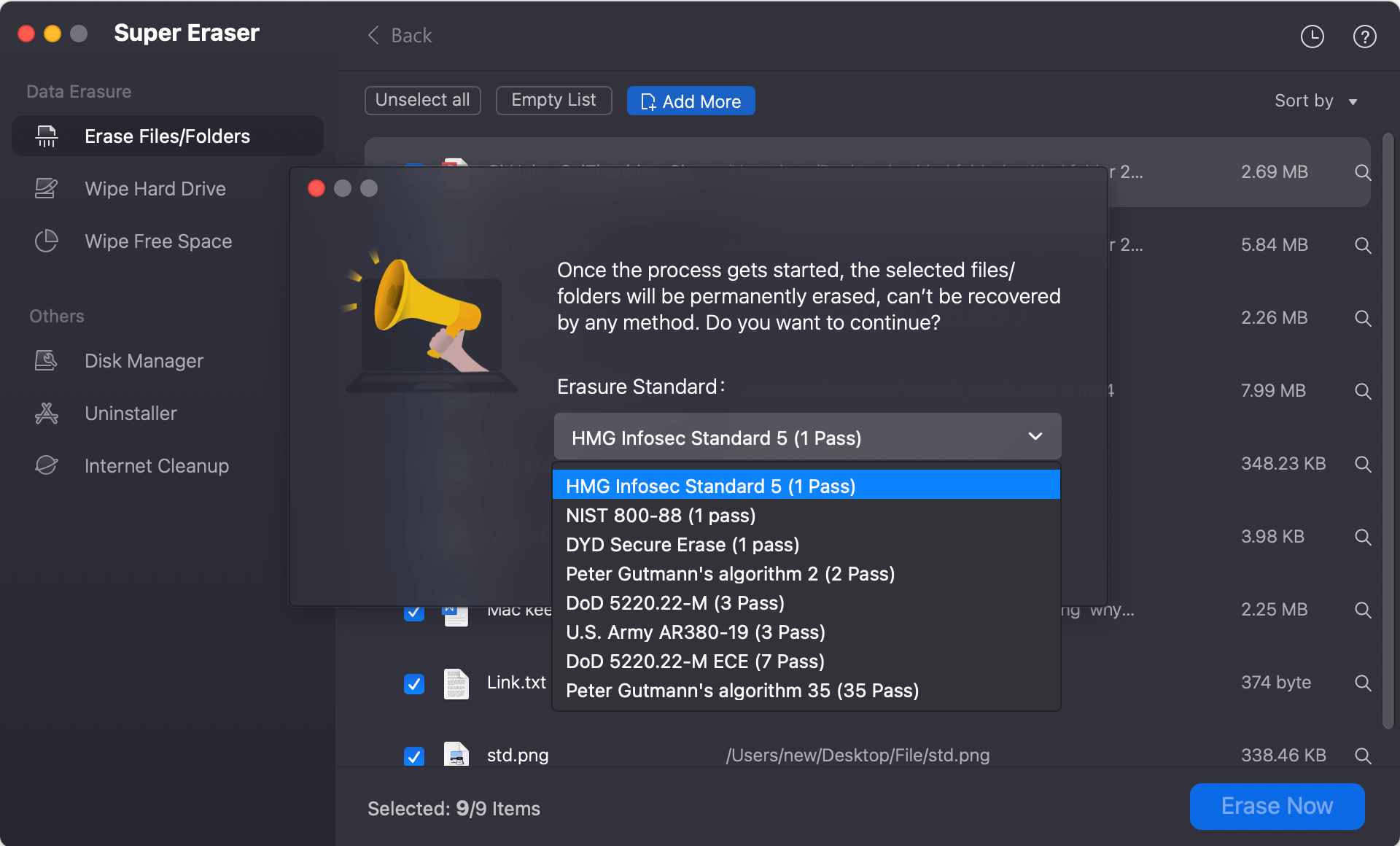
💡 Note: If you previously deleted confidential files using standard Trash emptying, those deleted files are still residing in the free space of the drive. To erase those trace files without deleting your current active files on the external drive, select the "Wipe Free Space" mode. The software will overwrite all free space with zeros and random patterns, permanently destroying all traces of previously deleted files while leaving your current files safe.
Method 2: Permanently Delete Mac Files Using Terminal (rm Command)
For tech-savvy Mac users comfortable with command-line tools, macOS built-in Terminal offers commands to unlink files directly. While earlier macOS versions included a secure 'srm' command, modern macOS versions rely on standard Terminal file deletion.
- Open Terminal by navigating to Finder > Applications > Utilities > Terminal (or search via Spotlight using Command + Space).
- Type
rm -ffollowed by a space. - Drag and drop the confidential file directly from Finder into the Terminal window. Terminal will automatically fill in the exact file path.
- Press Enter to execute the command.
💡 Important Note: Standard 'rm' command removes the file index immediately without sending it to Trash. However, on external drives or non-TRIM environments, it does not perform multi-pass overwriting. For guaranteed zero-trace security on all drives, dedicated wiping software like DoYourData Super Eraser is still recommended.
FAQs about Permanently Shredding Files on Mac
Conclusion
Protecting your privacy on Mac requires taking control of how your sensitive data is deleted. Relying on standard Trash emptying or keyboard shortcuts leaves your confidential business records, financial documents, and personal files vulnerable to data recovery tools.
To **permanently erase confidential documents from Mac without recovery trace**, using dedicated sanitization software is essential. DoYourData Super Eraser for Mac provides a simple, 1-click solution to shred individual files, wipe free disk space, and secure your privacy across all Mac internal and external drives. Download DoYourData Super Eraser for Mac today and erase your sensitive files with complete peace of mind!
DoYourData Super Eraser for Mac
DoYourData Super Eraser for Mac is a 100% safe, powerful and easy-to-use data erasure program. It offers certified data erasure standards including Peter Gutmann, U.S. Army AR380-19, DoD 5220.22-M ECE to permanently erase data from Macs and external devices, making data recovery be impossible.
Written & Updated by Shirly Chen
Shirly Chen has been writing data recovery, data erasure articles for DoYourData over 4 years. She has been working as a professional website content writer & editor for quite a long time. She also writes articles about disk clone, Mac optimization, disk backup, etc.