How to Securely Wipe All Data Before Selling a MacBook Neo?
To know how to securely wipe all data before selling a MacBook Neo, follow a two-stage process: First, back up your files, sign out of Apple ID/iCloud, and perform a macOS Factory Reset (Erase All Content and Settings). Second, install DoYourData Super Eraser for Mac to wipe the drive's free space using military-grade overwriting standards. This ensures deleted file traces on the SSD are 100% unrecoverable while leaving a clean macOS installation for the buyer.
 Updated by Shirly Chen on August 6, 2026
Quick Navigation:
- Why a Basic Factory Reset Isn't Enough on MacBook Neo
- Factory Resetting the System (Erase All Content and Settings)
- Deep Cleaning Free Space with DoYourData Super Eraser
- FAQs about Securely Wiping MacBook Neo
- Conclusion
Are you planning to upgrade your laptop, trade in your device, or pass it on to a new owner? Selling your MacBook Neo is a great way to recover value. However, before handing your Mac over to a buyer, protecting your personal privacy must be your top priority.
Your MacBook Neo contains private emails, saved banking details, personal photos, browsing histories, and work files. Simply dragging files to the Trash or logging out of your accounts is not enough. Without proper data destruction, tech-savvy buyers can use data recovery software to bring back your deleted files.

In this comprehensive guide, you will learn exactly how to securely wipe all data before selling a MacBook Neo. By combining Apple's built-in factory reset features with professional free-space wiping software like DoYourData Super Eraser for Mac, you can guarantee 100% data destruction while leaving your laptop fresh and ready for its next owner.
Why a Basic Factory Reset Isn't Enough on MacBook Neo
Many users assume that running a standard macOS factory reset deletes everything permanently. While Apple's Erase Assistant resets system settings and reinstalls a fresh operating system, it has subtle privacy limitations:
- Directory Indexing vs. Overwriting: When you perform a standard reset or format a partition in Disk Utility, the system clears index pointers. The raw binary data remains stored on the SSD sectors until new data writes over it.
- SSD TRIM Delays: Modern Mac SSDs utilize TRIM commands to manage unused blocks over time. However, TRIM operations do not execute instantly on every deleted block, leaving temporary windows where file fragments remain recoverable.
- Residual Free Space Vulnerability: Anyone equipped with commercial data recovery software or forensic tools can scan unallocated disk space and easily rebuild private files, photos, and cached database records.
To overcome these risks, the ultimate security strategy requires two distinct steps: factory resetting the system first, followed by running a military-grade free space wiper.
Factory Resetting the System (Erase All Content and Settings)
Modern macOS systems feature a convenient Erase Assistant that restores your MacBook Neo to factory original state:
💡 Note: Once you securely erase your MacBook Neo, recovery is completely impossible. Copy all necessary documents, family photos, and projects to an external drive or cloud storage platform like iCloud Drive or Google Drive.
Step 1: Click the Apple menu () in the top-left corner of your screen and select System Settings.
Step 2: Click General in the left sidebar, then select Transfer or Reset on the right.
Step 3: Click Erase All Content and Settings to launch the Erase Assistant.
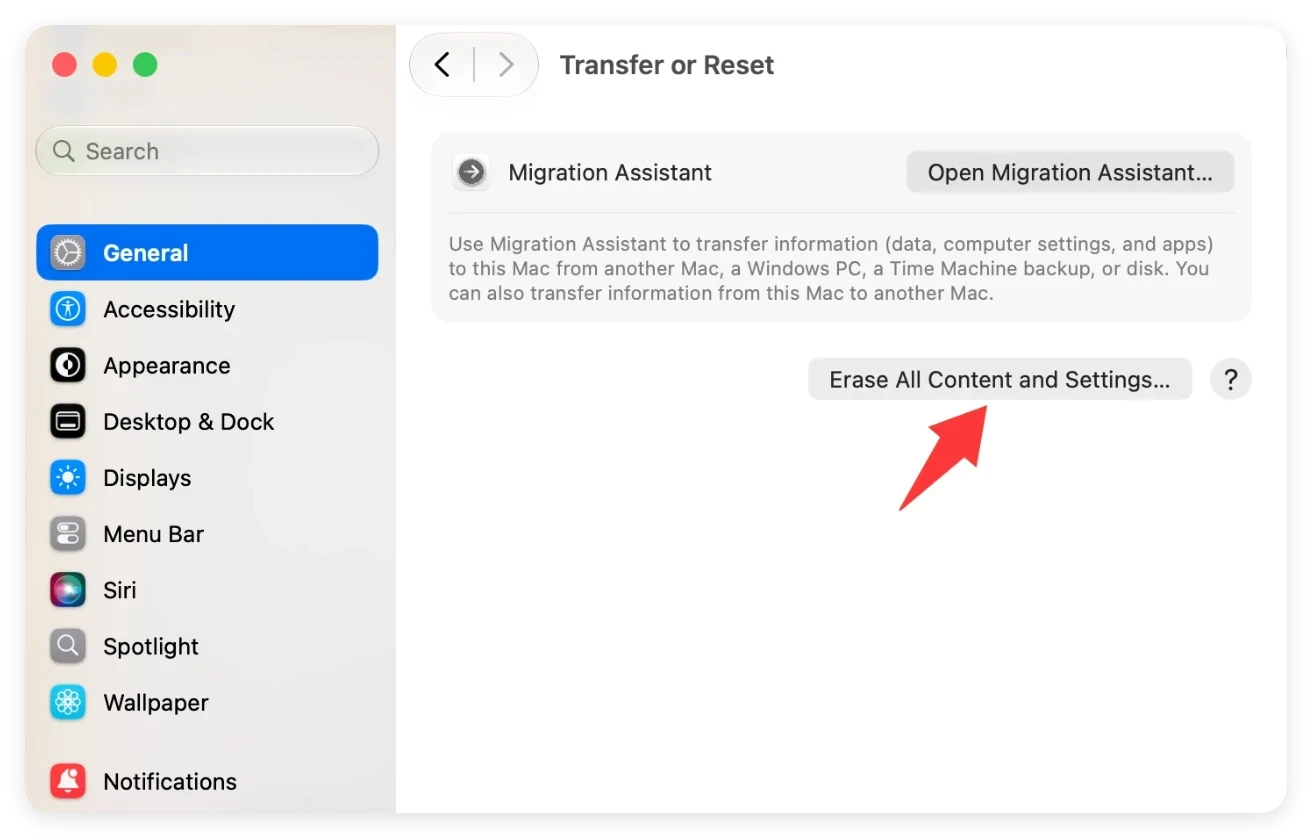
Step 4: Enter your administrator password and follow the on-screen prompts to confirm the erasure.
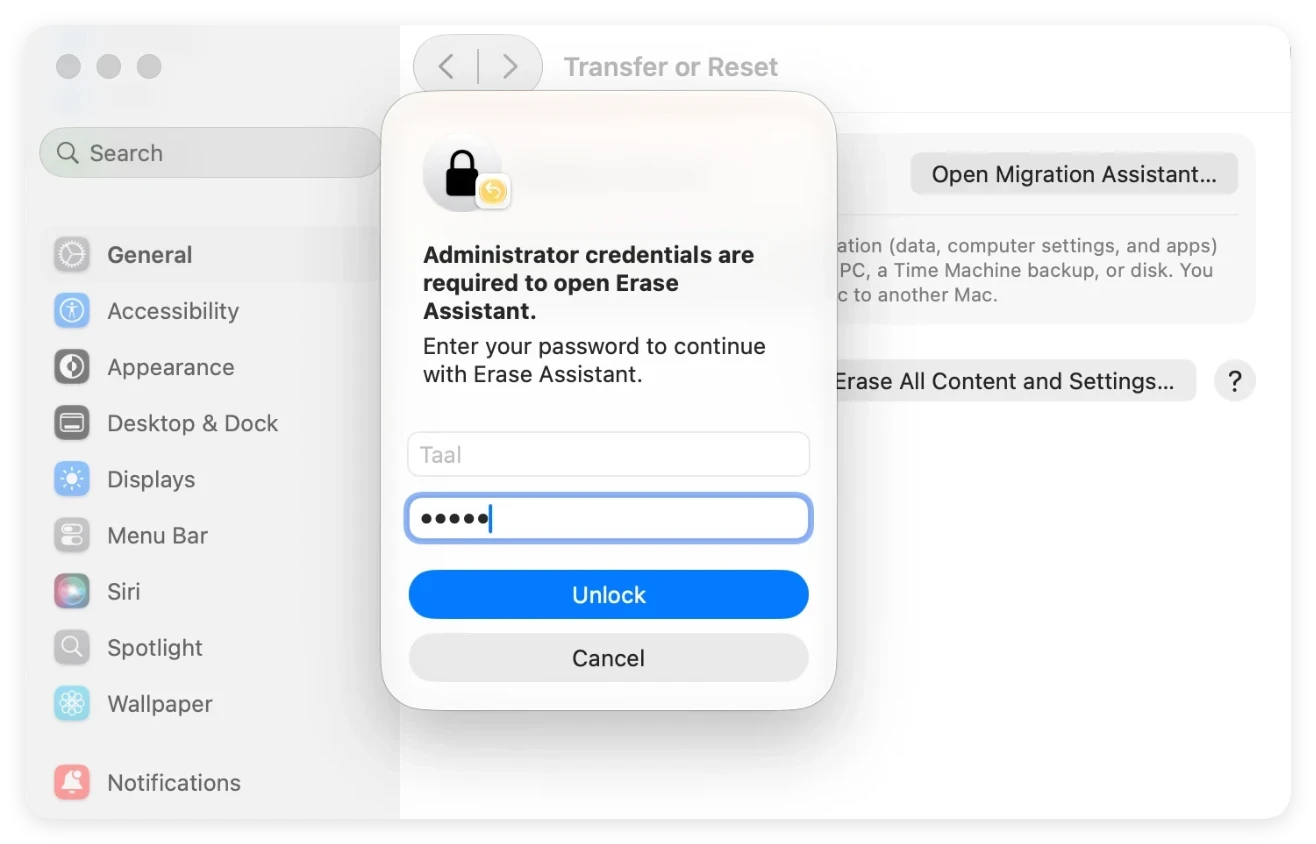
Step 5: Your MacBook Neo will restart and display the welcome setup assistant.
Deep Cleaning Free Space with DoYourData Super Eraser
After completing the factory reset, your MacBook Neo has a fresh macOS system, but remnants of your old deleted files still reside in the drive's unused free space. This is where DoYourData Super Eraser for Mac completes the protection process.
DoYourData Super Eraser for Mac
- The best data erasure software for macOS.
- Support wiping data on MacBook Neo.
- Permanently wipe data with certified algorithms.
DoYourData Super Eraser is a professional, military-grade data wiping tool. Its 'Wipe Free Space' mode overwrites all unallocated disk sectors with random data, completely destroying any leftover file fragments without altering or damaging your fresh macOS operating system.
Step-by-Step Guide: How to Wipe Free Space on MacBook Neo
Step 1: Download, install, and launch DoYourData Super Eraser for Mac. Select the 'Wipe Free Space' mode from the main application dashboard. Select your MacBook Neo system drive (or targeted disk volume).
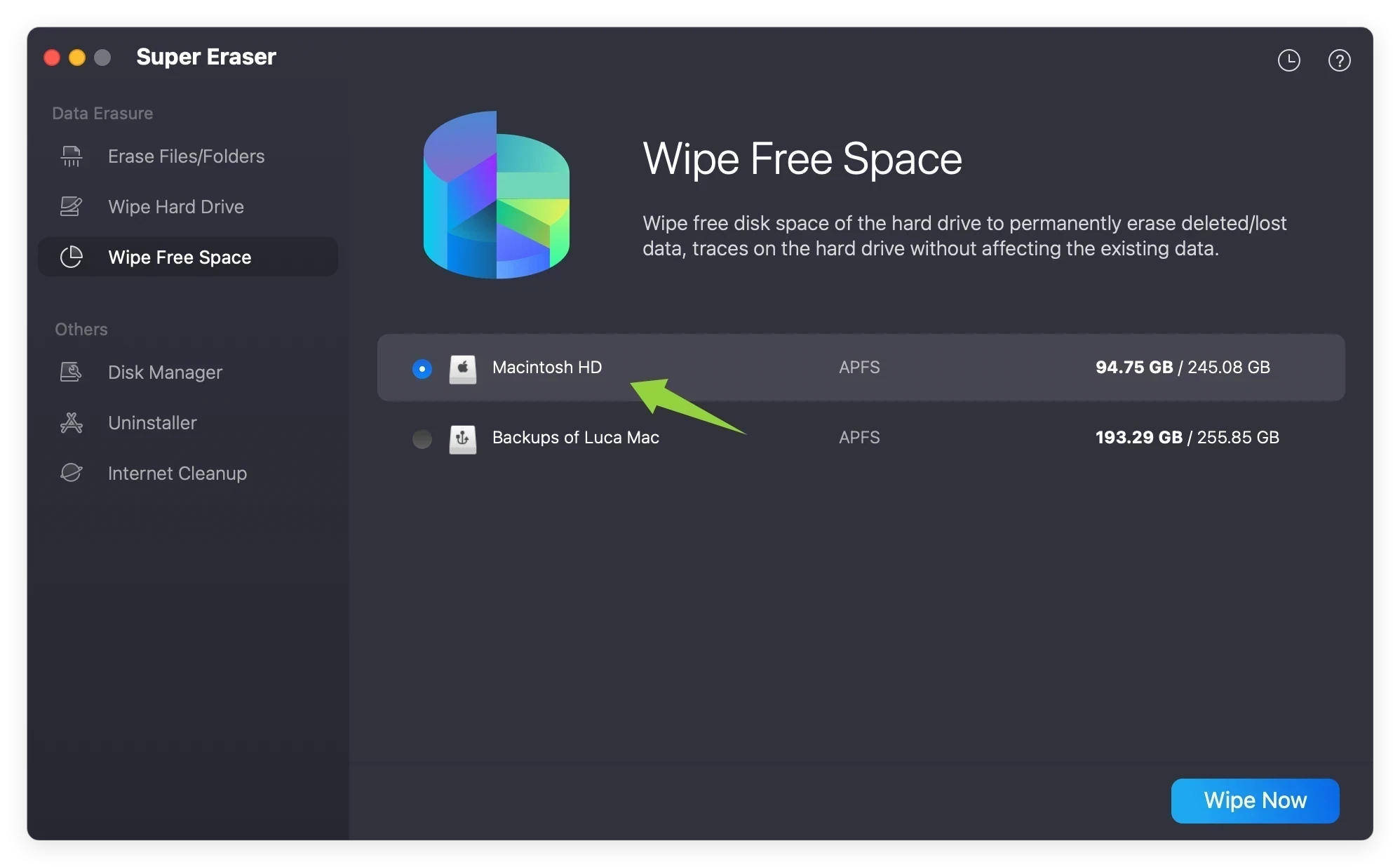
Step 2: Click the 'Wipe Now' button. The software will ask you to select a data wiping standard. There are a few multiple military-grade standards (such as DoD 5220.22-M or NIST 800-88) supported.
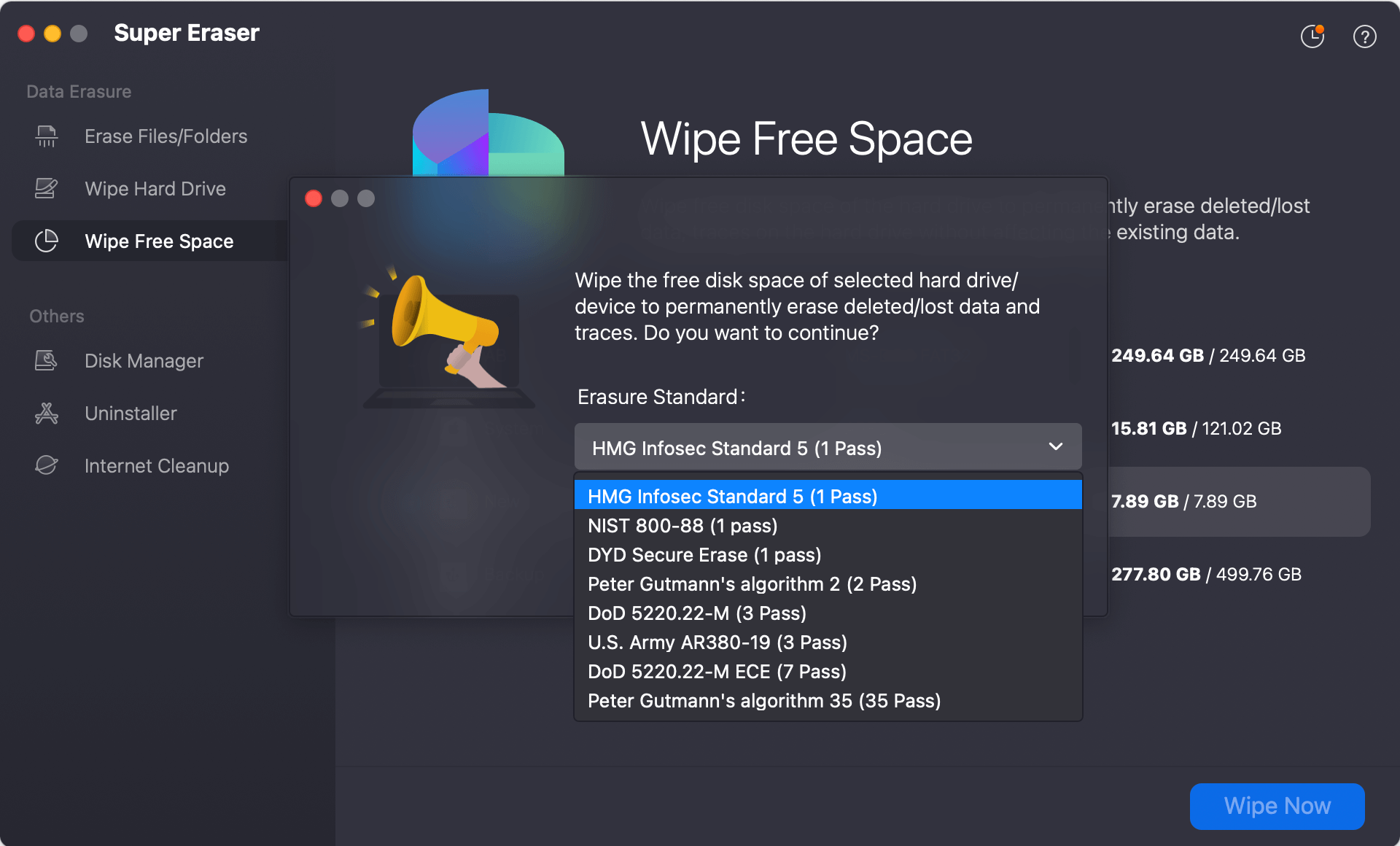
Step 3: The software will overwrite all unused storage space with the selected data wiping algorithm.
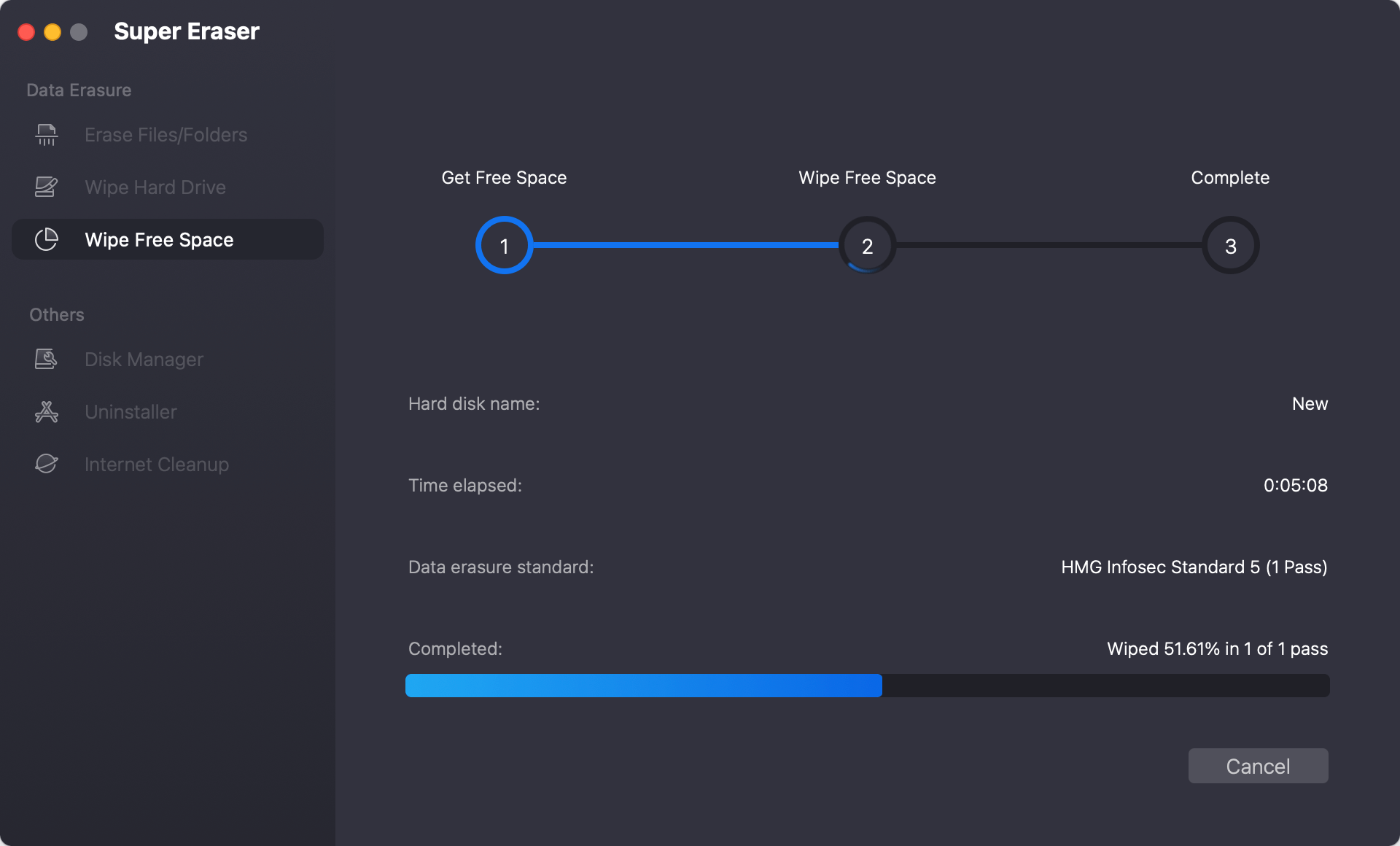
Once the process completes, 100% of your old file fragments, temporary files, and cached traces are permanently destroyed beyond any possibility of recovery.
FAQs about Securely Wiping MacBook Neo
Conclusion
When preparing to part with your computer, understanding how to securely wipe all data before selling a MacBook Neo ensures complete peace of mind. Taking shortcut methods like simply emptying the Trash or relying solely on a quick disk format leaves your sensitive personal information vulnerable to recovery tools.
By unlinking your Apple accounts, executing a macOS factory reset, and finishing with DoYourData Super Eraser for Mac to wipe all free space, you guarantee total data privacy. Your old files will be destroyed beyond recovery, and your MacBook Neo will be perfectly primed for its new owner!
DoYourData Super Eraser for Mac
DoYourData Super Eraser for Mac is a 100% safe, powerful and easy-to-use data erasure program. It offers certified data erasure standards including Peter Gutmann, U.S. Army AR380-19, DoD 5220.22-M ECE to permanently erase data from Macs and external devices, making data recovery be impossible.
Written & Updated by Shirly Chen
Shirly Chen has been writing data recovery, data erasure articles for DoYourData over 4 years. She has been working as a professional website content writer & editor for quite a long time. She also writes articles about disk clone, Mac optimization, disk backup, etc.