Can DoYourData Super Eraser Wipe Mac Internal Disk? Complete Guide
To safely wipe your Mac internal disk completely, follow a 2-step solution: 1) Factory reset your Mac via System Settings / Erase All Content and Settings to remove all personal data and user accounts. 2) Run DoYourData Super Eraser for Mac and use the 'Wipe Free Space' feature to permanently overwrite all remaining deleted data fragments. After these two steps, your wiped internal disk data is permanently gone and 100% unrecoverable.
 Updated by Shirly Chen on July 28, 2026
Quick Navigation:
- Why Can't DoYourData Super Eraser Wipe Mac Internal Disk Directly?
- How to Wipe Mac Internal Disk Completely (2-Step Solution)
- What Happens After Completing These Steps?
- What Else Can DoYourData Super Eraser for Mac Do?
- Comparison of Mac Internal Disk Wiping Methods
- FAQs about Wiping Mac Internal Disk
- Conclusion
Planning to sell, trade in, or donate your Mac? If so, completely wiping your personal files, passwords, financial records, and browser history is an essential safety step.
Many Mac users turn to powerful data erasure software like DoYourData Super Eraser for Mac. However, a common question often pops up: can DoYourData Super Eraser wipe Mac internal disk directly?
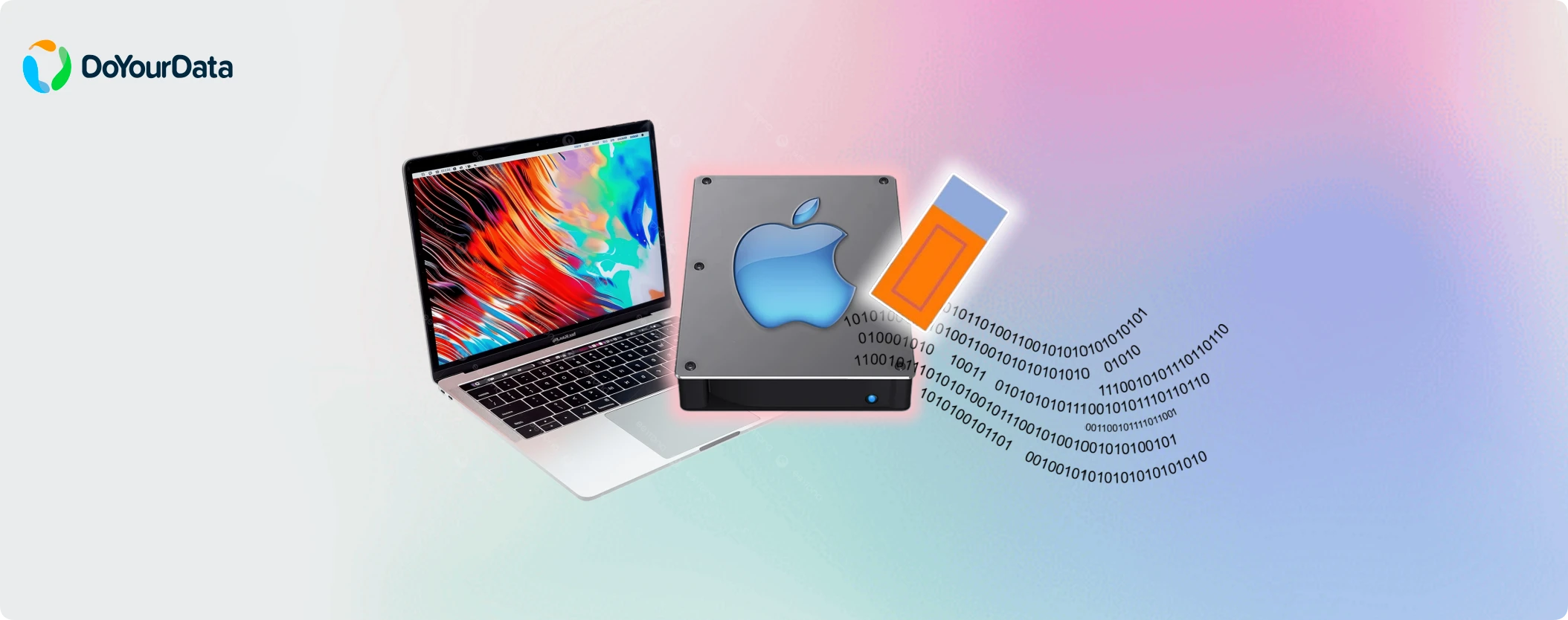
The short answer is no—DoYourData Super Eraser for Mac cannot wipe the active Mac internal system drive directly while macOS is running. But don't worry! You can easily wipe your Mac internal disk completely and make your data 100% unrecoverable by following a quick two-step method. In this guide, we will explain why macOS limits direct internal wiping and show you the exact steps to wipe your Mac internal disk safely.
Why Can't DoYourData Super Eraser Wipe Mac Internal Disk Directly?
To understand why software cannot wipe the internal system disk with a single click, it helps to look at how macOS protects itself.
Your Mac internal drive contains the active operating system (macOS), system files, and core apps. macOS built-in security features, such as System Integrity Protection (SIP), prevent any third-party app from destroying or modifying active system files while the computer is running.
If an app were allowed to wipe the active system drive completely, your Mac would crash instantly because the operating system itself would be destroyed during the process.
Because of this essential safety mechanism, DoYourData Super Eraser for Mac protects users by preventing direct full-disk destruction on the running system disk. Instead, it offers safe and targeted wiping modes like wiping specific files, erasing external drives, or wiping unused free space.
How to Wipe Mac Internal Disk Completely (2-Step Solution)
Even though you cannot wipe the active system drive directly in one click, you can easily erase all personal data permanently using a simple two-step procedure.
Step 1: Factory Reset Your Mac System
The first step is to use Apple's built-in reset feature to erase your user account, system settings, personal files, and app data.
For macOS Monterey, Ventura, Sonoma, Sequoia, and Later:
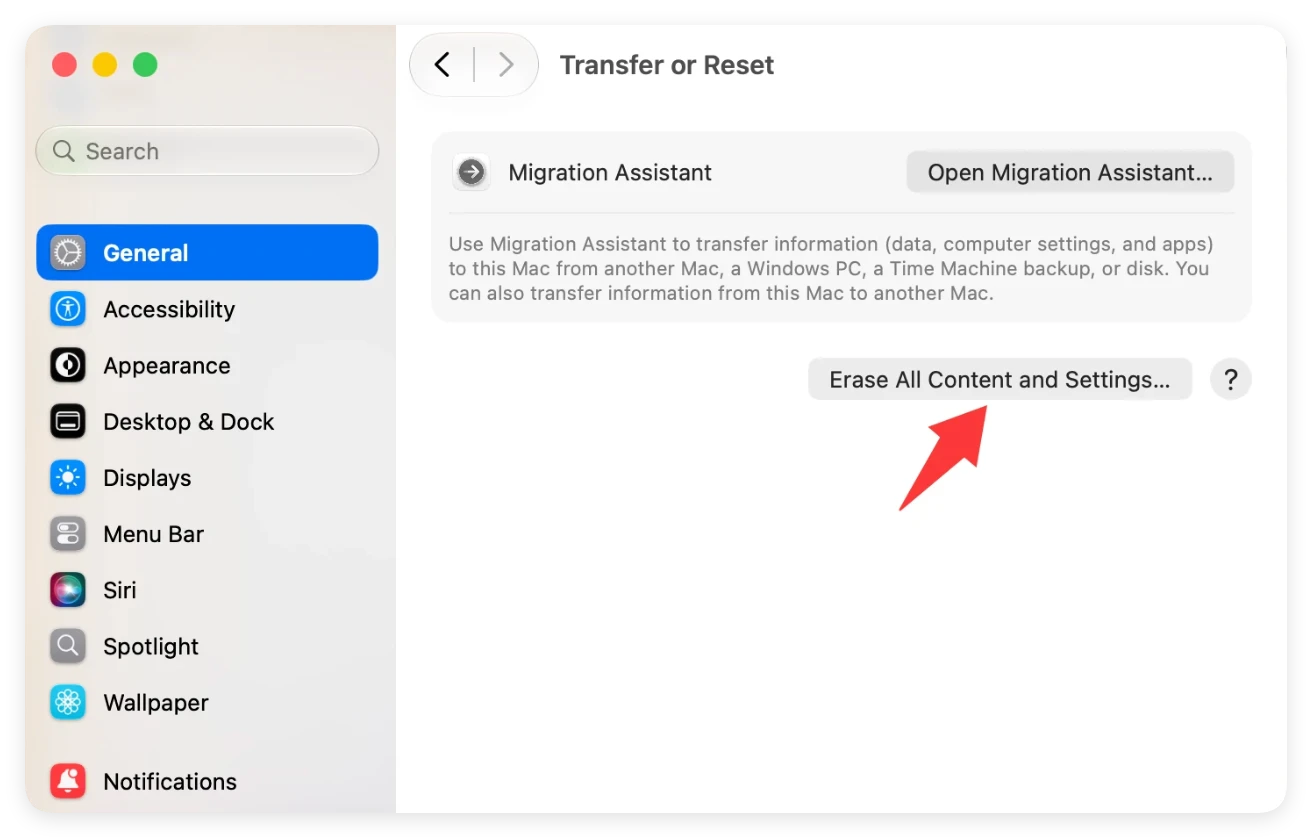
- Click the Apple menu in the top-left corner of your screen and select System Settings (or System Preferences). Click General in the side menu, then select Transfer or Reset. Click Erase All Content and Settings.
![can DoYourData Super Eraser wipe Mac internal disk]()
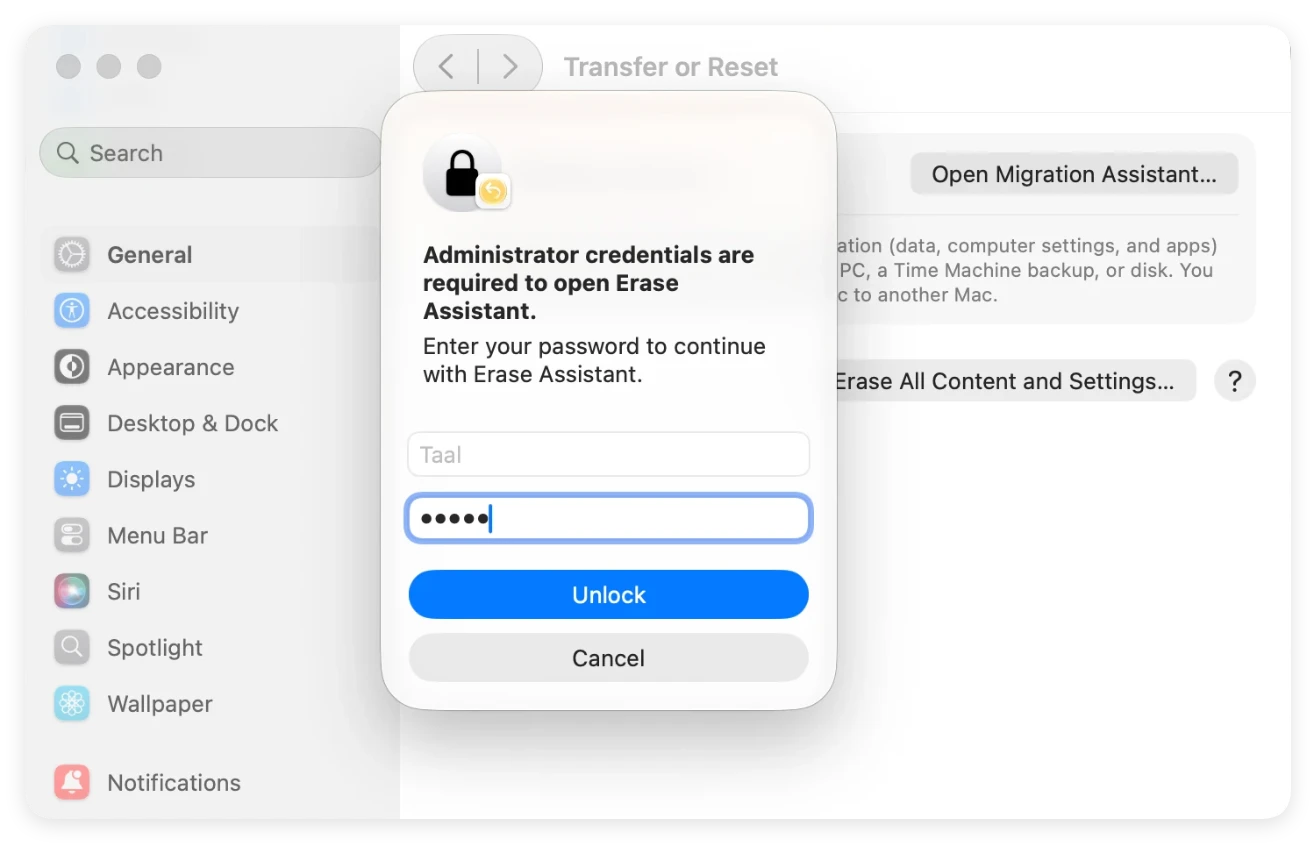
- Enter your Mac admin password and Apple ID credentials to sign out of iCloud, Find My, and Apple services.
![can DoYourData Super Eraser wipe Mac internal disk]()
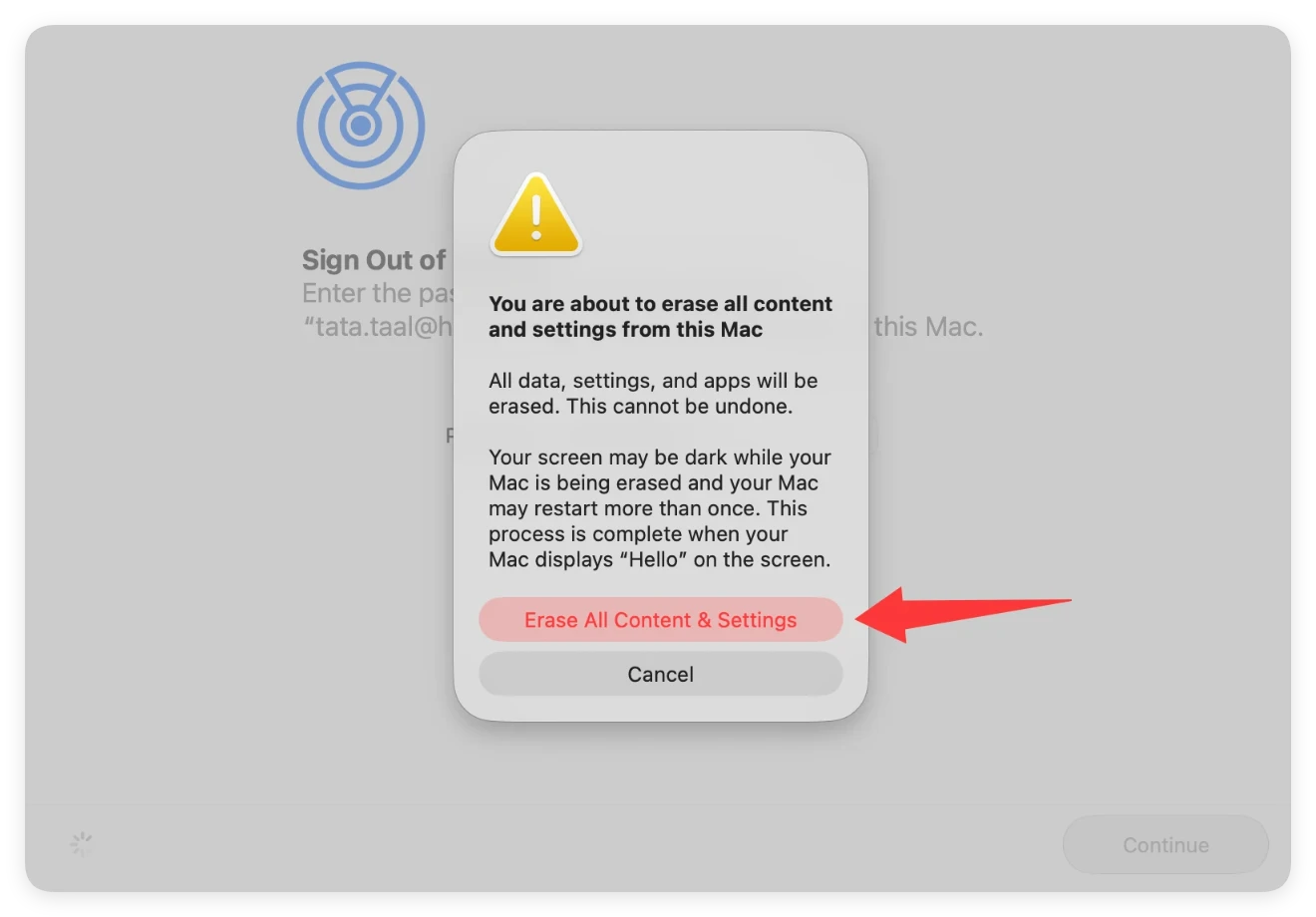
- Follow the on-screen prompts to complete the factory reset. Your Mac will restart into a fresh setup screen.
![can DoYourData Super Eraser wipe Mac internal disk]()
For Older macOS Versions (macOS Big Sur or Earlier):
- Restart your Mac and hold down Command + R until the Apple logo appears to enter macOS Recovery mode.
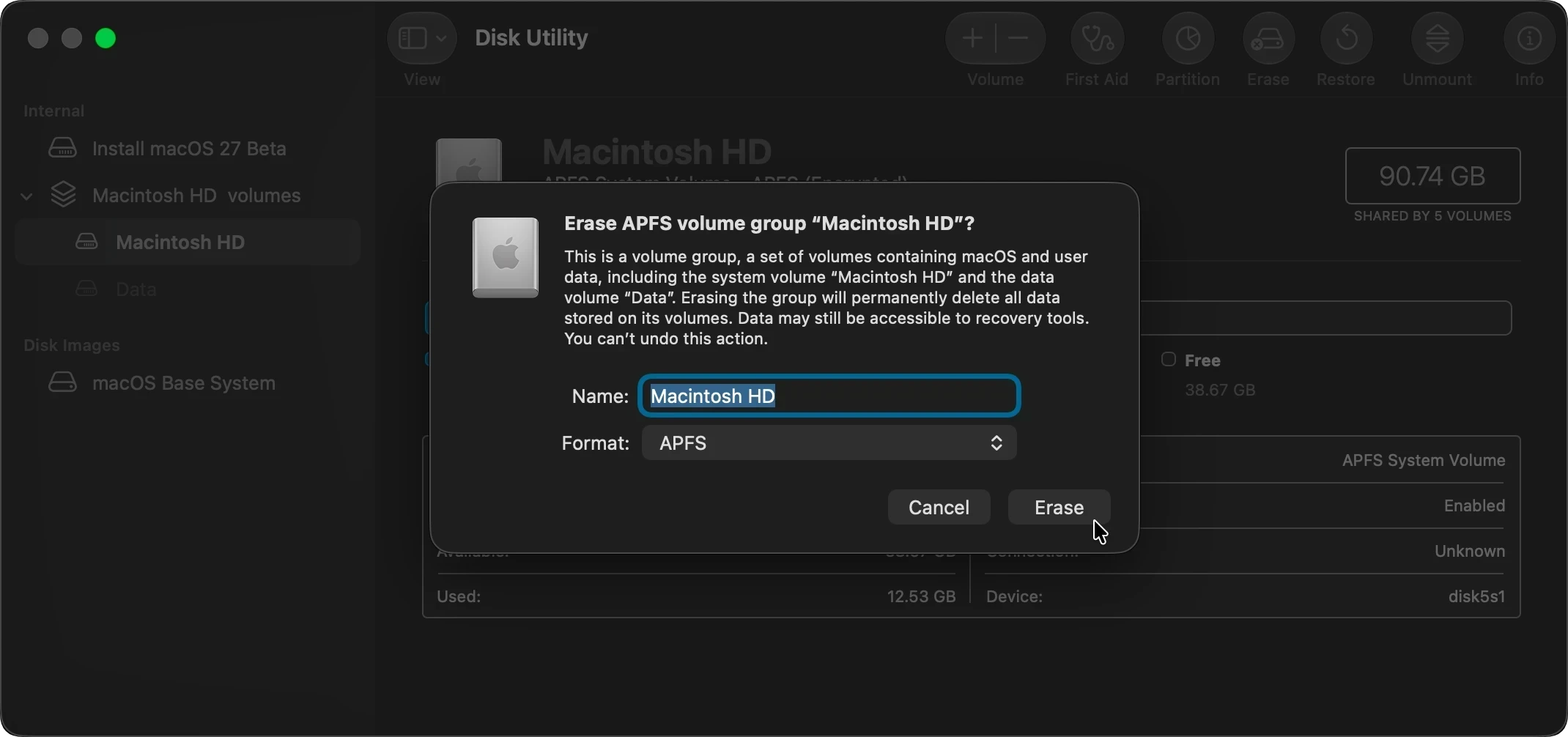
- Select Disk Utility, click your internal drive (Macintosh HD), and click Erase.
- Format the drive as APFS (or Mac OS Extended) and confirm the action.
![can DoYourData Super Eraser wipe Mac internal disk]()
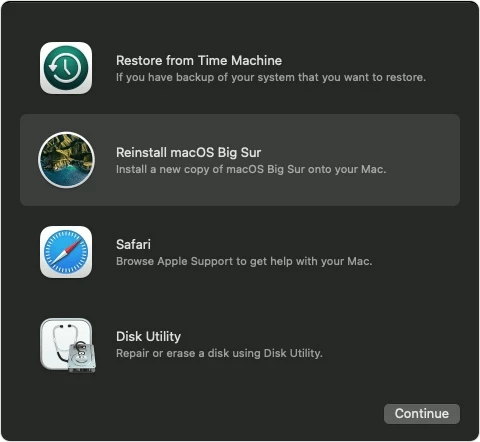
- Reinstall macOS using the Recovery screen menu.
![can DoYourData Super Eraser wipe Mac internal disk]()
Step 2: Use DoYourData Super Eraser to Wipe Free Space
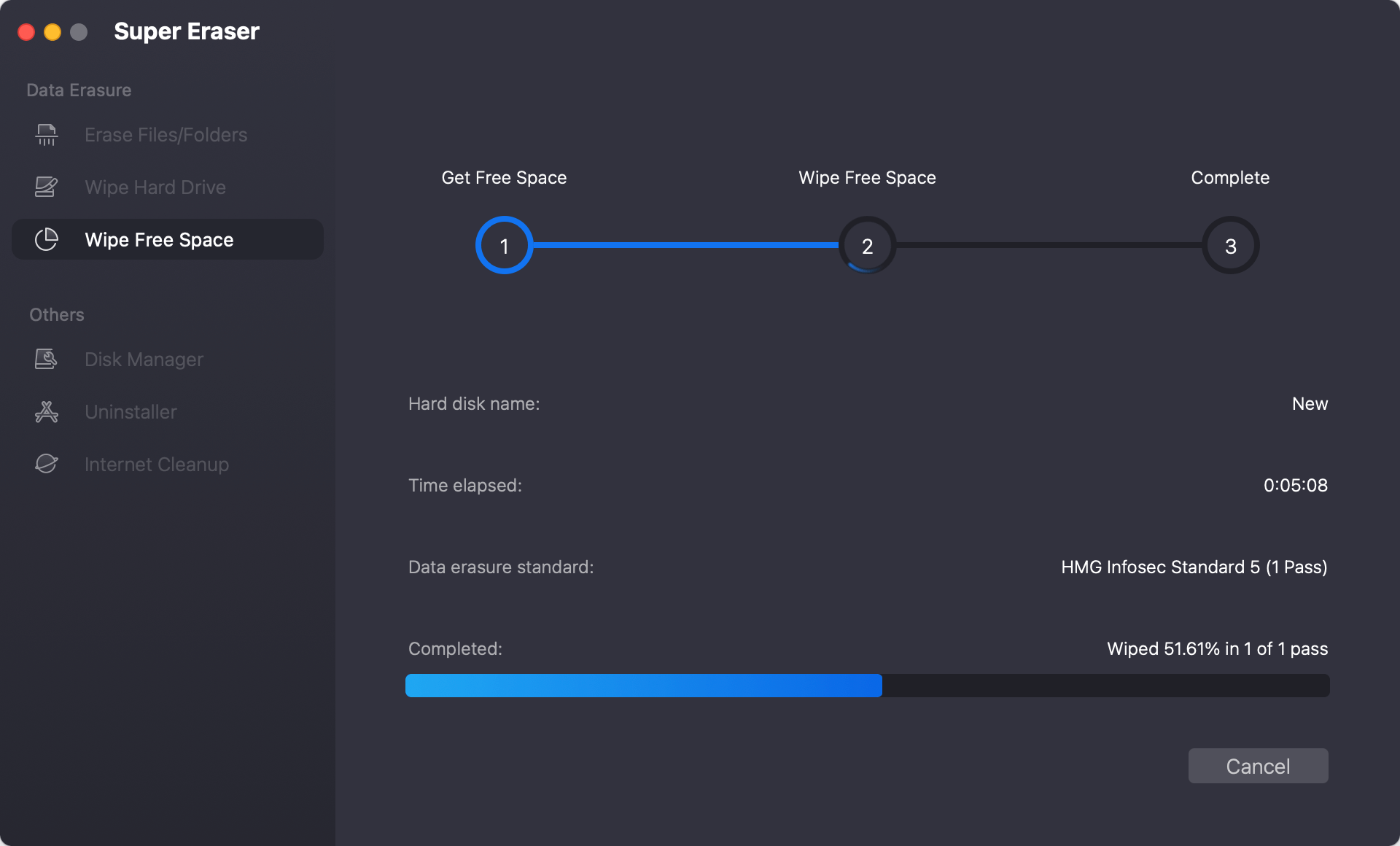
After factory resetting your Mac, your personal files are removed from the file directory. However, raw data traces may still sit in the drive's unused storage space. To make sure no data recovery software can ever bring those files back, use DoYourData Super Eraser for Mac to wipe the free space.
- Download and install DoYourData Super Eraser for Mac on your computer.
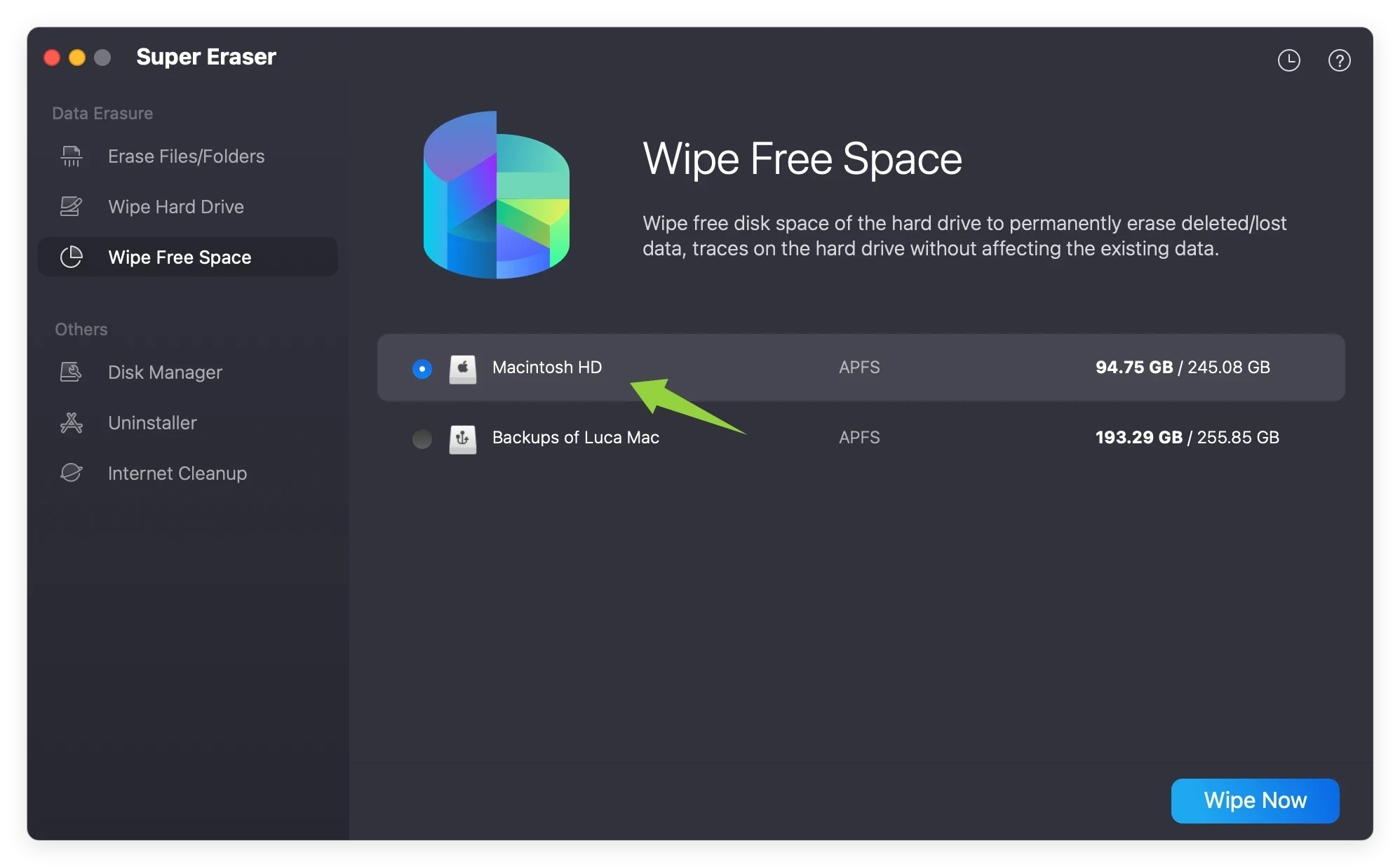
- Open the software and select the Wipe Free Space mode on the main interface. Select your Mac internal drive (e.g., Macintosh HD) where the free space needs to be cleaned.
![can DoYourData Super Eraser wipe Mac internal disk]()
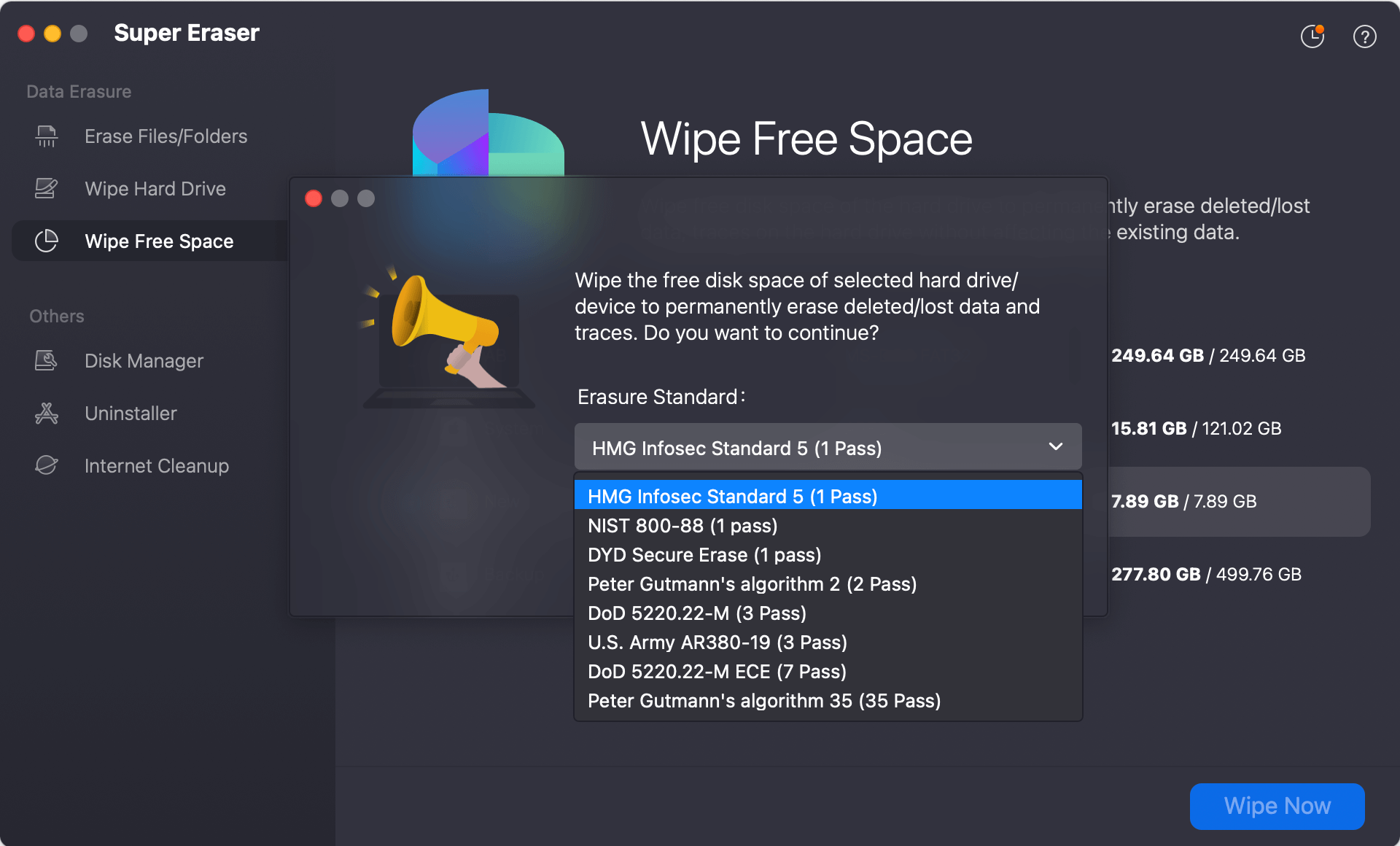
- Click the Wipe Now button. Then you need to select a data wiping method. Super Eraser will overwrite all unused storage space using military-grade data destruction standards.
![can DoYourData Super Eraser wipe Mac internal disk]()
- Wait for the wiping process to finish. Once completed, all previously deleted data fragments are gone forever.
![can DoYourData Super Eraser wipe Mac internal disk]()
What Happens After Completing These Steps?
Once you complete both the factory reset and the free space wipe with DoYourData Super Eraser for Mac, your Mac internal drive is completely clean.
- 100% Data Erasure: All existing personal files, documents, accounts, and system caches are removed by the factory reset.
- Zero Chance of Recovery: All leftover deleted data fragments in the free space are overwritten with random binary data, making recovery impossible.
- Safe for Resale: Even advanced deep-scan data recovery tools cannot reconstruct any of your erased files.
- Ready for New User: Your Mac returns to a fresh default state, ready for the next owner to set up.
What Else Can DoYourData Super Eraser for Mac Do?
While direct system disk wiping is limited by macOS safety protections, DoYourData Super Eraser for Mac remains one of the most powerful data destruction tools for other tasks:
- Wipe Files/Folders: Select individual files or folders on your Mac and wipe them permanently without affecting the rest of your drive.
- Wipe External Storage Drives: Wipe entire external hard drives, USB flash drives, SD cards, or digital cameras in one click.
- Wipe Free Space on Any Drive: Overwrite free storage space on external drives to clean deleted files completely.
- Internet Privacy Cleaning: Clean browser history, cookies, caches, and system log files to protect online privacy.
Comparison of Mac Internal Disk Wiping Methods
Here is a quick breakdown of how different wiping methods compare:
| Wiping Method | Ease of Use | Erases Personal Data? | Prevents Data Recovery? |
|---|---|---|---|
| Direct Software Wiping | Not Supported | No | No |
| Factory Reset Only | Easy | Yes | Partial (Some fragments remain) |
| Factory Reset + Free Space Wipe | Easy & Safe | Yes | Yes (100% Unrecoverable) |
FAQs about Wiping Mac Internal Disk
Conclusion
So, can DoYourData Super Eraser wipe Mac internal disk? While it cannot directly erase the active system drive due to macOS system protections, combining a factory reset with DoYourData Super Eraser's Wipe Free Space option gives you a complete, foolproof data erasure solution.
By first resetting your Mac and then wiping the unused free space, you ensure that every trace of your personal data is permanently gone and 100% unrecoverable.
If you are preparing to sell, gift, or trade in your Mac, download DoYourData Super Eraser for Mac today and protect your privacy with total confidence!
DoYourData Super Eraser for Mac
DoYourData Super Eraser for Mac is a 100% safe, powerful and easy-to-use data erasure program. It offers certified data erasure standards including Peter Gutmann, U.S. Army AR380-19, DoD 5220.22-M ECE to permanently erase data from Macs and external devices, making data recovery be impossible.
Written & Updated by Shirly Chen
Shirly Chen has been writing data recovery, data erasure articles for DoYourData over 4 years. She has been working as a professional website content writer & editor for quite a long time. She also writes articles about disk clone, Mac optimization, disk backup, etc.