How to Wipe Internal Disk and Reinstall macOS 27 Golden Gate?
After wiping a drive or reinstall macOS 27 with the built-in method, there is still a chance to recover the data with professional data recovery methods. If you want to wipe data permanently and prevent data recovery, use DoYourData Super Eraser for mac to wipe the data.
 Updated by Shirly Chen on July 13, 2026
Quick Navigation:
- Steps to Wipe Internal Disk and reinstall macOS 27
- Is a Standard Disk Wipe 100% Safe for Your Privacy?
- FAQs about Wiping a Mac and Reinstalling macOS
- Conclusion
Are you looking to give your Mac a completely fresh start? Whether your system is running a bit sluggish, you are experiencing weird system glitches, or you are getting ready to sell or donate your Mac to someone else, performing a clean install is the best solution. In this guide, we will walk you through exactly how to wipe internal disk and reinstall macOS 27 Golden Gate safely and quickly.
Upgrading or clean-installing a major operating system like macOS 27 Golden Gate can feel a little intimidating. After all, wiping an internal system drive means removing everything you have built up over the years. But don't worry! As long as you follow the correct steps, the entire process is straightforward, smooth, and highly rewarding for your Mac's overall performance.
Steps to Wipe Internal Disk and reinstall macOS 27
Before we dive straight into Recovery Mode and start erasing things, there is one critical rule you must remember: wiping your internal disk deletes absolutely everything. This includes your documents, system preferences, downloaded apps, saved passwords, and photos. Let's make sure we do this the right way without losing any of your irreplaceable files.
Step 1: Back Up Your Important Mac Data First
The absolute first thing you need to do before learning how to wipe internal disk and reinstall macOS 27 Golden Gate is to back up your data. Since this process completely cleans your internal drive, any data left behind will be lost forever.
The easiest way to safeguard your files is by using Apple's built-in Time Machine feature. Simply plug in an external hard drive, open System Settings, navigate to General, and then Time Machine, and select your backup disk. Let the backup process complete entirely before moving forward.
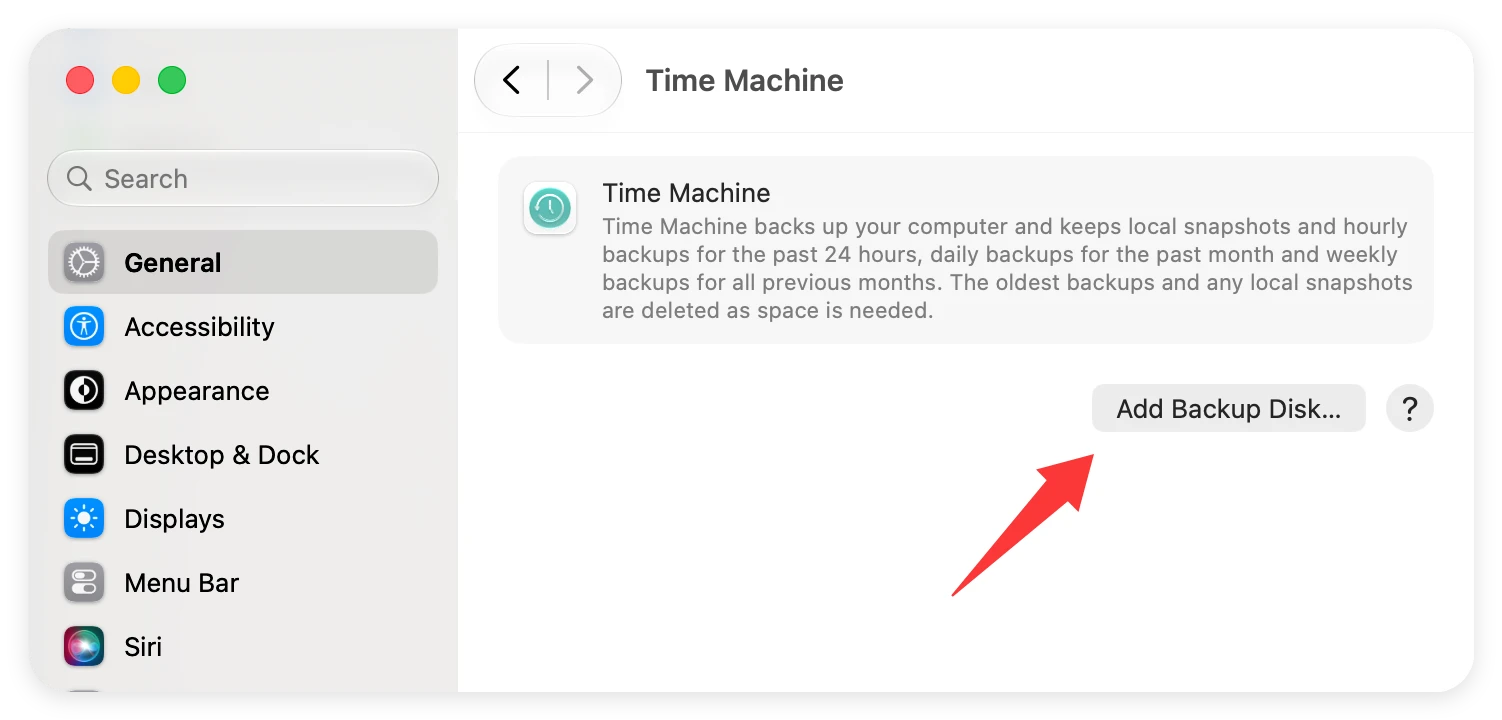
Alternatively, you can manually copy your most important files—like documents, family photos, and project folders—to an external SSD or a cloud storage service like iCloud, Google Drive, or OneDrive. Double-check that you have saved everything you need, including license keys for your premium software applications.
Step 2: Boot Your Mac Into Recovery Mode
To wipe your internal system drive, you cannot be actively running the standard macOS operating system. Instead, you need to boot your Mac into Recovery Mode. The way you enter Recovery Mode on macOS 27 Golden Gate:
- Shut down your Mac completely by clicking the Apple menu and selecting Shut Down.
- Press and hold the Power button down.
- Keep holding it until you see 'Loading startup options' appear on your screen.
- Click on Options, then click Continue to enter the Recovery screen.
![how to wipe internal disk and reinstall macOS 27 Golden Gate]()
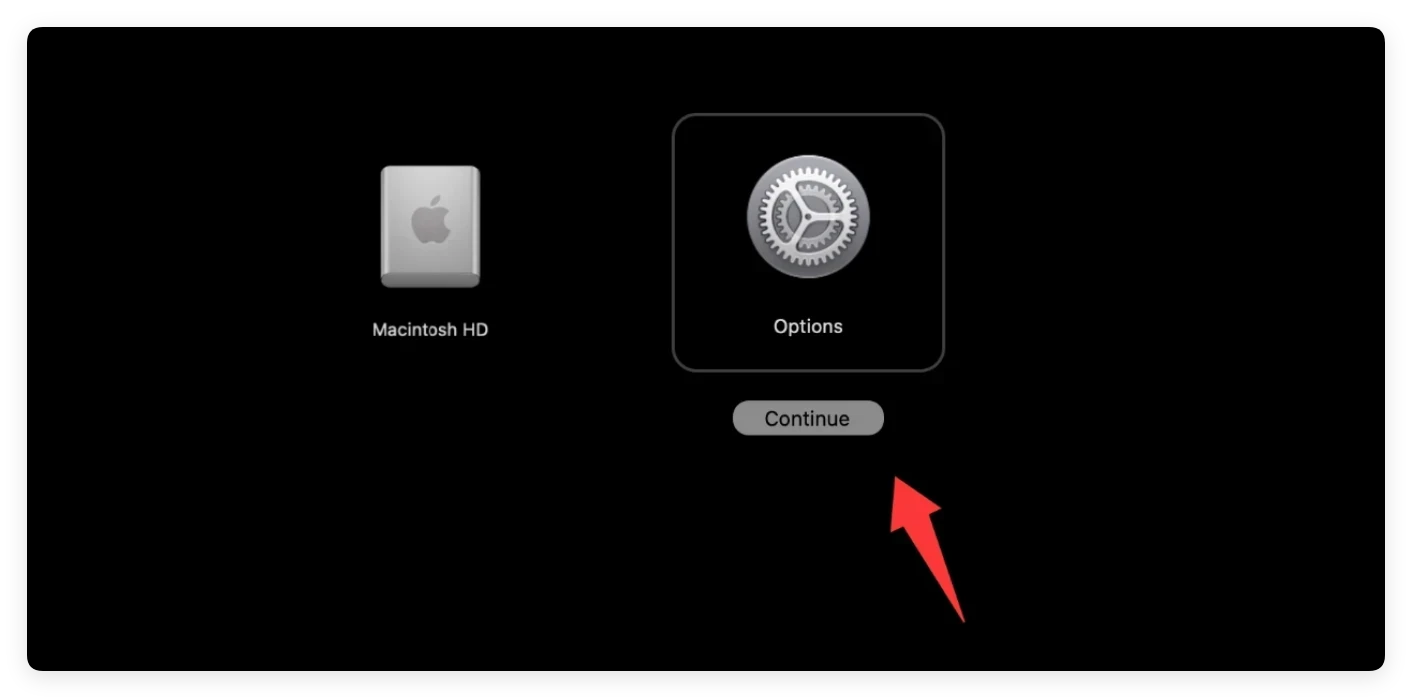
Once your Mac enters Recovery Mode, select your administrator user profile, enter your password, and you will see the main macOS Utilities window.
Step 3: How to Wipe Your Internal Disk Using Disk Utility
Now that you are safely inside the macOS Recovery Mode interface, it is time to perform the actual drive wipe. This step ensures that your old operating system files, junk caches, and user profiles are completely cleared out.
Follow these simple steps to erase your drive:
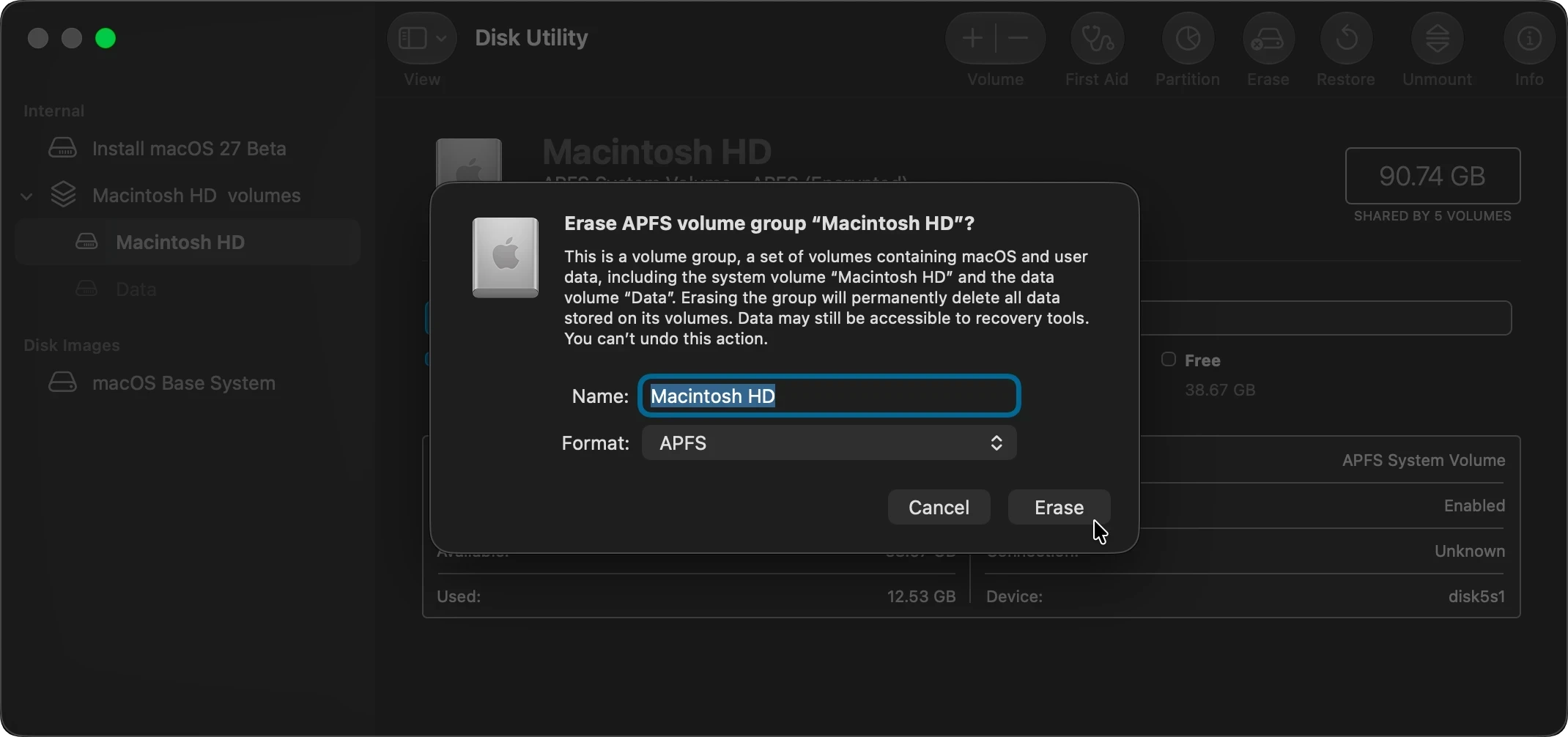
- From the macOS Utilities menu, click on Disk Utility and hit Continue.
- In the sidebar of Disk Utility, locate the internal drive. It is usually named 'Macintosh HD' unless you renamed it in the past.
- Select the main internal drive from the list, then click the Erase button located at the top toolbar.
- A pop-up window will ask you to choose a name and format. For the Name field, type in 'Macintosh HD'. For the Format field, choose APFS (Apple File System), which is optimized for modern Mac solid-state drives.
- Click the Erase button. Wait a few moments for the process to finish. Once it says successful, close the Disk Utility window to return to the main Recovery menu.
![how to wipe internal disk and reinstall macOS 27 Golden Gate]()
Step 4: Reinstall macOS 27 Golden Gate
With your internal disk completely clean and empty, your Mac is ready for its brand new operating system. Let's install the latest version to make your Mac run like a dream.
- In the main macOS Utilities window, select Reinstall macOS 27 Golden Gate and click Continue.
![how to wipe internal disk and reinstall macOS 27 Golden Gate]()
- Click Continue again when the installer welcome screen pops up, and agree to the software license terms.
![how to wipe internal disk and reinstall macOS 27 Golden Gate]()
- Select your newly formatted internal drive (Macintosh HD) as the destination for the installation. Click Continue to begin the process.
![how to wipe internal disk and reinstall macOS 27 Golden Gate]()
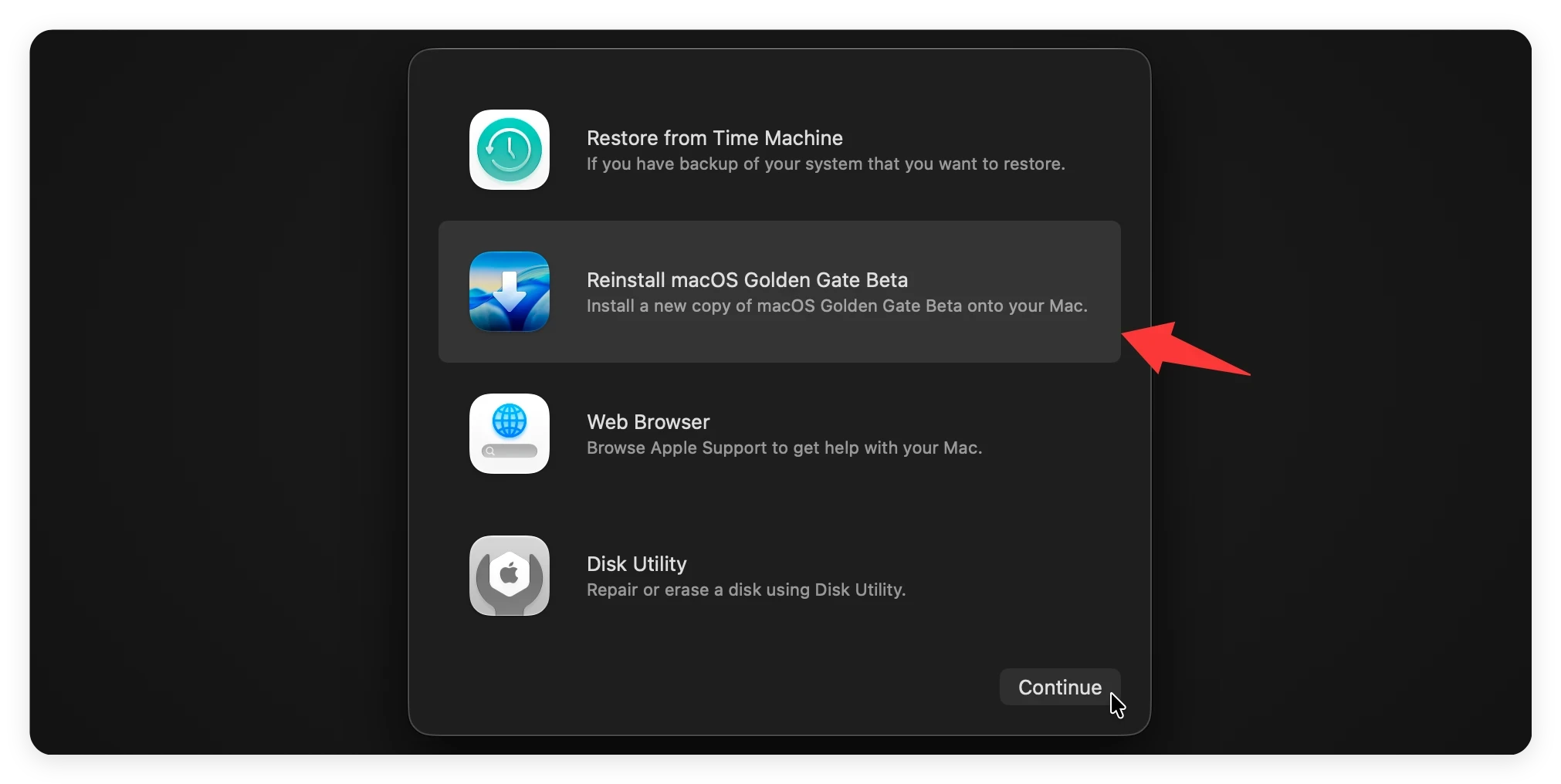
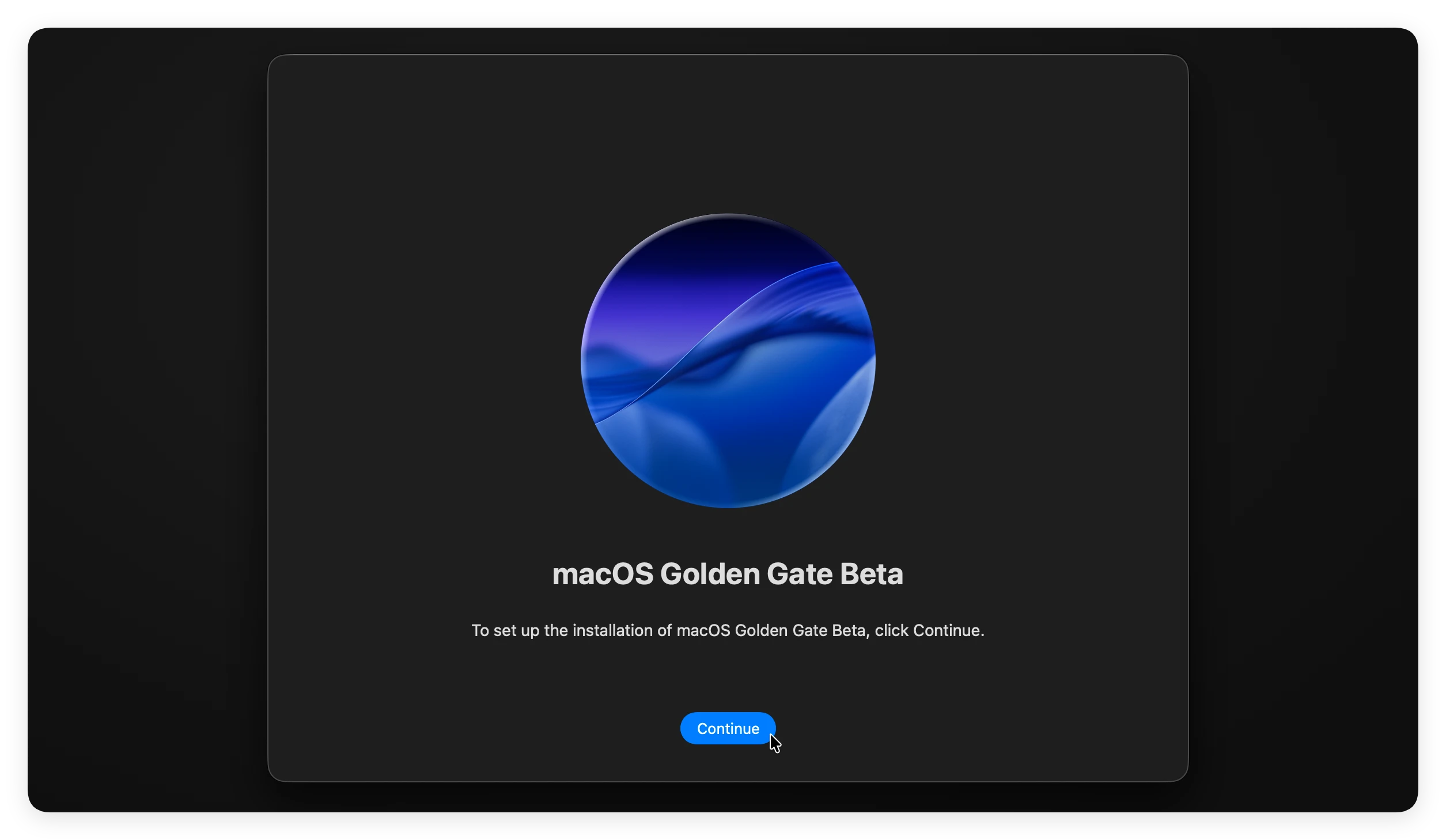
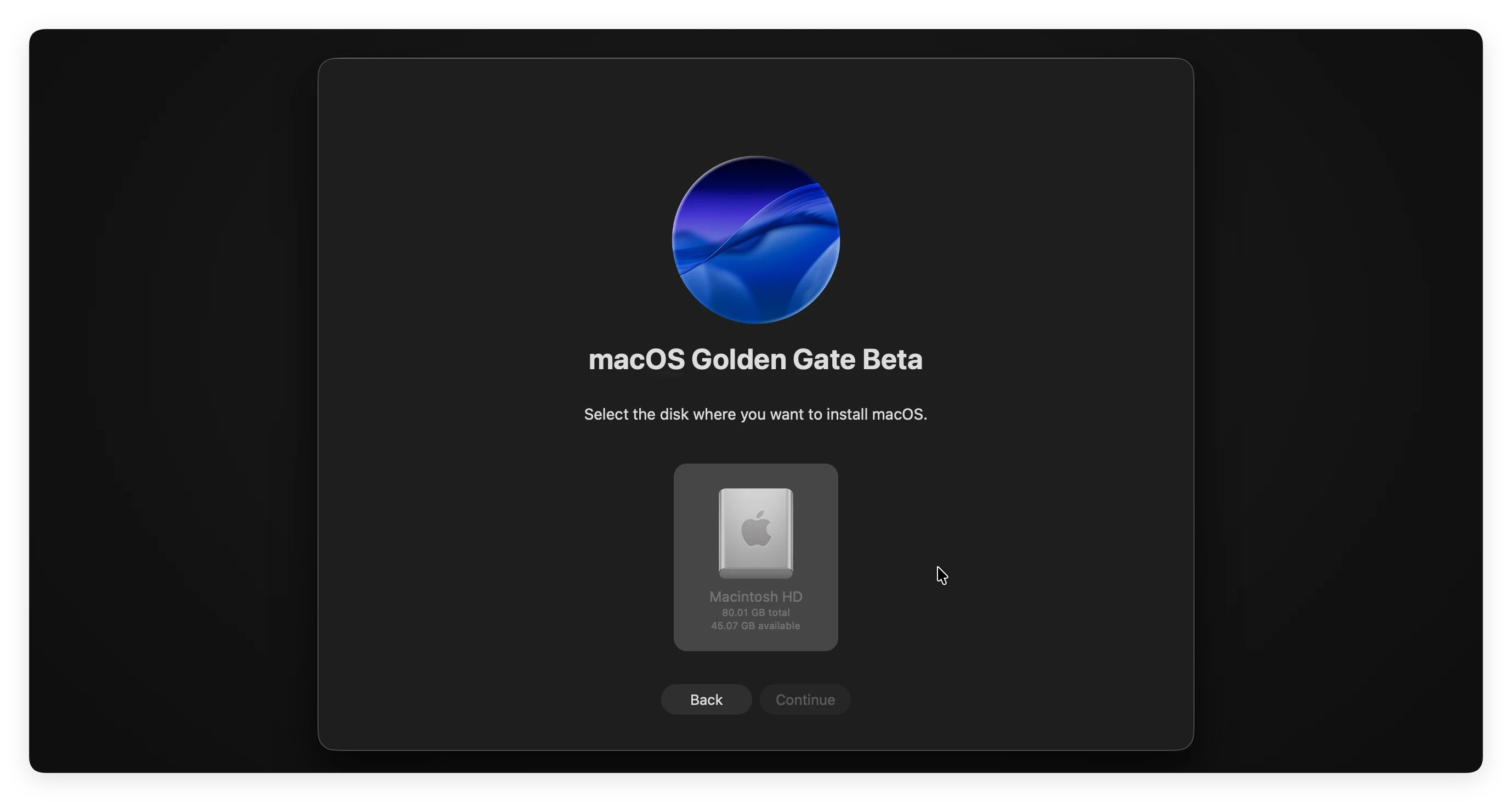
Make sure your Mac stays connected to a reliable Wi-Fi network and a power outlet during this stage. The installation process might take some time as it downloads and configures macOS 27 Golden Gate. Your Mac will restart a few times during the installation, which is completely normal. Just let it do its job until you see the standard setup assistant screen.
Is a Standard Disk Wipe 100% Safe for Your Privacy?
Many users believe that using Disk Utility to erase a drive means their personal data is gone forever. However, here is an important technical reality: a standard format only removes the file directory paths. The actual underlying data still sits on the storage blocks until it is overwritten by new files over time.
This means if you intend to sell, trade in, or donate your Mac, the new owner could easily download a standard data recovery program to retrieve your private photos, passwords, tax documents, and browsing history. A standard Recovery Mode wipe is simply not 100% secure against professional data recovery software.
To protect your privacy completely, you need to permanently overwrite the empty space on your disk so that nothing can ever be brought back.
Security Fix: Use DoYourData Super Eraser for Mac
If you want absolute peace of mind before handing your Mac over to someone else, you should use DoYourData Super Eraser for Mac. This powerful, certified data erasure tool helps you clean the drive's free space after you have reinstalled your system.
By wiping the disk's free space with DoYourData Super Eraser, all remnants of your old data are permanently overwritten using military-grade erasure algorithms. Once this process is complete, your deleted files become 100% unrecoverable, even by the most advanced forensic data recovery software in the industry.
Here is how simple it is to use:
- Once your Mac has reinstalled macOS 27 Golden Gate, download and install DoYourData Super Eraser for Mac.
- Open the application and choose the Wipe Free Space mode from the left panel. Select your main internal hard drive where your old files used to live.
![how to wipe internal disk and reinstall macOS 27 Golden Gate]()
- Click the Wipe Now button to continue. Choose a data erasure standard and then start to wipe the deleted or lost data from the Mac internal drive permanently.
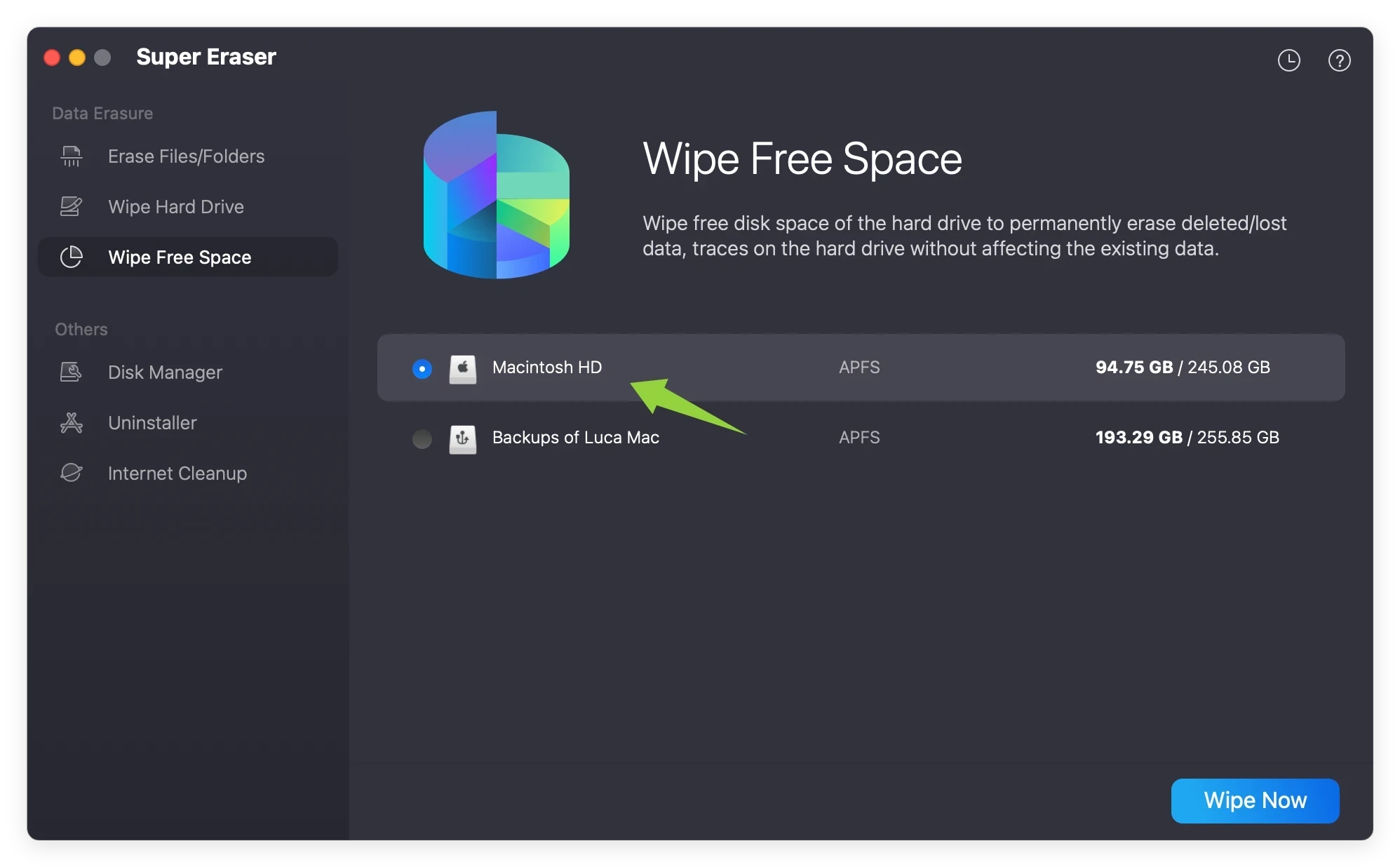
The software will securely overwrite all the empty parts of your drive without harming your newly installed macOS 27 Golden Gate operating system. It is the perfect, hassle-free strategy for anybody planning a safe Mac sale or donation.
FAQs about Wiping a Mac and Reinstalling macOS
Conclusion
Knowing how to wipe internal disk and reinstall macOS 27 Golden Gate gives your Mac a clean slate and optimal performance. But if privacy is your main concern, remember that a standard wipe isn't completely foolproof. Pair your clean installation with DoYourData Super Eraser for Mac to permanently lock down your deleted files and enjoy 100% digital security.
DoYourData Super Eraser for Mac
DoYourData Super Eraser for Mac is a 100% safe, powerful and easy-to-use data erasure program. It offers certified data erasure standards including Peter Gutmann, U.S. Army AR380-19, DoD 5220.22-M ECE to permanently erase data from Macs and external devices, making data recovery be impossible.
Written & Updated by Shirly Chen
Shirly Chen has been writing data recovery, data erasure articles for DoYourData over 4 years. She has been working as a professional website content writer & editor for quite a long time. She also writes articles about disk clone, Mac optimization, disk backup, etc.