How to Back Up Mac Data Before Upgrading to macOS 27 Golden Gate
How to backup Mac before macOS 27 upgrade? It's important to make a bootable backup in case you want to downgrade or protect data safe. DoYourClone for Mac, a professional Mac disk cloning software, can make full and bootable clone backup for Mac. It's the best choice before upgrading to macOS Golden Gate.
 Updated by Darren on June 16, 2026
Quick Navigation:
- Why Backing Up Before a Major macOS Upgrade is Critical
- Create a Bootable Backup with DoYourClone for Mac
- How to Update Your Mac to macOS 27 Golden Gate
- FFAQs About Upgrading to macOS 27 Golden Gate
- Conclusion
Are you excited about the upcoming macOS 27 Golden Gate release? Apple always brings incredible new features, a polished interface, and major security updates that make us want to hit that 'Update' button immediately.
But wait a second! Before you dive headfirst into the shiny new beta or official release, there is one crucial step you absolutely cannot skip: protecting your files. Major OS upgrades rewrite code deep within your system. If something goes sideways during the process, you could find yourself looking at a frozen Mac and a completely wiped drive.
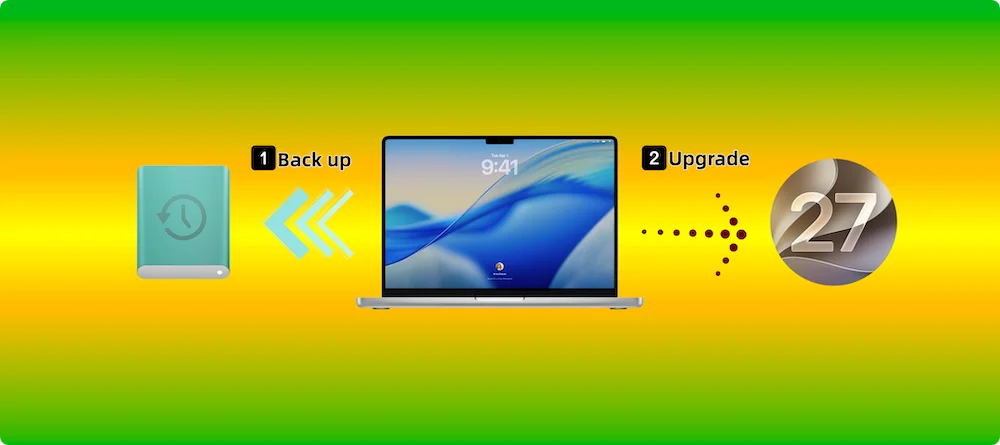
In this simple, step-by-step guide, we will show you exactly how to back up Mac data before upgrading to macOS 27 Golden Gate. By taking a few quick precautions, you can explore everything Golden Gate has to offer with total peace of mind.
Why Backing Up Before a Major macOS Upgrade is Critical
Think of a major macOS upgrade like moving your entire digital life into a brand-new house. Most of the time, the moving truck arrives safely. But occasionally, a box gets lost or dropped along the way.
When you install macOS 27 Golden Gate—especially if you are trying out the developer or public beta versions—the risk of software instability is much higher. Common update glitches include sudden installation crashes, app incompatibility, battery drain issues, or a system that refuses to boot past the Apple logo.
If your files are securely backed up, these issues are nothing more than a minor, temporary inconvenience. If you don't back up, a failed update could mean losing years of irreplaceable family photos, critical work projects, and personal configurations forever. Taking 15 minutes to back up your Mac today saves you days of stress tomorrow.
Create a Bootable Backup with DoYourClone for Mac
While regular cloud storage or built-in tools are great for daily backups, they have a major limitation. If your upgrade fails completely, you cannot boot your Mac from them to resume work immediately.
That is where DoYourClone for Mac comes in. It is a powerful, user-friendly disk cloning software designed specifically for Mac users. Instead of just copying loose files, DoYourClone creates a 100% identical, bit-by-bit copy of your entire hard drive—including your operating system, apps, system settings, and login credentials.
DoYourClone for Mac
- Make bootable backup for Mac before macOS upgrade.
- Migrate system from one drive to another drive.
- Create exact copy for system, settings, apps and data.
This means you get a full and bootable backup of your current macOS before making the leap to macOS 27 Golden Gate. If the Golden Gate update crashes or you simply do not like the new version, you can plug your external drive in, boot your Mac instantly from the clone, and keep working exactly where you left off.
Key features that make DoYourClone your best pre-upgrade companion include:
- OS Cloning: Easily clone your startup disk to an external drive to create a bootable rescue drive.
- Data Safe: No modifications are made to your source data, keeping your original files perfectly safe.
- High Efficiency: Fast transfer speeds that handle large photo libraries and video databases smoothly.
- Easy to Use: A clean, conversational interface built for everyday users, requiring zero tech expertise.
Steps to Back Up Mac Before Upgrading to macOS 27 Golden Gate
Ready to secure your data? Let's walk through the incredibly straightforward process using DoYourClone for Mac. Make sure you have an external hard drive or SSD with enough space to hold your Mac's current data.
Step 1: Download and Launch DoYourClone
First, download and install DoYourClone for Mac onto your system. Open the program from your Applications folder. You will be greeted by an intuitive, clutter-free menu.
Step 2: Connect Your External Drive
Plug your external hard drive or SSD into your Mac. Ensure that any important files on this external drive are saved elsewhere, as the cloning process will format the drive to make it a bootable copy.
Step 3: Select Your Target Drives
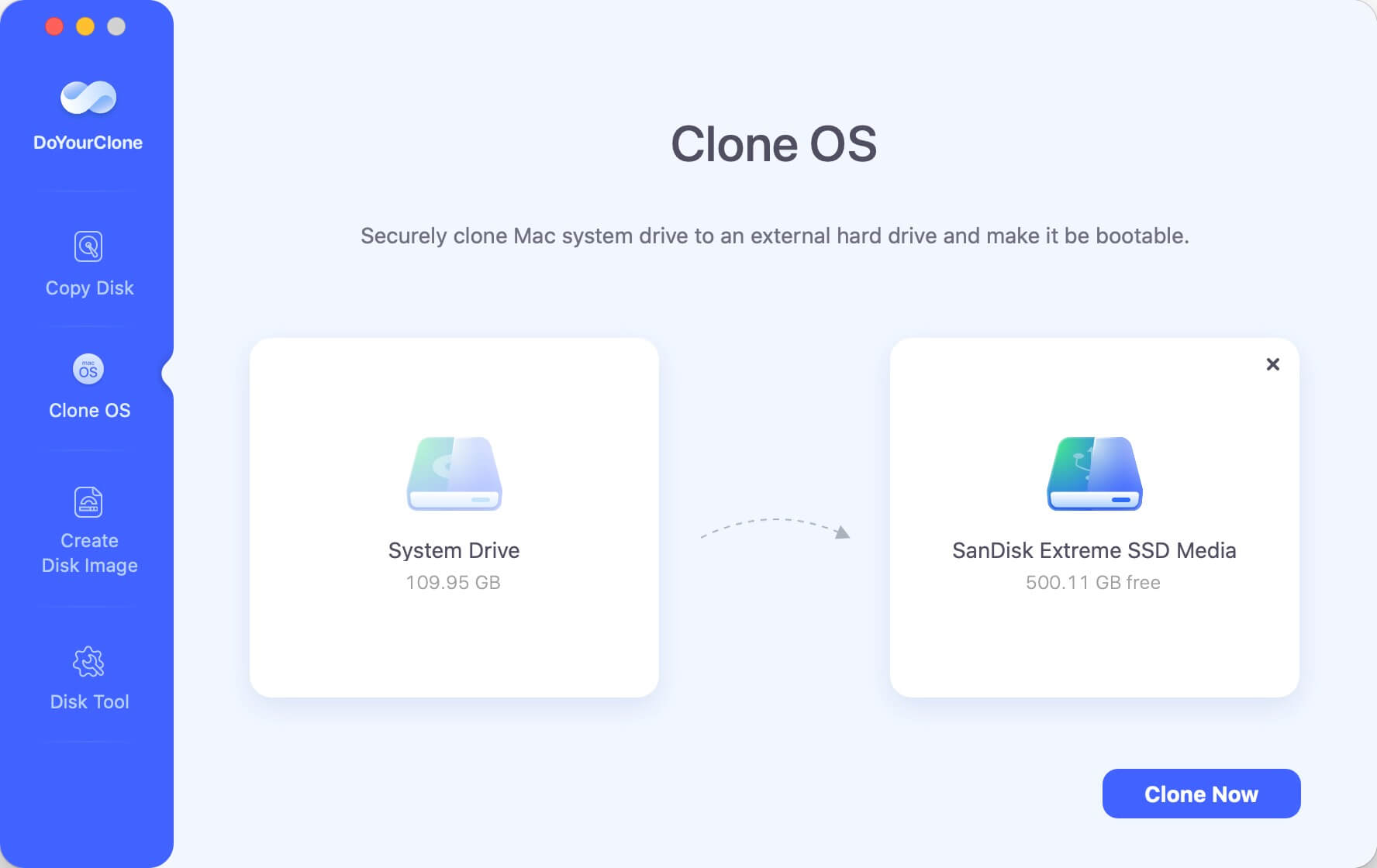
In the DoYourClone window, choose Clone OS. For your 'Source', the Mac's main internal hard drive (usually named Macintosh HD) will be selected automatically. For your 'Destination' or 'Target', select your connected external drive.
Step 4: Start the Cloning Process
Click the Clone Now button. DoYourClone will begin copying your system. Keep your Mac plugged into power and avoid closing the lid until the software confirms the clone is complete.
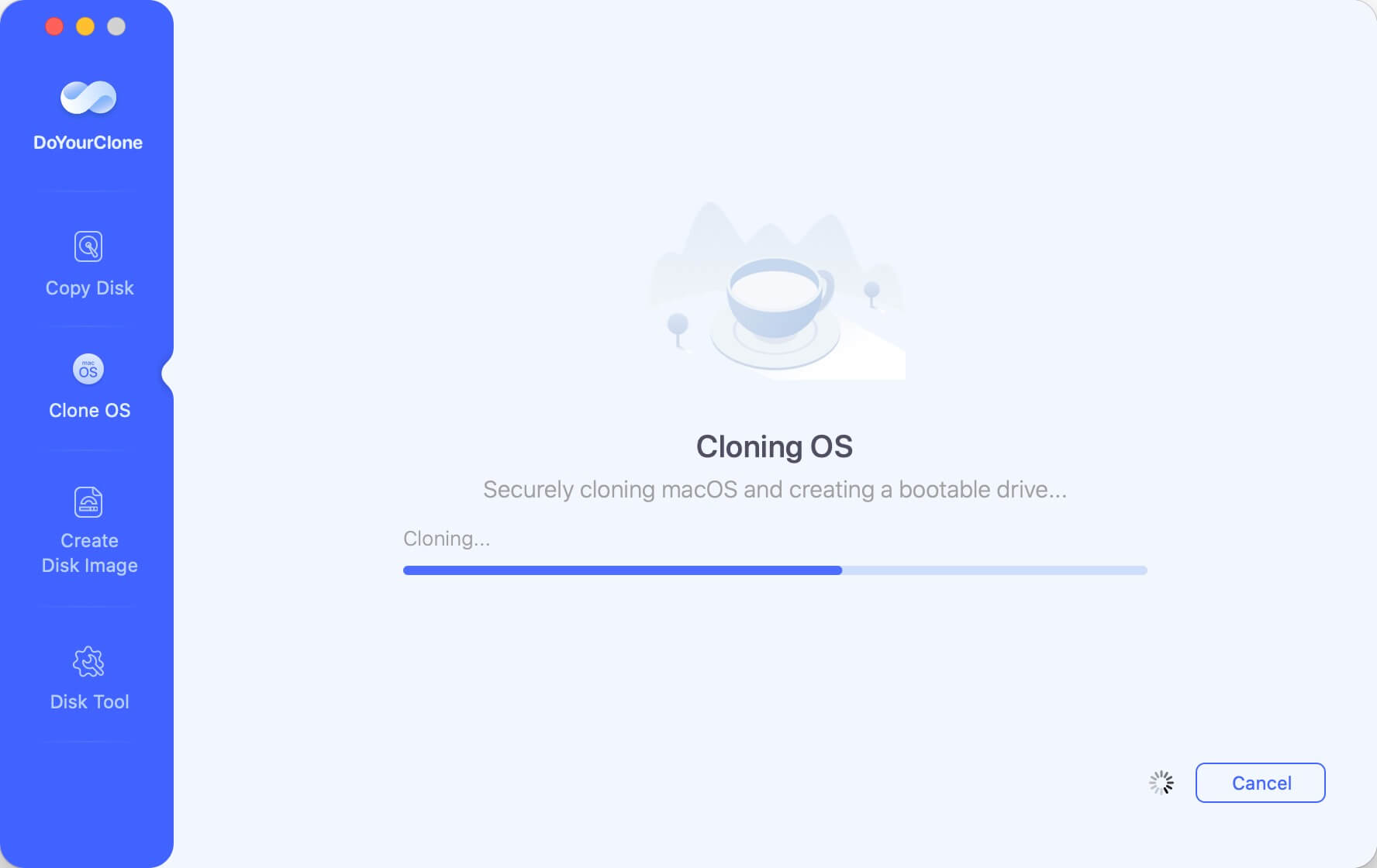
Once it finishes, you officially have a fully bootable backup! You are now completely safe from any installation disasters.
How to Update Your Mac to macOS 27 Golden Gate
Now that your files are 100% secure on your bootable external drive, you are ready to experience the future of macOS. Upgrading to macOS 27 Golden Gate is simple when your system is prepared. Follow these quick steps:
- Check Compatibility: Verify on Apple’s official website that your specific Mac model is fully supported by macOS 27 Golden Gate.
- Connect to Power and Wi-Fi: Ensure your MacBook is connected to its charger and a stable, high-speed Wi-Fi network. OS downloads are large and require a consistent connection.
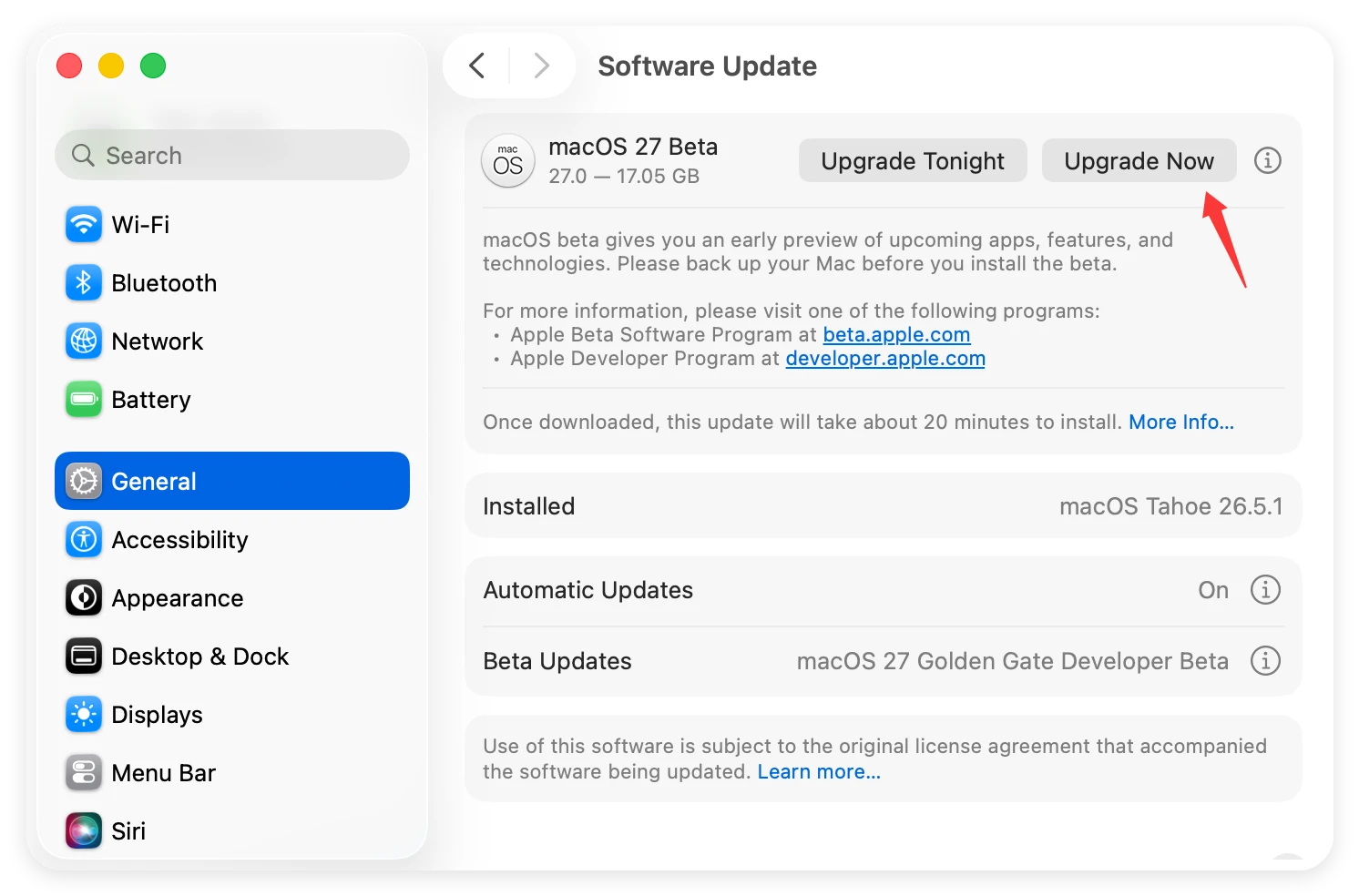
- Open System Settings: Click the Apple logo in the top-left corner of your screen and select 'System Settings'.
- Go to Software Update: Click on 'General' in the left sidebar, then click on 'Software Update' on the right side.
- Download and Install: Your Mac will automatically check for updates. When macOS 27 Golden Gate appears, click 'Upgrade Now'. If you are installing a beta, ensure your Apple ID is enrolled in the Apple Beta Software Program to see the beta toggle options.
- Let the Installation Complete: Your Mac will restart several times during the upgrade. This is completely normal. Do not unplug your Mac or force-restart it while the progress bar is running.
FAQs About Upgrading to macOS 27 Golden Gate
Conclusion
Upgrading to macOS 27 Golden Gate is an exciting step that breathes new life into your Mac. By learning how to back up Mac data before upgrading to macOS 27 Golden Gate, you completely eliminate the anxiety of data loss.
Don't gamble with your irreplaceable photos, settings, and documents. Download DoYourClone for Mac today, create your bootable clone, and step into Apple's latest operating system with total confidence and zero worries!
DoYourClone for Mac
DoYourClone for Mac, one of the best Mac disk cloning software, can help you clone HDD, SSD, external storage device on Mac, upgrade HDD to SSD, create full disk image backup, etc. It also can clone everything from your Mac to an external HDD/SSD and create a full bootable clone backup. 100% safe and easy-to-use.

Written & Updated by Anderson
Anderson is a big fan of computer technology. He joined DoYourData in 2018 and has been writing 200+ articles about disk clone, data recovery, computer technology, data erasure, Mac system optimization, etc. He loves music, movie, and reading. In his spare time, he’s studying music and playing tennis.