Can You Upgrade MacBook Air Internal Storage?
If your MacBook Air's internal disk is upgradeable, you can use DoYourClone to make an exact and bootable copy on a larger disk or faster SSD. Then replace the original system disk with the cloned one for internal storage upgrade.
 Updated by Darren on May 09, 2026
Quick Navigation:
- Is Your MacBook Air Upgradeable?
- How to Clone Disk of MacBook Air with DoYourClone for Mac
- Best Alternatives if You Can't Upgrade Internally
- FAQs about MacBook Air Storage Upgrade
- Final Verdict:
Running out of storage on your MacBook Air is like trying to pack a suitcase that's two sizes too small—eventually, you just can't fit another thing. Whether you're a creator juggling 4K video files, a developer with massive libraries, or someone who simply has a decade of family photos, that "Disk Almost Full" alert is a major bottleneck.
Naturally, the first question everyone asks is: Can you upgrade MacBook Air internal storage?
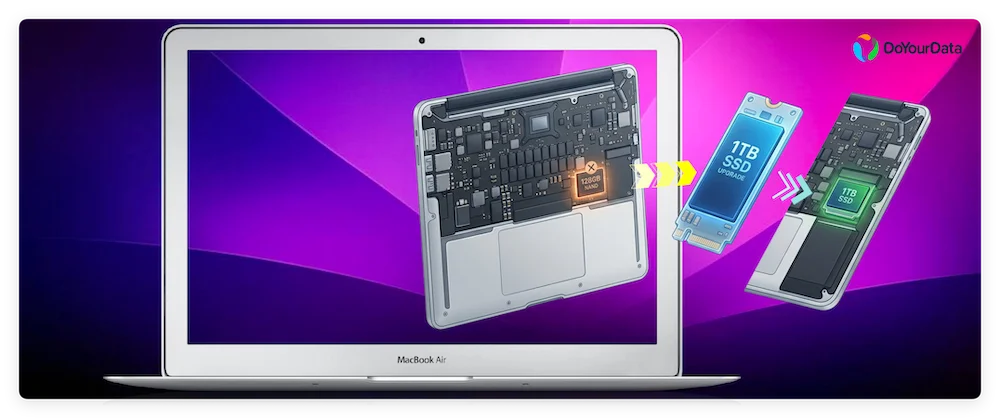
The honest answer is: It depends entirely on the year your Mac was born. In this guide, we'll break down which models are upgradeable, why Apple changed the rules for newer models, and—most importantly—how to safely migrate your data using a clone disk of MacBook Air strategy if you do decide to upgrade or switch devices.
Is Your MacBook Air Upgradeable?
Why Some Can and Some Can't
Before we look at the specific years, it's helpful to understand how MacBook Air storage has evolved. All MacBook Airs use Solid State Drives (SSDs) because they are faster, more durable, and lighter than old-school hard drives.
However, the way those SSDs are attached to your computer has changed:
- Removable (Modular) SSDs: These can be physically unscrewed and replaced with a larger drive.
- Soldered Storage: The storage chips are permanently "glued" (soldered) to the motherboard. You cannot remove them without risking permanent damage to the machine.
The "Yes" Era: MacBook Air (2010–2017)
If your MacBook Air was released between 2010 and 2017, you're in luck! These Intel-based models use proprietary removable SSD modules.
- The Status: Upgradeable with limitations.
- The Catch: Apple uses custom connectors, so a standard SSD from a local tech shop won't fit. You need a compatible third-party SSD designed specifically for your model year.
Is it worth it? If your battery is healthy and the performance still meets your needs, upgrading from 128GB to 1TB can give your old Mac a second life.
The "No" Era: MacBook Air Retina (2018–2020)
In 2018, Apple introduced the Retina display and a much slimmer design. To achieve that thinness, they began soldering the storage directly to the logic board.
- The Status: Not upgradeable.
- The Reality: Even Apple-authorized pros can't swap the storage on these.
The "Never" Era: Apple Silicon (2020–Present)
With the jump to Apple Silicon (the M-series chips), the storage is integrated even more deeply. The NAND storage chips are not only soldered but are also cryptographically paired with the processor for security.
- The Status: Fully locked.
- The Lesson: The storage you choose at checkout is the storage you live with for the life of the laptop.
How to Clone Disk of MacBook Air with DoYourClone for Mac
If you own an upgradeable 2010–2017 model and have bought a new SSD, or if you've decided to buy a new Mac altogether, you need a way to move your data without losing your settings, apps, and files.
The most efficient method is to clone disk of MacBook Air. Instead of manually dragging and dropping files, cloning creates an exact bit-by-bit copy of your system.
Why use DoYourClone for Mac?
DoYourClone for Mac is a professional-grade tool designed to make this technical process simple for home users. It allows you to create a bootable clone, so your new drive or new Mac feels exactly like your old one from the second you turn it on.
DoYourClone for Mac
- Fully clone system disk of MacBook Air and other Macs.
- Make a bootable clone for the Mac system drive.
- Create exact copy for system, apps, and all data.
Step-by-Step: How to Clone Your MacBook Air Disk
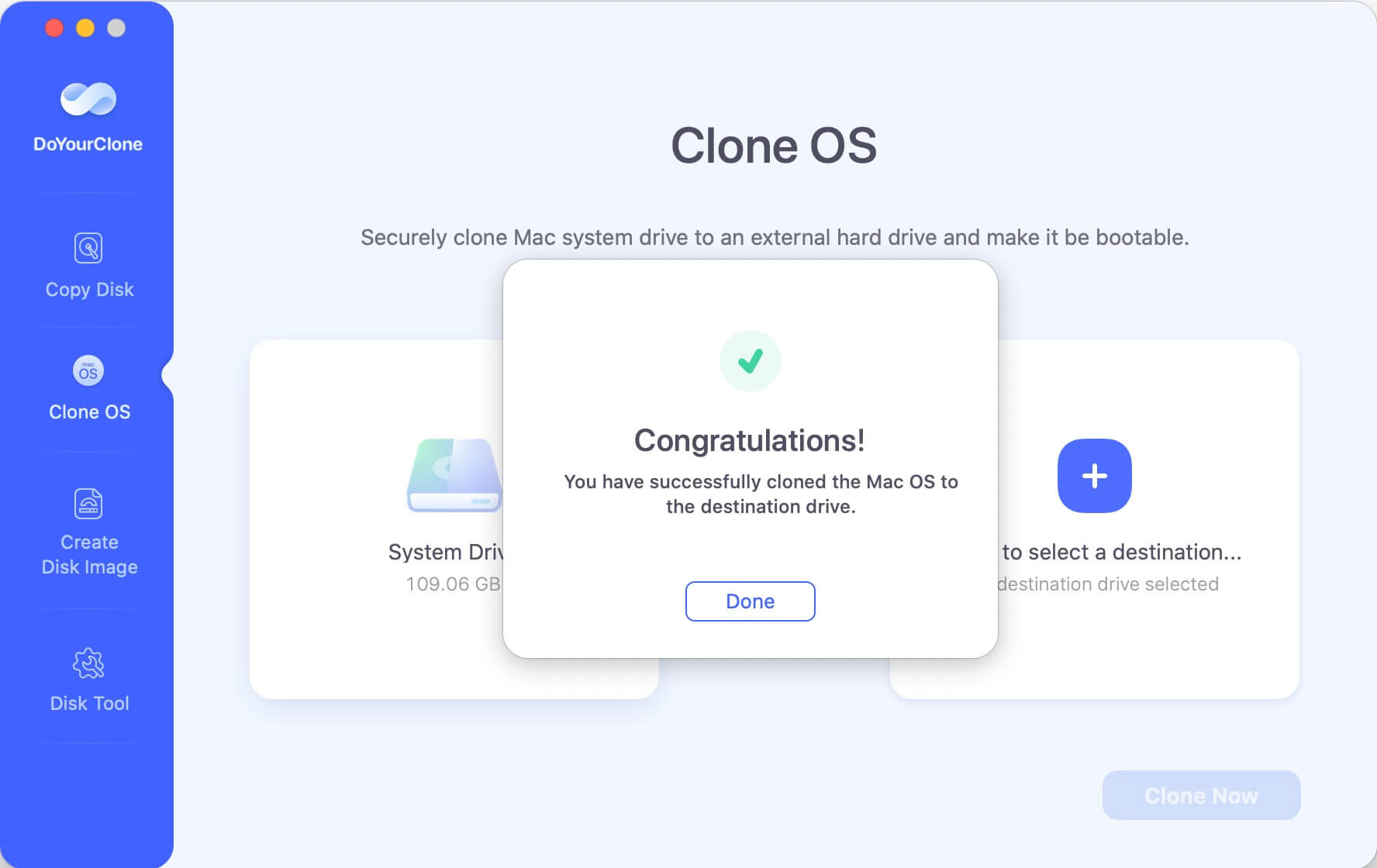
- Connect Your Target Drive: Plug in your new internal SSD (via a USB adapter) or your new external drive. Run the software and choose Clone OS.
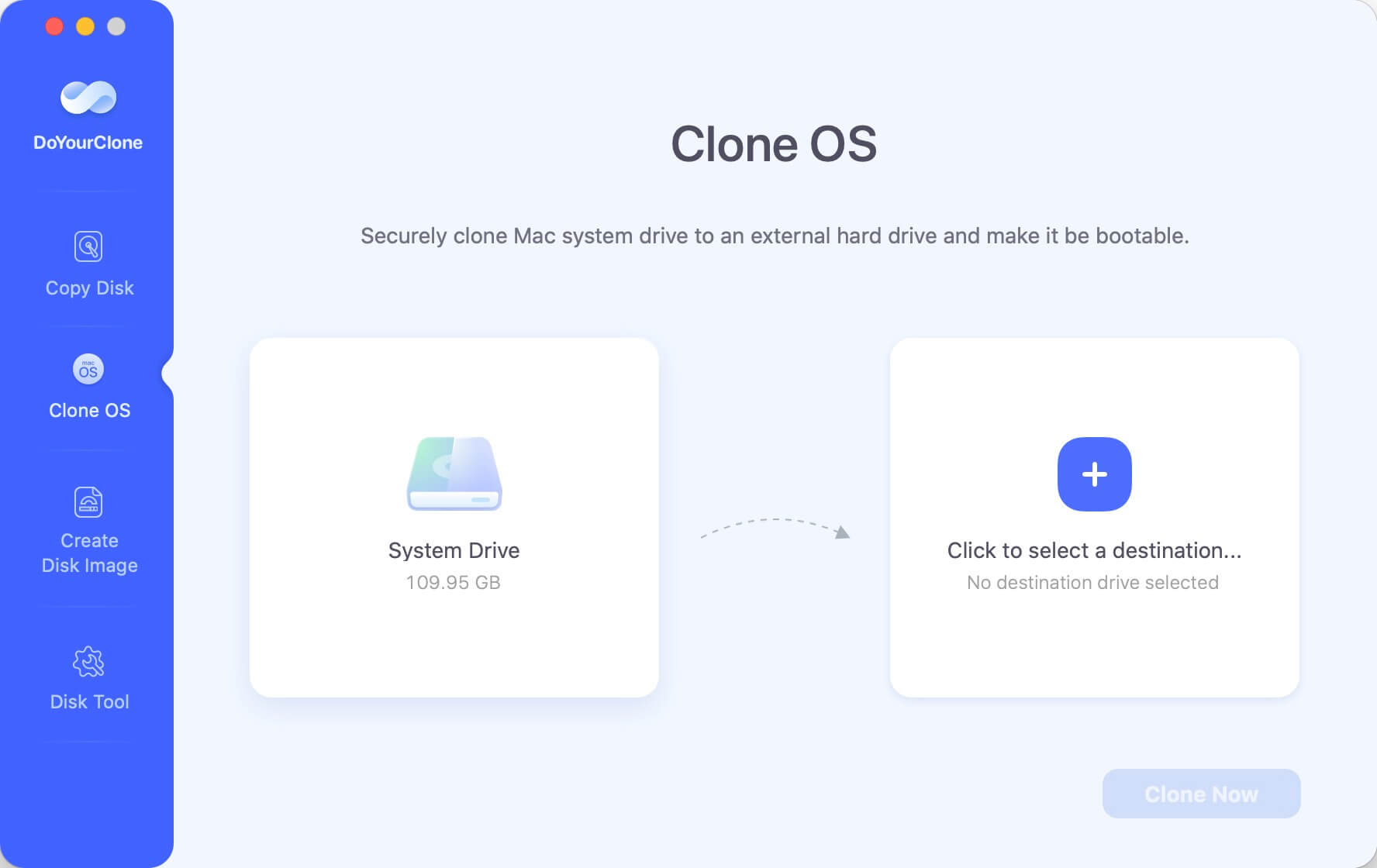
- Select Destination: The MacBook Air's internal disk (Macintosh HD) is selected as source automatically. You only need to choose the new SSD or external drive as the destination.
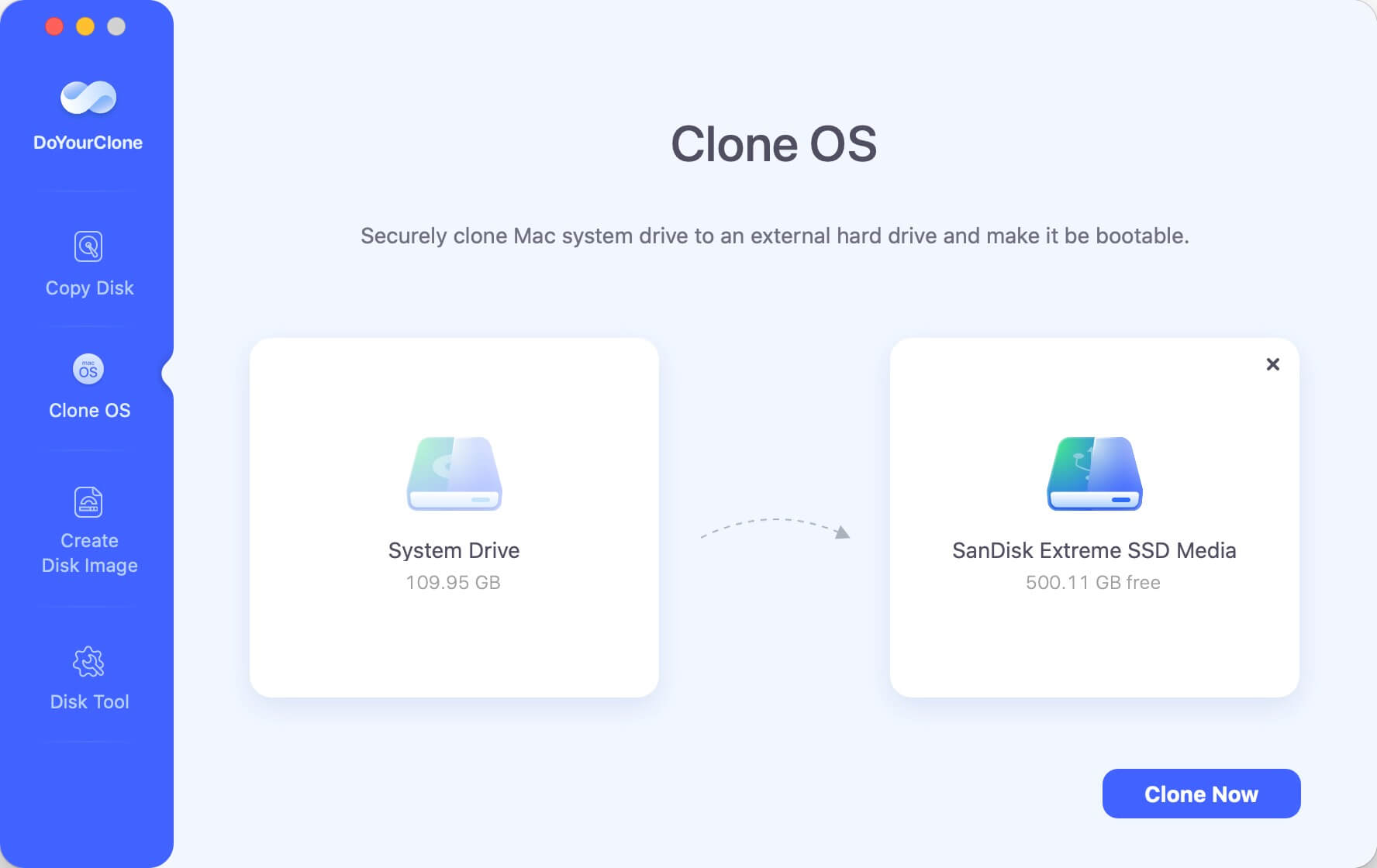
- Start Cloning: Click the "Clone" button. The software will securely copy your OS, applications, and personal data.
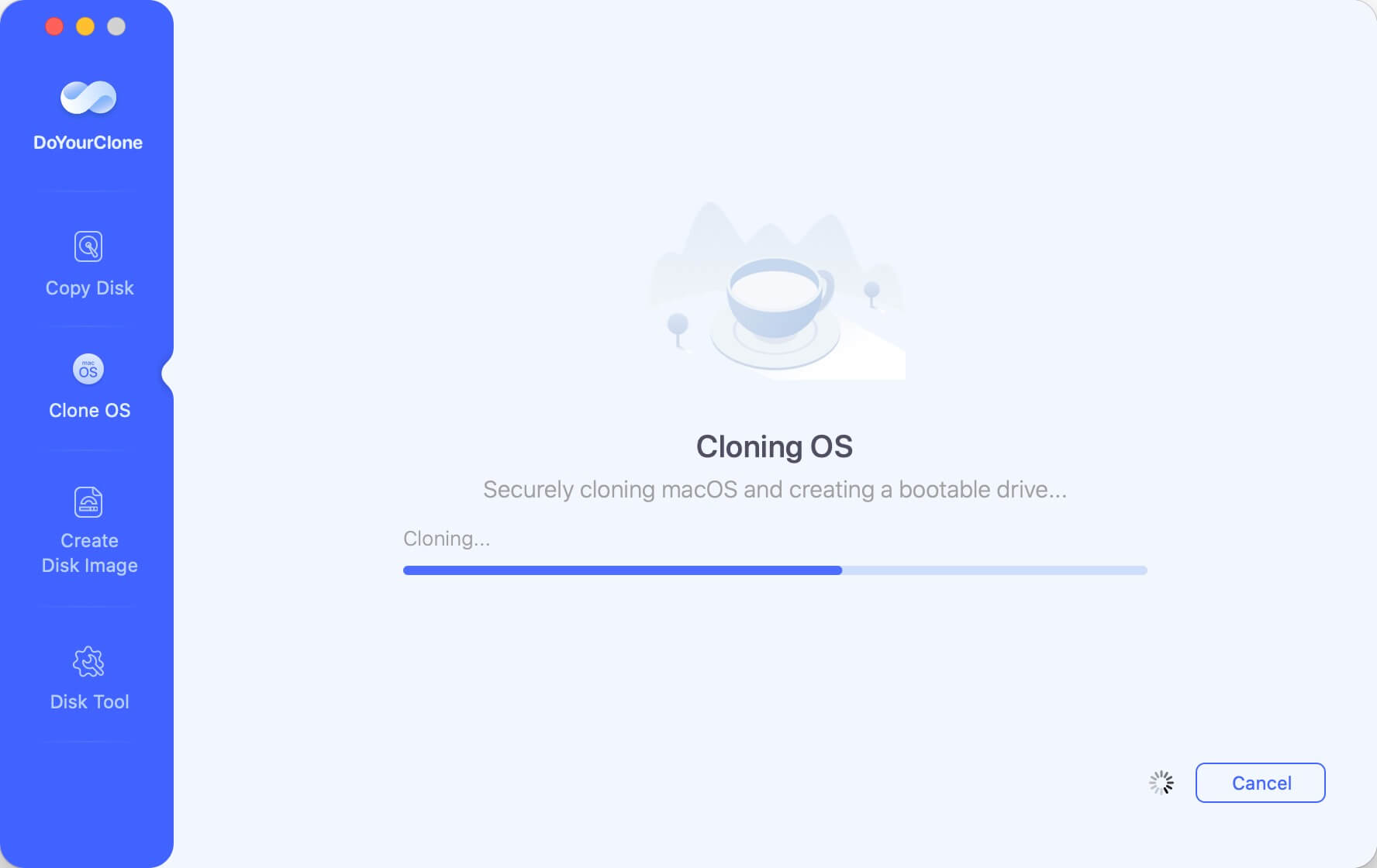
- Swap or Boot: If you are upgrading an older model, you can now physically install the new SSD. If you are using an external drive, you can boot from it directly to access your full environment.
Best Alternatives if You Can't Upgrade Internally
If your model is 2018 or newer, don't worry—you aren't stuck. You have three powerful paths forward:
1. High-Speed External SSDs
Modern Thunderbolt external SSDs are incredibly fast. In many cases, you won't even notice a speed difference between an external drive and your internal one.
📍 Best For: Video editing, gaming, and large media libraries.
2. Cloud Storage Integration
Services like iCloud, Google Drive, or Dropbox allow you to offload files while keeping them accessible.
💡 Pro Tip: Use the "Optimize Mac Storage" feature in iCloud to keep only recently used files on your local drive.
3. Smart Storage Management
Before spending money, check for "Hidden" space hogs.
- Go to Apple Menu → About This Mac → Storage → Recommendations.
- Look for old iOS backups, unused Xcode files, and system cache buildup that can often reclaim 20–50GB of space.
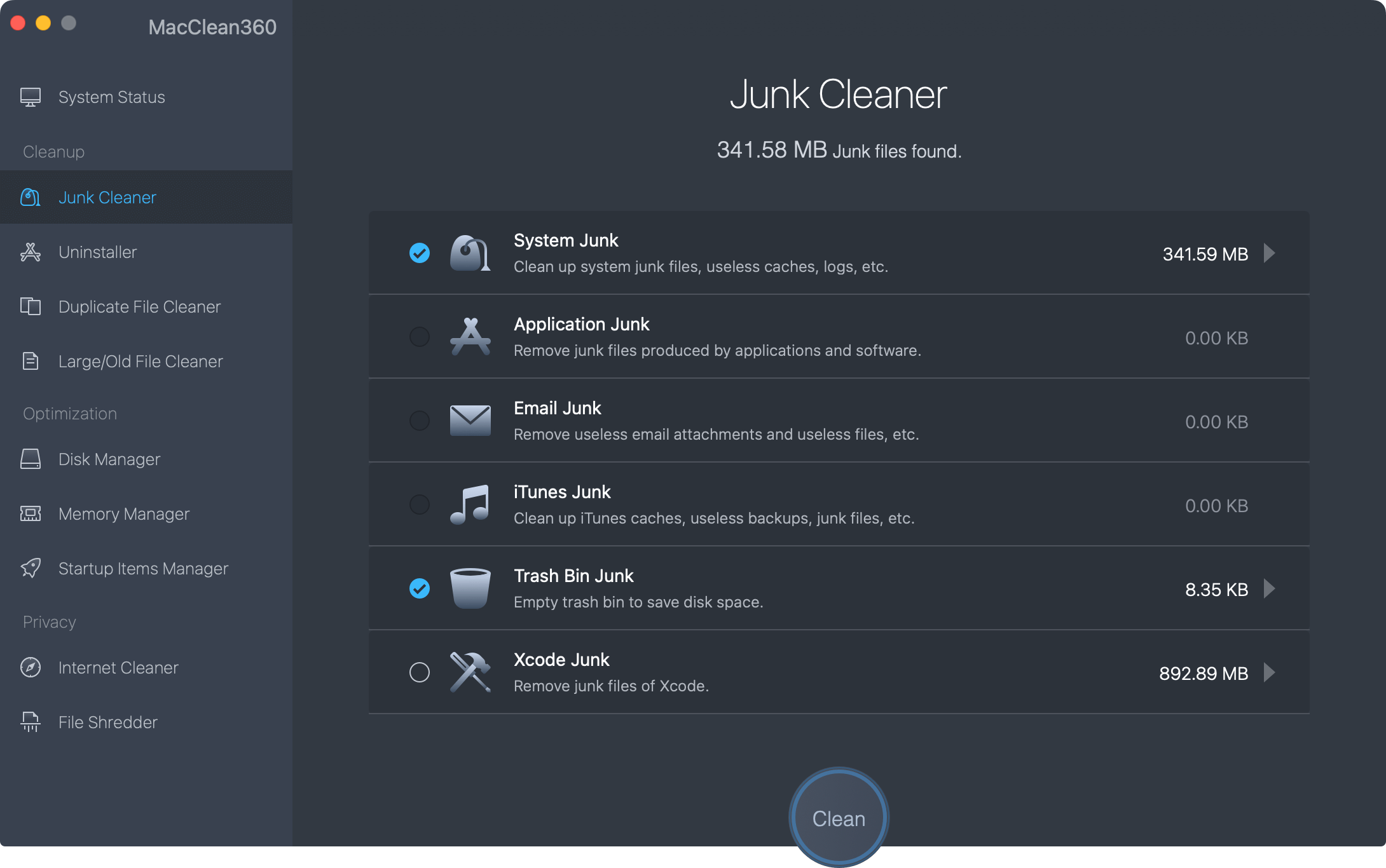
You can also use the third-party cleanup software, like DoYourData MacClean360, to regularly clean up your MacBook Air and free space.
FAQs about MacBook Air Storage Upgrade
Final Verdict:
If you have a 2010–2017 model, an internal upgrade is a fantastic way to extend its life. For everyone else, the best strategy is a mix of cloud storage, external SSDs, and using a clone disk of MacBook Air strategy to manage your data transition smoothly.
The most important takeaway? When buying your next MacBook Air, always upgrade the storage at checkout—it's the only time you'll be able to do it!
DoYourClone for Mac
DoYourClone for Mac, one of the best Mac disk cloning software, can help you clone HDD, SSD, external storage device on Mac, upgrade HDD to SSD, create full disk image backup, etc. It also can clone everything from your Mac to an external HDD/SSD and create a full bootable clone backup. 100% safe and easy-to-use.

Written & Updated by Anderson
Anderson is a big fan of computer technology. He joined DoYourData in 2018 and has been writing 200+ articles about disk clone, data recovery, computer technology, data erasure, Mac system optimization, etc. He loves music, movie, and reading. In his spare time, he’s studying music and playing tennis.