Best Solution for Cloning Disk on M5 Mac
To clone disk on M5 Mac, it's essential to use a reliable and professional disk cloning software for M5. DoYourClone for Mac is fully compatible with M5 Mac, which can ensure to make a bootable clone for M5 Mac. It's ideal to create a full backup or replace the current system drive on Mac.
 Updated by Darren on January 22, 2026
Quick Navigation:
- Understanding Disk Cloning on Apple Silicon (M5 Macs)
- Built-In macOS Options: Are They Enough?
- Best Third-Party Disk Cloning Solutions for M5 Mac
- Step-by-Step: How to Clone Disk on M5 Mac
- Performance, Speed, and Storage Considerations
- Conclusion
Disk cloning has long been a core practice for macOS users who value reliability, fast recovery, and seamless system migration. With the introduction of M5 Macs, Apple has further refined its Apple Silicon architecture, tightening security, deepening APFS integration, and continuing the shift away from traditional "bootable clones" as they existed on Intel-based Macs.
This evolution has created confusion. Many users still search for a "one-click bootable clone," only to discover that older workflows no longer apply. The good news is that disk cloning is still possible and extremely effective on M5 Macs—but only if you use the right tools and understand Apple's modern system design.
This article provides a complete, practical, and up-to-date guide to disk cloning on M5 Mac systems. It explains how cloning works on Apple Silicon, compares the best available solutions, and walks you through a proven cloning workflow that aligns with Apple's security model.
Understanding Disk Cloning on Apple Silicon (M5 Macs)
Before selecting a tool, it is critical to understand how disk cloning works on modern Macs.
Disk Cloning vs Time Machine
- Disk cloning creates a block-level or file-level copy of a disk, preserving folder structure, permissions, metadata, and often system state.
- Time Machine creates versioned backups optimized for incremental recovery, not full system replication.
Time Machine is excellent for restoring files or migrating data, but it is not a disk clone and cannot be relied upon for fast system rollback or disk replacement scenarios.
APFS and the Signed System Volume (SSV)
M5 Macs, like all recent Apple Silicon machines, use:
- APFS volumes and volume groups
- A Signed System Volume (SSV) that is cryptographically sealed
- A read-only system partition, separate from user data
This means:
- You cannot freely copy system files the way you could on Intel Macs
- System integrity is verified at boot
- Third-party tools cannot "clone" the OS in the traditional sense
Instead, modern cloning tools rely on APFS snapshots, macOS installers, and data replication.
Why Traditional Clones No Longer Apply
On Apple Silicon:
- External disks do not boot unless explicitly authorized
- The system volume is re-created by macOS, not copied bit-for-bit
- True bootable clones are replaced by restorable system states
This is not a limitation of tools—it is a design choice by Apple.
Requirements for Cloning a Disk on an M5 Mac
Any viable cloning solution for M5 Macs must meet the following requirements:
- Full Apple Silicon support
- APFS snapshot awareness
- Compatibility with Signed System Volumes
- FileVault and encryption handling
- High reliability during system disk cloning
- Active development and macOS version support
Tools that do not explicitly support Apple Silicon should be avoided.
Built-In macOS Options: Are They Enough?
macOS includes several tools that appear relevant, but each has limitations.
Disk Utility
Disk Utility can:
- Erase and format disks
- Restore volumes at a basic level
However:
- It does not manage snapshots intelligently
- It is not designed for automated or repeatable cloning
- It lacks validation and scheduling features
Disk Utility is not a practical cloning solution for modern Macs.
Time Machine
Time Machine:
- Is excellent for backups
- Works well with APFS snapshots
- Integrates tightly with macOS Recovery
But:
- It is slow to restore entire systems
- It does not produce a clone usable for rapid disk replacement
- It offers limited control over what is backed up
Time Machine complements cloning—it does not replace it.
Migration Assistant
Migration Assistant is ideal for:
- Moving data between Macs
- Restoring user accounts and applications
It is not a disk cloning tool and does not preserve system-level state.
Best Third-Party Disk Cloning Solutions for M5 Mac
After evaluating available tools, three stand out as compatible with Apple Silicon workflows.
DoYourClone for Mac
DoYourClone for Mac is widely regarded as the most robust disk cloning solution for modern macOS.
DoYourClone for Mac
- Reliable disk cloning software for M5 Macs.
- Create bootable and full clone backup for macOS.
- Simple to handle and safe to clone Mac disk.
Key Strengths
- Designed specifically for APFS and Apple Silicon
- Uses snapshot-based cloning for consistency
- Can create fully bootable clone for macOS
- Excellent documentation and long-term support
How DoYourClone for Mac Works on M5 Macs
- Replicates the data and macOS
- Uses snapshots to ensure data integrity
- Make bootable copy for M5 Mac
This approach aligns perfectly with Apple's architecture.
Limitations
- No backup feature like Time Machine
- Paid software
Despite these limitations, DoYourClone for Mac is the most reliable and enterprise-grade solution available.
SuperDuper!
SuperDuper has adapted well to Apple Silicon but takes a simpler approach.
Strengths
- Clean, user-friendly interface
- Smart Update minimizes copy time
- Good performance for basic cloning
Limitations
- Fewer advanced controls than DoYourClone for Mac
- Less transparent snapshot handling
- Restoration workflows are less flexible
SuperDuper is suitable for general users, but power users may find it limiting.
Disk Drill and Similar Tools
Some tools market cloning as part of a recovery suite.
Strengths
- Multi-purpose functionality
- Useful for data recovery scenarios
Limitations
- Cloning features are secondary
- Not optimized for full system restoration
- Less predictable results for OS-level recovery
These tools are not ideal for primary disk cloning on M5 Macs.
Best Overall Solution for Cloning Disk on M5 Mac
Final Recommendation: DoYourClone for Mac. For M5 Macs, DoYourClone for Mac is the best overall solution due to:
- Deep understanding of Apple Silicon constraints
- Bootable clone for the system disk
- Active development aligned with new macOS releases
DoYourClone for Mac does not fight Apple's system design—it works with it.
This makes it suitable for:
- Developers
- IT administrators
- Professionals who require fast recovery
- Users upgrading or replacing internal SSDs
Step-by-Step: How to Clone Disk on M5 Mac
Here we will show you how to make a bootable and full disk clone on M5 Mac with the software DoYourClone for Mac.
Step 1: Prepare the Destination Disk
Use an external SSD (preferably NVMe via Thunderbolt). Format the drive as APFS. Ensure the destination disk has sufficient capacity
Step 2: Install DoYourClone for Mac
Download and install the software on your Mac. Grant Full Disk Access when prompted. Also, allow necessary background services.
Step 3: Configure the Clone Settings
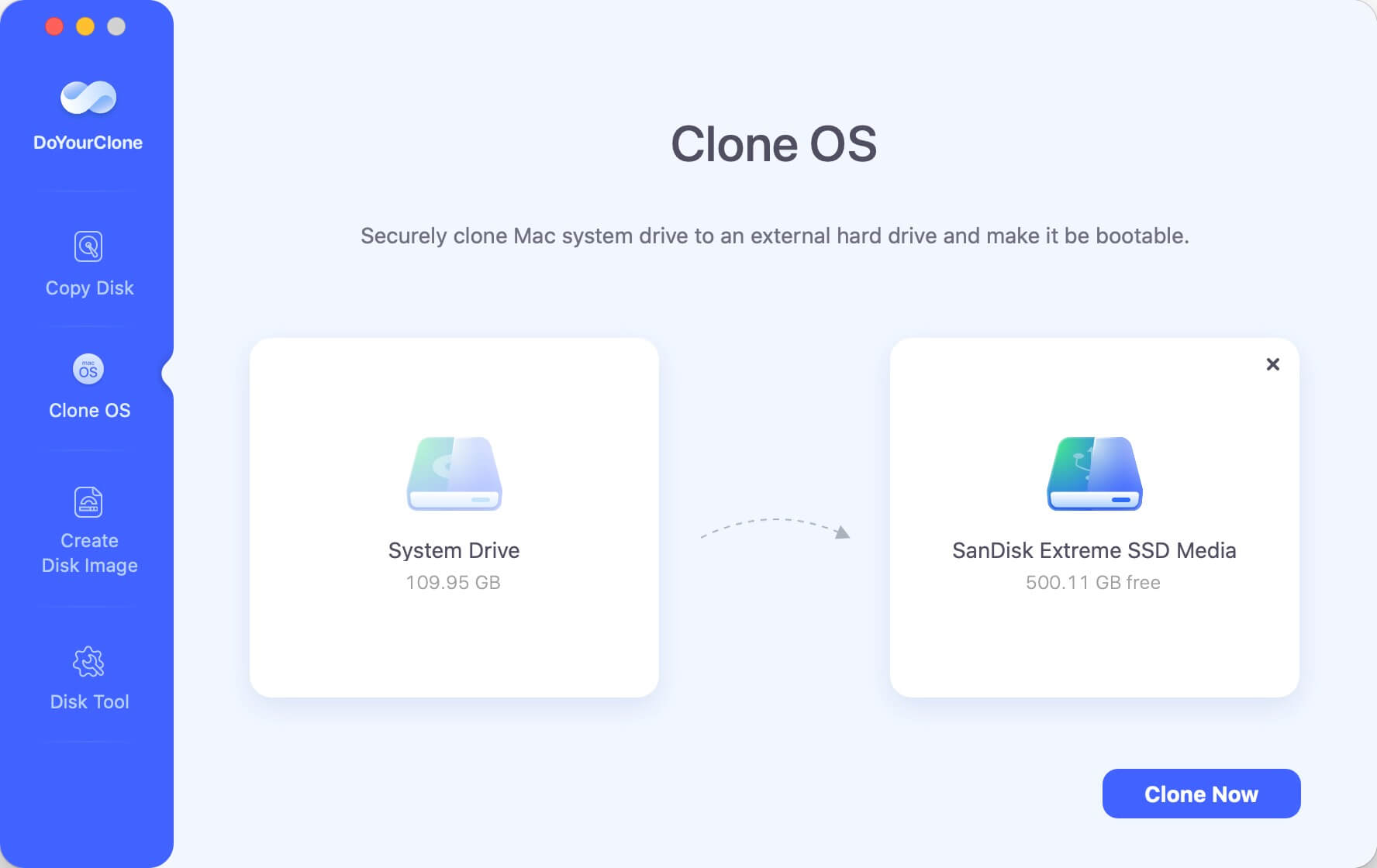
Launch the software and select Clone OS mode. The internal system disk will be selected as the source automatically. You can just select the external disk as the destination.
Step 4: Run the Clone
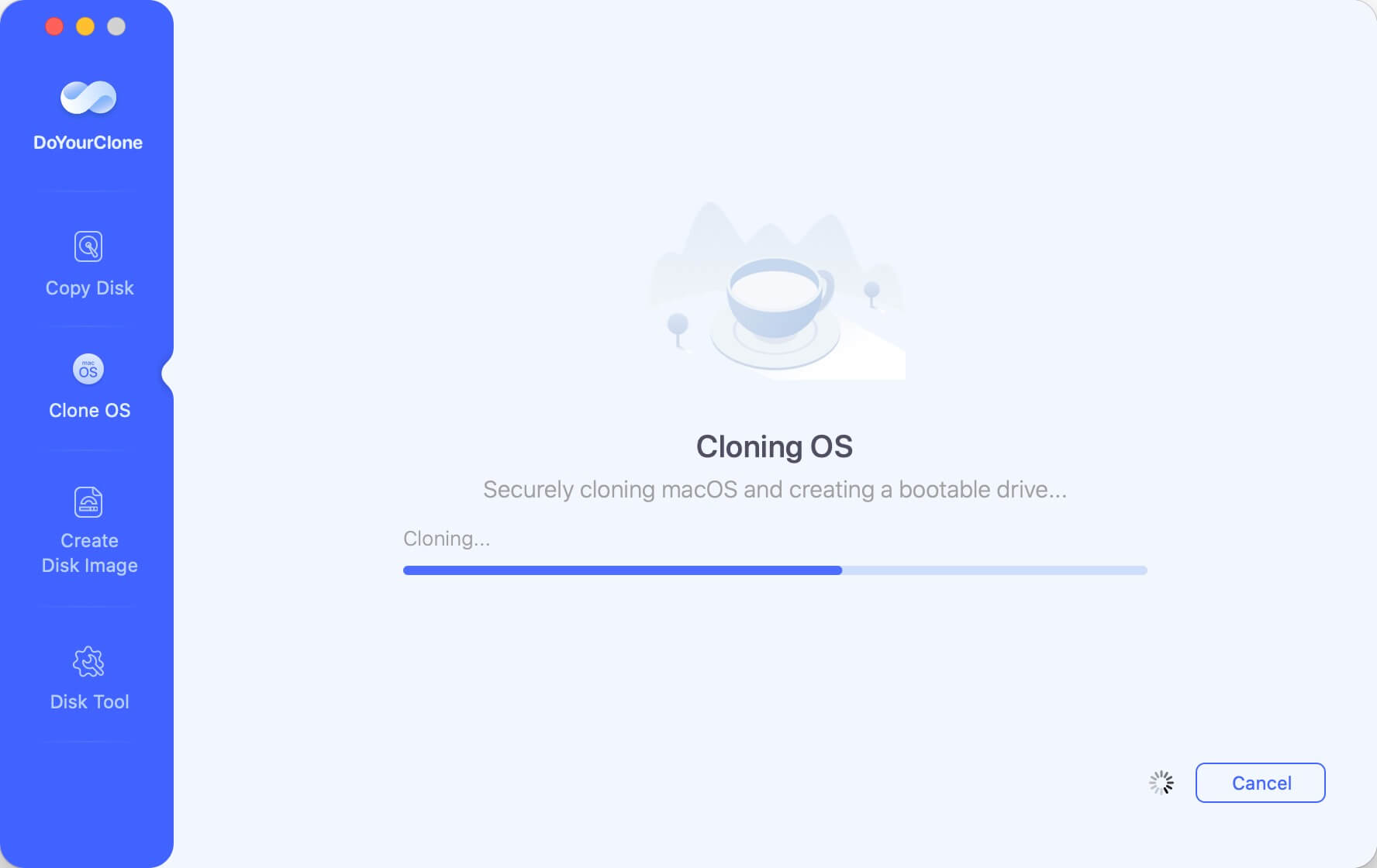
Click the Clone Now button to initial clone. It may take time to finish the process and just wait patiently. DoYourClone for Mac validates data integrity automatically.
Step 5: Verify the Backup
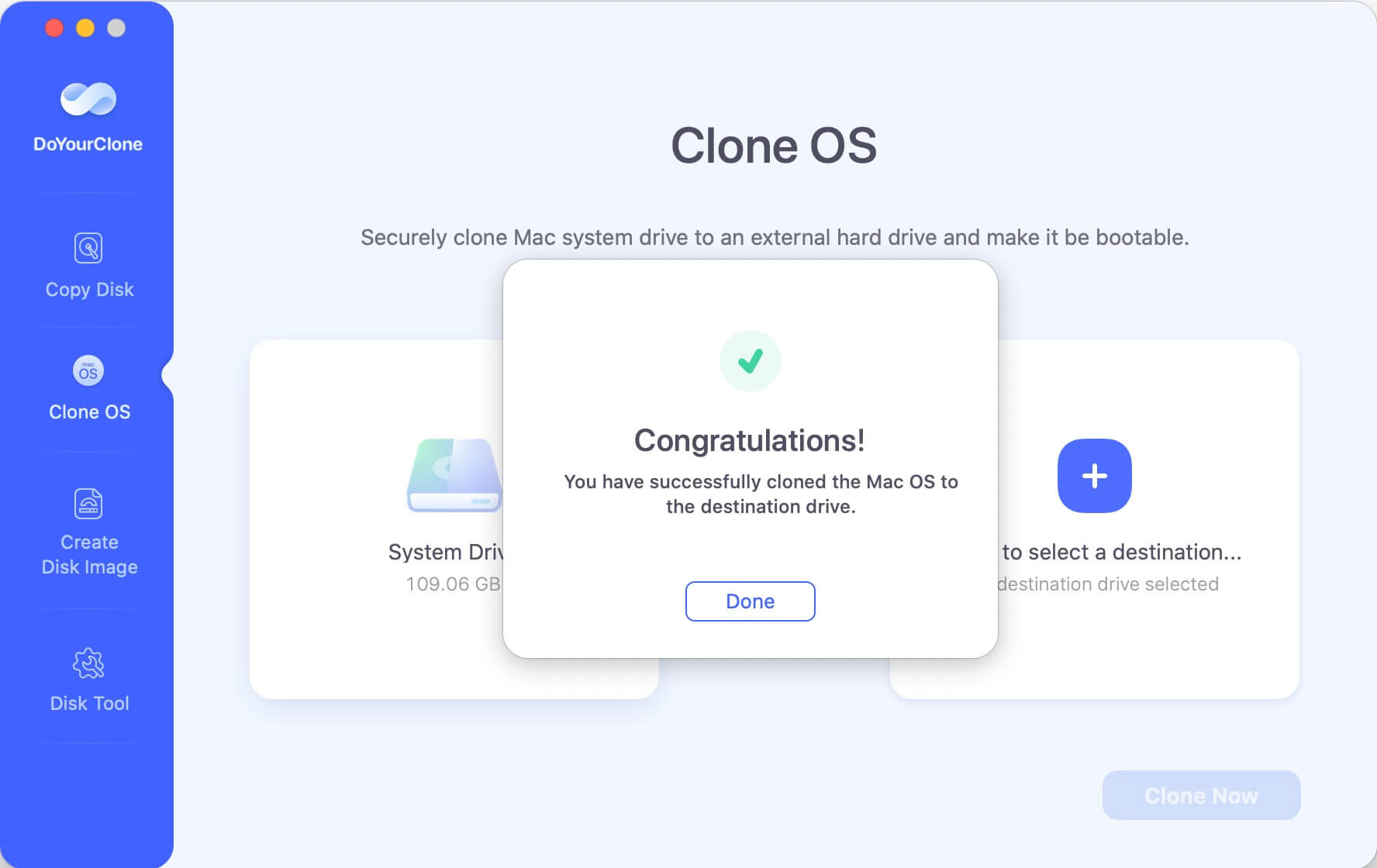
After the cloning process is done, you can go to the destination disk to check the verify the cloned data. Browse the cloned data, confirm applications and user data are present.
Step 6: Test Bootable(Optional but Recommended)
You can change the system settings and select the cloned drive as startup disk. Restart the M5 Mac and confirm if the cloned drive could boot up normally.
Common Issues and Troubleshooting
The Clone of M5 Mac Is Not Bootable
This is expected behavior on Apple Silicon. Restoration occurs via macOS Recovery, not direct boot.
Permission Errors While Cloning Disk on M5 Mac
Ensure:
- Full Disk Access is enabled
- System Integrity Protection is not manually altered
External Disk Not Recognized
- Check enclosure compatibility
- Prefer Thunderbolt over USB where possible
Performance, Speed, and Storage Considerations
Storage Type Matters
- Thunderbolt NVMe enclosures provide the best performance
- USB-C SSDs may bottleneck large clones
Encryption Impact
- FileVault adds minimal overhead
- DoYourClone for Mac handles encrypted volumes correctly
Best Practices
- Avoid cloning during heavy system use
- Keep at least one offsite backup
Security and Data Integrity Best Practices
- Use encrypted destination disks
- Keep multiple snapshots
- Periodically verify restore workflows
- Do not rely on a single backup method
Cloning should be part of a broader data protection strategy.
Who Should Use Disk Cloning on an M5 Mac?
Ideal Users
- Developers maintaining reproducible environments
- IT professionals managing multiple Macs
- Users upgrading internal storage
- Professionals requiring fast disaster recovery
When Cloning Is Overkill
- Casual users with cloud-only workflows
- Systems with minimal local data
In those cases, Time Machine may suffice.
Conclusion
Disk cloning on M5 Macs is not obsolete—it has evolved. Apple's security-first architecture eliminates traditional bootable clones, but in exchange offers greater system integrity and reliability. The key is choosing tools that respect this model.
DoYourClone for Mac stands out as the best solution for cloning disks on M5 Mac systems, offering snapshot-based consistency, reliable restores, and long-term macOS compatibility.
When implemented correctly, disk cloning remains one of the most powerful safeguards against data loss, system failure, and costly downtime on modern Apple Silicon Macs.
DoYourClone for Mac
DoYourClone for Mac, one of the best Mac disk cloning software, can help you clone HDD, SSD, external storage device on Mac, upgrade HDD to SSD, create full disk image backup, etc. It also can clone everything from your Mac to an external HDD/SSD and create a full bootable clone backup. 100% safe and easy-to-use.

Written & Updated by Anderson
Anderson is a big fan of computer technology. He joined DoYourData in 2018 and has been writing 200+ articles about disk clone, data recovery, computer technology, data erasure, Mac system optimization, etc. He loves music, movie, and reading. In his spare time, he’s studying music and playing tennis.