Replace Hard Drive in MacBook Pro: Step-by-Step Guide
A bootable clone backup for macOS is able to help you reduce the down time if the macOS was crashed. To create a bootable clone for macOS Tahoe, a professional and reliable disk cloning software is essential. DoYourClone for Mac is able to make a full and bootable clone for macOS Tahoe effectively.
 Updated by Darren on January 29, 2026
Quick Navigation:
- What Is a Bootable Clone on macOS?
- Why Create a Bootable Clone for macOS Tahoe?
- Requirements before Creating Bootable Clone for macOS Tahoe
- Best Tools to Create a Bootable Clone for macOS Tahoe
- Common Issues and Fixes
- FAQs about Creating Bootable Clone for macOS Tahoe
- Conclusion
Keeping your Mac safe from data loss is more important than ever, especially with major system updates like macOS Tahoe. Whether you're upgrading, replacing your Mac startup disk, troubleshooting system issues, or simply preparing for emergencies, a bootable clone gives you a full, ready-to-use copy of your macOS system.
In this guide, you'll learn what a bootable clone is, why it matters, how to create one using different tools, and how to boot from it on macOS Tahoe.

What Is a Bootable Clone on macOS?
A bootable clone is an exact, fully functional copy of your Mac's startup disk stored on an external drive. Unlike regular backups, a bootable clone lets you:
- Start your Mac directly from the backup
- Access your apps, files, and settings instantly
- Restore your system quickly after failure
If your internal drive crashes or macOS becomes unusable, you can boot from the clone and continue working without downtime.
Bootable Clone vs Time Machine
While Time Machine is excellent for file-level backups, it doesn't allow instant system booting.
|
Feature |
Bootable Clone |
Time Machine |
|---|---|---|
|
Bootable system |
✅ Yes |
❌ No |
|
Instant recovery |
✅ |
❌ |
|
File version history |
❌ |
✅ |
|
Best for emergencies |
✅ |
❌ |
For maximum protection, many users use both.
Why Create a Bootable Clone for macOS Tahoe?
macOS Tahoe introduces new features, security changes, and system architecture updates. A bootable clone helps you:
- Safely upgrade macOS
- Roll back if something goes wrong
- Test beta versions
- Recover from system corruption
- Migrate to a new Mac or SSD
- Protect against ransomware and disk failure
It's your safety net.
Requirements before Creating Bootable Clone for macOS Tahoe
What You Need
- An external SSD or USB drive (same size or larger than your Mac's storage)
- macOS Tahoe installed
- Administrator access
- Backup software (optional but recommended)
File System Format
For macOS Tahoe, use:
- APFS
- GUID Partition Map
Prepare the External Drive
Before cloning, format your external drive properly.
- Open Disk Utility
- Select your external drive
- Click Erase
- Choose:
- Format: APFS
- Scheme: GUID Partition Map
- Name the drive (e.g., "Tahoe Clone")
- Click Erase
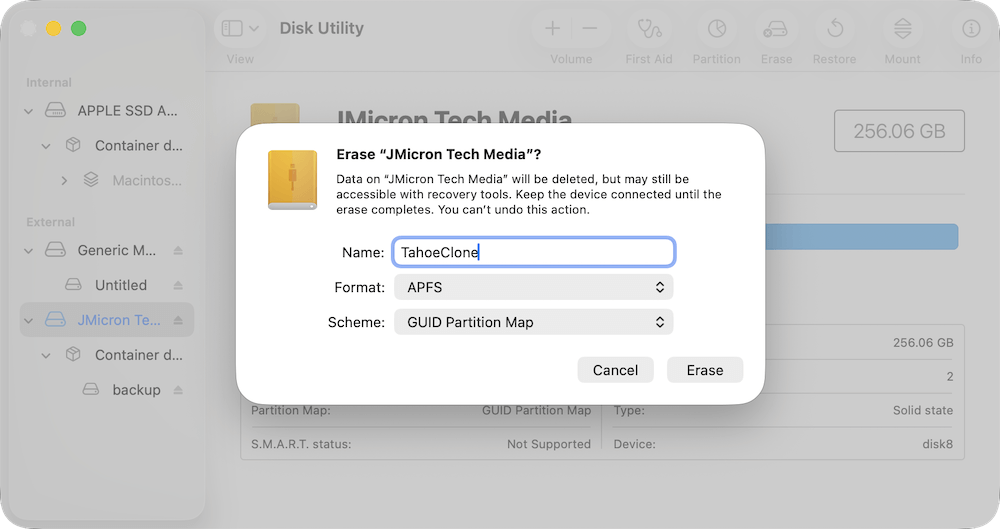
Your drive is now ready.
Best Tools to Create a Bootable Clone for macOS Tahoe
You can create a bootable clone using built-in tools or third-party software. For macOS Tahoe, DoYourClone for Mac and SuperDuper offer the best compatibility.
Method 1: Create a Bootable Clone Using Disk Utility
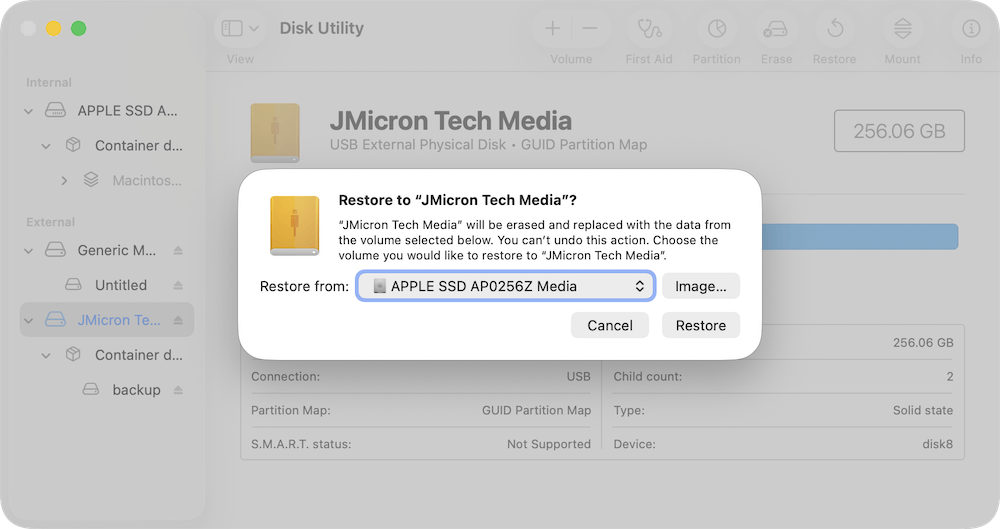
Disk Utility has a Restore feature that can copy your system. Here is how:
- Open Disk Utility.
- Select the external drive.
- Click Restore.
- Choose your Mac's startup disk as the source.
- Click Restore.
Limitations:
- May not always create a fully bootable clone.
- No scheduling or automation.
- Less reliable for Apple Silicon Macs.
This method works best for simple backups, not long-term cloning.
Method 2: Create a Bootable Clone Using DoYourClone for Mac
DoYourClone for Mac is one of the most reliable and professional tools for creating bootable backups on macOS. It is fully compatible with macOS Tahoe, and works seamlessly on both Intel and Apple Silicon Macs.
Unlike Disk Utility, DoYourClone for Mac is designed specifically for system cloning, automation, and disaster recovery, making it the best choice for long-term backup strategies.
Why Choose DoYourClone for Mac?
DoYourClone for Mac offers several advantages:
- Creates true bootable clones.
- Supports macOS Tahoe's system volume structure.
- Works with Apple Silicon security requirements.
For users who want a dependable, professional-grade solution, DoYourClone for Mac is the gold standard.
Step-by-Step: Create a Bootable Clone with DoYourClone for Mac
Step 1: Download and install DoYourClone for Mac. Visit the official DoYourClone for Mac website. Download the latest version compatible with macOS Tahoe. Open the installer and follow the setup instructions. Grant required permissions (Full Disk Access). DoYourClone for Mac needs Full Disk Access to copy system files properly.
DoYourClone for Mac
- The best disk copy software for Mac.
- Create full and bootable clone for macOS.
- Support macOS Tahoe and Apple Silicon Macs.
Step 2: Connect and prepare your external drive. Before cloning: Use an SSD for best performance, ensure the drive is APFS-formatted and use GUID Partition Map. If not formatted. You can format it first in Disk Utility.
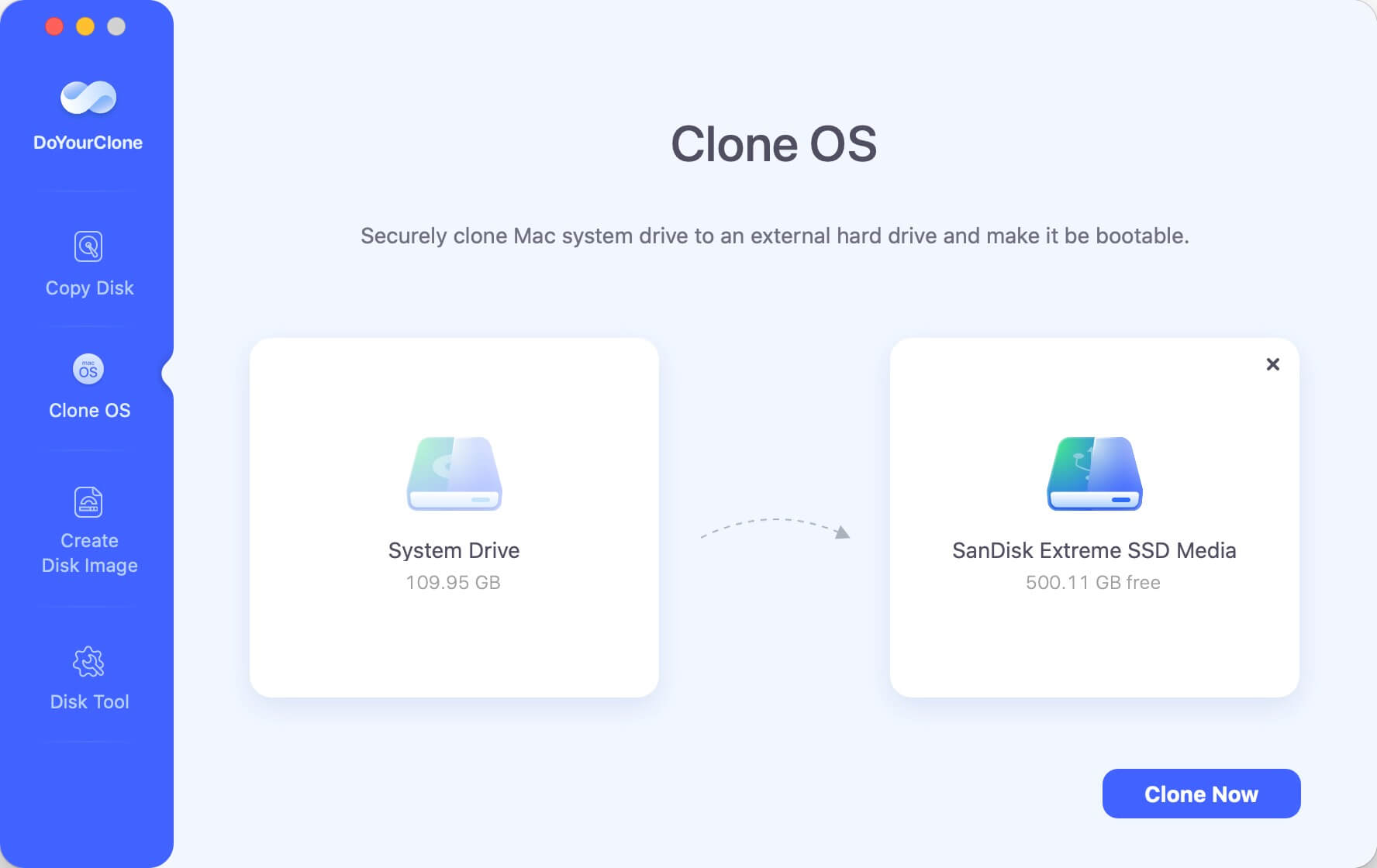
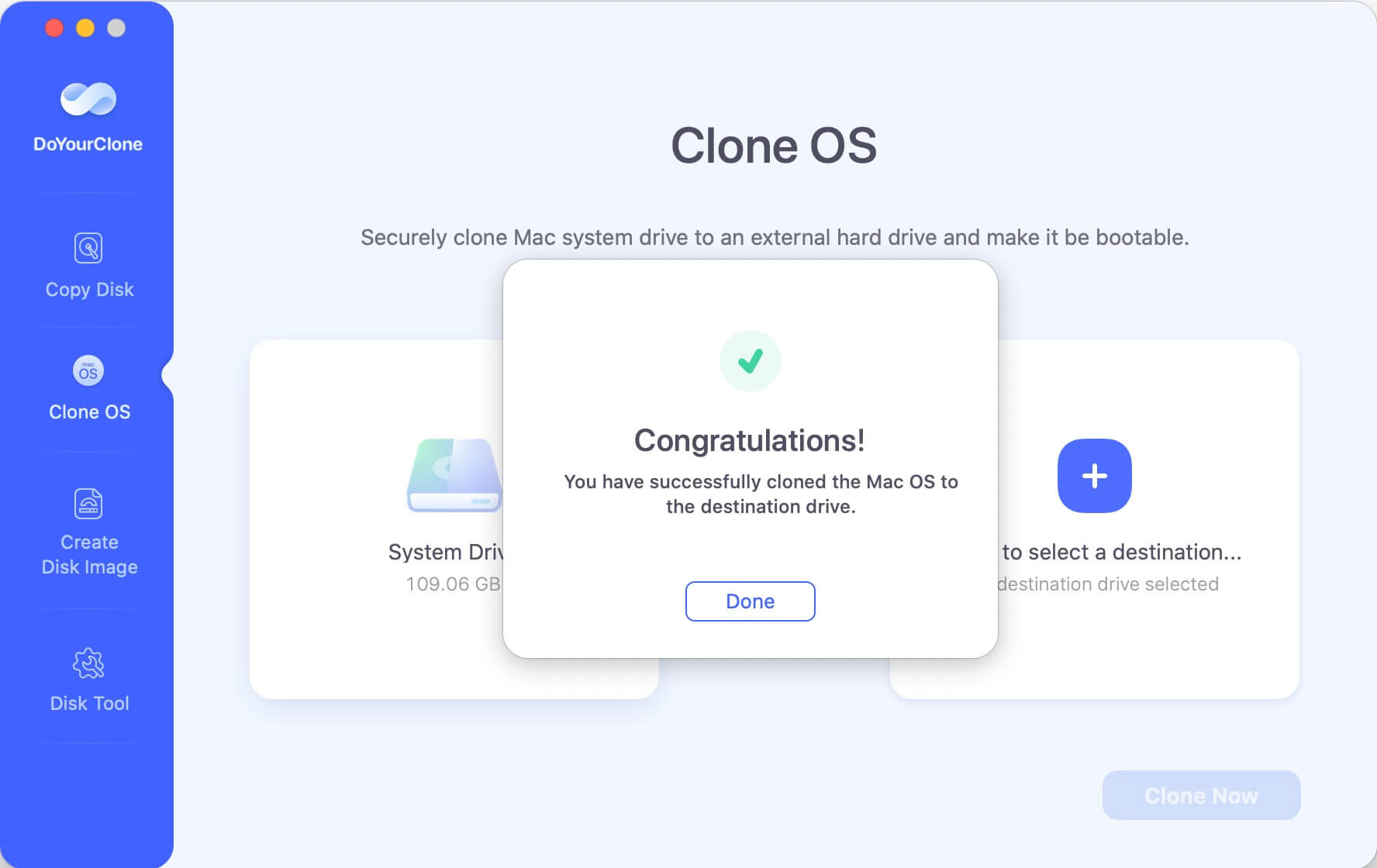
Step 3: Set the destination disk. Run the software DoYourClone for Mac and select Clone OS mode. The macOS Tahoe system disk will be selected as the source automatically. You can just select the external drive as the destination. Your destination drive will be overwritten.
Step 4: Start the cloning process. Click Clone Now. The software will start to clone the startup disk to the external drive. DoYourClone for Mac will copy system files, preserve permissions, replicate your macOS environment, copy all the installed apps and personal files.
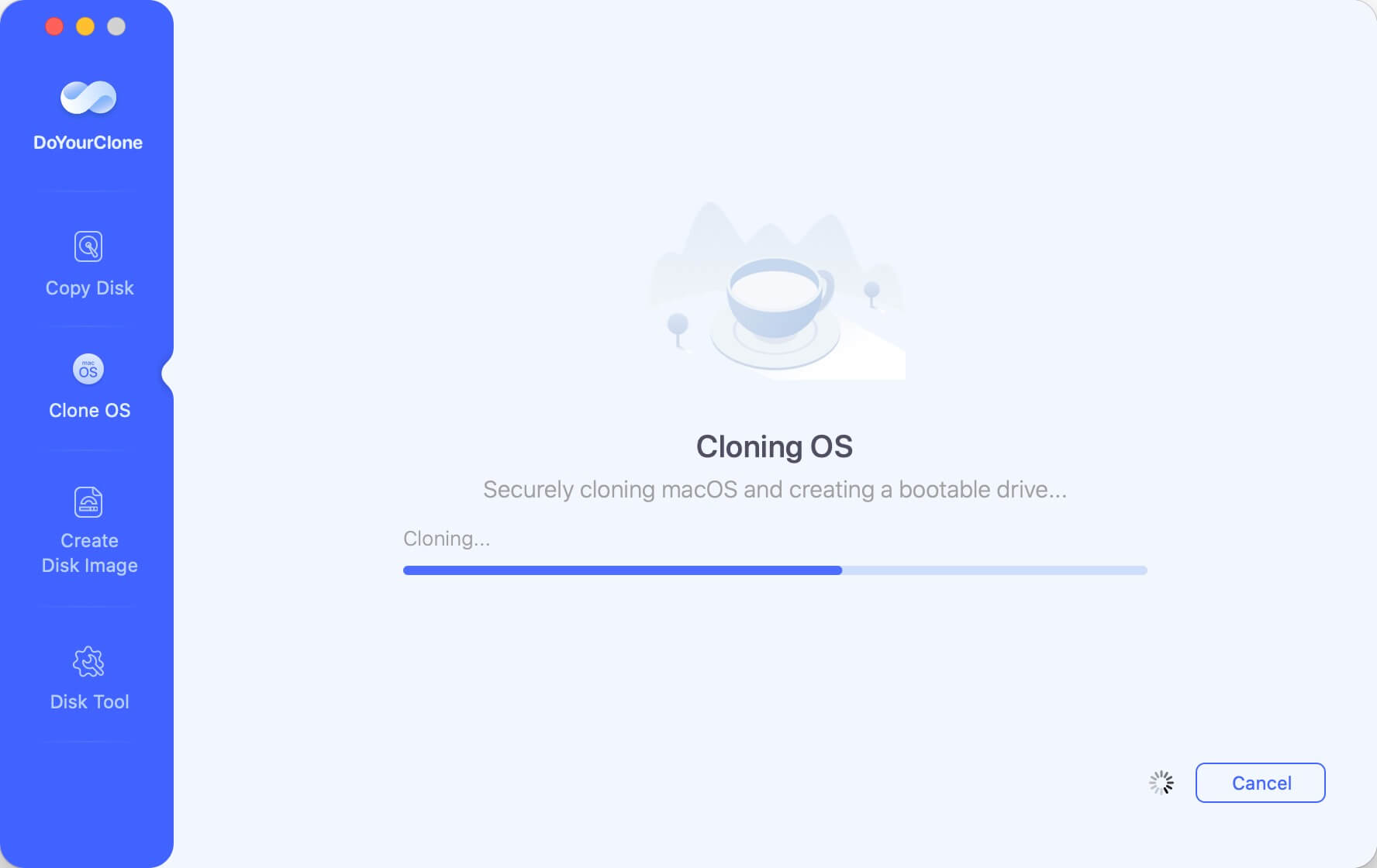
Cloning time depends on disk size, drive speed, and USB/Thunderbolt connection. Typical time: 30–90 minutes
Step 5: Verify the clone. After completion, DoYourClone for Mac displays a success message "You have successfully clone the Mac OS to the destination drive." Your clone is now ready. You can get into the cloned drive to check the data.
How DoYourClone for Mac Handles macOS Tahoe's System Volumes
macOS Tahoe uses a sealed system volume structure:
- System files are read-only.
- User data is stored separately.
- Security integrity is enforced.
DoYourClone for Mac uses Apple's supported replication methods to:
- Copy system data safely.
- Maintain system integrity.
- Ensure boot compatibility.
This makes DoYourClone for Mac far more reliable than manual cloning tools.
Booting from a DoYourClone for Mac Clone
To test your cloned drive on Apple Silicon Macs:
- Shut down.
- Hold the Power button.
- Select Startup Options.
- Choose the external clone.
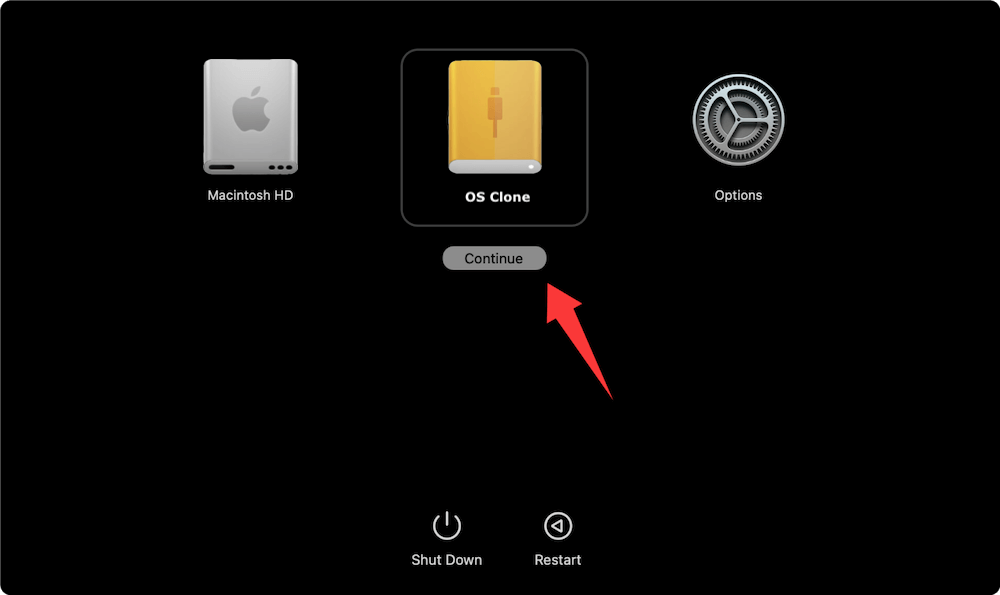
For Intel Mac, you can just restart the Mac and then hold Option (⌥) key, select the external drive to continue.
If macOS Tahoe loads normally, your clone is working.
Benefits:
- Optimized for macOS Tahoe.
- Works on Intel & Apple Silicon.
- Can make full and bootable clone.
DoYourClone for Mac is ideal for professional and long-term backups.
Method 3: Create a Bootable Clone Using SuperDuper!
SuperDuper! is another trusted macOS cloning tool.
Here are the steps to make a clone for macOS Tahoe with SuperDuper!:
- Install SuperDuper.
- Choose: Copy Macintosh HD to your external drive.
- Select Backup – All Files.
- Click Copy Now.
Features:
- Smart Update (incremental backups).
- Easy interface.
- Bootable clone support.
The free version supports full clones, but automation requires the paid version.
How to Boot from the Clone on macOS Tahoe
Testing your clone is essential. Here is how to test is on Apple Silicon Macs:
- Shut down the Mac.
- Press and hold the Power button.
- Select Startup Options.
- Choose the external clone.
- Click Continue.
If you are using an Intel Mac, you can hold the Option (⌥) key when restarting the Mac. Then you will see the startup disks. Just select the cloned external drive to boot.
If macOS boots successfully, your clone works.
Verifying Your Bootable Clone
After booting:
- Check if apps open normally.
- Confirm files are accessible.
- Test internet, Wi-Fi, and iCloud.
- Verify system settings.
A verified clone ensures reliable recovery when needed.
Final Tips & Best Practices for macOS Tahoe Bootable Clone
- Always test your clone.
- Keep multiple backups.
- Update after major changes.
- Store clones safely.
- Combine with Time Machine.
Preparation saves time, money, and data.
Common Issues and Fixes
Clone Not Booting
Fix:
- Check Startup Security Utility.
- Allow booting from external media.
Drive Not Recognized
Fix:
- Reformat with GUID + APFS.
- Try a different USB cable.
Permission Errors
Fix:
- Grant Full Disk Access to the cloning tool.
Apple Silicon Security Blocks
Fix:
- Go to Recovery Mode.
- Set Reduced Security.
- Enable external booting.
FAQs about Creating Bootable Clone for macOS Tahoe
1. Can I clone macOS Tahoe to a smaller drive?
Only if your used storage is smaller than the destination.
2. Will cloning delete my files?
No, it copies them exactly.
3. Is cloning legal?
Yes, for personal backups.
4. How long does cloning take?
Depends on storage size and speed (30–90 minutes).
Conclusion
Creating a bootable clone for macOS Tahoe is one of the smartest ways to protect your Mac. Whether you use Disk Utility, DoYourClone for Mac, or SuperDuper, the goal is the same: a reliable, bootable backup that keeps you safe from system failure.
With a properly prepared external drive, the right software, and regular updates, you can upgrade, troubleshoot, and recover your Mac with confidence. Your data deserves better than luck—give it a bootable backup.
DoYourClone for Mac
DoYourClone for Mac, one of the best Mac disk cloning software, can help you clone HDD, SSD, external storage device on Mac, upgrade HDD to SSD, create full disk image backup, etc. It also can clone everything from your Mac to an external HDD/SSD and create a full bootable clone backup. 100% safe and easy-to-use.

Written & Updated by Anderson
Anderson is a big fan of computer technology. He joined DoYourData in 2018 and has been writing 200+ articles about disk clone, data recovery, computer technology, data erasure, Mac system optimization, etc. He loves music, movie, and reading. In his spare time, he’s studying music and playing tennis.